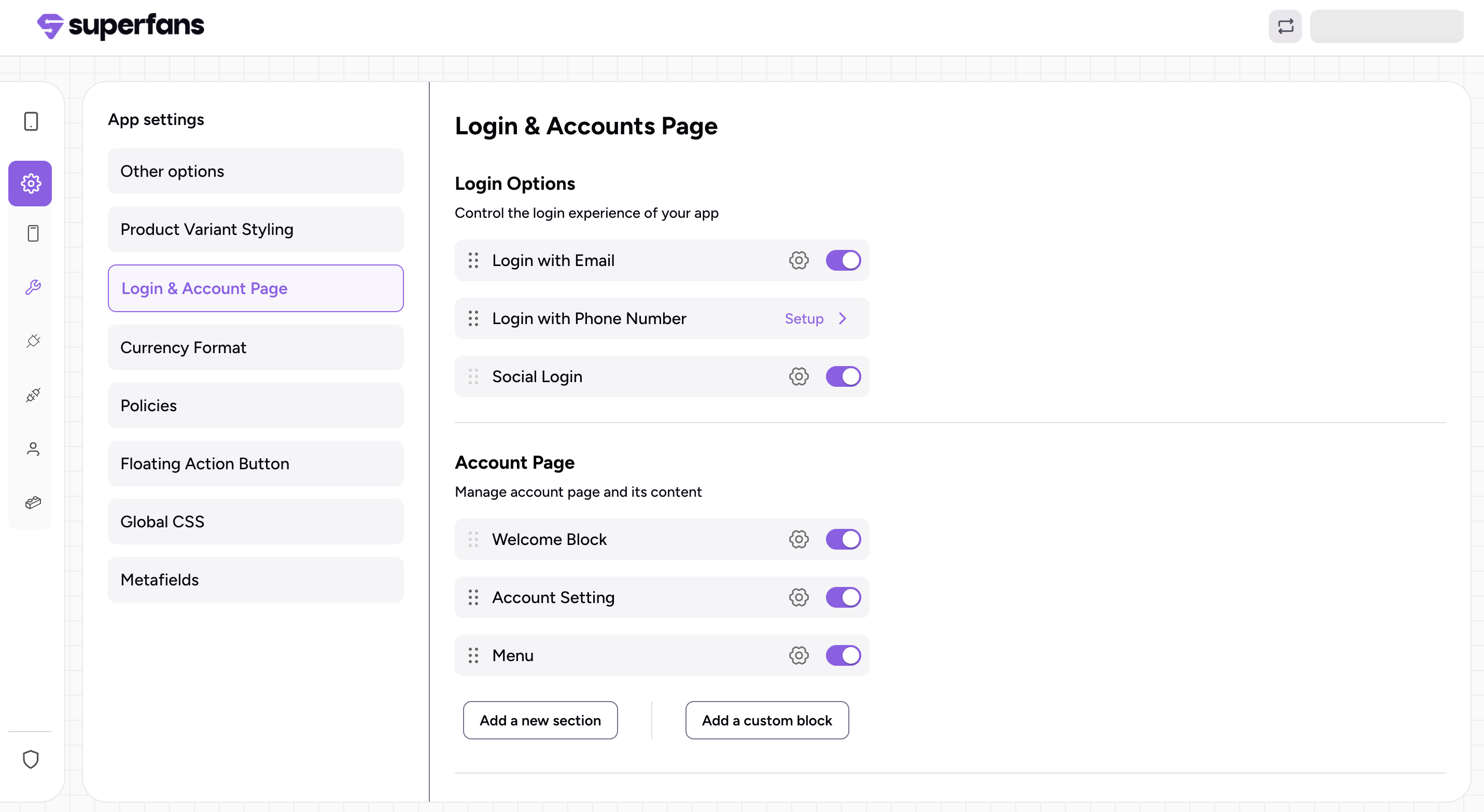
Go to the Superfans Dashboard, open Settings, then navigate to App Settings → Login and Accounts. From there, you can configure how customers log in.
Customers can sign in and manage their accounts easily with flexible options:
Email Login: Sign in with email and password, or use password-less login for new customer accounts.
Phone Login: Enable Lucent OTP Login for quick and secure access using a phone number. (See detailed setup guide).
Social Login: Log in instantly with Google or Apple accounts. (See detailed Setup guide).
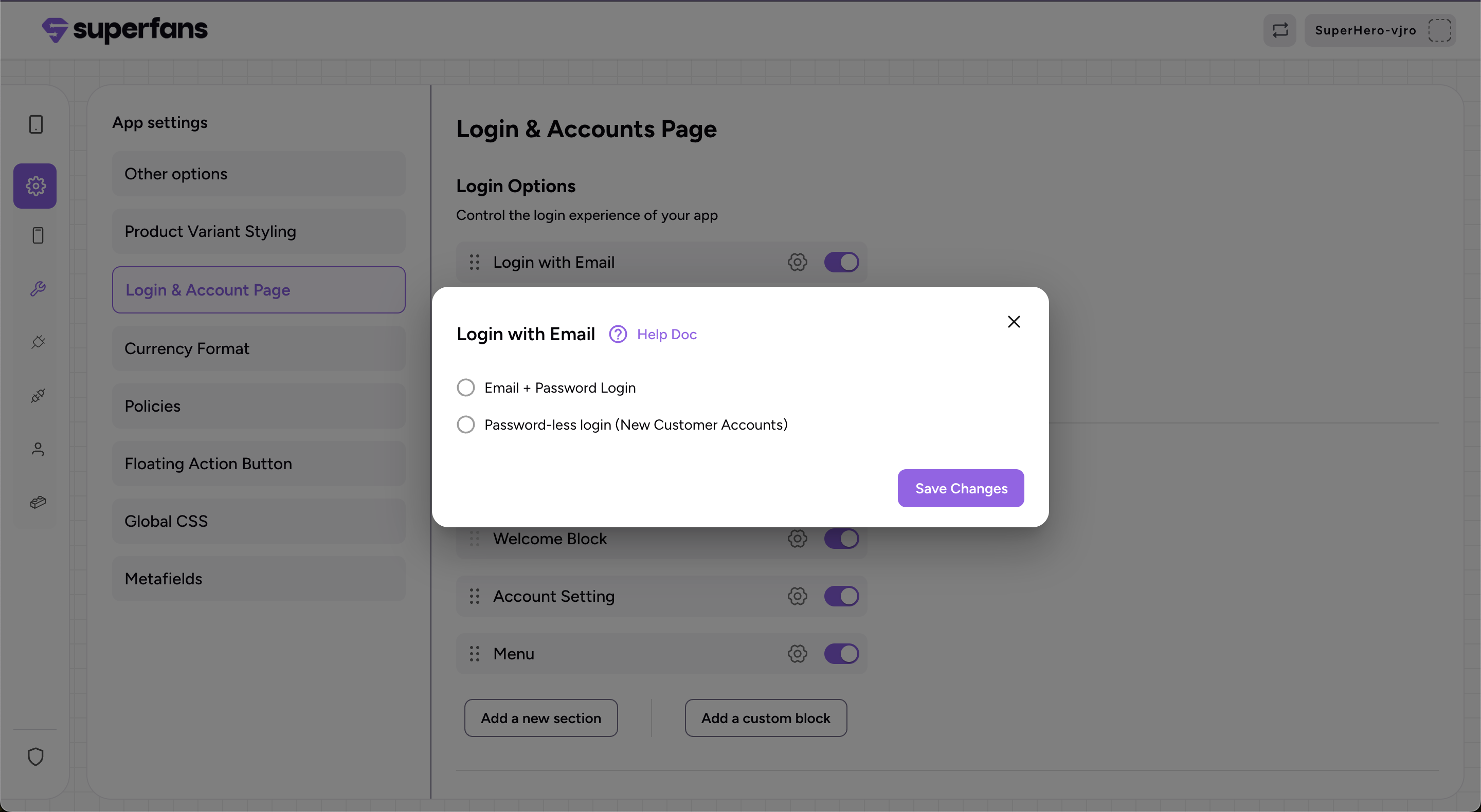
Toggle on Login with Email, then click the Settings icon. Choose Sign in with email and password or Password-less login for new customer accounts.
Paste the Client ID into the field, then optionally select the checkboxes for Last Name, Phone Number, or Subscribe to Newsletter/Marketing if you want to collect this customer information. The Store ID will be auto-populated.
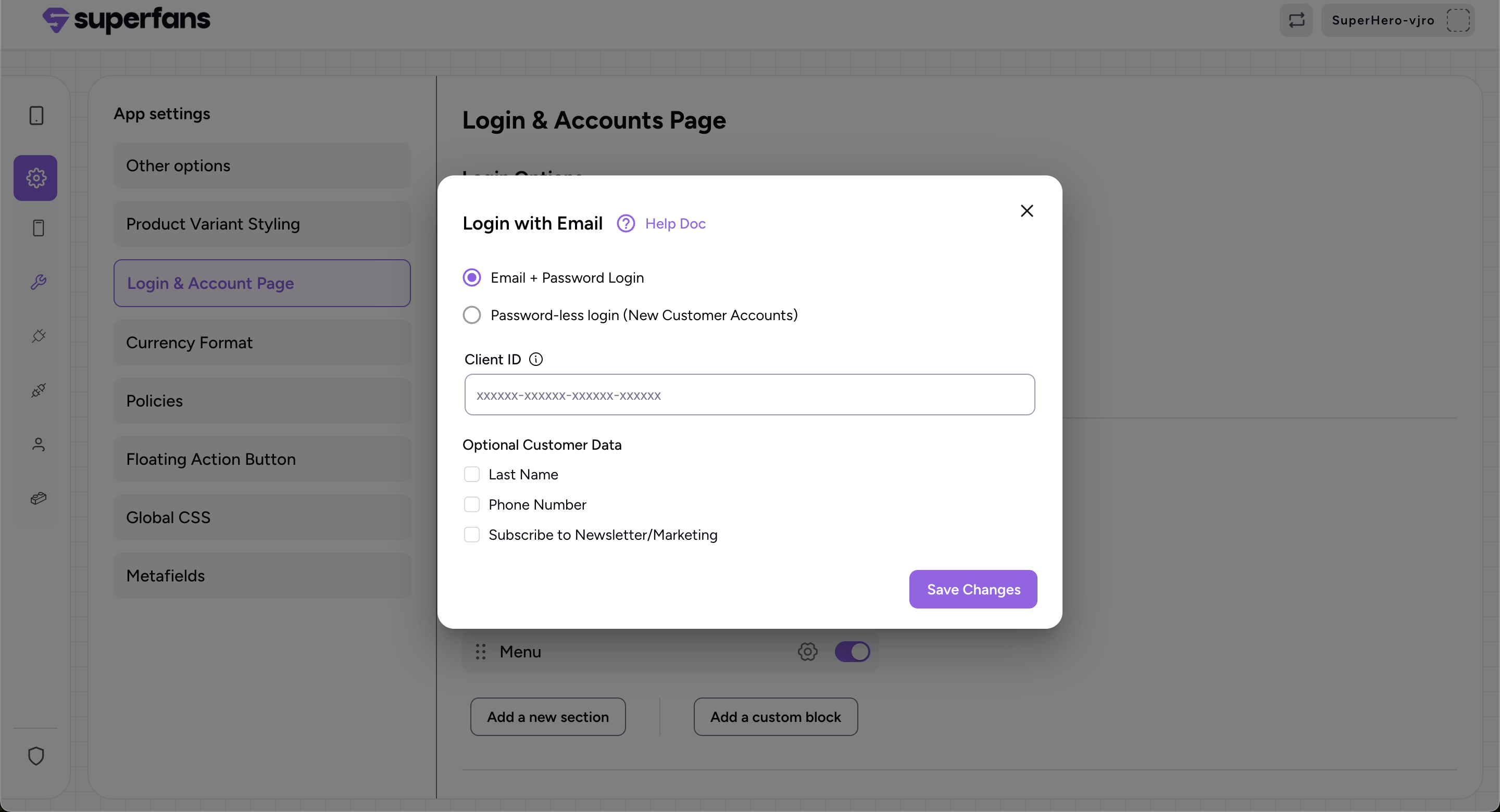
Paste the Client ID, Store ID will be auto-populated.
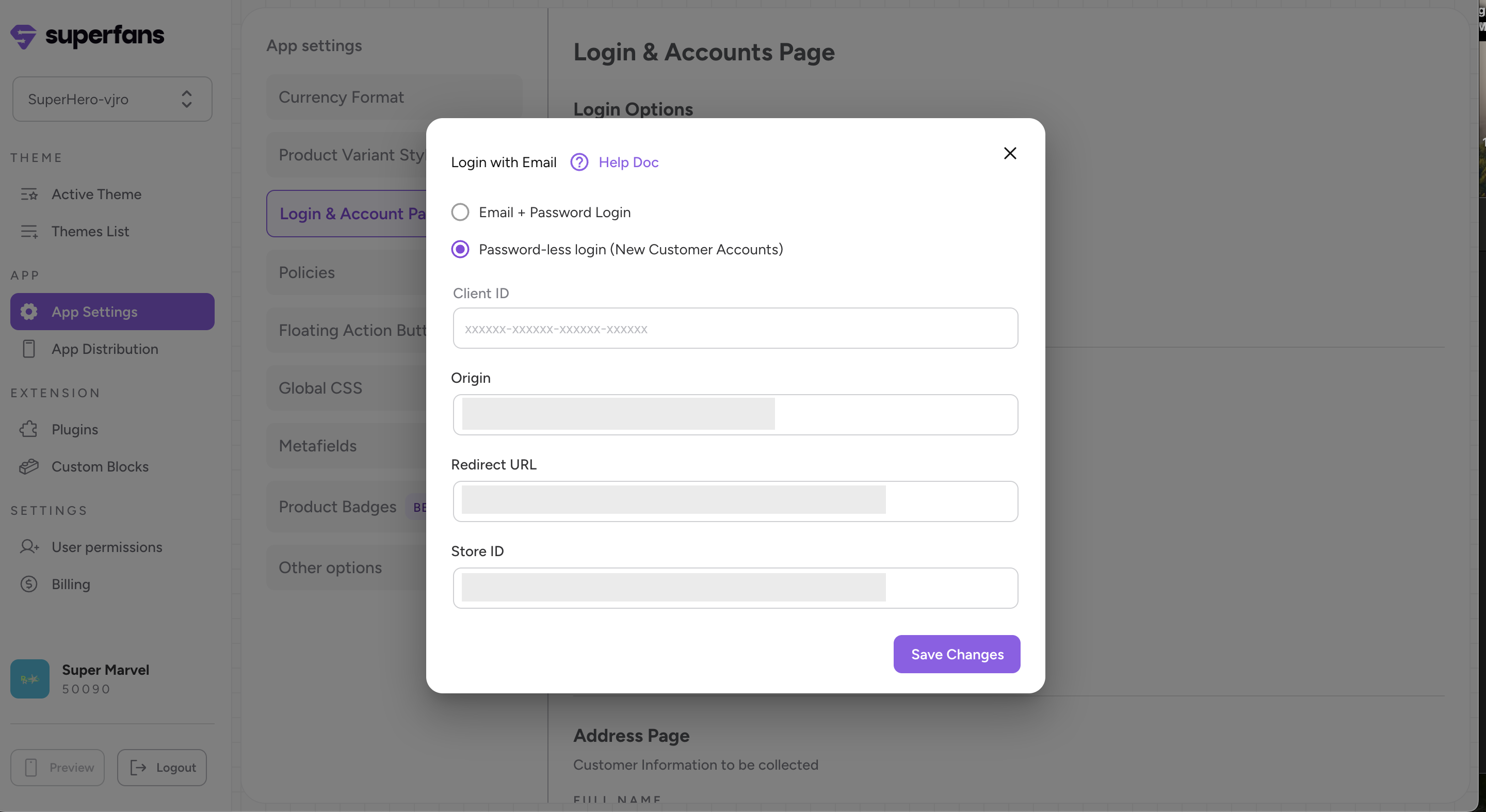

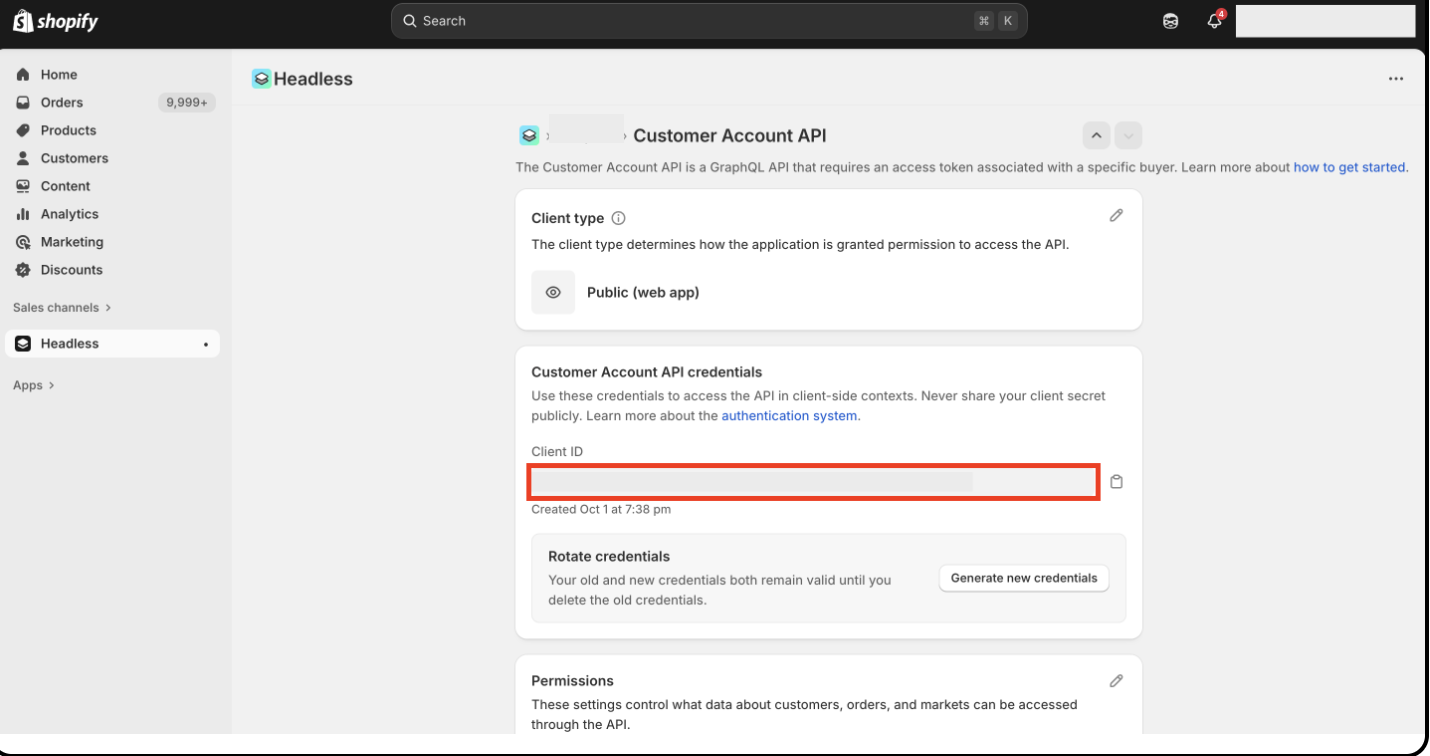
Where to get Client ID?
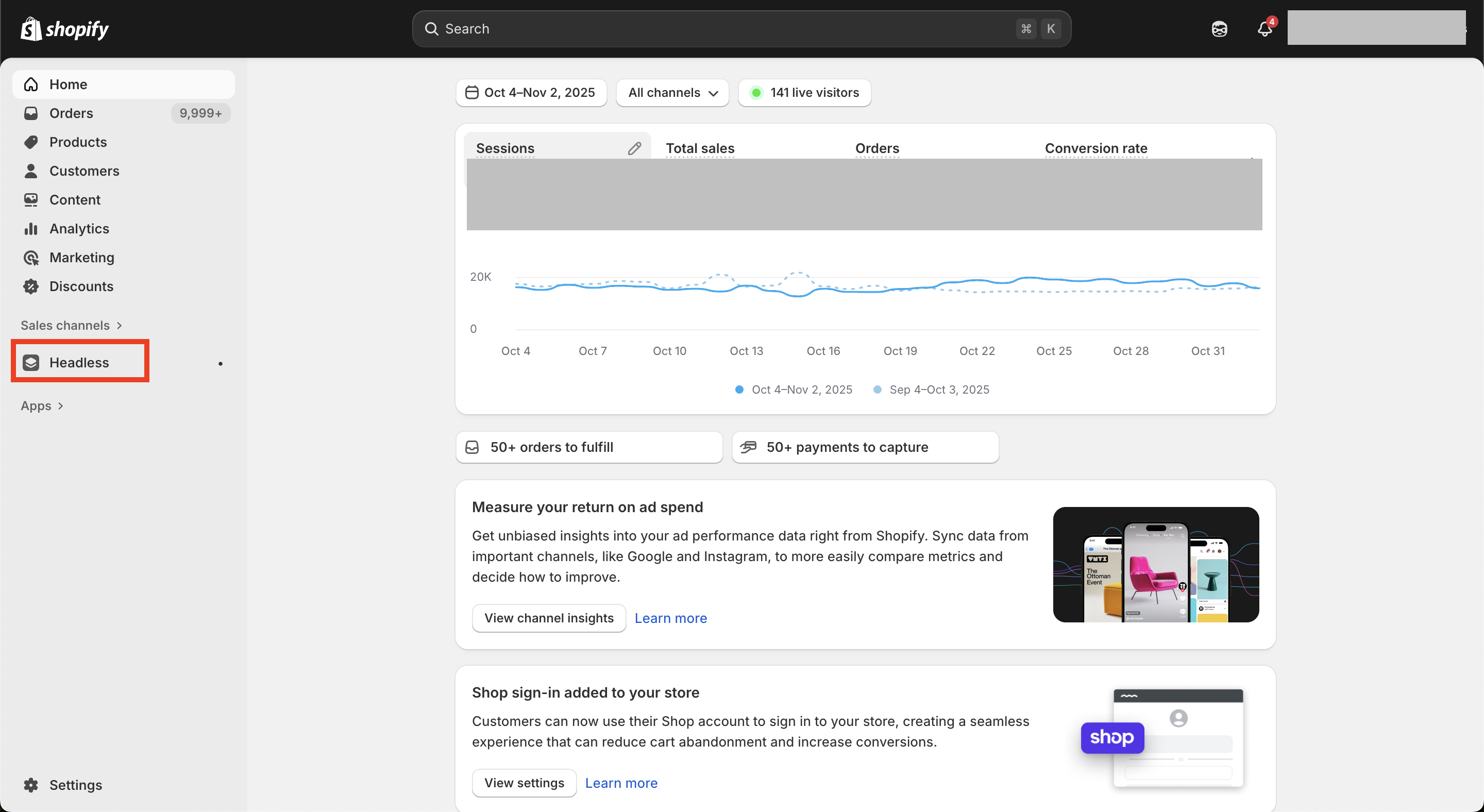
1. Log in to your Shopify Admin, then go to Sales channels → Headless; if you don’t see it, search for “Headless” using the search bar.
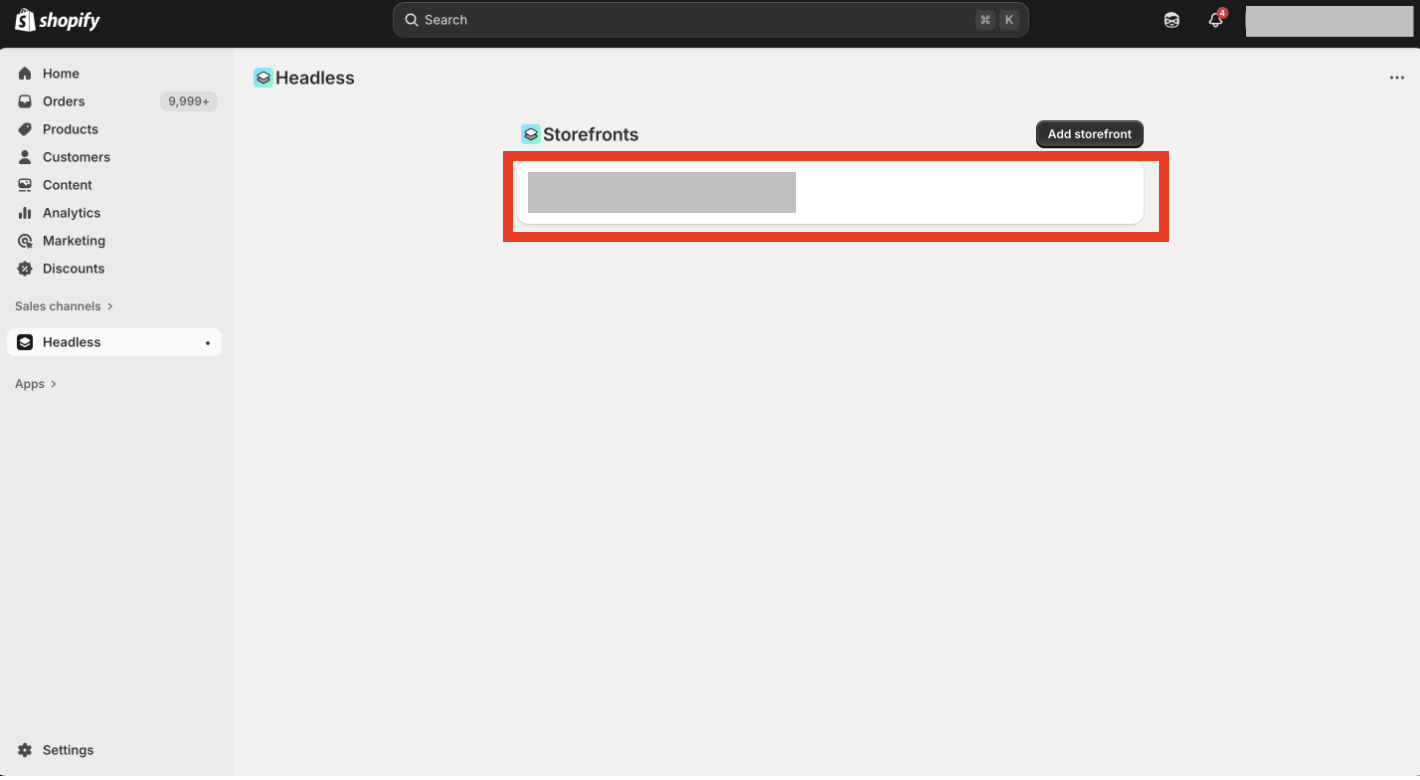
2. Click the Storefront tab.
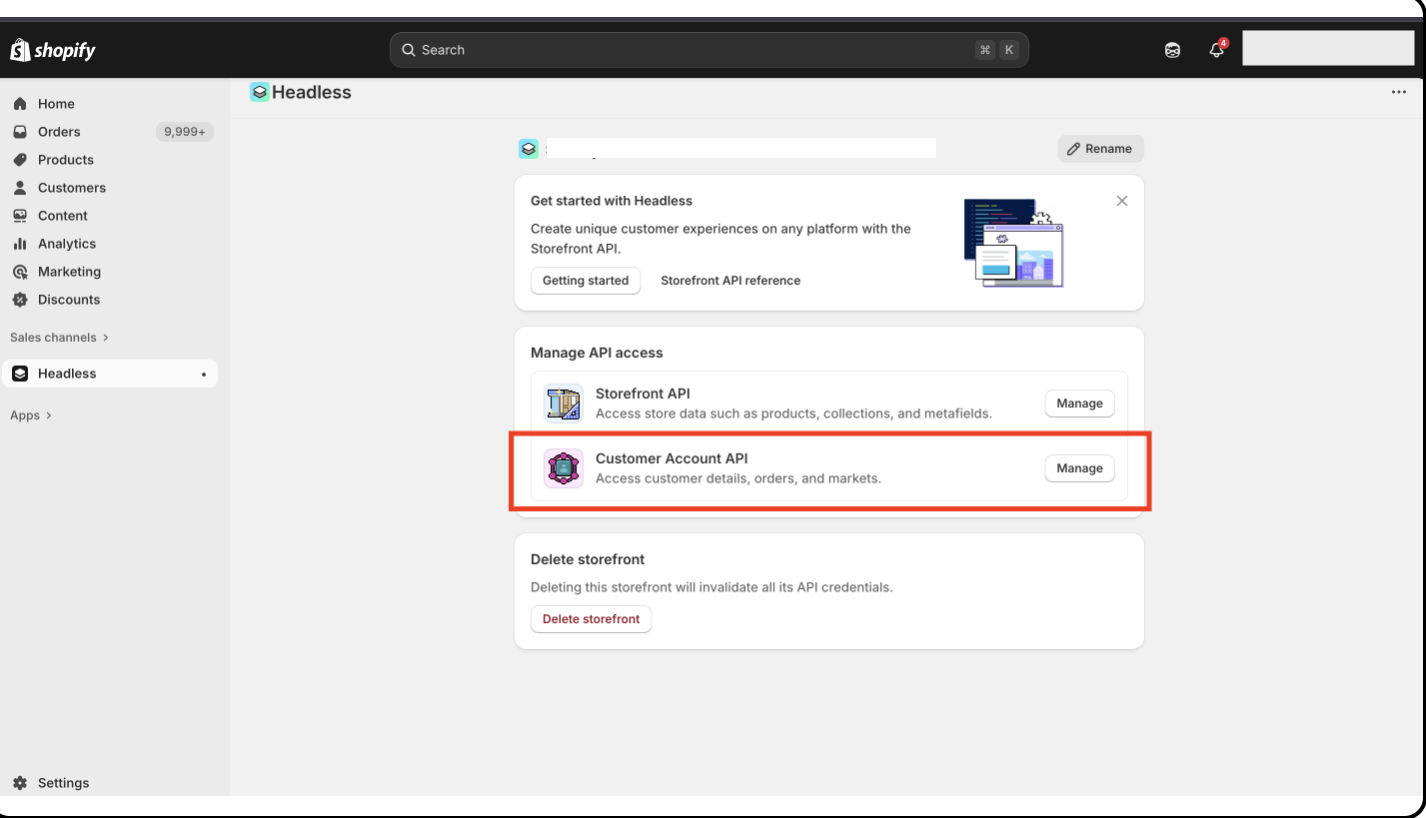
3. Under Customer account API, click Manage.
4. In Customer Account API Credentials, locate your Client ID.
If it’s missing, create one using the Configuring Shopify Customer Account API Integration guide.
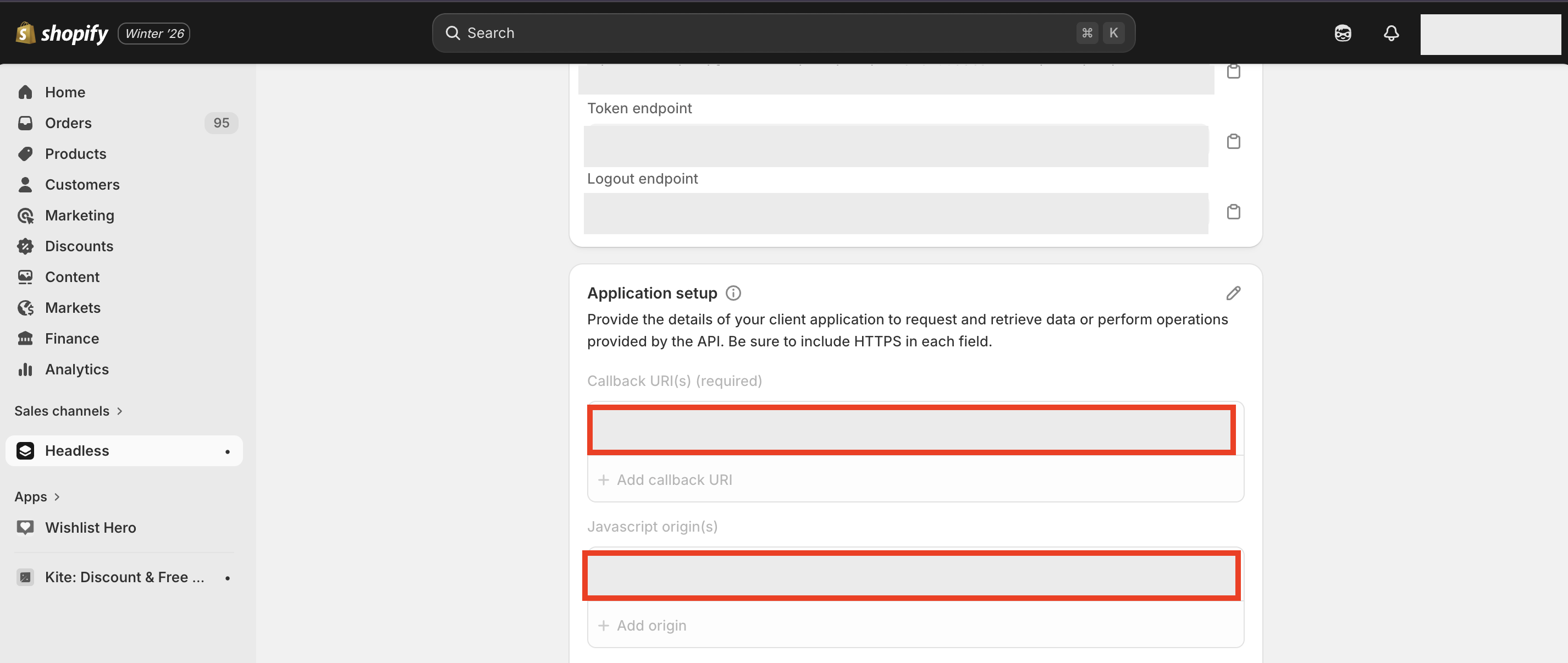
Copy the Origin URL and Redirect URL from the Copy fields on the dashboard.
Then, go to the Application Setup tab and paste:
the Redirect URL into the Callback URI field
the Origin URL into the JavaScript Origin field
If either field is missing, click the corresponding Add button to create it, then paste the URL.