

How to enable Social Login?
Go to the Superfans Dashboard, open Settings, then navigate to App Settings → Login and Accounts, and turn on Social Login.
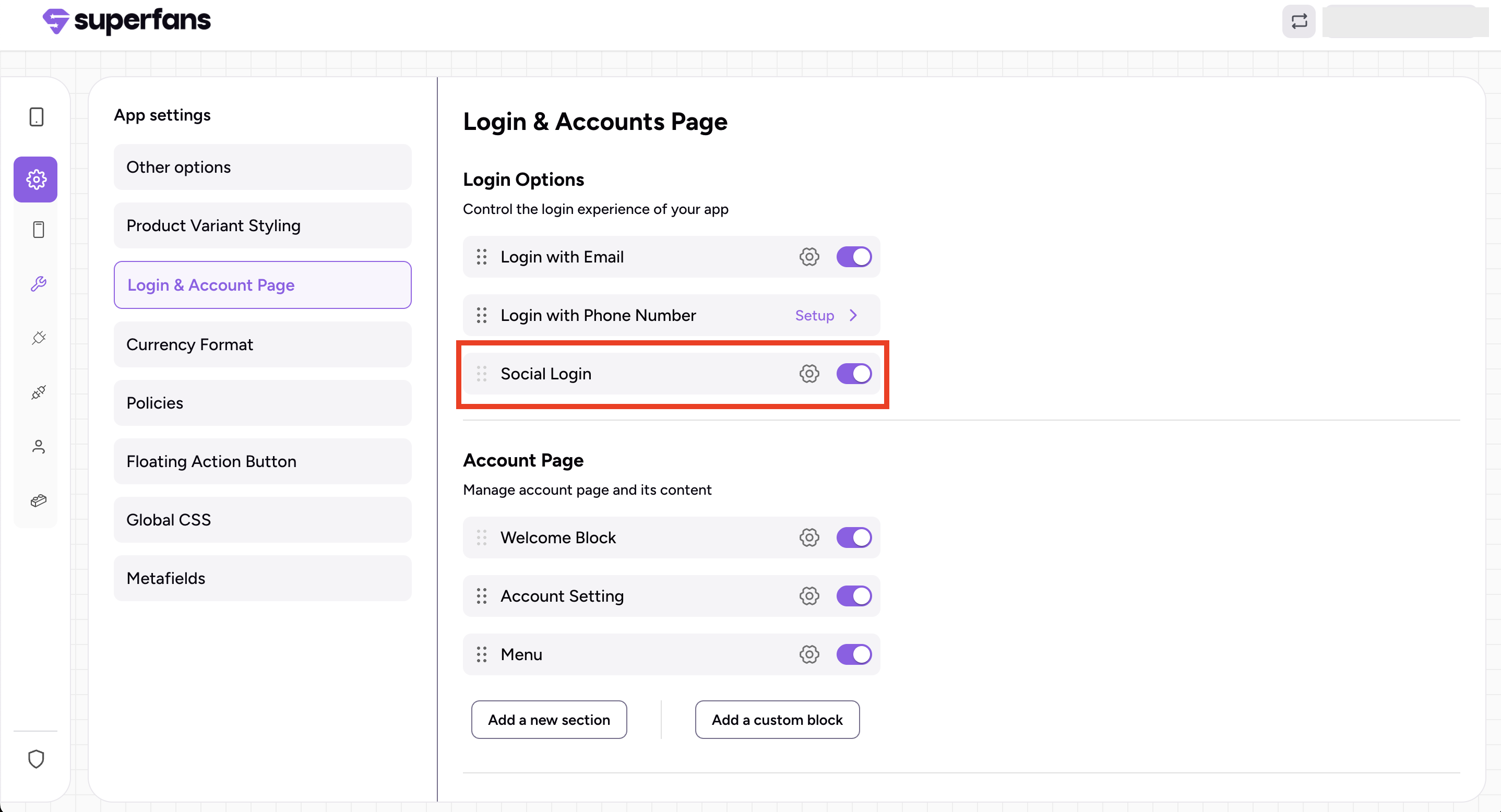
Click on the Settings icon, where you’ll find two options, Google Login and Apple Login. Toggle on the ones you’d like to enable.
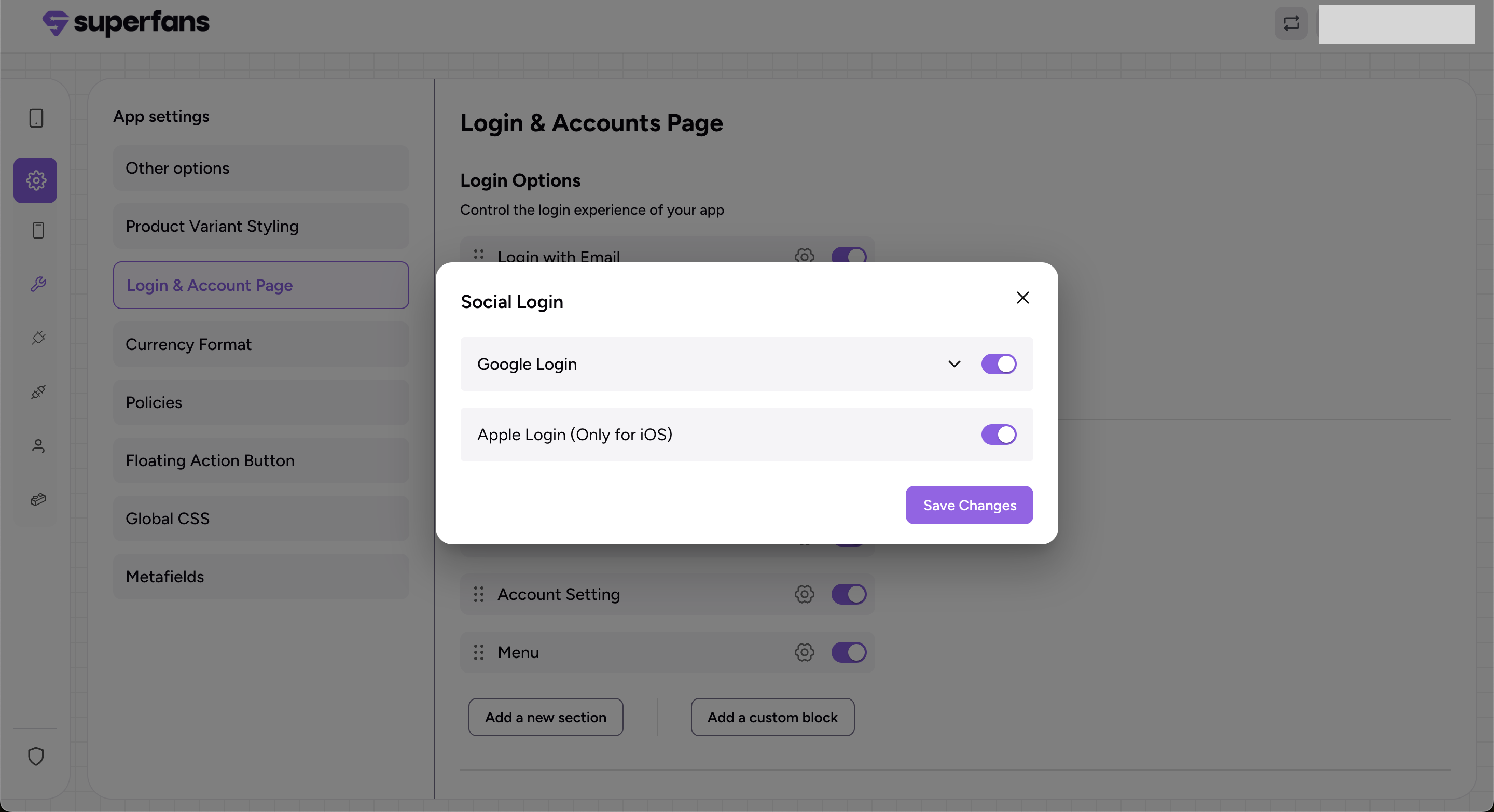
Google Login:
For Google Login, to work in android devices enter the Webclient ID.
For google login to work in iOS devices, enter the iOS Google Client ID, and Google URI Scheme in their respective fields.
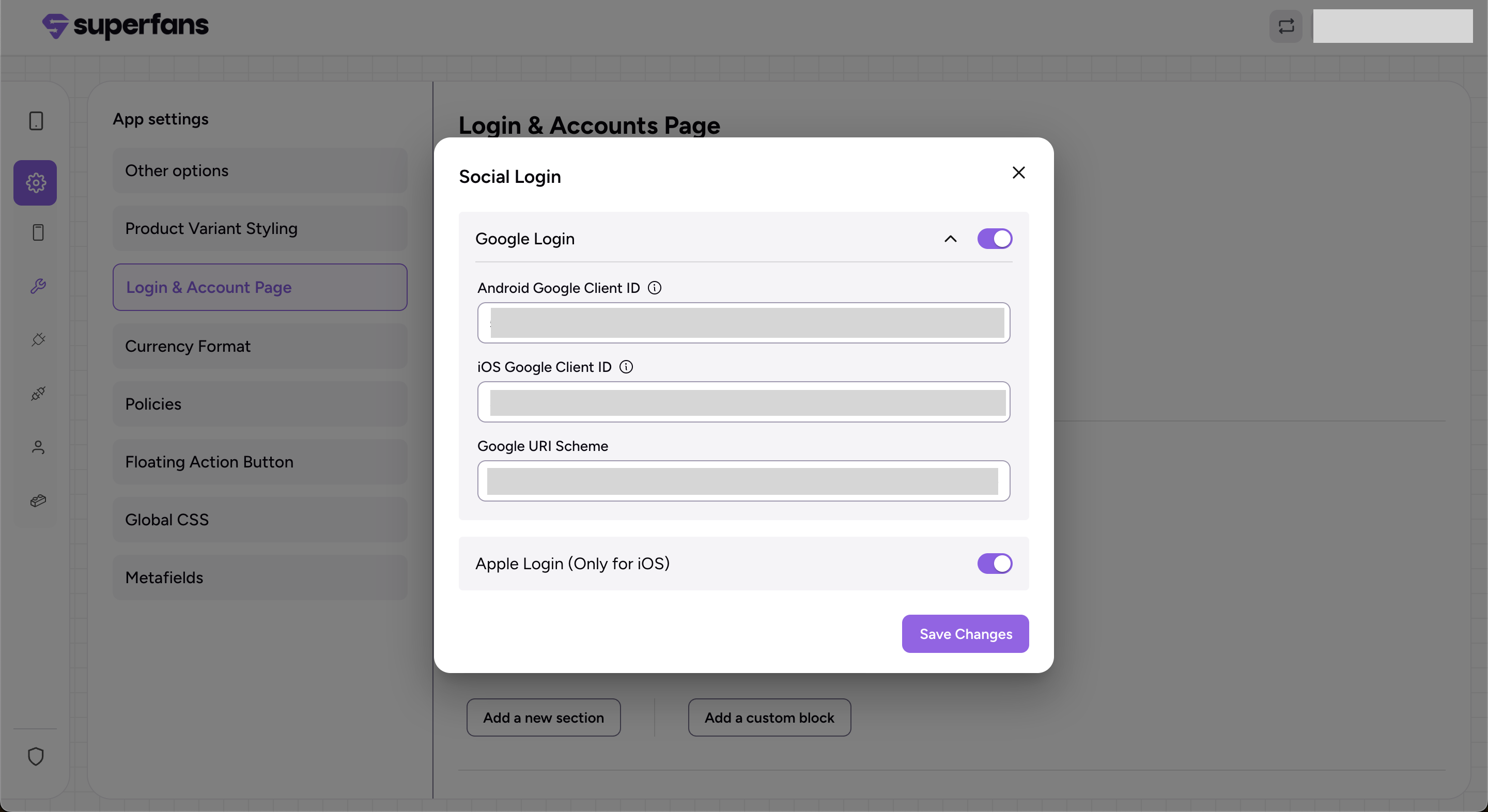
Where to find the Webclient ID, iOS Google Client ID, and Google URI Scheme?
Go to https://console.cloud.google.com, sign in, and choose your project.
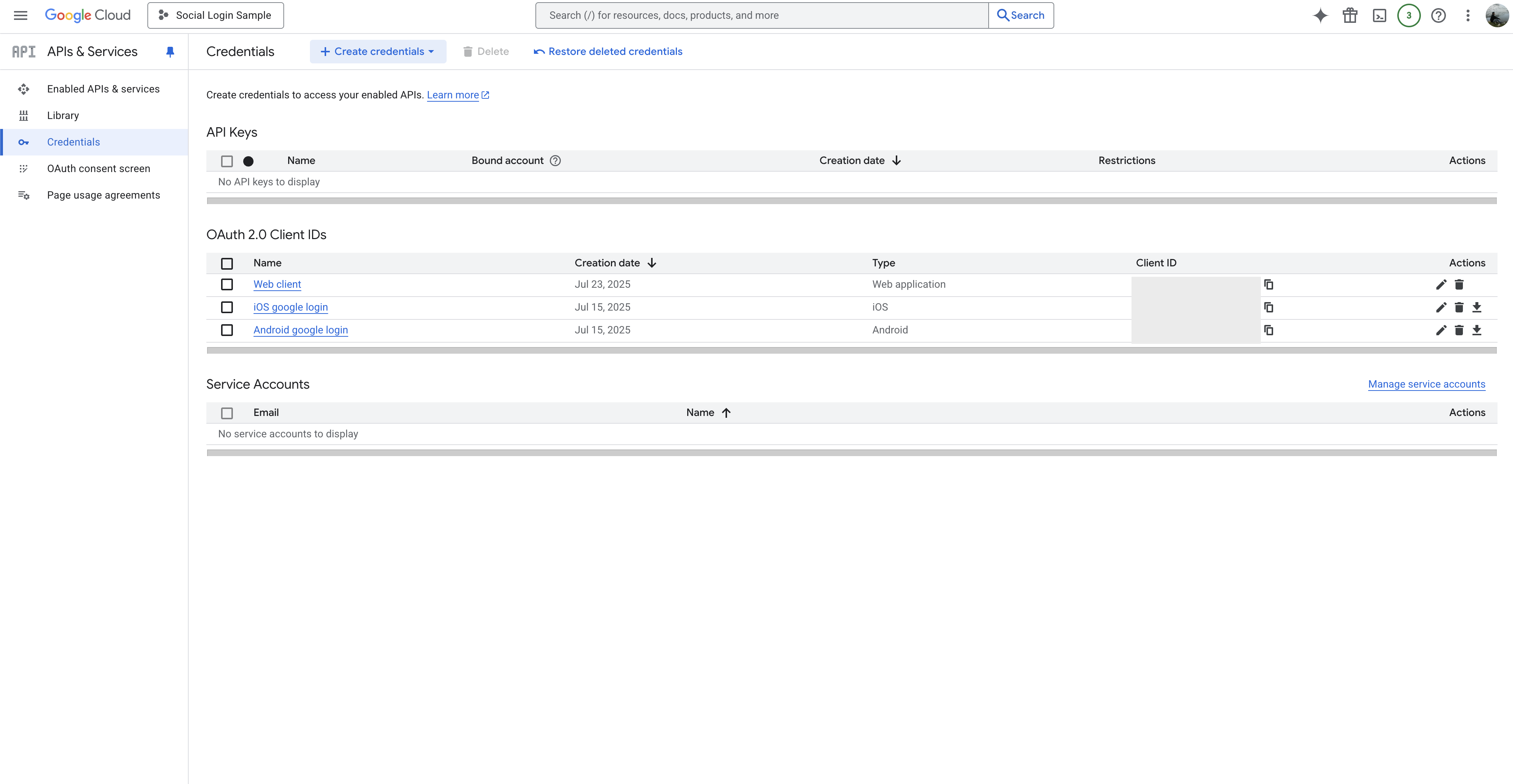
Open the left menu and select APIs & Services → Credentials.
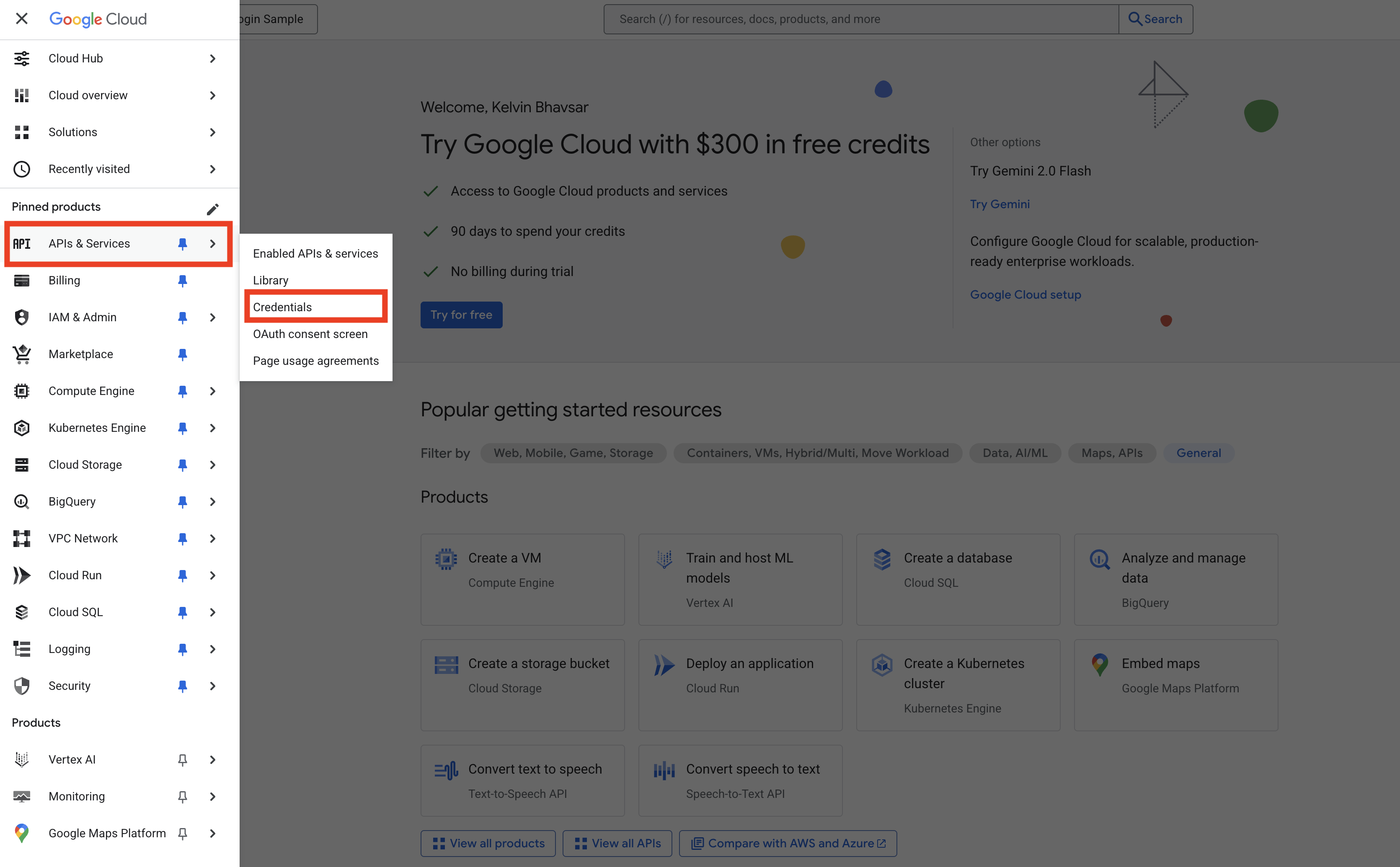
Your Web Client ID, iOS Client ID, and Reverse Android Client ID will be listed there.
Apple Login:
Just toggle on Apple Login to enable it, no additional information required.
