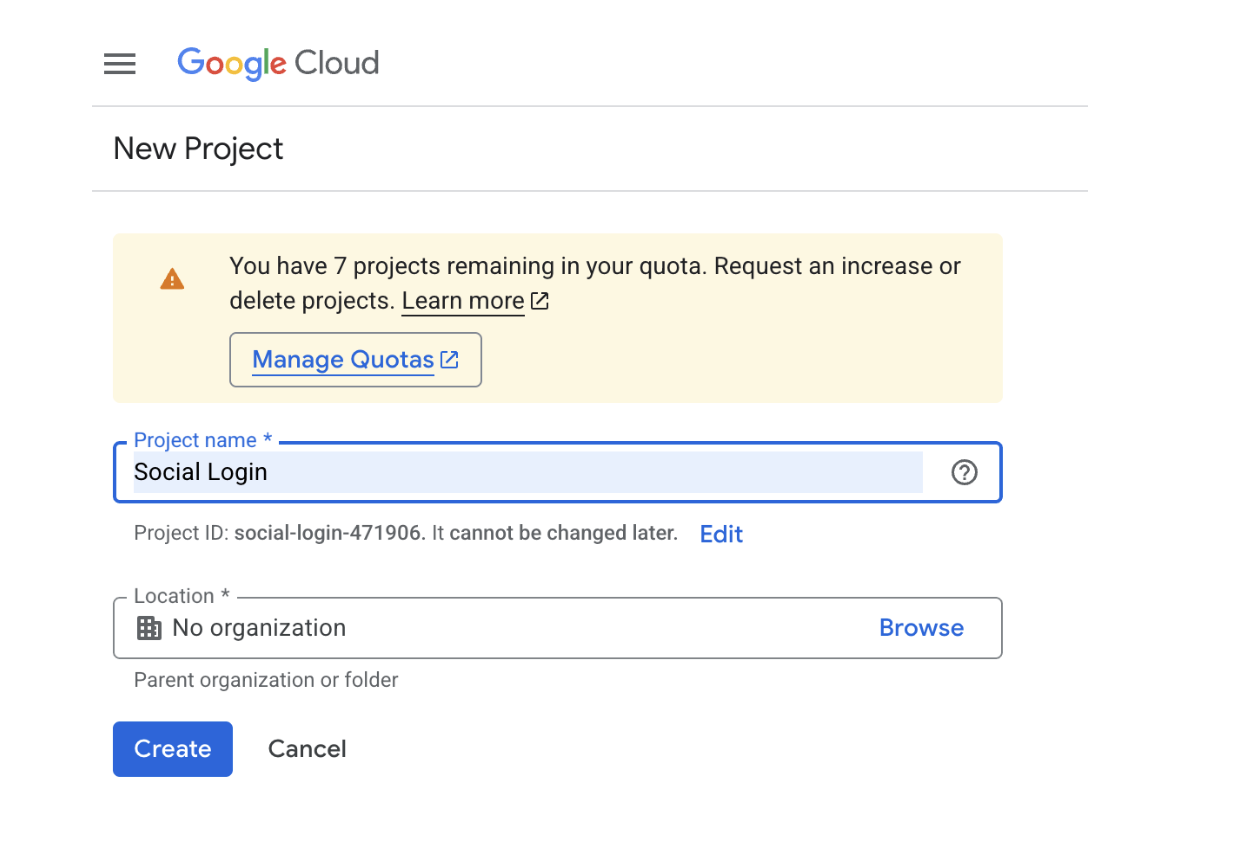
If you don’t already have a Google Cloud project, you can create one quickly:
Open the Google Cloud Console.
Select New Project.
Name your project (for example: my_flutter_auth).
Click Create to finish.

You are asking to reformat the OAuth Consent Screen setup steps into the concise, bulleted structure used for Creating an OAuth Client ID.
Here is the requested format for the OAuth Consent Screen setup:
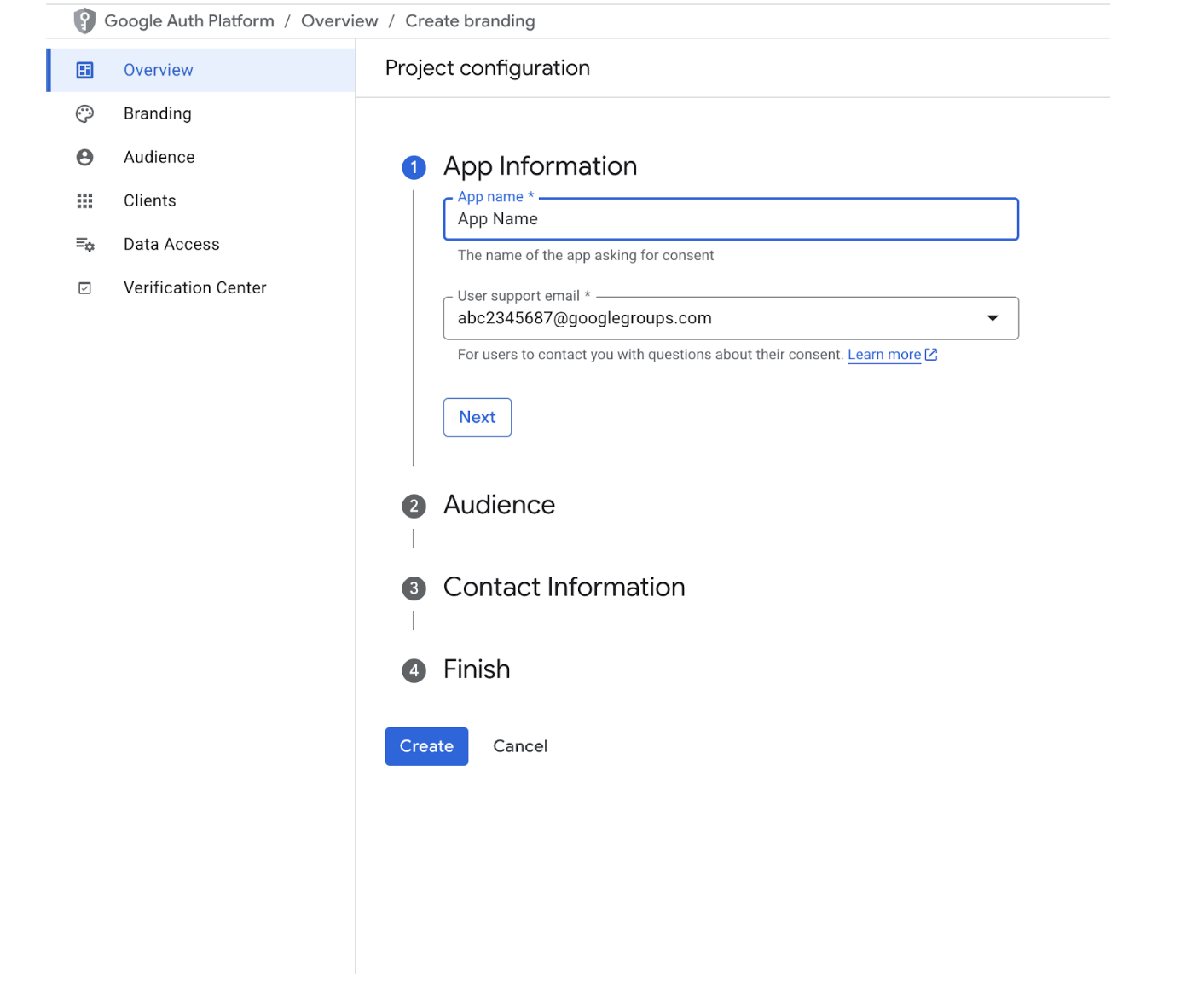
Go to OAuth Consent Screen (or Overview/Create branding).
On the "Project configuration" screen:
App Information:
App name: Enter the app name.
User support email : Select the email from the dropdown menu. Click Next.
Audience:
Choose External & Click Next.
Contact Information:
Fill in Developer contact information email & Click Next.
Scopes:
Click Add or Remove Scopes.
Select openid, email, and profile. Click Update & Click Next.
Finish:
Complete remaining steps and click Back to Dashboard.
Android Client ID
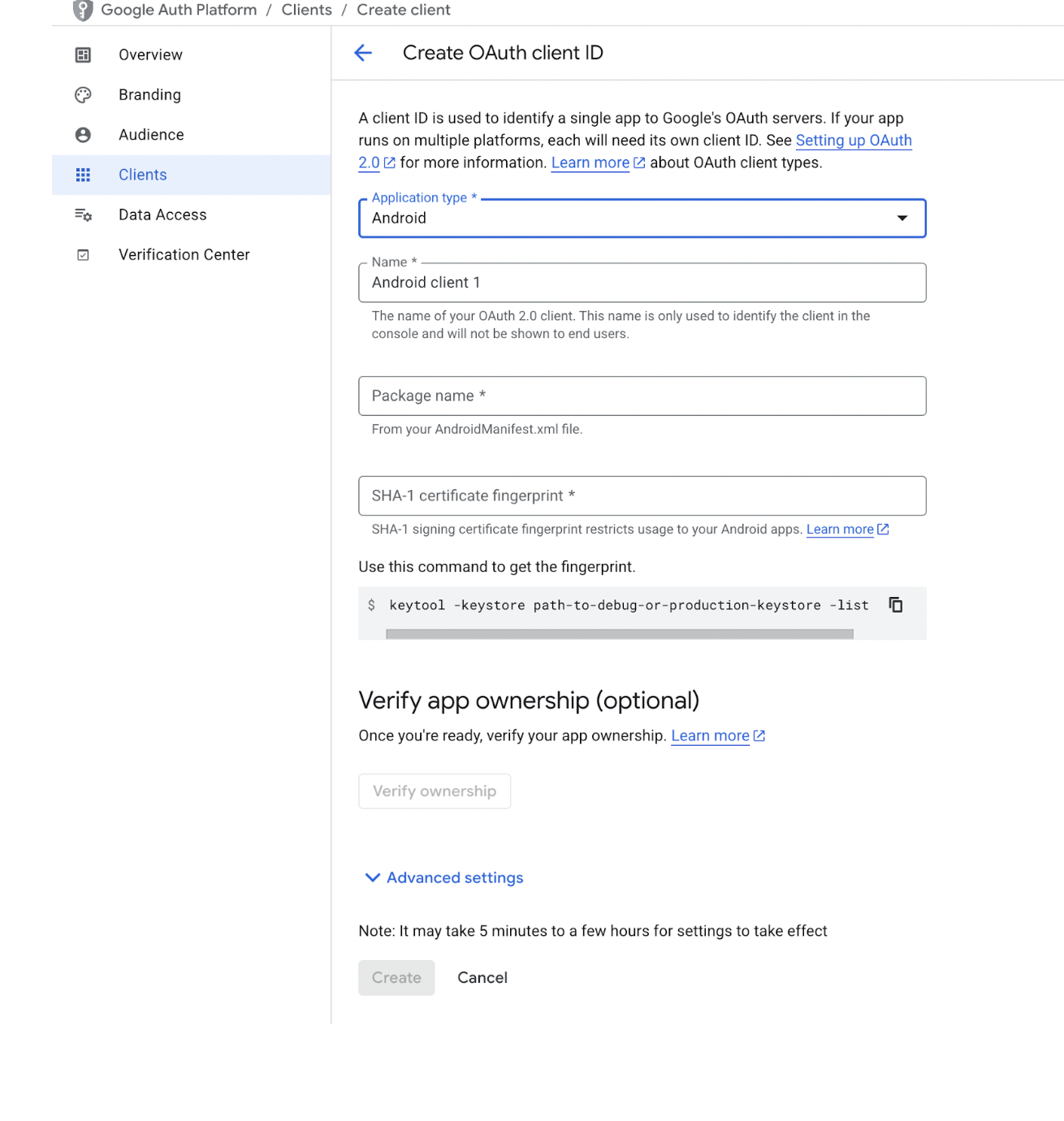
Click + Create Credentials button and select OAuth client ID.
On the "Create OAuth client ID" screen:
Application type: Select Android.
Name: Give the client a descriptive name
Package name: Enter your app's unique package name (e.g., com.mycompany.myapp).
Signing-certificate fingerprint: Run the provided SHA-1 certificate fingerprint command, copy the resulting SHA-1 certificate fingerprint, and paste it into the respective field.
Click Create.
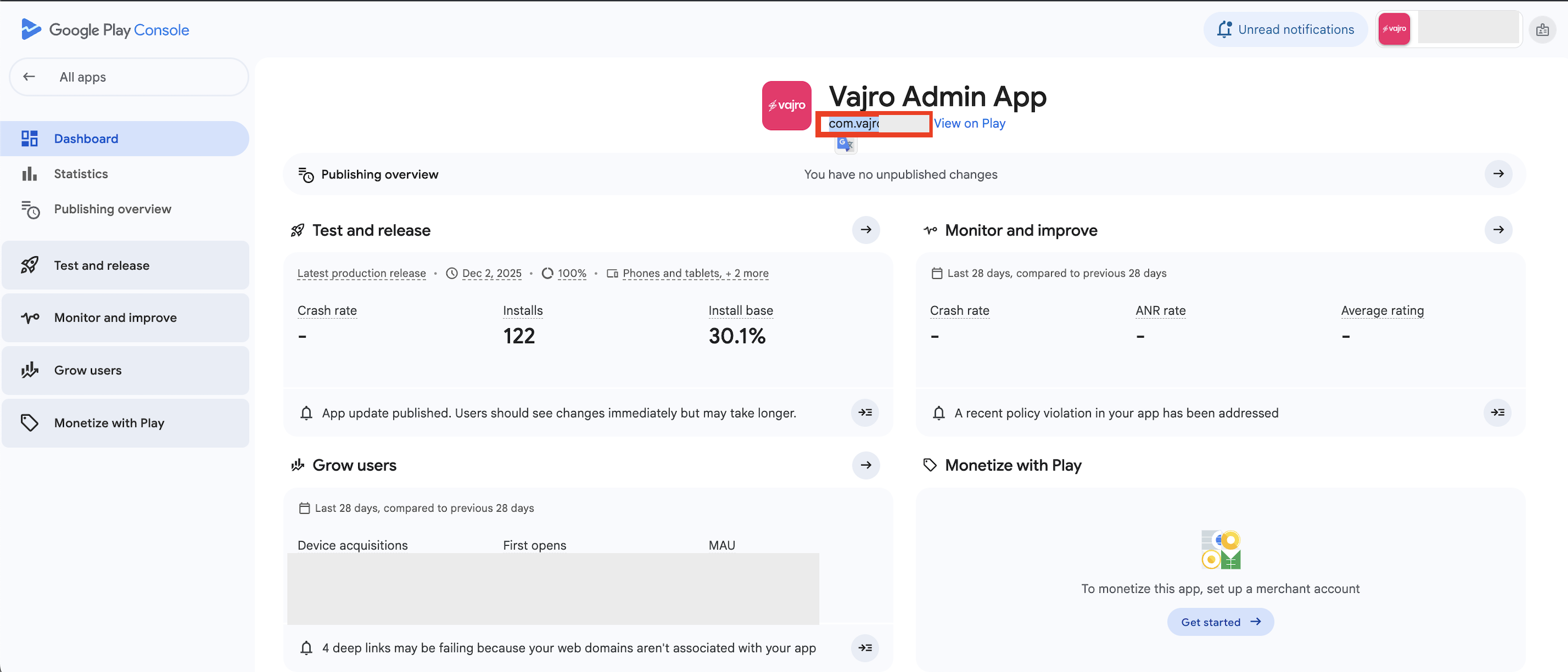
Log in to your Google Play Console account.
Select the specific application whose package name you need.
Once the app's Dashboard (or home page) loads, locate the app's name displayed at the top.
The unique Package Name will be listed directly underneath the app's name.
iOS Client ID
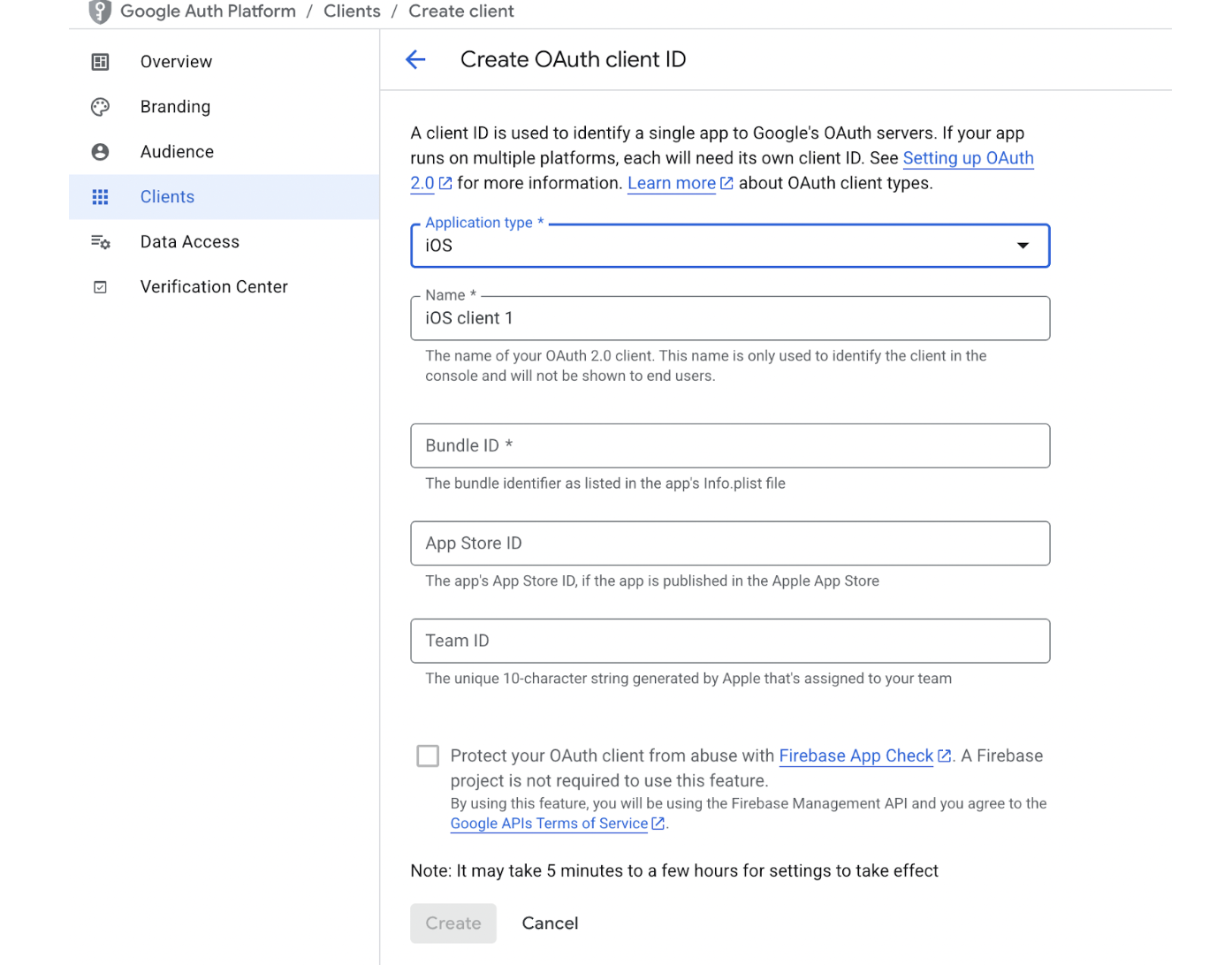
Click + create credentials button and select OAuth client ID.
On the "Create OAuth client ID" screen:
Application type: Select iOS.
Name: Enter a descriptive name for the client.
Bundle ID: Enter the bundle identifier details.
Click Create.
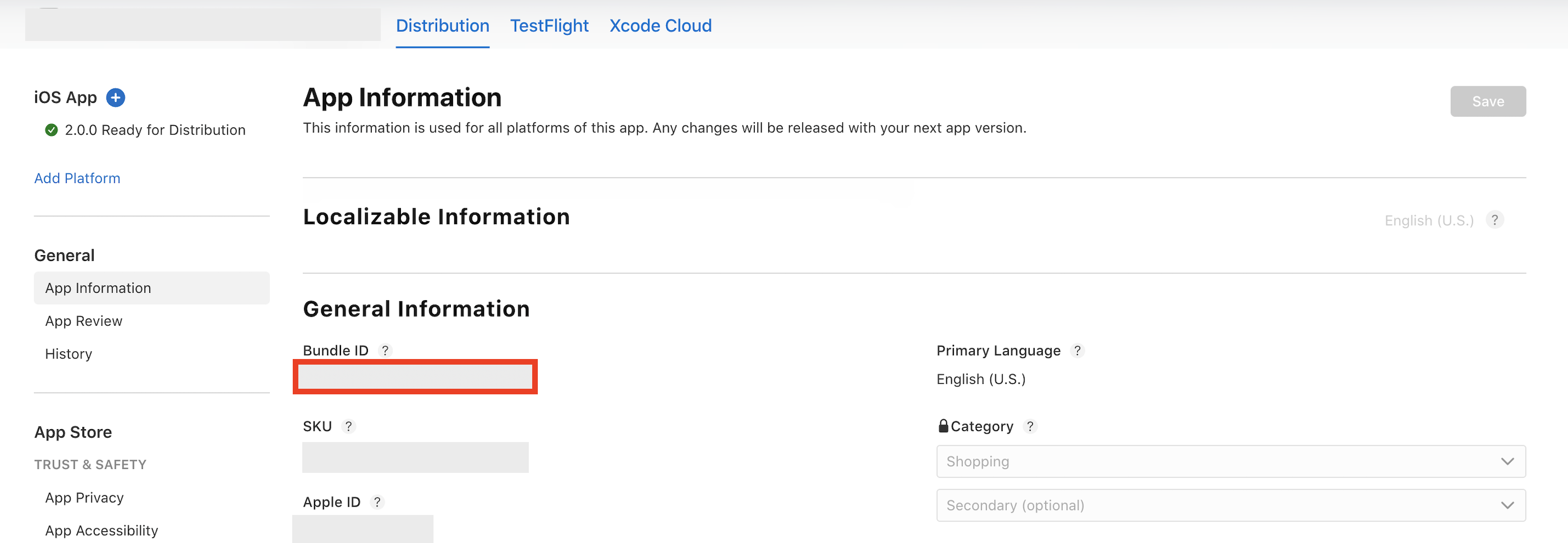
Log in to App Store Connect.
In the homepage, choose My Apps.
Open the app for which you want to find the bundle ID.
From the left-side menu, choose App Information (under the General section).
In the App Information screen, scroll down, and under General Information you will find the Bundle ID.
Webclient ID
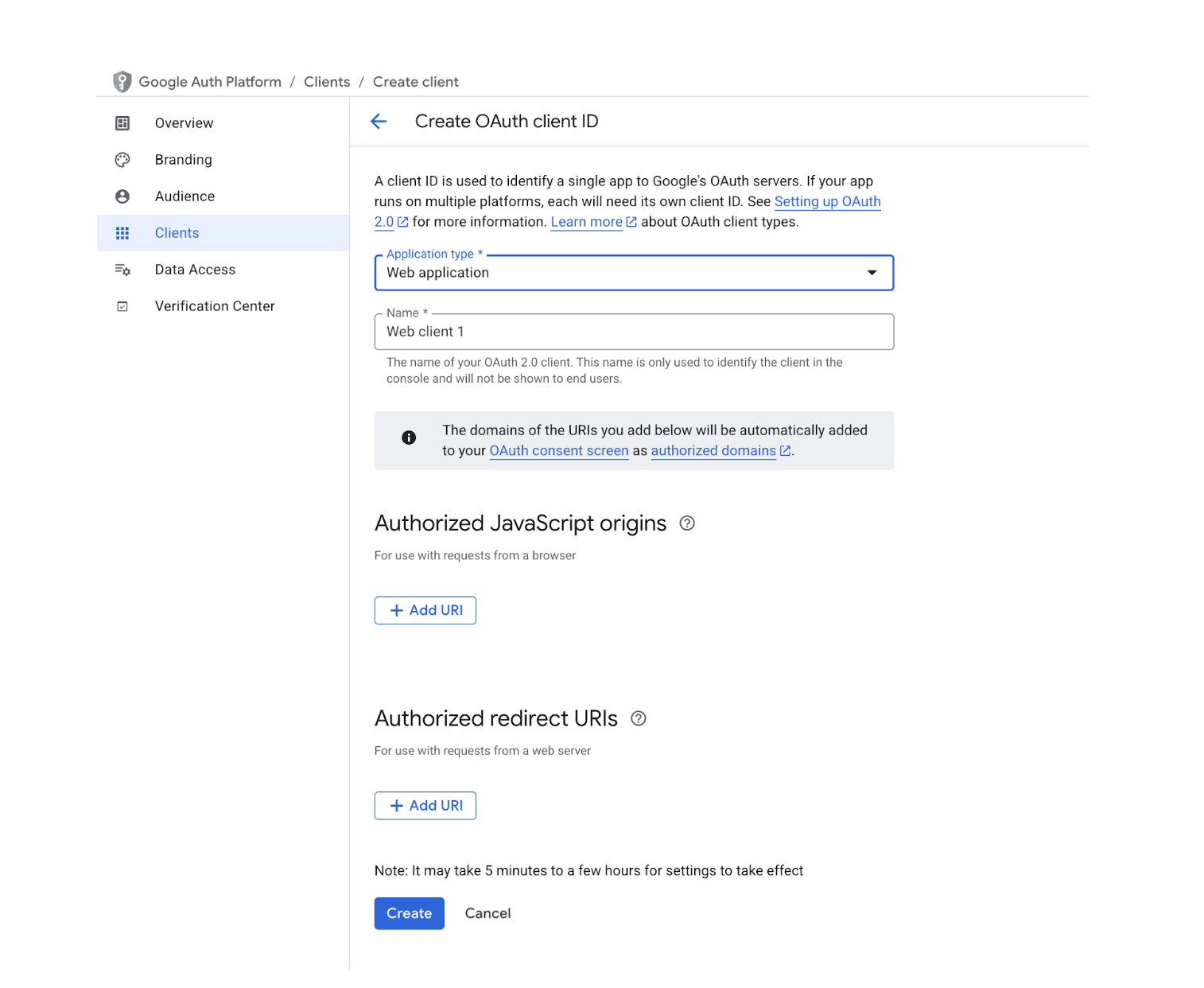
Click + create credentials button and select OAuth client ID.
On the "Create OAuth client ID" screen:
Application type: Select Web Application.
Name: Enter a descriptive name for the client.
Click Create.
Copy the Web Client ID, iOS Client ID and Android Client ID and make it reverse and paste them into dashboard.

You obtain the Reverse Client ID by reversing the components of your iOS Client ID (e.g., 12345-abc.apps.googleusercontent.com becomes com.googleusercontent.apps.12345-abc).

