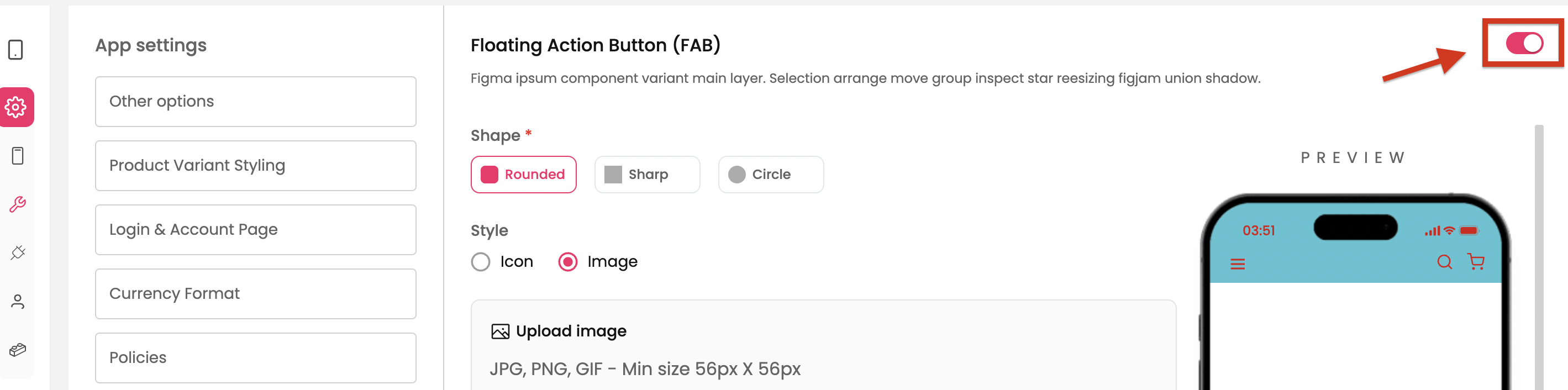
The Floating Action Button (FAB) is a small, interactive button that stays visible on your app screens, giving customers quick access to important features like chat, cart, or navigation. Adding a FAB can improve user experience by making essential actions just one tap away.
Provides quick access to important features (e.g., cart, chat, contact support).
Always visible, regardless of where users are in the app.
Improves navigation and encourages conversions.
How to Enable and Configure the FAB
Step 1 : From the dashboard, navigate to App Settings → Floating Action Button
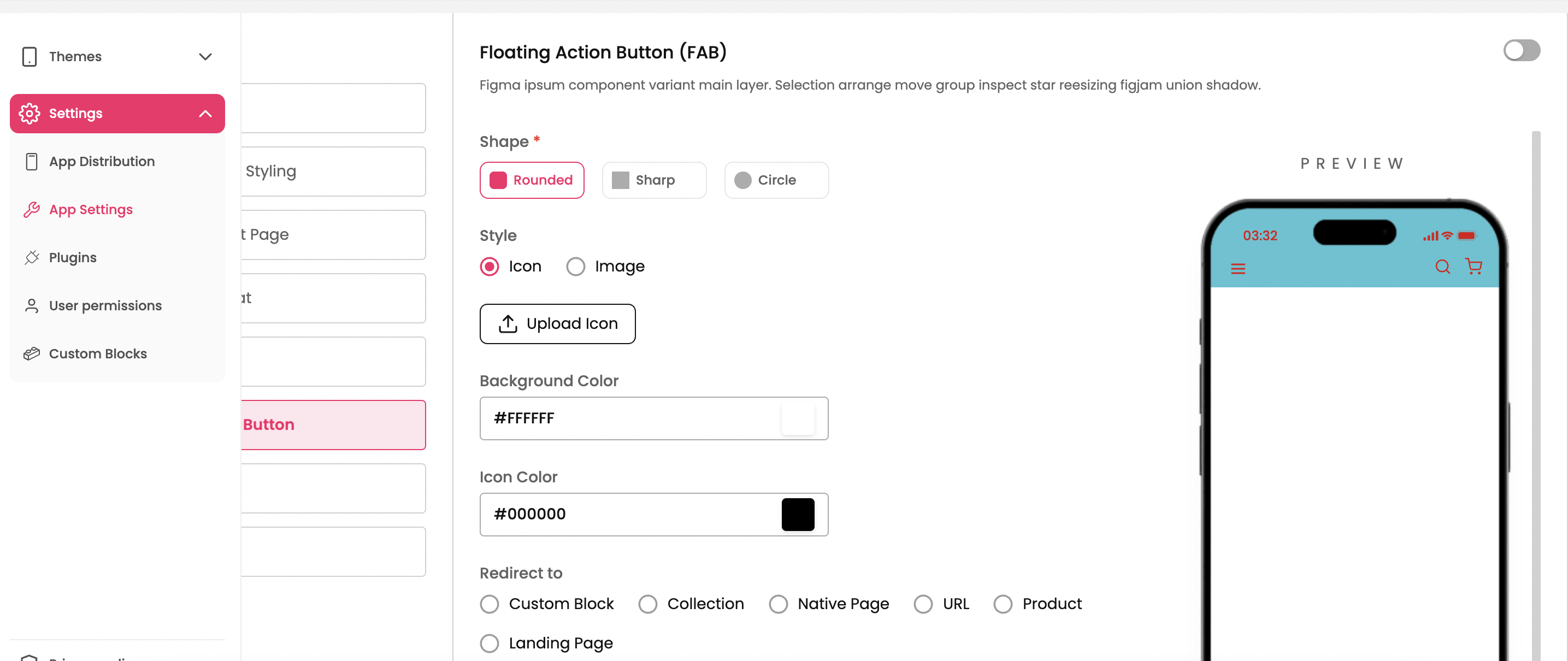
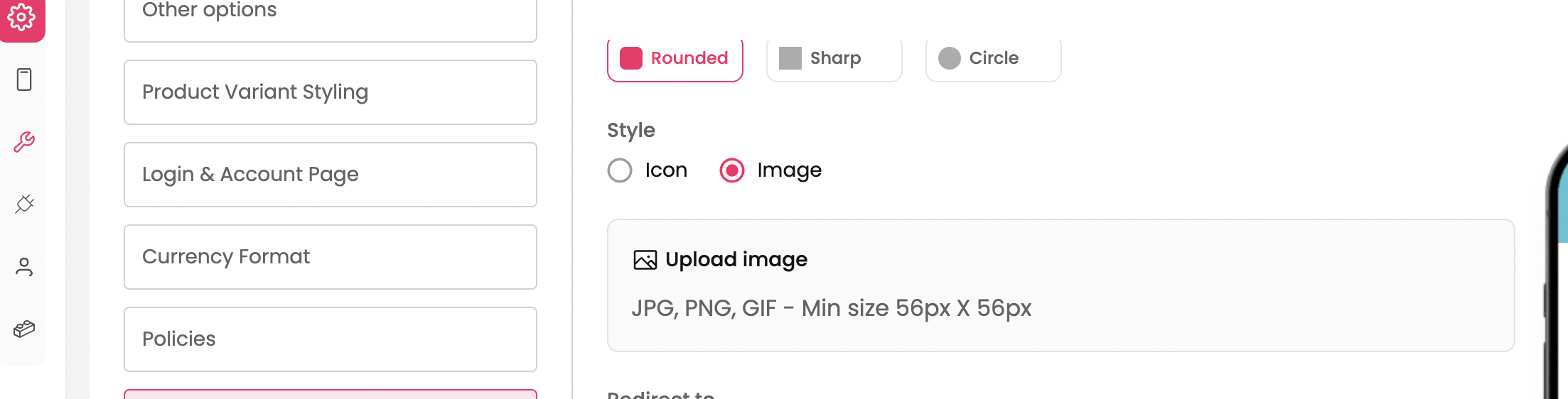
Step 2 : Design the appearance of the button.
Shape → Choose the shape of the button from the 3 options provided in the dashboard.
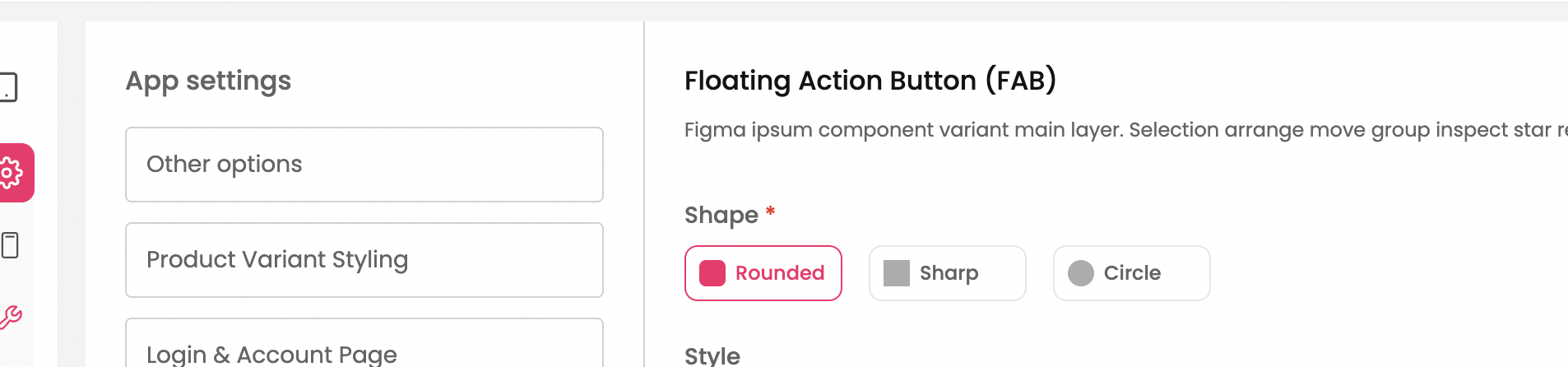
Style → Select the style of the button. You have 2 styles
FAB as icon
FAB as Image
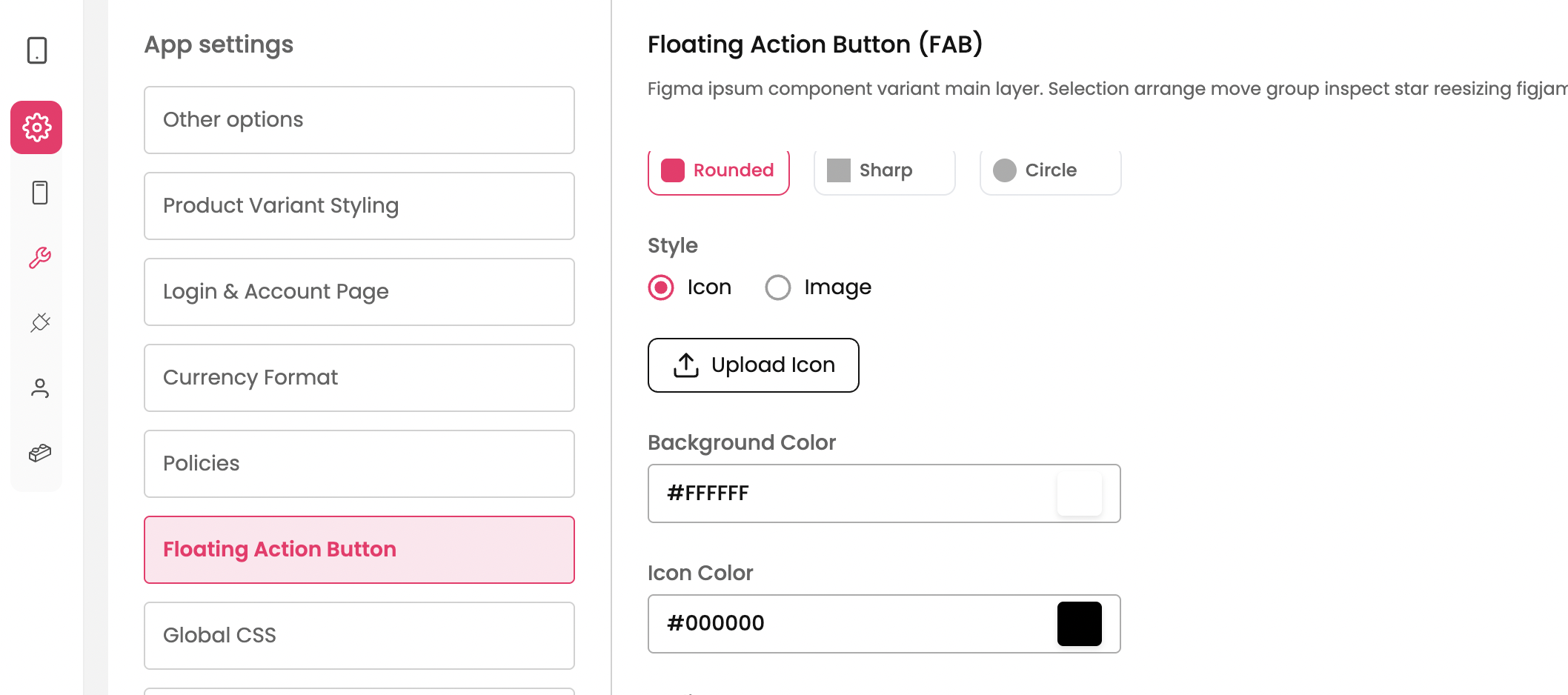
FAB as icon
There are 3 simple steps:
Step 1: Upload the icon of your choice
Step 2: Set the background color of the button
Step 3: Set the color for the icon.
FAB as Image
Upload the image of your choice.
Note: The size of the image should not exceed 56px * 56px.
Step 3 : Choose the FAB Action.
Select what the button should do when tapped from the options available in the dashboard.
Custom Block → It opens any new blocks (created through low code) built for the app.
Collection → Opens the Collection Page on the app provided the collection handle is configured.
Native Page → Opens pre-built page of the app. (Eg., Account Page, Orders Page, etc.,)
URL → Opens any URL configured on the app.
Product → Opens the Product Page on the app provided product is configured.

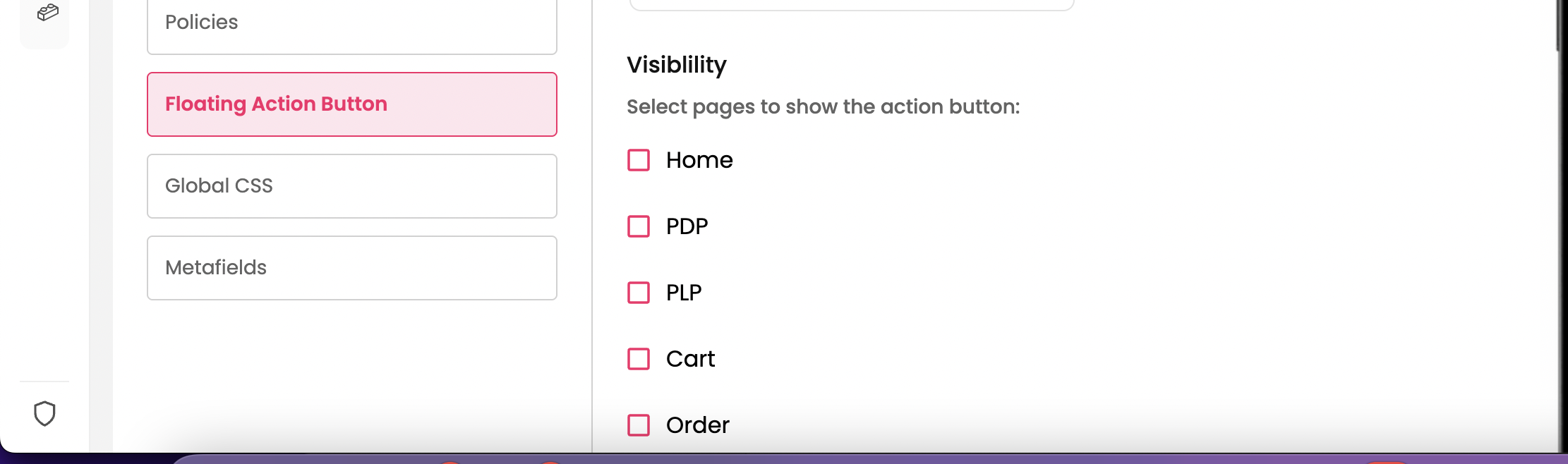
Step 4: Set up the visibility of the FAB.
Select the pages of the app on which the button should be appearing.
Step 6 : Enable the FAB with a toggle on the top right of the page.