Your Superfans app sends every shopper action, such as opening a screen, adding a product to the cart or completing an order, to Klaviyo as an event. You can see these events on each customer's Klaviyo profile and use them in Klaviyo dashboards, segments and flows.
How to track an event for the first time
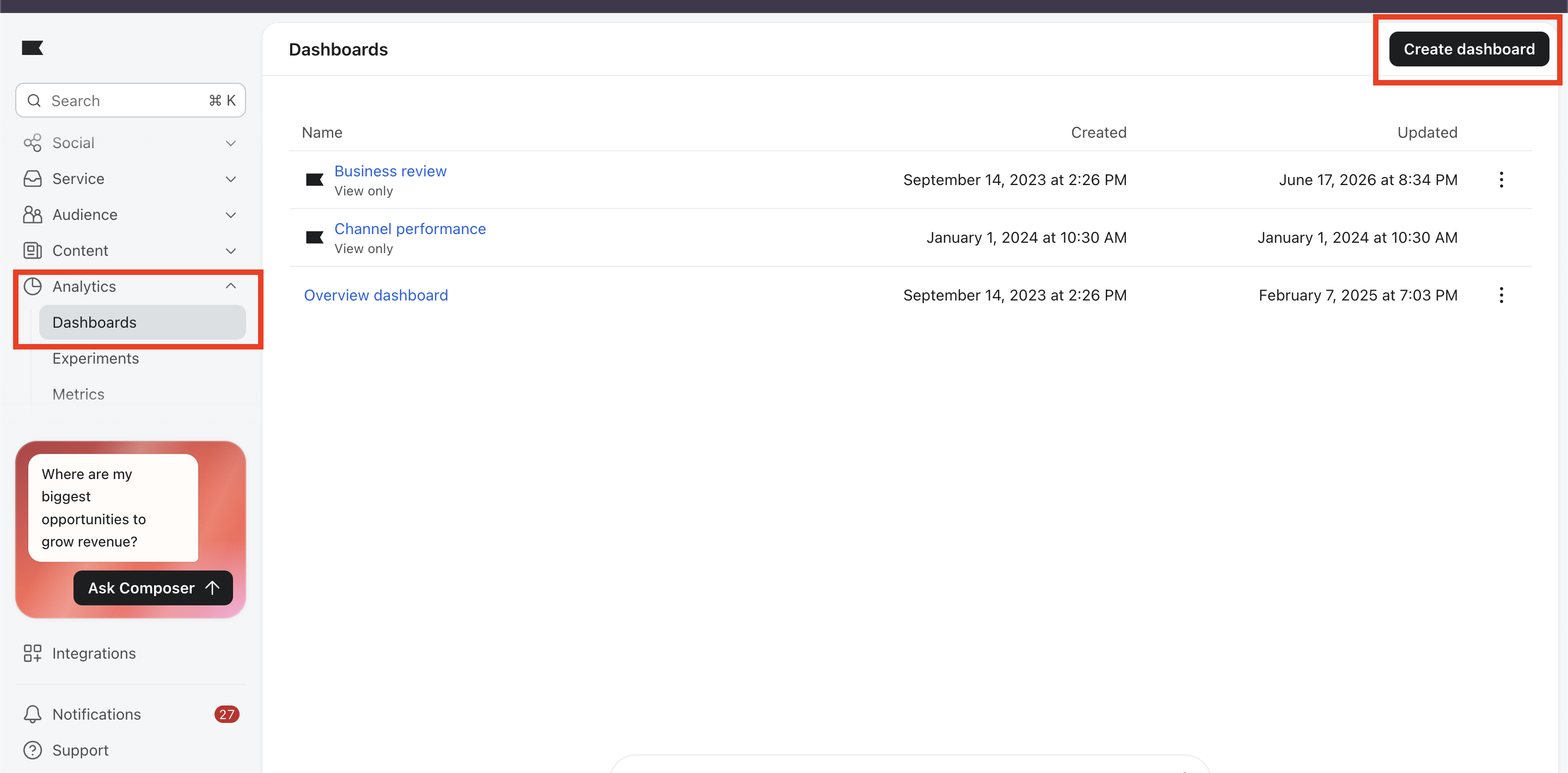
Go to Analytics > Dashboards and click Create Dashboard.
Enter a Dashboard Name and click Create Dashboard.
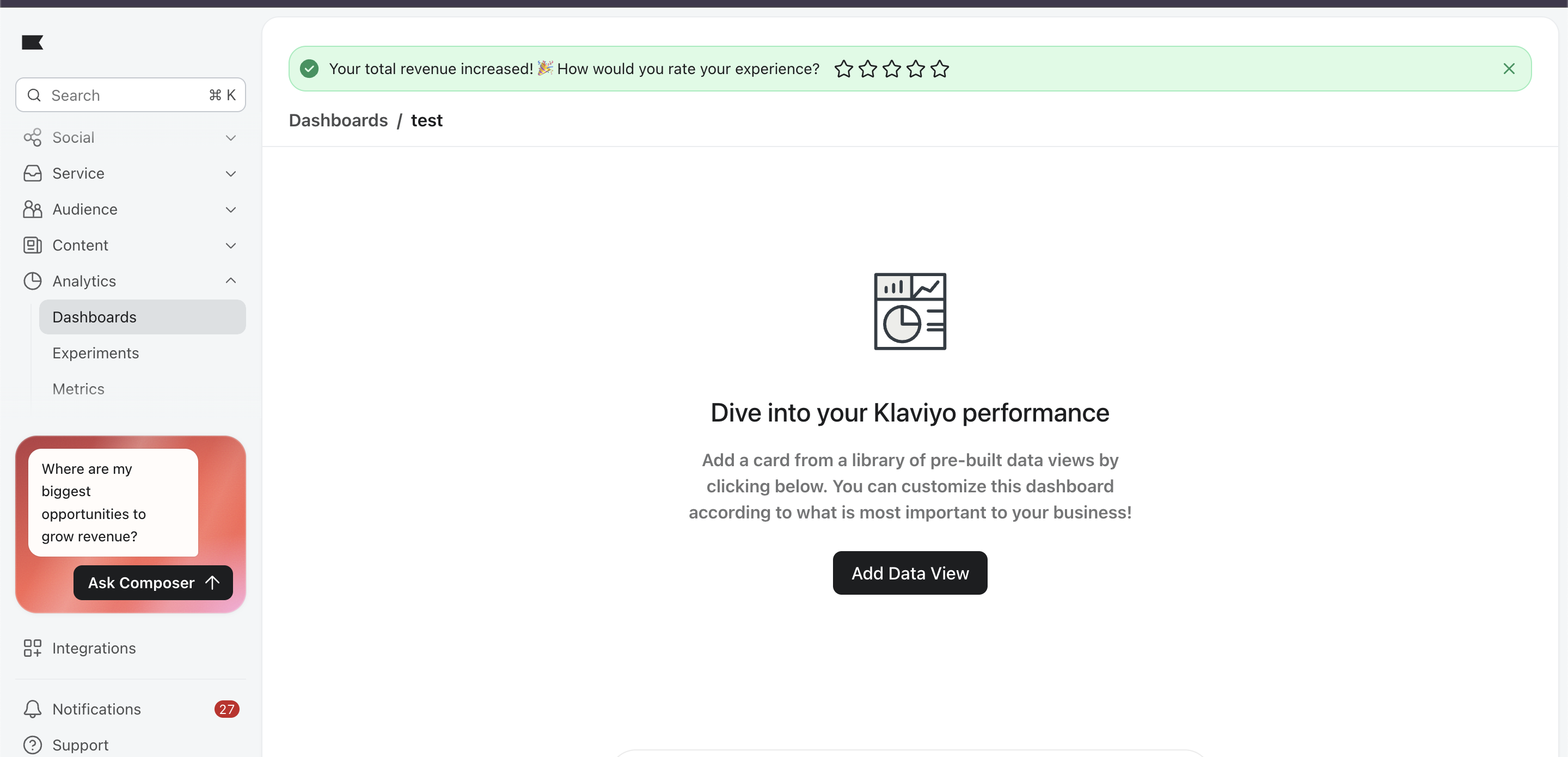
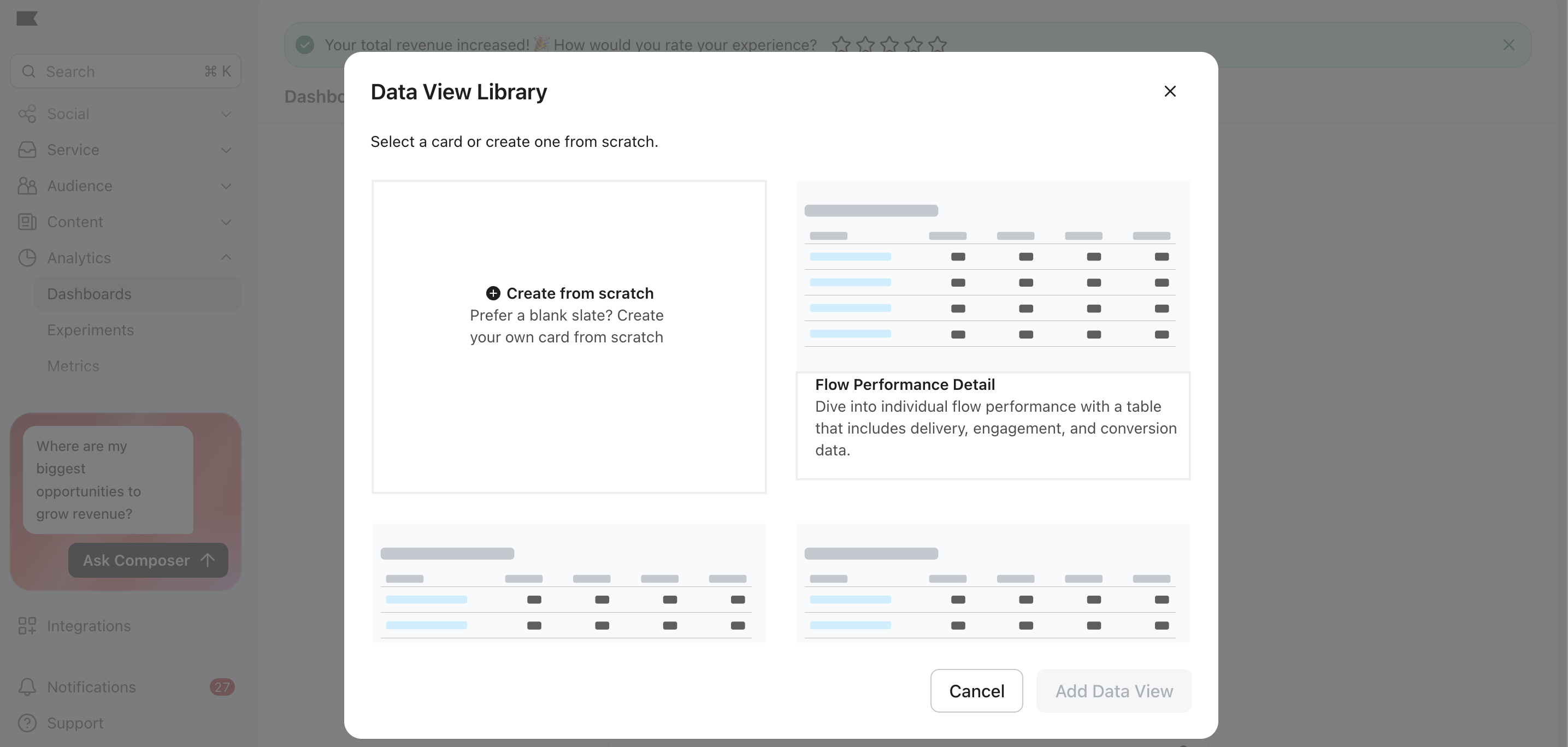
Give a name for the dashboard in the name field, Click Add Data View, then Create from scratch.
Under Choose a metric, pick the event from the Select a metric dropdown.
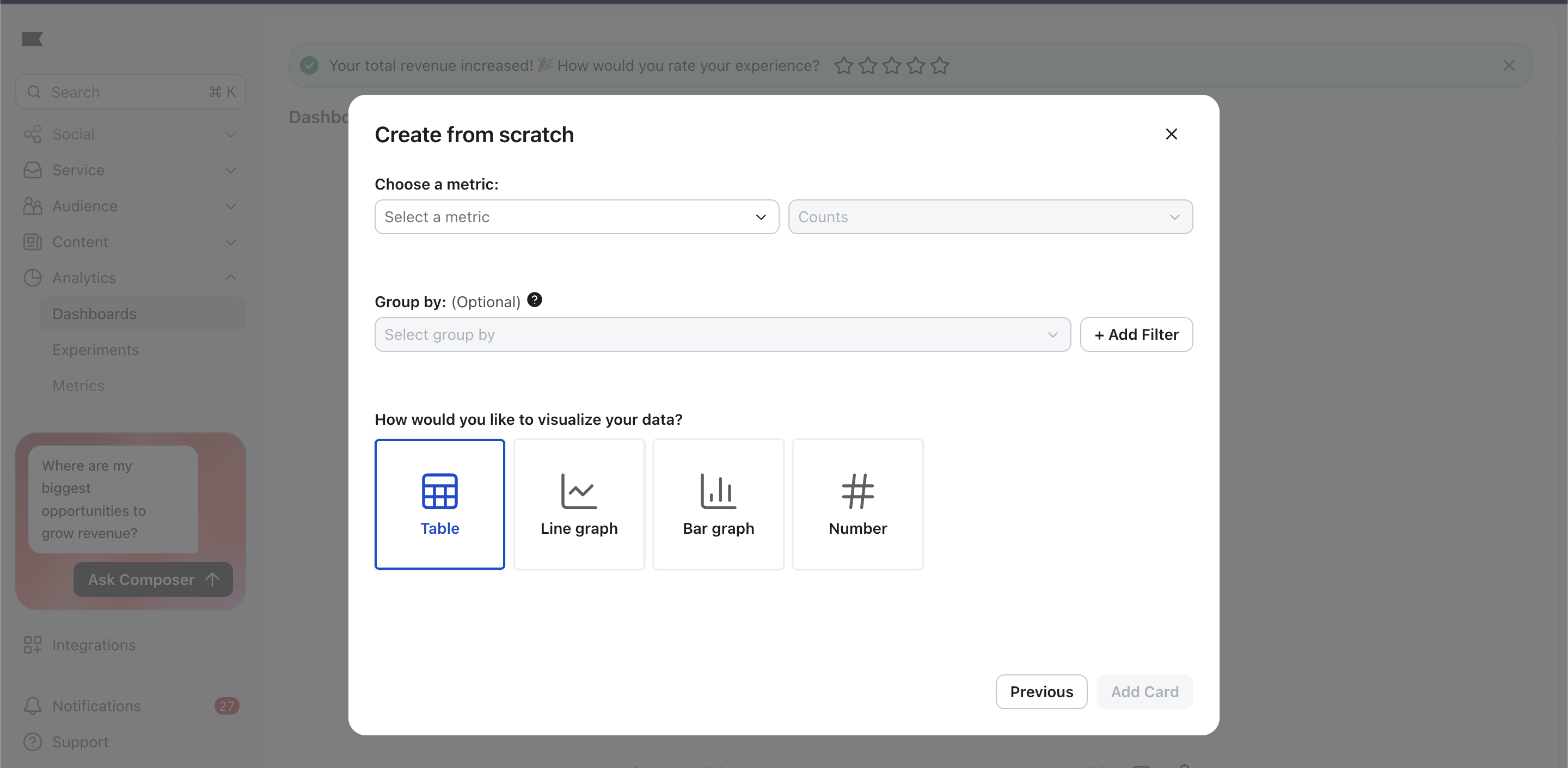
Optional: use Group by or + Add Filter to split or narrow the data.
Select Table (or Line graph, Bar graph or Number) and click Add Card.
Using Group by and filters: Group by is optional. You can group by any property the event carries and add a filter to narrow it. For example, group by City and filter City to Chennai to see how many times the event fired for shoppers in Chennai.
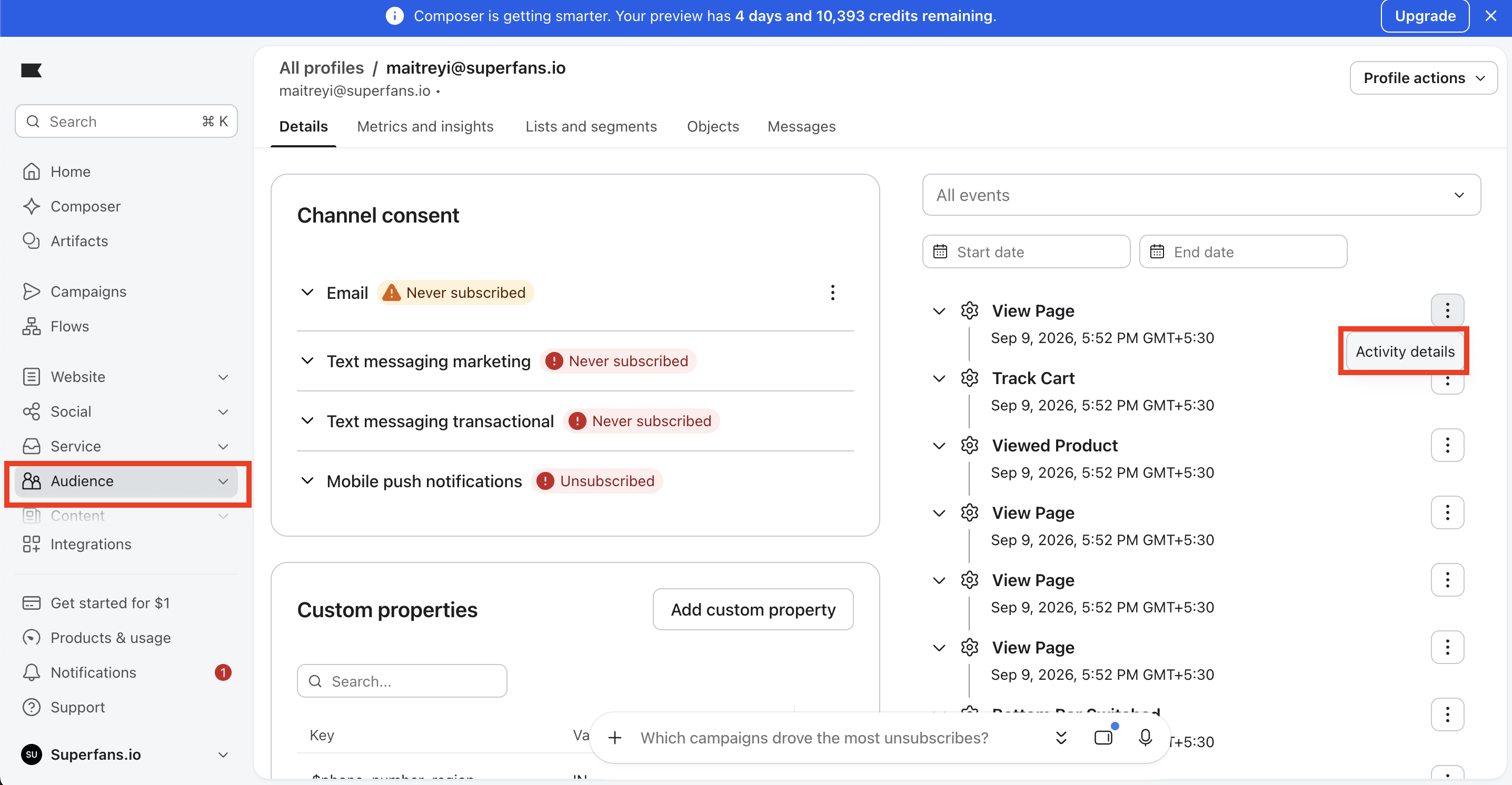
Open a customer's profile in Klaviyo and find the event in the activity feed.
Click the three dots next to the event, then click Activity details.
Switch between Pretty (easy to read) and JSON (raw data).
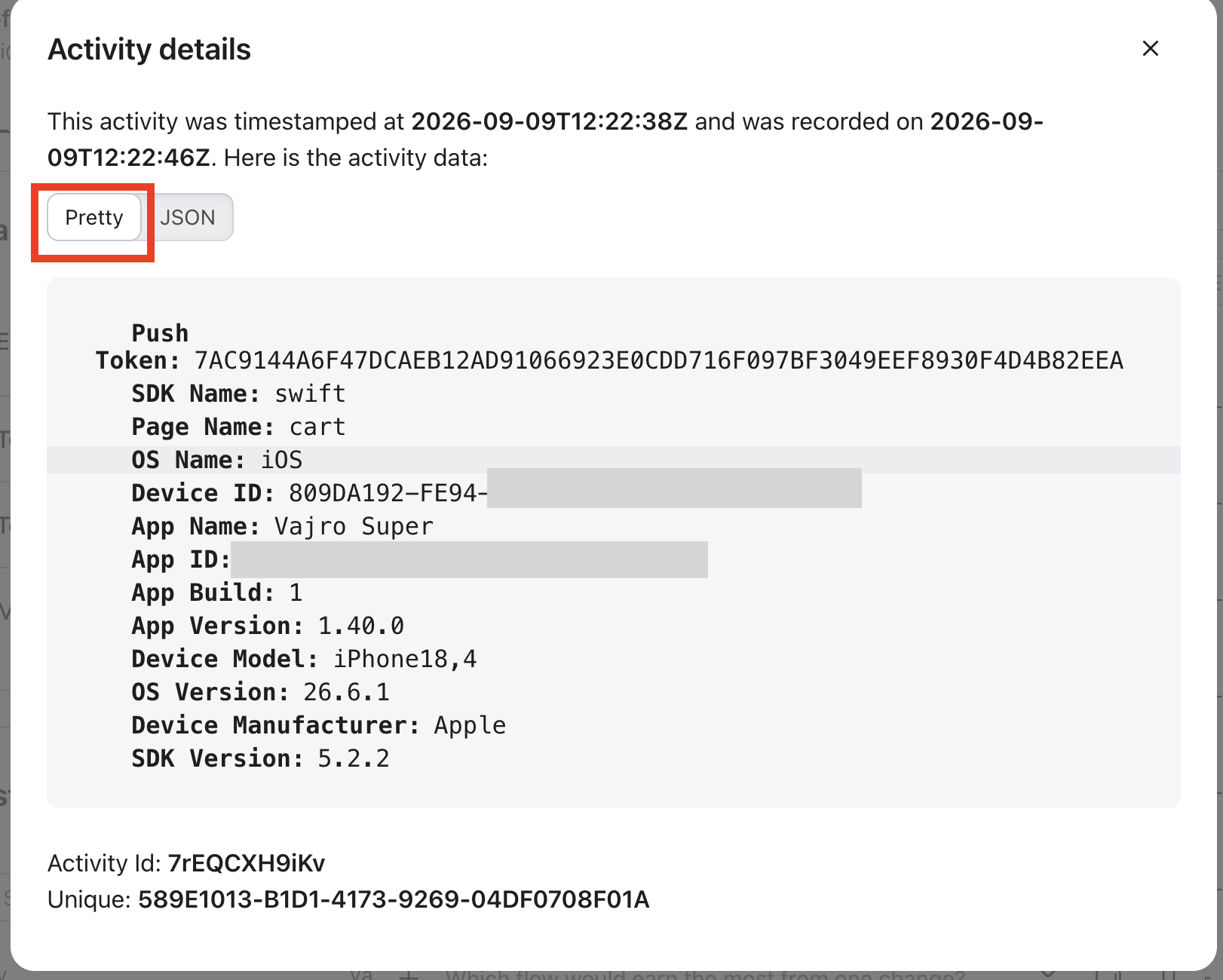
Alongside its main parameter, every Superfans app event also shows the App, OS, Device and Push Token details, and most events also show the store name.
Event | What it tracks | Main parameter (example) |
|---|---|---|
Logged In | Shopper signs in | Customer Id |
Logged Out | Shopper signs out | Customer Id and Email Id |
View Page | Shopper opens any screen | Page Name (cart) |
Bottom Bar Switched | Shopper taps a bottom bar tab | page (Account) |
Top Nav Switched | Shopper taps a top nav tab | page (Clothing) |
Side Nav Opened | Shopper opens the side menu | page (always Side Navigation Menu) |
Side Nav Closed | Shopper closes the side menu | page (always Side Navigation Menu) |
Viewed Collection | Shopper opens a collection | Collection Name |
Collection Filtered | Shopper filters a collection | Filter (Size 2, Brown) and Collection Name (New In) |
Collection Sorted | Shopper sorts a collection | Sort (LATEST) and Collection Name (All Towels & Robes) |
Search | Shopper searches | Search Keyword (Christmas) |
Search Result Filter | Shopper filters search results | Filter (Blue, Brown) and Search Keyword (Christmas) |
Viewed Product | Shopper opens a product page | Product Name (Opaque 80 Den Tights - Black) |
Variant Changed | Shopper switches size or color on a product page | — |
Added to Wishlist | Shopper saves a product | ProductName (Pattern Tights - Can't Catch Me) |
Removed From Wishlist | Shopper removes a saved product | ProductName (Wool Lace Tights - Ditsy Diamond - Black) |
Added to Cart | Shopper adds one product to the cart from a product page (value = that product's price) | Product Name (Wool Lace Tights - Ditsy Diamond - Cherry) |
Removed from Cart | Shopper removes a product from the cart | Product Name (Pencil Skirt - Black (V2)) |
Track Cart | Everything in the shopper's cart, recorded each time they open the cart screen, where they increase or decrease item quantities (value = cart total) | $value (cart total) and Line Items |
Started Checkout | Shopper taps checkout | $value (amount about to be paid) and Line Items |
Purchased | Shopper completes an order | $value (order total paid) and Line Items |
Reading the Filter parameter: Filter arrives as code. Look only for each label (the filter's name) and its value (what the shopper picked). For example, "label":"Size" … "value":"Size 2" means the shopper filtered to Size 2. Ignore the rest of the code.
Besides the standard Superfans app events above, your app can send its own custom events to Klaviyo, for example Quiz Completed when a shopper finishes a style quiz. Custom events are unique to your app and are usually triggered from custom blocks or Superfans SDK actions.
Once a custom event fires, it appears in the customer's activity feed and in the Select a metric dropdown, so you can use it in dashboards, segments and flows like any other event.
How to set up a custom event: Reach out to your Superfans strategic account manager with the shopper action you want to track and what you plan to use it for in Klaviyo. Our team will set up the custom event in your app for you.