Klaviyo’s Metrics section allows you to monitor events and user actions collected via integrations such as Klaviyo’s native tracking, API calls, or apps like Superfans. These metrics fuel analytics, automation, segmentation, and customer insights.
In this section, you can:
Search and filter metrics
View both system and custom metrics
Map your custom events to Klaviyo’s standard fields
Create custom conversion metrics
Track user actions across platforms
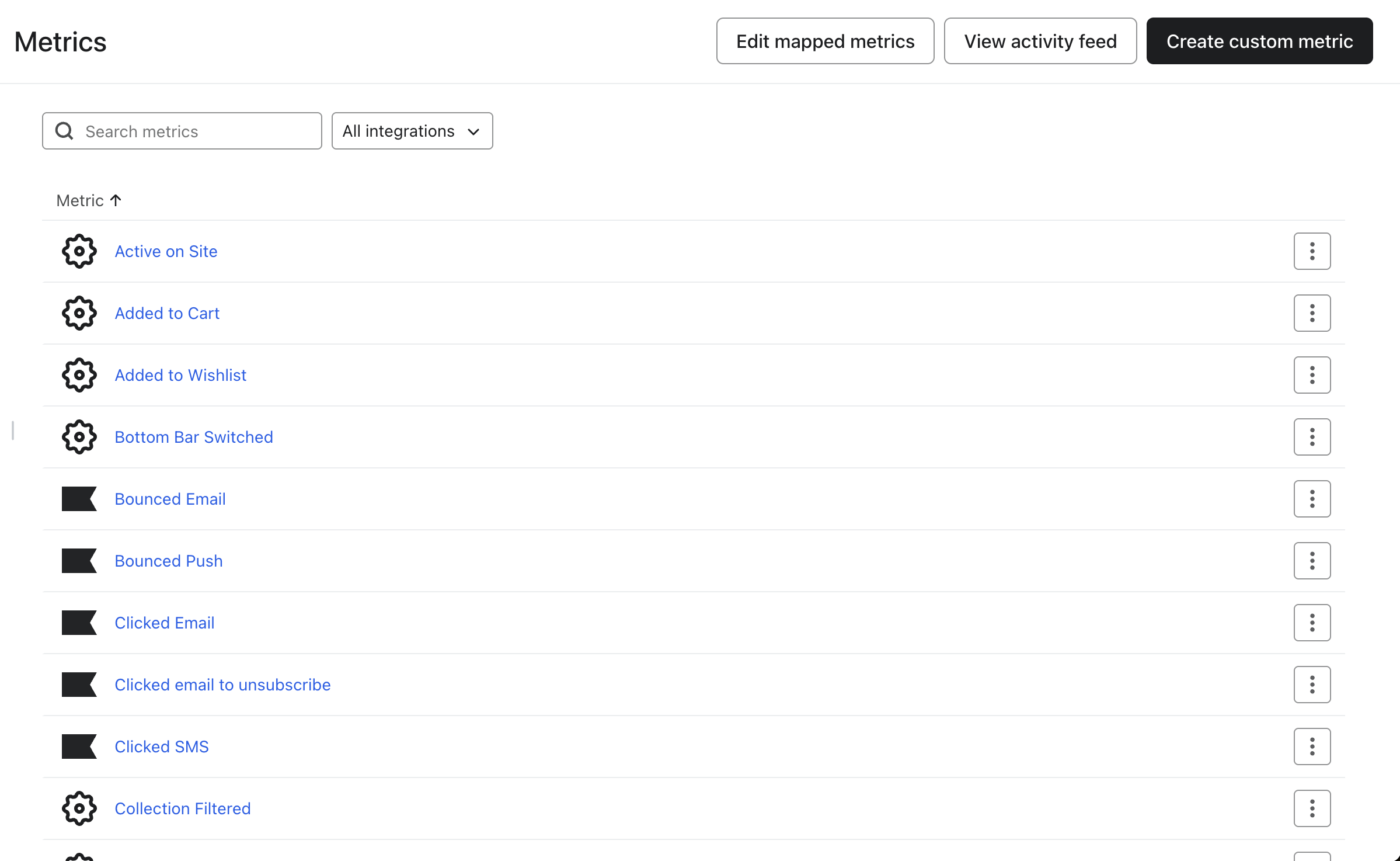
Navigate to: Metrics > View All Metrics
From this screen, you can:
Search for specific metrics
Filter by integration (e.g., Klaviyo, API, Superfans)
Create new custom metrics
View activity feed
Edit mapped metrics (used for predictive analytics)
Each metric includes a name and source icon, with additional options available via the three-dot menu for editing or removal,
Mapped metrics connect your custom events to Klaviyo’s standard behavior categories, enabling predictive models, revenue tracking, and standardized reporting. These mappings ensure that Klaviyo understands what your custom events represent (e.g., "Purchased" = Revenue).
You can only update these mappings twice per day.
Go to Metrics > Edit mapped metrics
Click the dropdown next to the mapping (e.g., “Revenue”)
Select the appropriate custom metric (e.g., “Purchased” from Superfans)
Click Save
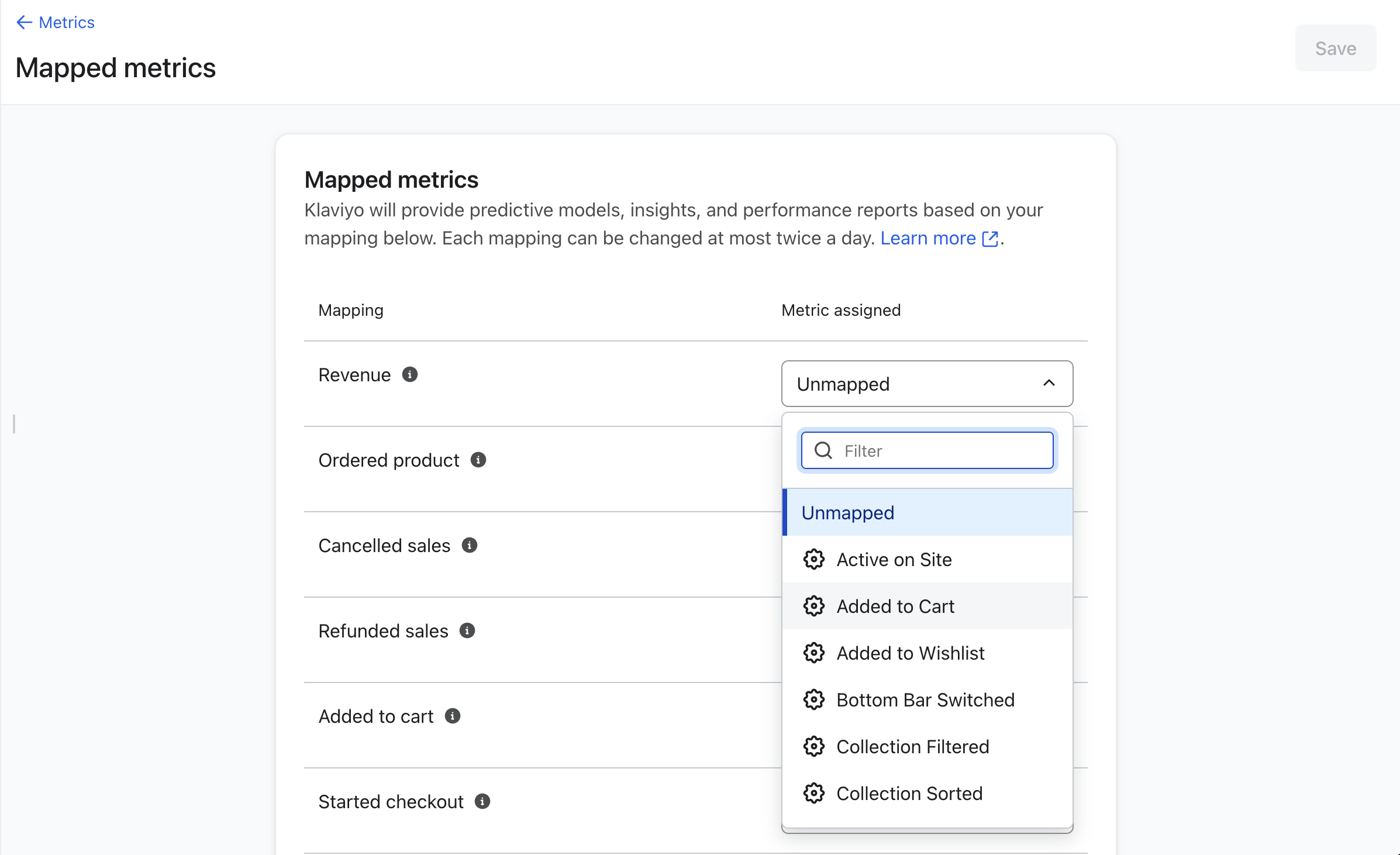
Active On Site
Added to Cart
Added to Wishlist
Bottom Bar Switched
Collection Filtered
Collection Sorted
Collection Viewed
Logged In
Logged Out
Opened kIM App
Opened kLM App
Purchased
Removed from Cart
Removed from Wishlist
Search
Search Result Filter
Search Result Sorted
Side Nav Closed
Side Nav Opened
Started Checkout
Top Nav Switched
Track Cart
Variant Changed
View Pge
Viewed Cart
Viewed Collection
Viewed Product
Map Superfans: Purchase Event → Revenue
Map Superfans: Added to Cart → Added to cart
Map Superfans: Removed from Cart → Removed from cart
Map Superfans: Product Viewed → Product view triggers or engagement flows
Choose the mapping that best represents the user behavior Klaviyo expects for each field.
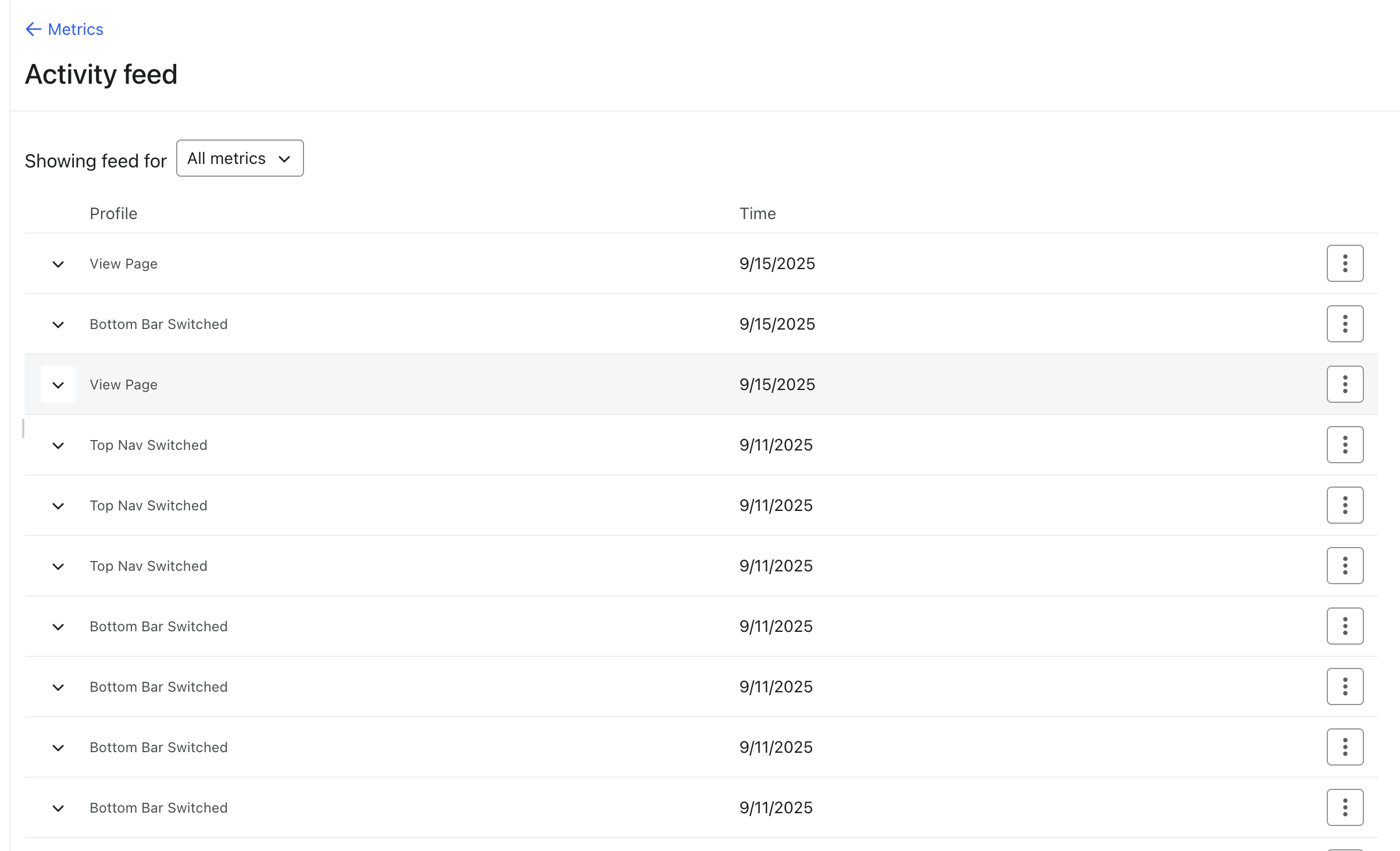
Profile: The customer associated with the event.
Metric: The name of the event (e.g., "Viewed Product," "Opened Email").
Time: When the event occurred.
You can use the dropdown menu to filter the feed by a specific metric, and you can click the arrow next to any event to view more details.
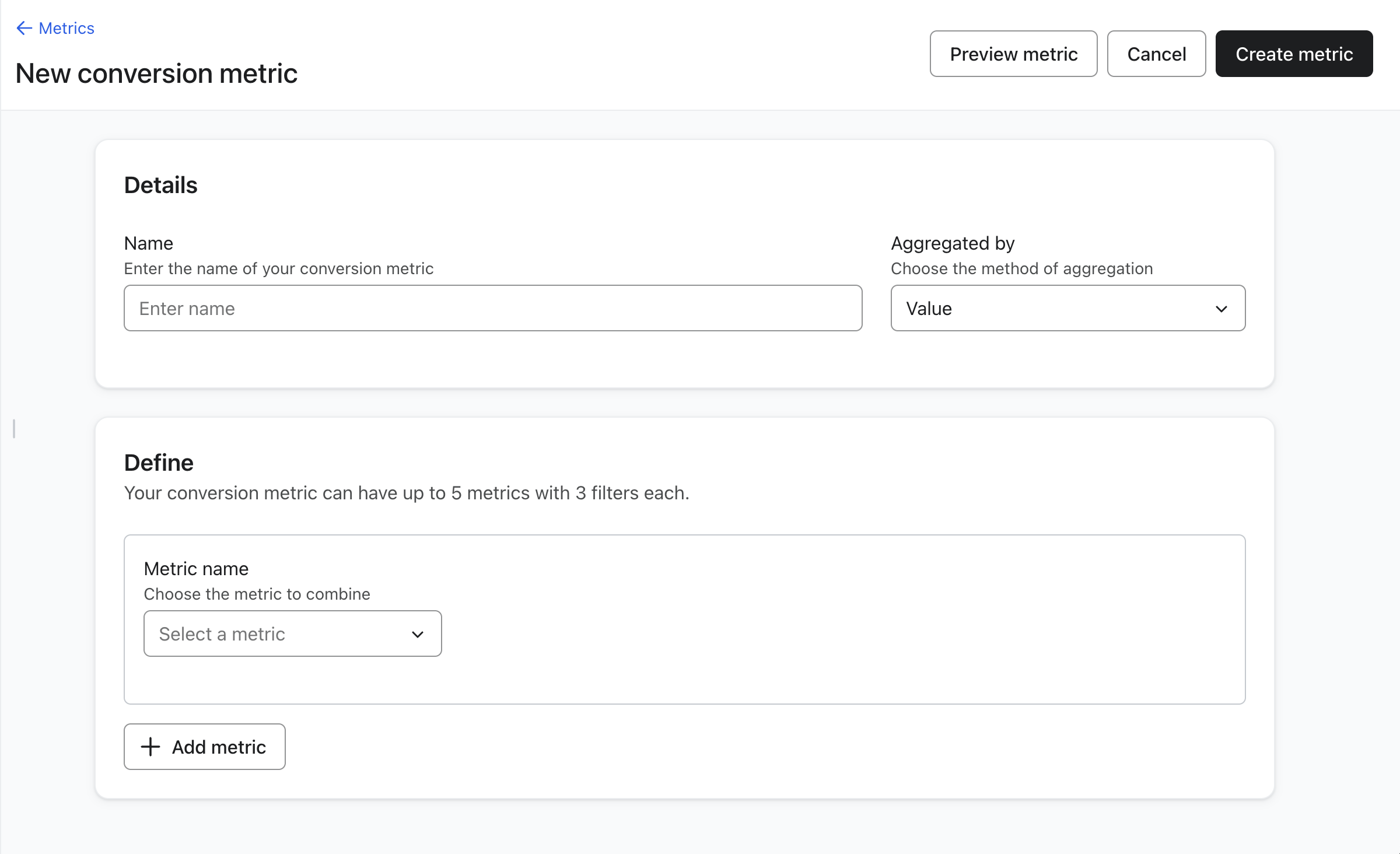
If your business needs to track actions outside Klaviyo’s default behavior categories, you can define your own conversion metrics.
Name: Use a clear, specific label (e.g., “Orders from Campaign A” or “Revenue from Subscriptions”)
Aggregation:
Count: Total number of event occurrences
Value: Sum of a numeric or monetary field (e.g., order total)
Select up to 5 base metrics (e.g., “Placed Order” or “Purchase Event” from Superfans)
For each metric, optionally apply up to 3 filters to narrow down the event logic
Filter Fields:
Property: Event attribute (e.g., ItemName, Collection)
Relationship: equals, contains, does not equal, etc.
Value: Specific value to filter on
Example:
Create a metric that tracks orders of a specific product
Base metric: “Purchase Event”
Filter:
Property: “ItemNames”
Relationship: “contains”
Value: “Yoga Mat”
Use Preview metric to validate your setup
Click Create metric to save
The new metric will now appear in your analytics and be available for use in flows, dashboards, and segmentation.
The Superfans app provides rich tracking of user behavior and shopping interactions. These events are available in Klaviyo once the integration is active and can be mapped or used in custom metrics and automations.
User Login / Logout – Tracks user authentication events
Page Opened – Fired whenever a new screen or page is opened
Bottom Bar / Top Navigation Switched – Logs tab or navigation changes
Side Navigation Opened / Closed – Detects interaction with the app’s side menu
Product Viewed – Triggered when a product detail page is visited
Collection Viewed – Tracks visits to collection or category pages
Variant Changed – Fired when users switch between product options like size or color
Added to Wishlist / Removed from Wishlist – Tracks wishlist interactions
Cart Updated / Added to Cart / Removed from Cart / Cart Quantity Updated – All cart-related actions
On Checkout Click – Triggered when users initiate the checkout process
Search Performed – Tracks keyword searches
Collection / Search Results Sorted or Filtered – Tracks UI filtering and sorting actions
Purchase Event – Fired when a transaction is completed
These can be used to:
Trigger behavior-based flows (e.g., "Product Viewed but not Purchased")
Create custom metrics for reporting (e.g., "Filtered Searches that Led to Checkout")
Power retargeting or upsell campaigns (e.g., users who removed from cart)
Use clear and consistent naming conventions across all custom metrics
Map key events such as purchases, adds to cart, and product views for more accurate reporting
Avoid overlapping event mappings unless necessary
Use filters to narrow down your custom metrics for meaningful segmentation
Test your metrics using the Preview feature before using them in live campaigns

