Triggered campaigns in WebEngage are event-driven, automated messages targeted at users who perform a specific action on your app or website. These campaigns ensure that users receive contextual, personalized, and timely messages, increasing engagement and conversions.
Examples of trigger events:
User login (user_login)
Product added to cart
Purchase completed (checkout_complete)
Course enrollment
Triggered campaigns can be sent across all engagement channels - push, email, in-app messages, and SMS.
Before creating a triggered push campaign, ensure the following are in place:
SDK Integration
Your mobile app is integrated with the WebEngage SDK.
The event you want to track (e.g., user_login) is being logged correctly.
Push Configuration
Firebase Cloud Messaging (FCM) is configured for Android.
Apple Push Notification Service (APNS) is configured for iOS.
Personalization Tokens
Identify any user attributes or event properties you plan to use for message personalization.
Go to Campaigns → Push in the WebEngage dashboard.
Click + Create to start a new campaign.
Choose Triggered to ensure the campaign is sent automatically when the specified event occurs.
Select the segment of users to receive the push.
Options:
Create a new segment
Use an existing segment
Optionally, apply filters based on user behavior or attributes to narrow targeting.
Specify the event that triggers the push (e.g., user_login).
Optionally, refine triggers with event attribute filters to target specific user behaviors or contexts.
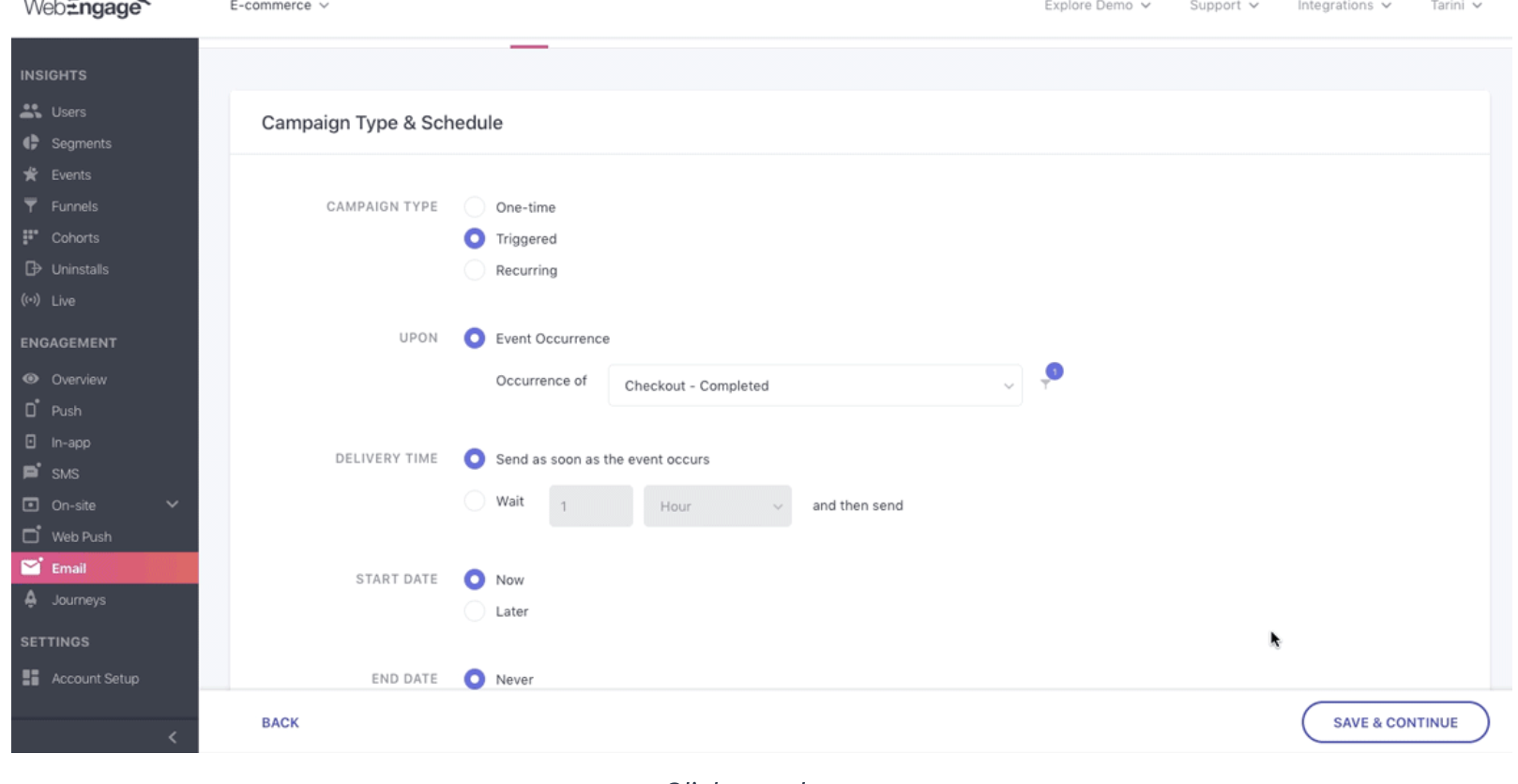
Choose whether to send the notification immediately or add a delay (minutes, hours, days, weeks).
You can also specify Start and End Dates for campaign activation and deactivation.
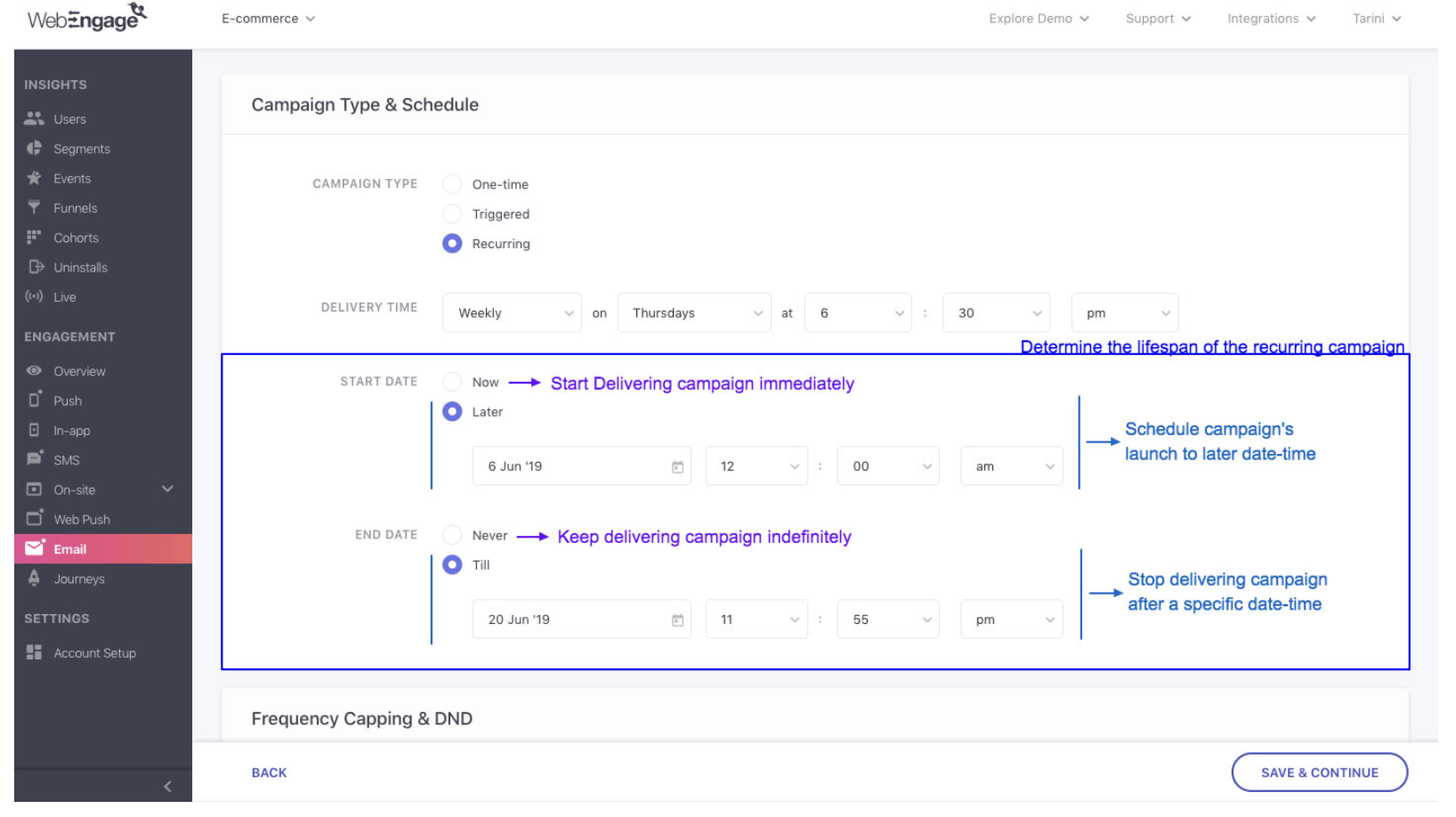
Set limits on how often a user receives notifications.
Enable Do Not Disturb (DND) hours to prevent delivery during certain times.
Select a layout (Text, Image, Carousel).
Compose the title and body of the message.
Insert personalization tokens or event attributes for contextual messaging.
Add an on-click deep link if the notification should open a specific app screen.
Use Send Test to preview the message.
Test with a small segment or specific users to verify display and personalization.
Once tested and ready, click Launch.
The campaign will now automatically send notifications when users perform the trigger event.
After launching, track performance using the WebEngage dashboard:
Campaign Overview: Delivery rates, open rates, conversions.
User Profiles: Individual user interactions with the campaign.
Event Tracking: Correlate the trigger event (e.g., user_login) with engagement and campaign performance.

