A bottom bar (often called a bottom navigation bar or tab bar) in a mobile application is UI element which is fixed at the bottom of the screen that allows users to quickly switch between primary sections (or features) of the app.
Please find below steps to set-up bottom bar on the app.
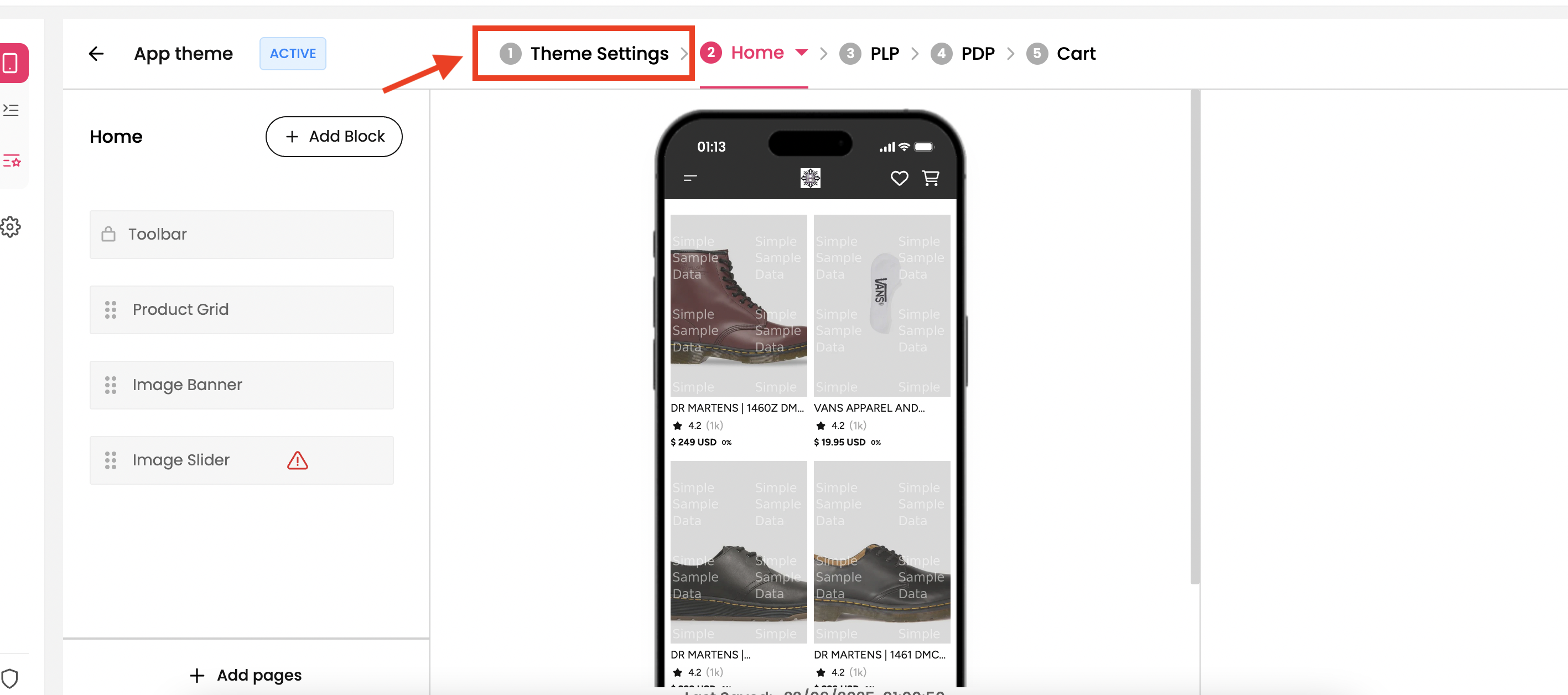
Step 1 : Select the theme which you want for your mobile app from theme section and click on “Theme Settings”. You’ll be redirected to the Colors and Font section in the dashboard.
Step 2 : Navigate to the Bottom-bar section of the dashboard which is third menu under the title Navigation.
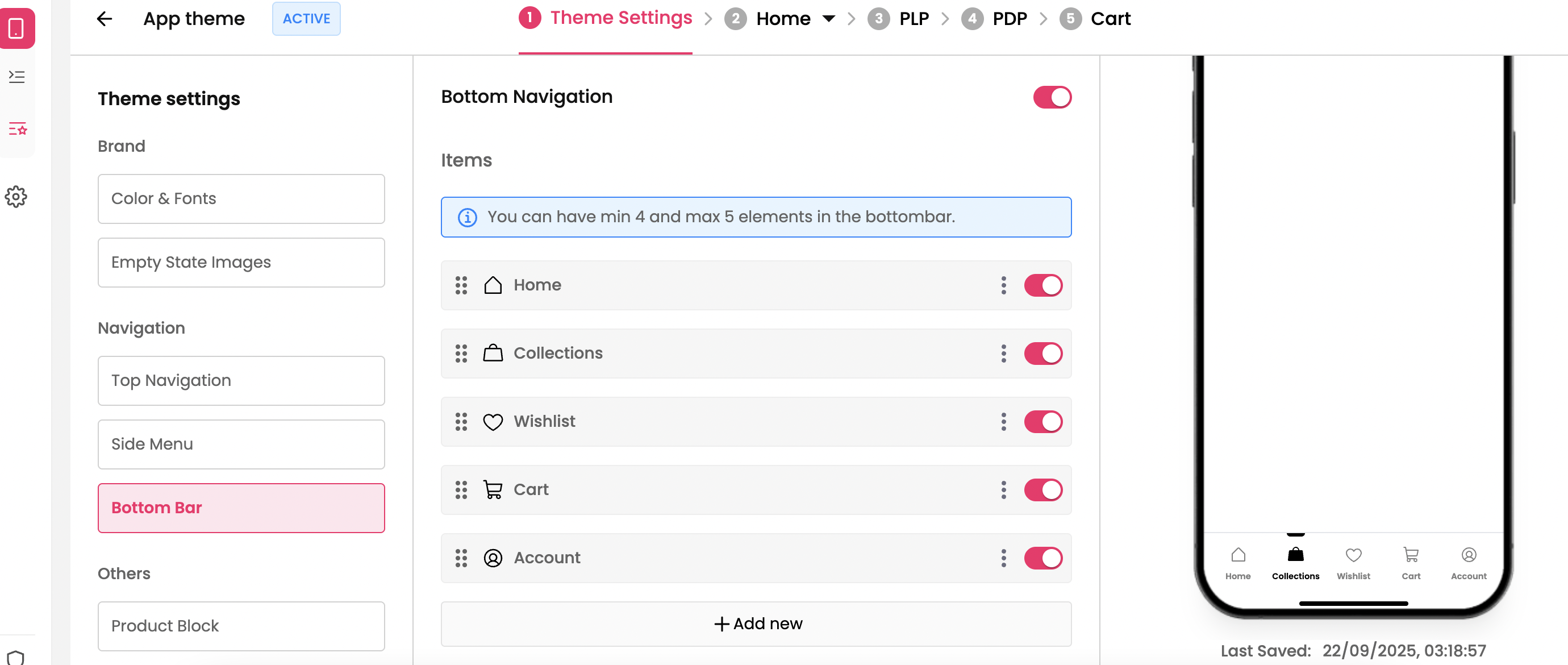
Step 3 : Toggle the Bottom Navigation switch ON (top-right of the Bottom Bar panel) to enable the feature.
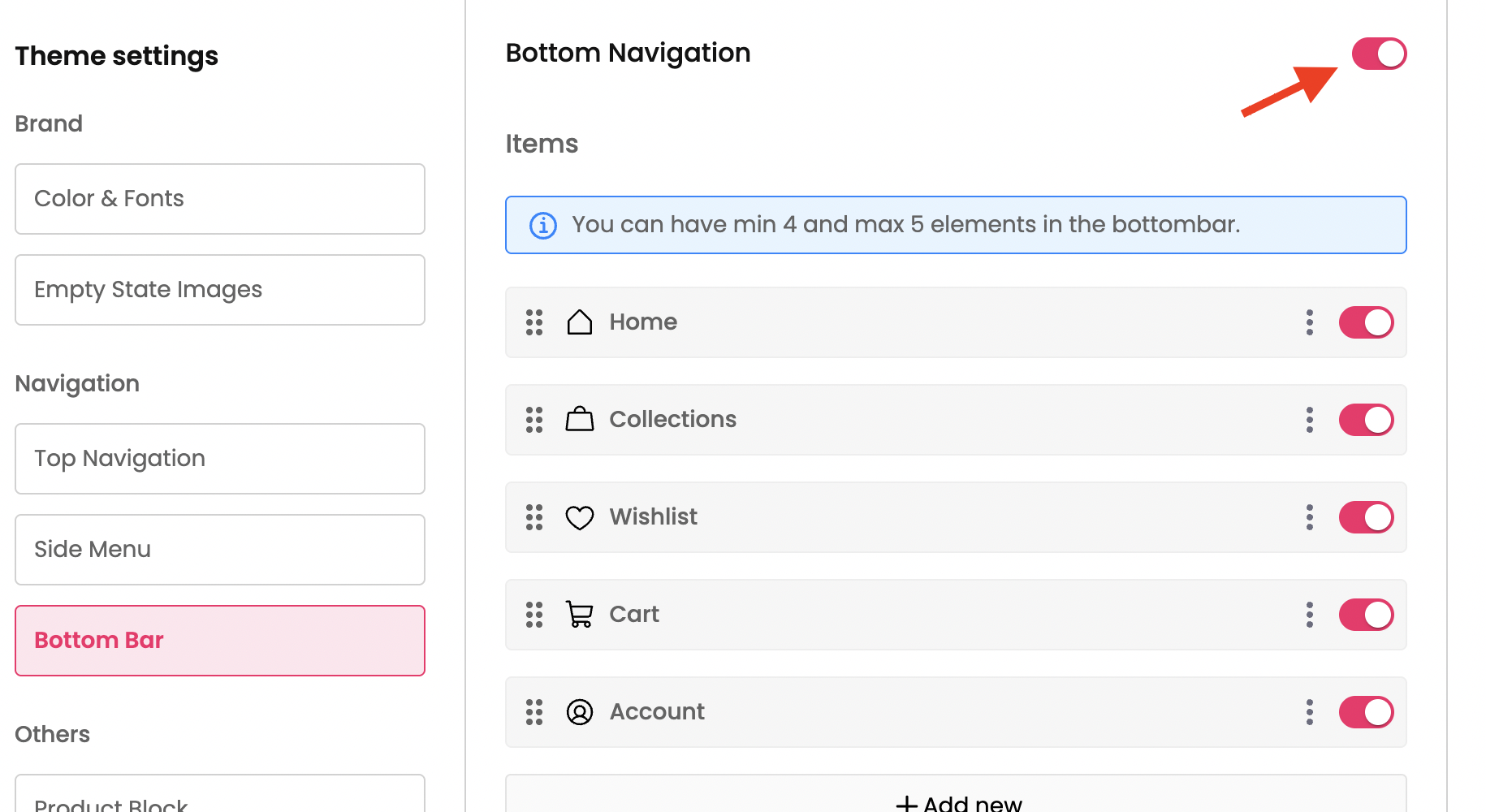
Step 4 : Customize the Bottom bar as needed on the mobile app.
Features / Controls available for Bottom bar
Add new item to the bottom bar
Edit the existing menu item in the bottom bar
Delete he existing menu item in the bottom bar
Re-arrange the items in the Bottom-bar
Appearance of the menu items on the bottom bar
Add new item to the bottom bar
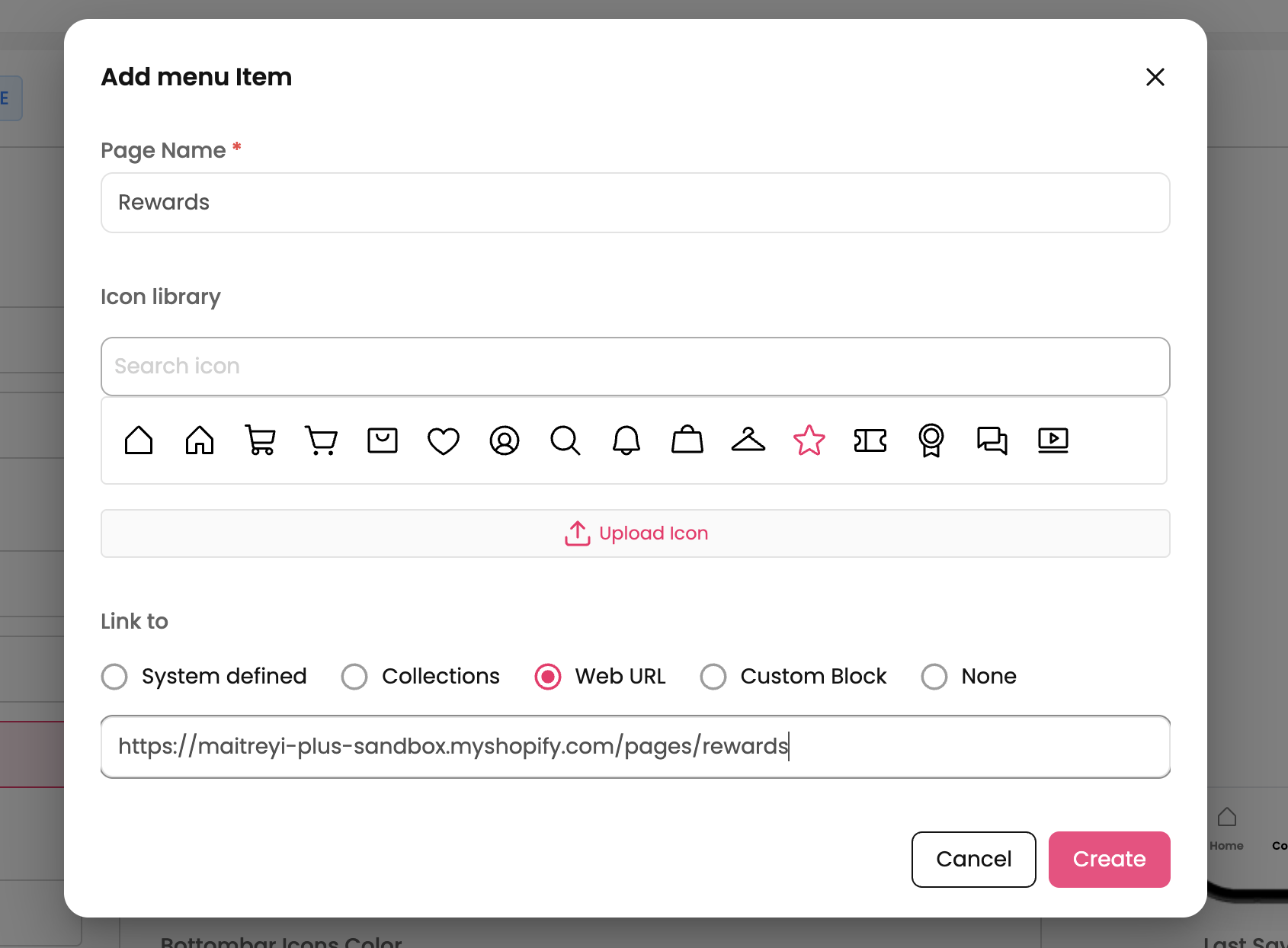
To add new item to the bottom bar, click on “Add New” CTA.
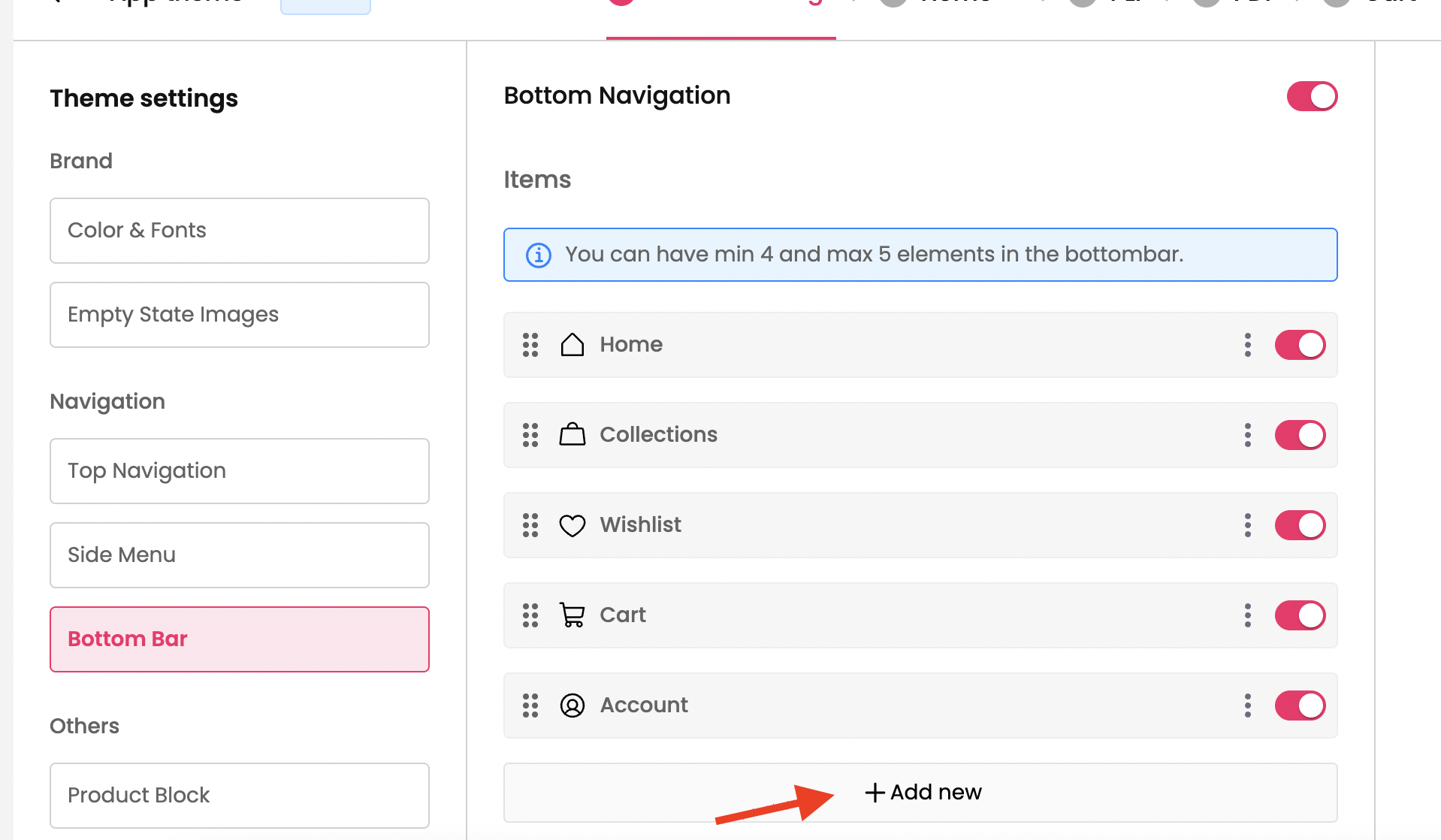
Provide the Name for the item, icon and redirection and click on Create button.

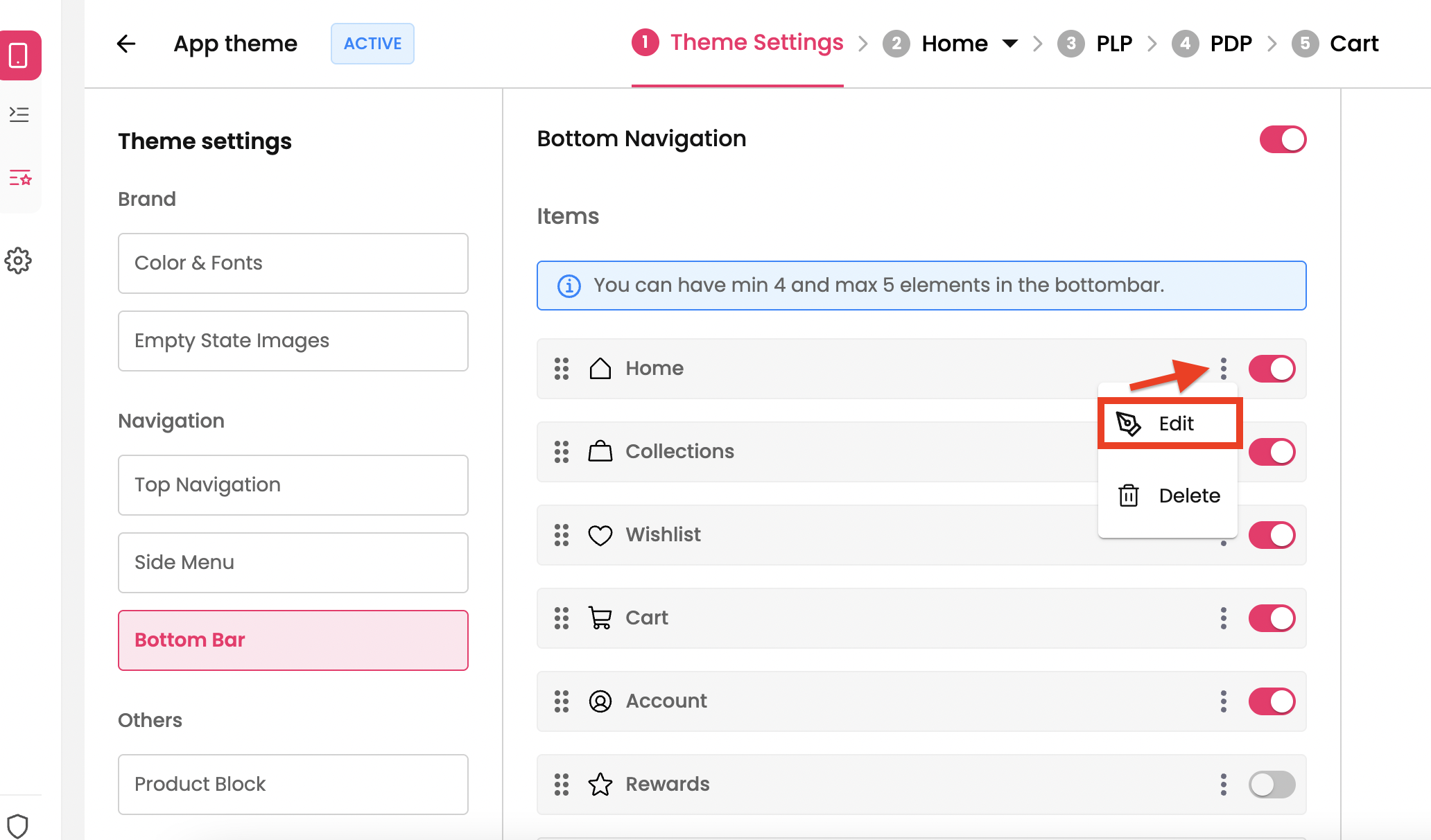
Edit the existing menu item in the bottom bar
Click on the 3 dots at the right side of the menu item and click on Edit.
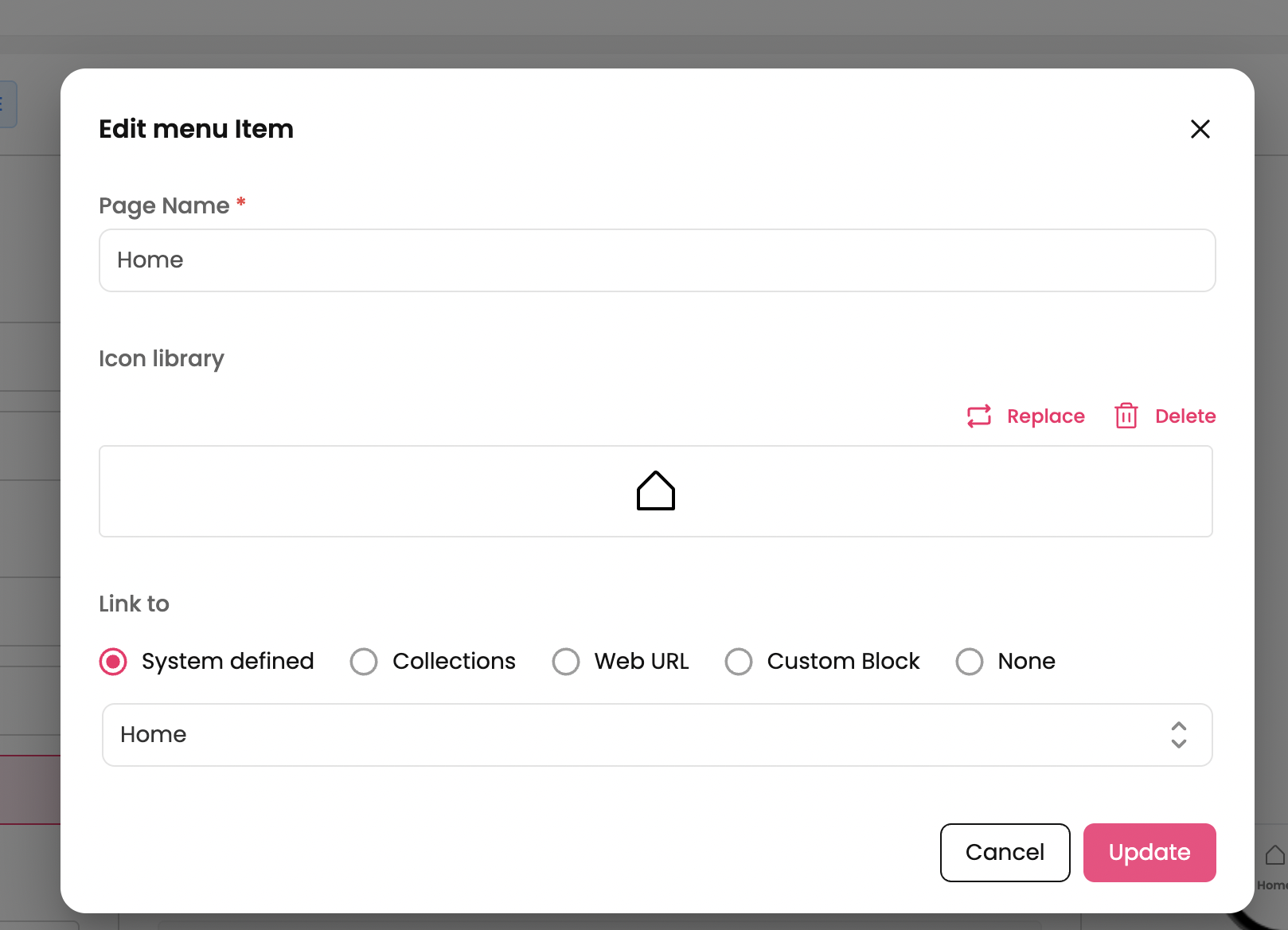
Edit the necessary information and click on Update button.
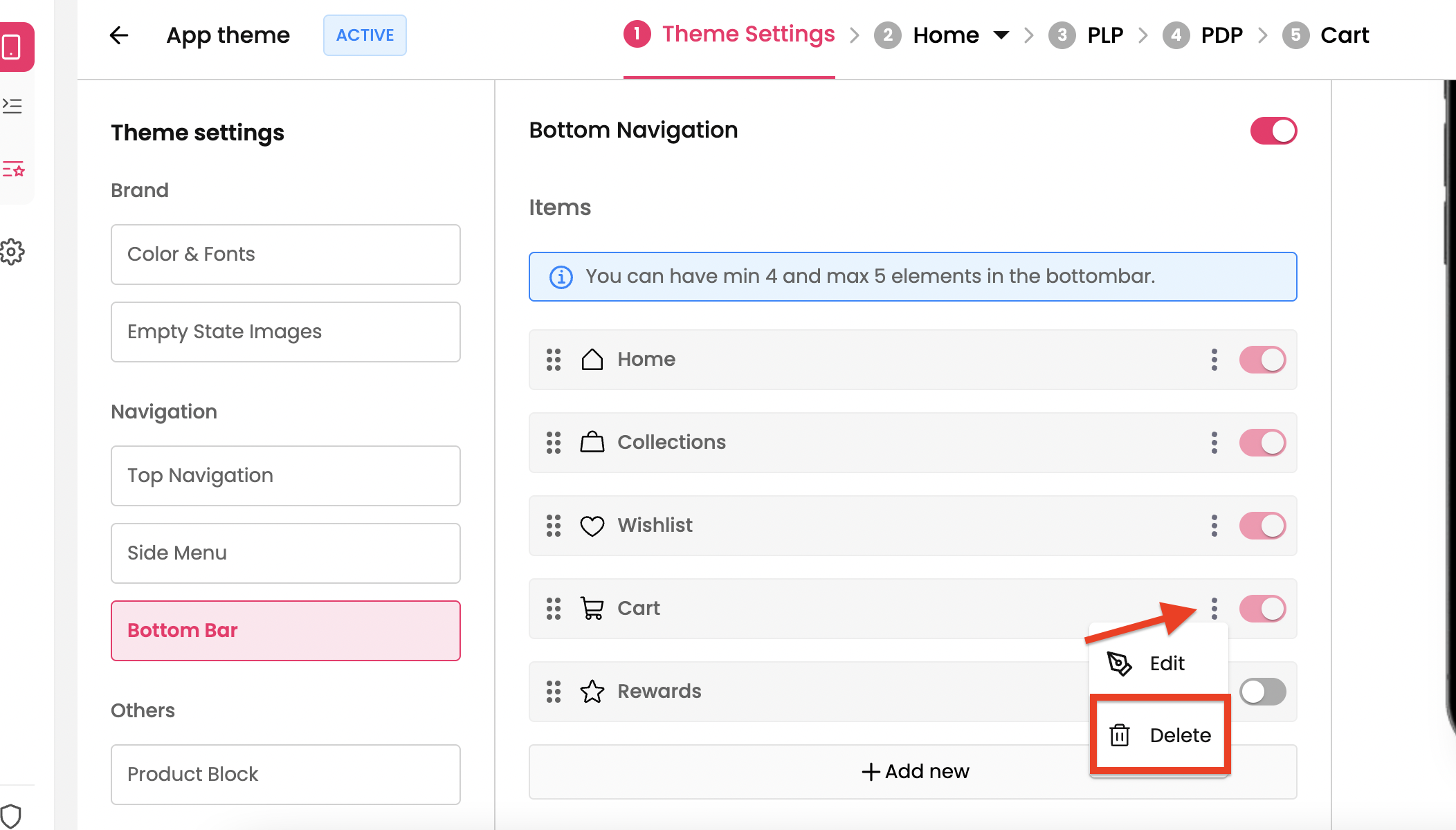
Delete the existing menu item in the bottom bar
Click on the 3 dots at the right side of the menu item and click on Delete.
Re-arrange the items in the Bottom-bar
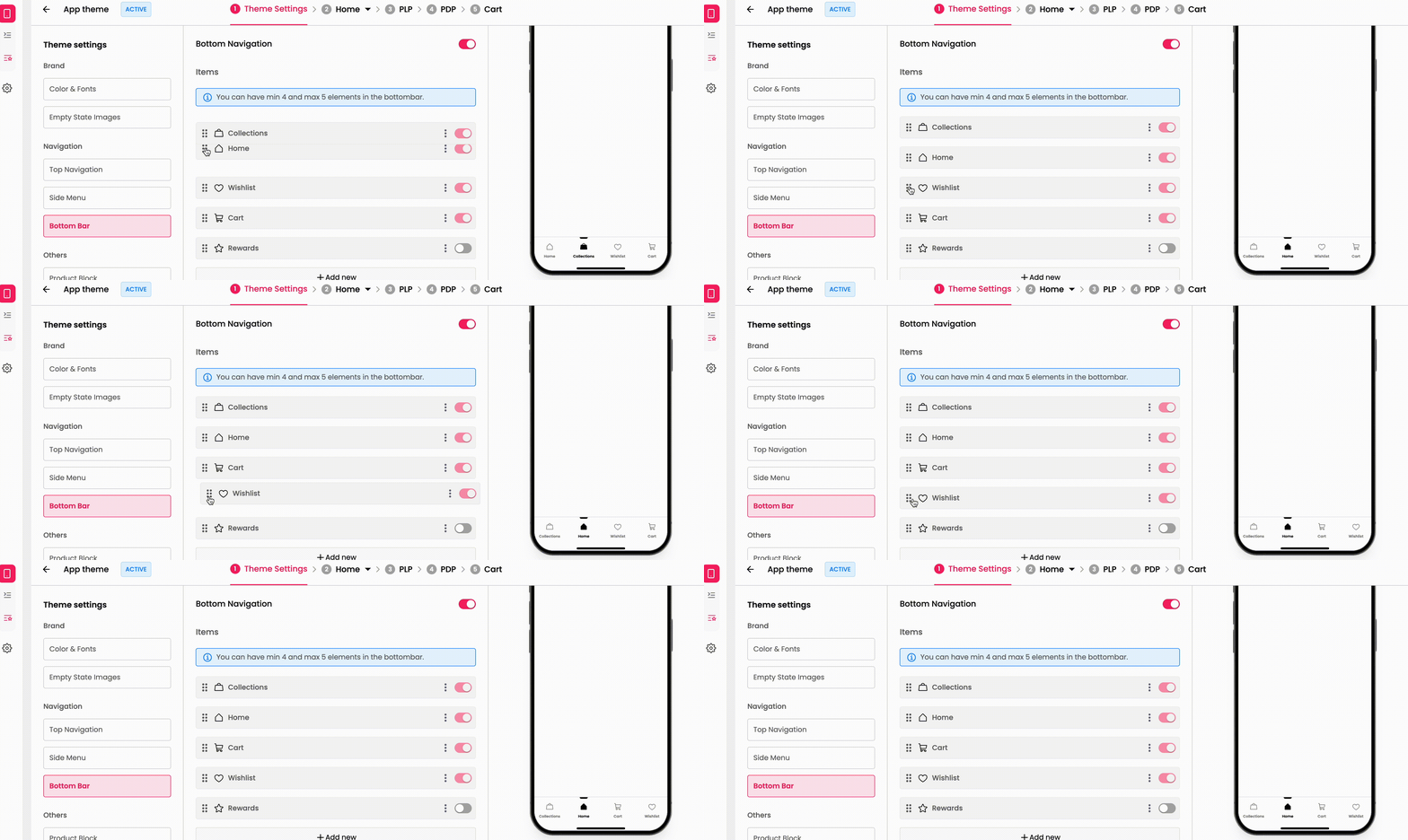
You can reorder these items by clicking on 6 dots on the left side and dragging it to the desired location.
Appearance of the menu items on the bottom bar
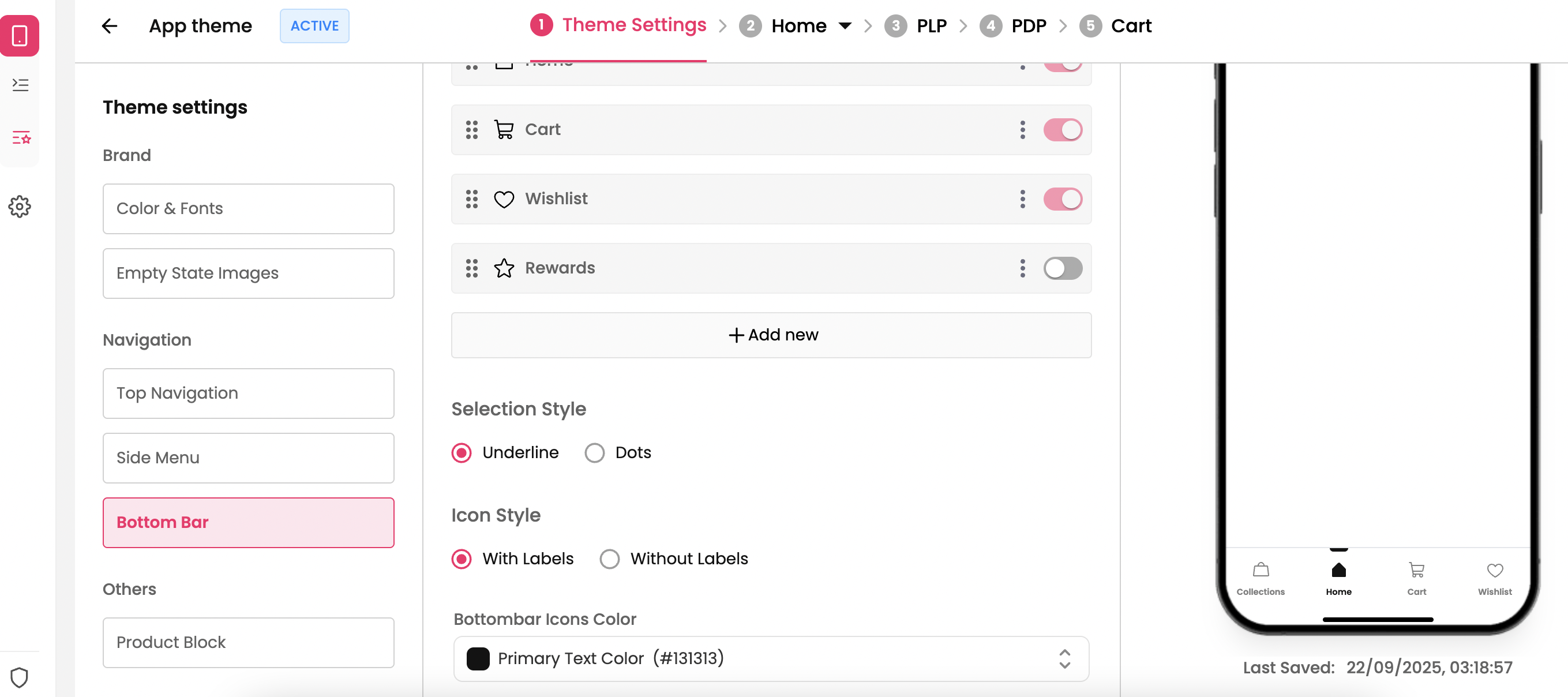
Selection Style → When any page is accessed through the bottom bar, the active tab can be highlighted by dot / underline through this setting.
Icon Style → You can choose to have only icons or icons along with labels through this setting.
Bottom bar Icon color → You can set the color of the icons through this setting.
Keep It Simple (3–5 Items) → Too many items make it cluttered and confusing.
Use Clear, Recognizable Icons → Icons should be intuitive and universal , Pair with short text labels for clarity. Don’t rely on icons alone.
Order by Importance → Place the most frequently used actions on the left or center.

