Segmentation in WebEngage helps you group users based on attributes, behaviors, and predicted intent. You can create and analyze user groups as Lists, Refreshing Lists, Live Segments, RFM Segments, and Predictive Segments.
Fixed, one-time snapshots of users.
User pool does not update with new data.
One-off campaigns (activation, conversions, registrations).
Uploading user IDs manually via CSV.
Saving RFM segments as permanent groups.
No real-time updates.
Cannot be used for Relays, Transactional Campaigns, or contextual personalization.
Method 1: Segment Editor
Navigate to Segments > Lists.
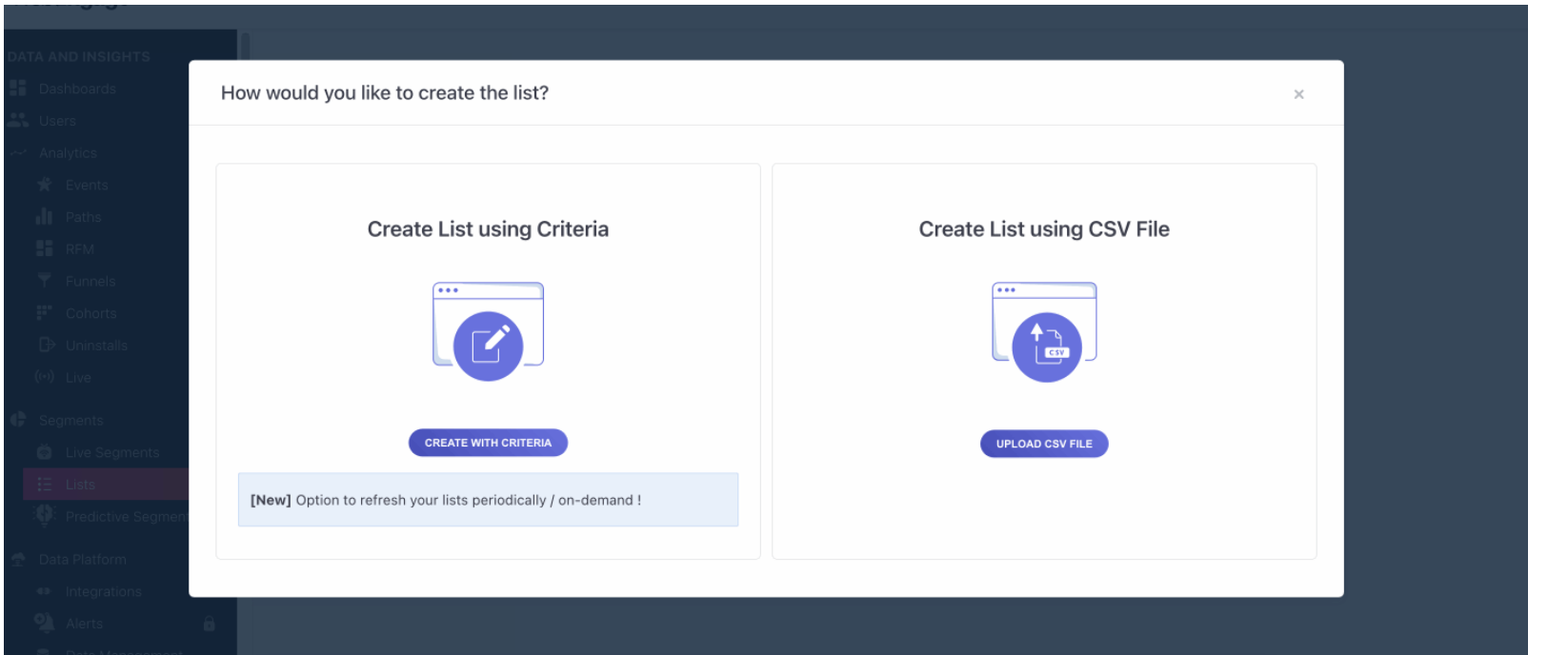
Click ➕ > Create with Segment Editor.
Define rules using user attributes, acquisition source, location, channel reachability, events, etc.
Save your List with a clear name.
Method 2: Upload CSV File
Navigate to Segments > Lists.
Click ➕ > Create Using CSV File.
Name the List.
Upload CSV with one user_id per row (must exist in WebEngage DB).
Wait until status changes to Completed.
Method 3: Save from RFM Analysis
Go to RFM Dashboard > Select Segment Tile.
Click Save as Static List.
Name the List and save.
From Static Lists Hub, click a List name.
Overview → View total users, Known vs. Unknown users.
Channel Reachability → See which channels (Push, Email, SMS, WhatsApp, etc.) users can be reached on.
Use insights to select the best engagement channel.
Lists that update daily, weekly, or monthly (manual or scheduled refresh).
A hybrid between Static Lists and Live Segments.
Weekly or daily promotional campaigns.
Scheduled recurring campaigns.
Counting users based on time-sensitive attributes.
No real-time updates.
Criteria cannot be edited later (only refresh frequency can be changed).
Go to Segments > Lists.
Click ➕ > Create List using Criteria.
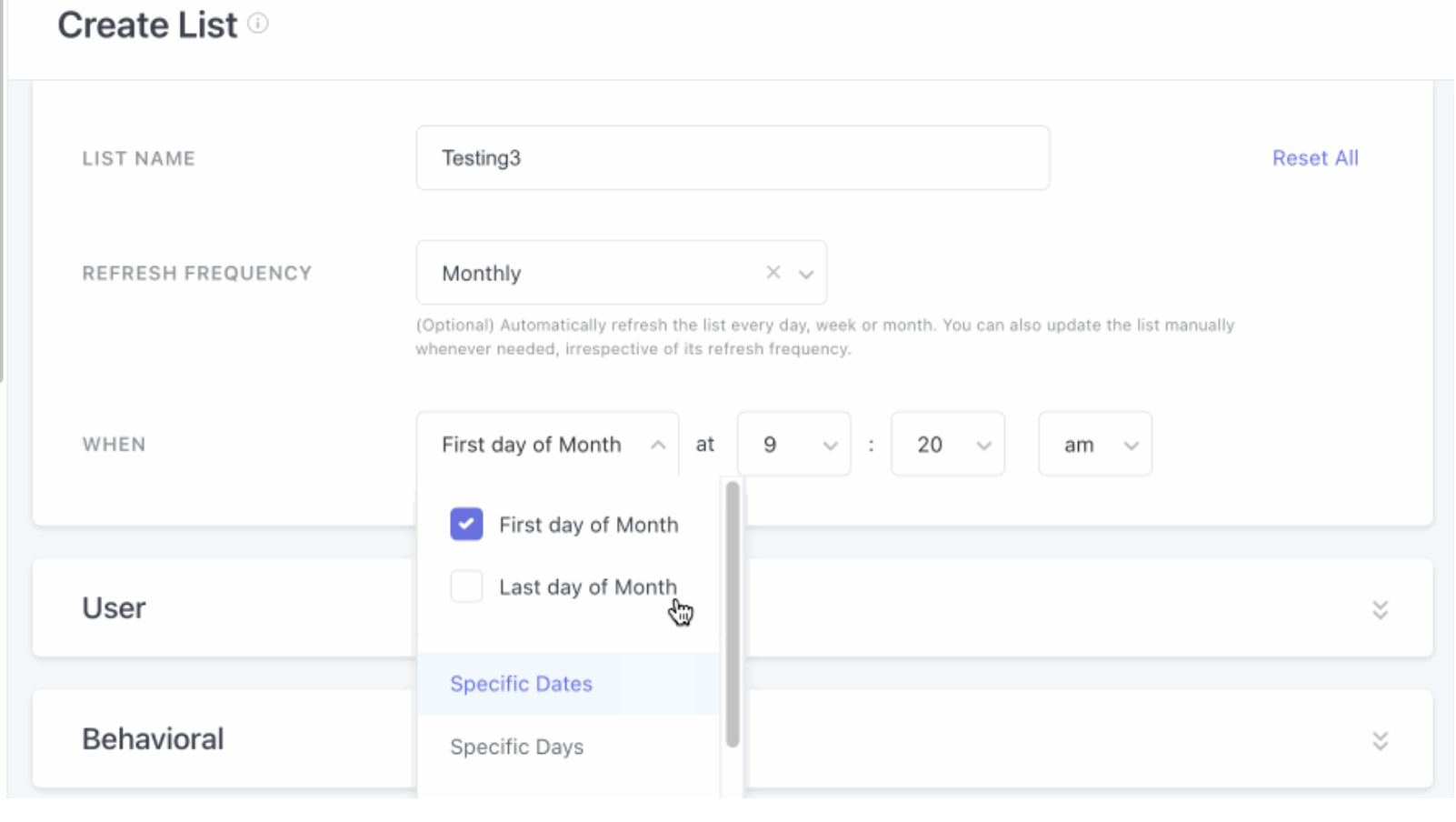
Enter:
Name of the List.
Refresh Frequency (daily, weekly, monthly).
Daily → Select refresh time.
Weekly → Select days + time.
Monthly → Select day (1–28) + time.
Define user criteria:
User filters (Last Seen, Created On, Geo, Reachability, Attributes, Acquisition Source).
Behavioral filters (Events done / not done).
Tech filters (OS/device type).
Click Save.
You can only change the name and refresh frequency.
Criteria are read-only.
Cannot delete if in use by campaigns/journeys.
Remove from active campaigns → then delete via List page > Delete option.
Segments evaluated in real-time whenever user data changes.
Users enter/exit instantly when they meet or stop meeting conditions.
On-site notifications, surveys.
Real-time journeys (e.g., App uninstall recovery, Loan tab visits).
Require longer “brewing process” than Refreshing Lists.
Heavier on system resources.
Navigate to Segments > Live Segments.
Click ➕ Create Segment.
Define criteria (User Attributes, Events, Technographics).
Save with a descriptive name.
RFM Analysis segments users based on three behavioral parameters to identify high-value and at-risk customers for targeted engagement.
Recency (R): How recently a user performed an event.
Frequency (F): How often they performed the event.
Monetary (M): How much they spent (if a monetary event is defined).
WebEngage uses AI-driven predictive segmentation to score users from 1 to 5 on each parameter and group them into 11 RFM segments.
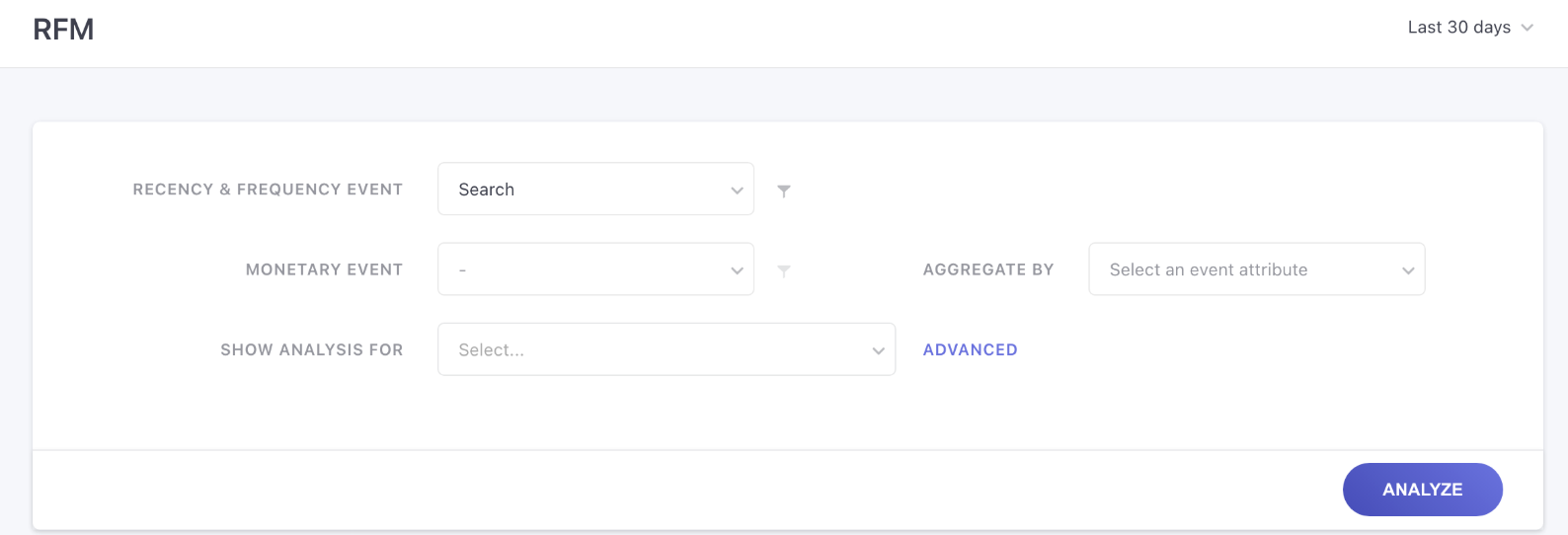
Select Events
Recency-Frequency Event: Core behavioral action to analyze.
Monetary Event (optional): Tracks spend if applicable.
WebEngage AI Processing
Filters users who performed the selected events.
Scores users on Recency, Frequency, and Monetary Value (1–5).
Groups users into predefined RFM segments.
Scale: 1 (Lowest) → 5 (Highest).
Final score: Average of R, F, M.
High score indicates higher probability of retention and engagement.
Recency (R): Days since the last event.
Frequency (F): Number of times the event occurred.
Monetary (M): Spend value, aggregated by event attribute (e.g., Cart Value).
Select Time Frame (default: last 30 days).
Choose Recency & Frequency Event (custom or system event).
Optionally, apply filters to target specific users.
Choose Monetary Event (optional).
Select event attribute to aggregate spend.
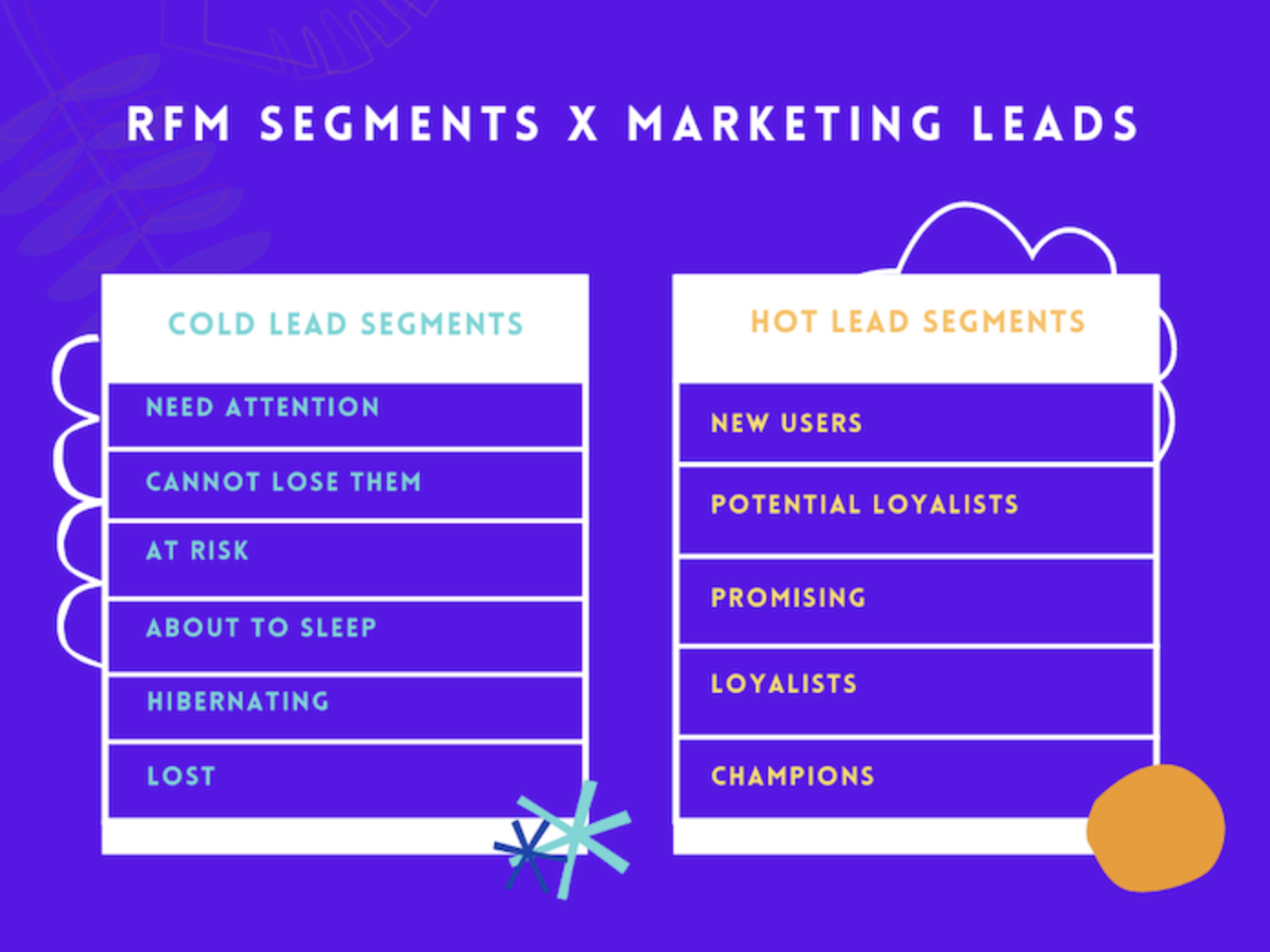
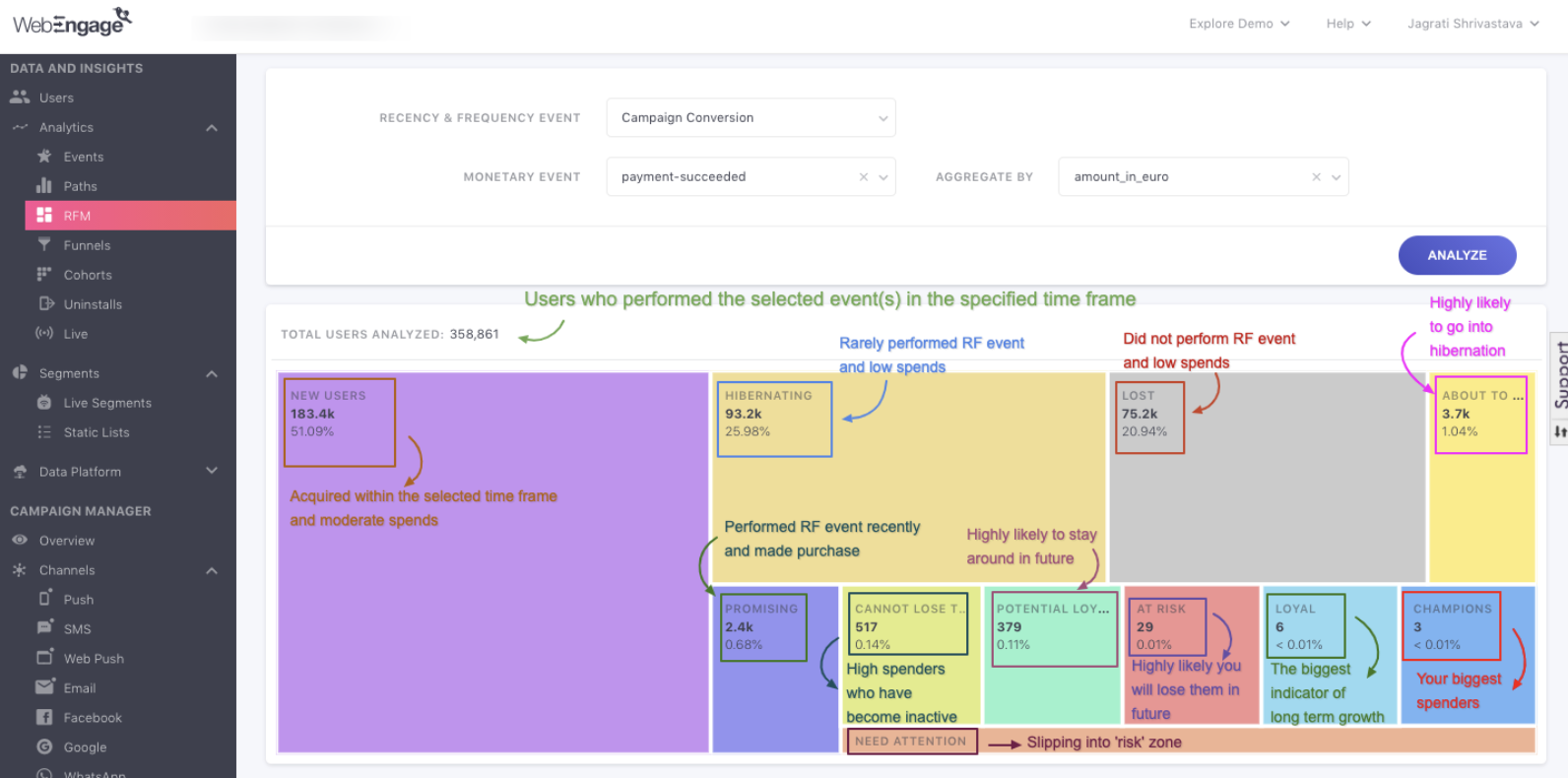
Users are grouped into 11 predefined RFM segments:
Lost: Very old, very low engagement, unlikely to return.
Hibernating: Moderate recency, low activity and spend.
About to Sleep: Older users with low to moderate activity; can be reactivated.
At Risk: Previously active users, showing declining engagement.
Cannot Lose Them: Valuable users, inactive recently; high priority for retention campaigns.
Need Attention: Recent users with moderate activity and high spend; may choose competitors.
New Users: Recent first-time buyers with low frequency and moderate spend.
Promising: Recent buyers with moderate frequency and high spend; potential for repeat high-value purchases.
Potential Loyalists: Frequent buyers with recent activity; likely to become loyal customers.
Loyal: Consistently active and high-spending users.
Champions: Most recent, most frequent, and highest spend users; top revenue contributors and brand advocates.
Grid features: Tile size reflects segment size, and some segments may not appear if no users fall within that range.
Recency: Shows minimum–maximum days since the event and average.
Frequency: Shows minimum–maximum occurrences and average.
Monetary: Shows minimum–maximum spend and average.
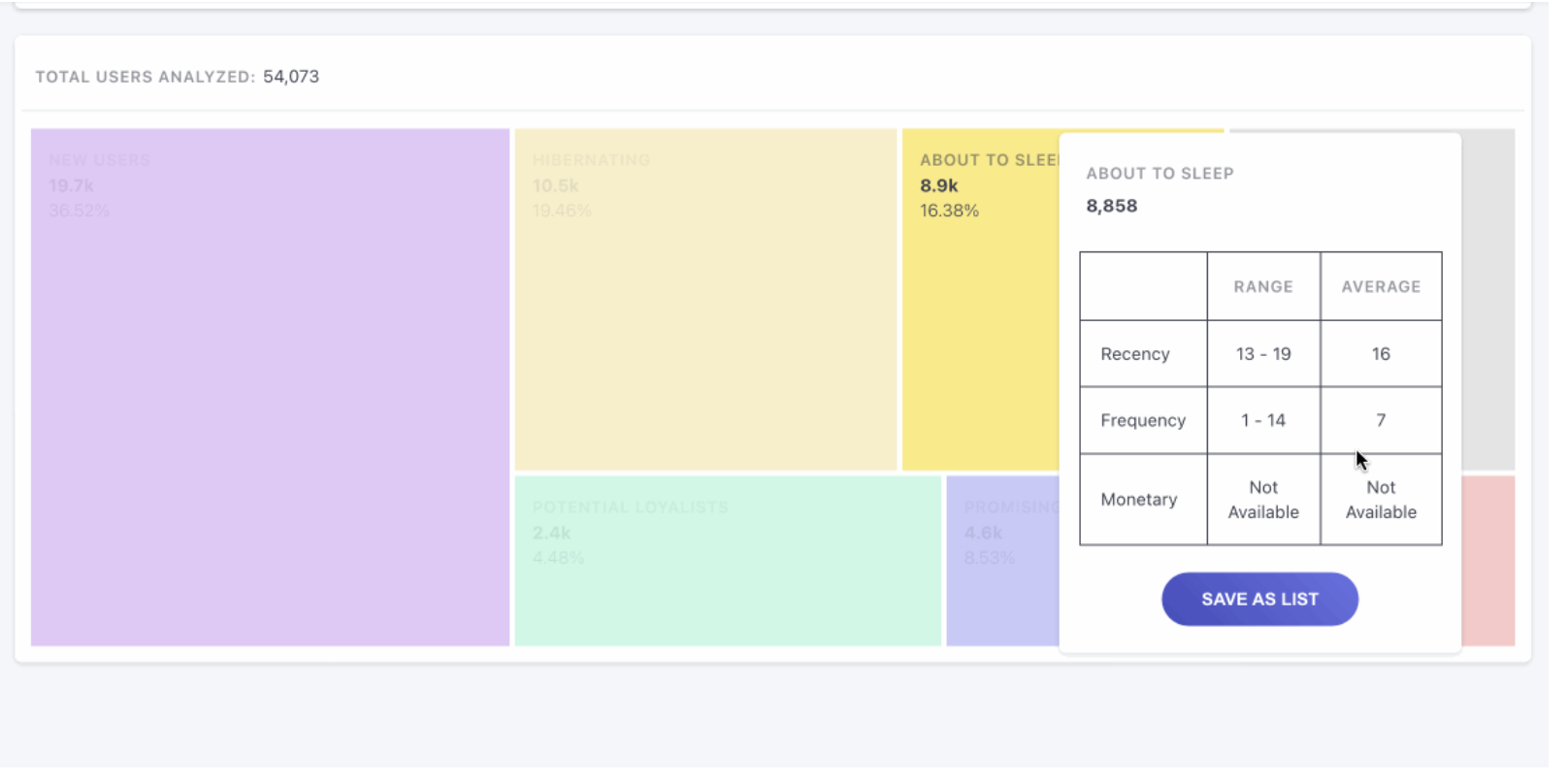
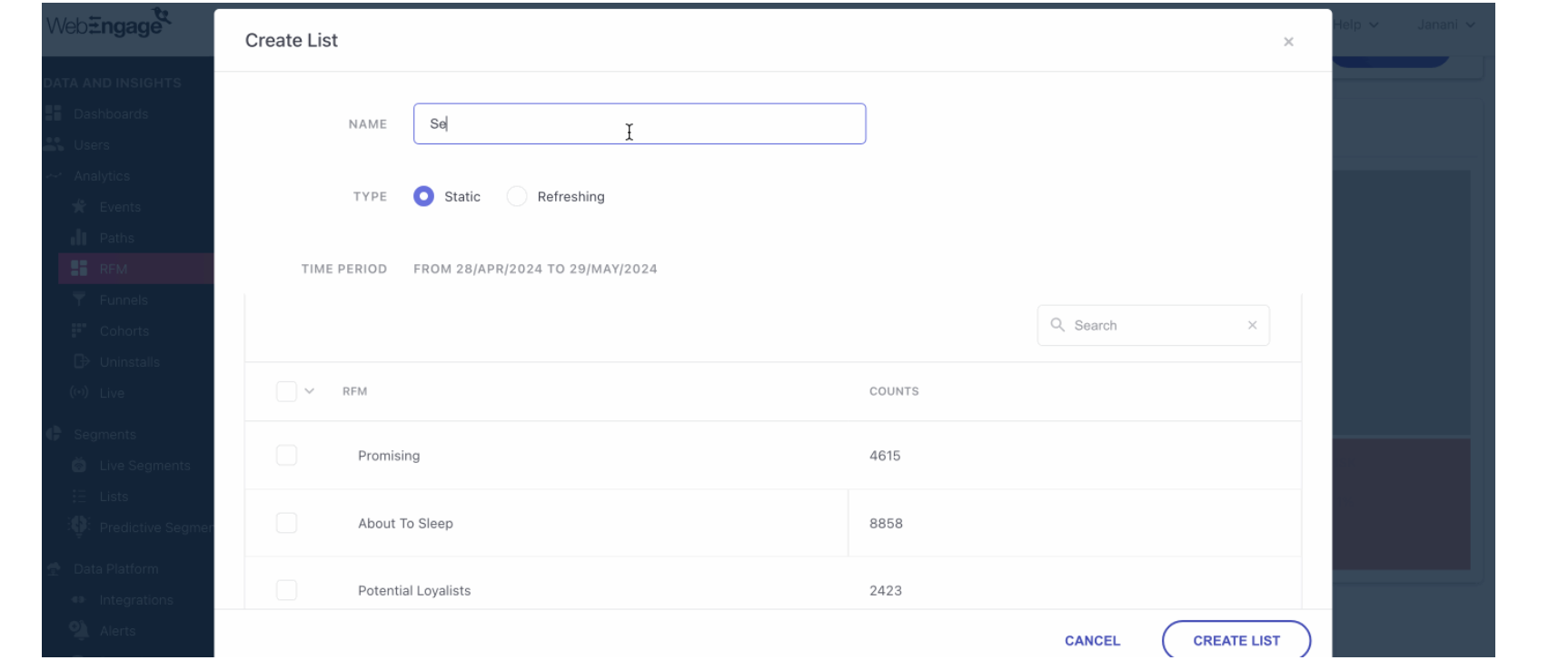
Click on a segment tile.
Select Save as List.
Name the list and select type:
Static List: Fixed snapshot.
Refreshing List: Auto-updates on schedule.
Add one or multiple segments to the list.
Access saved lists under Segments > Lists.
AI/ML models predict which users are Most Likely, Moderately Likely, or Least Likely to perform an event in the future.
Forecast purchases, subscriptions, or churn.
Run campaigns tailored to purchase intent.
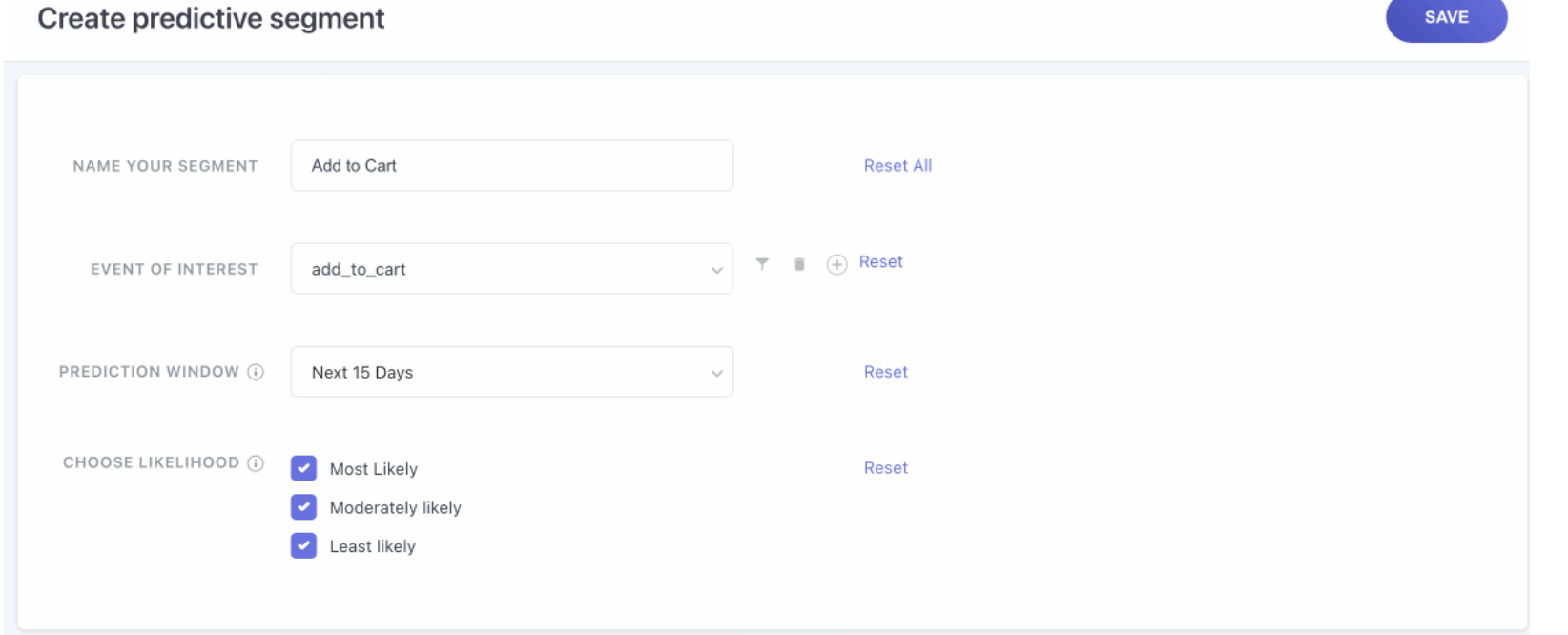
Navigate to Segments > Predictive Segments.
Click ➕ Create Predictive Segment.
Define:
Name of the segment.
Prediction Event(s) (purchase, sign-up, subscription).
Prediction Window (default 7 days, customizable).
Likelihood → Most / Moderate / Least likely.
Refresh Frequency (weekly/bi-weekly/monthly).
Save → AI processes data → Segment generated.
Use Lists for fixed targeting.
Use Refreshing Lists for recurring updates.
Use Live Segments for real-time actions.
Use RFM to target based on past behavior.
Use Predictive Segments to act on future intent.
Together, these methods allow you to combine past (RFM), present (Live/Refreshing), and future (Predictive) insights to run smarter campaigns across the lifecycle.

