

An empty state is what a user sees when there’s no data to display.
Examples in an mobile app:
Cart is empty 🛒
No search results 🔍
No orders placed yet 📦
Empty state images are the illustrations/icons shown in these situations, usually with a short message and sometimes a call-to-action (CTA).
They replace a “blank screen” with something helpful, friendly, and branded.
Empty state images turn a “dead end” into a positive user experience, encouraging users to take action instead of leaving the app.
How to Set Empty State Images
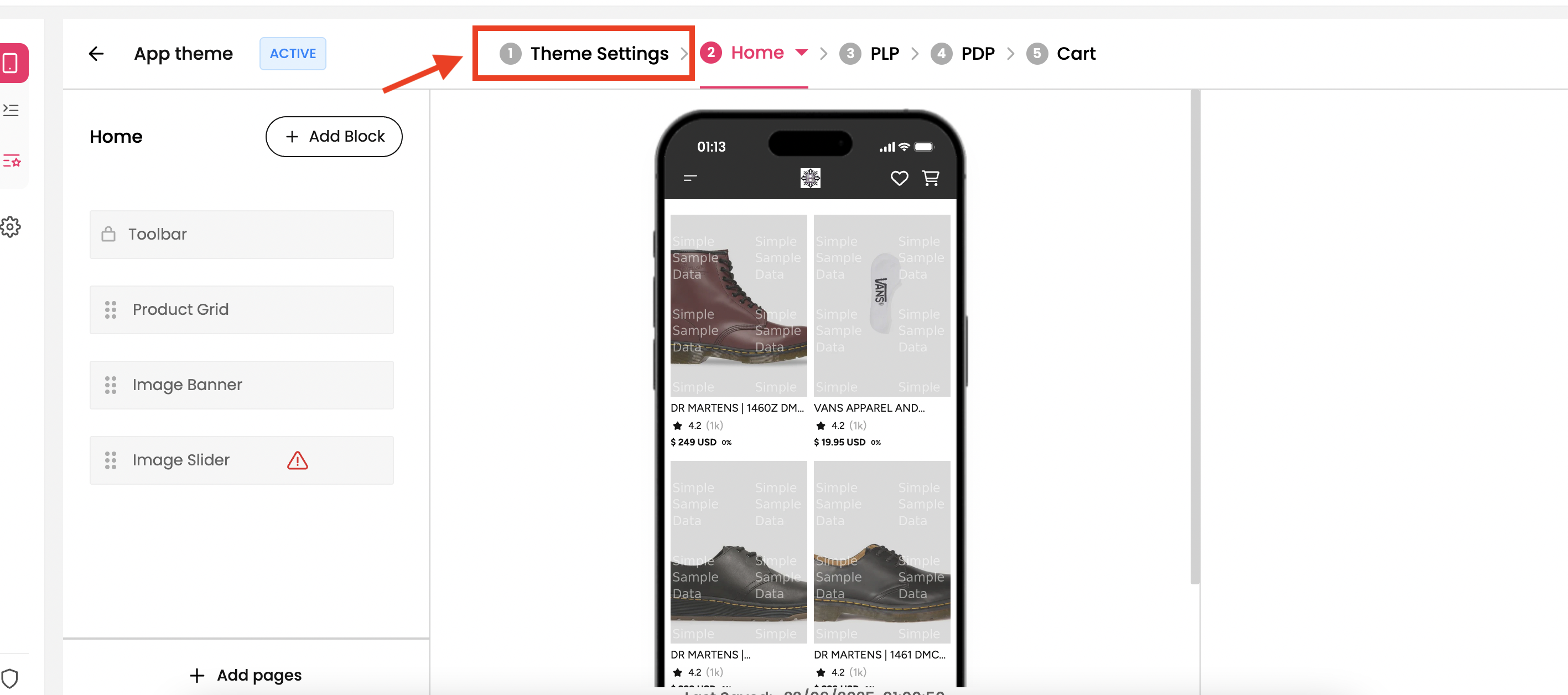
Step 1 : Select the theme which you want for your mobile app from theme section and click on “Theme Settings”. You’ll be redirected to the Colors and Font section in the dashboard.
Step 2 : On the Left Side menu, under the “Brand” section, there is an menu which says “Empty State Images”. Click on that and you’ll get navigated to that page where you can upload the images for different states.
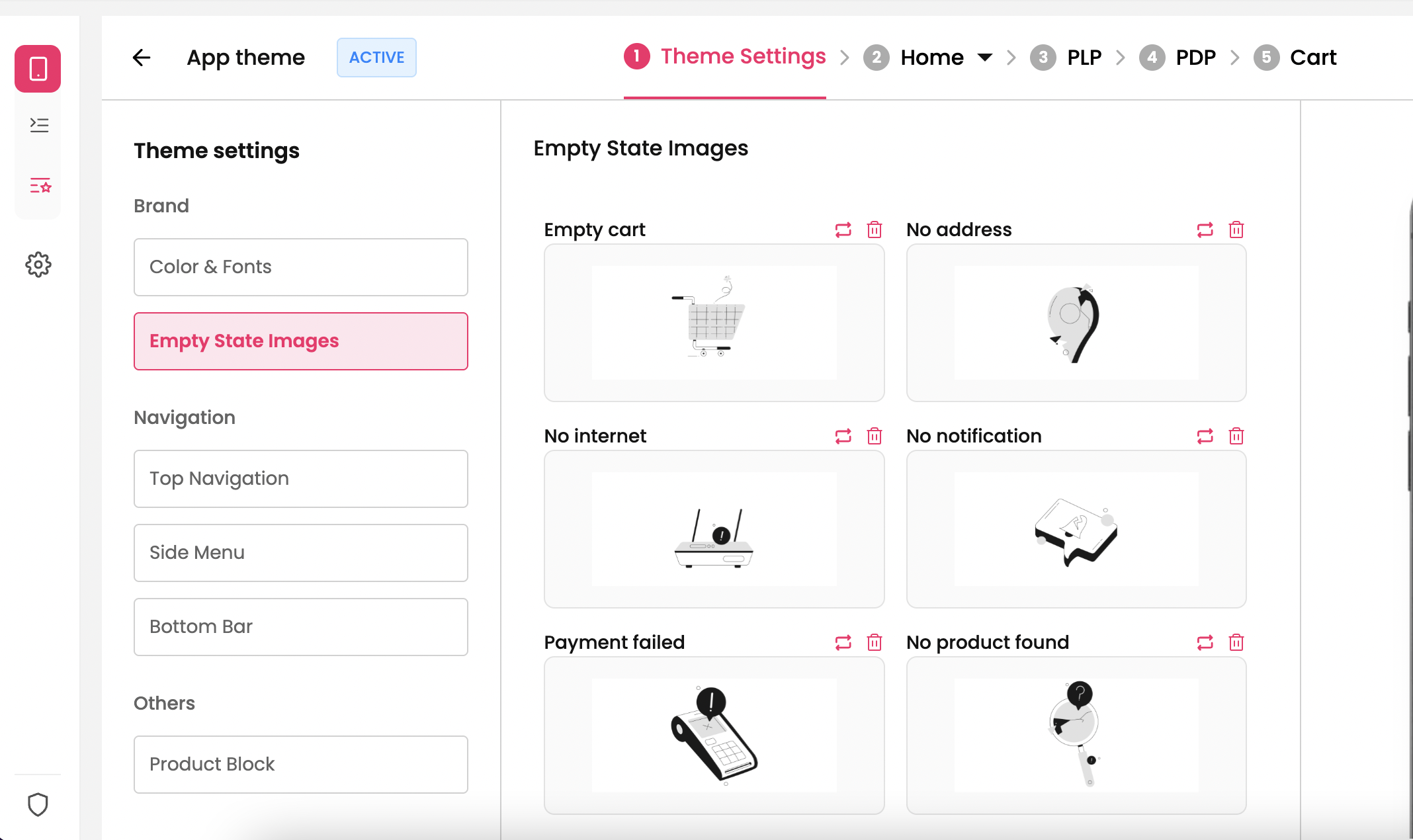
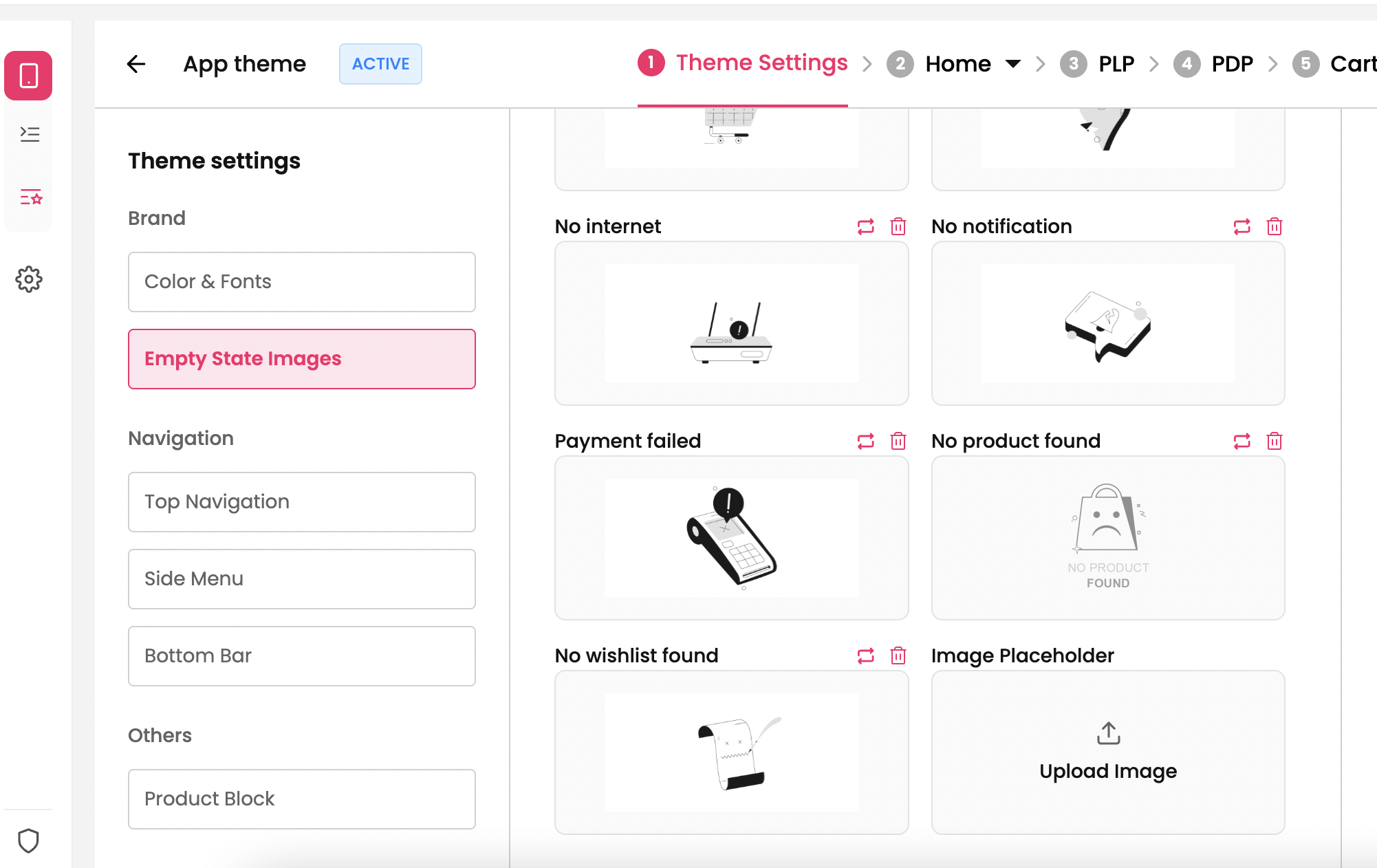
Step 3 : The page has default images uploaded for each state. To customize, you can click on “Delete/Replace” icon and upload the image of your choice.
Best Practices:
Use illustrations/icons that match your app’s style and brand colors.
Use conversational text, not robotic.
Use Simple, Lightweight Graphics.
Don’t reuse the same image everywhere—it feels lazy.