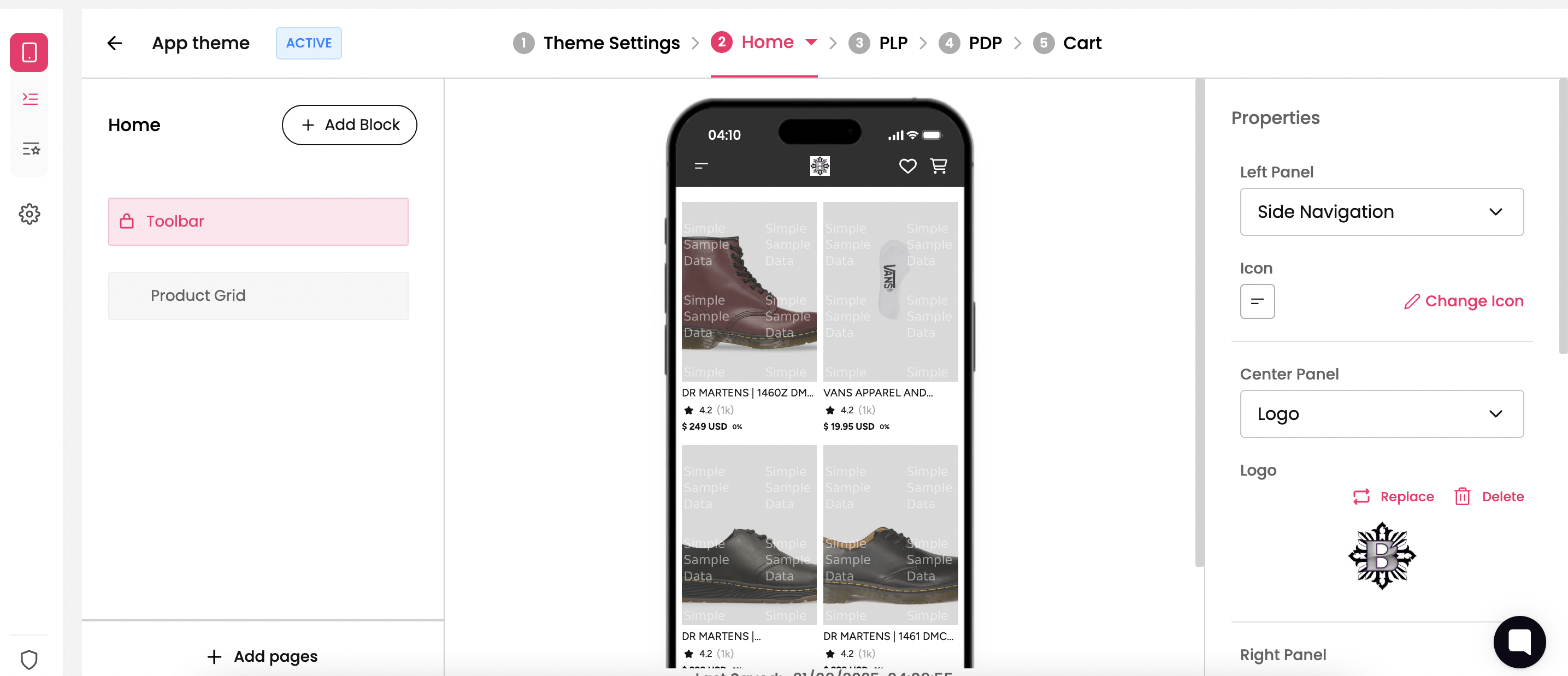
Your app logo is a key visual identity for your mobile app. It appears on the app home screen, and various other pages on the app. Uploading the right logo ensures your app is instantly recognizable by users.
This article talks about the ideal design practices one can follow to have on having brand logo on the app.
The ideal places where you can have brand logo inside an app are as follows:
Launch Screen
App Header
Steps to upload app logo on the following pages are as follows
Step 1 : Prepare a logo for your brand.
Format: PNG or JPG (preferably PNG for transparency)
Resolution: Minimum 512x512 pixels for app;
Background: Transparent or solid color; avoid cluttered designs
File Size: Less than 5 MB
Tip: Keep your logo simple and easily recognizable even at smaller sizes.
Step 2 : Upload the logo on desired pages of the app.
Logo on Launch Screen of the app
Step 1 : Navigate to the “Launch Screen” section of the dashboard by clicking on Setting → App Distribution. (The Launch Screen is the very first menu of the App Distribution).
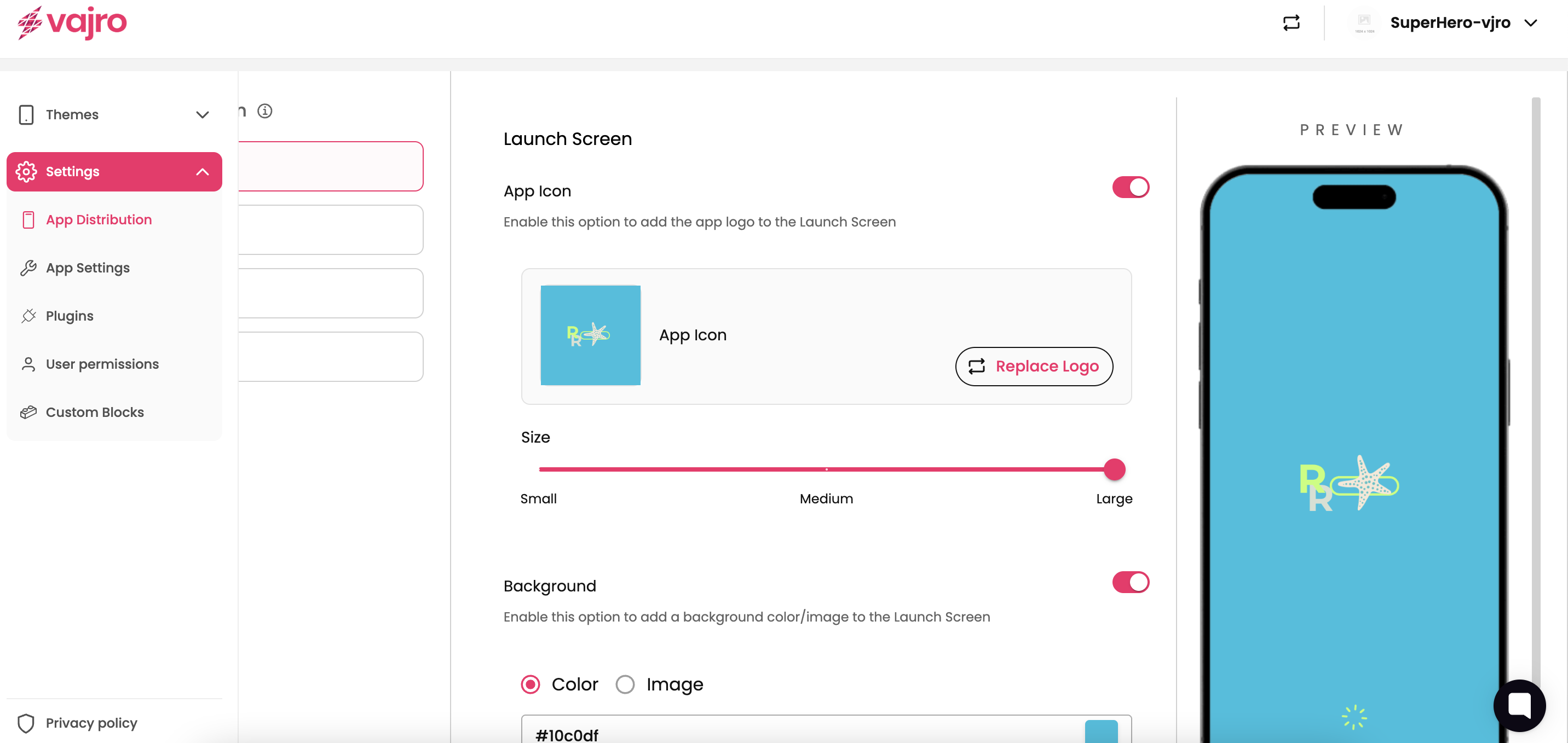
Step 2 : Enable the App icon and uplaod the image and adjust the size as desired.
Logo on the App Header
Step 1 : Navigate to the “Active Theme” section of the Dashboard. You’ll be navigated to the “Home” Page section of the app.
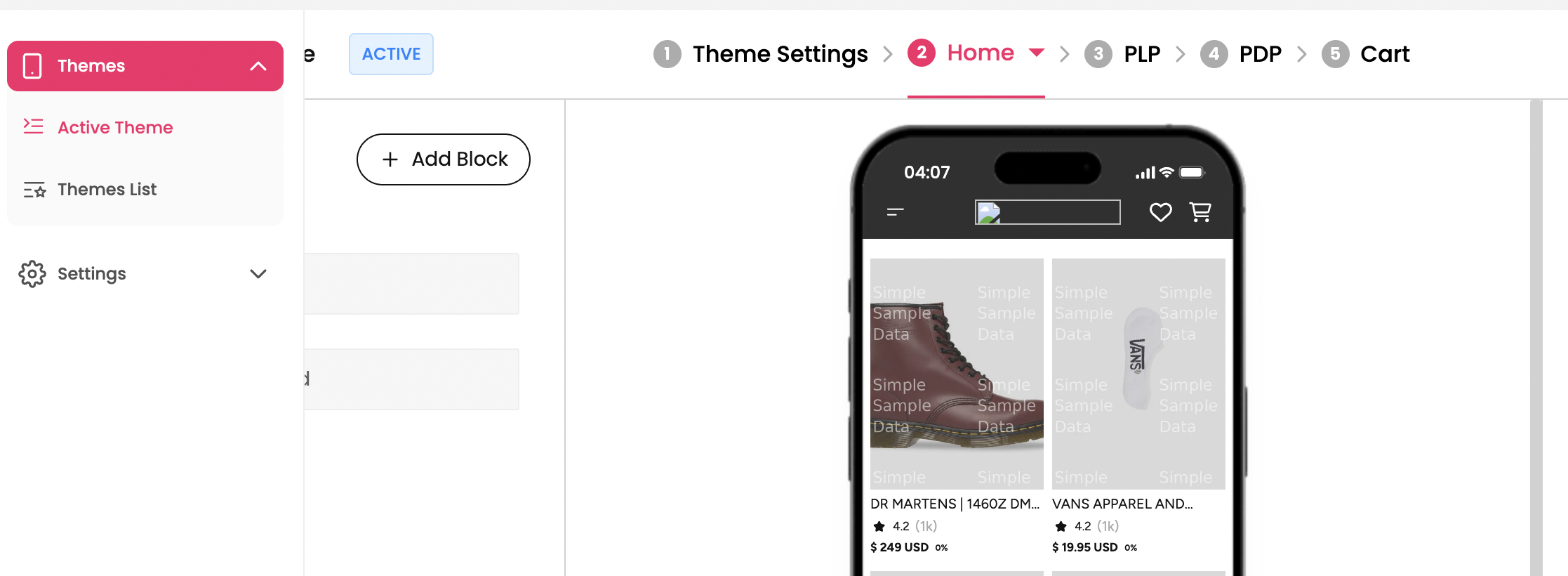
Step 2 : Click on the “Tool bar” block which is built-in block that appears on top of all the pages of the app.
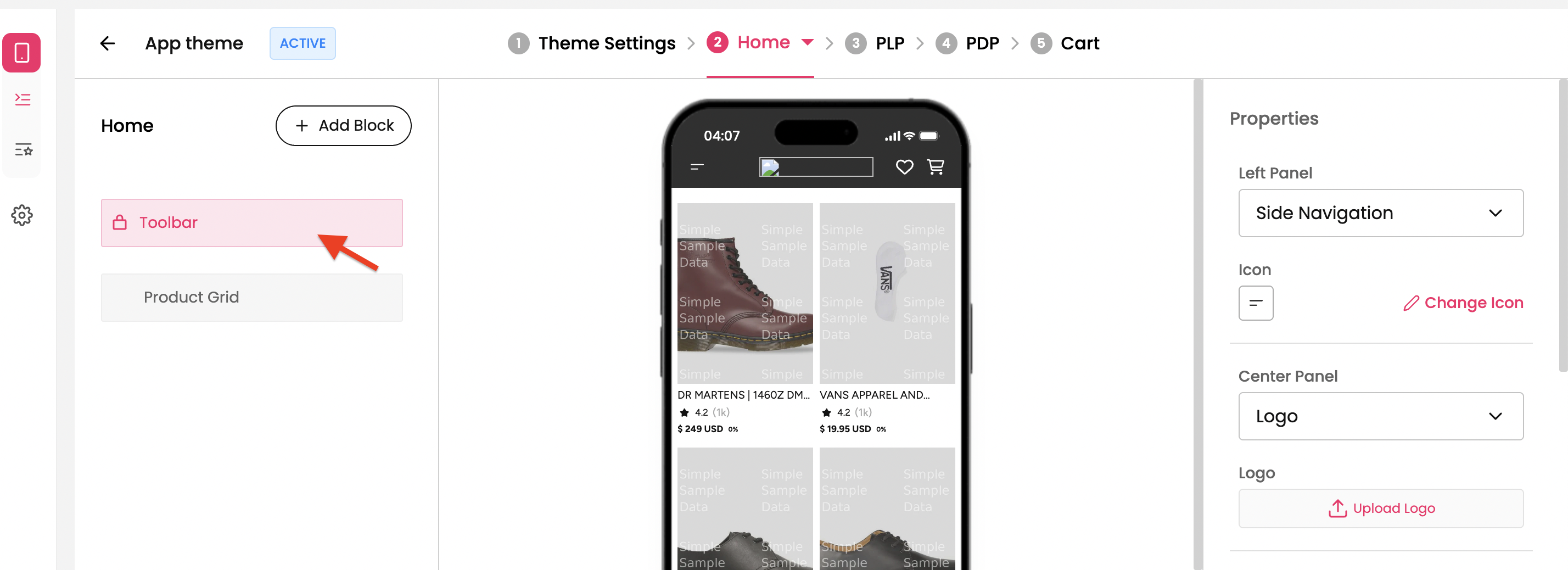
Step 3 : On the Right Panel, you’ll find the menu named “Central Panel” and select “Logo” from the dropdown menu.
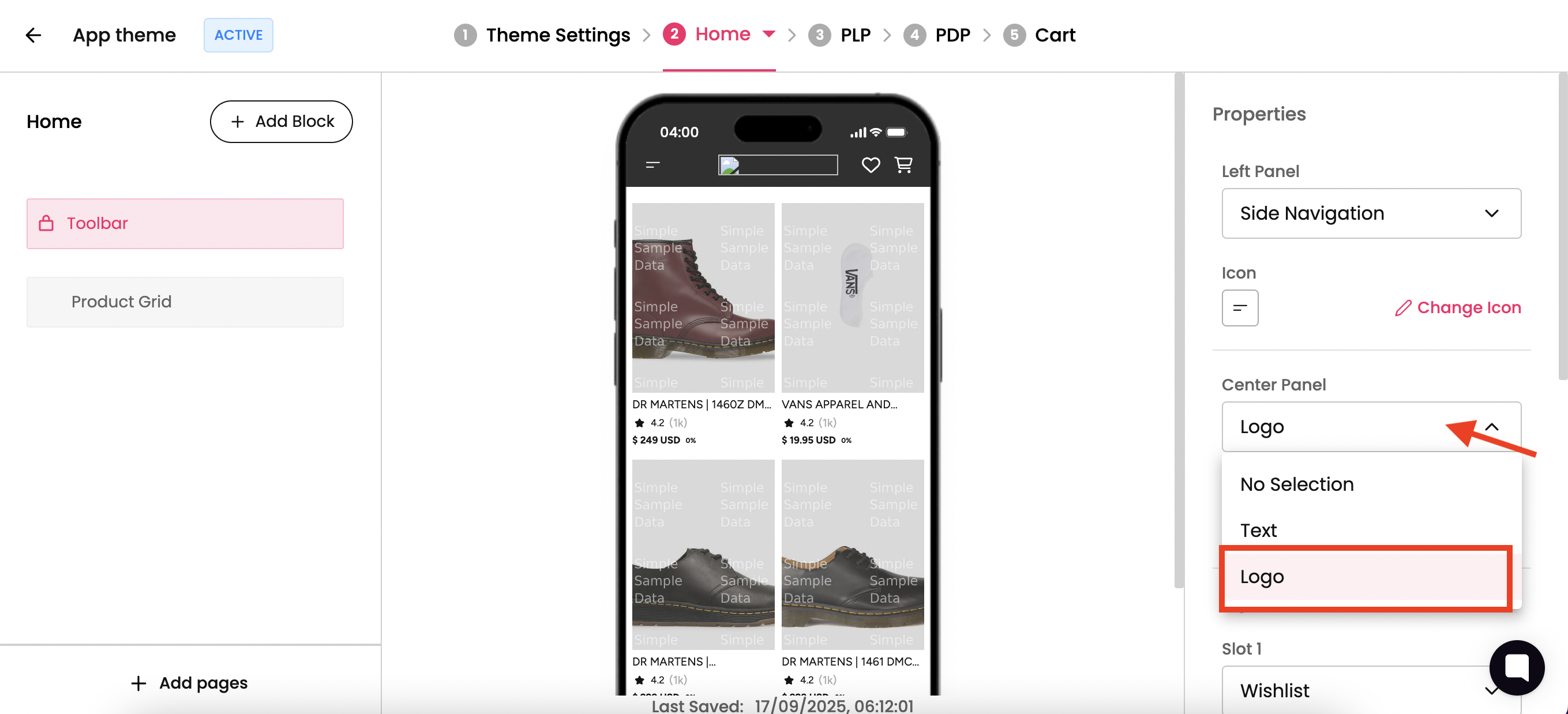
Step 4 : Upload the desired logo and it’ll appear on the Header of the app.
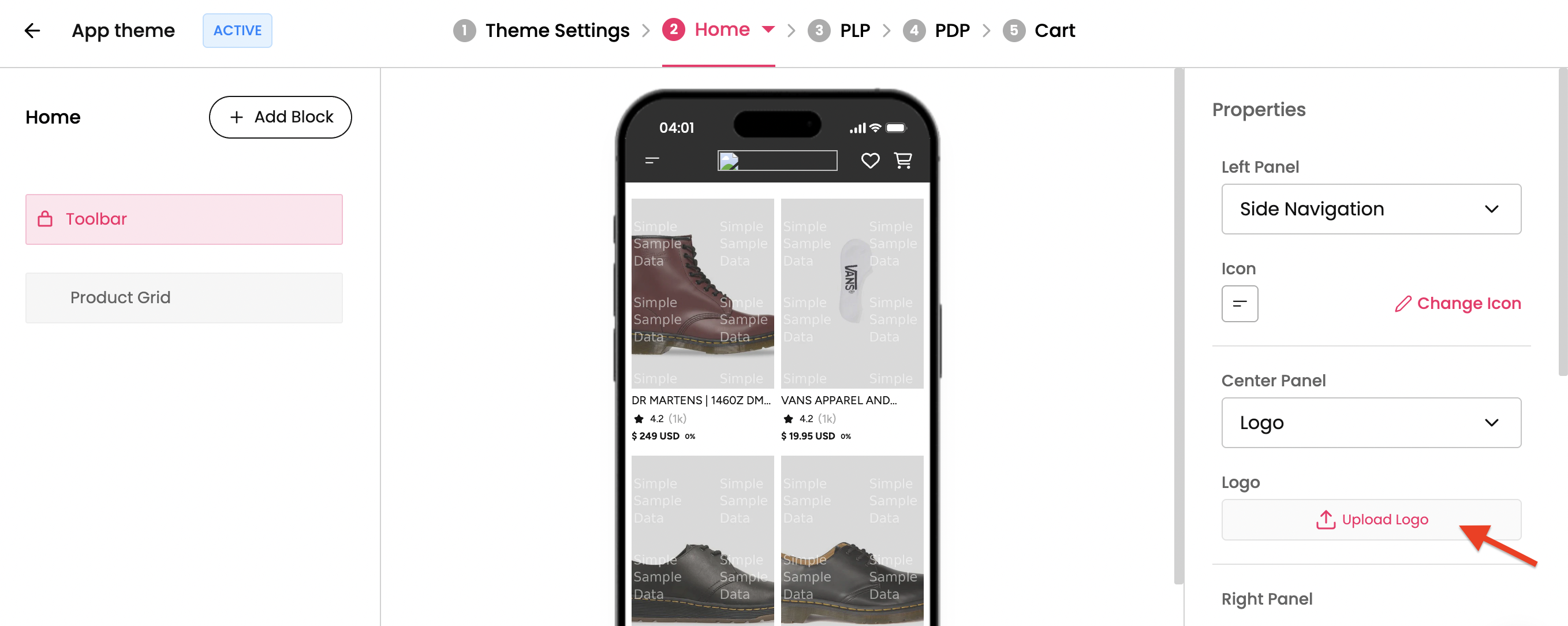
Step 5 : Preview the uploaded logo in the center of the top bar on the screen.