There are two ways to set up a Webengage account:
Default (Superfans-created): A Webengage account is created by us ([email protected]). To get access, contact our support team.
Migration/existing setups: If you already have a Webengage account, add the details in your Superfans dashboard and enable it.
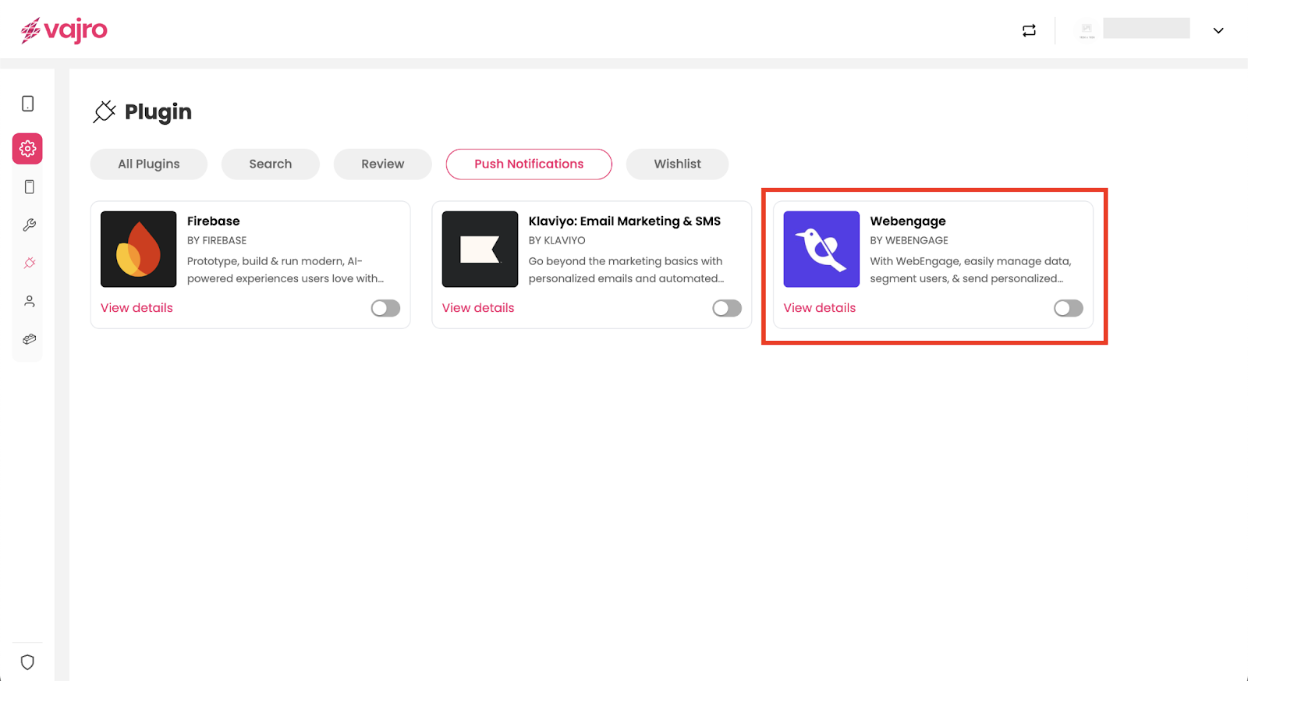
Step 1 : Log in to your Vajro dashboard and go to Settings > Plugins.
Step 2 : Under the Search category, select Webengage and toggle it on.
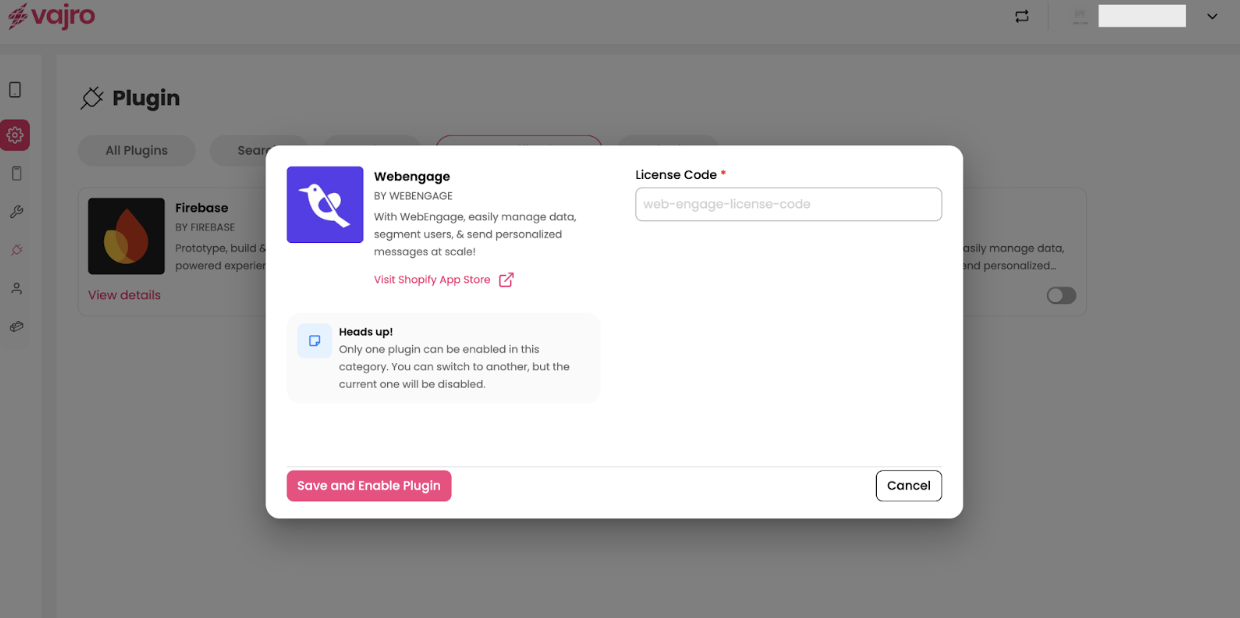
Step 3 - Paste the License code in the dialogue box, and click on Save & Enable plugin.
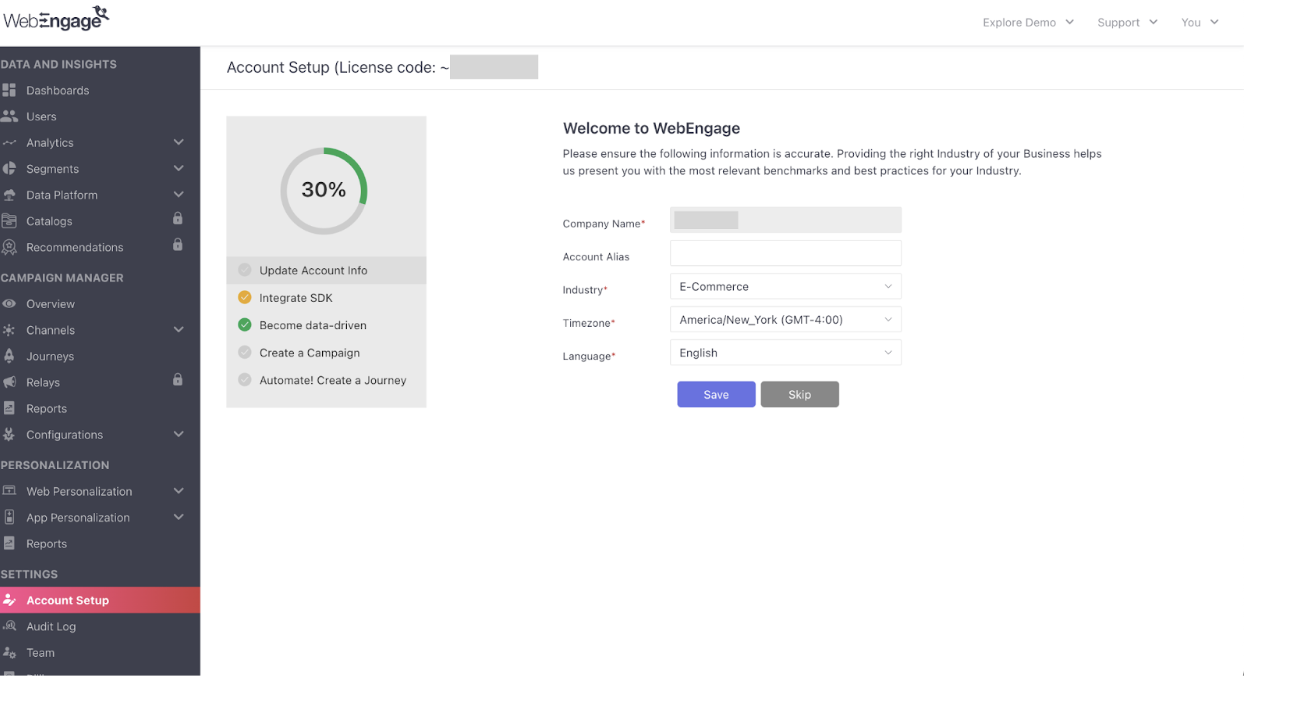
Where to get License code?
To obtain the License Code, log in to your WebEngage dashboard, navigate to the Account section, and you will find the License Code listed there.

Before creating a campaign, ensure:
Android and iOS apps are configured.
User attributes and custom events are tracked.
Internal team members are added if testing campaigns.
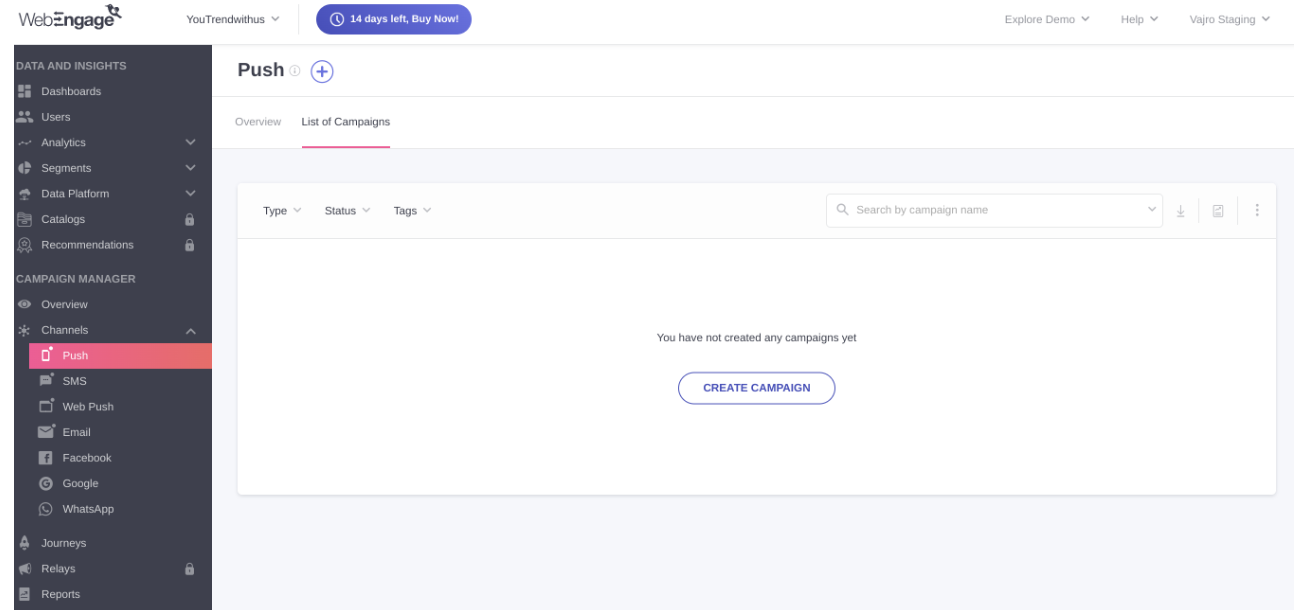
Go to Channels → Push.
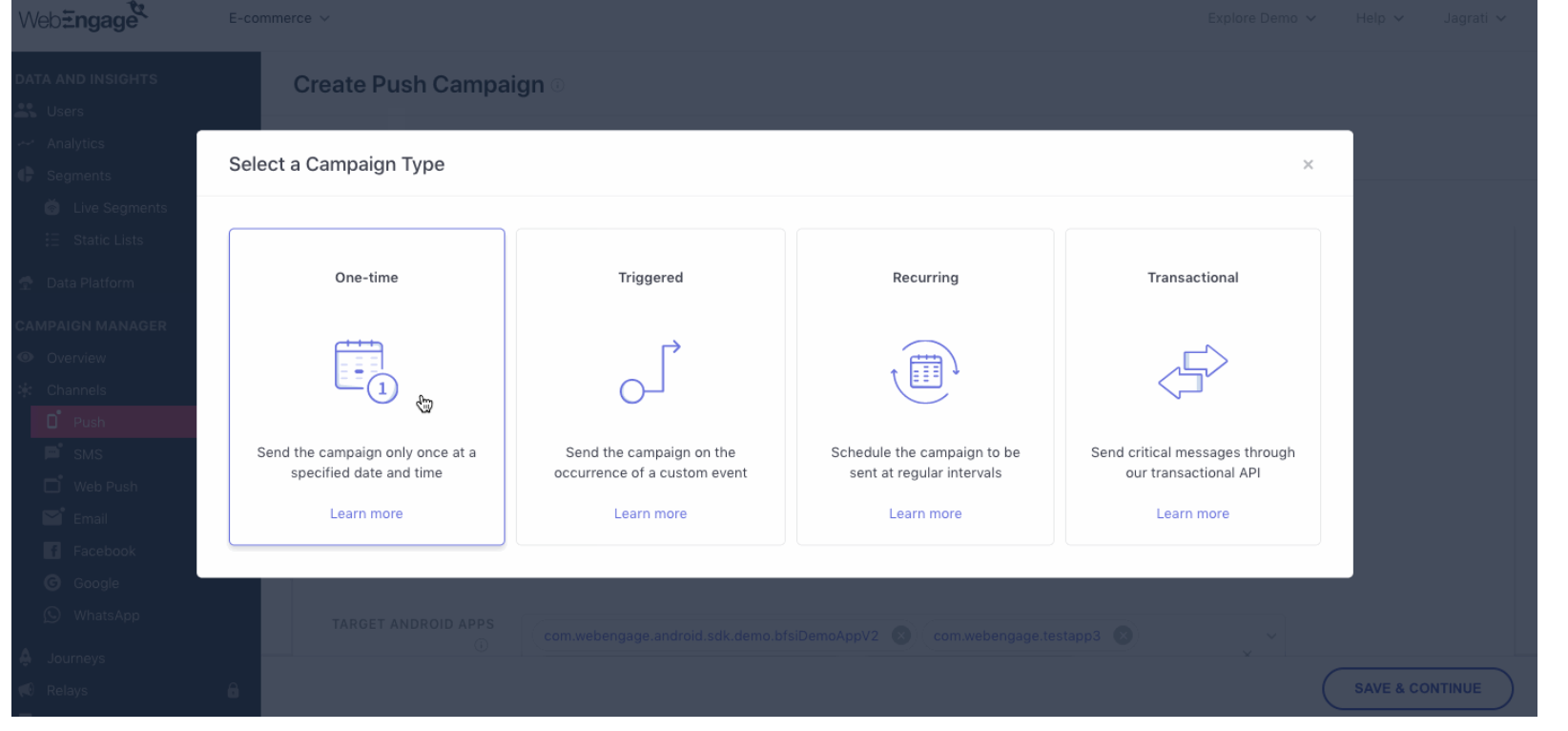
Click Create Campaign or the plus (+) icon.
3.Select Campaign Type:
One-time: Sent once to the selected audience at a scheduled time.
Recurring: Sent repeatedly at defined intervals (daily, weekly, etc.) to the same or updated audience.
Triggered: Sent automatically when a user performs a specific action or event.
Transactional: Sent to confirm or notify users about a transaction or important activity (e.g., order confirmation).
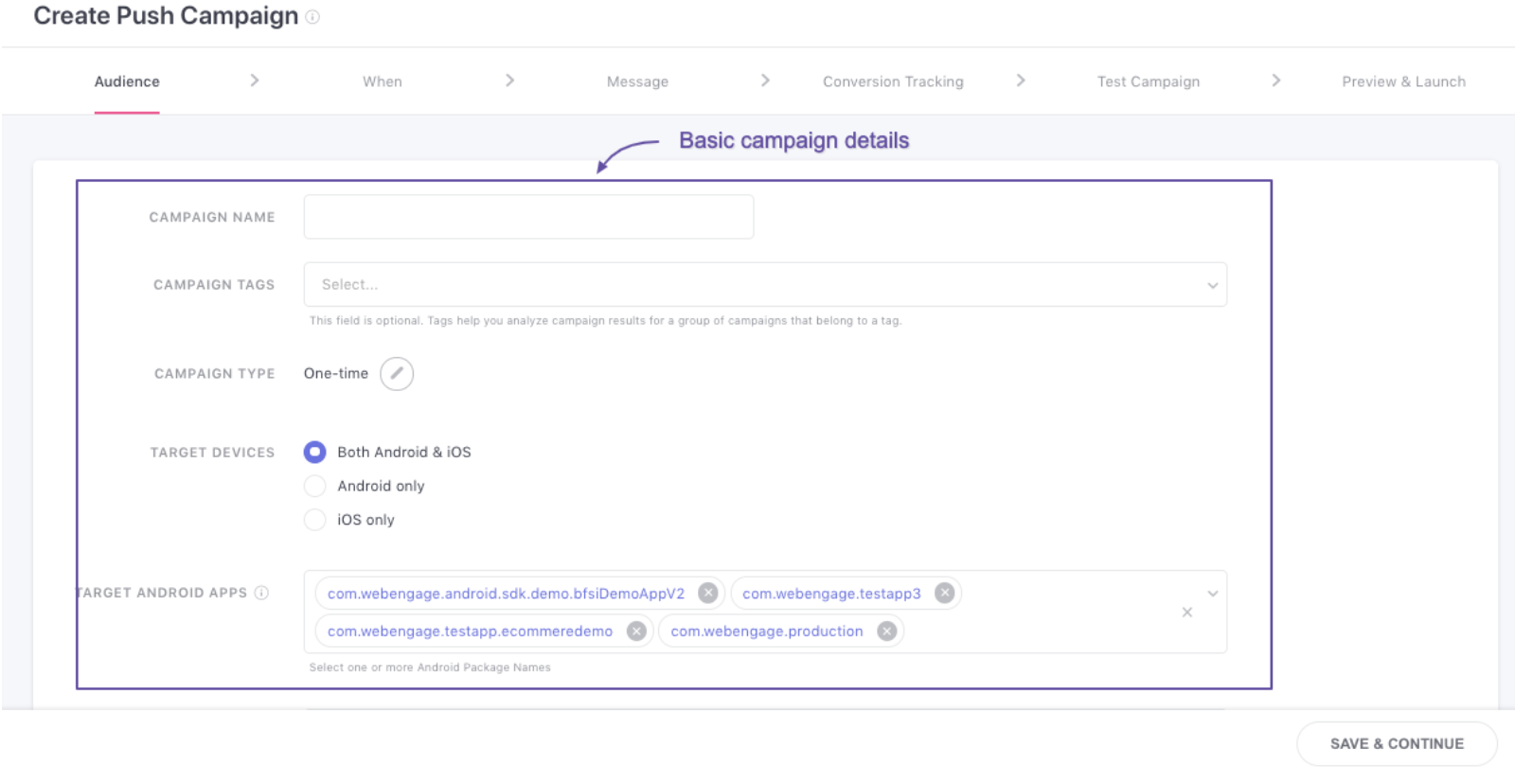
Give your campaign a name.
Select the audience:
All users
Specific live segment
Select Target Apps: Android, iOS, or both.
Save & Continue.
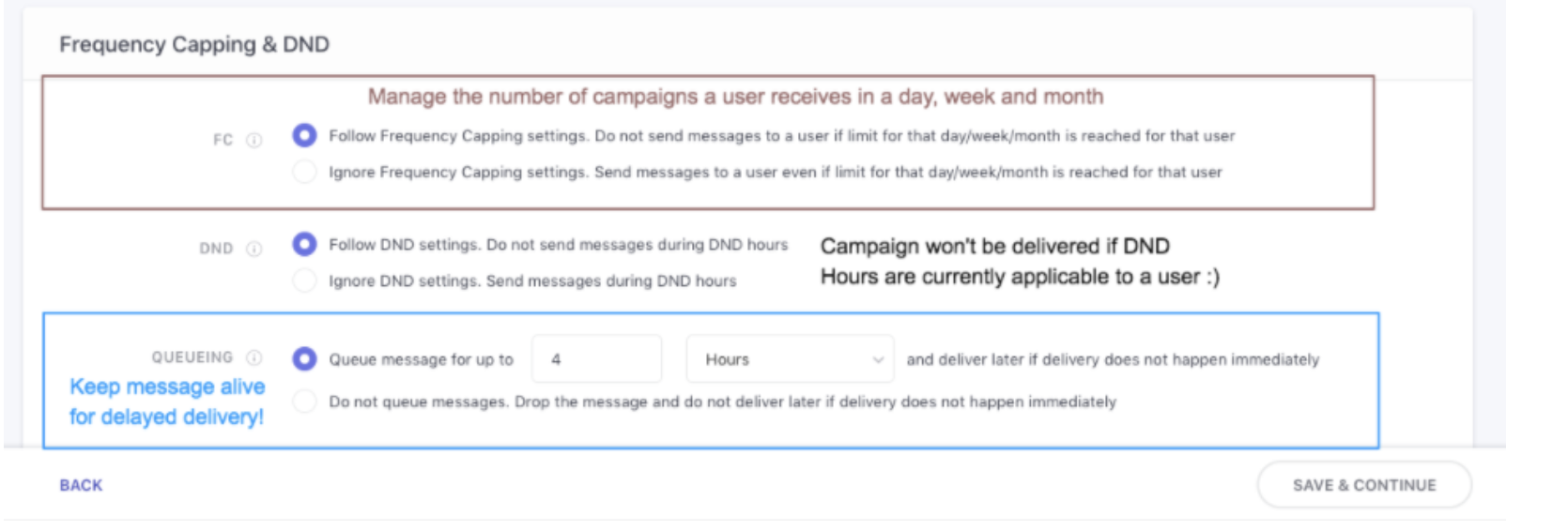
Under the When section, configure:
Delivery Time:
Immediate
Scheduled for later date/time
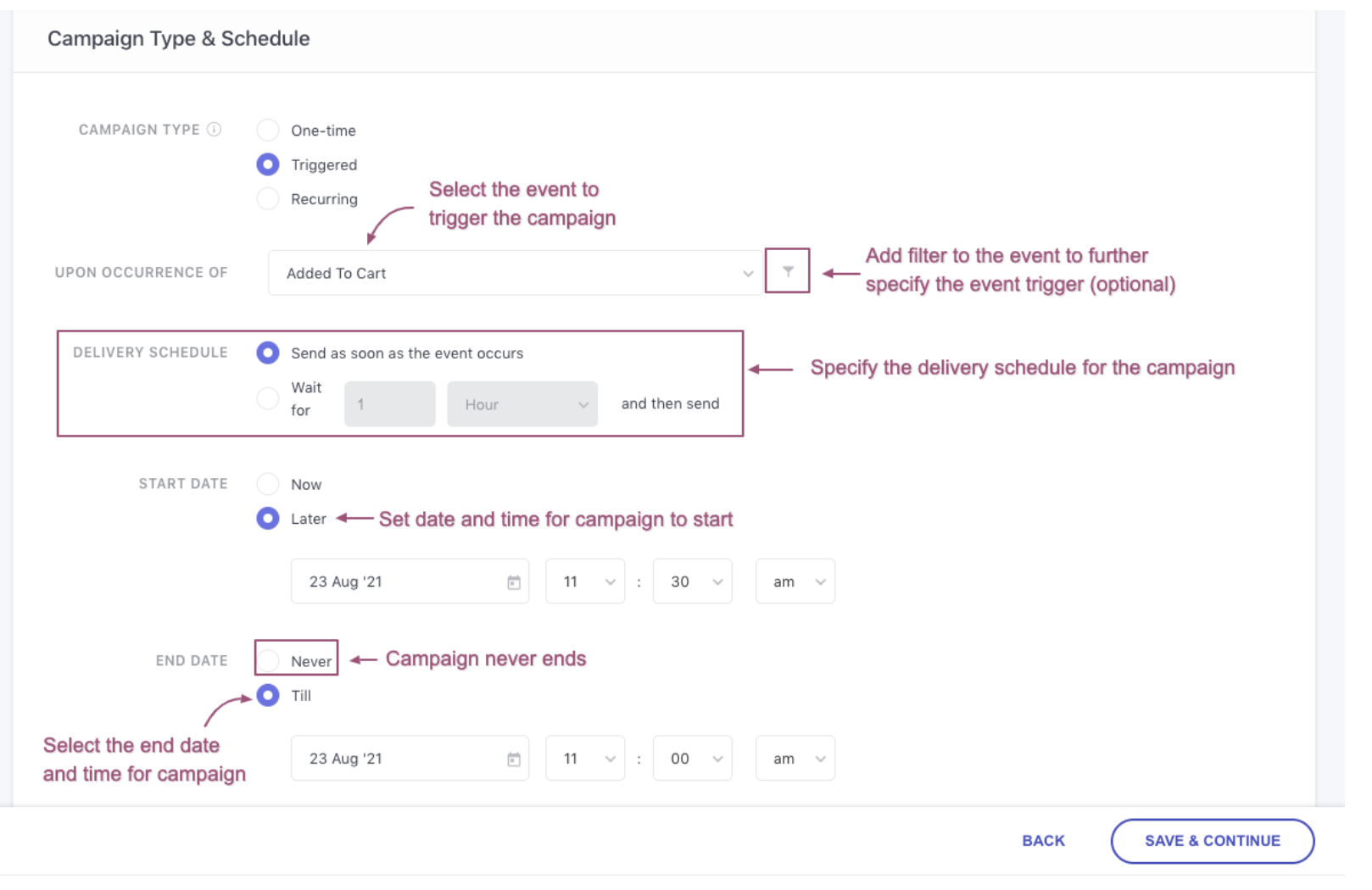
Frequency Capping & DND Hours:
Set how often users can receive notifications.
Block hours if needed.
Queueing Settings:
Optional queuing for overlapping campaigns.
Save & Continue.
Default / Custom Image: Icon or image in collapsed notification.
Collapsed Image Width: Full or half width (mirrored for RTL languages).
Text and Actions:
Title- Give the title
Description- Draft the message
On-click actions (mandatory for iOS)
Advanced Options:
Android: Sticky Push, message summary, up to 3 buttons.
iOS: Subtitle, predefined CTA buttons.
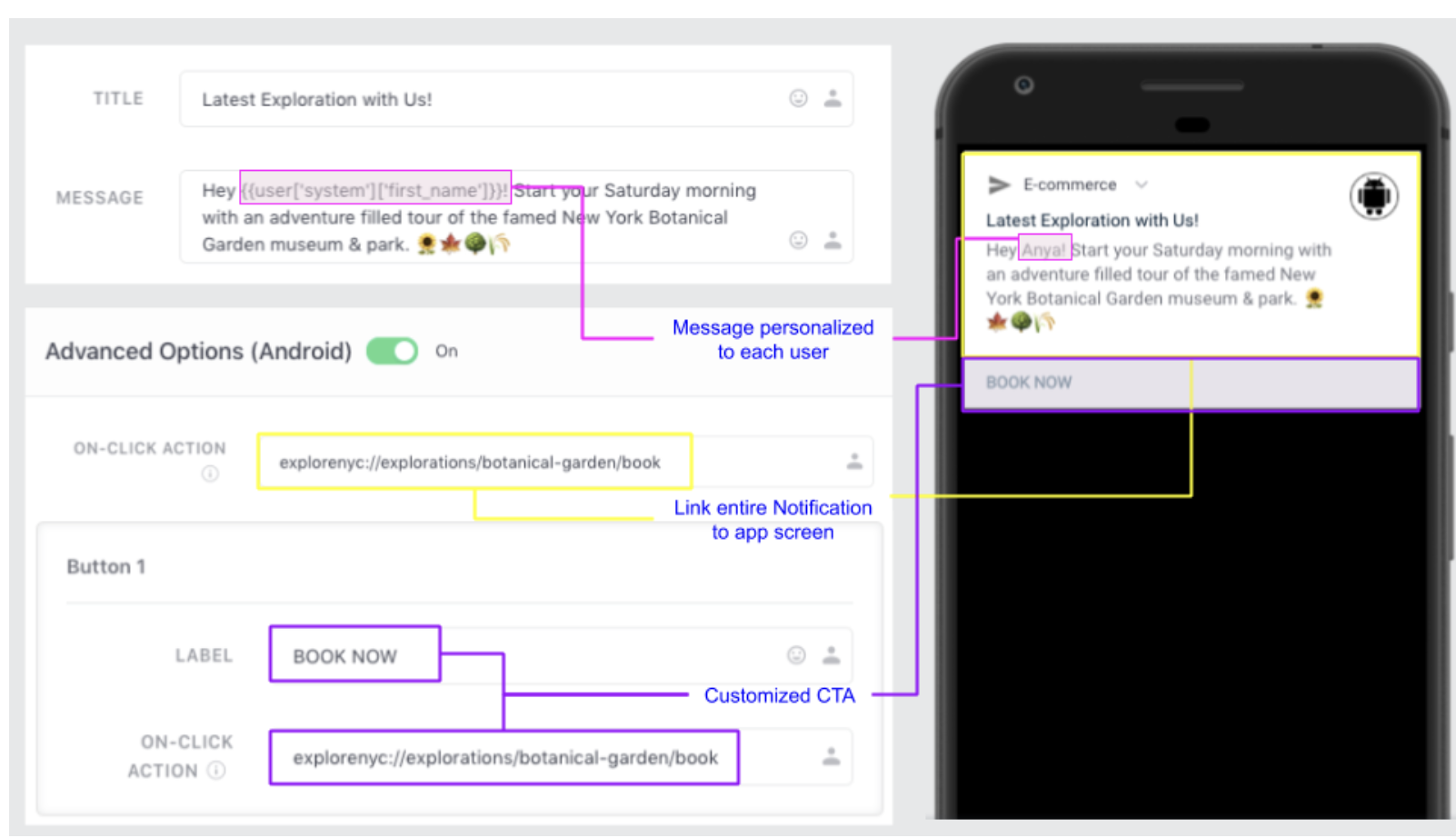
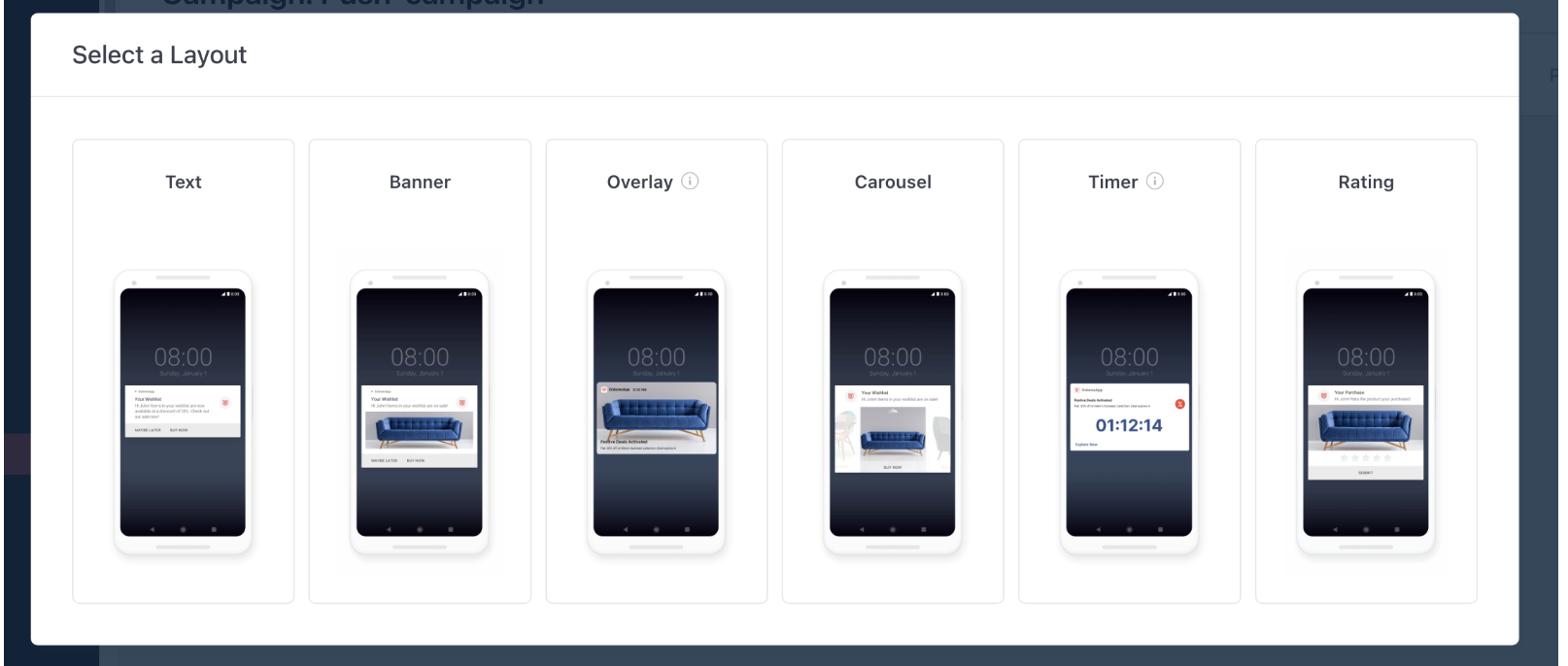
A simple, compact message for displaying text-based information.
Includes a title, a brief description, and optional buttons.
Ideal for quick, non-intrusive announcements or alerts.
Displays a message at the top or bottom of the screen.
Can include a small image, text, and a call-to-action button.
Best used for notifications or promotions that don't block the user's view.
A highly visible, full-screen message that takes over the user's screen.
Features a large background image, a title, and a description.
Perfect for critical announcements, special offers, or full-page takeovers.
Carousel Layout:
1-5 images, auto-scroll optional
Add labels & deep links
Timer Layout (Android Only):
Countdown, big countdown, or progress bar
Duration or end-time timer
Optional image, text, and action
Ratings Layout:
Personalize title & description
Background color/image
Advanced options like auto-dismiss, buttons
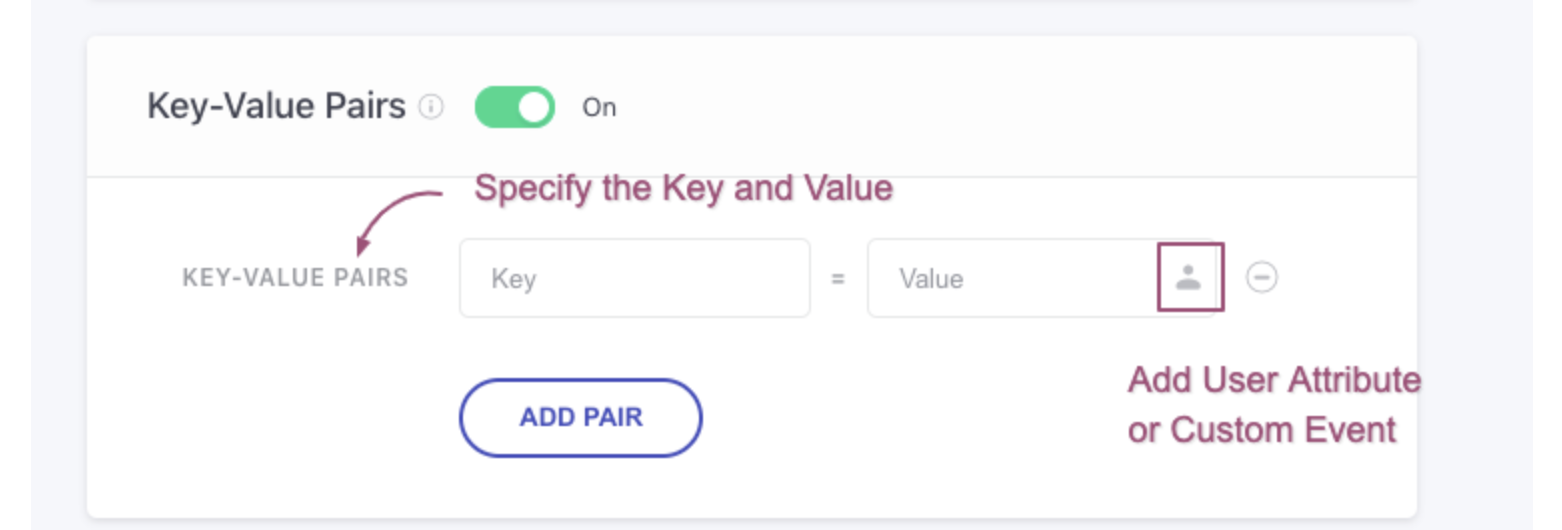
Use full URLs when deep linking doesn’t work or when directing to public pages.
Fields: key: url, value: your-website-url
Product Page: https://yourstore.com/products/nola-tee
Collection Page: https://yourstore.com/collections/women-dresses
Cart Page:https://yourstore.com/cart
Account Page: https://yourstore.com/account
Login Page:https://yourstore.com/login
Search Page:https://yourstore.com/search?q=summer+dresses
Cart Page → Cart Key: cart & Value: [Empty]
Wishlist Page → Wishlist Key: wishlist & Value: [Empty]
Account/Profile Page → User Account Key: accounts & Value: [Empty]
Notification History→ Notification Center Key: notifications & Value: [Empty]
Search Page→ Search Key: search & Value: [Empty]
Product Page→ Specific Product Key: product & Value: product id
Category/Collection Page→ Specific collection Key: category & Value: your-collection-id
Dynamic Page→Custom Page by ID Key: page & Value: your-page-id
Custom Content Block→ Custom promo/content Key: customBlock & Value: your-block-id & customBlockType: full_screen
External Website→ Open in browser Key: eUrl & Value: https://your-website.com
Save & Continue.
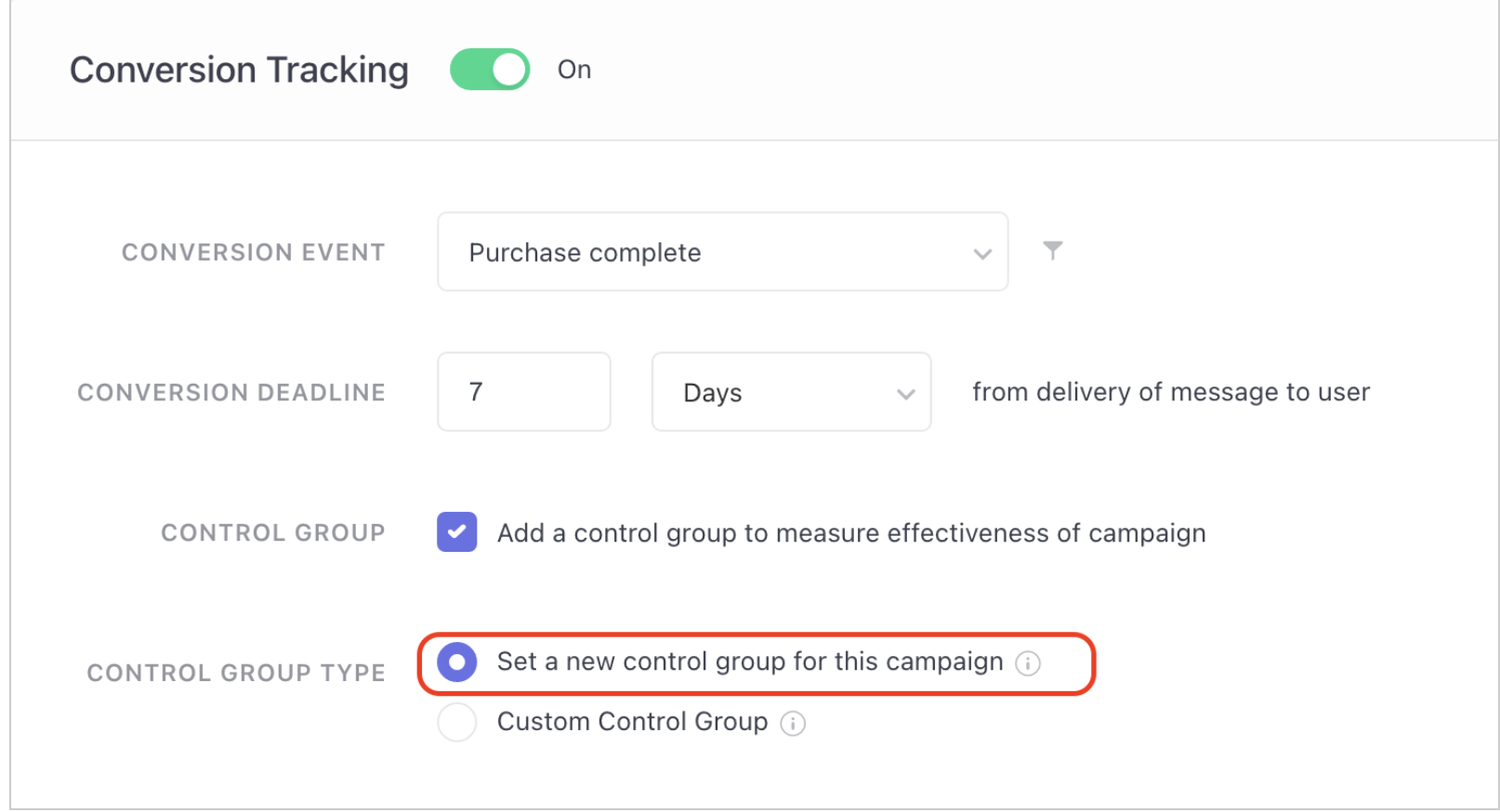
Toggle Conversion Tracking ON.
Select Conversion Event:
Custom events (e.g., Checkout Completed)
System events (Session Started, User Login)
Add Event Attributes (optional):
AND/OR logic for filtering
Attributes: custom fields, location, time
Set Conversion Deadline:
Default 7 days, customizable in hours or days
Save & Continue.
Campaign-level Control Group: Random subset of target audience for this campaign.
Custom Control Group: Pre-created, reusable across campaigns.
Universal Control Group: Can coexist with campaign-level or custom control groups.
Notes:
Campaign-level and custom cannot be combined.
Adding multiple control groups decreases the effective target audience.
Save & Continue.
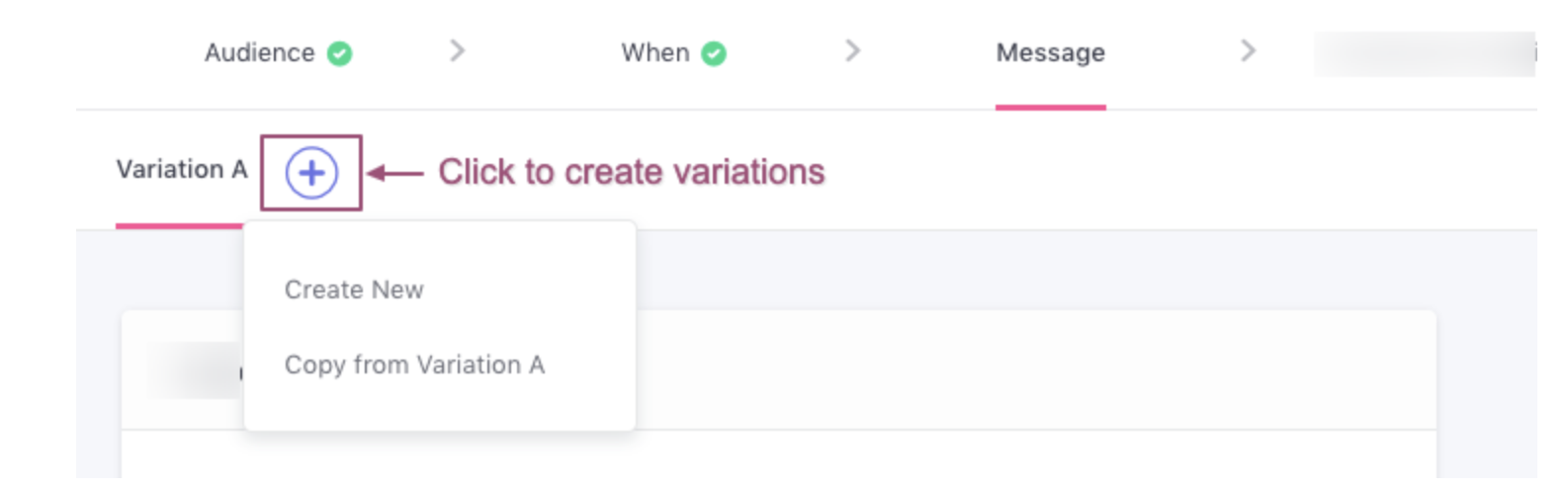
Create up to 5 variations (A–E).
Options:
Create New: Build from scratch.
Copy: Duplicate an existing variation and edit.
Variation Testing:
Automated: Test small audience, auto-send winner.
Manual: Split audience manually if small (<2,000 for One-time/Recurring, <500 for Triggered).
Win Criteria: Clicks or Conversions.
Save & Continue.
Select Variation to Test.
Select Test Segment:
Internal team members or custom segment.
Personalize Test Message:
Use internal user data
Or use data of a specific user
Send Test:
Monitor status: Delivered / Failed
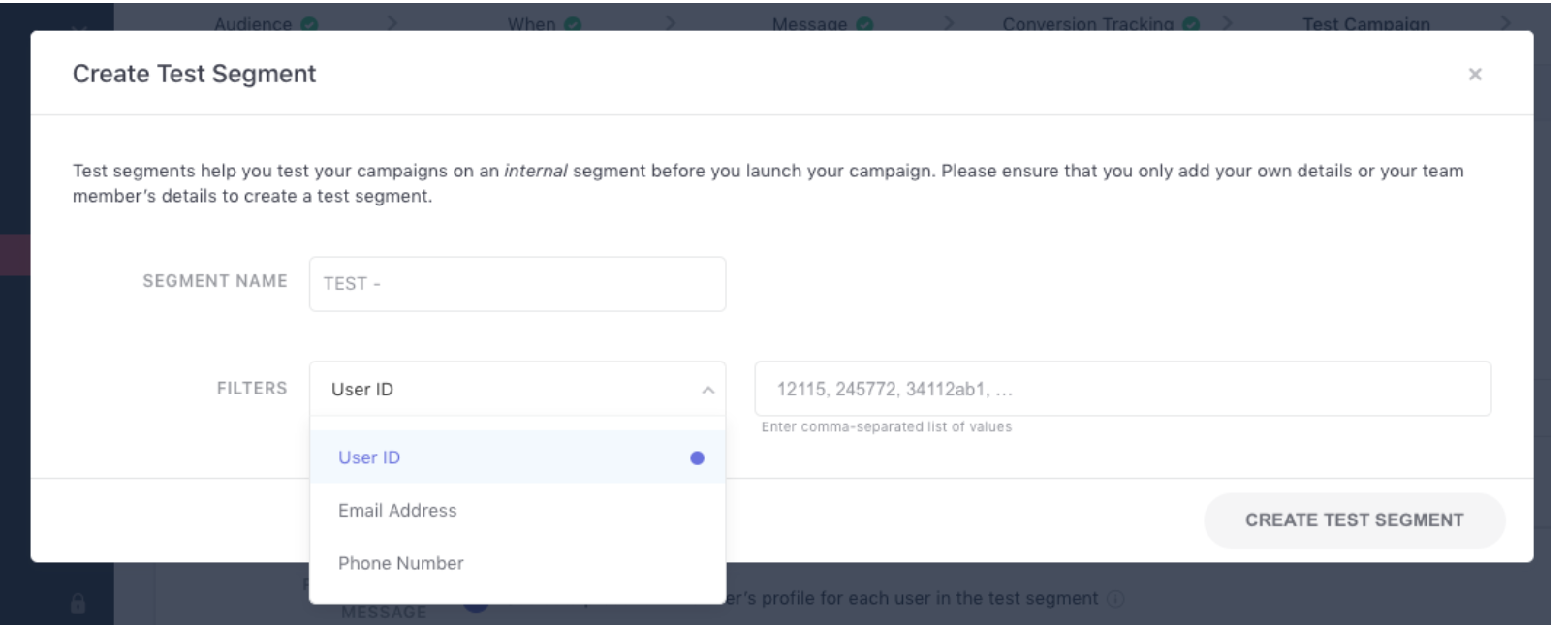
Name segment (e.g., TEST - Design Team)
Add users via User ID, email, or phone
Save segment
Edit: Pencil icon → Update users
Delete: Bin icon → Confirm deletion

Review campaign summary:
Audience & target apps
Campaign type, delivery, frequency, DND
Message variations & OS preview
Conversion tracking & variation testing
Edit any step via pencil icon.
Save as draft if needed.
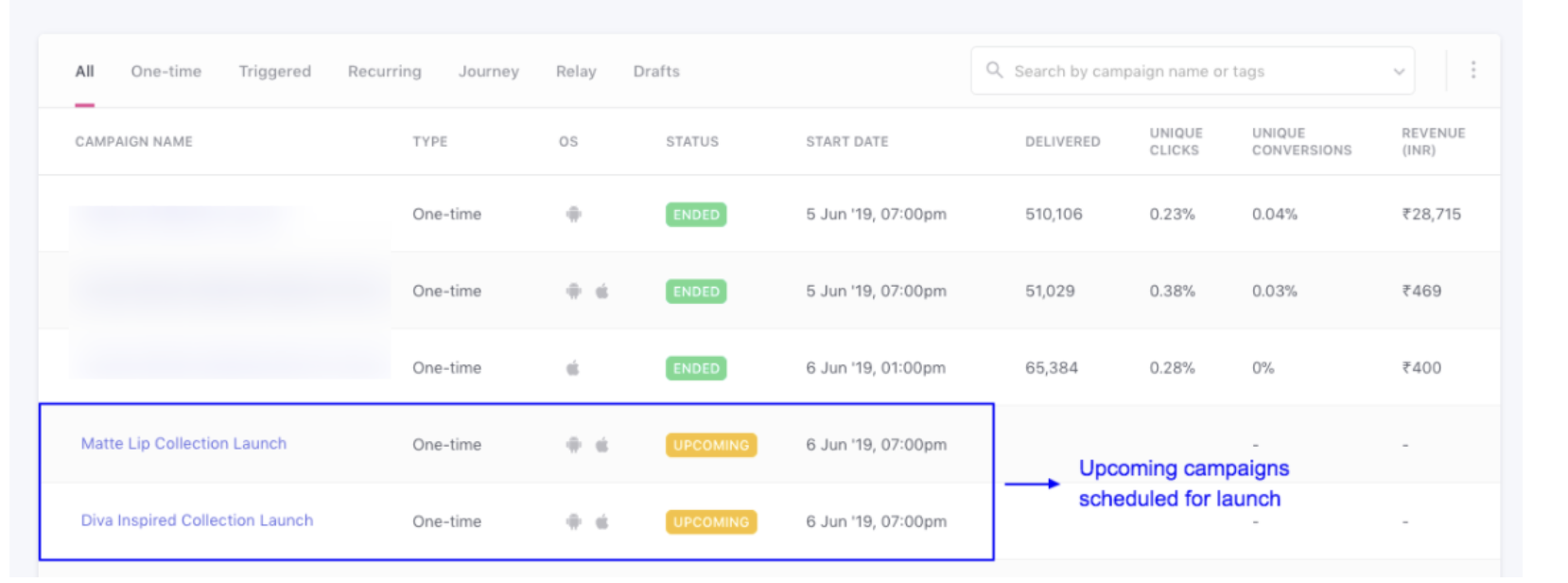
Click Launch Campaign:
Scheduled campaigns appear as “Upcoming” until delivery.
Test on multiple devices, screen sizes, OS versions.
Ensure personalized messages use real user data for accurate previews.
Use control groups to measure campaign impact accurately.
Always test campaigns with images, buttons, or deep links before going live.
After launching your campaigns, you can analyze performance using WebEngage dashboard metrics:
User engagement
Conversions
Revenue impact

