A/B Testing allows you to compare multiple versions of a push notification to determine which message drives the best results. By sending variants to separate user groups, you can measure engagement, retention, conversions, and other key metrics before rolling out the winning message to all users.
This guide focuses entirely on push notifications in Firebase.
Identify the most effective messaging to increase app opens or in-app conversions.
Test variations in copy, timing, or targeting without impacting your entire user base.
Make data-driven decisions before sending notifications to all users.
Open the Firebase Console → Engage → A/B Testing → Create Experiment.
Select Notifications as the experiment type.
Ensure your Firebase project has Google Analytics enabled.
Make sure your app SDK versions meet minimum requirements:
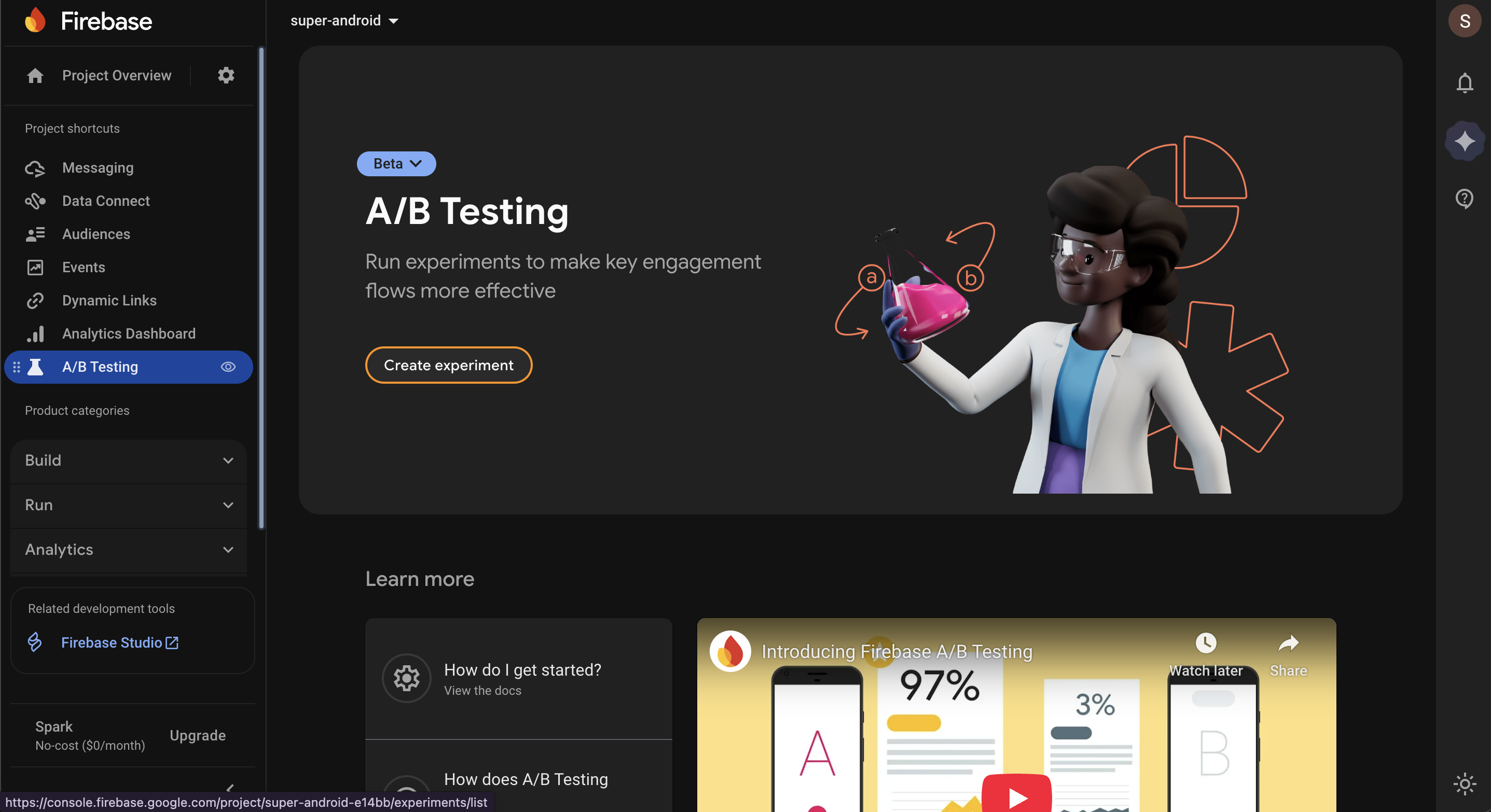
Name: Give your experiment a short, descriptive name (e.g., “Welcome Message A/B Test”).
Description (Optional): Add context about the purpose of the test.
Target Users:
Select the app you want to test.
Narrow your audience by:
App version
Analytics audience
User properties
Country or region
Device language
First app open / last engagement
Note: Targeting users through Analytics audiences may take 24 - 48 hours to populate data.
Percentage of Users: Decide what portion of your app users will participate (0.01% -100%). Firebase randomly assigns users to baseline and variant groups. Click Next.
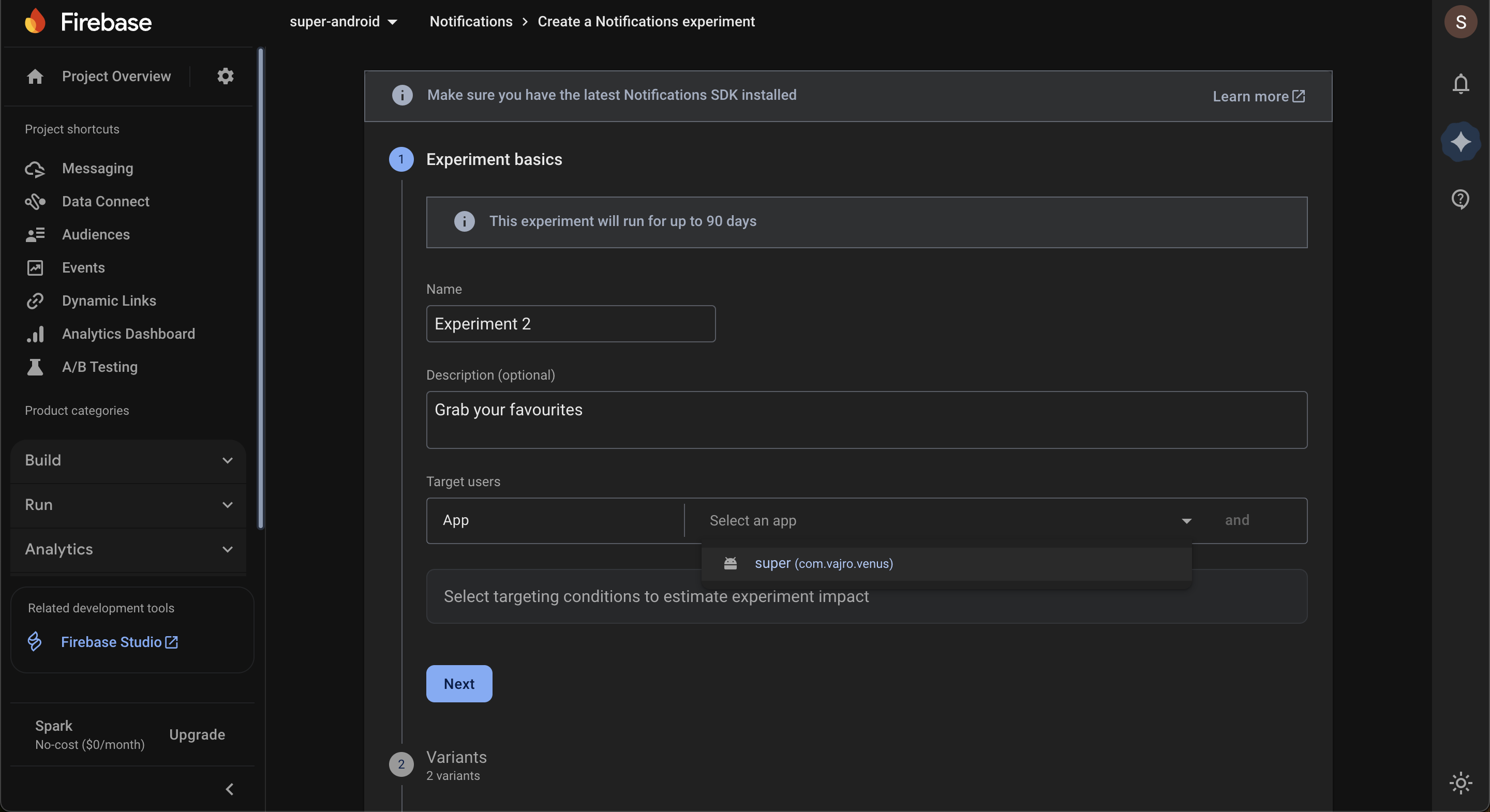
Baseline Message: Usually the current notification. Can be left blank if testing the effect of sending a notification versus no notification.
Variant A: Enter the new message you want to test.
Additional Variants: Click Add Variant to test more messages.
Distribution: By default, 50/50 between baseline and Variant A. Adjust percentages as needed.
Naming: Optionally rename variants from “Variant A/B” to something meaningful. Click Next.
Primary Goal Metric: Firebase uses this to determine the winner. Examples:
Open app / First opens
Conversion events (e.g., completed purchase)
Retention rates
Additional Metrics: Track up to five additional metrics to better understand performance. Examples:
Estimated total revenue
Retention (1 day, 2-3 days, 4-7 days)
Notification receives / dismissals (Android only). Click Next.
Send Now: Launch the experiment immediately.
Scheduled: Specify a future start time.
Advanced Options: Modify notification behavior (sound, image, deep link) for all variants if needed.
Before sending to your full audience:
Retrieve the FCM registration token from a test device:
Messaging.messaging().token { token, error in
  if let error = error { print("Error: \\(error)") }
  else { print("FCM token: \\(token)") }
}
Go to Firebase Console → A/B Testing → Draft → Manage Test Devices.
Assign the token to a specific variant.
Run the app to verify the correct variant is received.
Review: Check your variants, targeting, and metrics.
Start Experiment: Click Start Experiment to begin sending variants.
Access the A/B Testing dashboard to track:
% Difference from baseline
Probability to beat baseline
Observed cumulative metrics (e.g., conversions, retention)
Typical experiment duration:
FCM & In-App Messaging: ≥7 days
Remote Config: ≥14 days
Firebase identifies the leader variant when enough data is collected.
Once a winner is identified, roll out to 100% of targeted users:
Notifications composer: send the winning message to remaining users.
If no clear winner, you can still roll out any variant to all user
Refer to this A/B Testing article for more information.
Look at probability to beat baseline → higher means better performance
Observe retention vs conversions → one variant may boost engagement, another revenue
Use BigQuery export to slice data further and validate metrics independently.
Test one variable at a time (copy, timing, or audience)
Avoid small sample sizes → ensure statistical significance
Use message preview & rich notifications to evaluate effectiveness
Track predictive behaviors for smarter targeting

