An Audience in Firebase is a dynamic group of users that share common attributes or behaviors. Instead of manually managing device groups, Firebase automatically includes or excludes users in an audience based on the rules you set.
Audiences are ideal when you want to:
Target customers based on behavior (e.g., added to cart but didn’t purchase).
Segment by demographics or technology (e.g., Android users in the US).
Run personalized campaigns like re-engagement or VIP rewards.
Automate marketing using predictive audiences (if eligible).
Merchants/marketers can create and manage audiences directly in Firebase Console.
Firebase automatically updates audience membership in real-time based on user activity.
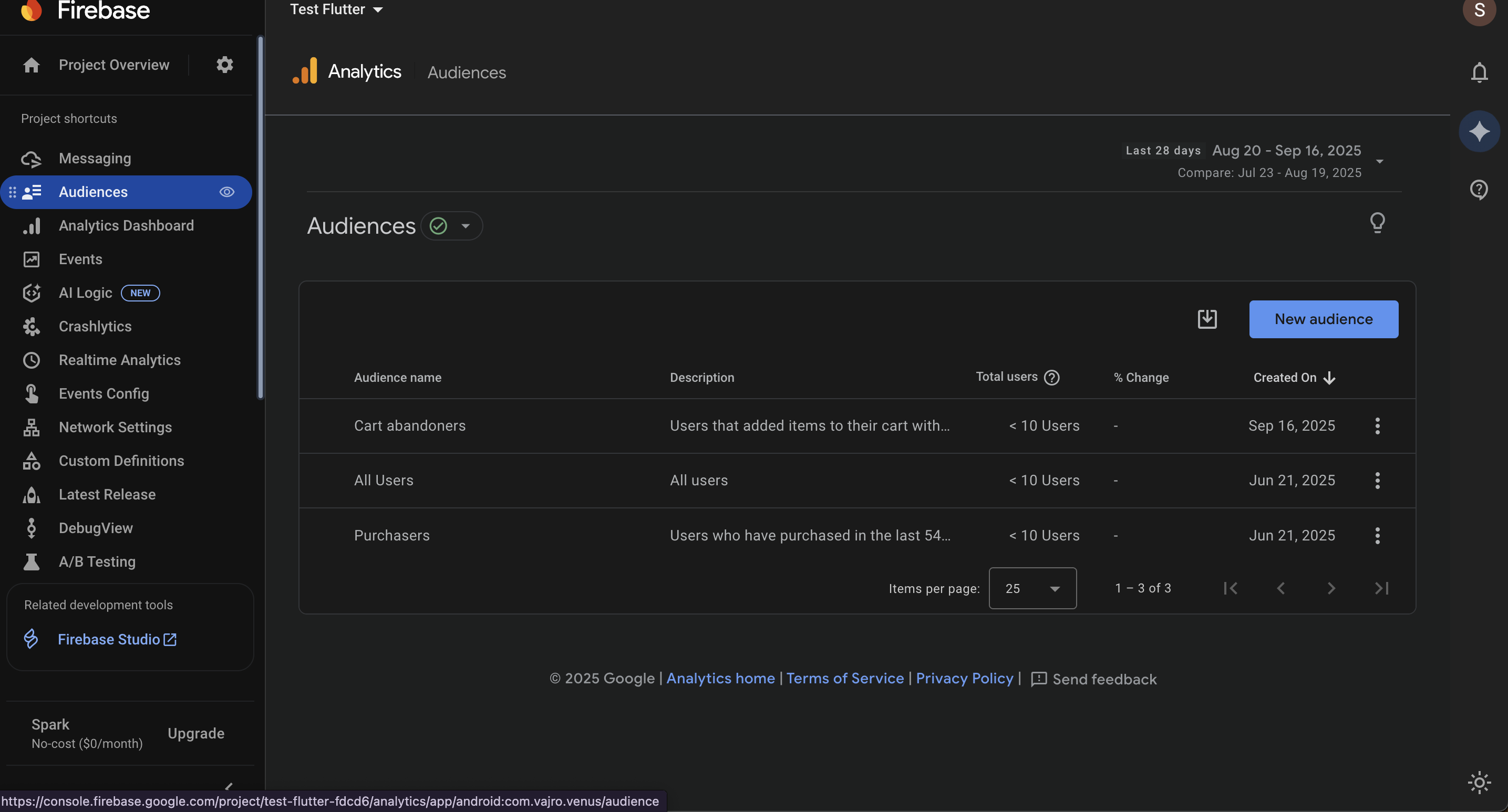
Go to Firebase Console → Analytics → Audiences
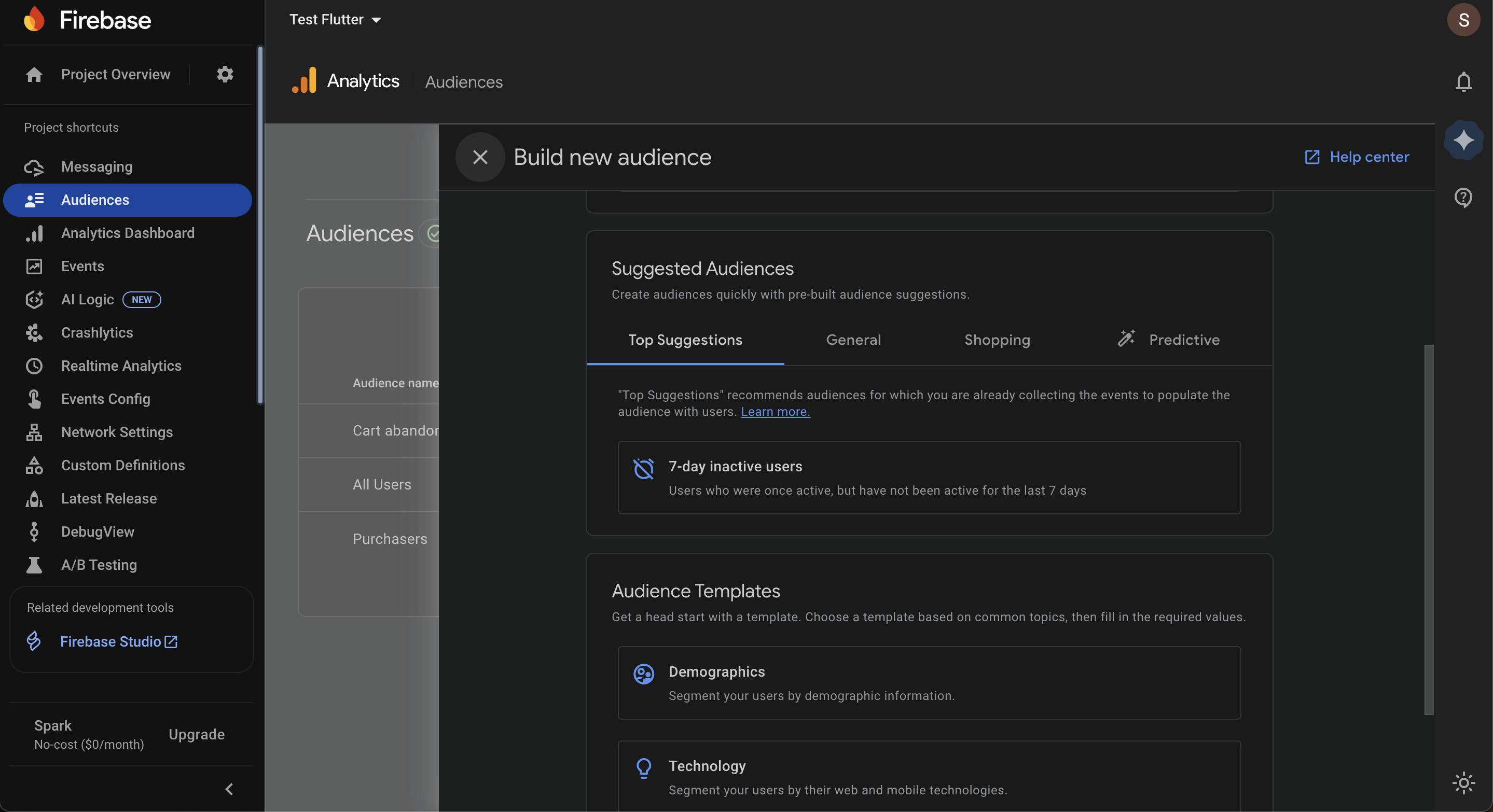
In the Audiences view, click ‘New audience.’ In the ‘Build new audience’ window, choose between Audience Templates or Custom Audience.
You can either choose a pre-built template for a quick start or build a custom audience for more control.
Scroll to the Audience Templates section and select a template.
Templates are organized by category:
Demographics: Age, Gender, Language, Interests, Country
Technology: Platform, OS version, Device category/brand/model
Acquisition: First user source, campaign, or medium
Suggested Audiences are also available:
General: 7-day Inactive Users, Recently Active Users, Registered Users
Shopping: Cart Abandoners, Wishlist Users, Checkout Starters, Item Searchers, Item Viewers
Predictive (if eligible): Likely 7-day Purchasers, Likely 7-day Users, Predicted 28-day Top Spenders, Likely First-Time 7-day Purchasers, Likely 7-day Churning Purchasers
After selecting a template or suggested audience, basic filters are pre-loaded, and you can add more to refine your audience.
Option B: Creating a Custom Audience
Click the Create a custom audience button.
On the "Untitled audience" screen, you can provide a short description for your audience at the top.
Click Add new condition under the "Include users when:" section. A comprehensive menu of filter categories will appear. You can filter by:
Events: Users who have triggered specific actions (e.g., in_app_purchase).
User properties: Users with specific custom properties you have defined.
Dimensions:
Attribution: Filter by acquisition source.
Demographics: Filter by Age, Gender, Language, and Country.
Ecommerce: Target users based on shopping events like add_to_cart or purchase.
Page / screen: Filter by content viewed.
Platform / device: Filter by device type, OS, and model.
Traffic source: Filter by the user's origin.
User lifetime: Filter by a user's total lifetime value.
Metrics: Filter by specific values, such as event count, revenue, or session count.
Predictive: Target users based on predicted behavior (available only for projects with enough data for Firebase to generate reliable predictions)
Combine Conditions: You can add multiple conditions to your audience. They are connected with the "And" or "Or" operators.
And: A user must meet all conditions to be included.
Or: A user must meet at least one of the conditions.
Use Condition Groups and Sequences (Advanced):
Click Add condition group to include to create complex logical groups (e.g., users who did Event A or Event B).
Click Add sequence to include to define audiences based on the order of user actions (e.g., viewed a product, then added to cart).
Exclude Users (Optional): Click Add group to exclude to set conditions for users you want to remove from the audience. This is useful for creating highly specific segments, such as "users who started checkout but did not purchase."
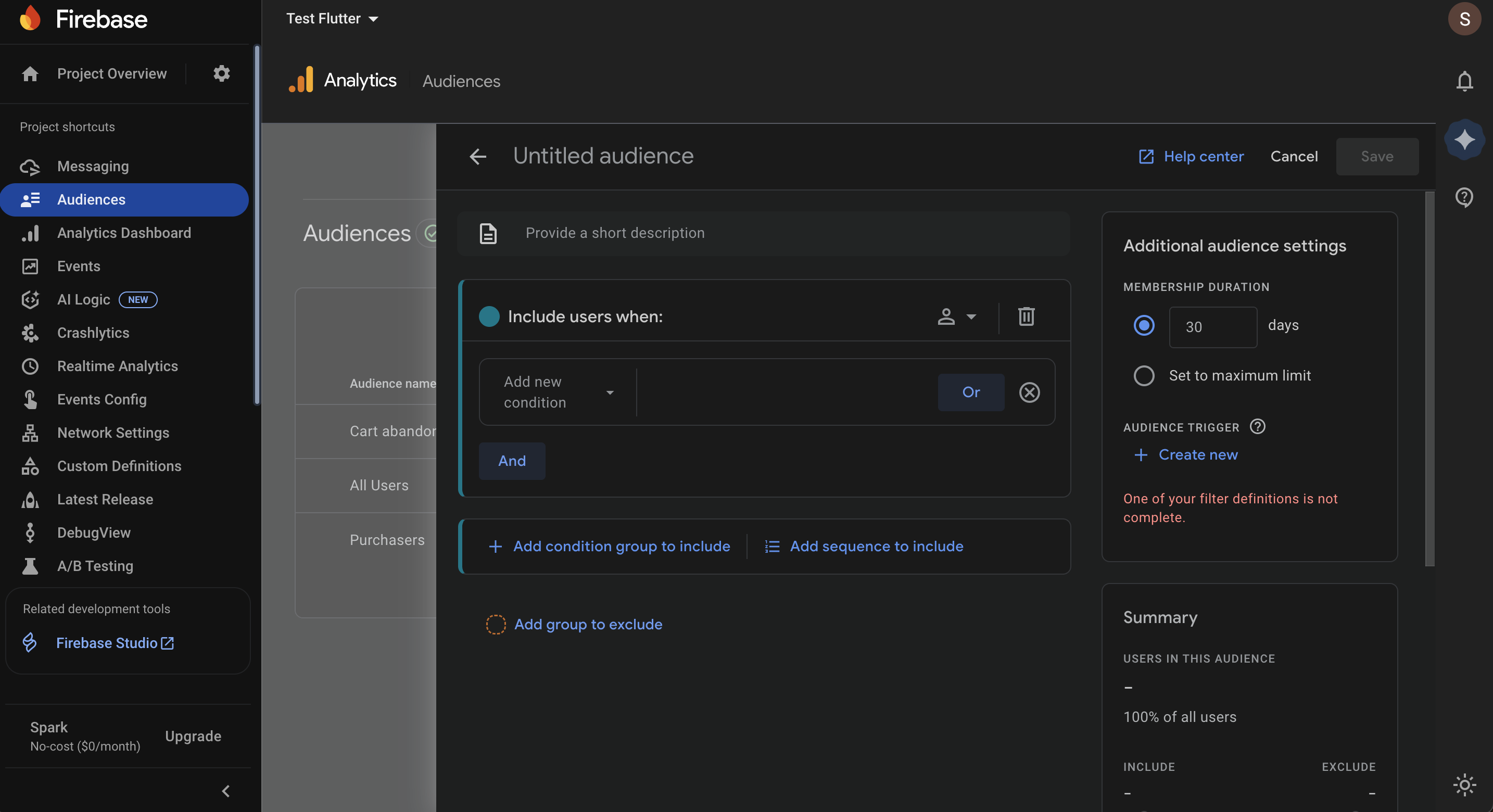
Audience Name: At the top of the screen, give your audience a clear, descriptive name.
Additional Audience Settings: On the right-hand side, adjust the Membership duration, which is the number of days a user will remain in the audience after meeting the conditions. The default is 30 days. You can also create an Audience Trigger to automate actions when a user enters this audience.
Once you have configured everything, click Save in the top right corner.
Your new audience will now begin to populate with users who meet the criteria. Remember, audiences only include users who match the conditions from the moment of creation onward.


