To upload the mobile app for your store onto the Google Play Store, Superfans team needs to be invited as a collaborator to your Developer Accounts. This will allow you to focus on other launch activities while our team can create, modify, and manage your app.
This will also allow you to view app performance metrics and analytics on Vajro dashboard. This includes installation data, ratings, reviews, and other key metrics.
Here’s how you can invite Superfans to your Google Play Developer account.
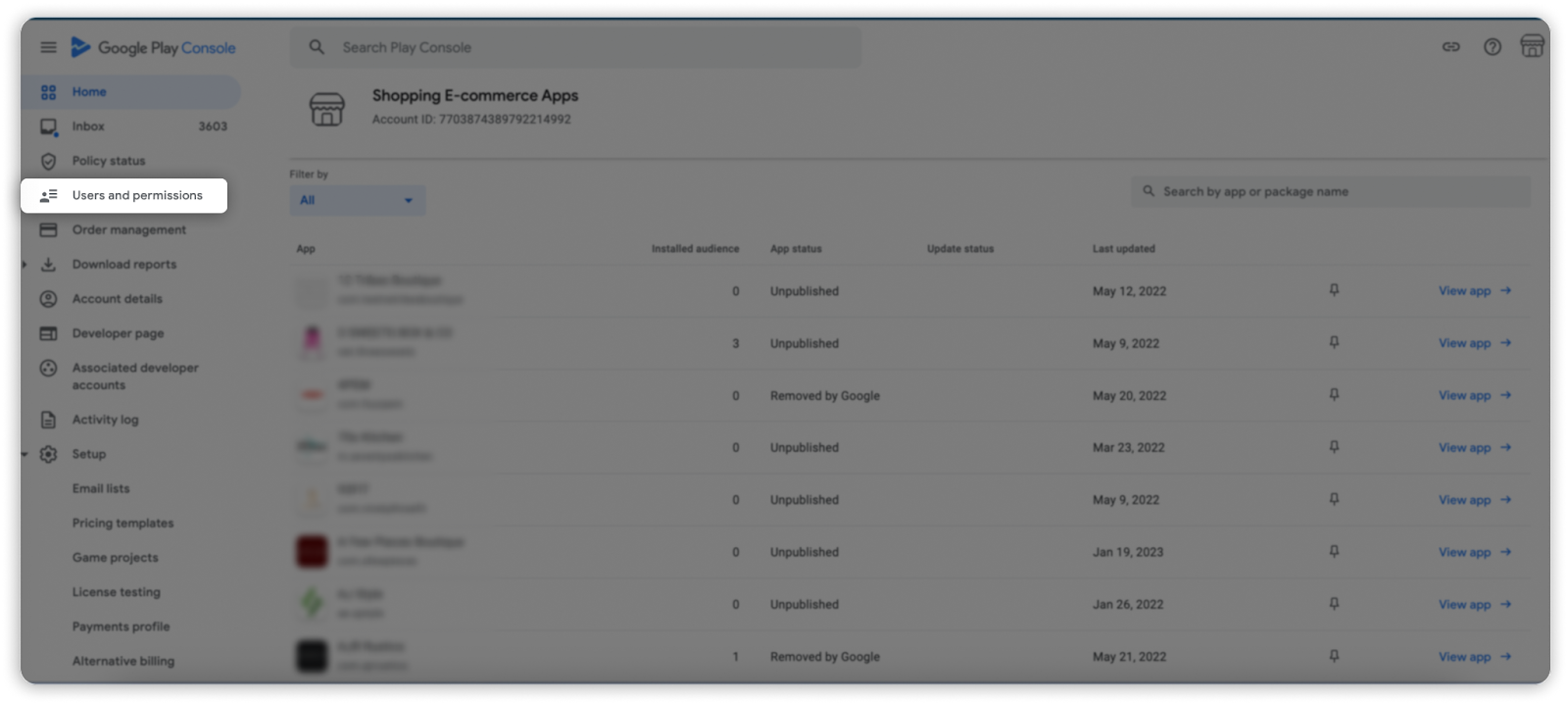
Step 1: Log in to your Google Play Console. Go to Users and permissions.
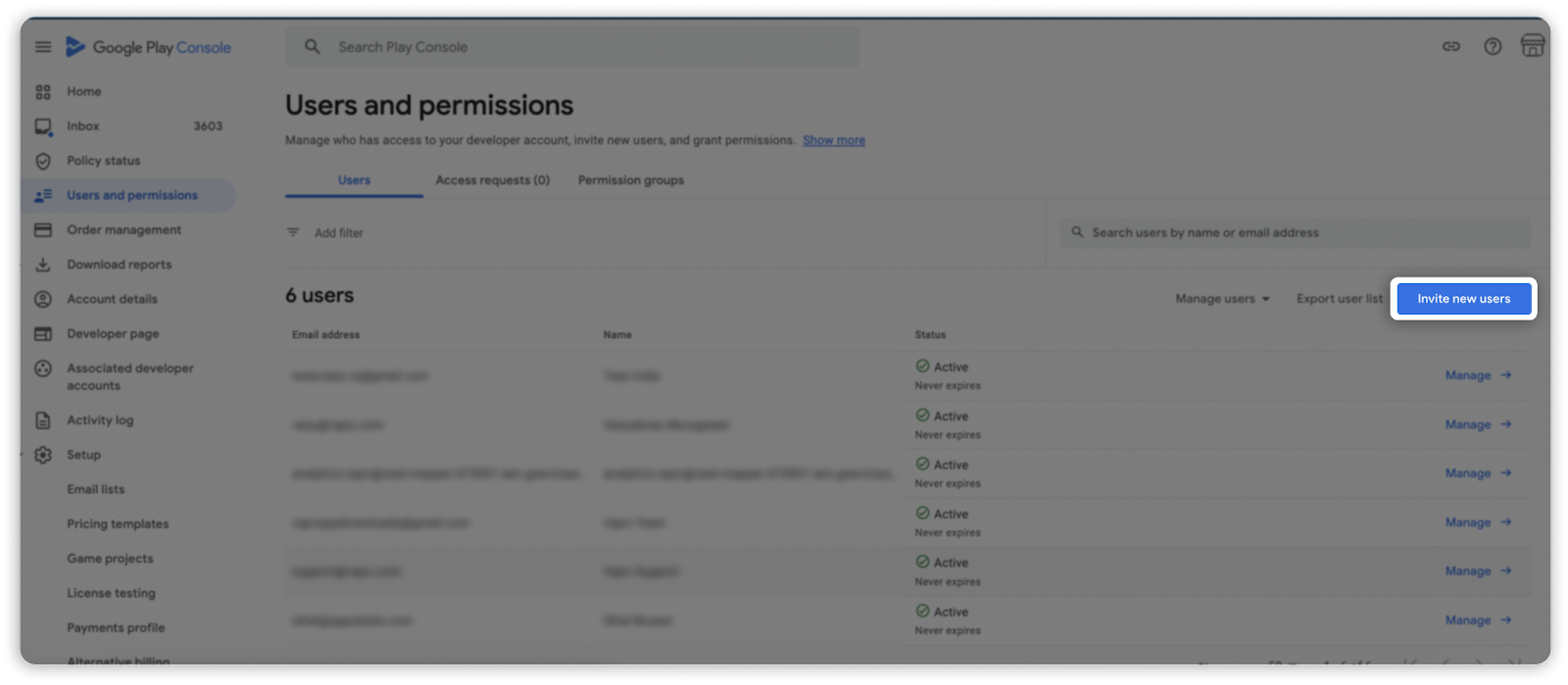
Step 2: Click on Invite new users.
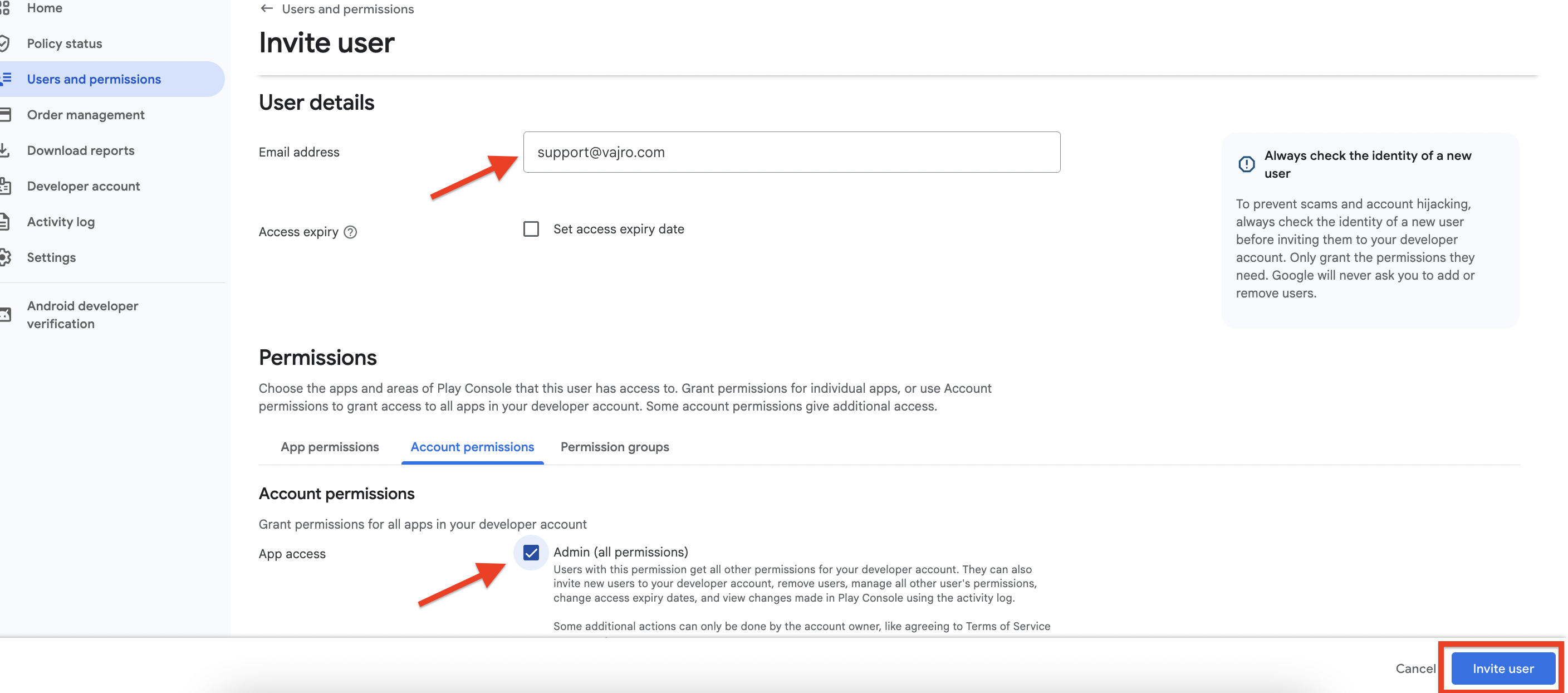
Step 3: Enter [email protected] as the Email address and under Permissions section, click on “Account Permission” and check the “Admin” and . Once you’re done, click on the Invite user button.
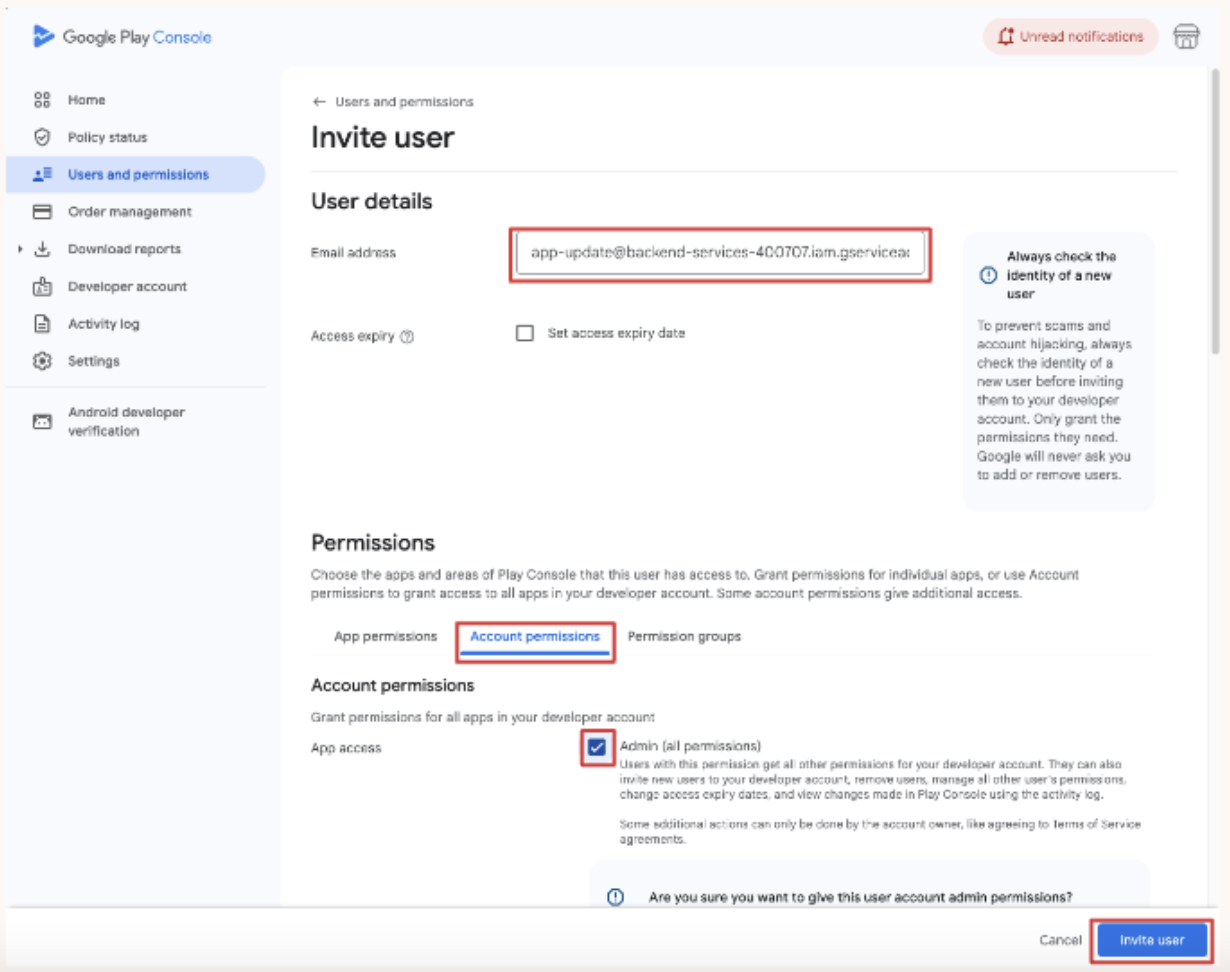
Step 4 : Click on Invite new users (From Step 2) → Enter the mail id in the Email Address text box as [email protected] → under Permissions section, click on “Account Permission” and check the “Admin” and . Once you’re done, click on the Invite user button.
Once you’re done, Superfans team can publish your app while you can focus on other things. If you have any questions about this article, contact us using the chat button on your Vajro dashboard. Or write to us at [email protected].
Incase, if you already have an app or migrating from other platform, we will need Package name of the app in order to carry out the verification of access. Please find the below the steps to provide the Package Name.
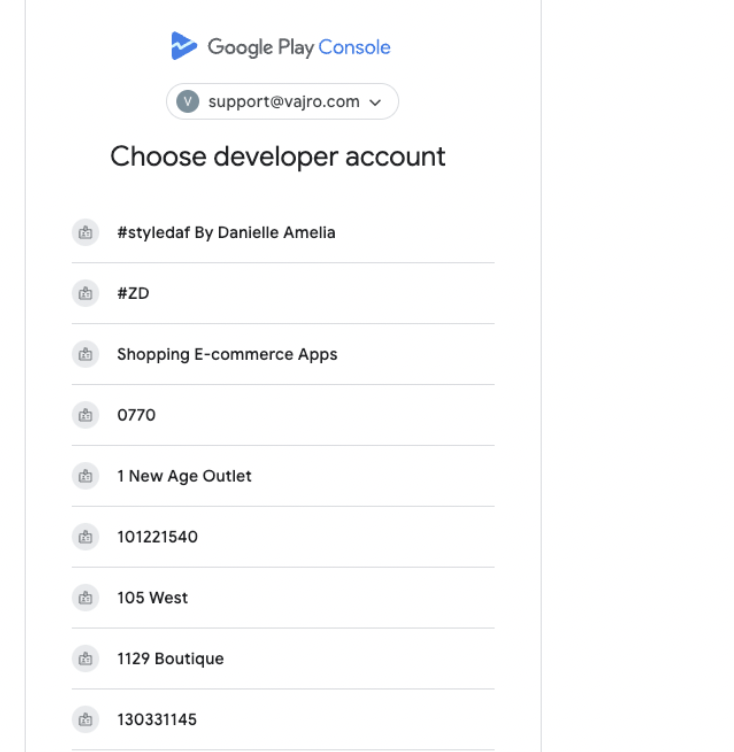
Step 1 : Login to the Google Play console and choose the developer account in which you have the app. (in case if you have many)
Step 2 : On the home Page, you’ll have the app name. Under the app name lies the package name.
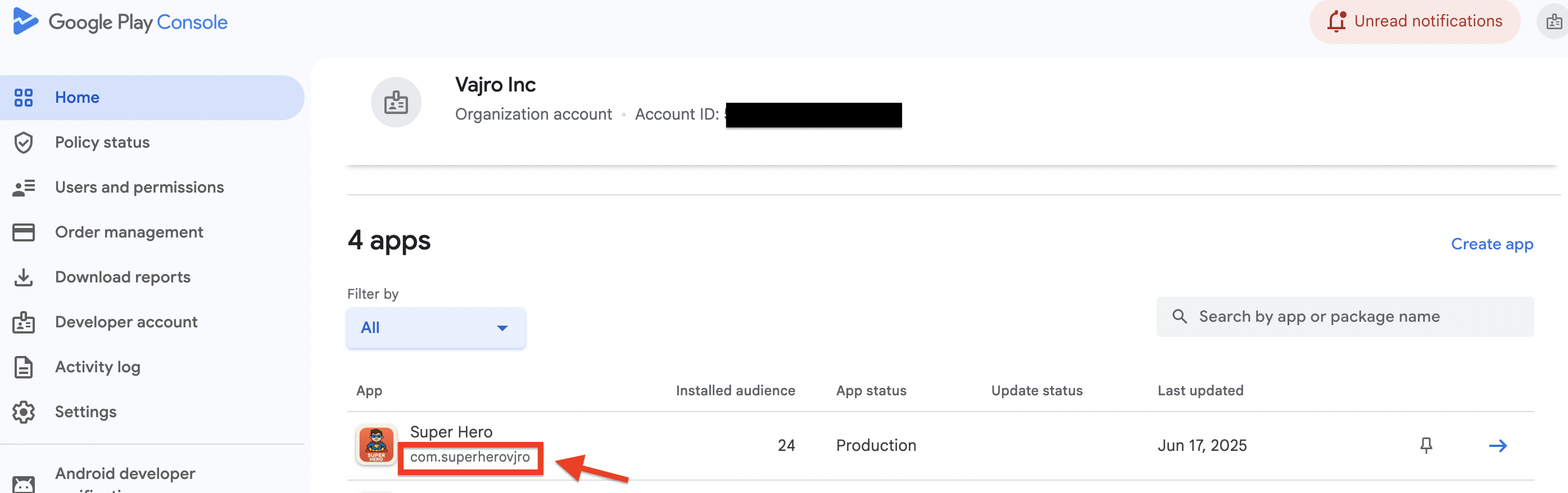
Provide the package name to the respective agent through chat.

