A Apple Developer account is needed so Apple knows who is publishing the app and can manage it safely on the App Store. It also lets you upload, update, and track your app officially. This not only gives you an increased sense of brand ownership, but also improves the visibility of your store and helps the company get discovered better, thereby improving the SEO and ASO.
There are two types of Account for enrollment and each has a set of steps to be followed. The account type:
Enrolling account as an individual
Enrolling account as an Organization
If you're an individual or sole proprietor/single-person business, follow these steps to enroll in the Apple Developer Program on your iPhone or iPad.
Pre-requisites:
An iPhone or an iPad with Touch ID, Face ID, or a passcode enabled. You must use the same device for the entire enrolment process.
An Apple ID with two-factor authentication turned on. Your Apple ID information must be valid and up to date. (If not you can create one)
Steps for Enrollment:
Step 1: Visit the Apple Developer Account enrollment page.
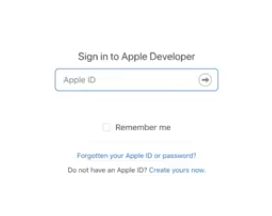
Sign in to your Apple account. Go ahead and create an Apple ID if you don't have one yet.
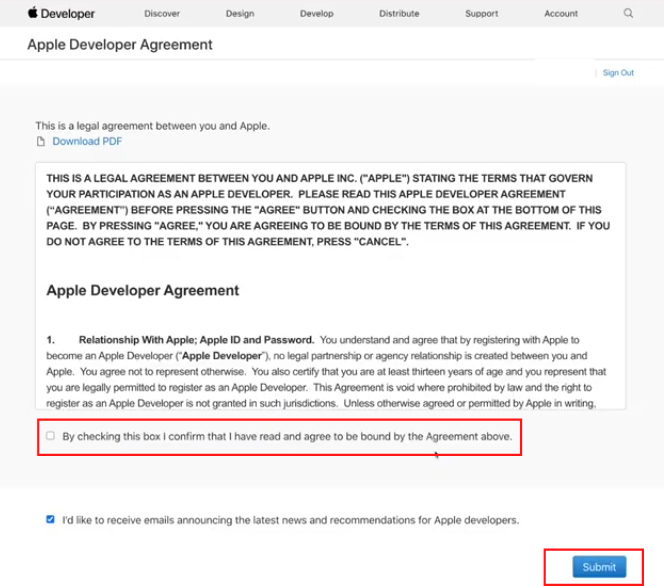
Step 2: You'll be redirected to the Terms and Conditions page. Click on the checkbox under the terms and conditions, and click on Submit.
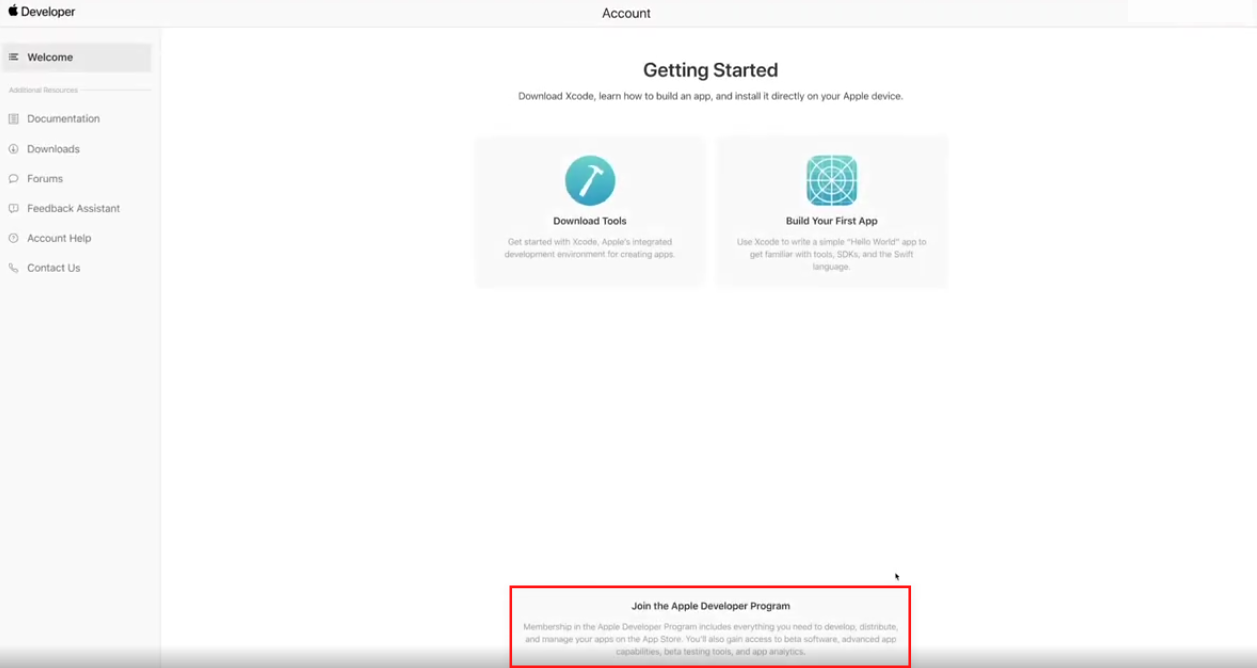
Step 3: You'll be redirected to the Apple Developer dashboard. Click on Join the Apple Developer program section.
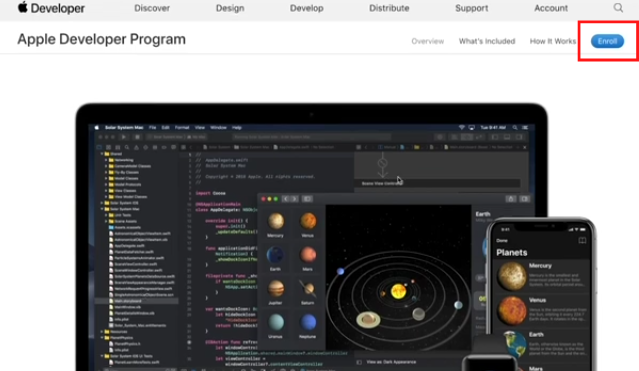
Step 4: Click on the Enroll button at the top right corner of the screen
Step 5: You'll now see instructions and guidelines for enrolling in the developer program. Scroll down and click on Start your Enrollment.
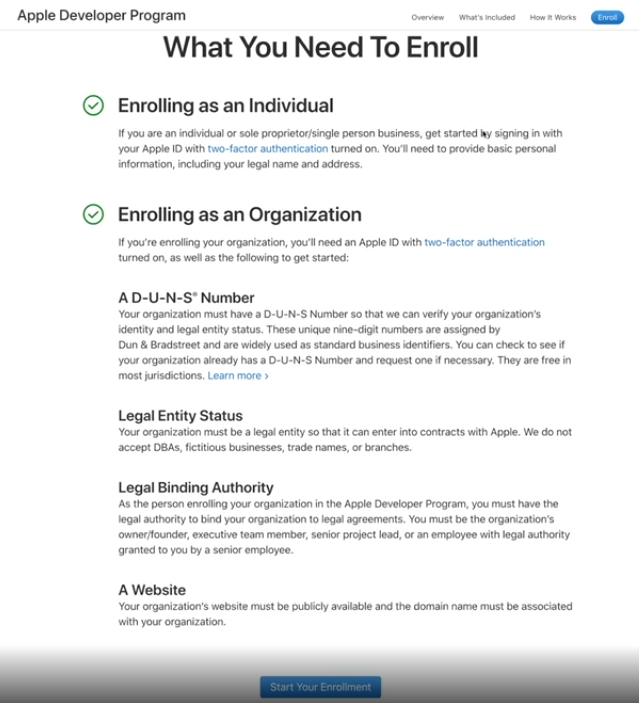
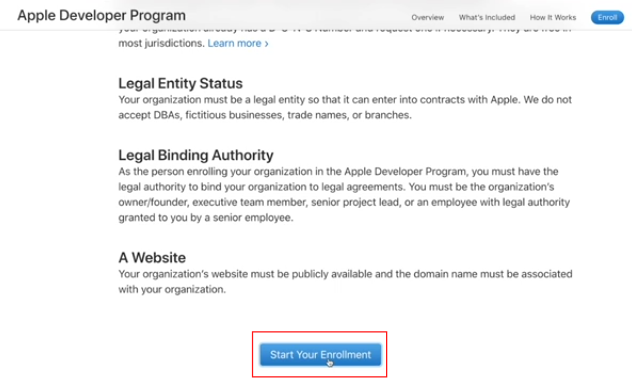
Step 6: Enter your personal information.
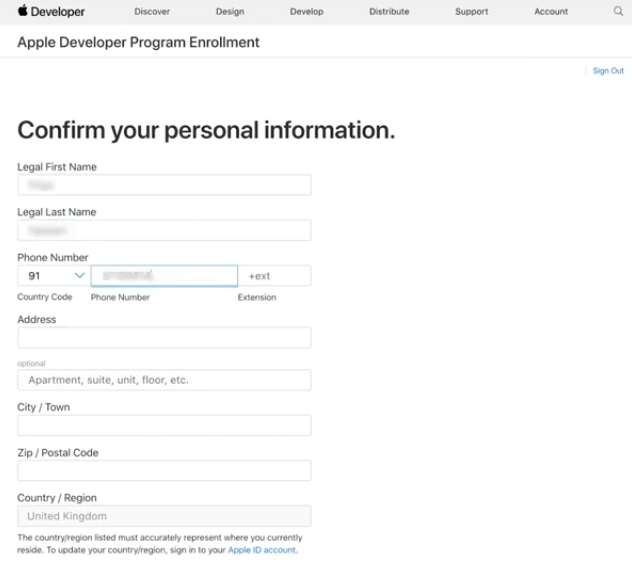
Click on Continue when you're done.
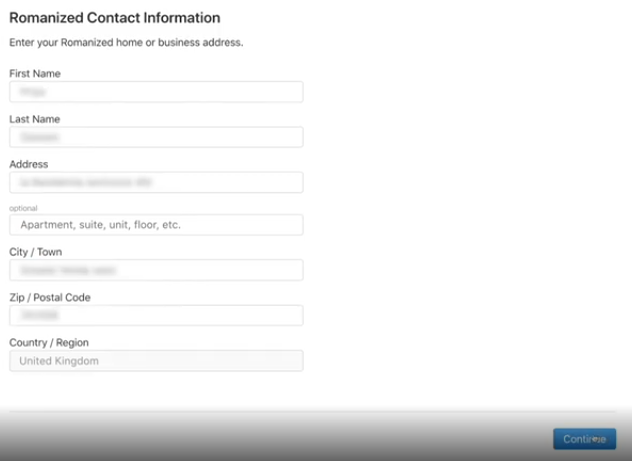
Step 7 : Select the Entity type as Individual / Sole Proprietor.
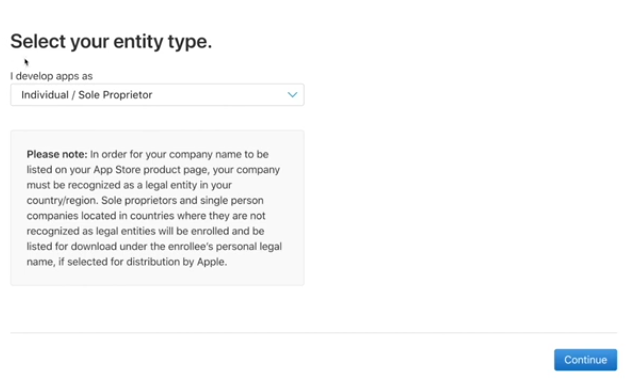
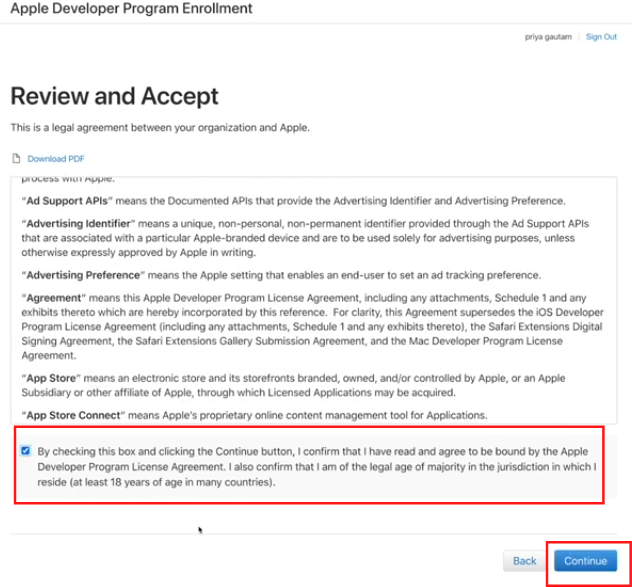
Step 8 : Review and accept the policies by clicking on the check box below the agreement, and clicking Continue.
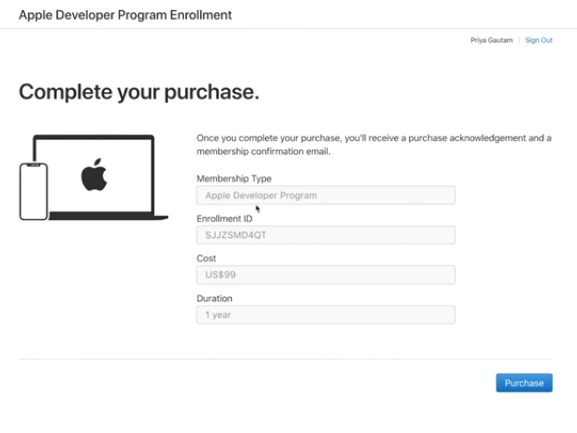
Step 9 : Verify the details and click on Purchase.
Note: Apple Developer account enrollment costs $99 a year.
Step 10 : Enter your payment details.
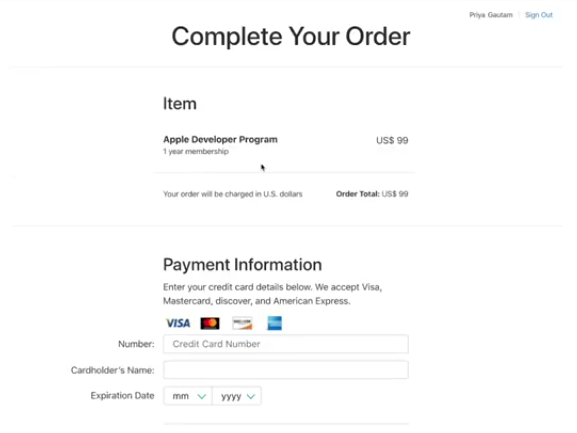
Enter the billing address and click on Continue.
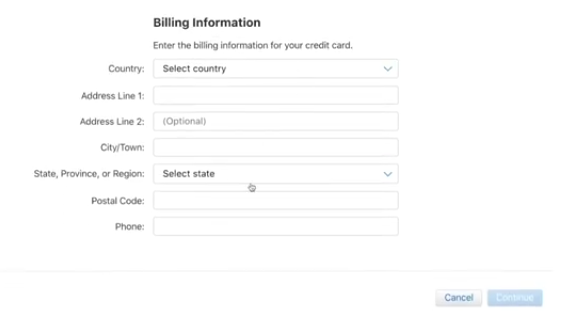
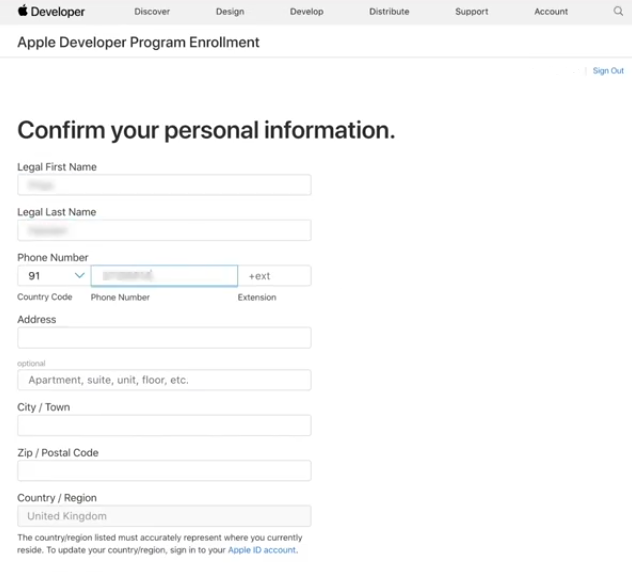
Step 11 : Finally, enter your personal information and click on Continue.
Once your payment is complete, within 48 hours you will receive an e-mail from Apple requesting you to activate your account. Click the link in the email to activate it.
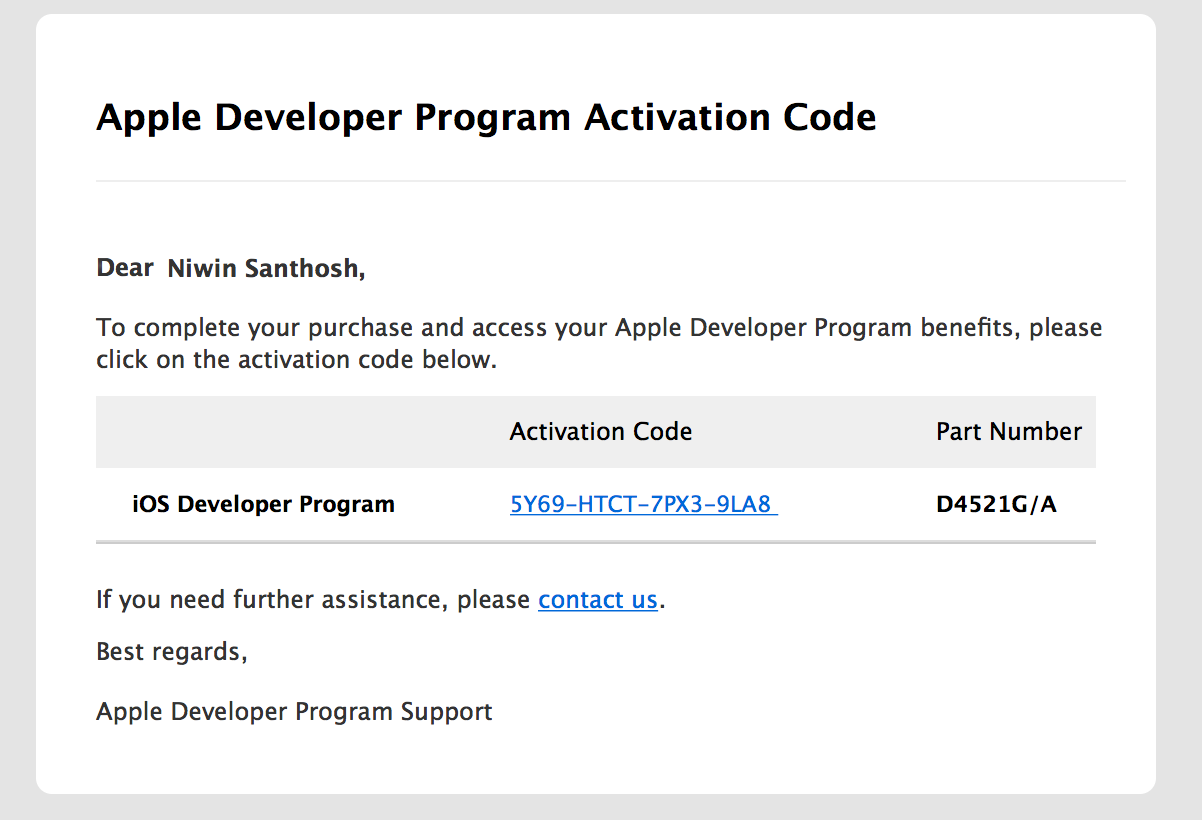
Once you click the activation link, your developer account will be activated.
You must have the legal authority to bind your organization to legal agreements.
You must be the organization’s owner/founder, executive team member, senior project lead, or an employee with the legal authority granted to you by a senior employee.
Pre-requisites:
An iPhone or an iPad with Touch ID, Face ID, or a passcode enabled. You must use the same device for the entire enrollment process.
An Apple ID with two-factor authentication turned on. Your Apple ID information must be valid and up to date — including, but not limited to, your first name (given name), last name (family name), address, phone number, trusted phone number, and trusted devices.
Steps for Enrollment:
Step 1: Visit the Apple Developer Account enrollment page.
Sign in to your Apple account. Go ahead and create an Apple ID if you don't have one yet.
Step 2: You'll be redirected to the Terms and Conditions page. Click on the checkbox under the terms and conditions, and click on Submit.
Step 3: You'll be redirected to the Apple Developer dashboard. Click on Join the Apple Developer program section.
Step 4: Click on the Enroll button at the top right corner of the screen
Step 5: You'll now see instructions and guidelines for enrolling in the developer program. Scroll down and click on Start your Enrollment.
Step 6: Enter your personal information.
Click on Continue when you're done.
Step 7 : Select the Entity type as Company/ Organization
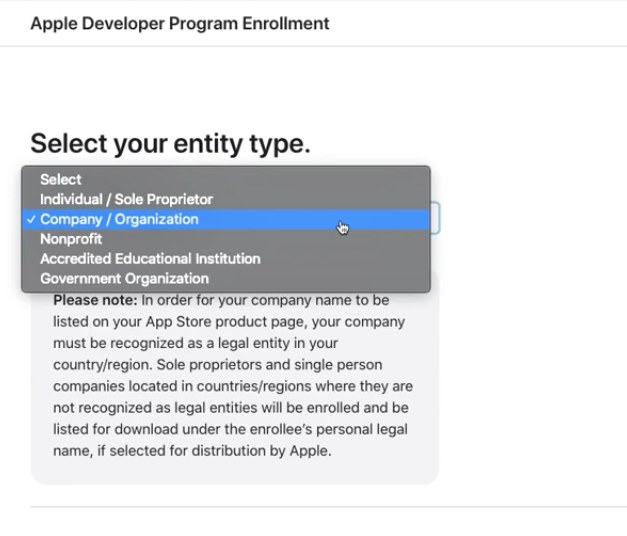
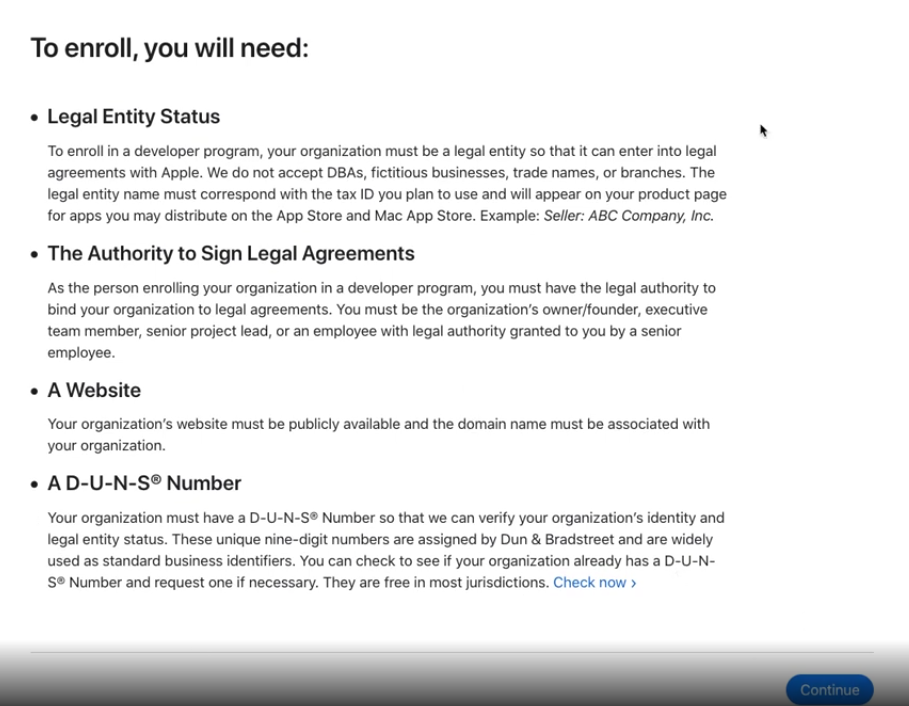
Step 8 : You'll see an enrollment checklist. Please go through it and click on Continue.
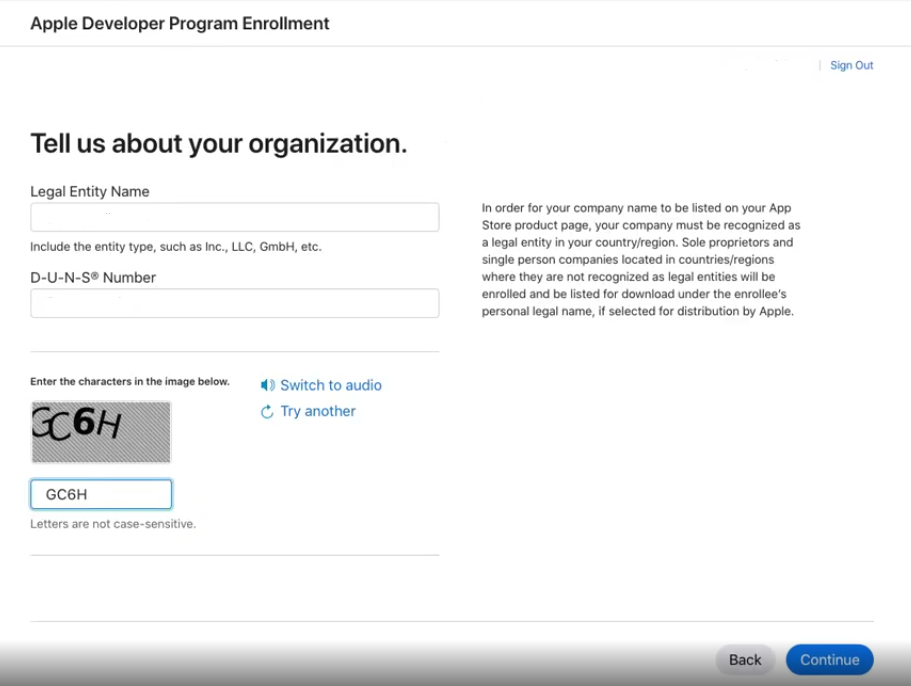
Step 9 : Enter your organization details and your DUNS number, and click on Continue.
DUNS number is assigned by D&B to all the businesses around the world. If you don't know your DUNS number or if you haven't got one yet, you can get it free by filling in your company details here.
Note: If you want to bypass the DUNS number just sign up as an Individual. Remember that your name will appear as the developer in the iTunes store.
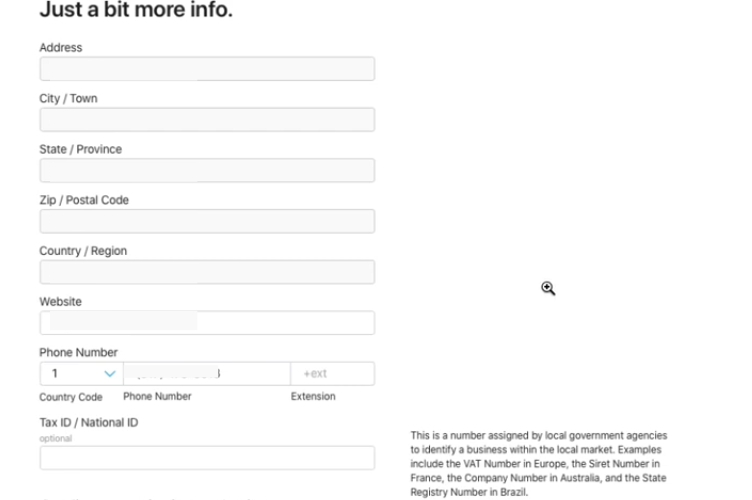
Step 10 : Enter all the details in the form.
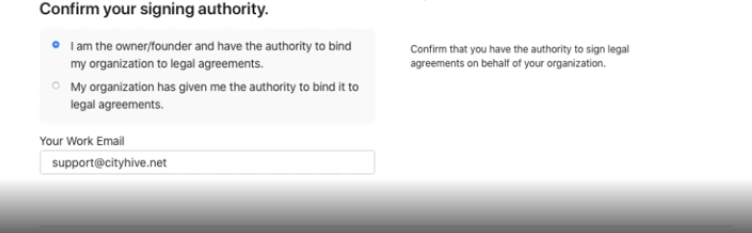
Step 11 : Confirm your authority to create the developer account on behalf of your organization and click on Continue.
You'll get redirected to a confirmation page, and then an email containing your enrollment ID. Watch out for a verification phone call as well from Apple.
Once everything is finalized, you'll receive a link to the payment page.
Complete the payment, and you're good to go!

