The Rollout History section is your timeline for app updates. It gives you a clear view of every change you’ve released, when it was released, and what it included. This feature is your command center for managing and communicating app updates to your users.
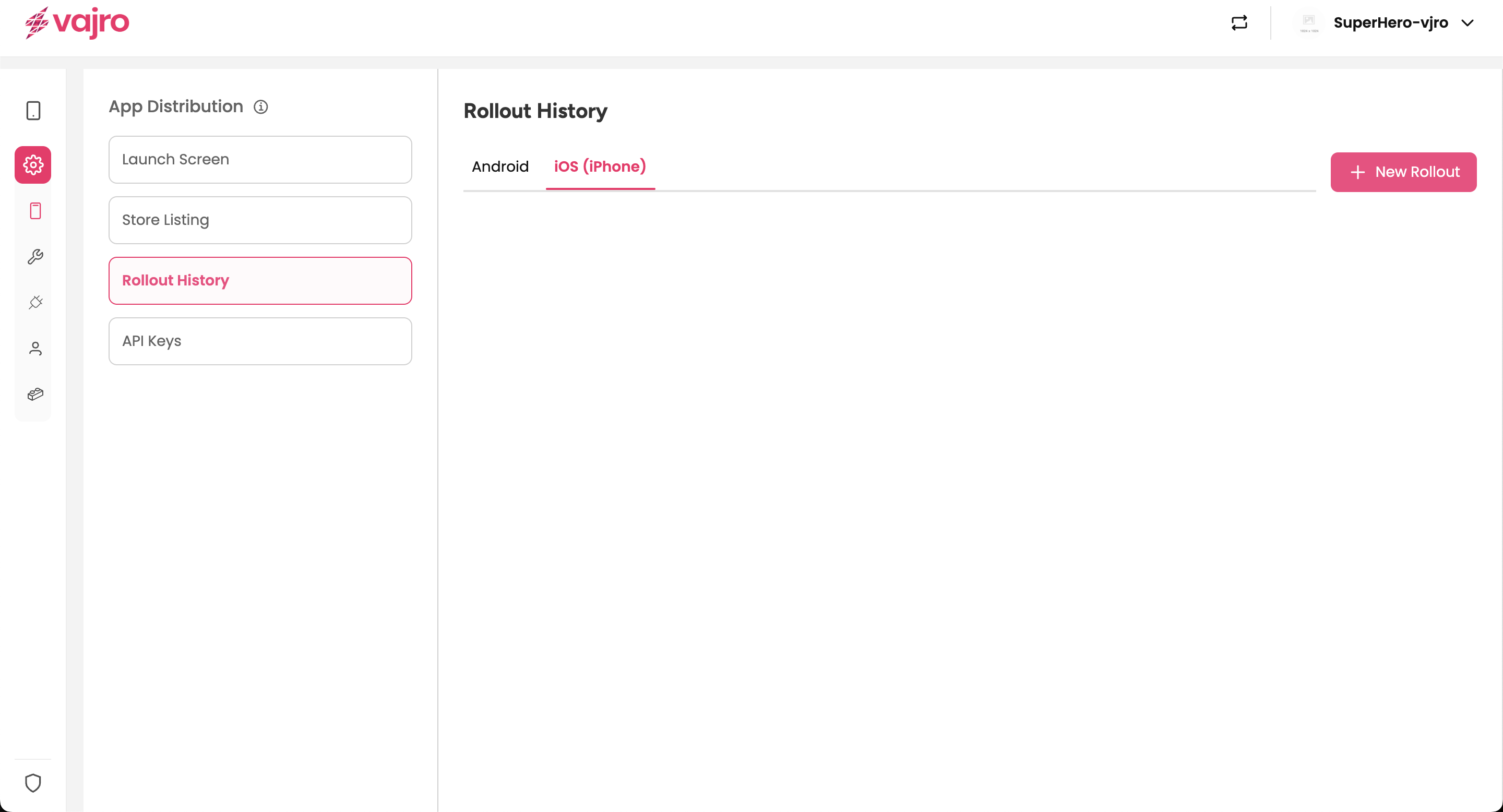
View History by Platform
You can easily switch between your Android and iOS app rollout histories using the tabs at the top of the screen. This helps you track platform-specific changes and maintain a consistent update schedule.
Add a New Rollout
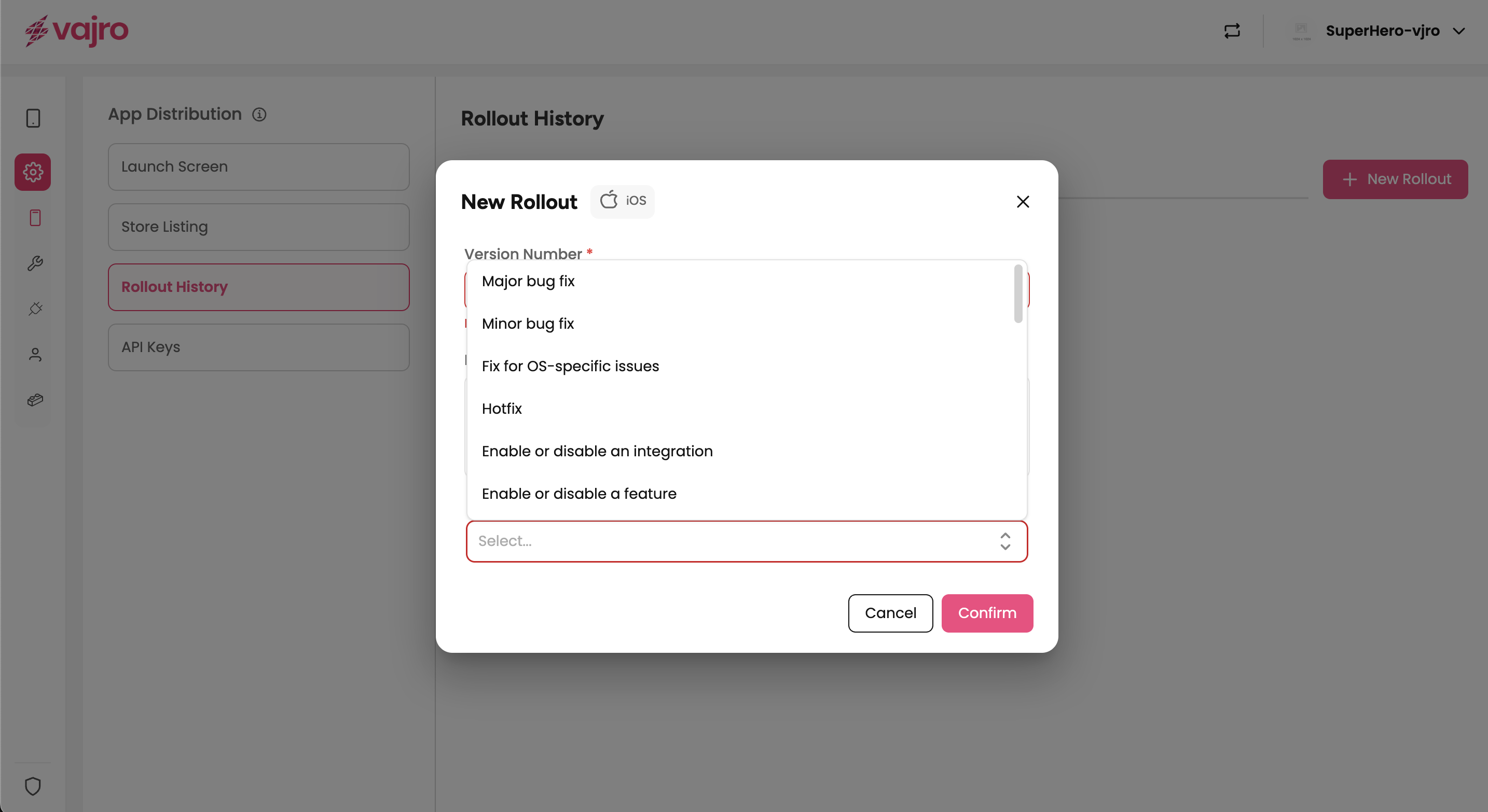
To create a new update entry, click the "+ New Rollout" button on the top right. This will open a popup where you can define the details of your new app version.
New Rollout Details
Version Number*: This is the specific version of your app you are releasing (e.g., 1.0.0 or 1.0.1).
Rollout Description: A brief, internal note about this rollout. This is for your records and is not visible to users.
What has changed in this rollout?*: This is the most critical part. You'll select the changes made in this update from a predefined list. This ensures consistency and clarity in your release notes. The options are tailored for both Android and iOS and cover a wide range of common updates.
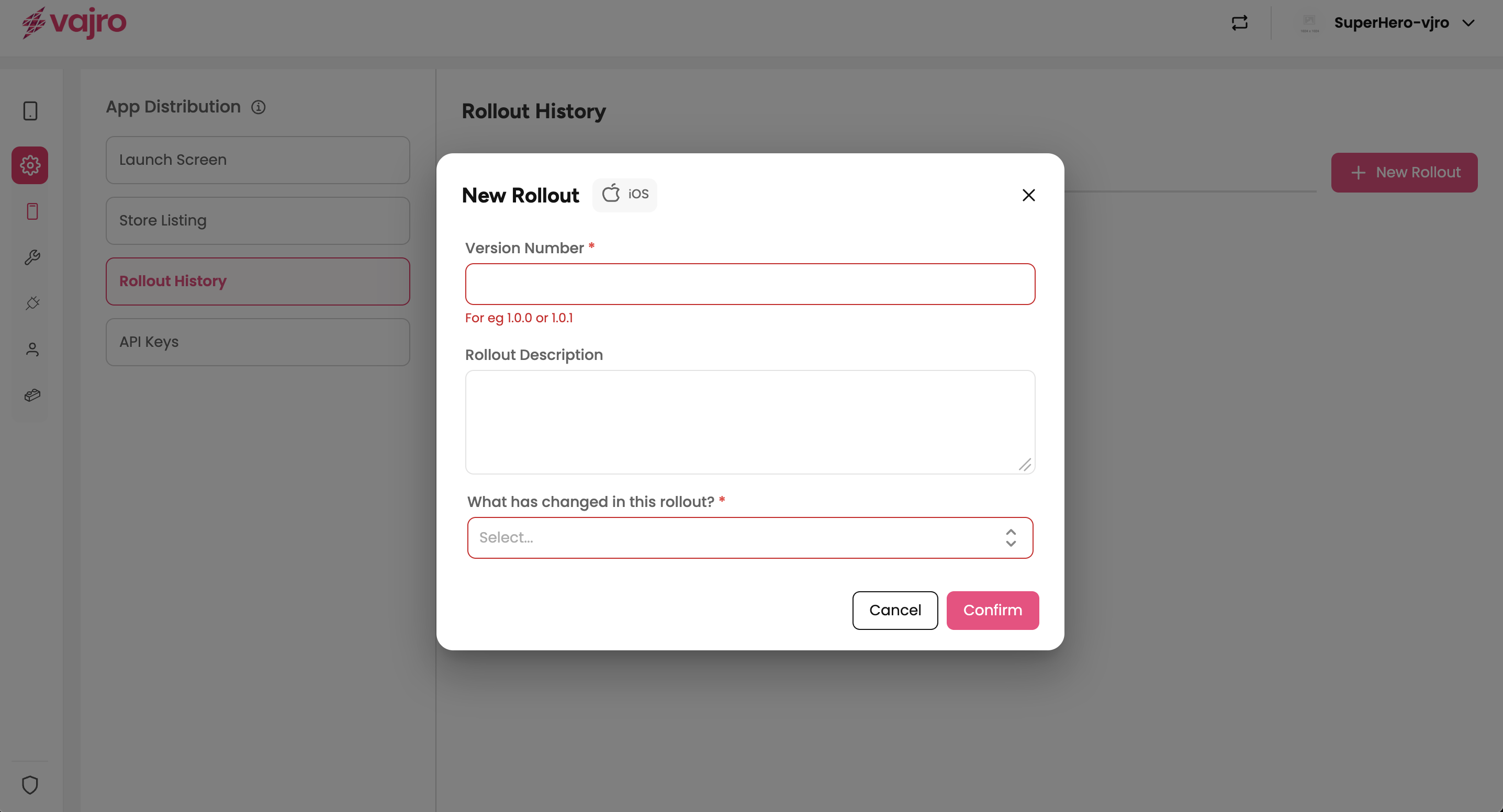
Major bug fix
Minor bug fix
Fix for OS-specific issues
Hotfix
These reasons are for updates that introduce new functionality or modify existing behavior.
Enable/disable an integration
Enable/disable a feature
Custom app logic/behavior
Introducing new blocks
These updates are aimed at improving the app's speed, efficiency, and user experience.
Improving app load time/performance
Optimizing image/video sizes
Fixing performance issues on low-end devices
Reducing app size
These are updates related to app store policies, device compatibility, and user accessibility.
Updating for compliance with Google Play or App Store Guidelines
Adding support for newer iOS/Android versions
Removing deprecated SDKs or Libraries
Meeting accessibility standards
Adding mandatory disclosures (e.g., Data Collection Notices)
These updates directly affect how your app appears in the app stores.
App icon change
App name change
App subtitle change (For iOS)
Adding/Updating App Banner (For Android)
For any reason that doesn't fit into the above categories.
Reason is not listed here
Stay Consistent with Versioning: Follow a standard versioning format (e.g., 1.0.0, 1.0.1) to avoid confusion.
Use Clear Descriptions: Keep rollout descriptions short, specific, and easy to reference internally.
Categorize Changes Correctly: Select the most accurate update reason (bug fix, performance, compliance, etc.) for clarity.
Plan Across Platforms: Align Android and iOS updates whenever possible to maintain a consistent experience.
Communicate with Users: Highlight meaningful updates (like new features or fixes) in your app announcements or push notifications.
Audit Regularly: Review rollout history to track trends and ensure all compliance-related updates are logged properly.
1. Do I need to log every change as a rollout?
Yes. Logging all updates helps maintain transparency and gives you a reliable record for future reference.
2. Can I add separate rollouts for Android and iOS?
Yes. The platform tabs let you manage rollouts independently for each store.
3. What versioning format should I use?
Stick to semantic versioning (Major.Minor.Patch) - e.g., 2.1.3.
4. Can rollout descriptions be seen by customers?
No. The rollout description is internal, but the "What has changed" details form the basis for user-facing notes.
5. What if my reason for the update isn’t listed?
Choose “Other” and provide additional internal notes for clarity.
6. Do branding or listing changes (like app icon) need rollouts?
Yes. Store-facing updates such as logo, name, or banner changes should also be logged in rollout history.
Open App Distribution → Rollout History in your Vajro dashboard.
Select the platform (Android or iOS) to view or add updates.
Click + New Rollout to log a new app version.
Enter the version number and a brief internal description.
Select the appropriate update category (e.g., Bug Fix, Performance, Compliance).
Save the rollout entry to update your timeline.
Align this rollout with app store submissions so changes are consistent across platforms.
Review rollout history regularly to track your app’s growth and compliance journey.

