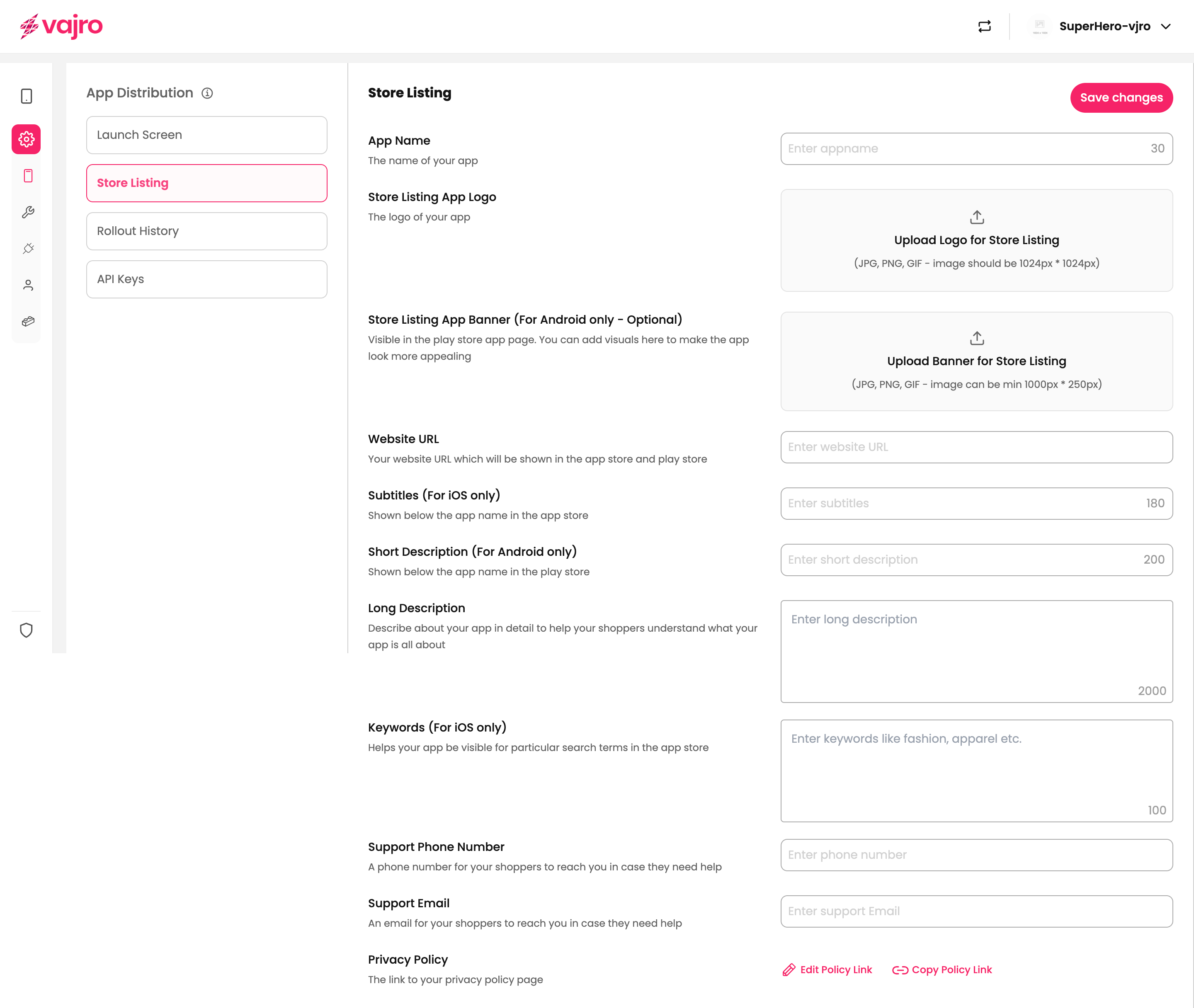
Your store listing is your app's digital storefront, it's how you make a first impression on potential users in the App Store and Google Play Store. A compelling listing helps your app stand out and drives more downloads. Here's a complete guide to every field and how to use it effectively.
App Name
The name of your app as it will appear in the app stores.
Keep it short, memorable, and relevant to your brand.
Control: Enter your app's name in the text field provided. A character counter on the right helps you stay within the recommended length.
Store Listing App Logo
This is the icon users will see on the app store and on their device's home screen.
Important: A logo change needs an app update for it to be visible to all your users.
Control: Use the "Upload Logo for Store Listing" button to upload your logo. The recommended size is 1024x1024 pixels for best results.
Store Listing App Banner (For Android only - Optional)
A banner image visible on your app's page in the Play Store. This is a great way to visually showcase your app's features or brand.
Control: Use the "Upload Banner for Store Listing" button to upload an image. The minimum size is 1000x250 pixels.
Website URL
A direct link to your website, which will be displayed in both the App Store and Play Store.
Control: Enter your website's URL in the designated text field.
Subtitles (For iOS only)
A short, descriptive line of text that appears below your app's name in the App Store. Use it to highlight a key feature or benefit.
Control: Enter your subtitle in the provided field. There is a character limit of 180 characters.
Short Description (For Android only)
A brief summary that appears on your app's page in the Play Store.
Control: Enter your short description in the provided field, with a character limit of 200 characters.
Long Description
This is your opportunity to go into detail about what your app does. Use this space to describe features, benefits, and how the app will solve a problem for your users.
Control: Enter your detailed description in the large text box.
Keywords (For iOS only)
Words that help your app appear in search results within the App Store. Choose keywords that users would type to find an app like yours.
Control: Enter your keywords in the text field, separated by commas.
Support Phone Number
A phone number for your customers to reach you for support. This will be displayed on your app store pages.
Control: Enter your support phone number in the designated field.
Support Email
An email address for your customers to contact you for support. This will be visible in the app stores.
Control: Enter your support email address in the provided field.
Privacy Policy
A link to your app's privacy policy. This is a requirement for all apps on the App Store and Play Store.
Control: Use the provided link options to either "Edit Policy Link" or "Copy Policy Link."
Keep your app name short, brand-relevant, and easy to remember.
Use a high-resolution logo (1024 × 1024 px) for clarity and recognition.
If using a banner (Android), ensure it’s visually engaging and meets size requirements.
Write concise, benefit-driven subtitles (iOS) and short descriptions (Android).
Use the long description to clearly explain features, benefits, and user value.
Add keywords (iOS) that are relevant and likely to be searched by your audience.
Provide valid, active support contact info (phone & email).
Ensure your privacy policy link works and is regularly updated.
1. Do changes to the logo or app name require an update?
Yes, these changes require an app update to appear live.
2. Can I edit descriptions without updating the app?
Yes, both short and long descriptions can be edited anytime.
3. Which file formats are supported for the logo?
PNG, JPEG, SVG, or WebP.
4. Is the Android banner mandatory?
No, but adding one improves your Play Store listing visually.
5. Are iOS keywords really important?
Yes, they directly influence search visibility in the App Store.
6. Do I need a privacy policy link?
Yes, both app stores require one for approval.
Go to App Distribution → Store Listing in your Superfans dashboard.
Upload your app logo (1024 × 1024 px, PNG/JPEG/SVG/WebP).
(Optional) Upload an Android banner (min. 1000 × 250 px).
Add app name, subtitle (iOS), and short description (Android).
Write a compelling long description and add keywords (iOS).
Enter website URL, support phone, support email, and privacy policy link.
Save changes and submit an update if logo or name was modified.

