Welcome to your App Distribution hub. This is your control center for managing how users discover and experience your app. From the launch screen to the store listing, you have all the tools to get your app into the hands of your audience.
Customize the launch screen that appears when customers open your app. This is your first touchpoint with users, so it's important to keep it clean, branded, and consistent.
Features & Controls
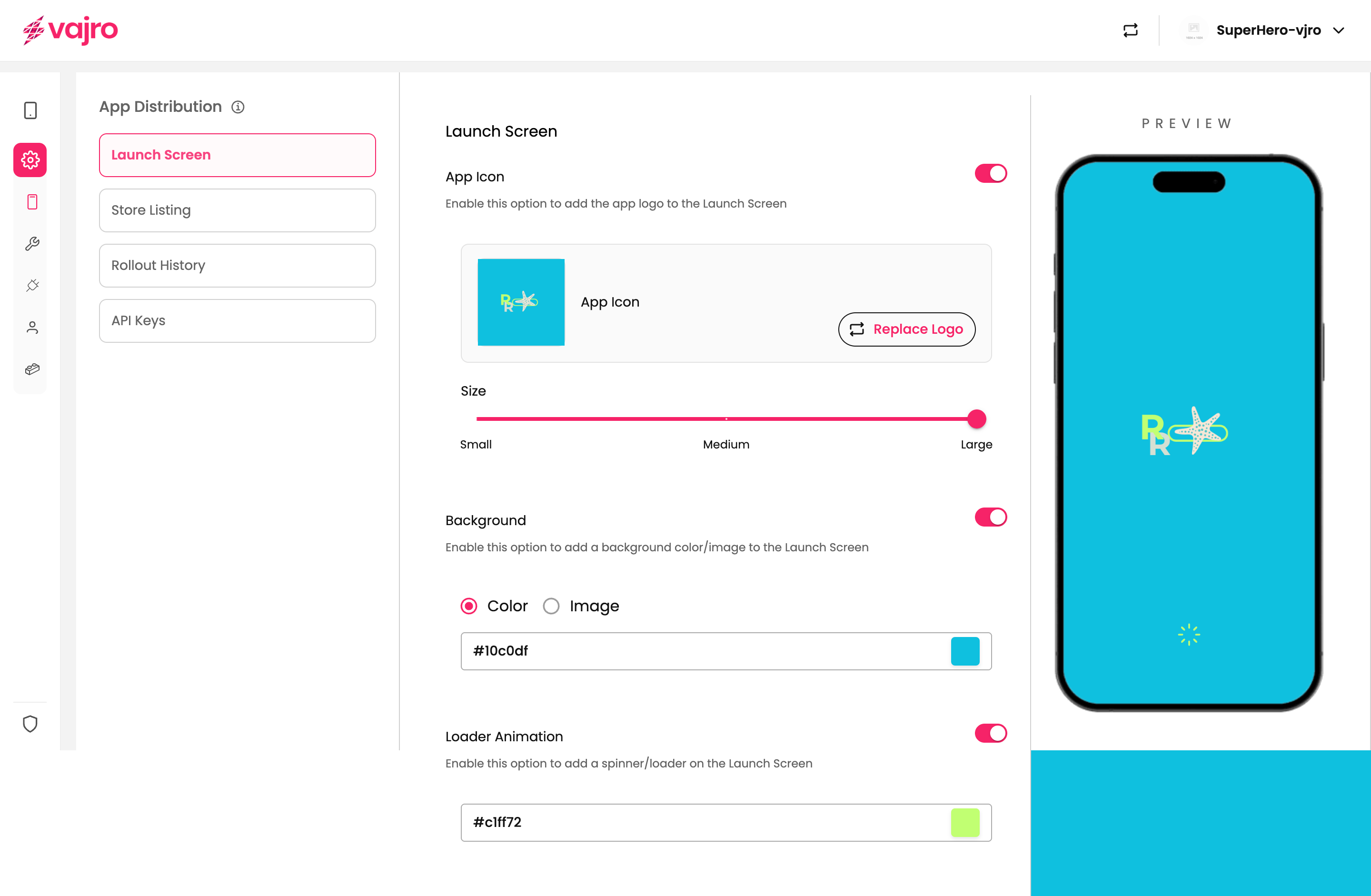
App Icon:
Enable this option to display your app logo on the launch screen.
Replace Logo: Upload a custom logo that represents your brand.
Important: Any changes to the logo will require you to submit an app update for it to reflect in the live app.
Size:
Use the slider to adjust how large the logo appears.
Options range from Small to Large, giving you control over visual balance.
Background:
Add a background color or image to your splash screen.
Color: Pick a solid color using a HEX code
Image: You can also switch to image mode to upload a custom background.
Toggle the setting ON to activate your customization.
Loader Animation:
Add a loading spinner to visually indicate that the app is launching.
Customize the color of the loader using a HEX code.
Toggle ON to enable it on the screen.
A live preview on the right side of the screen shows exactly how your launch screen will appear to users, helping you make informed design choices before saving.

Keep it simple & branded: Use your primary brand logo and colors so customers instantly recognize your store.
Optimize logo size: Avoid making it too large or too small. Ensure it looks balanced in the preview.
Follow size guidelines: Make sure your logo image is less than 500px × 500px for best performance.
Pick high-quality assets: Use crisp PNGs or SVGs to avoid pixelation.
Consistent background: Use brand-aligned solid colors or subtle images that don’t overpower the logo.
Add a loader animation: Improves perceived app speed and sets user expectations.
Always preview: Check the live preview across devices before saving.
1. Do I need to update my app if I change the logo?
Yes. Any logo changes require submitting an app update to reflect in the live version.
2. Can I change the background without updating the app?
Yes. Background colors and images can be updated instantly without needing an app update.
3. What file formats and sizes are supported?
The logo must be in PNG, JPEG, SVG, or WebP format to ensure clarity . The image size should be under 500px × 500px.
4. How do I pick the right logo size on screen?
Start with Medium in the slider and adjust while checking the live preview.
5. Is the loader animation mandatory?
No, but enabling it enhances the user experience by showing that the app is actively loading.
Log into your Supefans dashboard and go to App Distribution → Launch Screen.
Upload your brand logo (under 500px × 500px) and adjust the size slider.
Set a background color or upload an image that aligns with your branding.
Toggle ON the loader animation and customize its color.
Review changes in the live preview and save your settings.
If you replaced your logo, submit an app update.
Test on different devices to confirm a clean, professional look.

