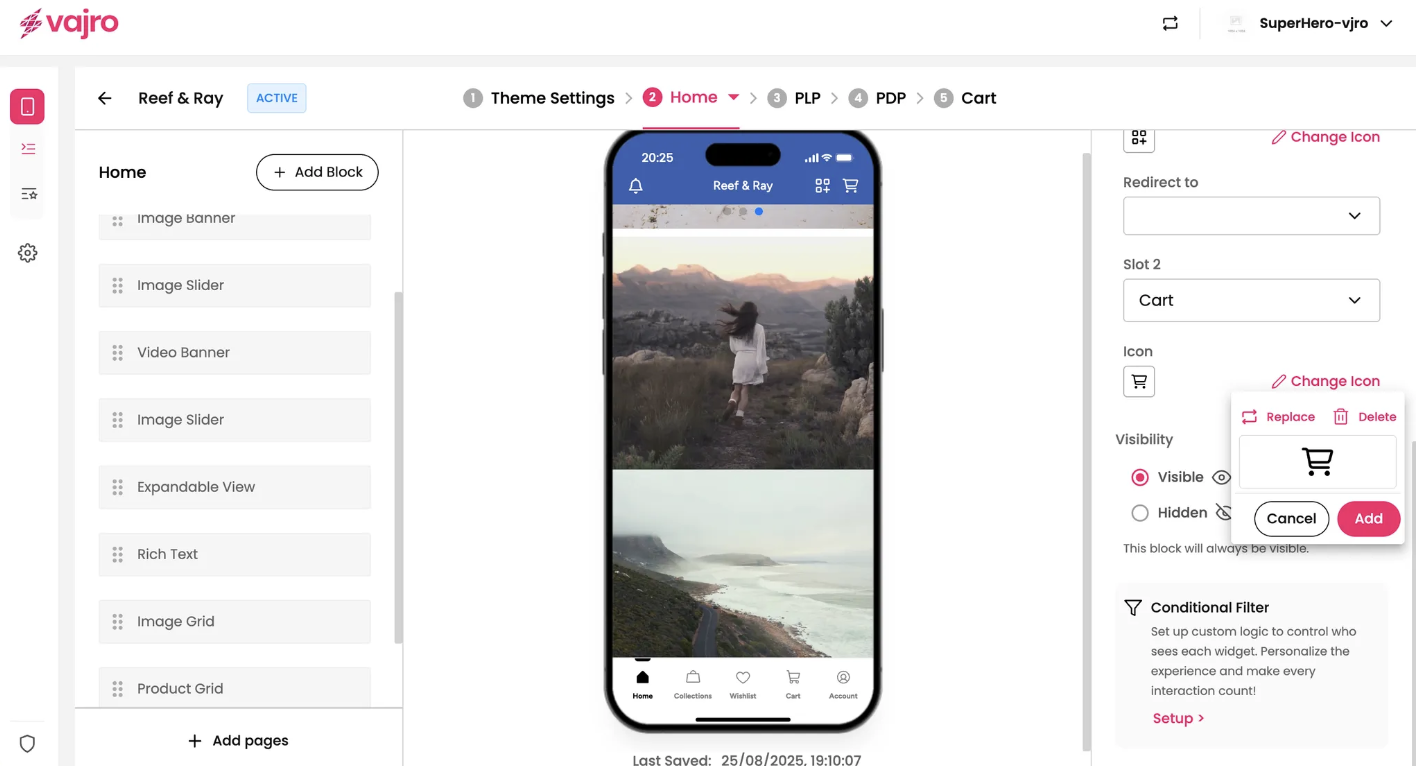
The home page is your app’s hub. It helps users get around, see what’s new, and keeps them engaged with your brand.
Toolbar: Your App's Top Navigation Bar
The toolbar is the main navigation area displayed at the very top of your app screen. It provides quick access to essential features and reinforces your brand identity.
Features & Controls
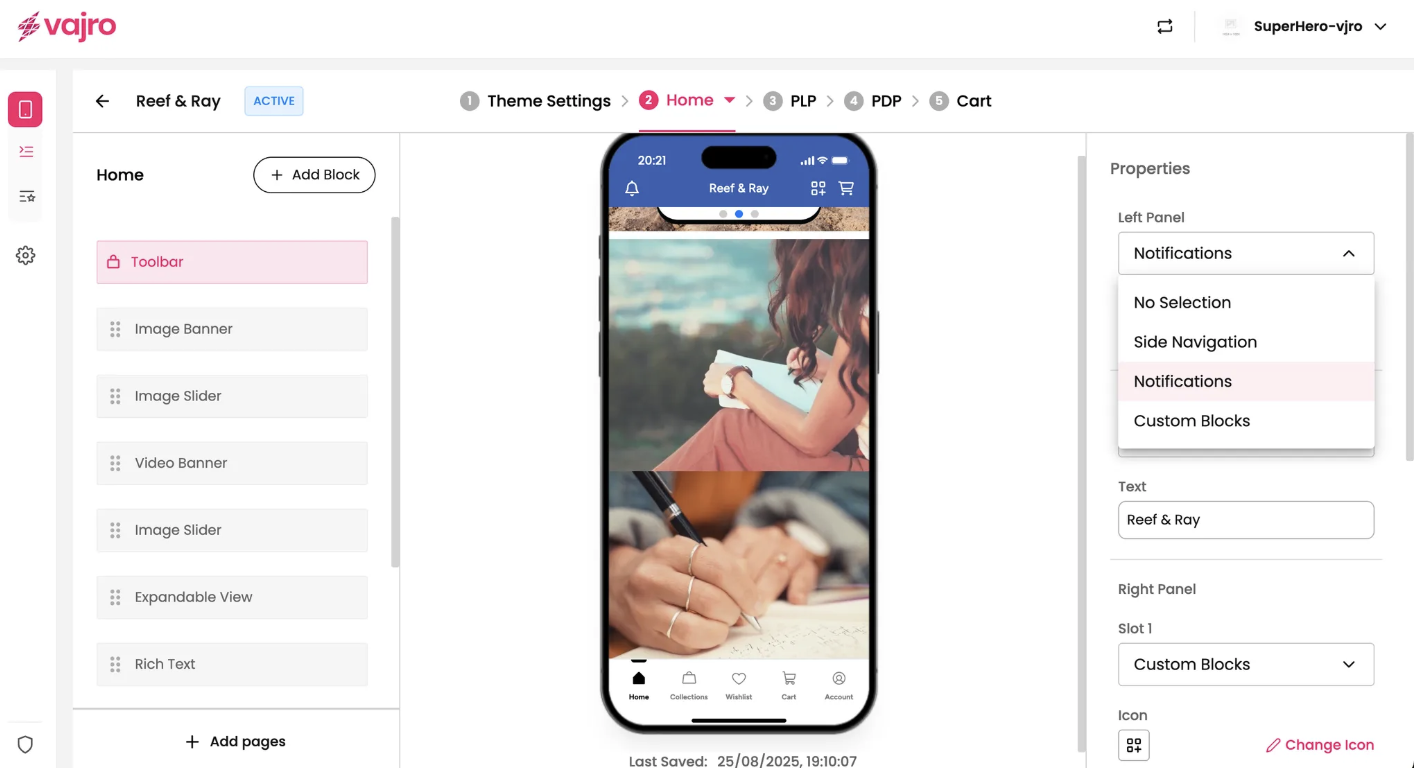
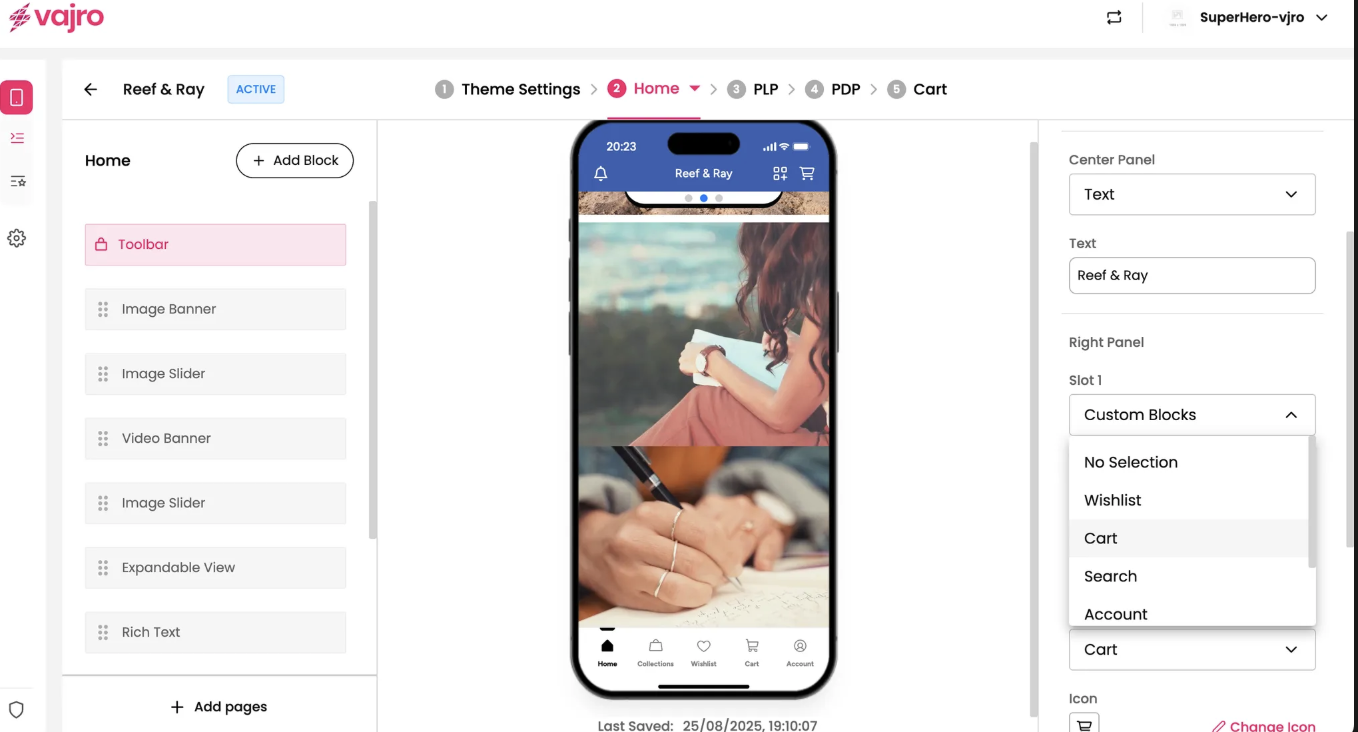
Left Panel: This dropdown controls the icon on the left side of your toolbar. Choose from No Selection, Side Navigation (opens your side menu), Notifications, or Custom Blocks.
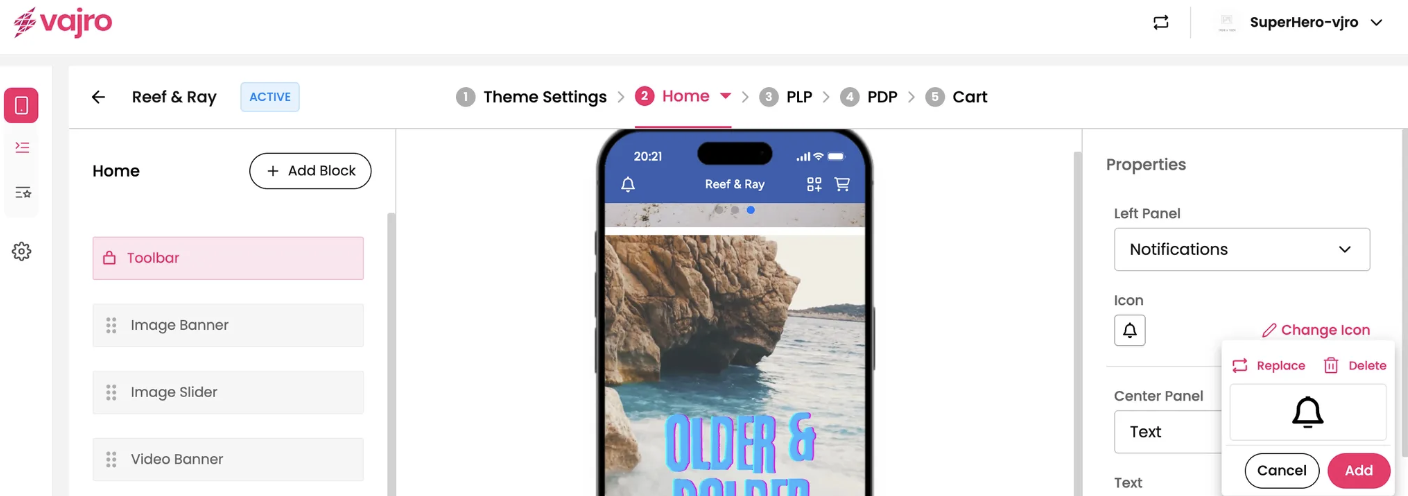
Icon Customization: Click Change Icon to customize the icon for any option, choosing from the library or uploading your own to match your brand.
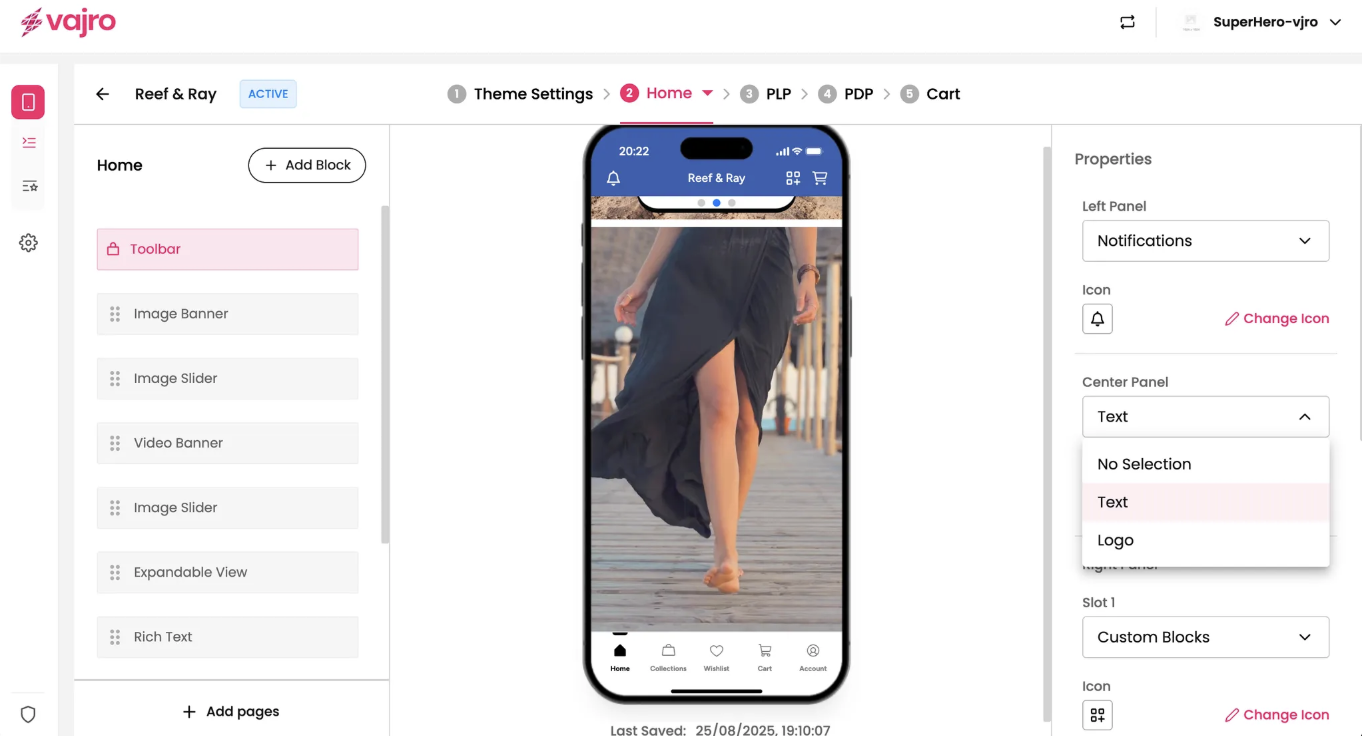
Center Panel: This controls what appears in the center of your toolbar for branding. Choose No Selection, Logo (click Replace to upload a new one), or Text (enter a custom title; font and color follow your app’s theme).
Right Panel (Slot 1 & Slot 2): These dropdowns let you add actions or links to the right side of your toolbar. Slot 1 controls the primary feature and offers No Selection, Wishlist, Cart, Search, Account, Side Navigation, Notifications, or Custom Blocks.
Slot 2: Allows you to select an additional feature for the far right of your toolbar, with the same options: No Selection, Wishlist, Cart, Search, Account, Side Navigation, Notifications, or Custom Blocks.
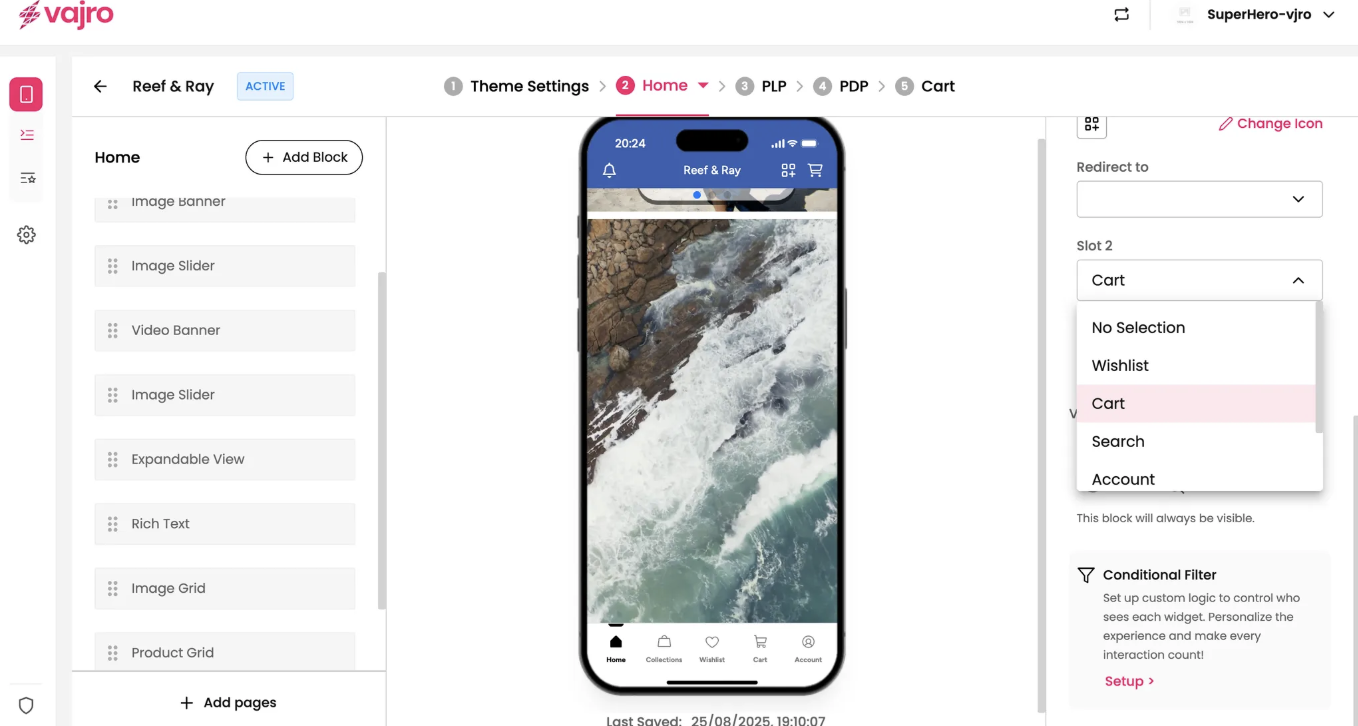
Icon Customization (Slot 1 & Slot 2): For both slots, you can customize the icon of your chosen feature by clicking Change Icon, letting you select from a library or upload your own to match your brand’s aesthetic perfectly.