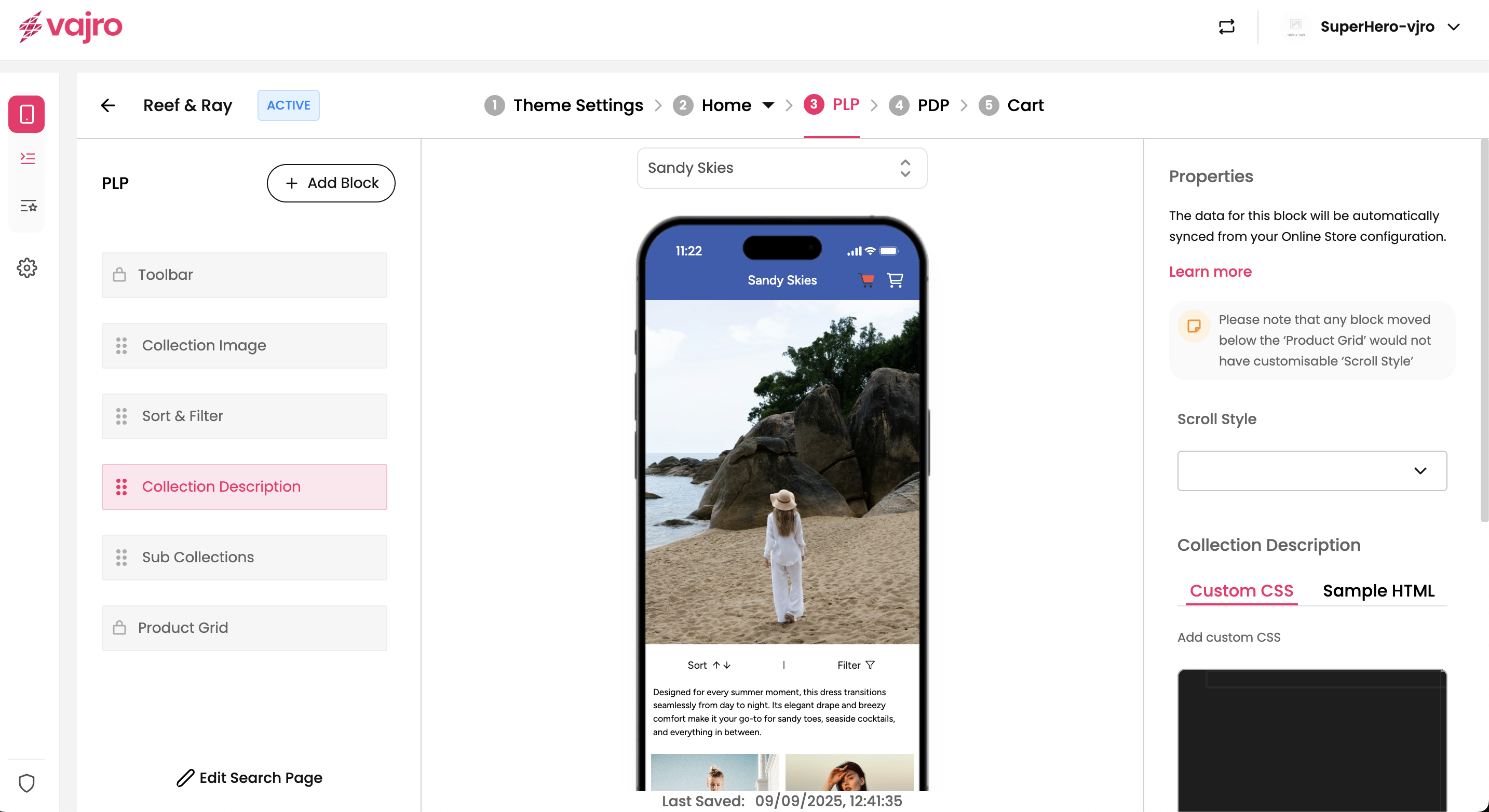
The Collection Description block allows you to provide rich textual context and information about your product collections directly on your Product Listing Pages (PLPs). This helps customers understand the theme, benefits, or details of the products they are browsing.
Customize your Collection Description block using the controls on the right panel.
This section is where you manage the content, scrolling behavior, and advanced styling of your Collection Description.
Collection Description: This area displays the textual content for your collection. The data for this block is automatically synced from your Online Store configuration (e.g., your Shopify collection description). Any edits to the core description should typically be made in your e-commerce platform.
Custom CSS: This field allows experienced users to add custom CSS rules to further style the appearance of the collection description.
Sample HTML: This section displays the HTML content retrieved from your Shopify description, giving you a preview of the raw content being used.
Scroll Style: This setting controls how the Collection Description behaves when a user scrolls through the PLP.
Scroll with parent (default): This is the standard behavior. As the user scrolls down the PLP, the Collection Description will scroll upwards and eventually off-screen, moving along with the rest of the page content.
Sticky on top: When this option is selected, the Collection Description will remain fixed at the top of the screen once its original position reaches the viewport's top edge. It will stay visible even as other product content scrolls underneath it. This is useful for keeping important information persistently in view.
The Sub Collections block allows you to display a curated list of sub-categories or nested collections within your main Product Listing Pages (PLPs). This helps customers navigate deeper into your product catalog, find specific product groups, and enhances overall discoverability and organization of your app's content.
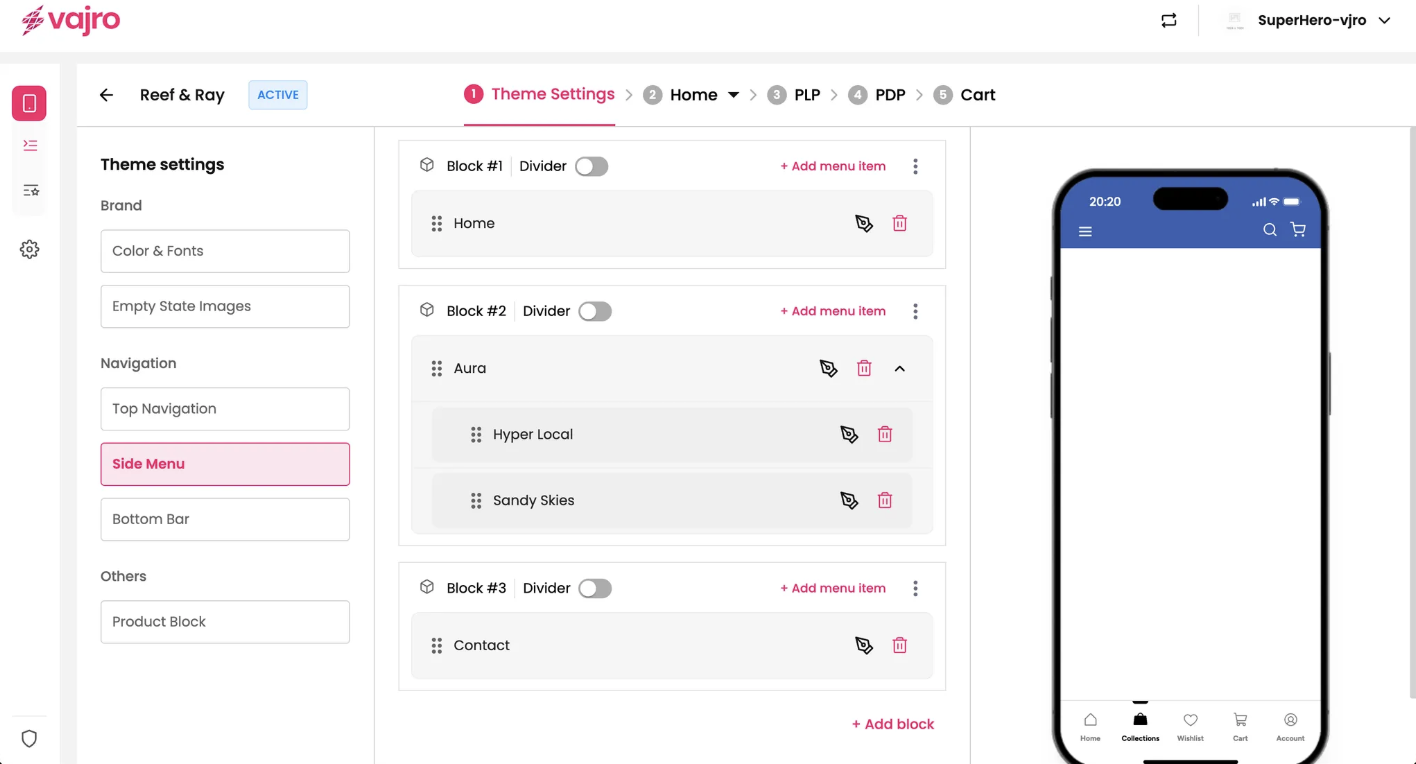
The Sub Collections feature, managed within your app's Theme Settings > Side Menu> Menu items.
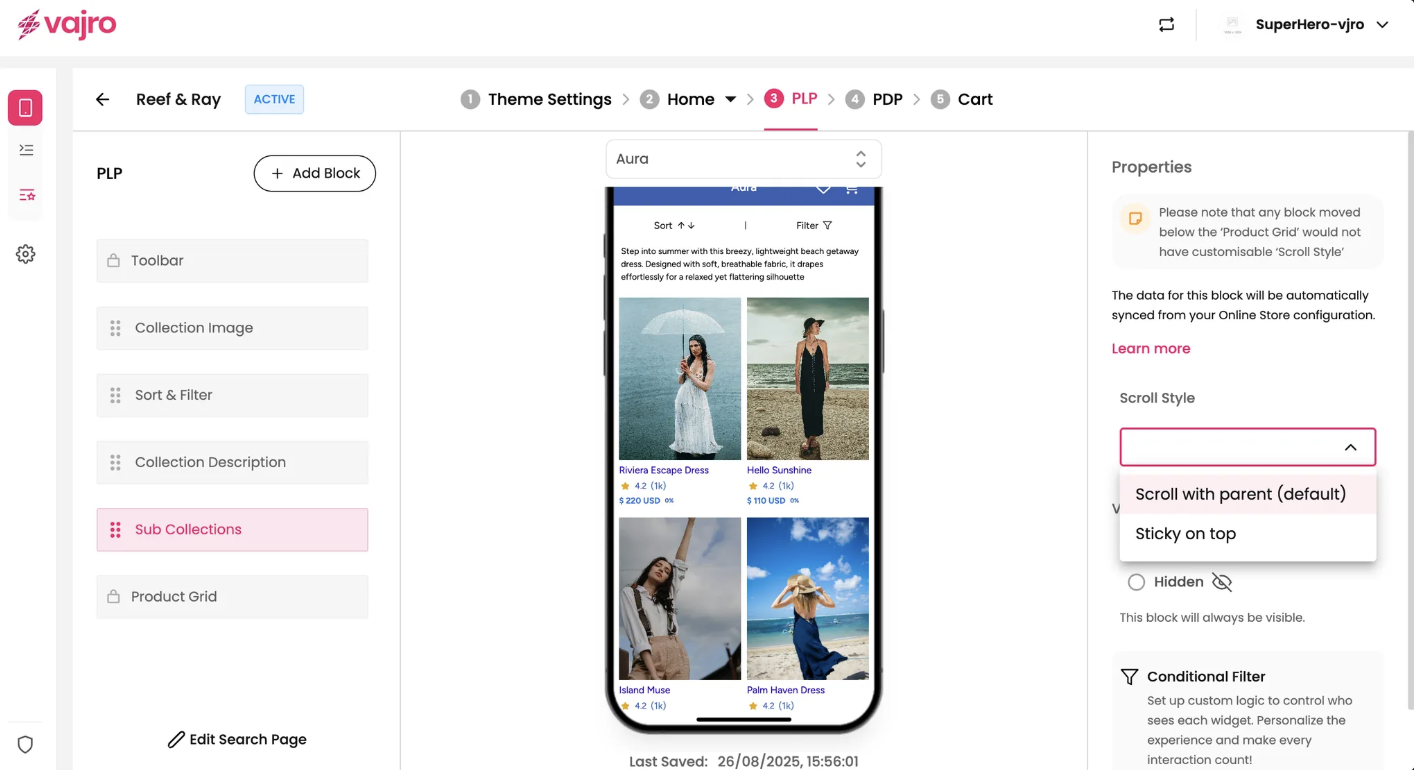
Customize your Sub Collections block using the controls on the right panel.
This section is where you manage the content, and scrolling behavior for your Sub Collections block.
Sub Collections: This area typically displays the sub-collections that are linked to your current main collection. The data for this block is automatically synced from your Online Store configuration (e.g., how you've organized collections and sub-collections in Shopify). Any changes to the actual sub-collection structure should typically be made in your e-commerce platform.
Scroll Style: This setting controls how the Sub Collections block behaves when a user scrolls through the PLP.
Scroll with parent (default): This is the standard behavior. As the user scrolls down the PLP, the Sub Collections block will scroll upwards and eventually off-screen, moving along with the rest of the page content.
Sticky on top: When this option is selected, the Sub Collections block will remain fixed at the top of the screen once its original position reaches the viewport's top edge. It will stay visible even as other product content scrolls underneath it. This is useful for keeping navigation to sub-collections persistently in view.