To upload the mobile app for your store onto the Apple App Store, Superfans team needs to be invited as a collaborator to your Developer Accounts. This will allow you to focus on other launch activities while our team can create, modify, and manage your app.
There are two types of Apple Developer accounts: Individual and Organization account. Follow these steps for Organisation accounts.
Use the App Store Connect Account Holder account for the API-access request.
Invite [email protected] with Admin access.
Have access to the developer account email so you can receive the one-time verification code.
After the automation invitation is sent, allow approximately 5–10 minutes for it to be accepted before continuing in the dashboard.
Enable App Store Connect API access
Invite the Superfans automation user
Verify the developer email with OTP
Select the developer team and app, then confirm
This part must be completed from the Account Holder account.
Log in to App Store Connect with the Account Holder account.
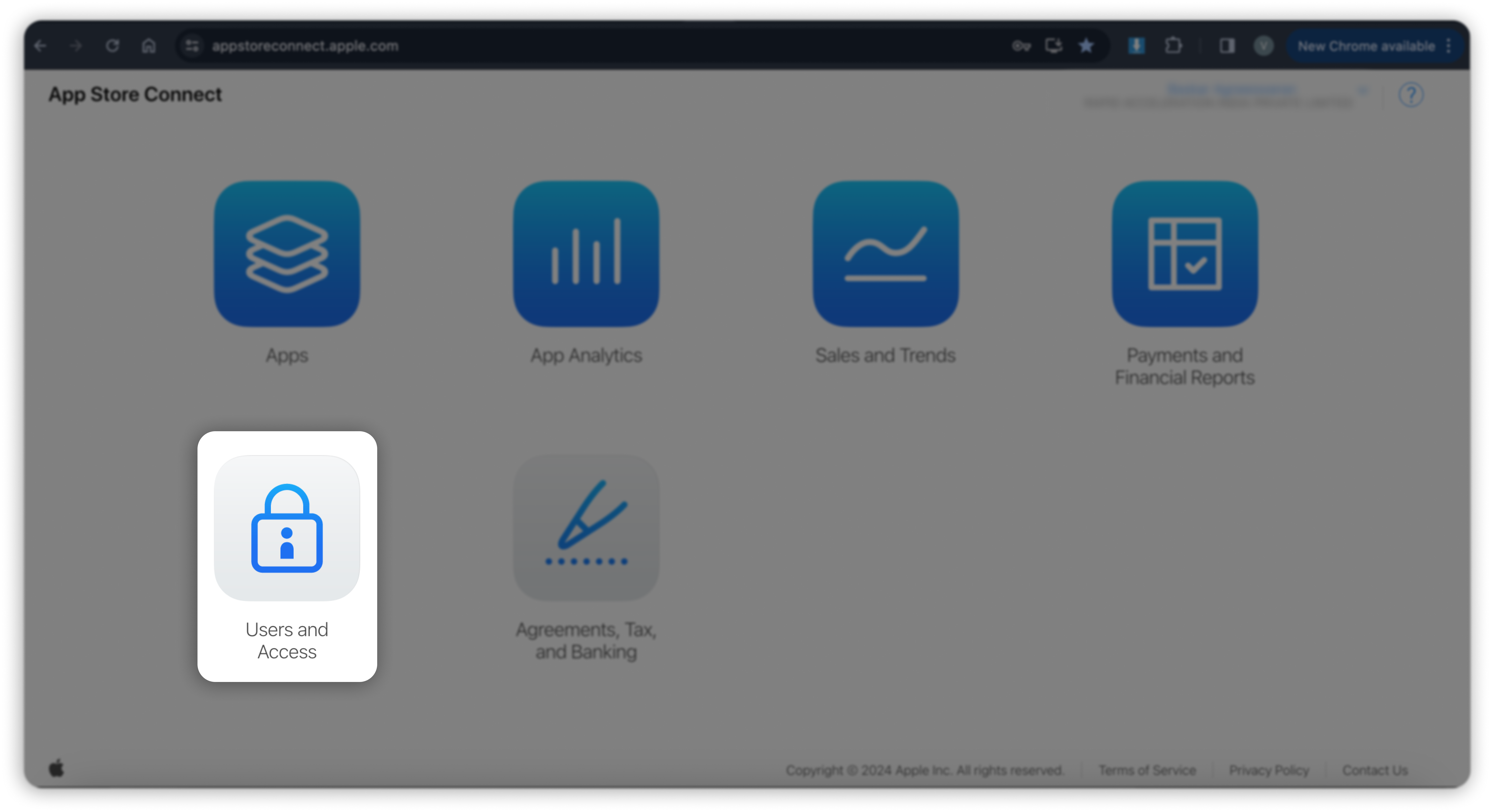
Open Users and Access
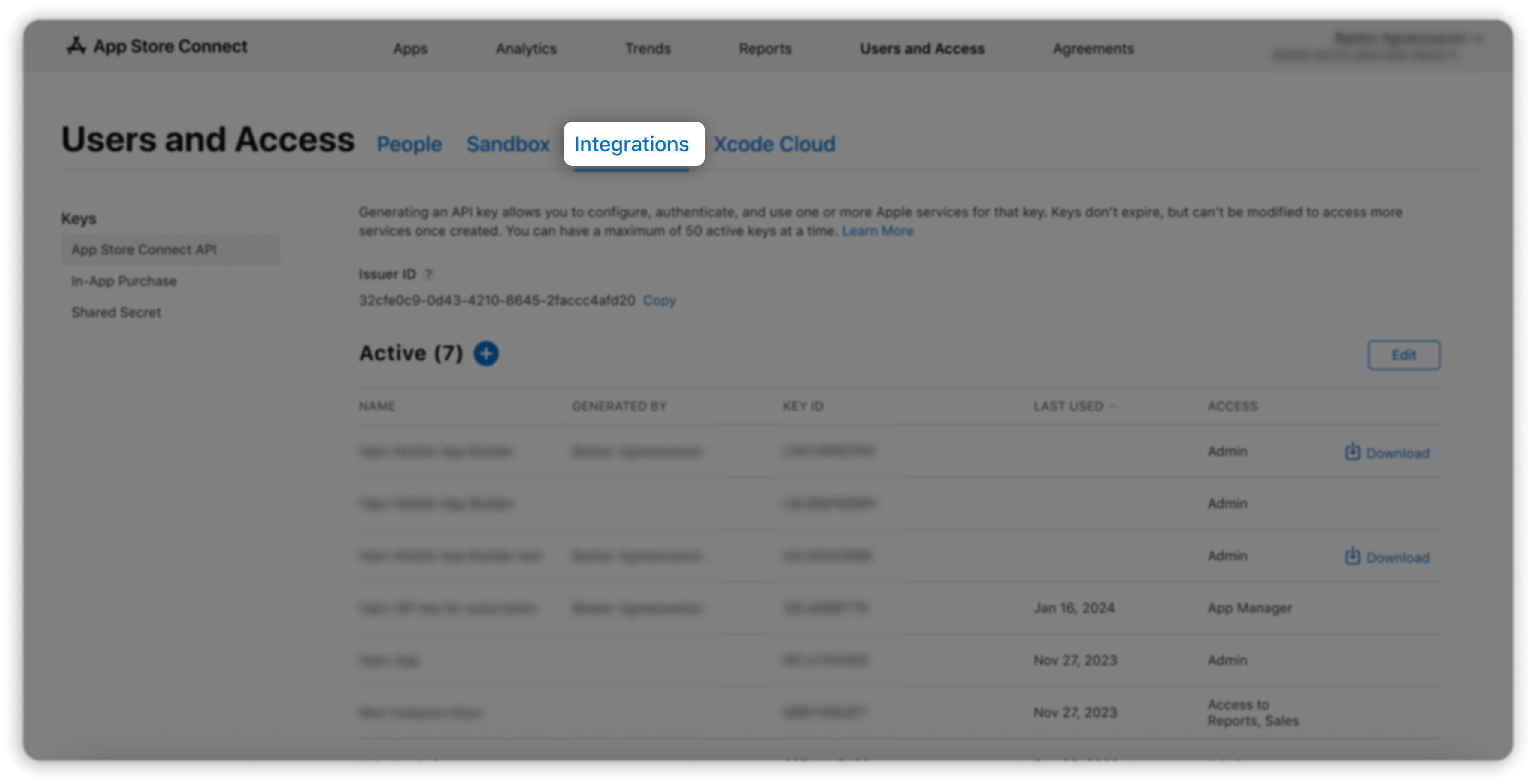
Step 3: Click on the Integrations tab.
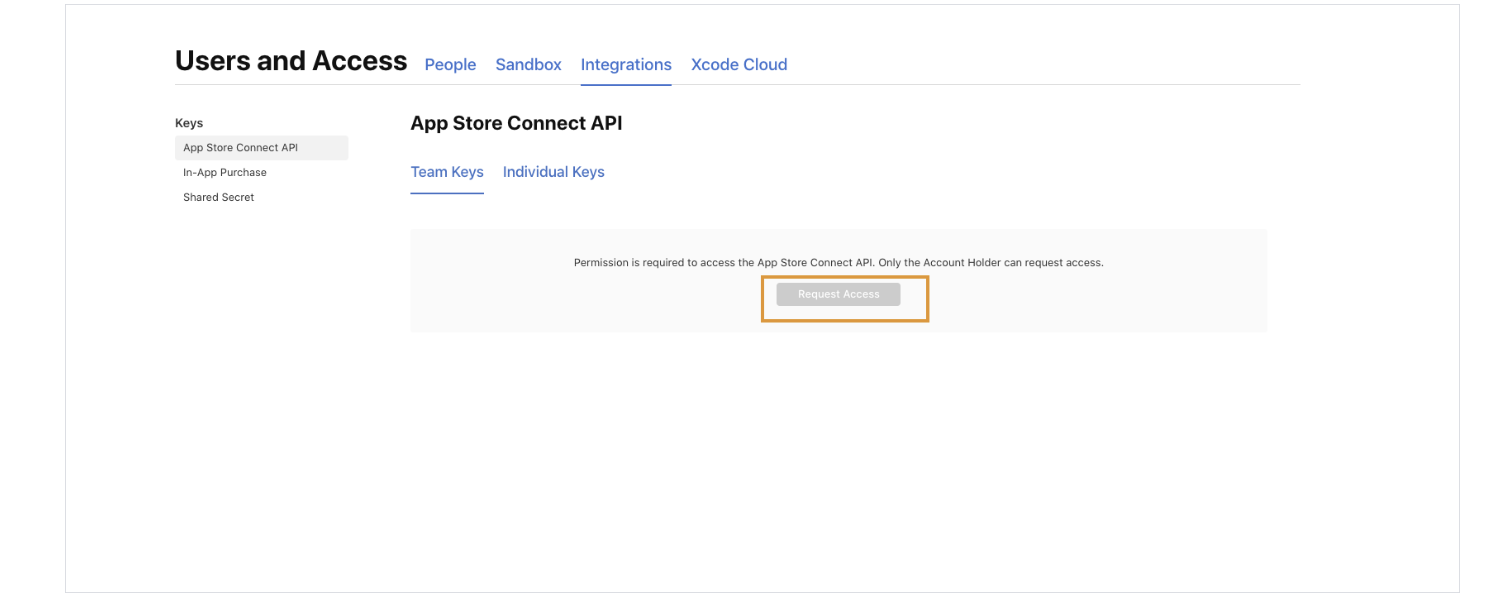
Under App Store Connect API, click Request Access. This action is available to the Account Holder.
Accept the acknowledgement checkbox and select Submit.
After the request is submitted, return to the People tab in Users and Access.
Open People and click Add (+)
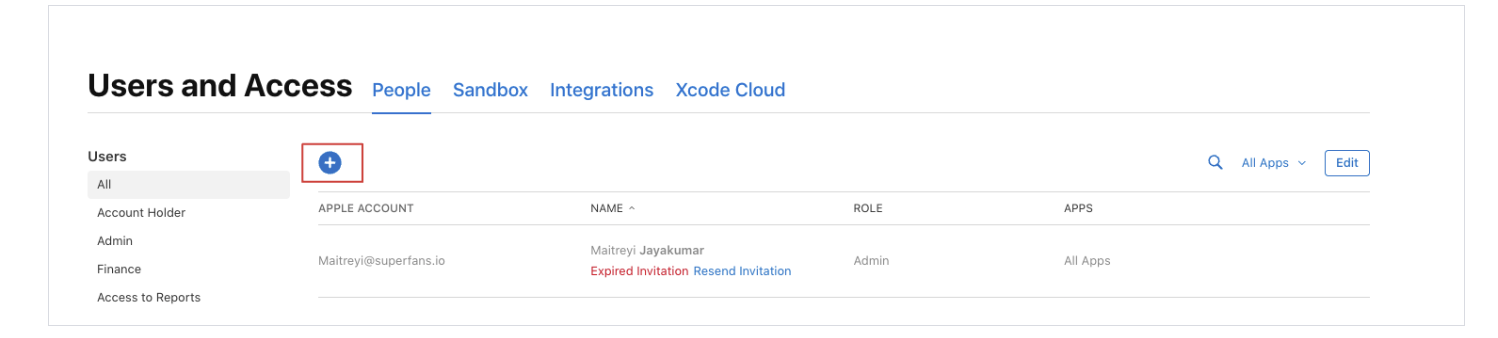
Create the user with the automation email [email protected] and grant Admin access.
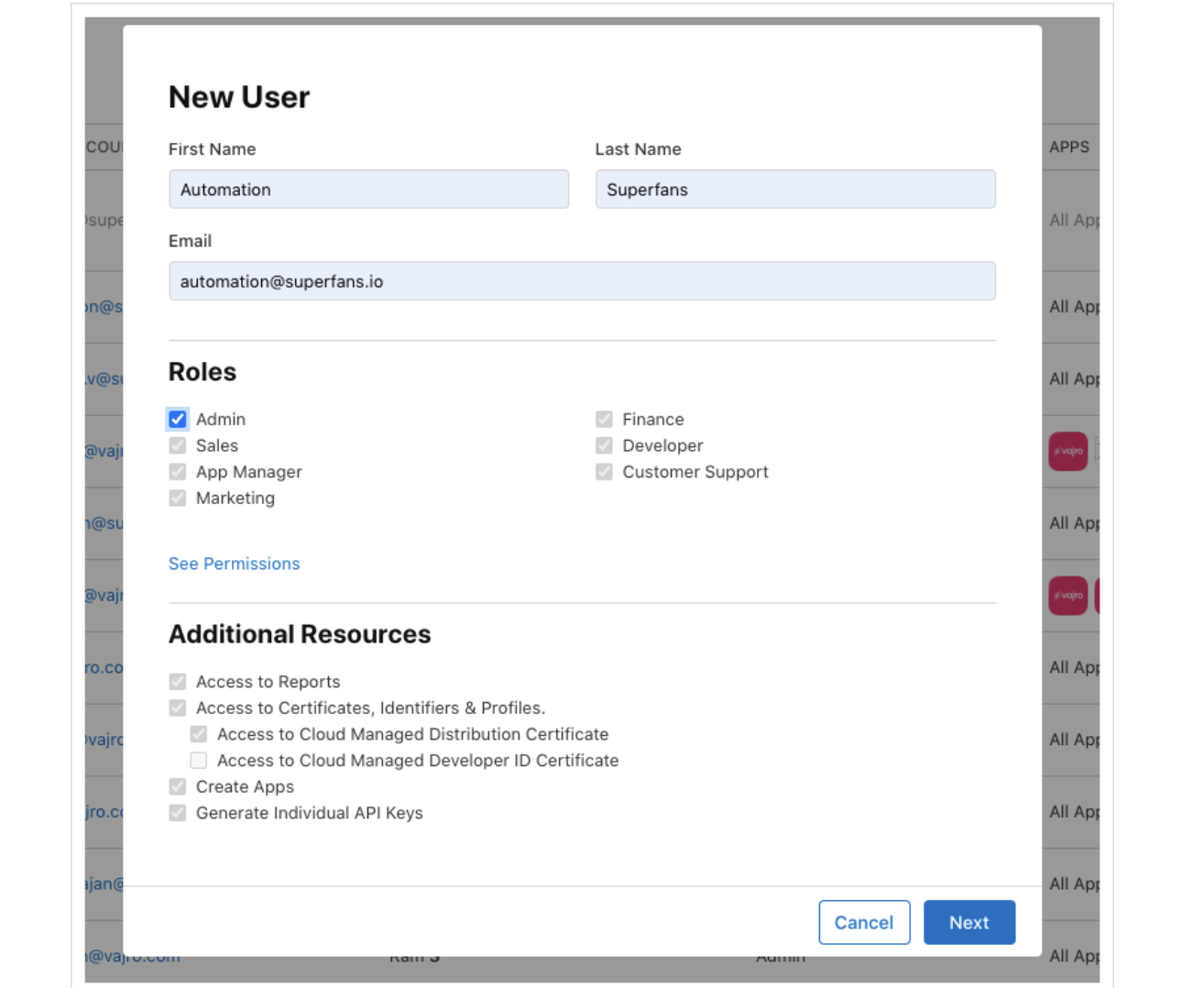
The original setup notes indicate that the automation invitation can take about 5 -10 minutes to be accepted.
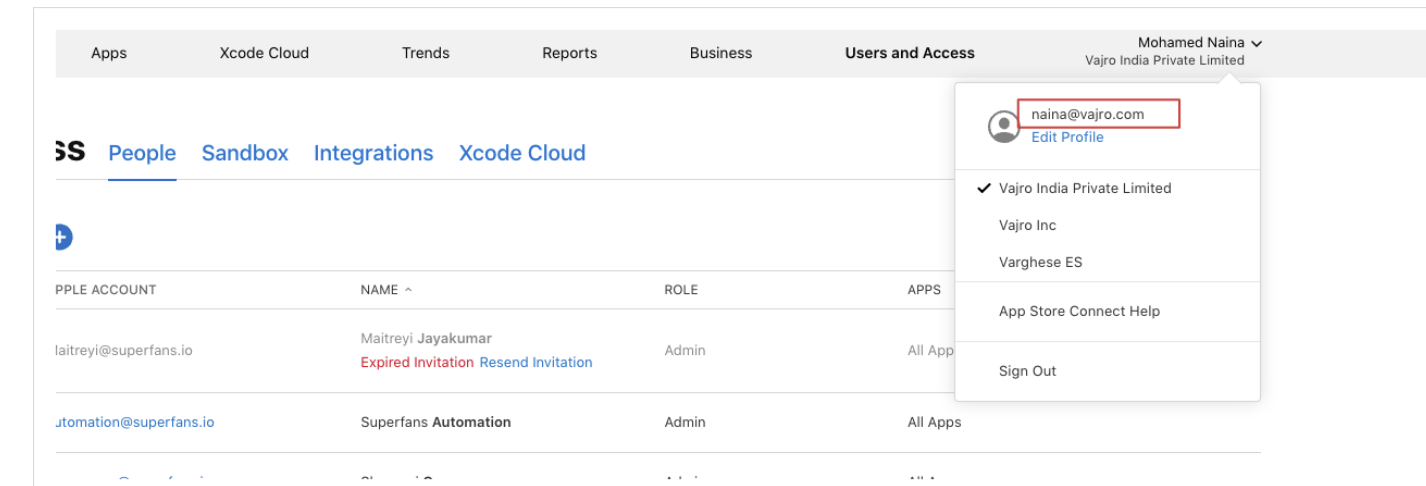
Confirm the developer/account email associated with this App Store Connect account. In the example shown, the account email is [email protected].
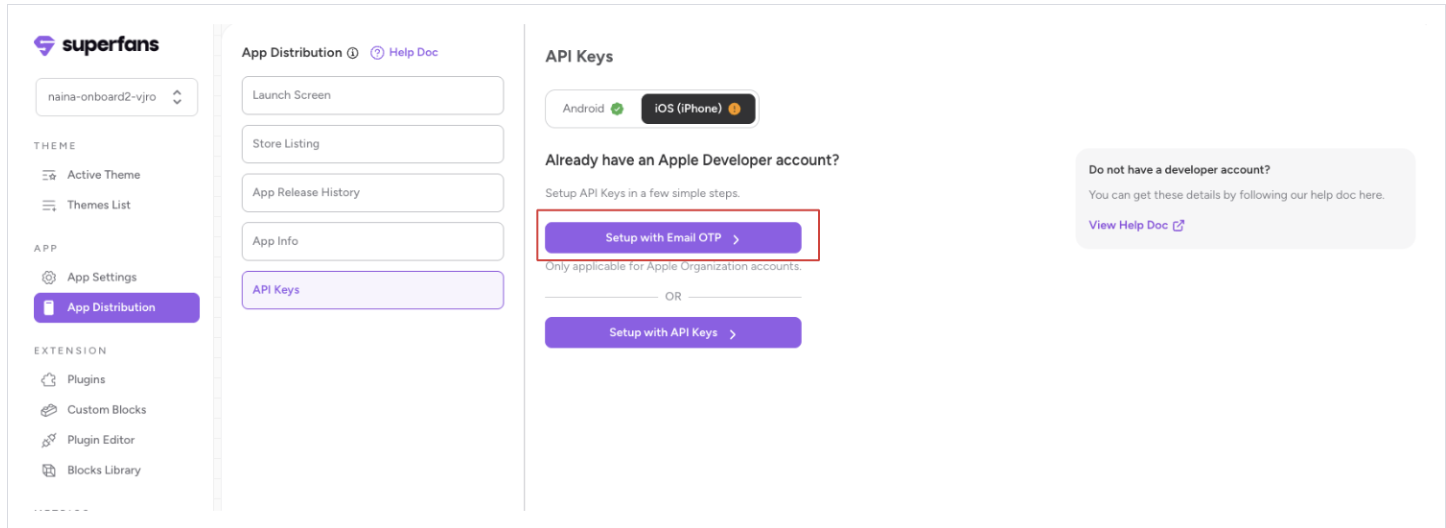
Return to the Superfans dashboard and open the API Keys setup.
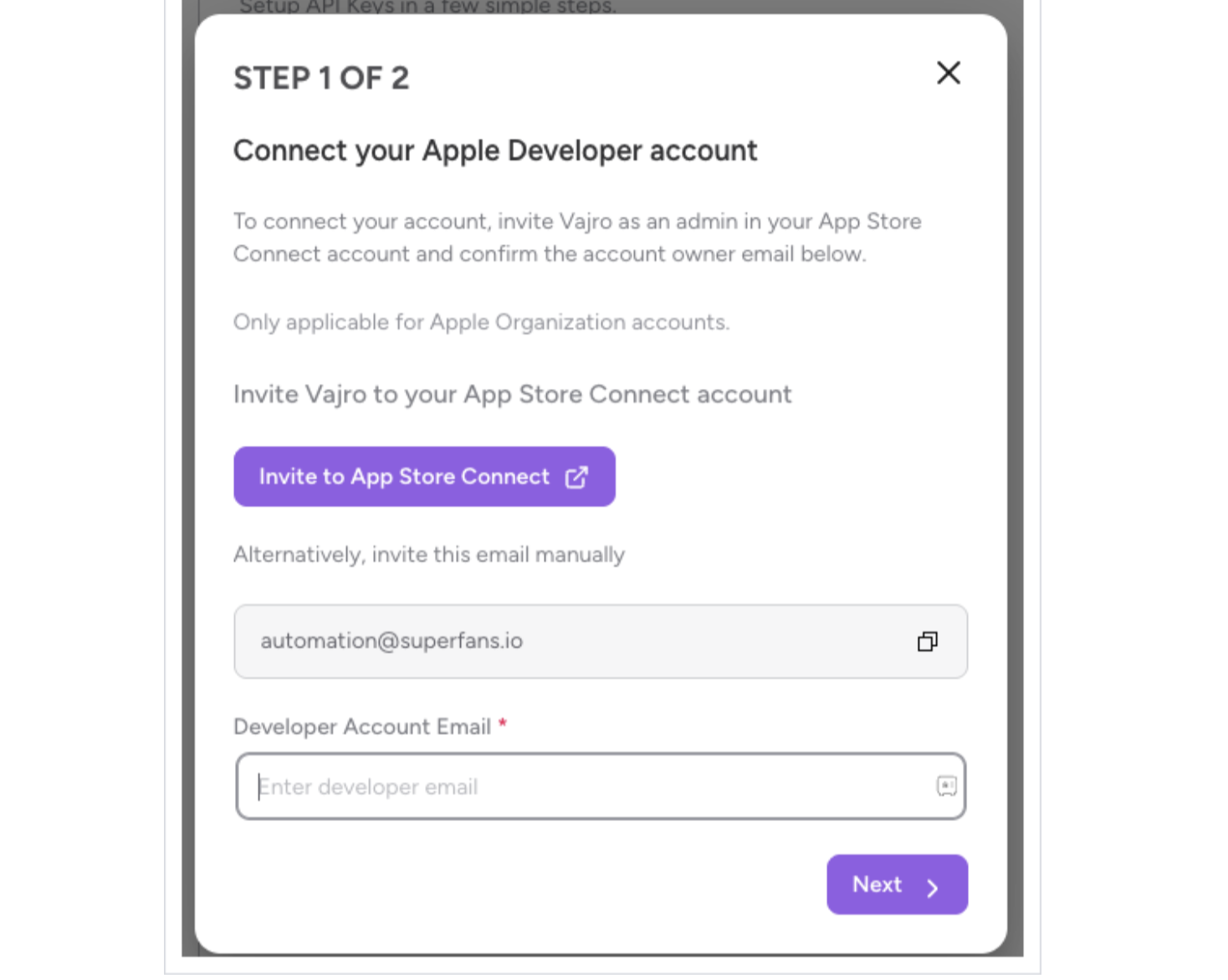
In Connect your Apple Developer account, enter the developer account email used for this App Store Connect account, then click Next.
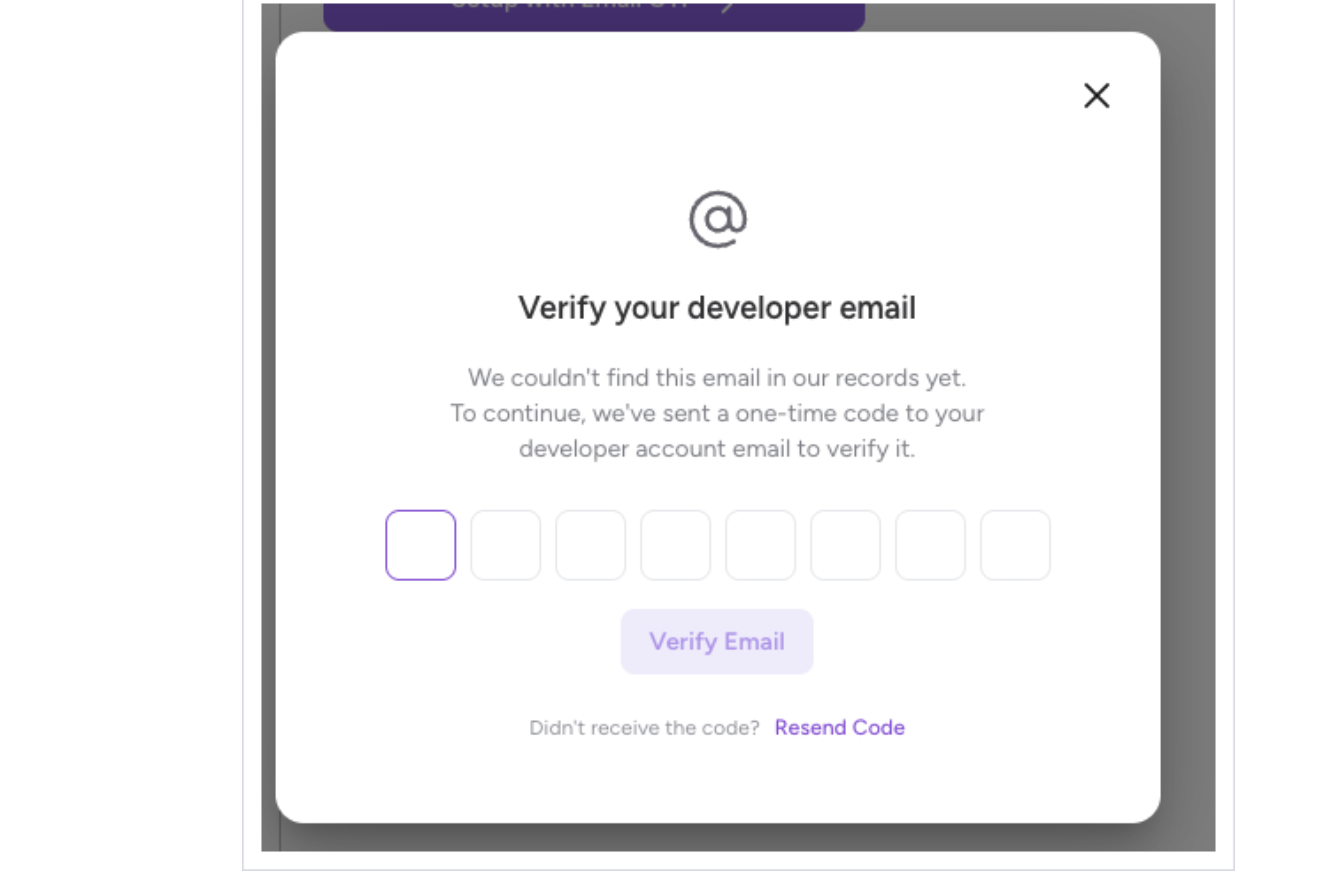
If the email is not already associated in the dashboard, a one-time code will be sent to that email. Enter the code and select Verify Email.
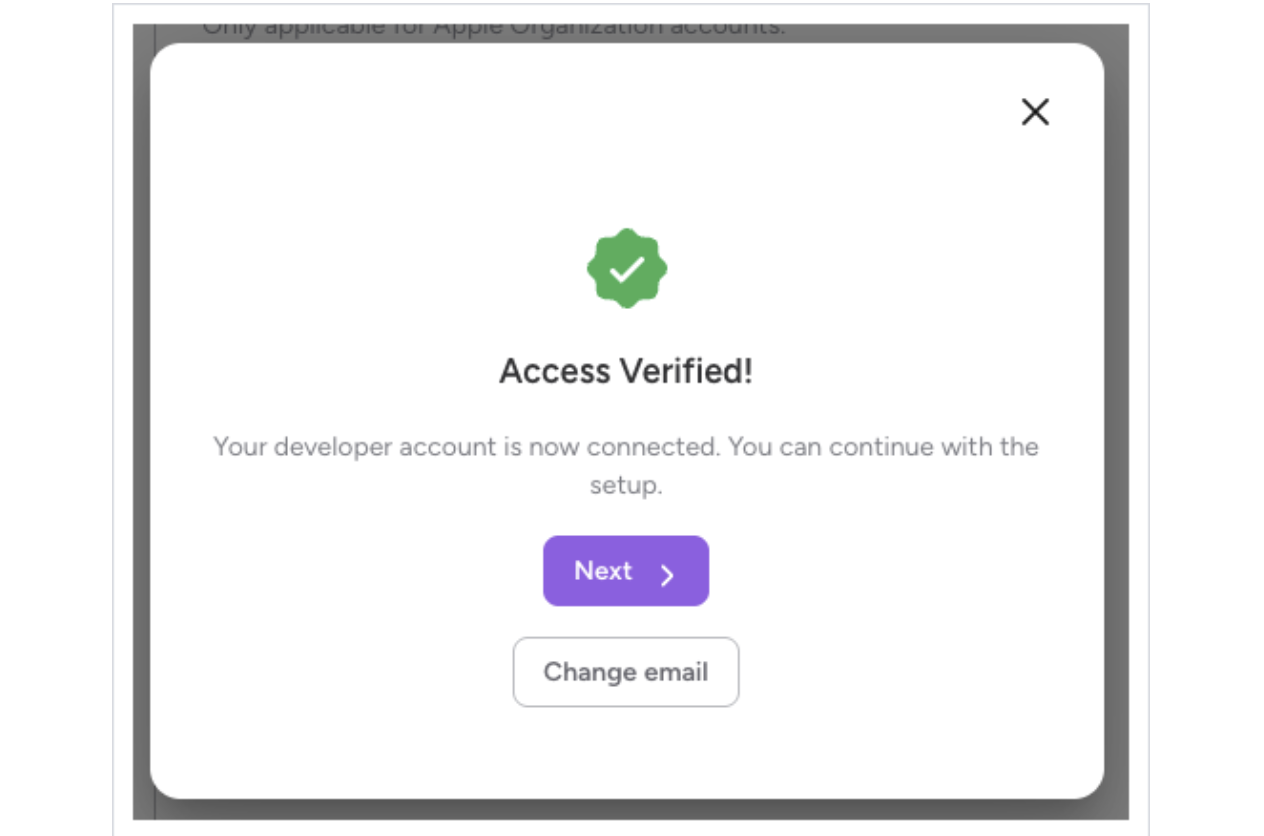
When Access Verified! appears, click Next
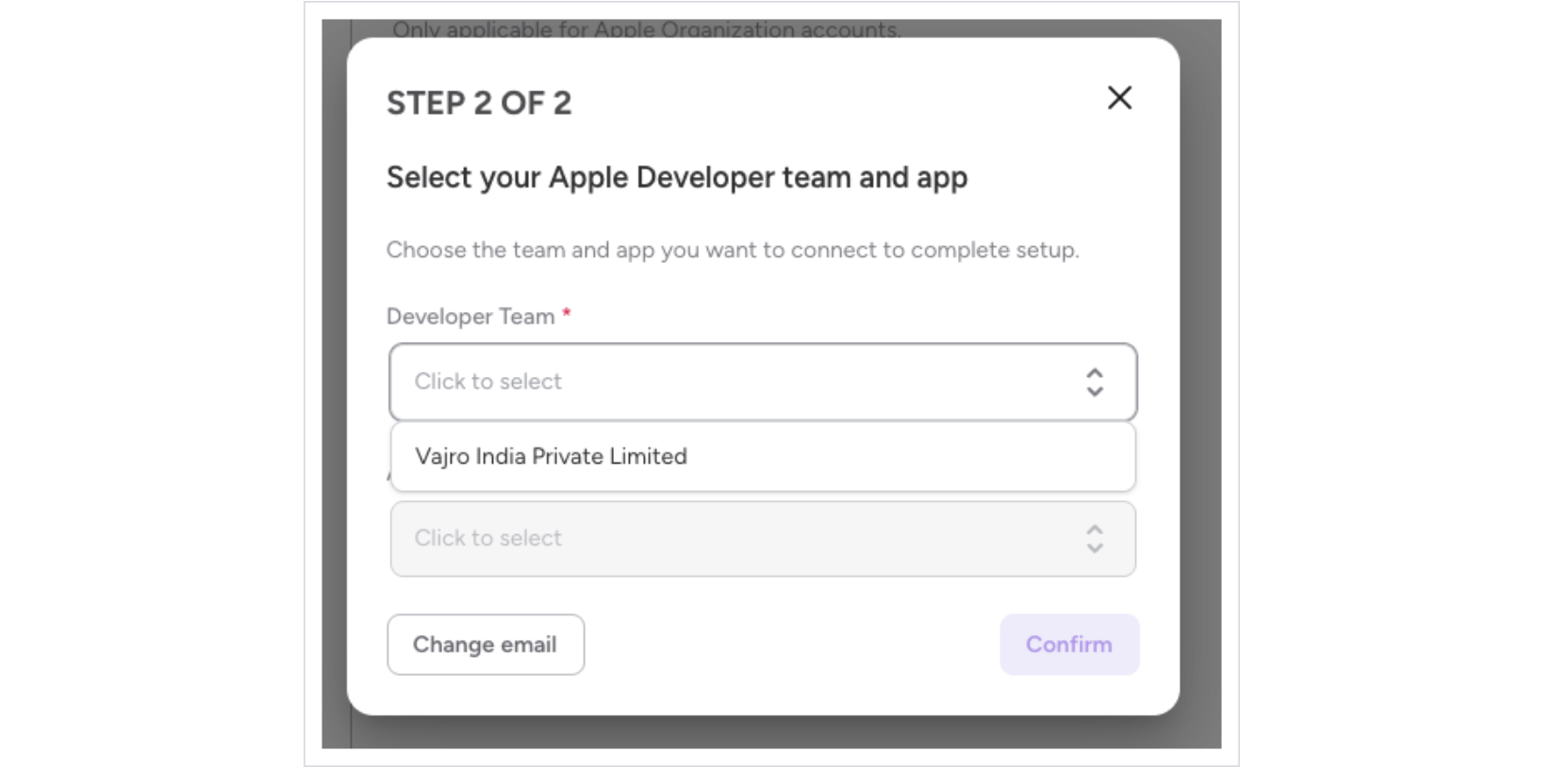
Select the Apple Developer team from the Developer Team dropdown.
Choose an existing app, or select New App for a fresh app setup.
Open the App dropdown. If the app already exists, select it from the list.
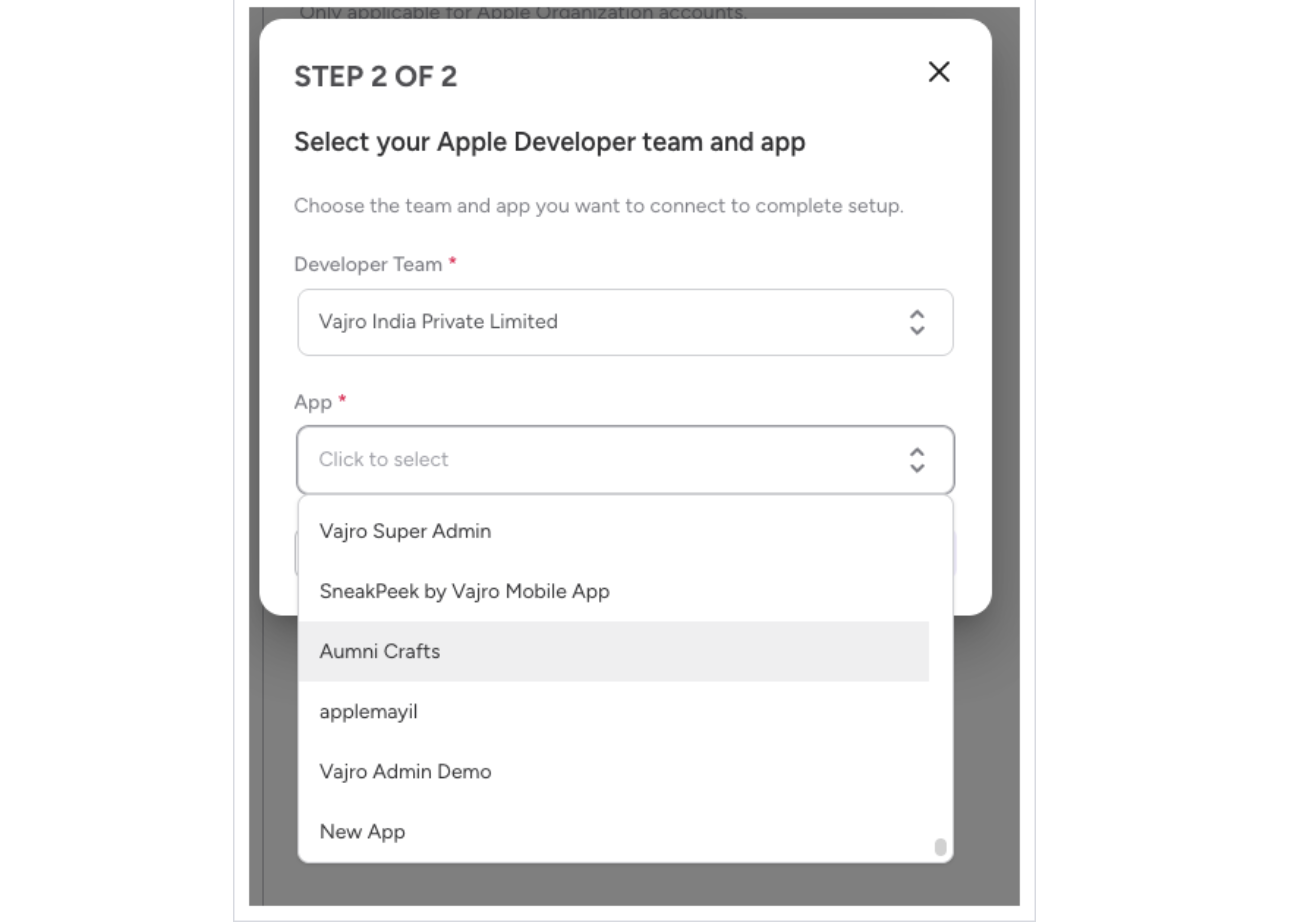
For a fresh app, choose New App.
Review the selected Developer Team and App, then click Confirm.
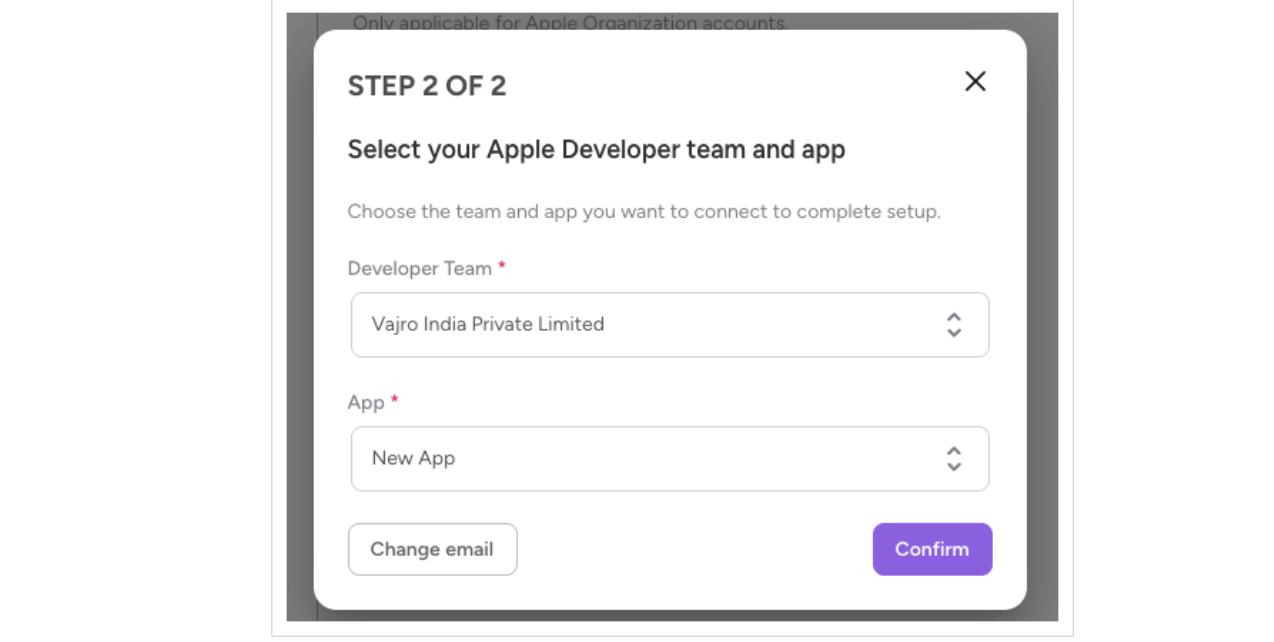
After the connection is confirmed, the iOS API setup fields are populated automatically. Review the values shown before submitting.
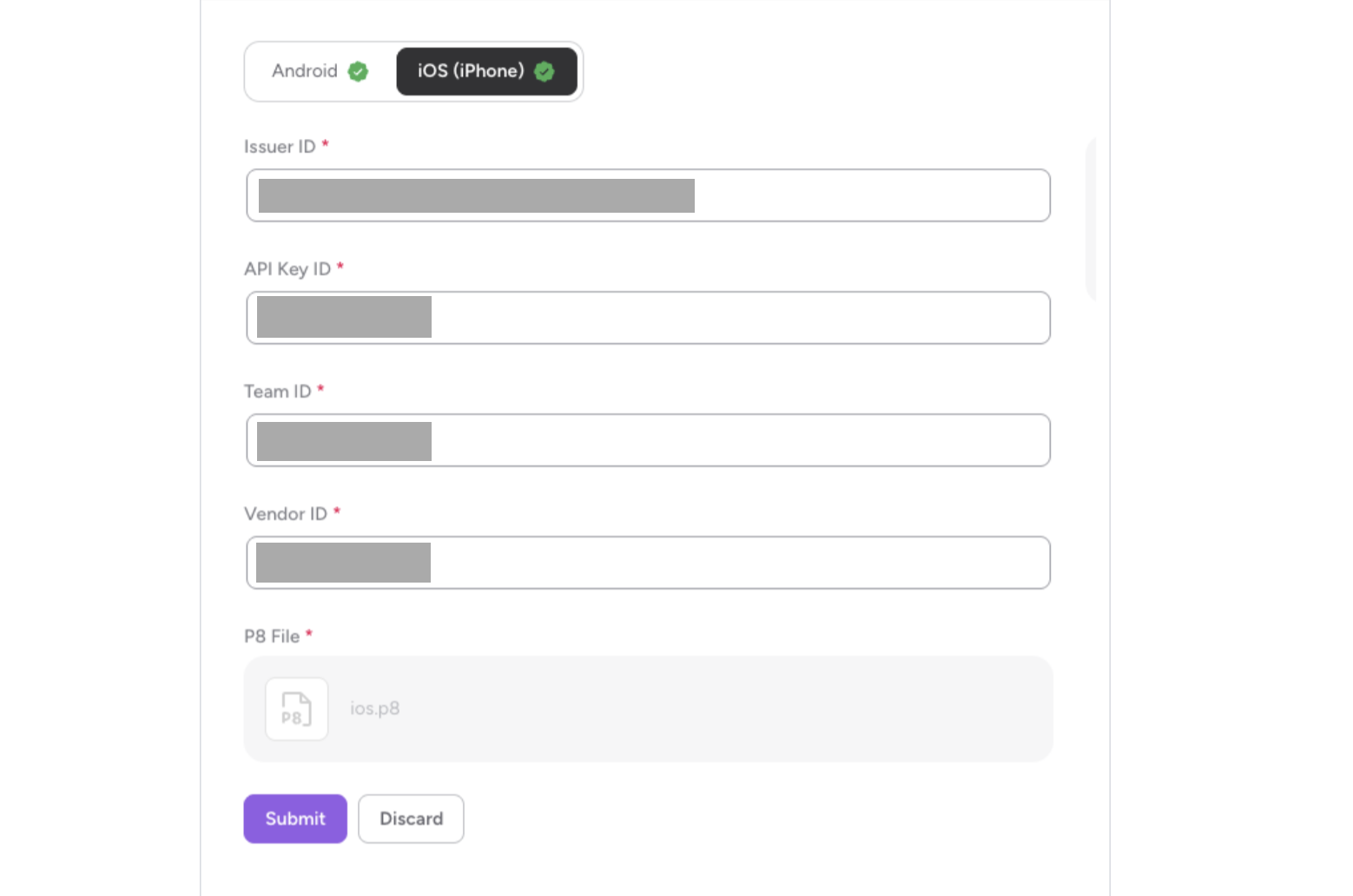
When the populated values are correct, select Submit to finish the setup.
1. How do I find out who the Account Holder is?
In App Store Connect, go to Users and Access → People and select Account Holder in the left panel.
2. I'm not the Account Holder. What do I do?
Ask your Account Holder to complete Step 1 (Request Access). Only the Account Holder can request App Store Connect API access.
3. I didn't receive the verification code. What do I do?
Check your spam folder, or click Resend Code on the verification screen.
4. My app is already on the App Store (for example, I'm moving from another third-party platform, or from a legacy app). Which option do I select?
Select your app from the App dropdown. Apps that are already on the App Store appear in the dropdown.
5. When should I choose New App?
Choose New App if your app hasn't been created in App Store Connect yet.