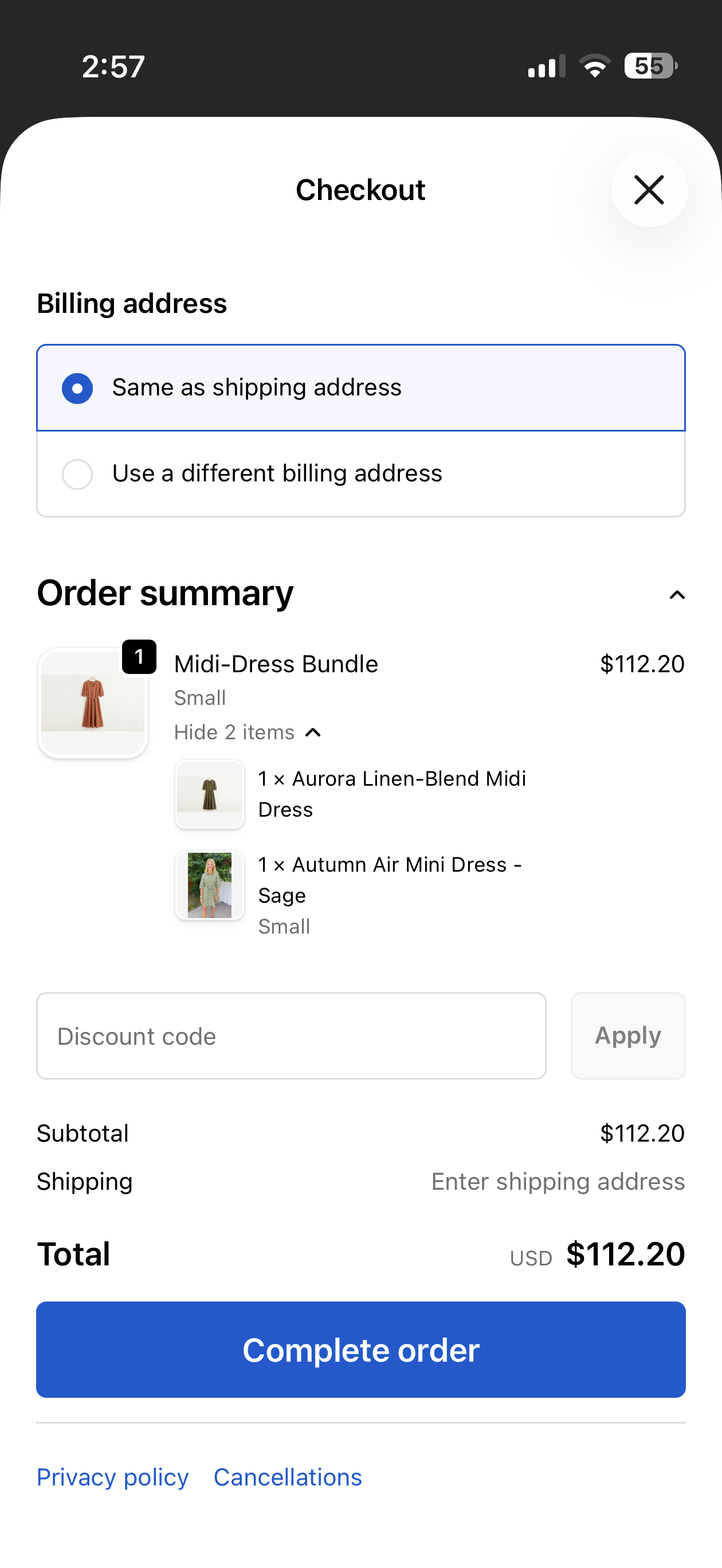
Superfans supports Shopify Bundles, allowing merchants to sell grouped products (bundles) directly inside their mobile app. This enables customers to purchase multiple related products together, often at a discounted price, improving average order value (AOV).
Shopify Bundles is a native Shopify feature that allows merchants to:
Create fixed product bundles
Offer multiple items as a single product
Manage inventory across bundled components
With Superfans, these bundles are automatically supported and displayed in the app when properly configured on Shopify.
1. Increase Average Order Value (AOV)
Bundles encourage customers to buy more products in a single purchase.
2. Simplified Inventory Management
Shopify tracks inventory for individual items within the bundle.
3. No Additional Setup in Superfans
Bundles configured in Shopify automatically reflect in the app.
4. Promote Cross-Selling
Group complementary products (e.g., outfit sets, skincare routines).
Superfans automatically supports bundles, but you must ensure they are correctly configured and made available for the Superfans Sales Channel.
The steps to have bundles on Superfans app is as follows.
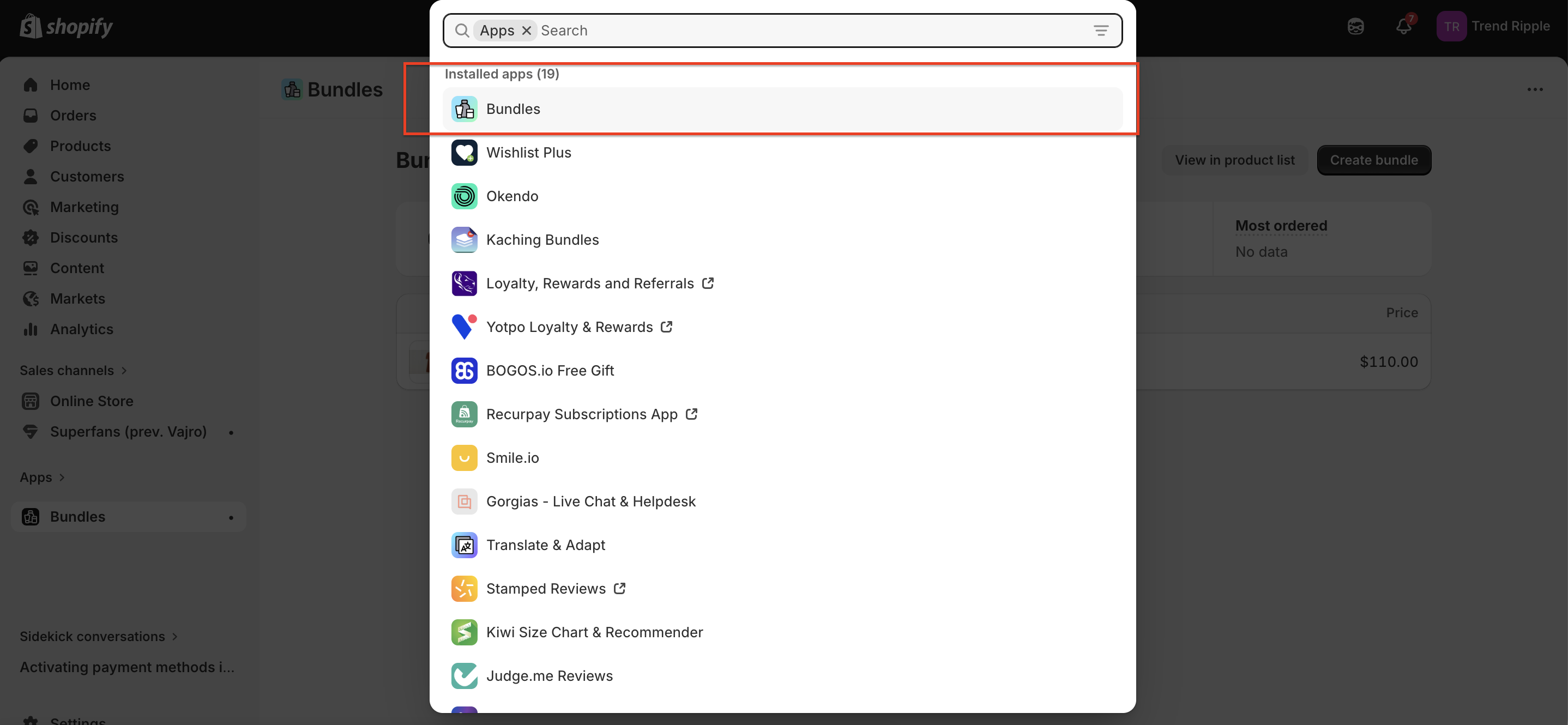
Step 1 : Install Shopify Bundles app on your website from Apps library.
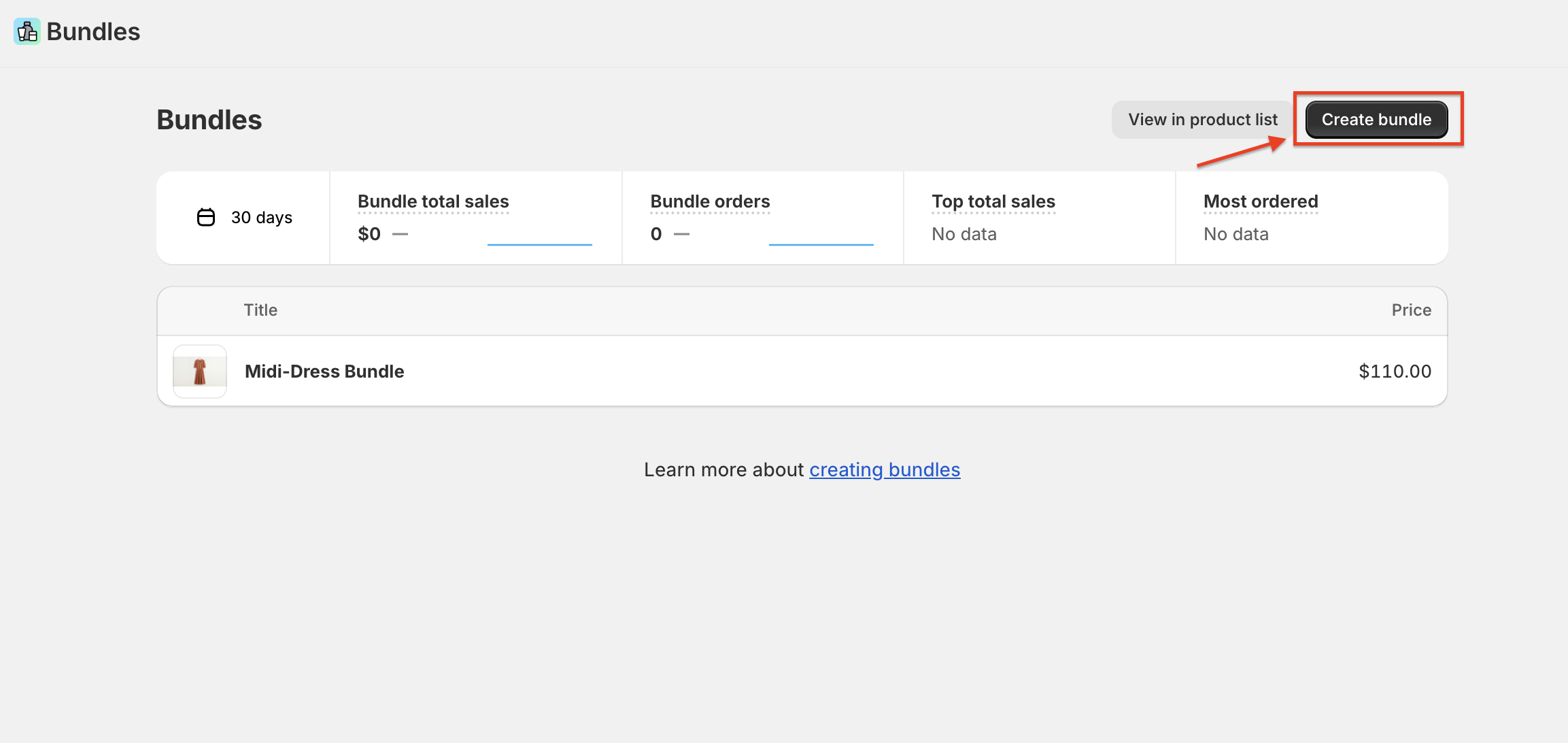
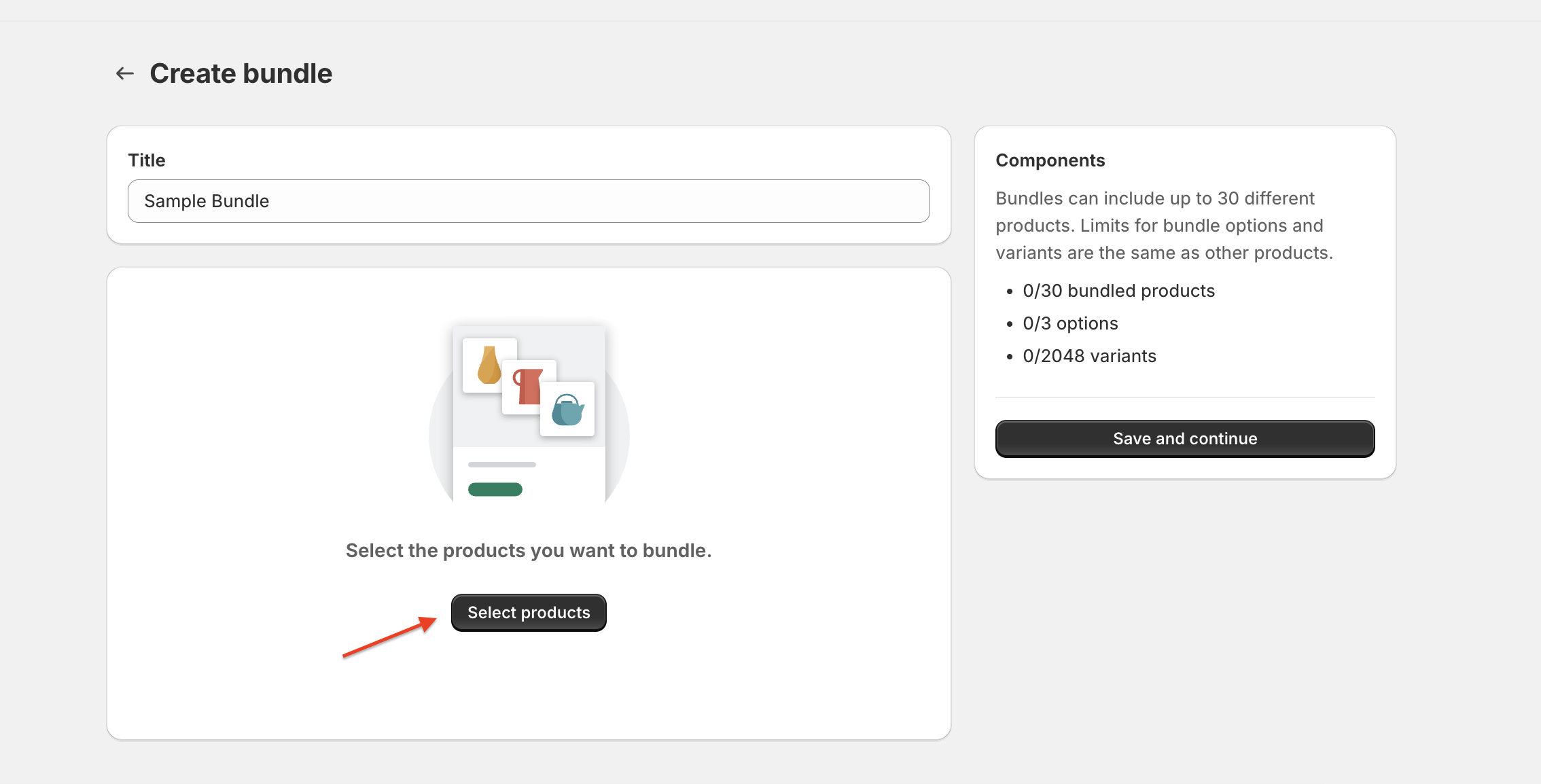
Step 2 : Click Create bundle.
Step 3 : In the Title field, enter a title for your bundle.
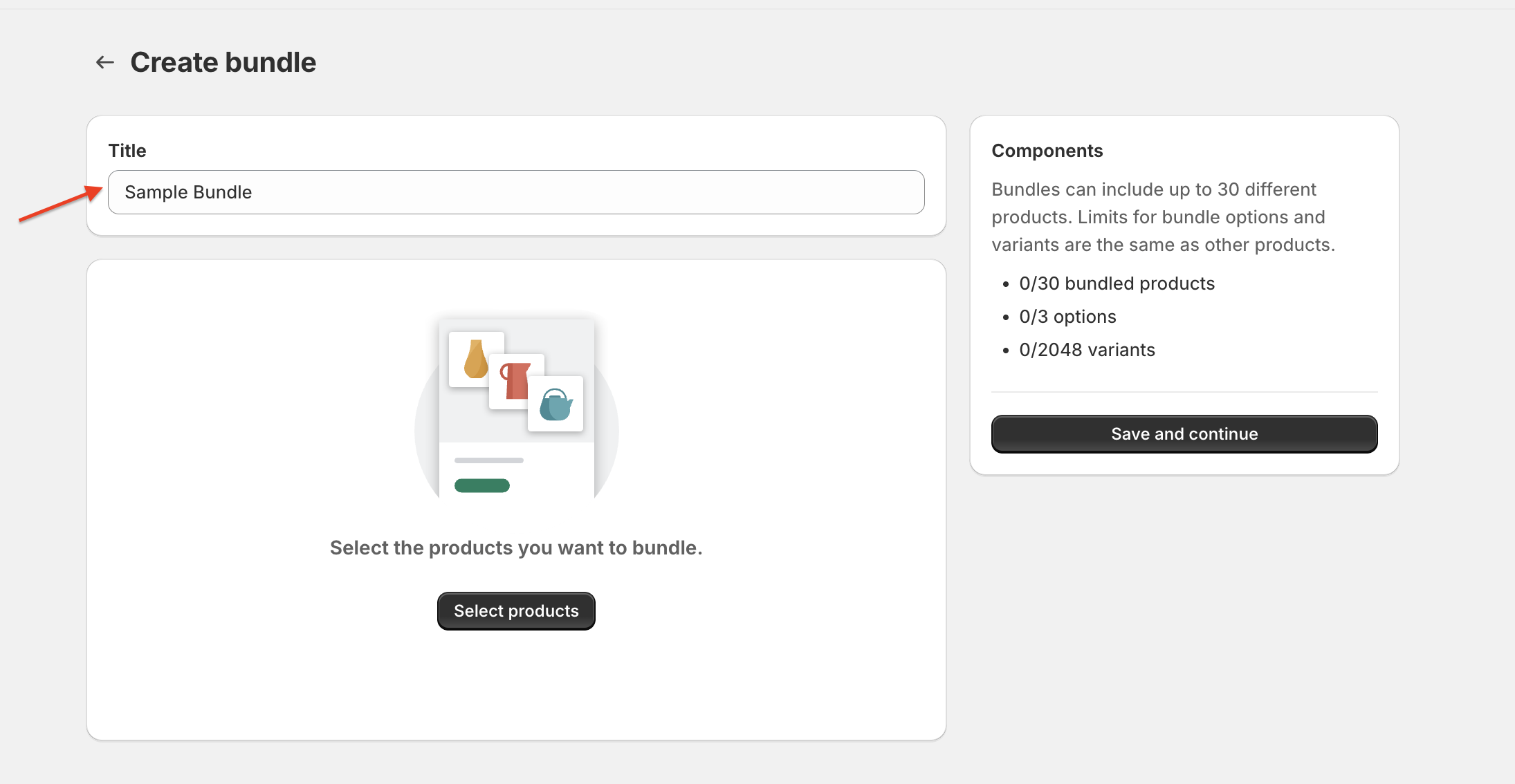
Step 4 : Click Select products.
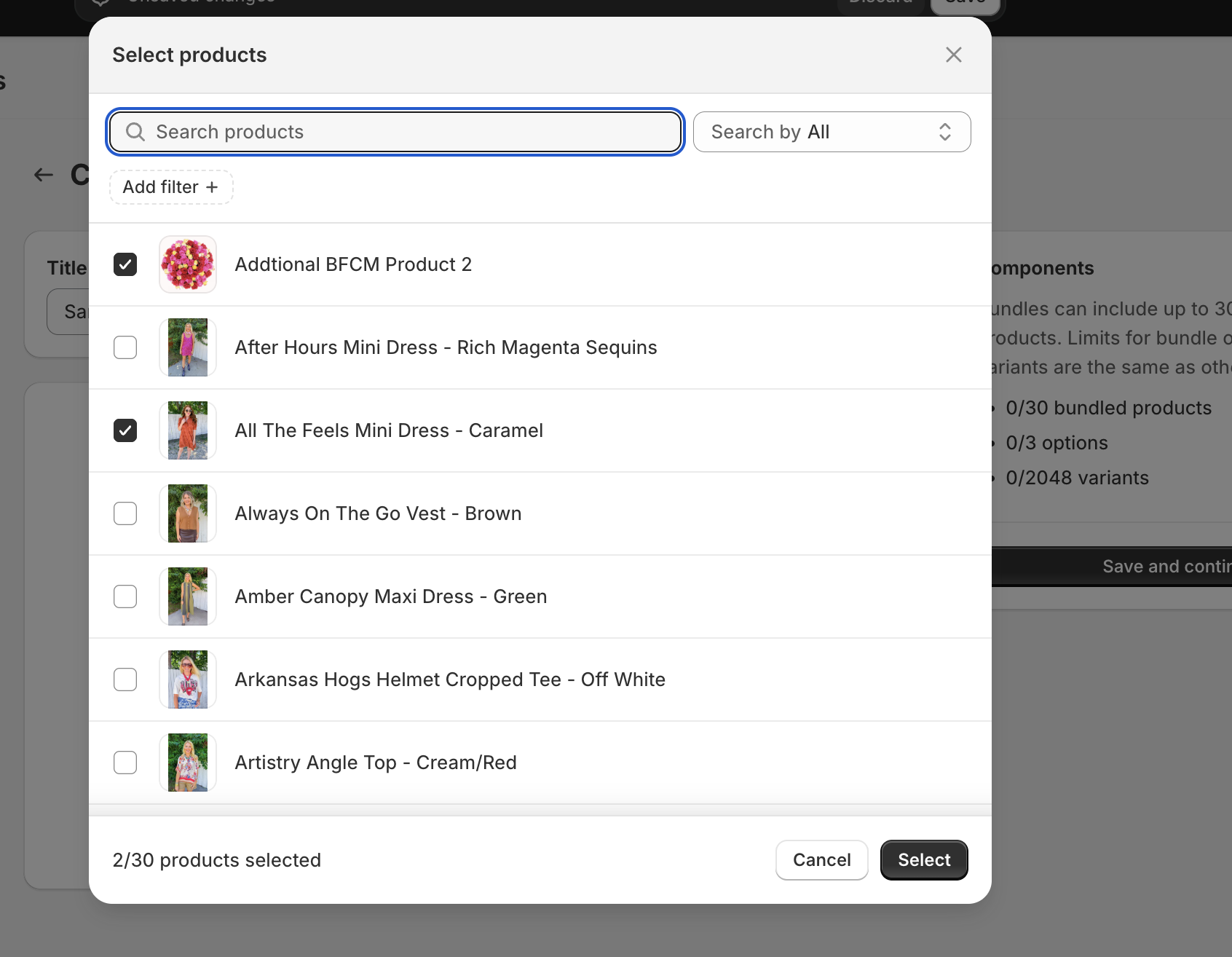
Step 5 : In the Add products dialog, select the products that you want to include in your bundle, and then click Select.
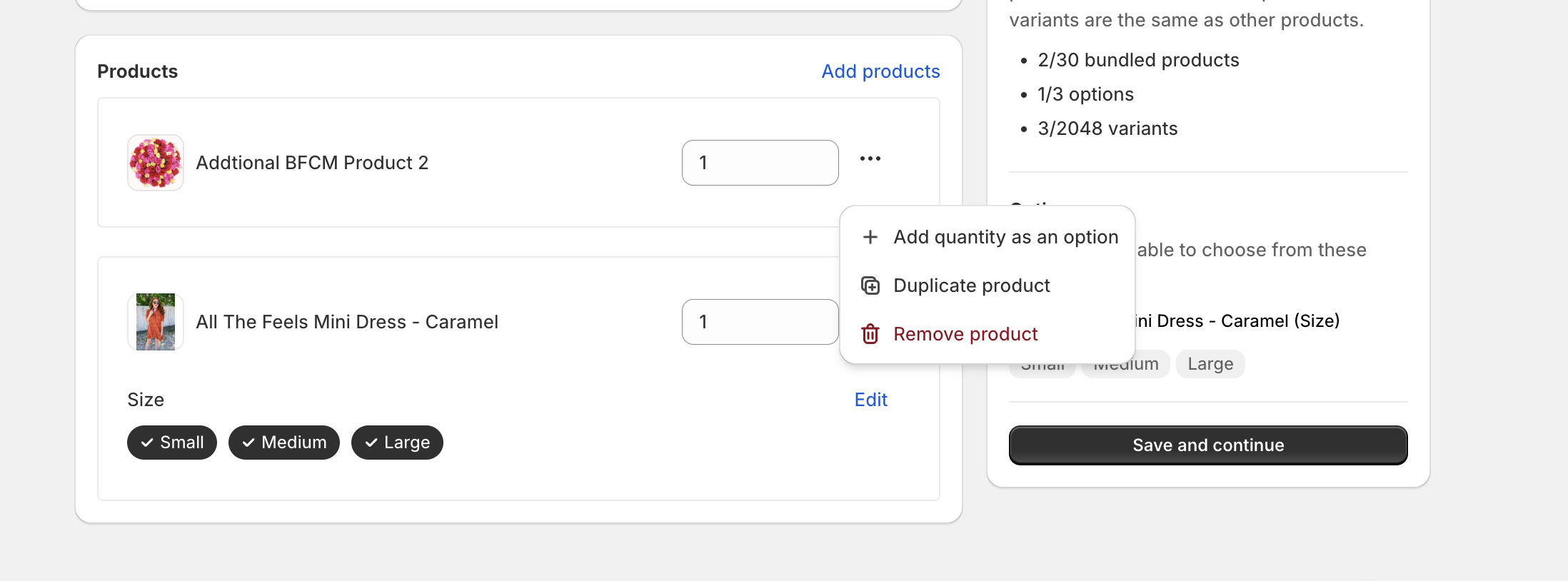
Step 6 : Optional: Do any of the following:
To increase the quantity of a product in your bundle, adjust the number in the quantity field.
To adjust the variants included in your bundle, click the variant name to select or deselect the variant.
To add the quantity as a bundle option, click … next to the product, and then select Add quantity as an option.
To create a multipack bundle, click … and select Duplicate product.
To combine bundle options, select Combine options with matching names.
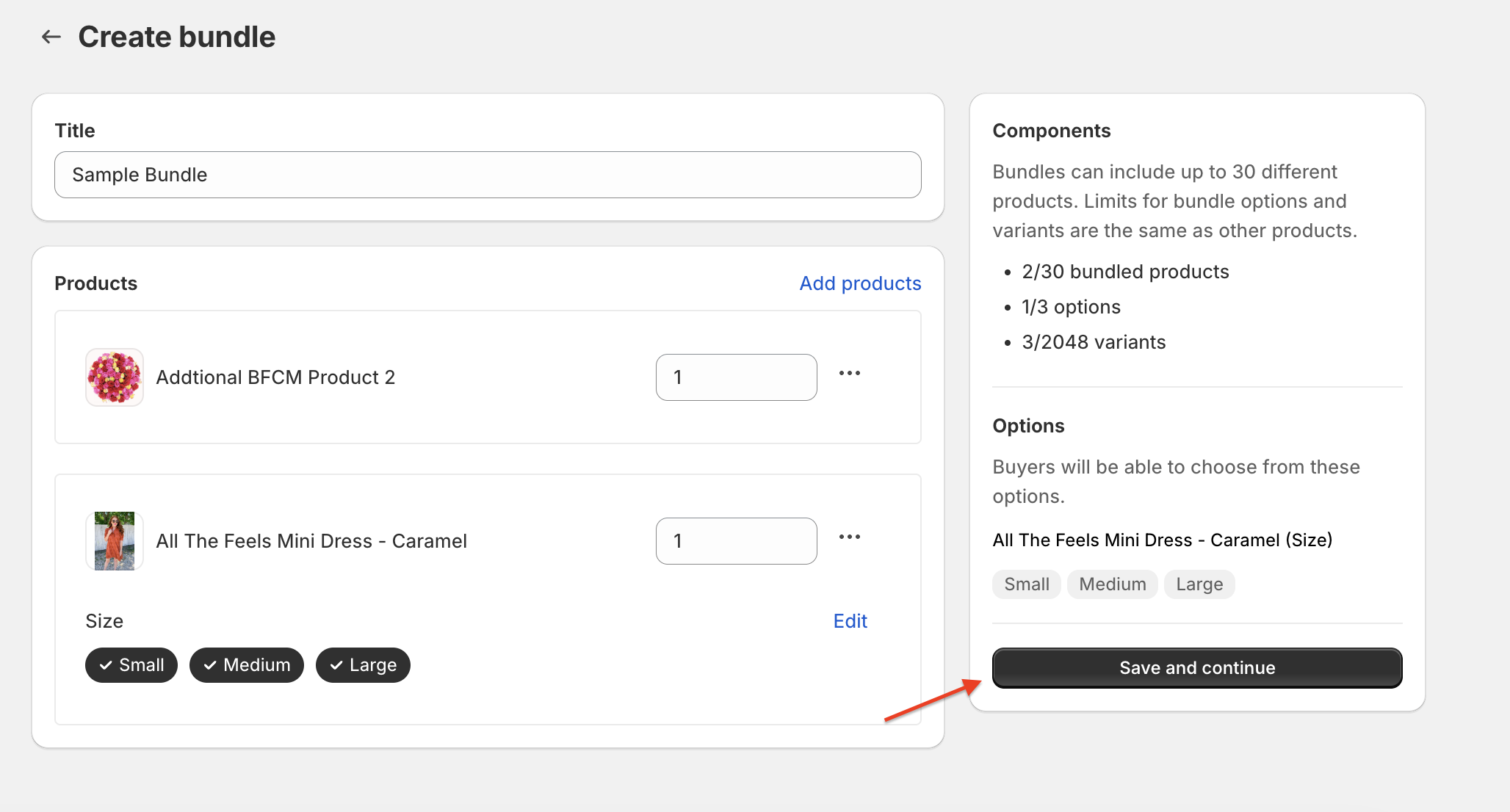
Step 7 : Click Save and continue.
Step 8 : On the product details page, add any applicable product details.
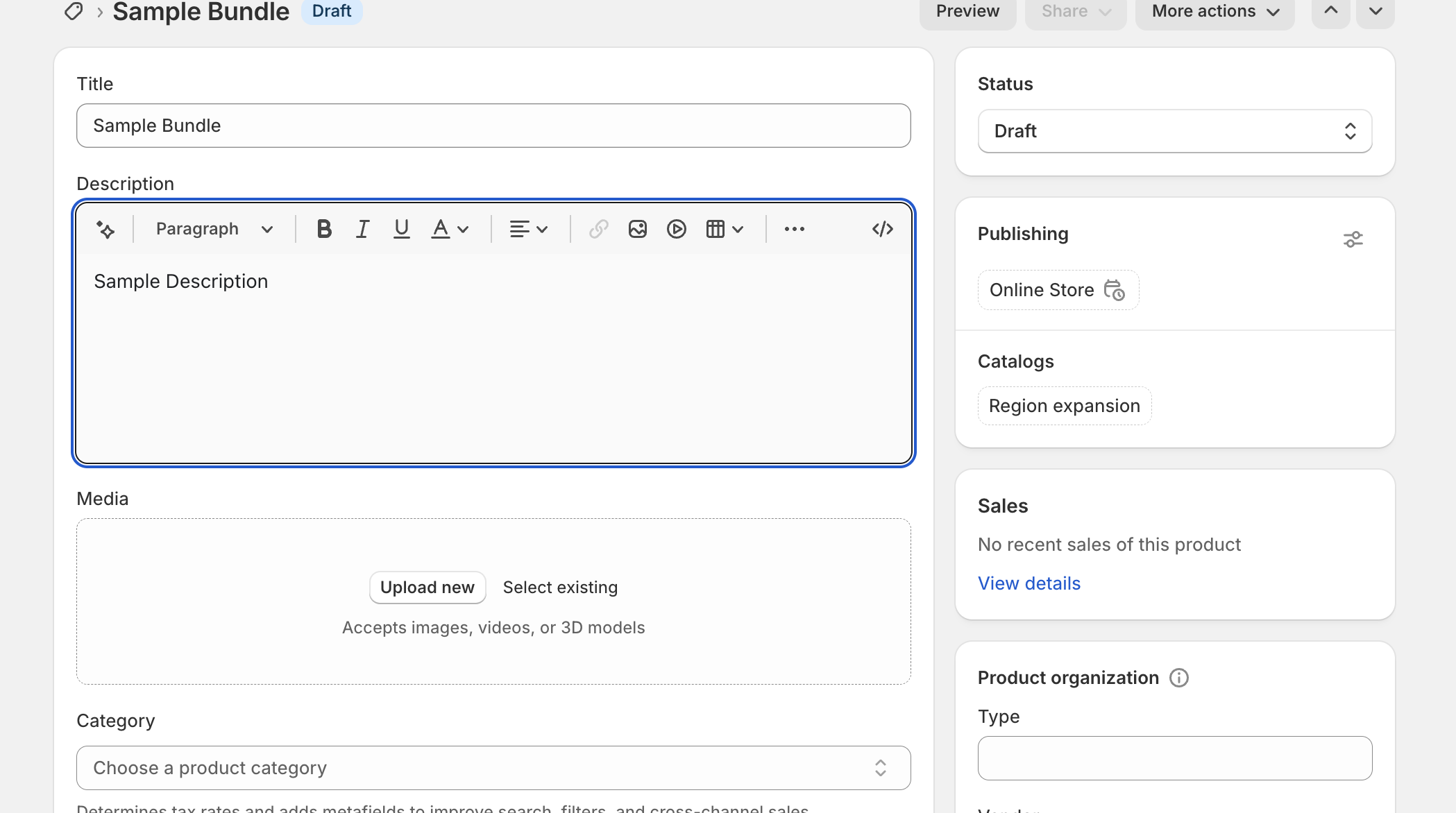
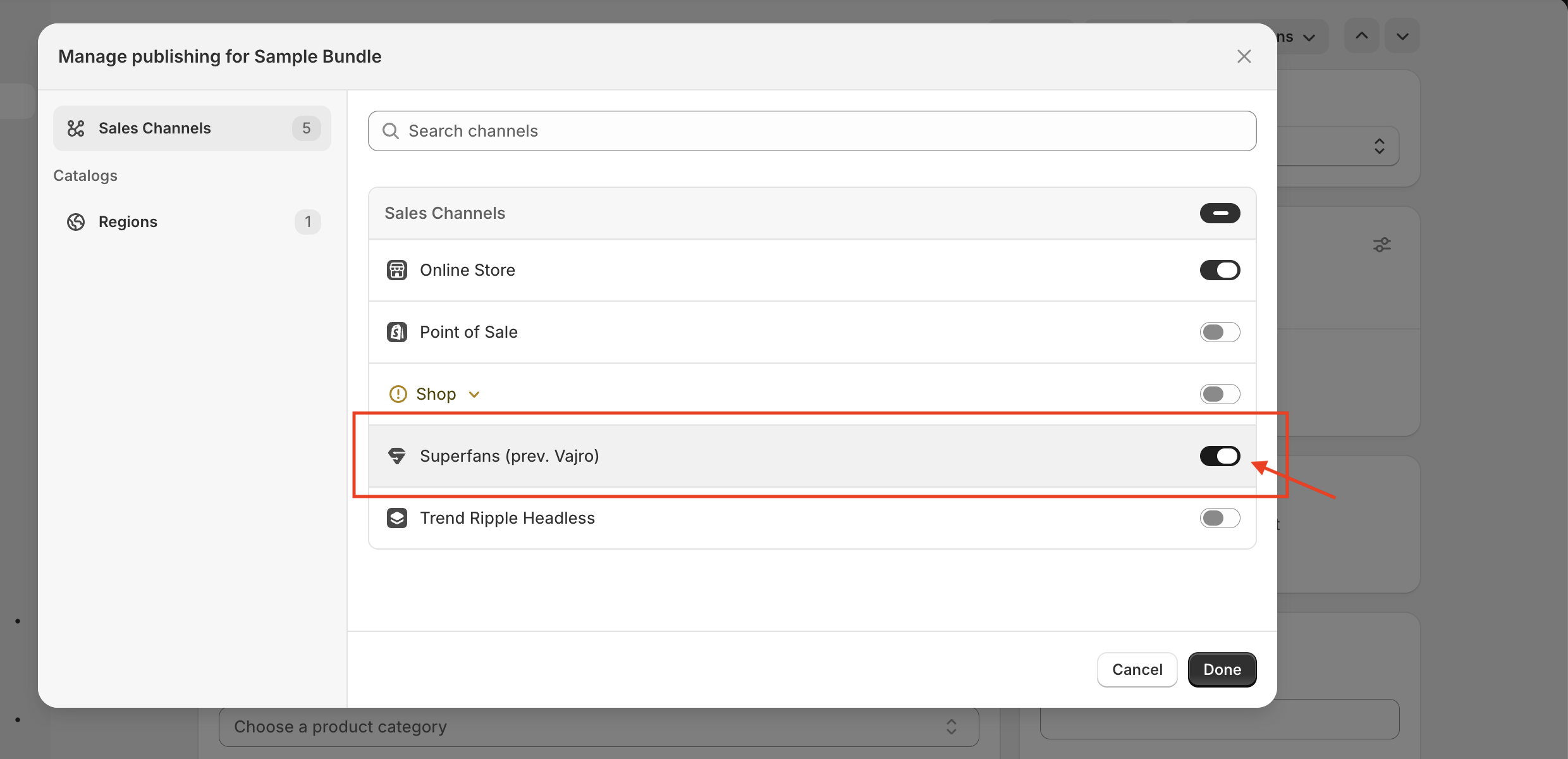
Step 9 : Do the following:
In the Publishing section, click … > Manage sales channels and select the Superfans sales channel.
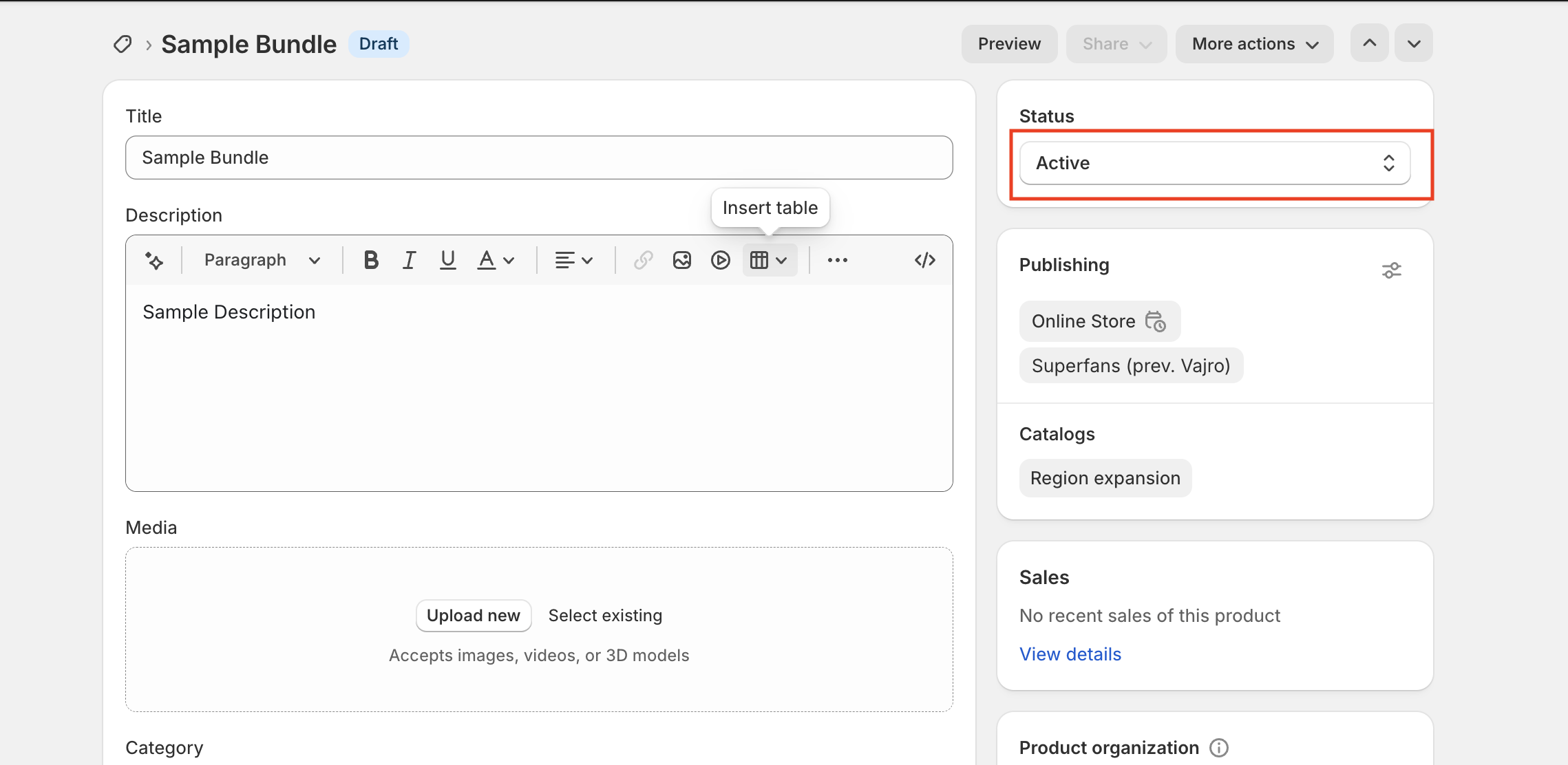
In the Status section, select Active from the drop-down to update the product status.
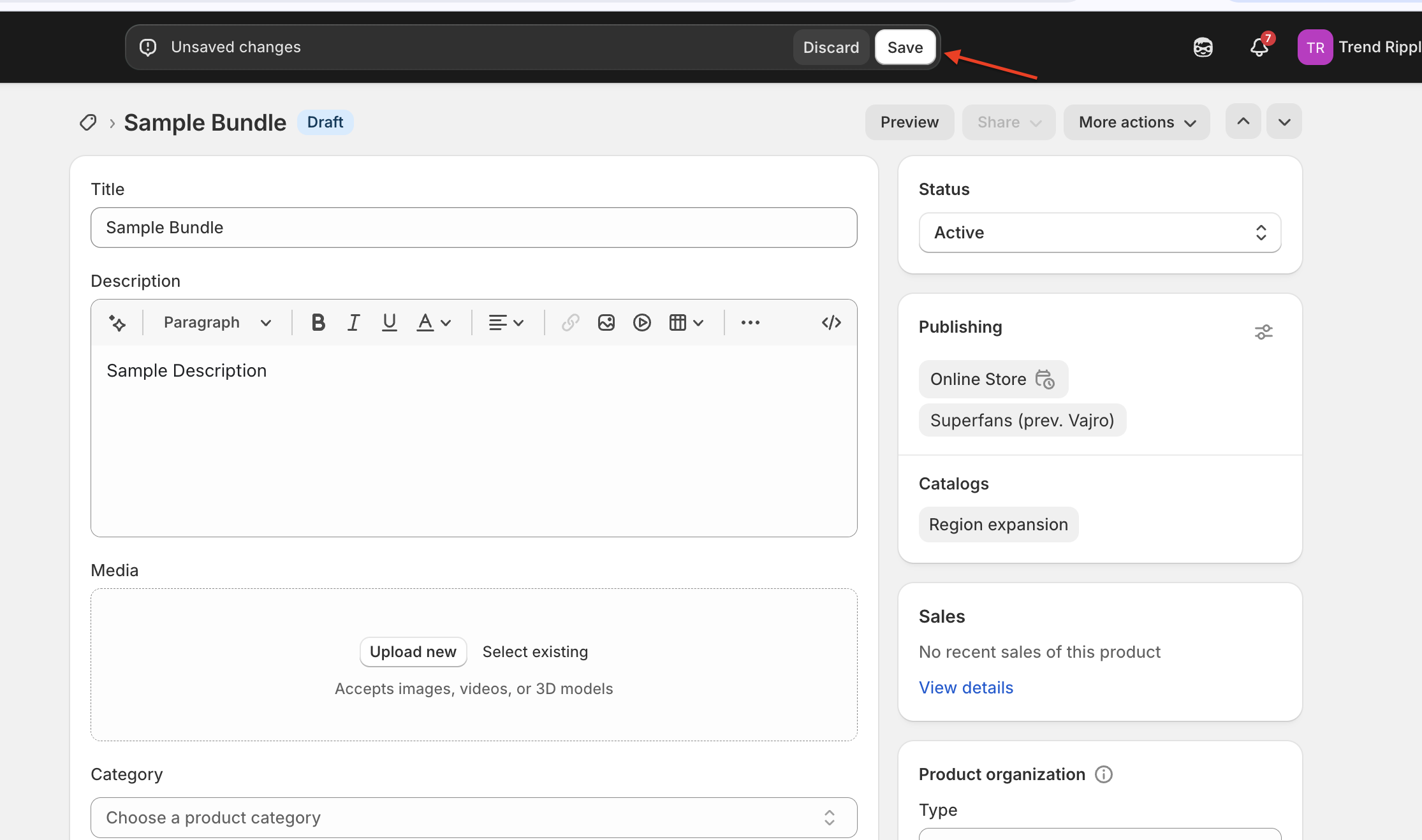
Step 10 : Click Save
Appears as a single product on the app.
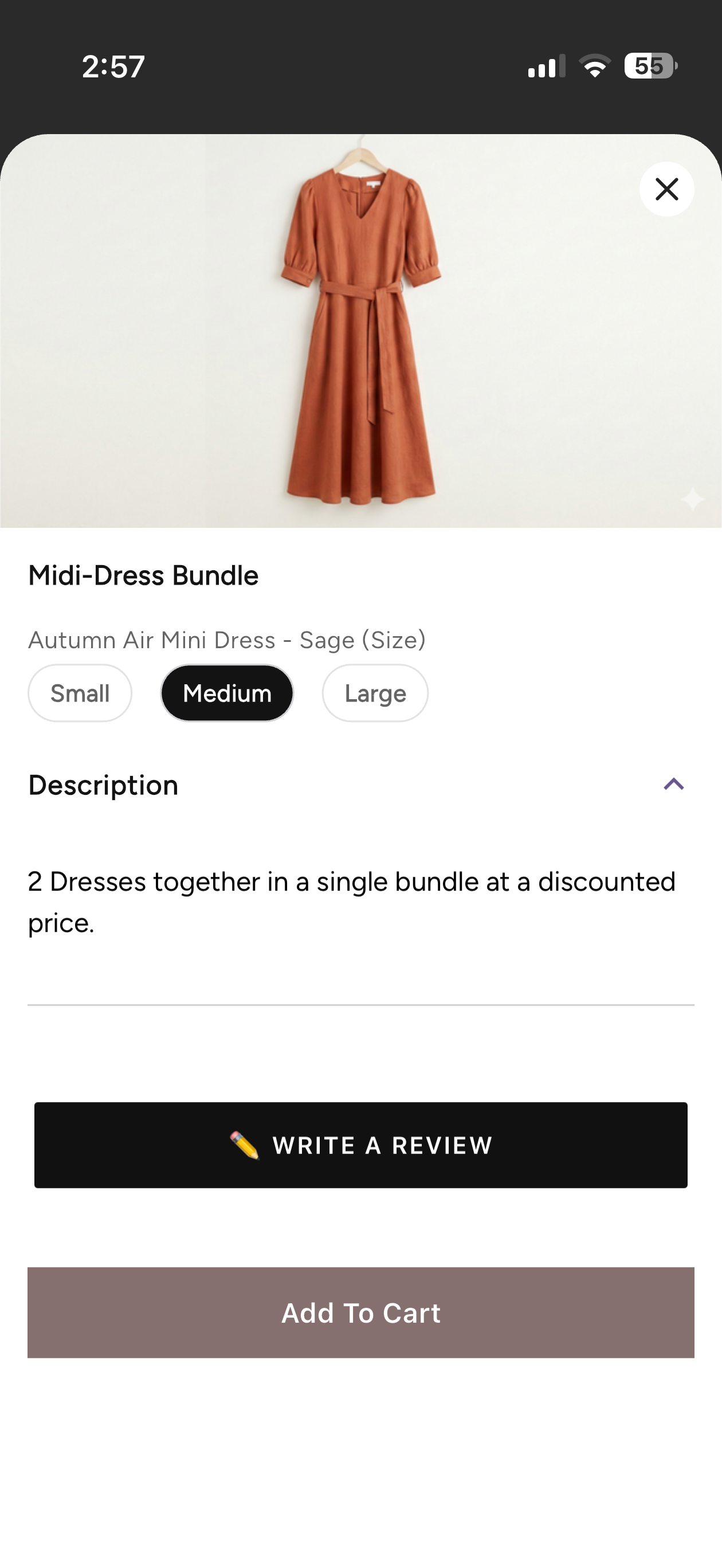
At the checkout , end users can view the products that were bundled.