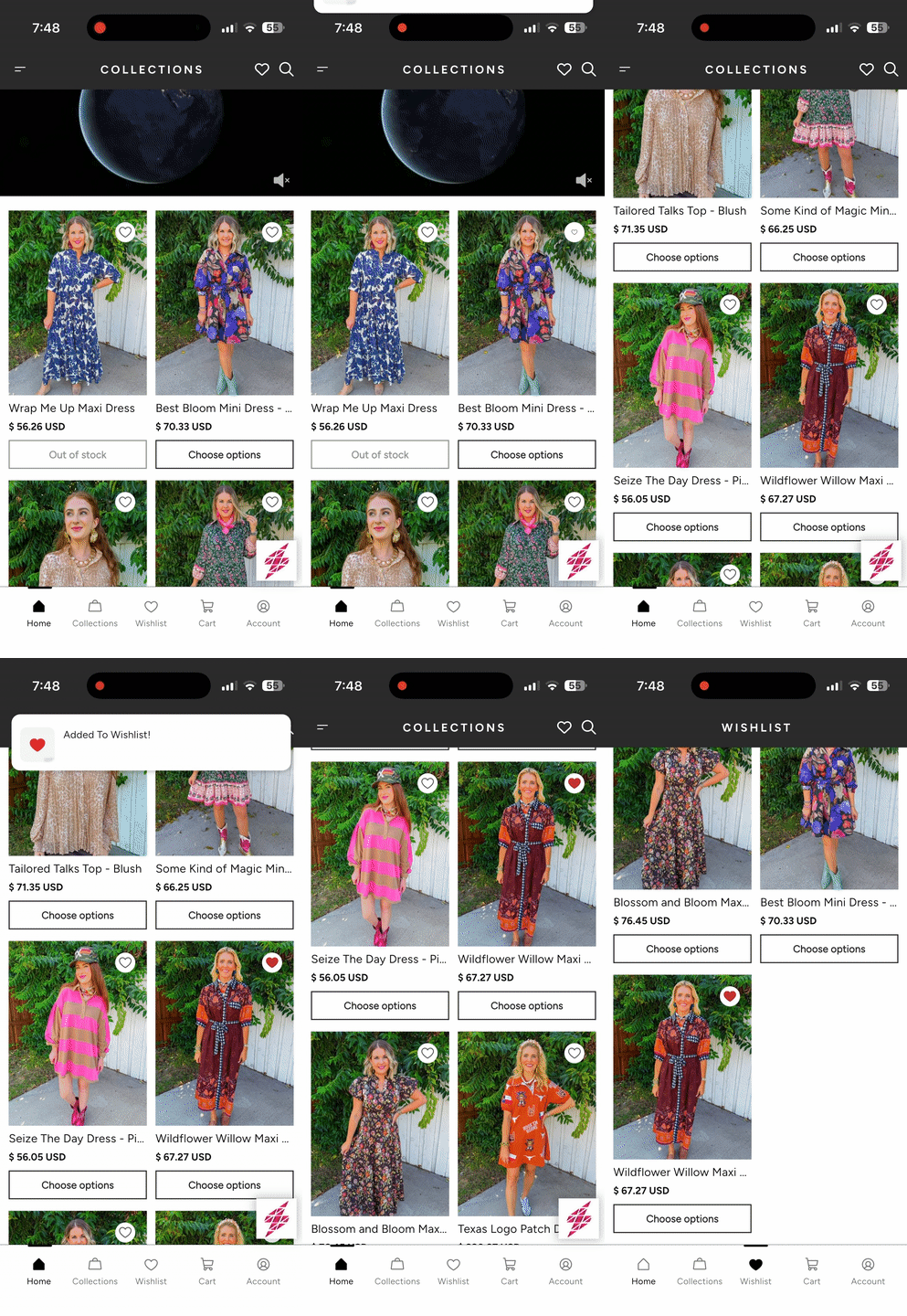
Superfans supports integration with Swym Wishlist, enabling customers to save their favorite products directly inside the mobile app. This feature allows shoppers to bookmark products they love and easily return to them later, improving engagement and purchase likelihood.
Swym Wishlist Plus is a popular Shopify app that allows customers to create wishlists by saving products for future purchases. It helps merchants understand customer intent while providing shoppers with a convenient way to track products they are interested in.
With the Superfans integration, wishlist functionality works seamlessly inside the app using the Superfans SDK.

1. Increased Purchase Intent
Wishlists capture products customers are interested in, increasing the chances of future purchases.
2. Higher Customer Retention
Customers often return to their saved items, which improves repeat visits and engagement.
3. Better Customer Insights
Wishlist data helps merchants understand which products are frequently saved by customers.
4. Consistent Web + App Experience
Products saved on the website wishlist can also be accessed inside the app when customers log in.
There are 2 steps to enable Wishlist.
Enable the plugin from plugins section.
Enable Wishlist icon on the product grids.
Steps to enable the plugin from plugins section
Step 1 : Navigate to the plugins section on the dashboard from side menu.
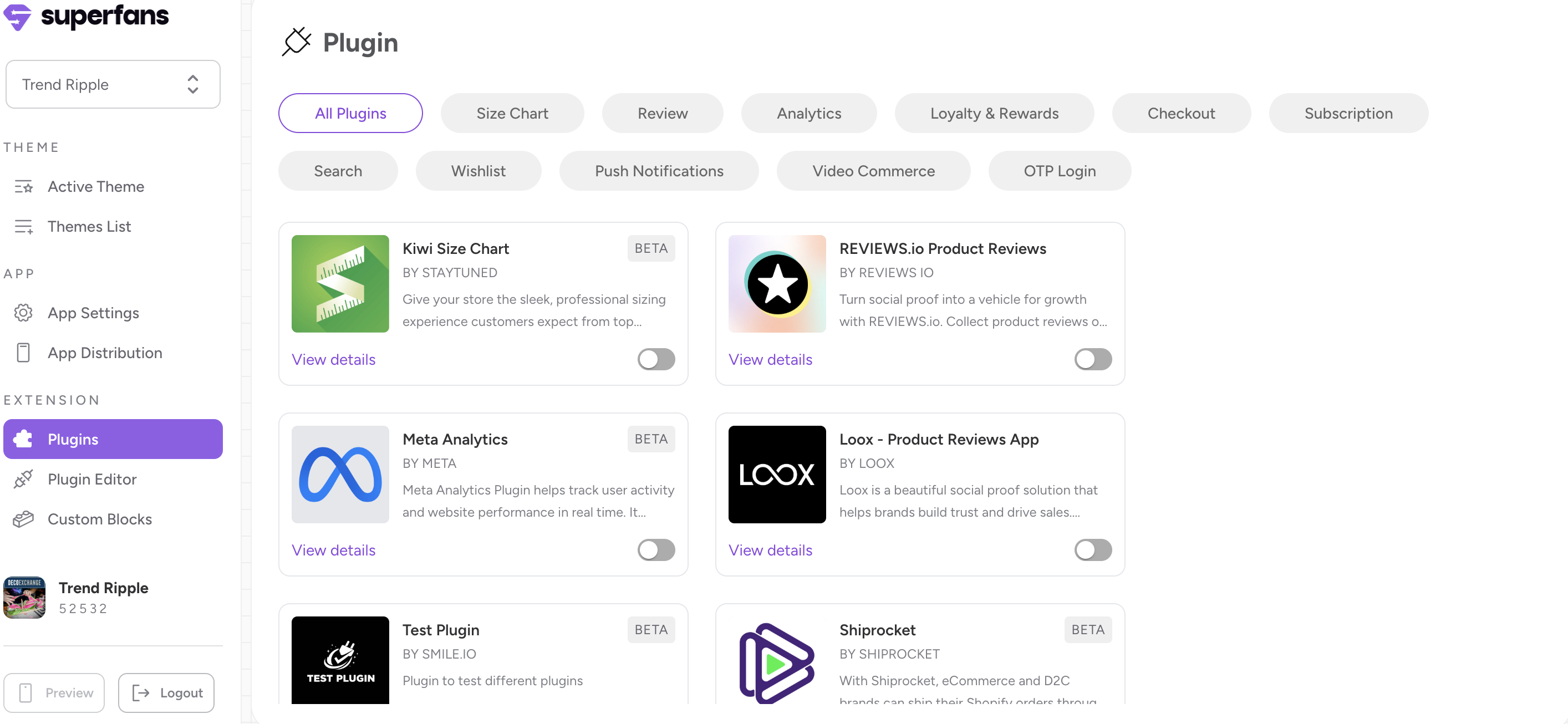
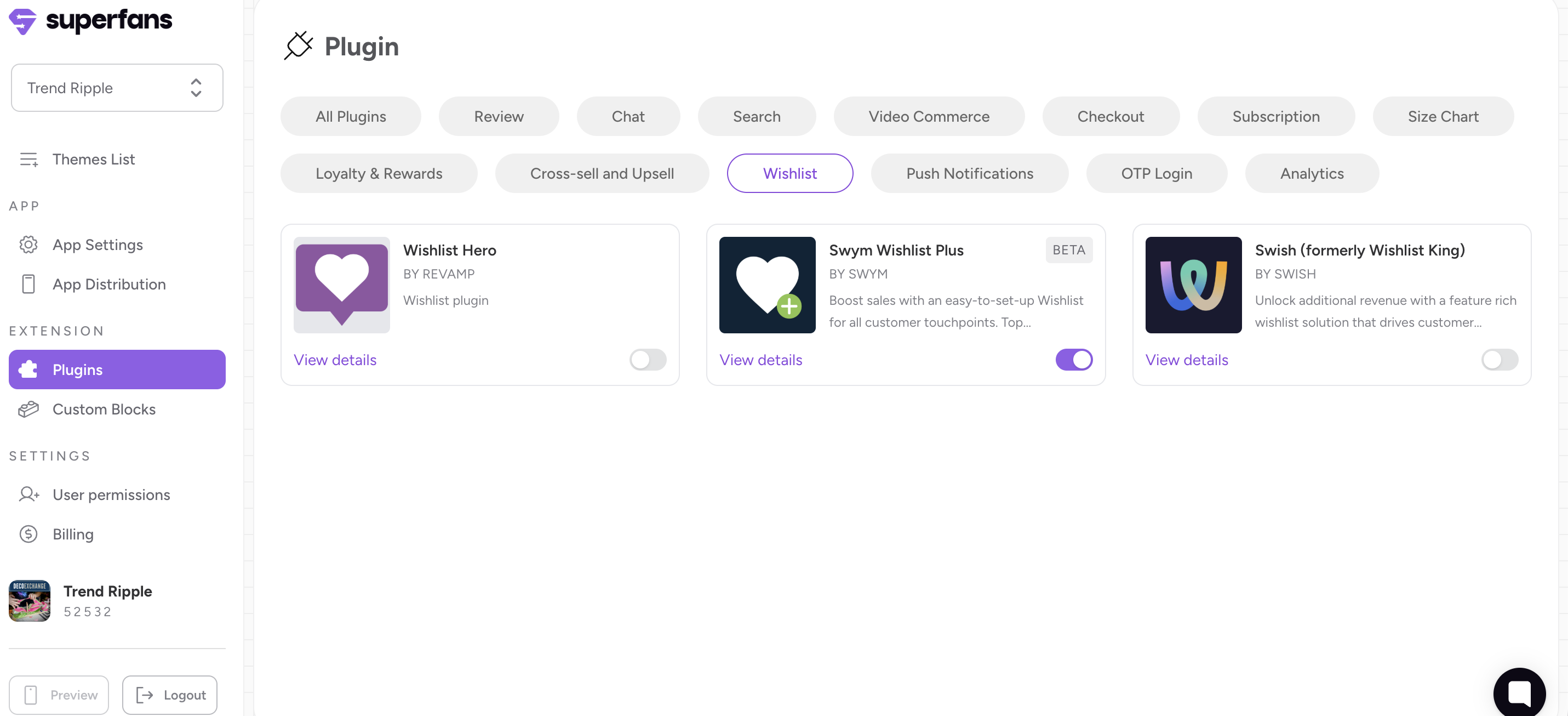
Step 2 : Select the “Wishlist” category from top and toggle the Swym Wishlist plugin.
Step 3 : Provide the API Key, PID and API end point and click on click on Save and Enable Plugin.
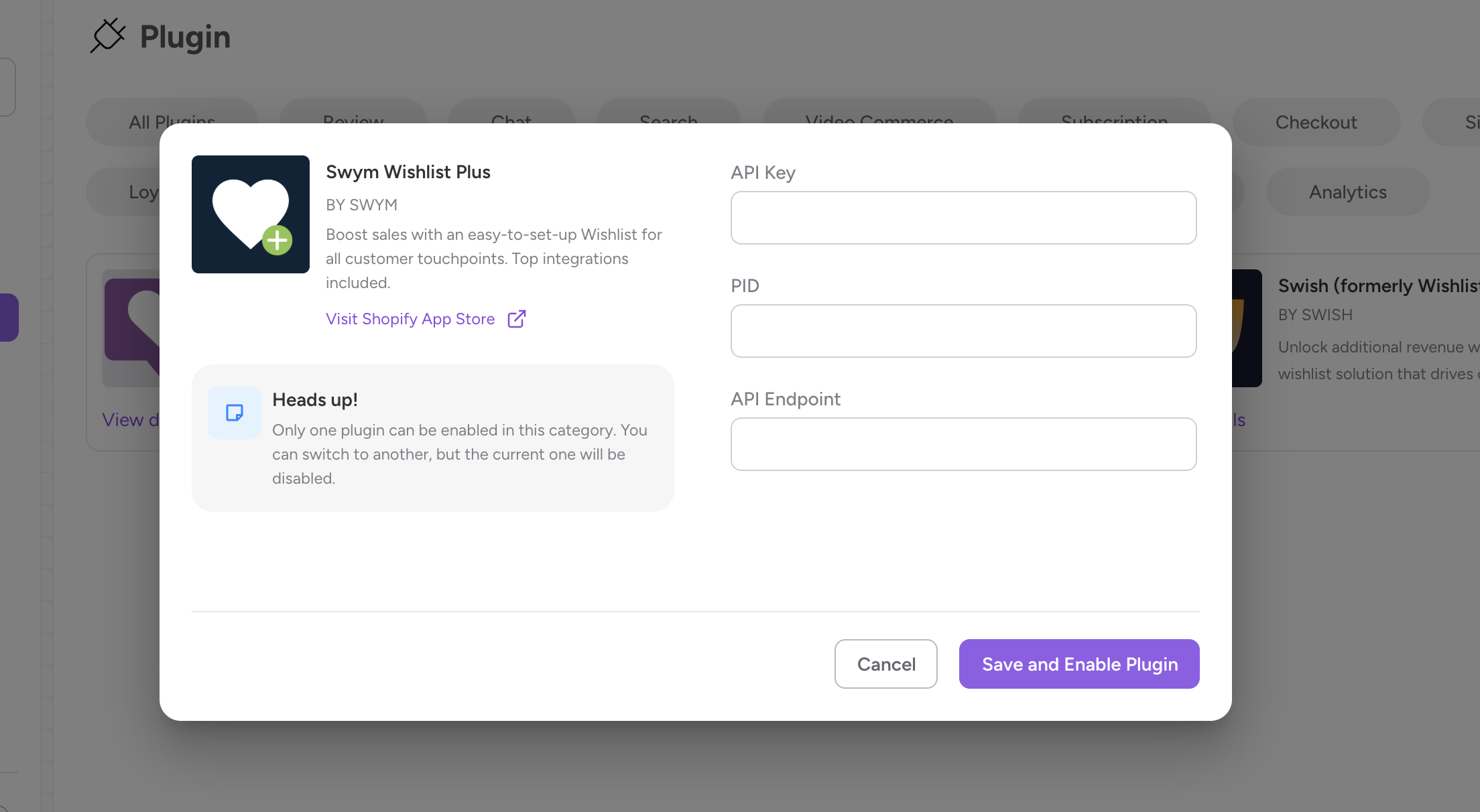
Steps to Retrieve the API Key, PID and API end point are as follows:
Step 1 : Navigate to the app Section in Shopify and locate Wishlist Plus (Swym wishlist) plugin.
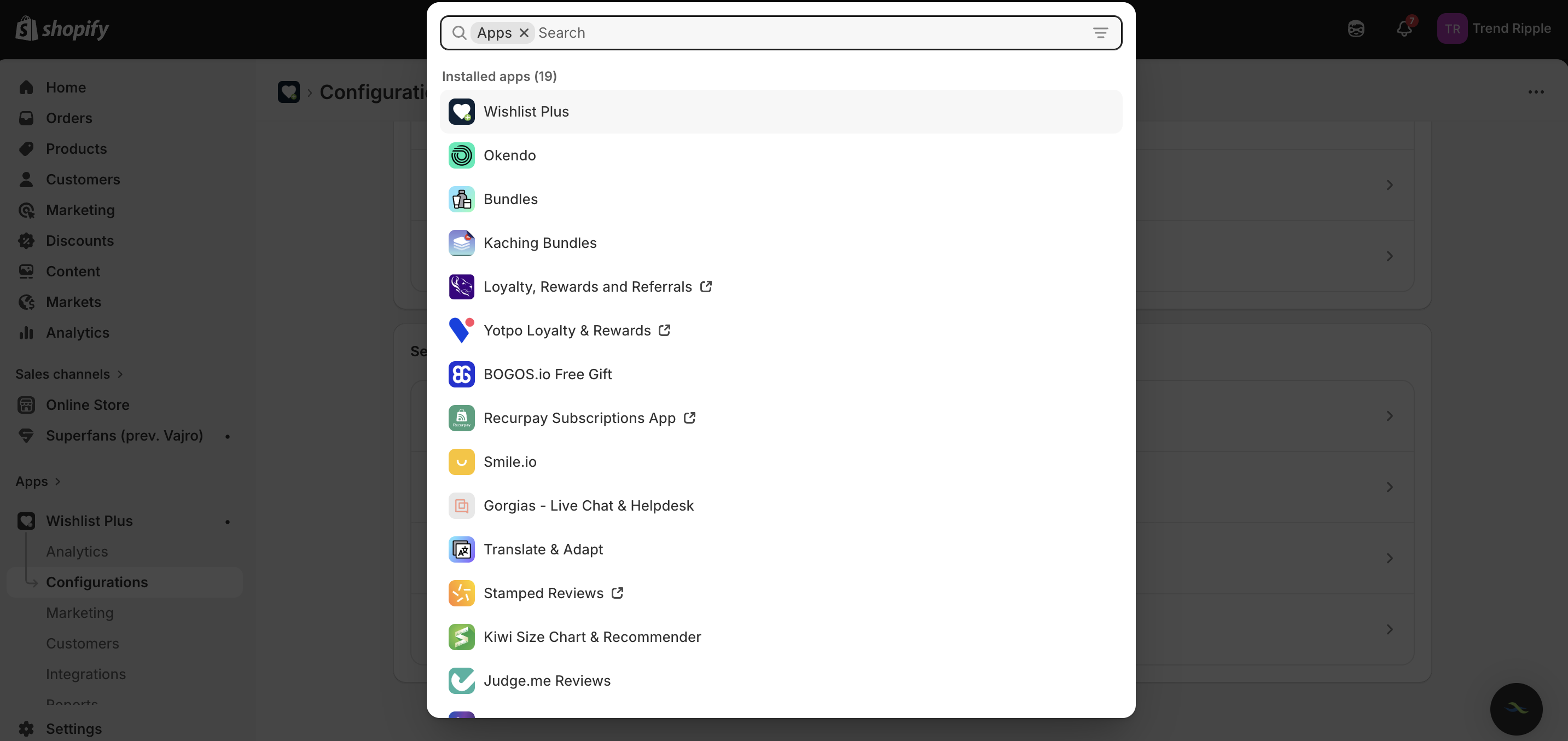
Step 2 : Reach out to Wishlist Plus Support team and they’ll provide the required details.
Ensure you get the following:
API key,PID,Swym API Endpoint.
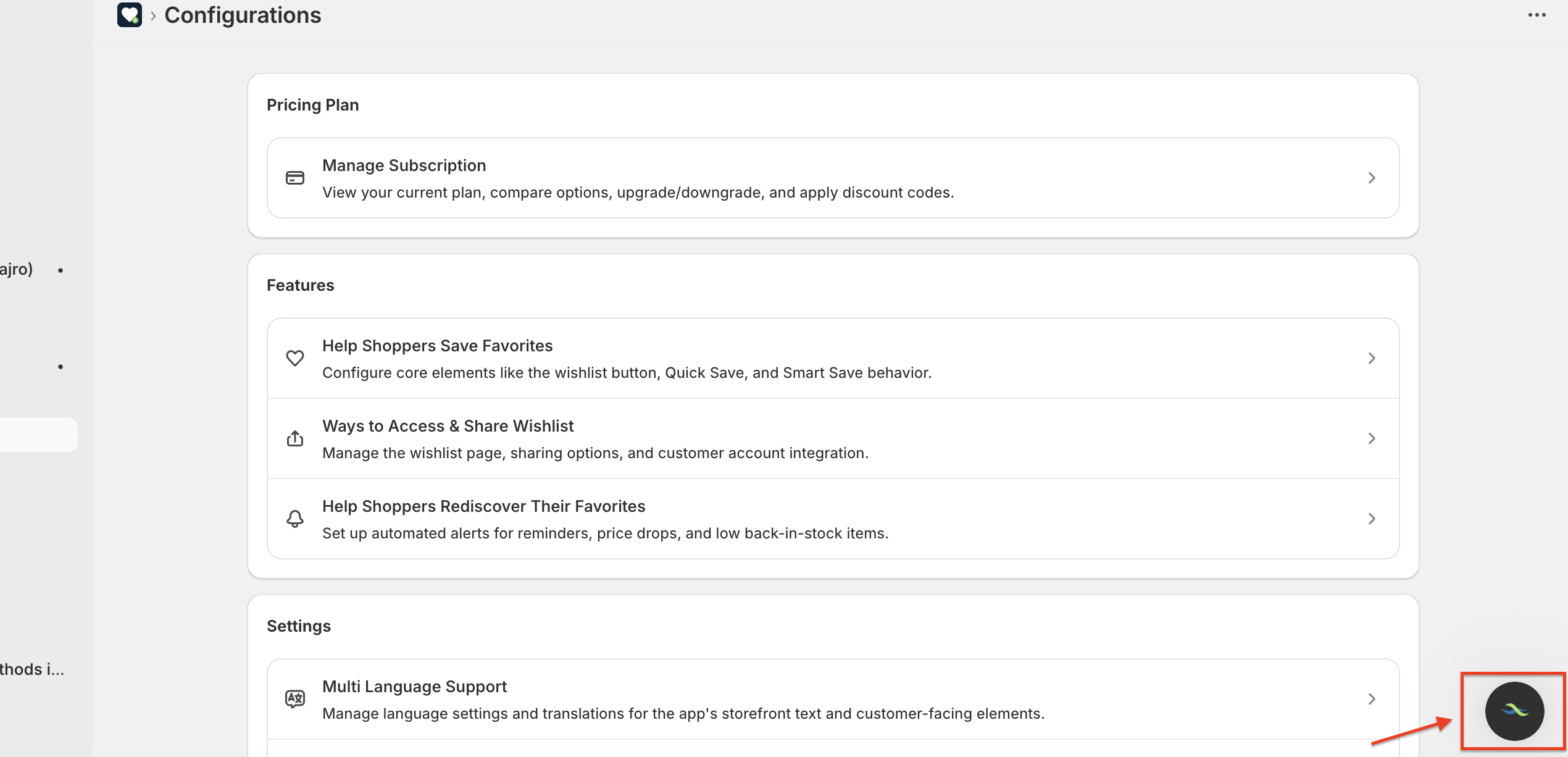
Steps to enable / change position of Wishlist icon on the product grids
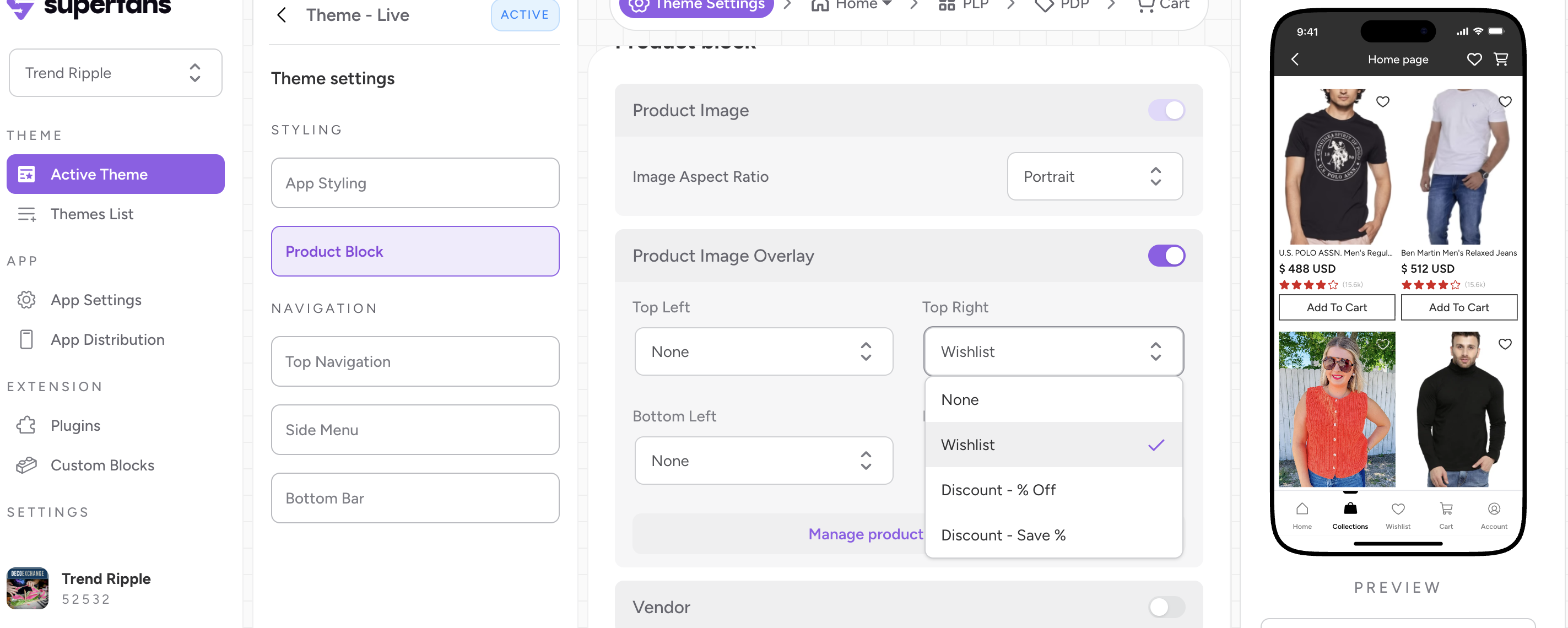
Step 1 : Navigate to the Active Theme and Theme Settings page on the dashboard
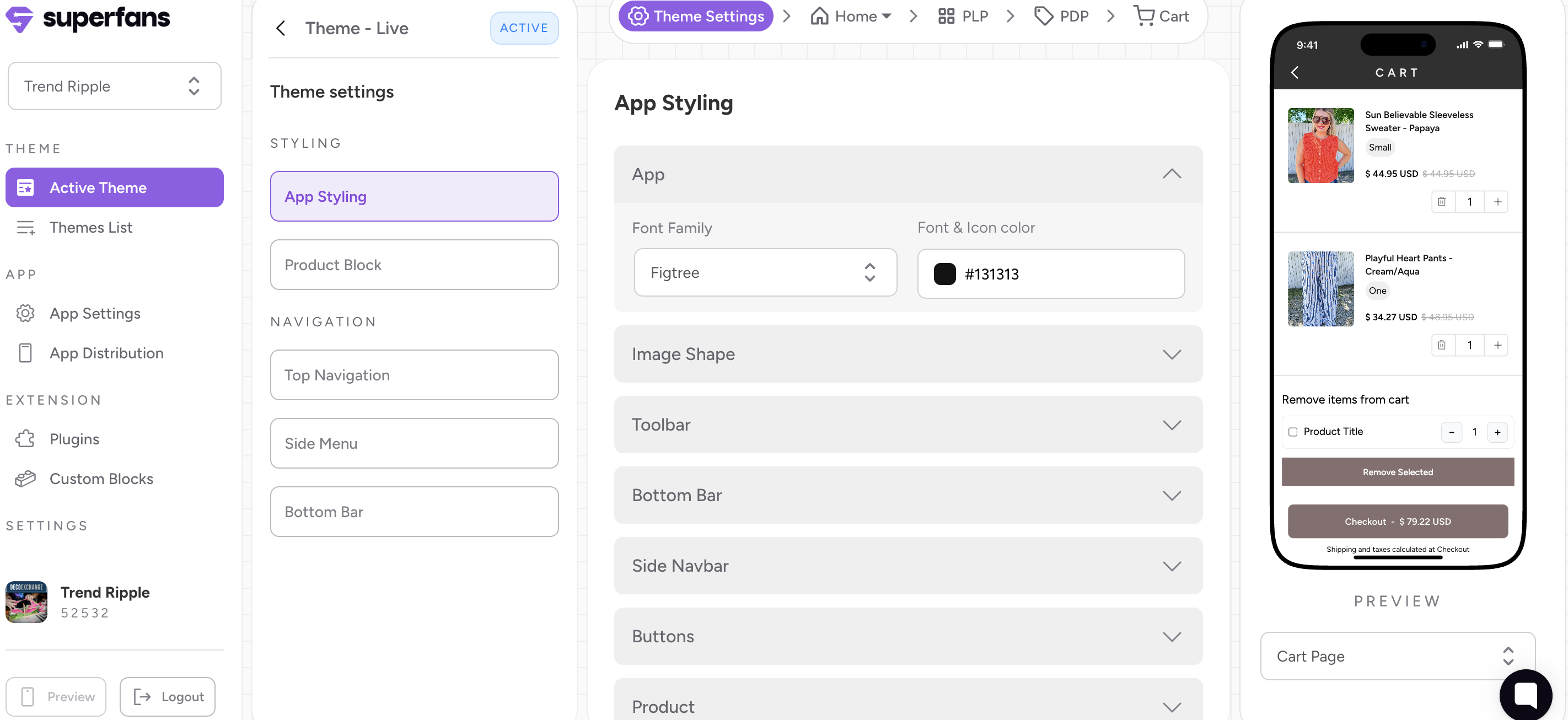
Step 2 : Select the Product Block and navigate to the Product Image Overlay section and toggle to enable it.
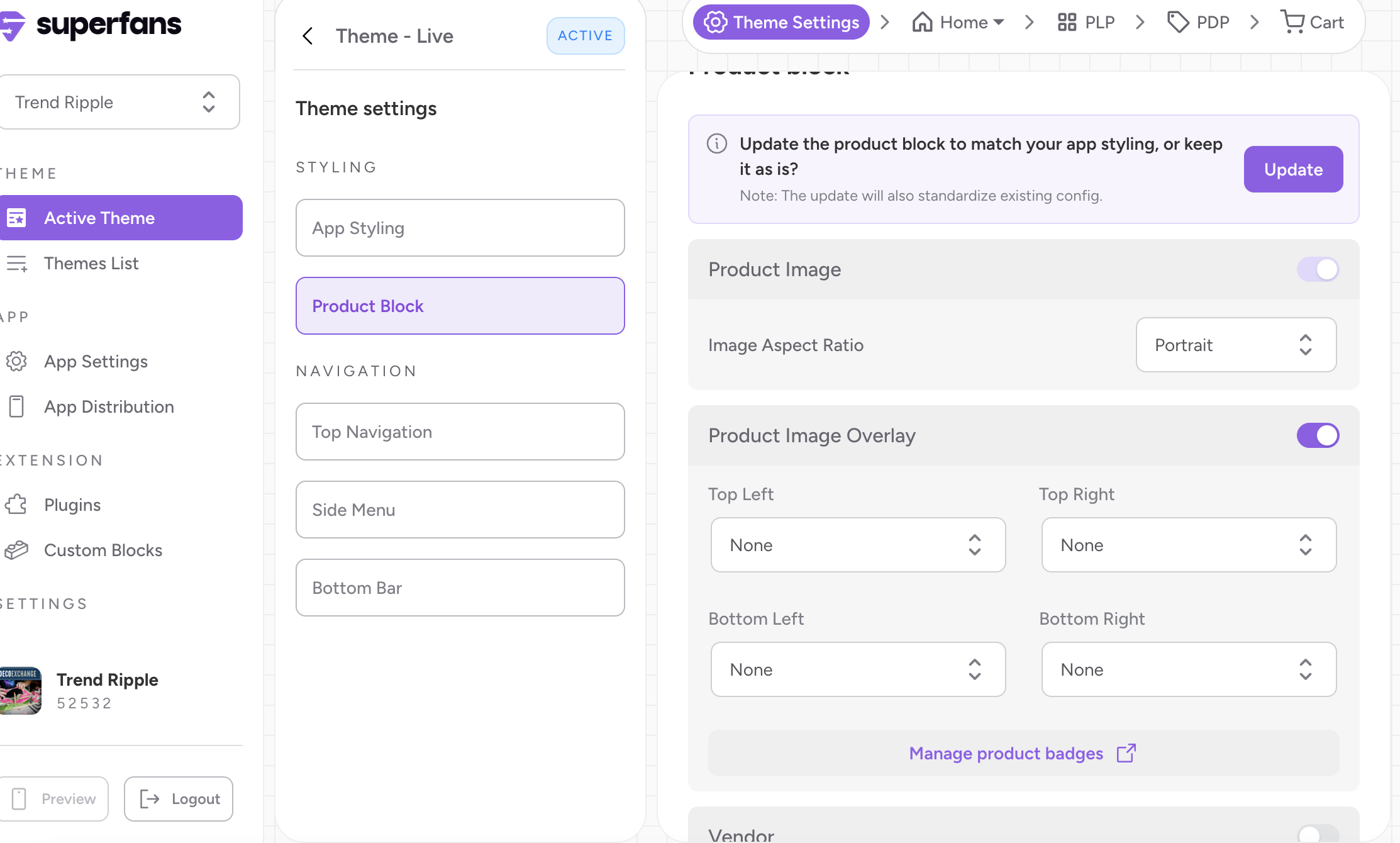
Step 3 : Click on the dropdown of the desired position you want to place the wishlist icon and select wishlist from the menu.
How Does Wishlist Appear on the App?
Since we support single wishlist of Wishlist Plus, all the items added to the wishlist will appear in a single list.
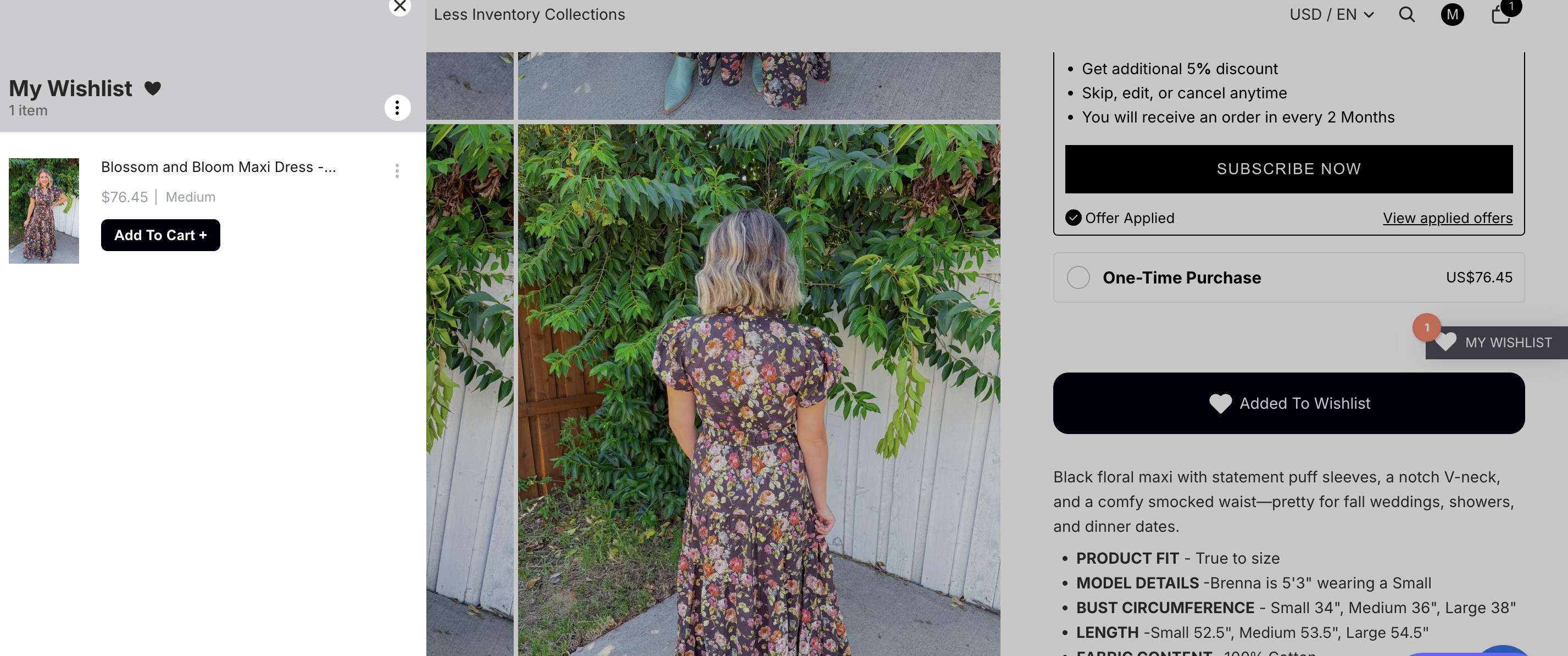
The wishlist is synced with website’s wishlist.
Here’s is the screenshot of the item added to wishlist from website.
Here’s the wishlist functionality on the app.