Superfans supports seamless integration with Okendo Reviews, enabling merchants to showcase product reviews and ratings directly inside their mobile app. This integration helps build trust with shoppers and improves purchase confidence by displaying authentic customer feedback on product pages.
This guide explains:
What Judge.me Reviews is
What works inside the Superfans app.
How to enable the plugin in Superfans.
How reviews appear to your customers on the app.
Collect product reviews from customers
Display star ratings across product listings
Show detailed reviews with images and text
Build social proof and customer trust
It’s widely used by Shopify merchants to increase:
Conversion rates
Customer confidence
Repeat purchases
When reviews are visible inside your app, customers can:
Make faster purchase decisions
Trust product quality before buying
Engage more deeply with product pages
For brands, this means:
Higher product page conversions
Better app shopping experience
Consistency between website and app reviews
Product reviews (text-based)
Ability to vie the reviews posted by customers for the particular product.
Star ratings
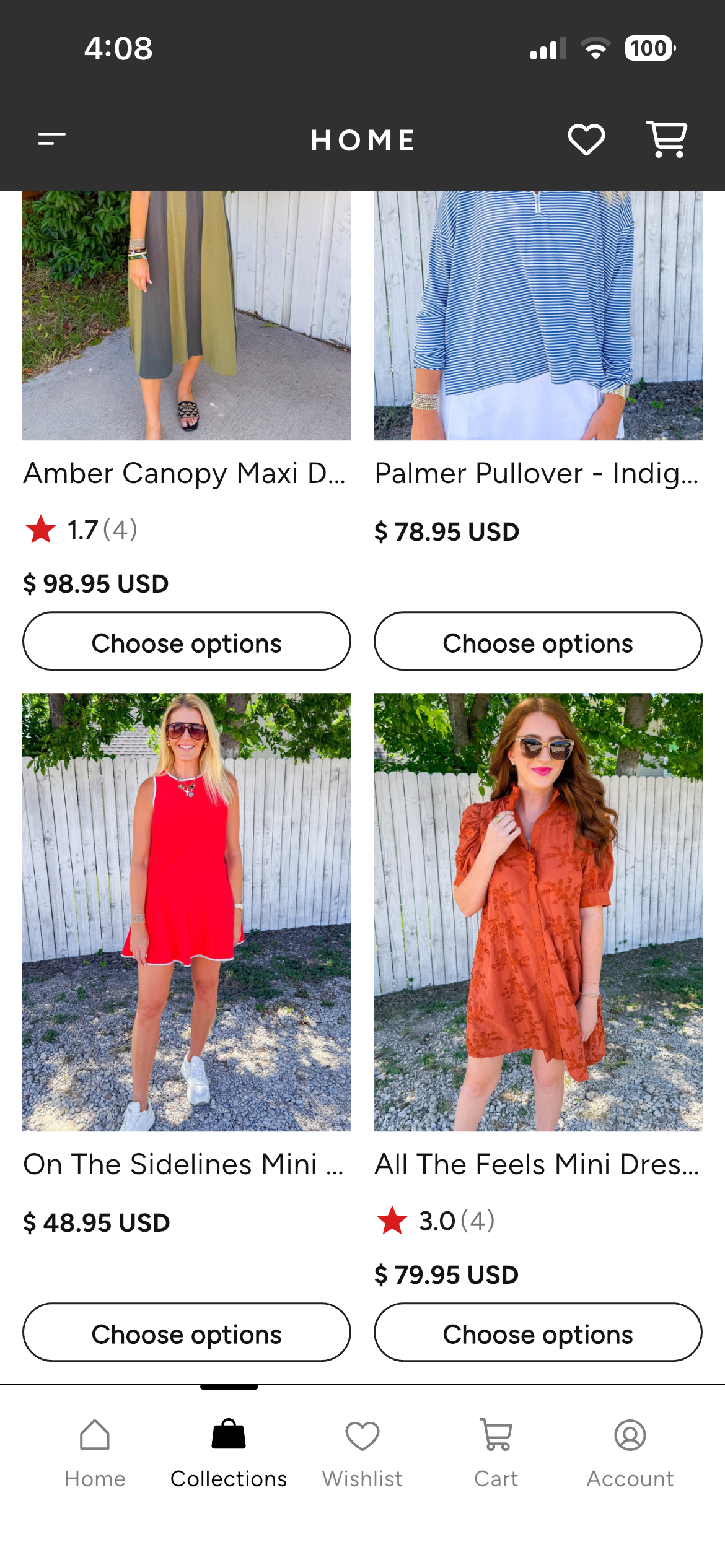
The ratings provided for each product by the customers. (This appears on both the product grid and Product Detail Page)
Review submission from app
Ability to post the reviews for product from the mobile app.
Prerequisites
Okendo Reviews to be installed and active on your Shopify store
You already have reviews collected (optional but recommended)
Okendo User ID and Accent Color (brand color) for the Reviews widget
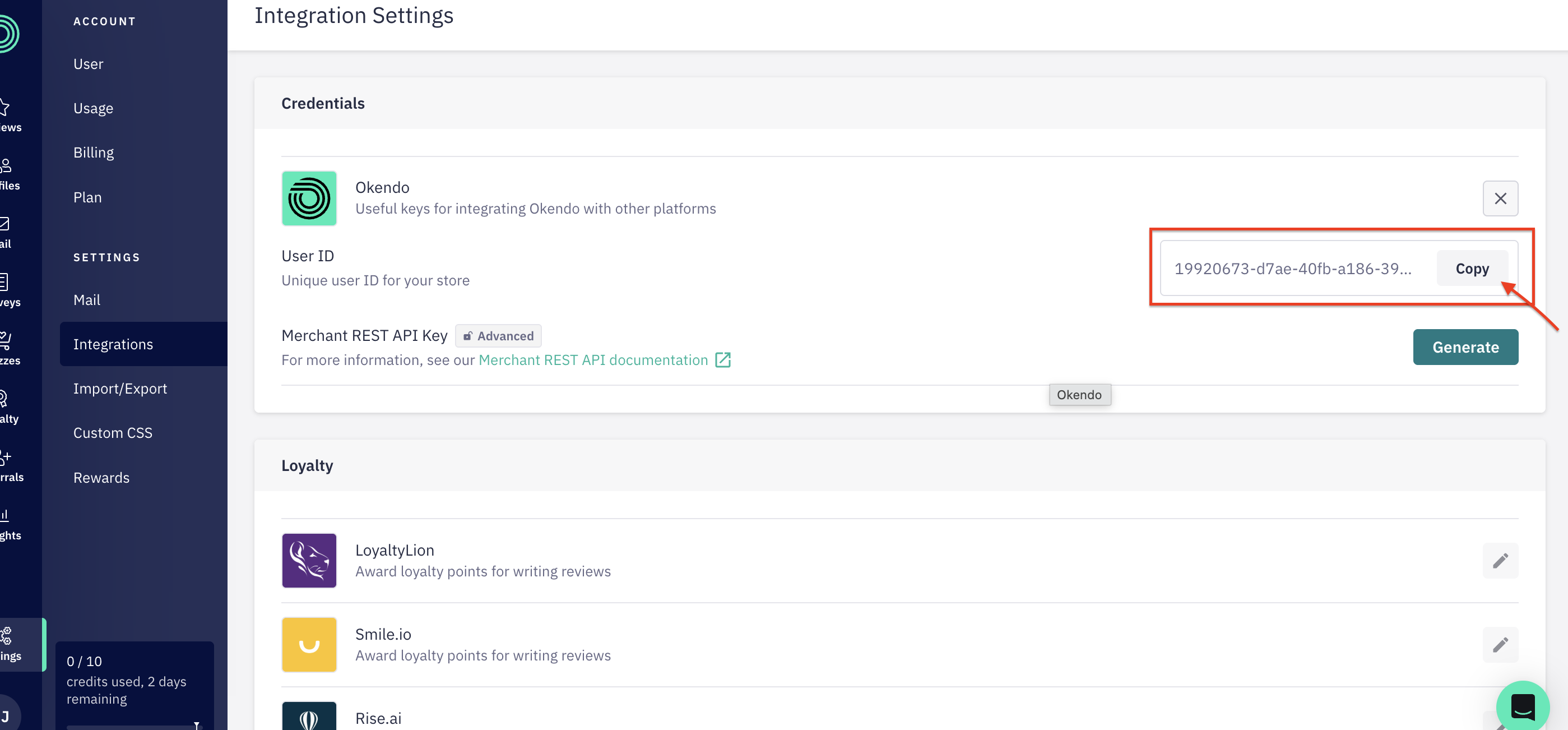
Steps to get the Okendo User ID
Step 1 - Go to the Okendo Reviews plugin installed on your Shopify Store from Apps Section.
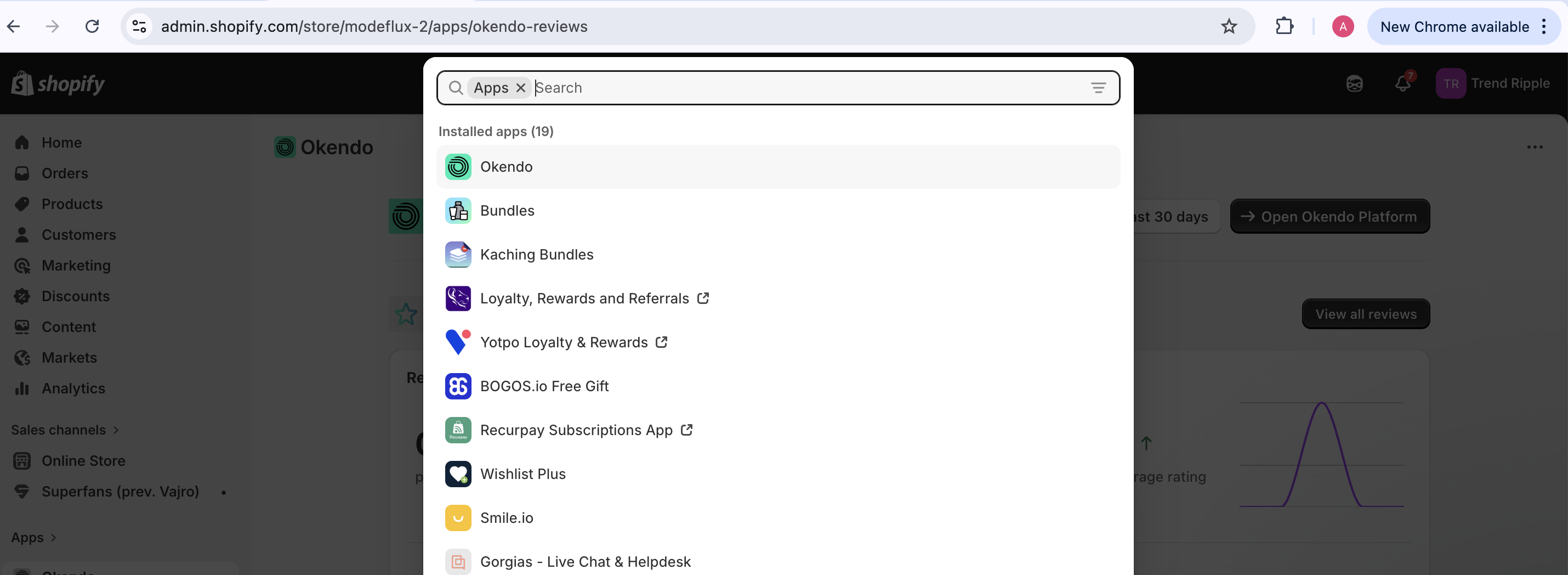
Step 2 - Click on “Open Okendo Platform” to open the Okendo dashboard.
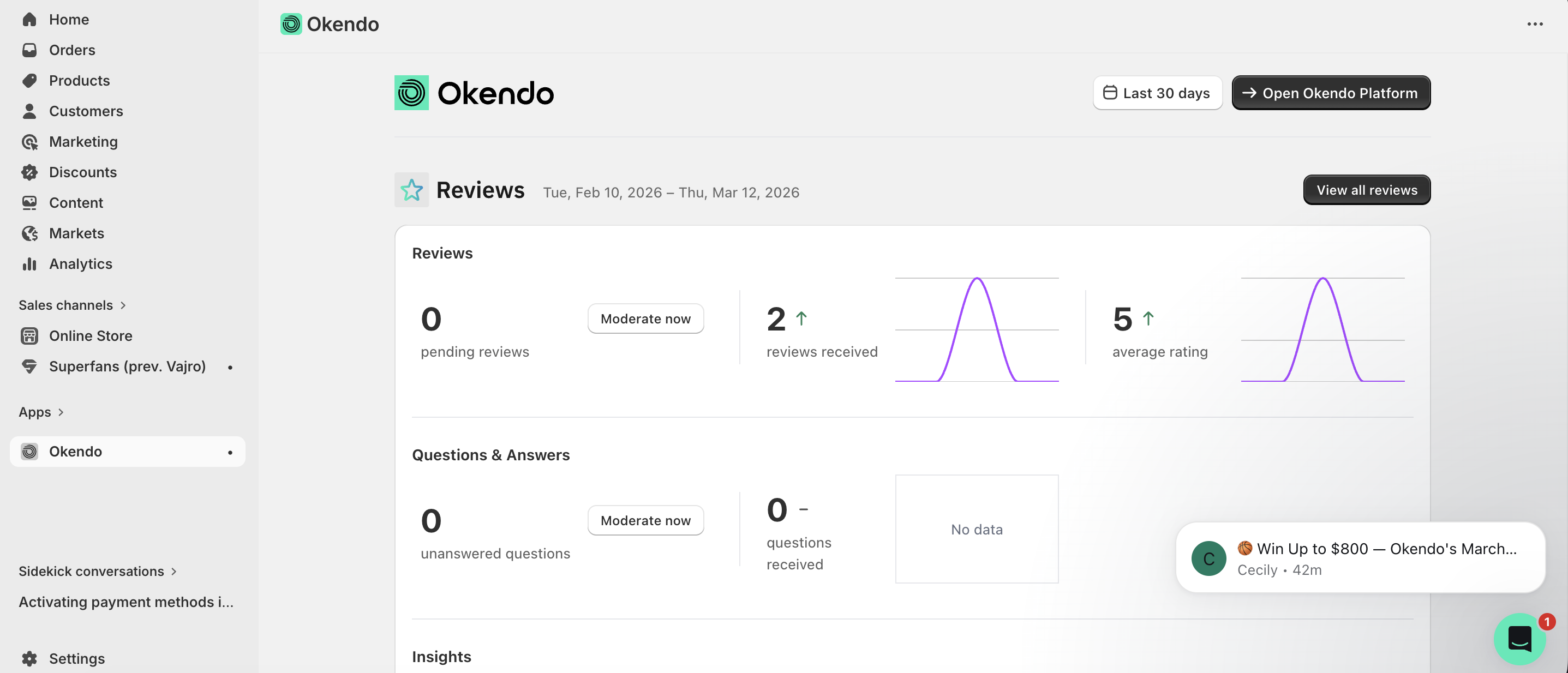
Step 3 - Go to Settings tab and navigate to integration section.
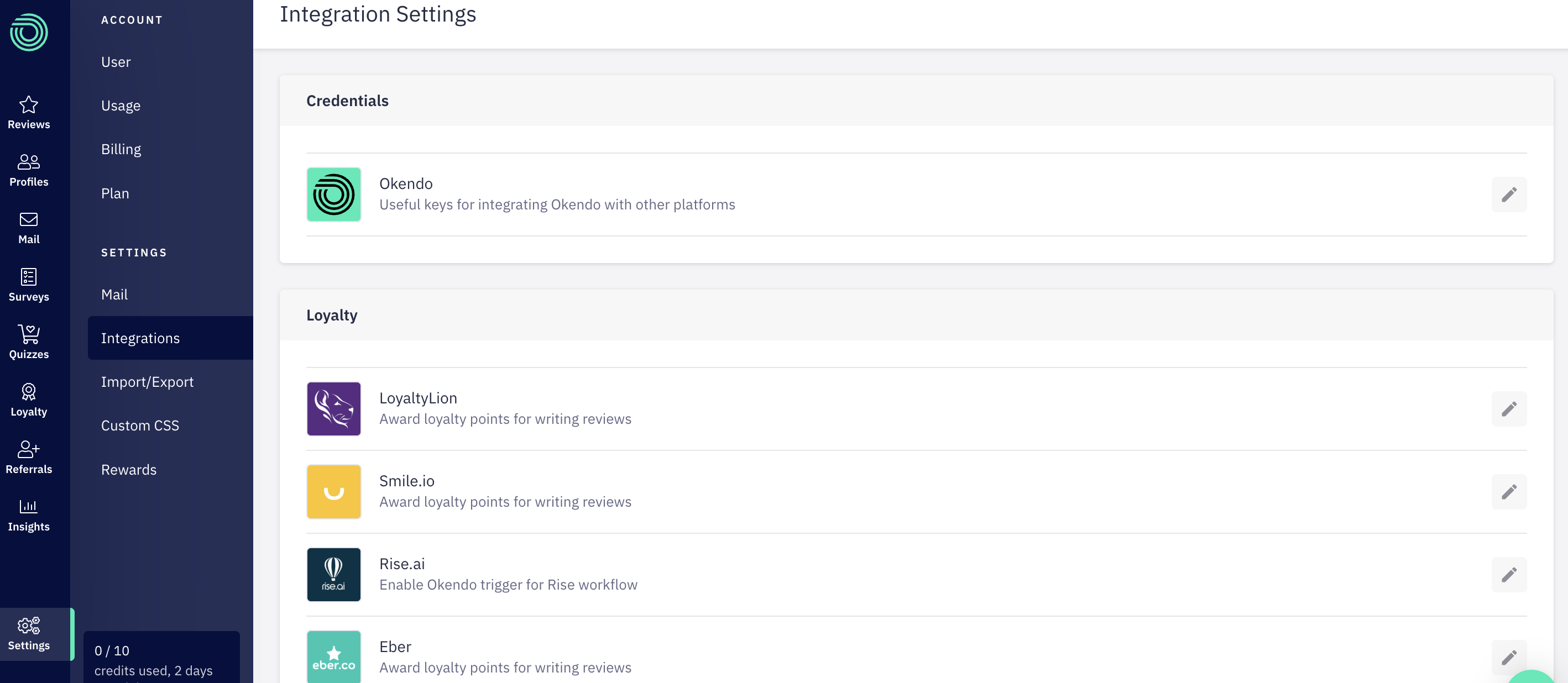
Step 4 - Click on Okendo tile and click the pencil/edit icon.
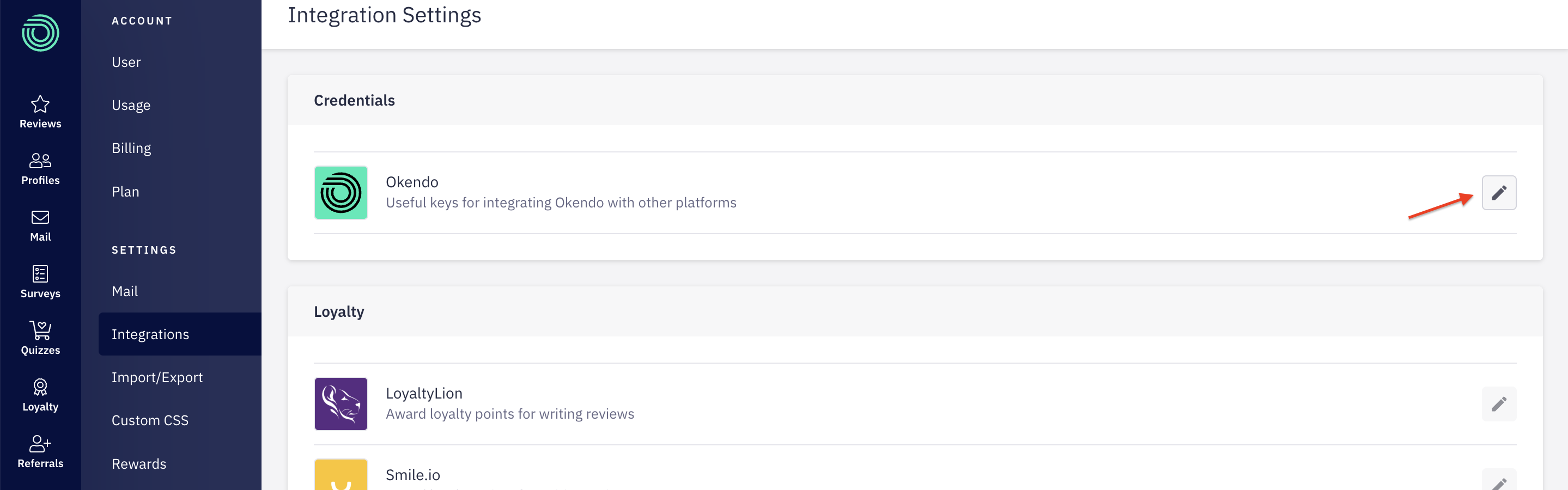
Step 5 - You’ll find the user ID. Please click the copy CTA and have it ready to enable it on the Superfans.
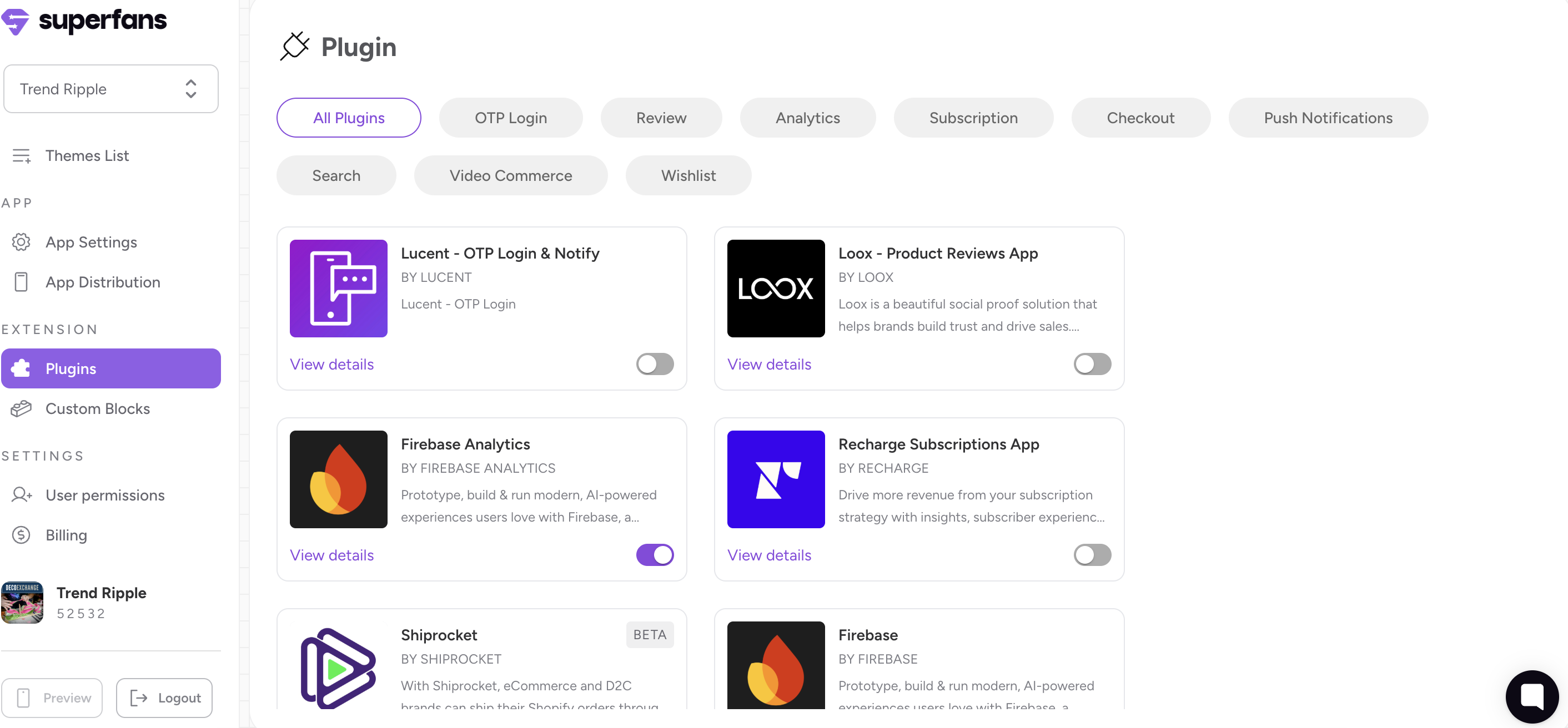
Steps to enable Okendo on Superfans
Step 1 - Click on the Plugins from the left menu on the dashboard.
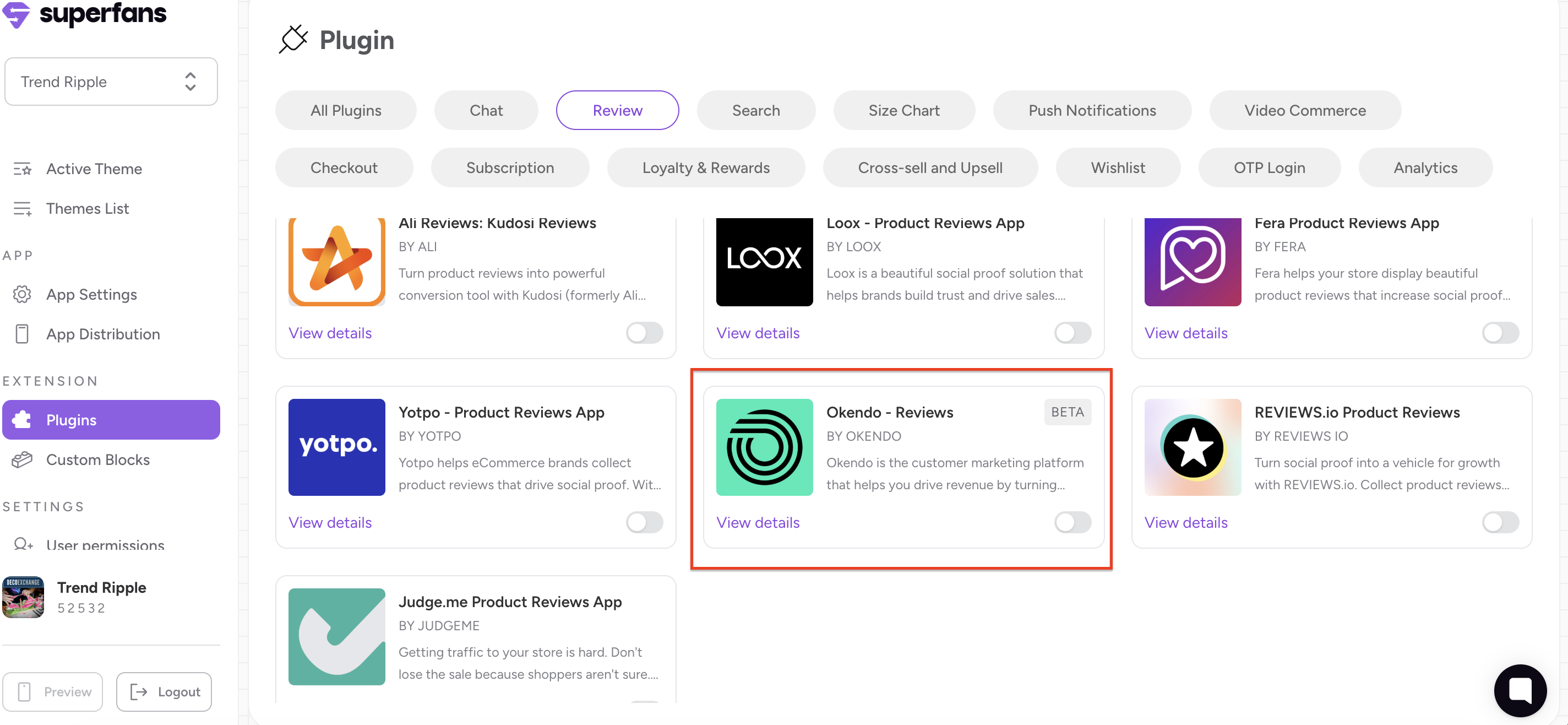
Step 2 - Click on Review from the plugin categories available on the top and you’ll find the Okendo Reviews.
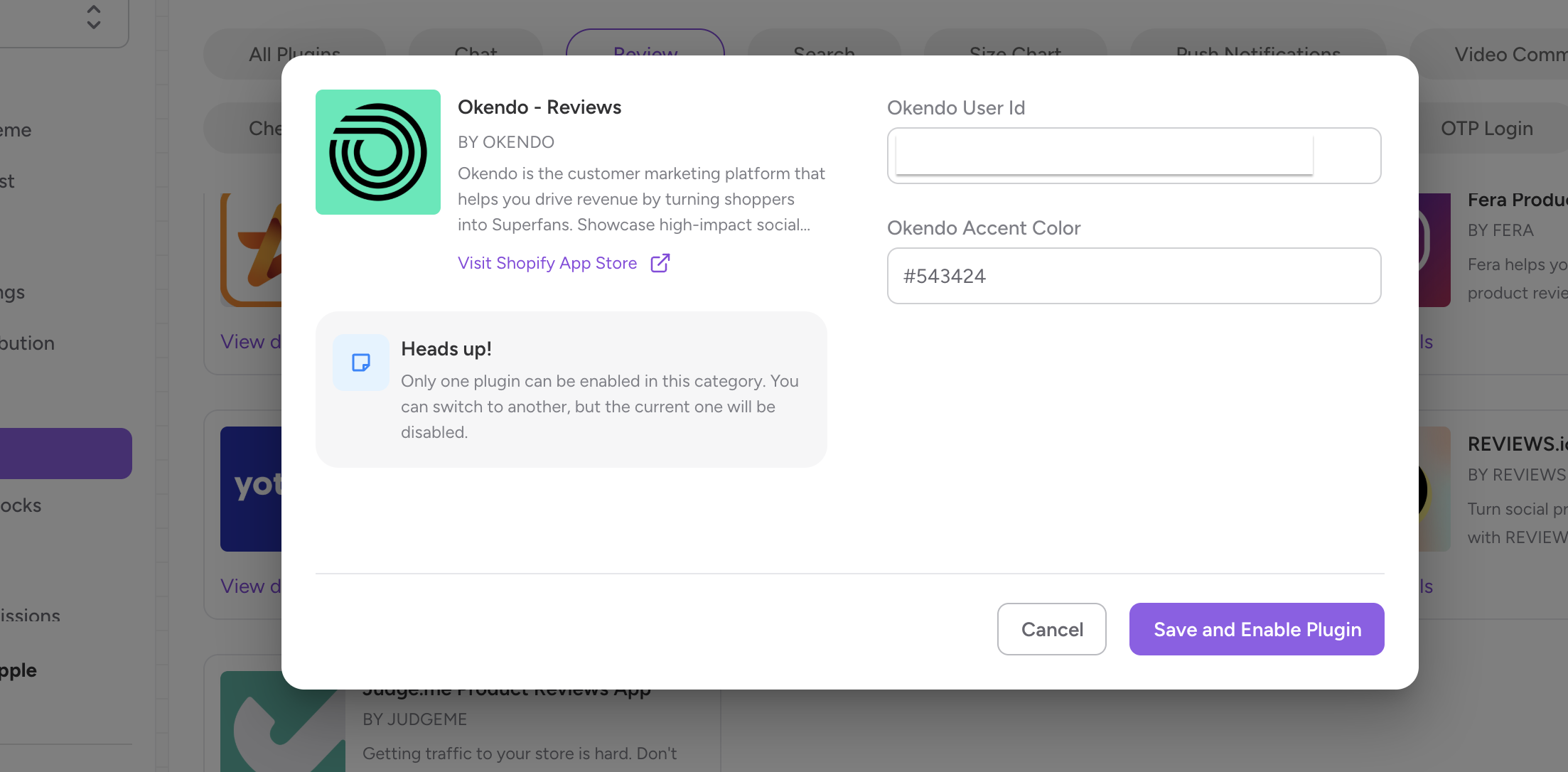
Step 3 - Toggle the button appearing on the right bottom of the plugin card, provide the Okendo User ID from Step 5 of section “Steps to get the Okendo User ID” , provide the colour your brand and click on Save.
The Plugin is enabled on the Superfans. To have the reviews block appear on the PDP page, follow the below steps.
Step 1 - Go to the Active theme that is live on the app.
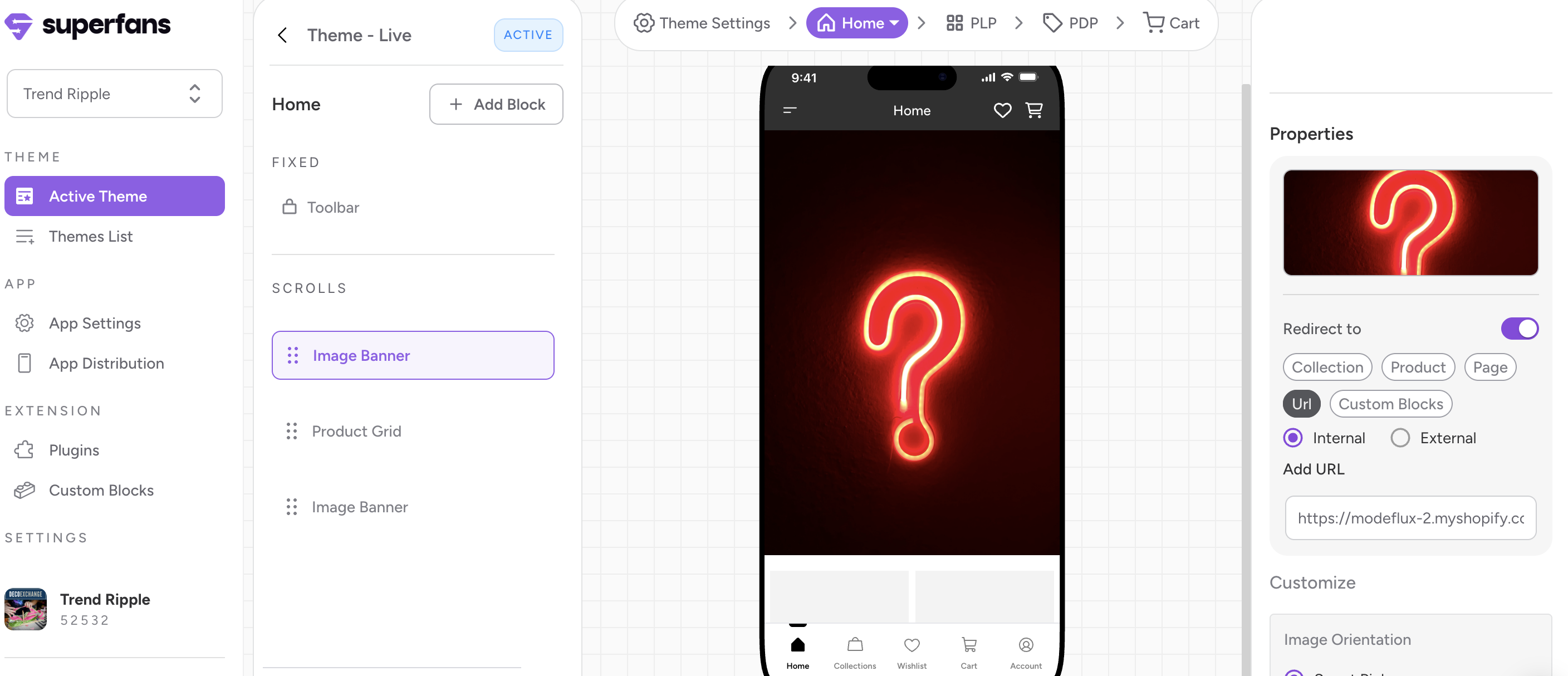
Step 2 - Click on the “PDP” from the top floating menu.
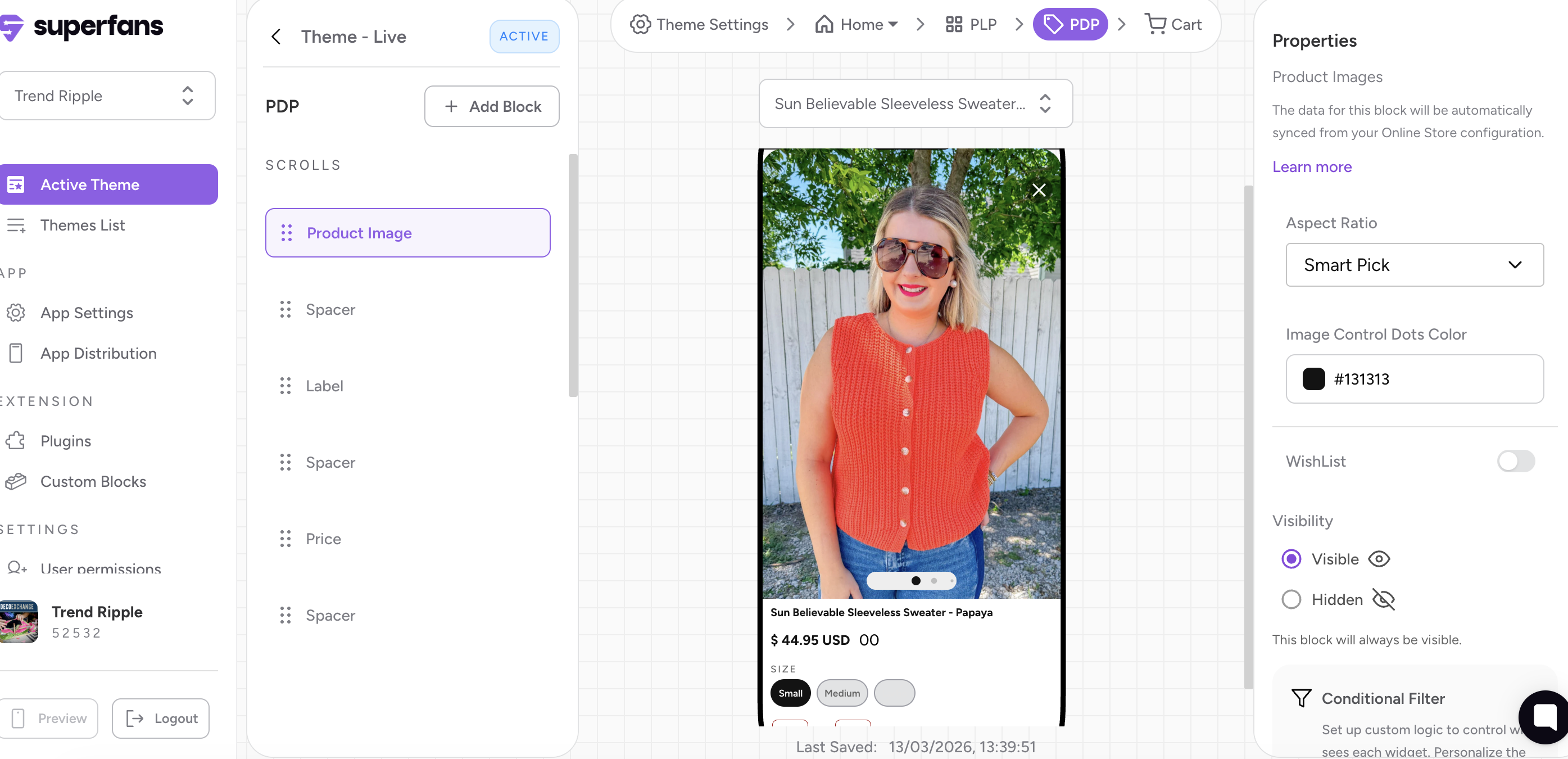
Step 3 - Click on “Add Block” CTA from the left panel.
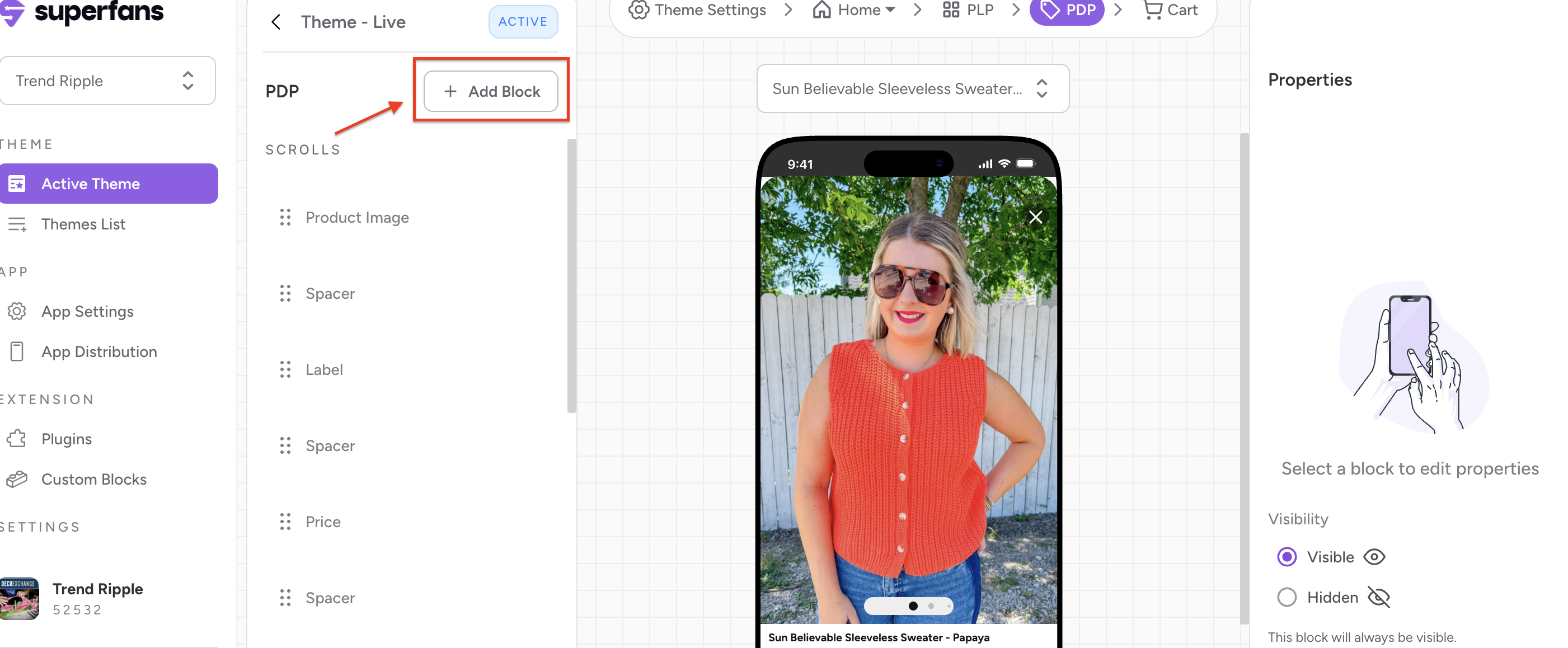
Step 4 - Select the block type as “Plugin” and click on “Add” CTA to have the block on the Product page.
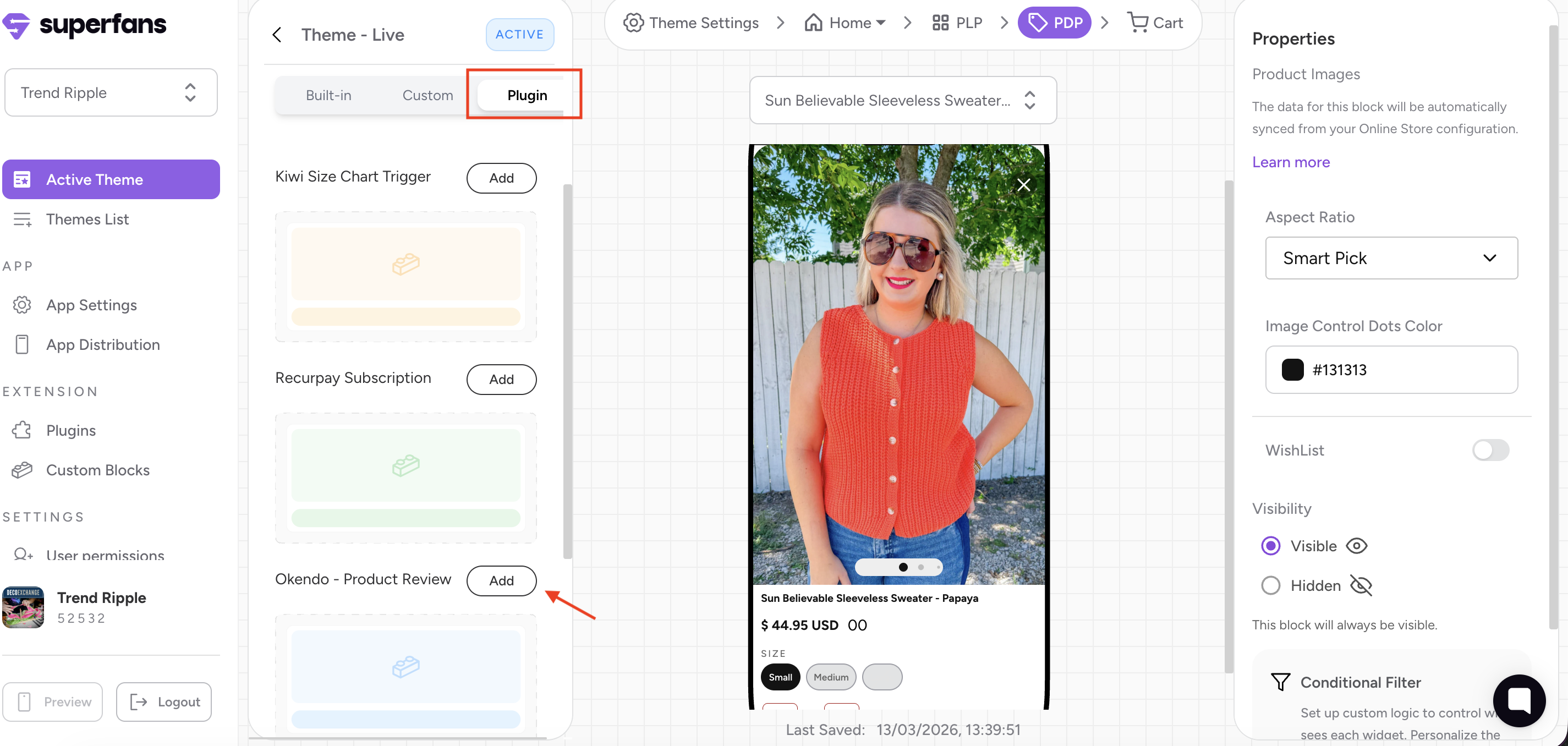
Step 5 - You’ll be able to look the preview of the “Review” block at the bottom.
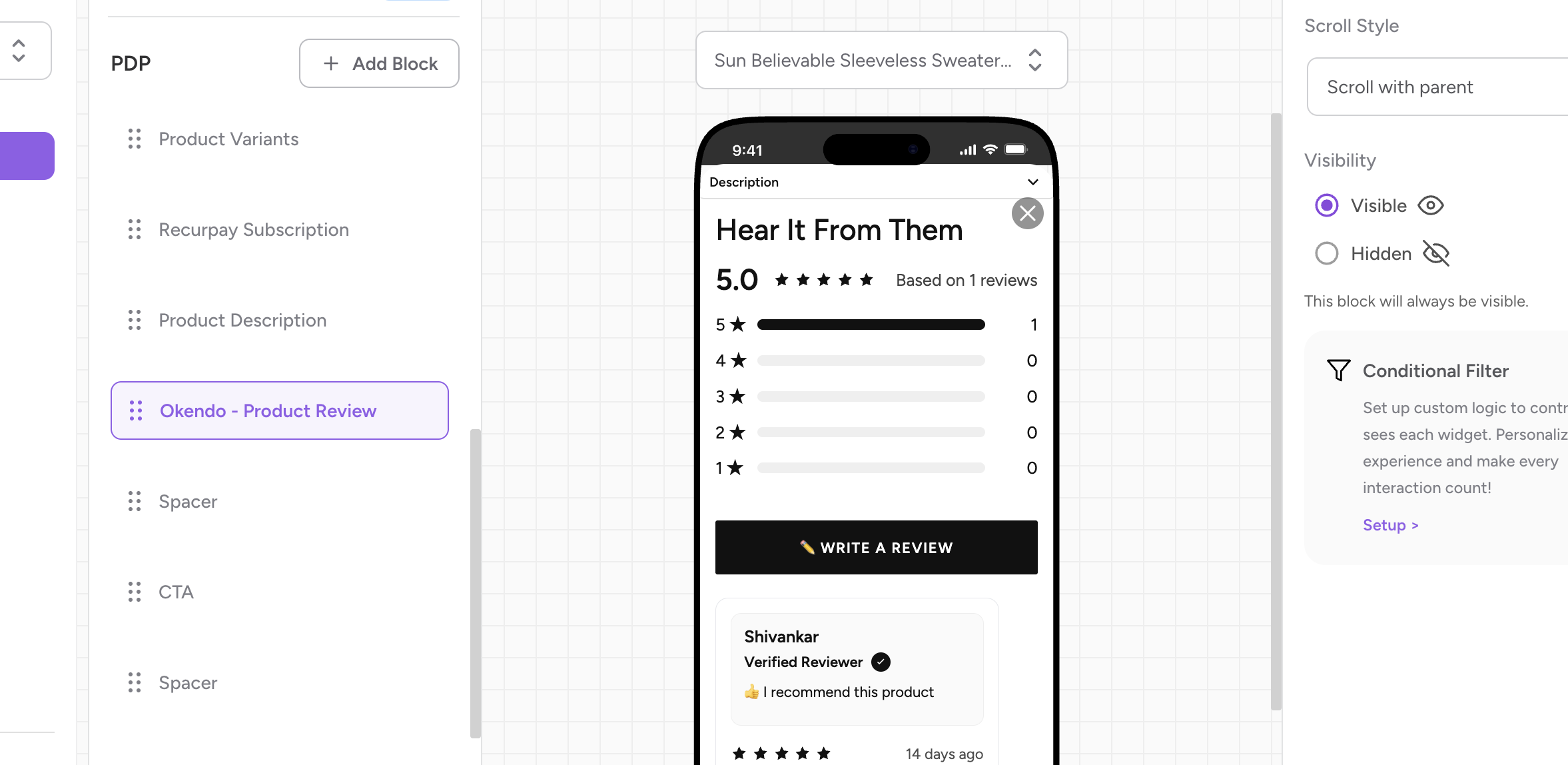
The reviews appear in 2 formats on the mobile app.
Star ratings → The star ratings as the name suggests, appear as stars along with the ratings on the product grid.
Reference Image:
Customer Reviews → The reviews posted by customers on individual products. These appear on the product page of the app. They are also accompanied with stars and and rating.
Reference Image:
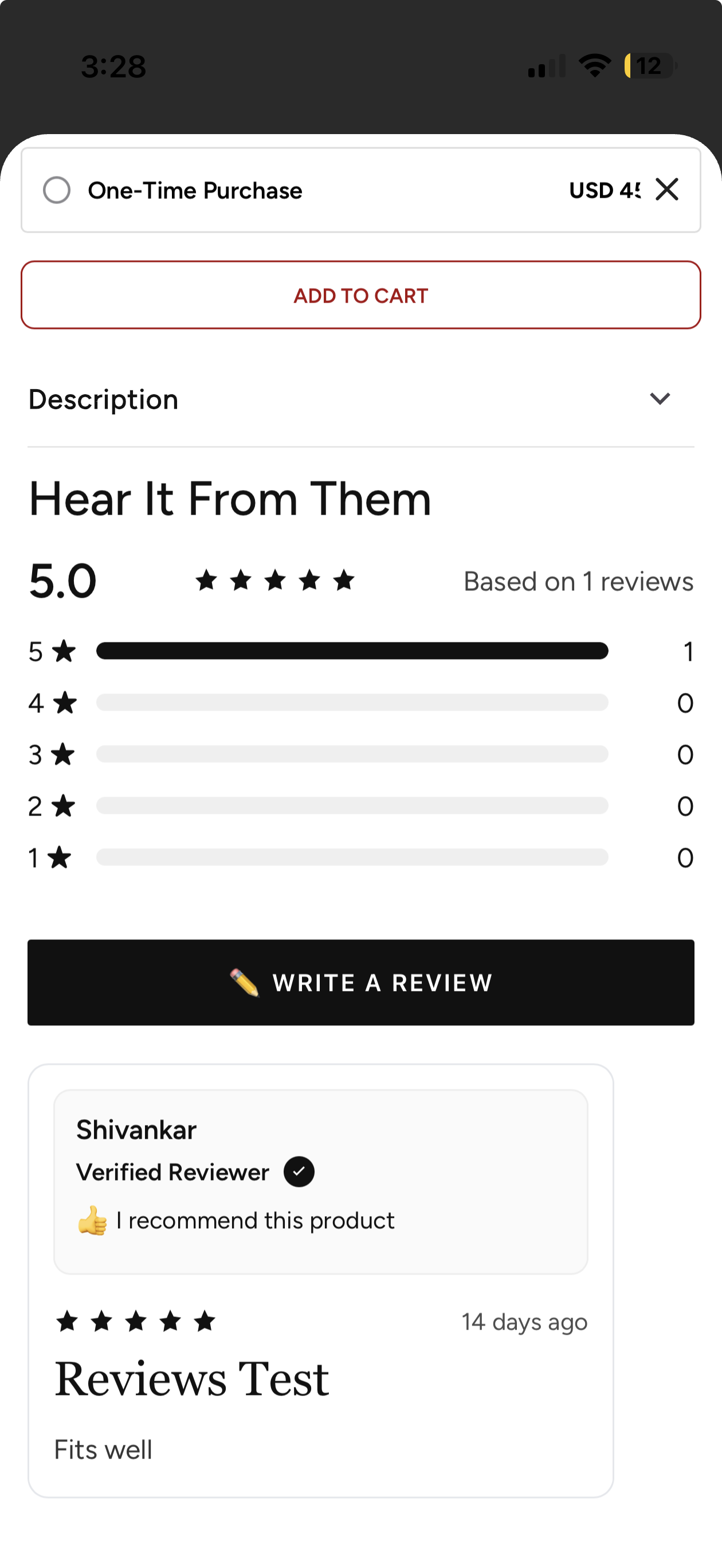
The UI is common and does not change based on theme colour of the app.

