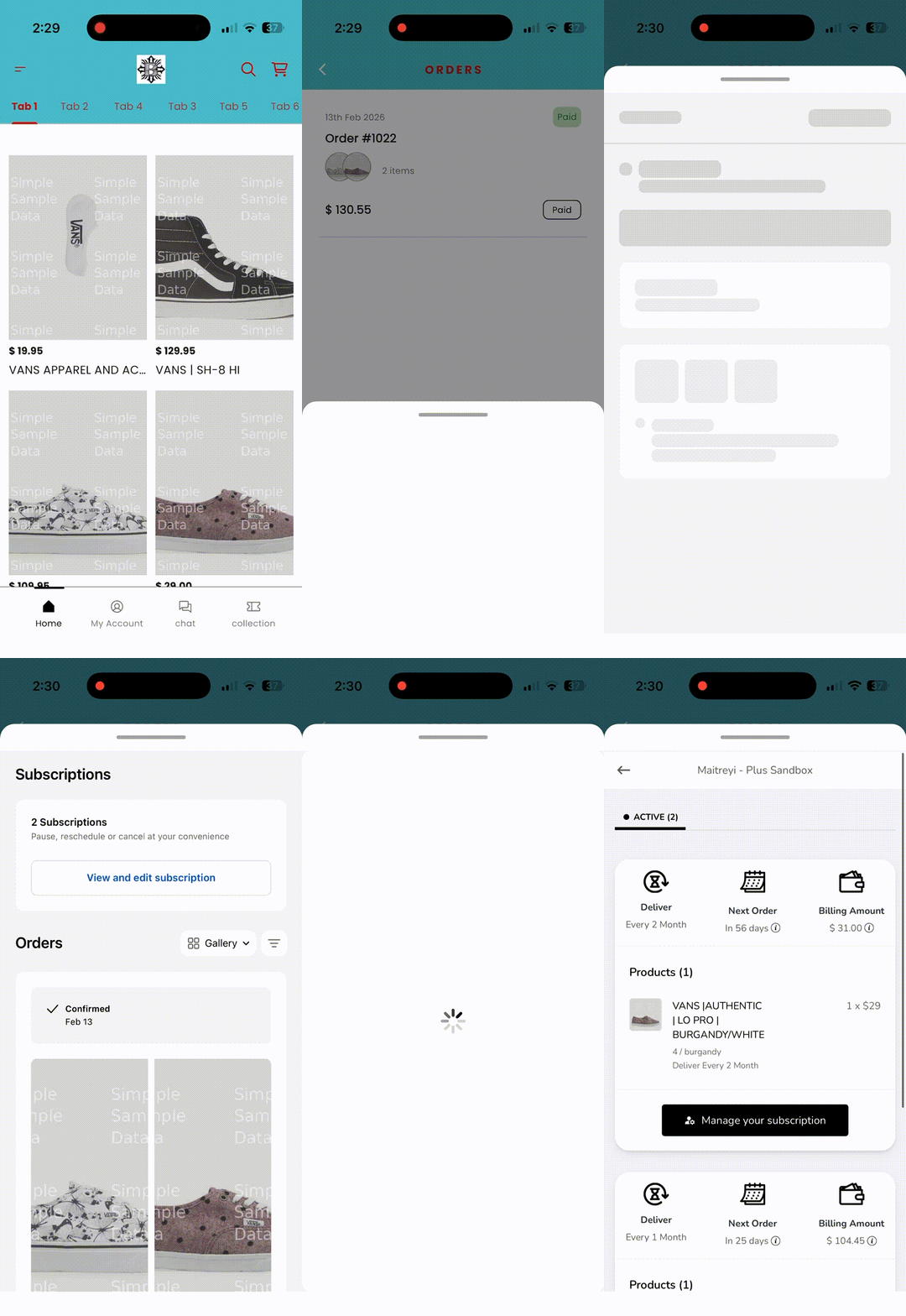
Superfans supports seamless integration with Recurpay Subscriptions, allowing merchants to offer subscription-based products directly inside their mobile app. With this integration, customers can subscribe to products, manage their subscriptions, and enjoy recurring deliveries—all within the app experience.
Recurpay is a Shopify subscription management platform that enables merchants to:
Offer recurring product subscriptions
Provide flexible delivery frequencies
Enable subscription discounts
Allow customers to manage subscriptions easily
With the Superfans integration, subscription functionality is embedded into the app using the Superfans SDK, ensuring a smooth and consistent experience.
1. Recurring Revenue Growth
Subscriptions create predictable, repeat revenue streams.
2. Increased Customer Lifetime Value (LTV)
Customers who subscribe tend to purchase more frequently and stay longer with the brand.
3. Seamless Sync with Shopify
Superfans pulls subscription configurations directly from Recurpay—no duplicate setup required.
4. Reduced Churn Through Easy Management
Customers can manage their subscriptions easily, reducing support tickets and cancellations.
There are 2 steps to enable the subscription on the product page of the app.
Enabling the plugin on the Superfans Dashboard
Placing the block on PDP
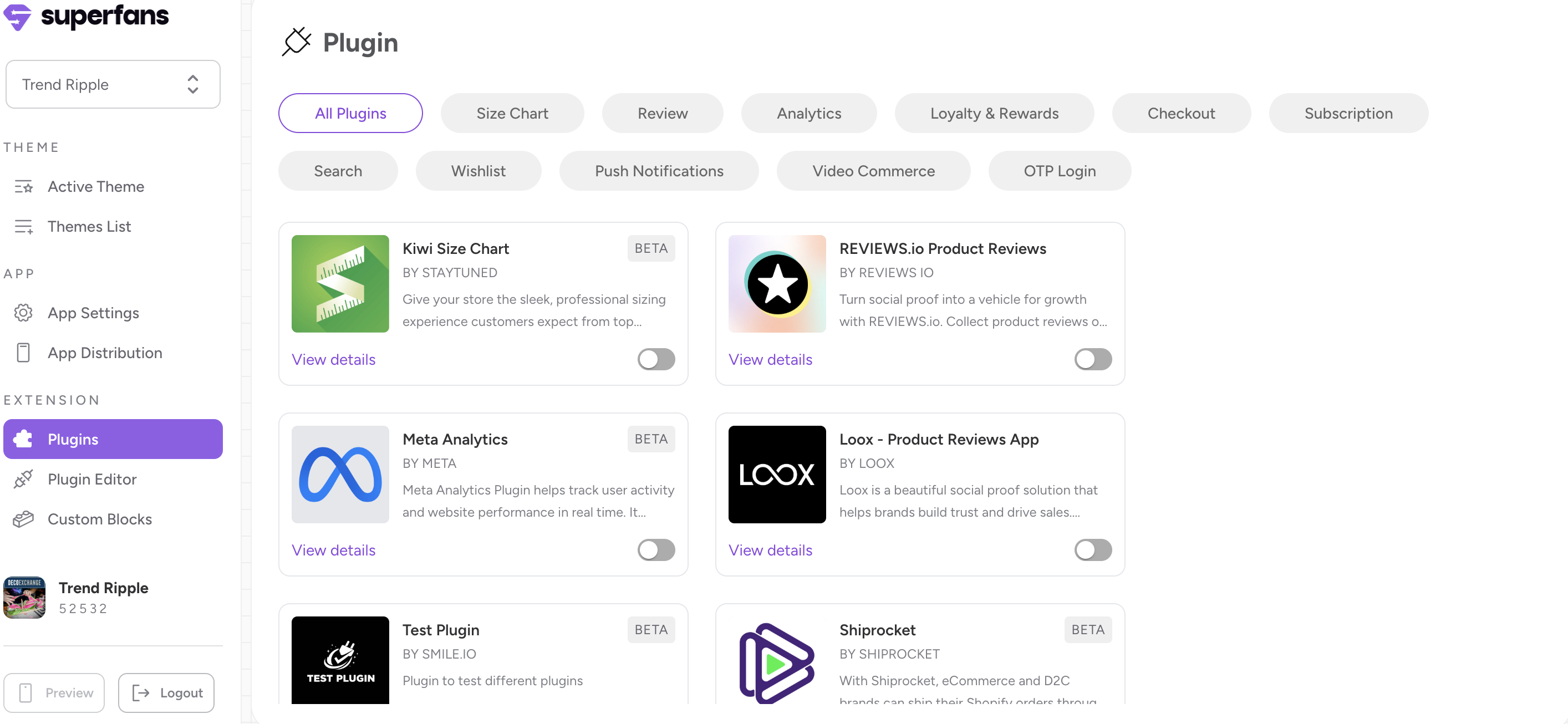
Step 1 : Navigate to the plugins section on the dashboard from side menu.
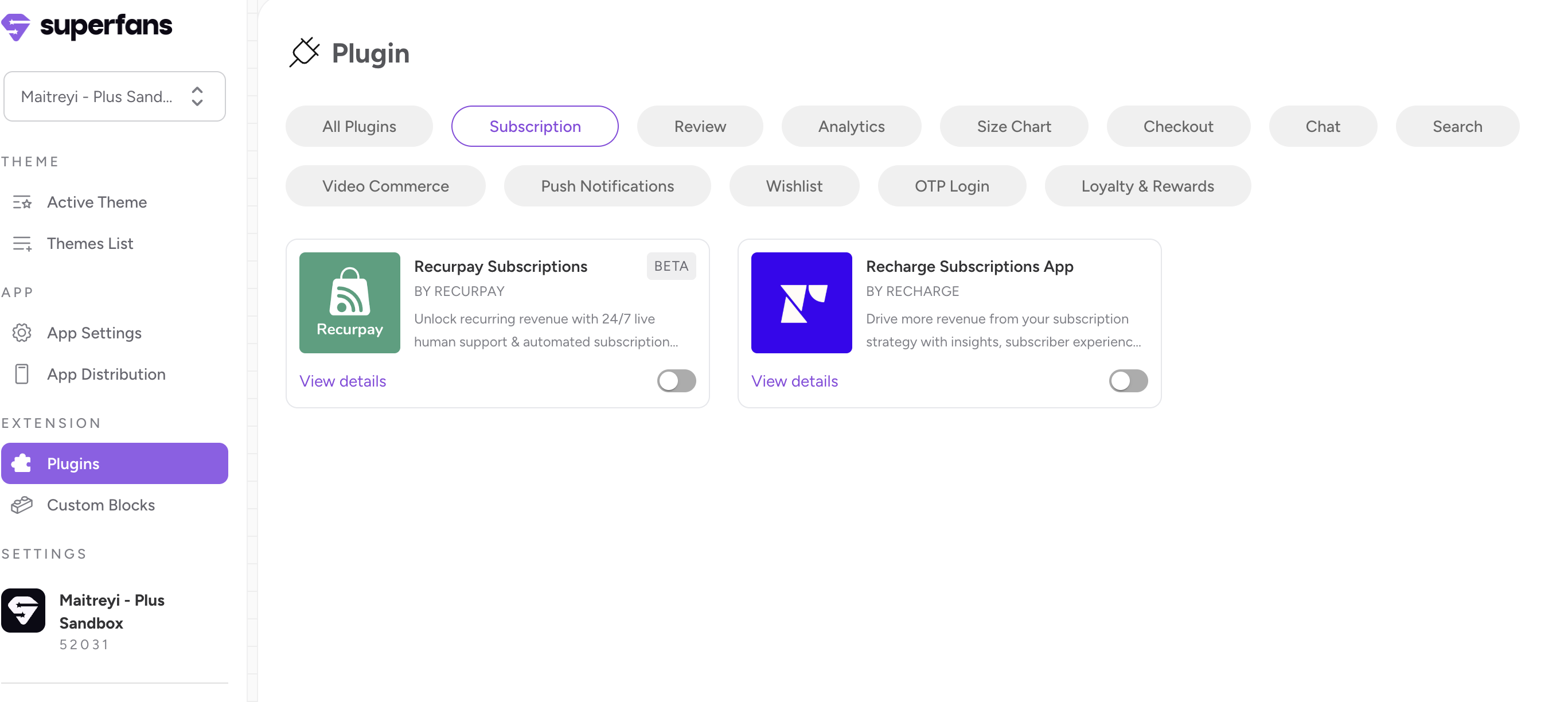
Step 2 : Select the “Subscription” category from top and toggle the Recurpay Subscription plugin.

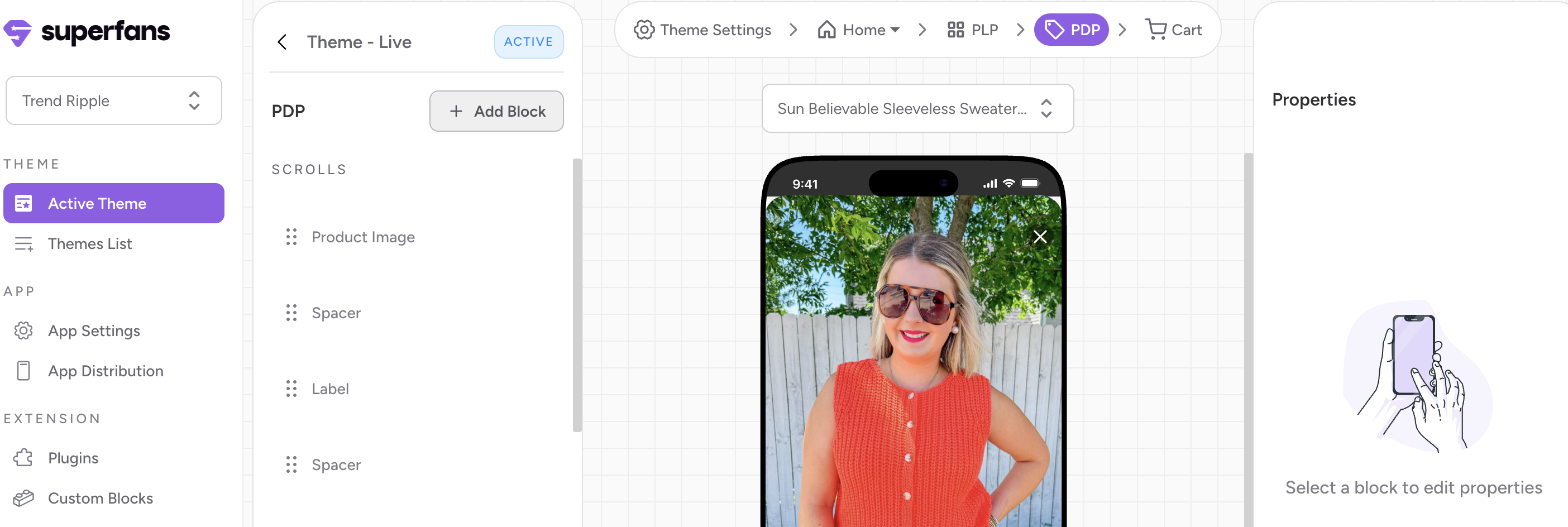
Step 1 : Go to the Active theme that is live on the app.
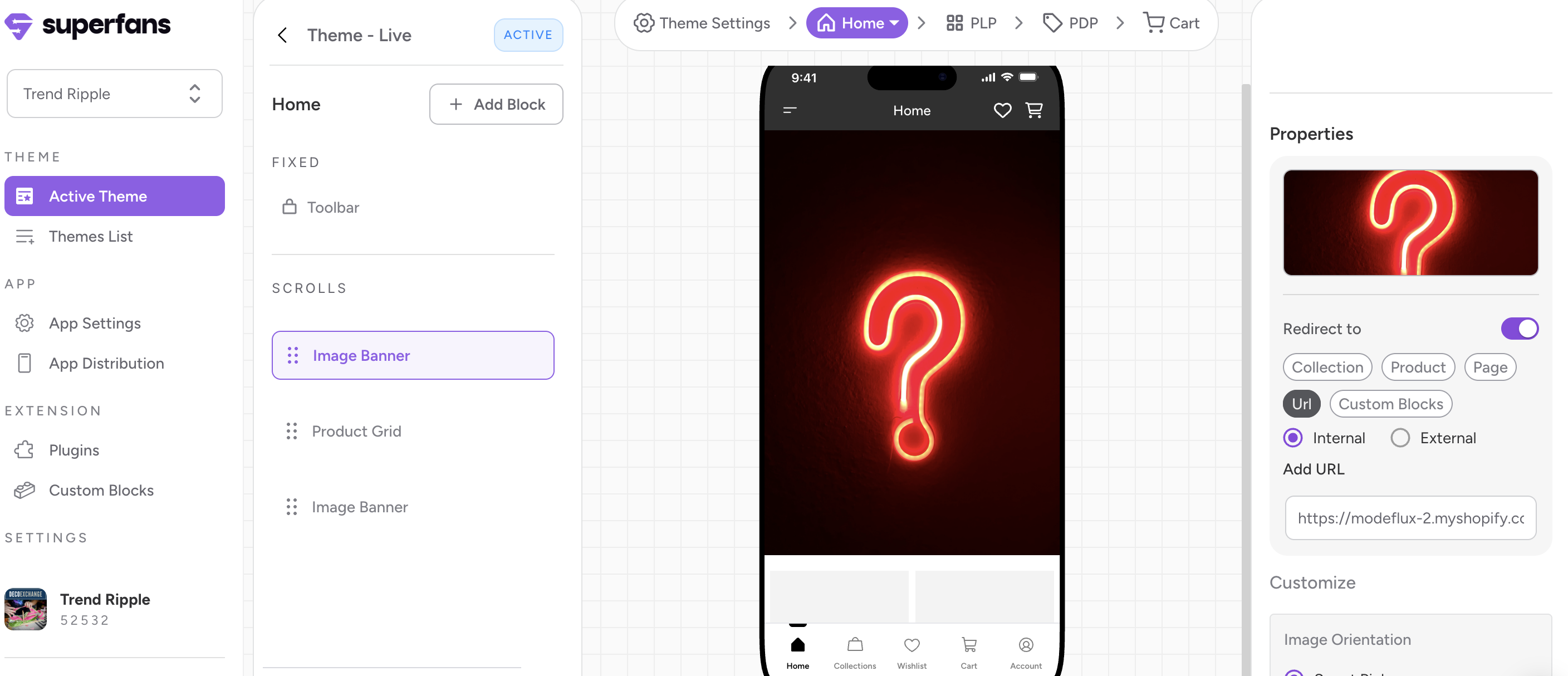
Step 2 : Click on the “PDP” from the top floating menu.
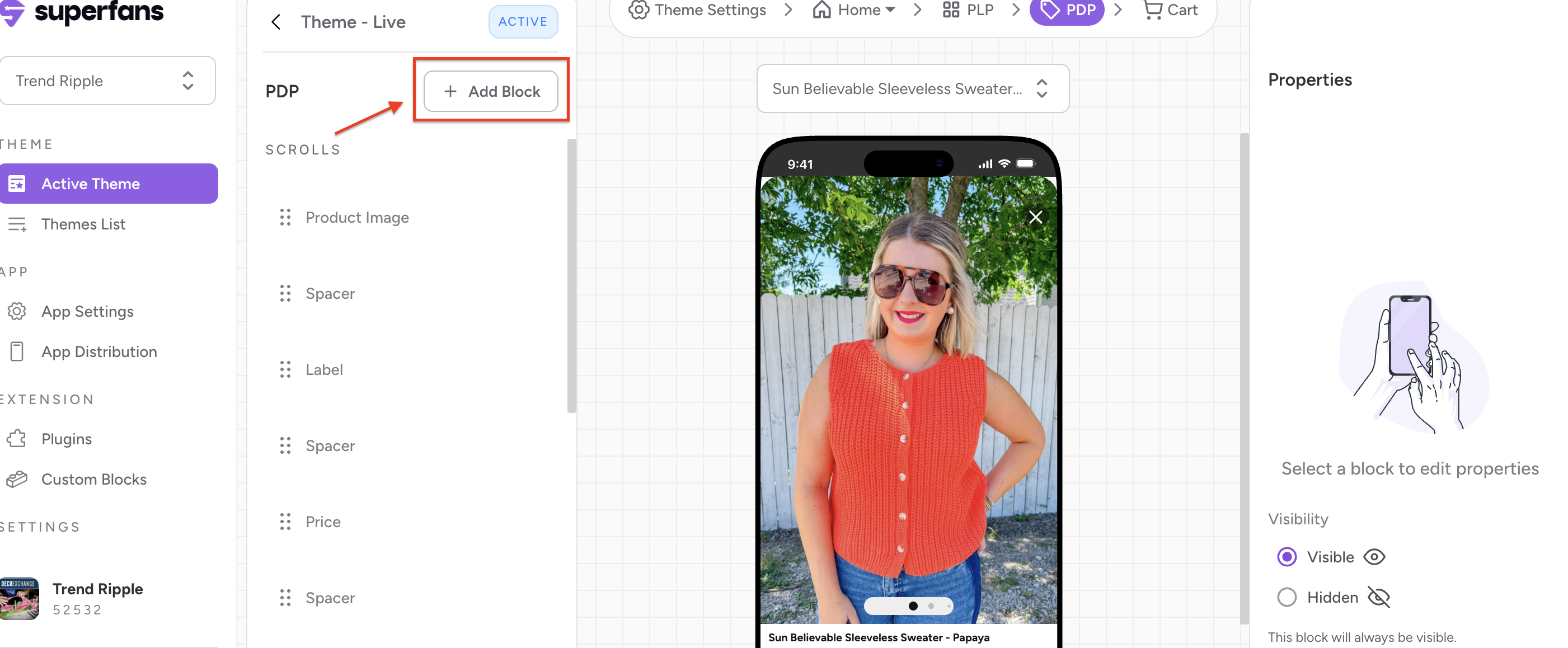
Step 3 : Click on “Add Block” CTA from the left panel.
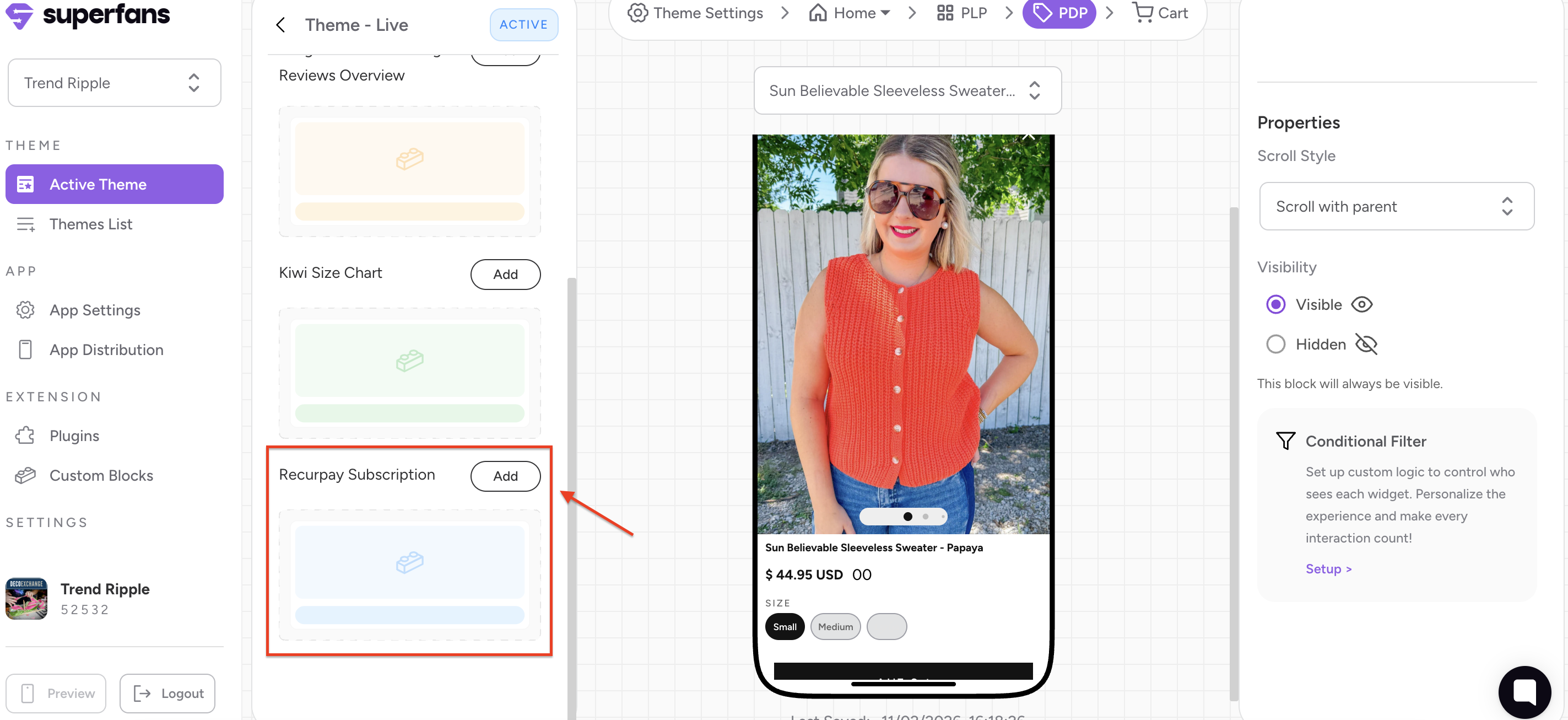
Step 4 : Select the block type as “Plugin” and click on “Add” CTA of the Recurpay Subscription block to have the block on the Product page.
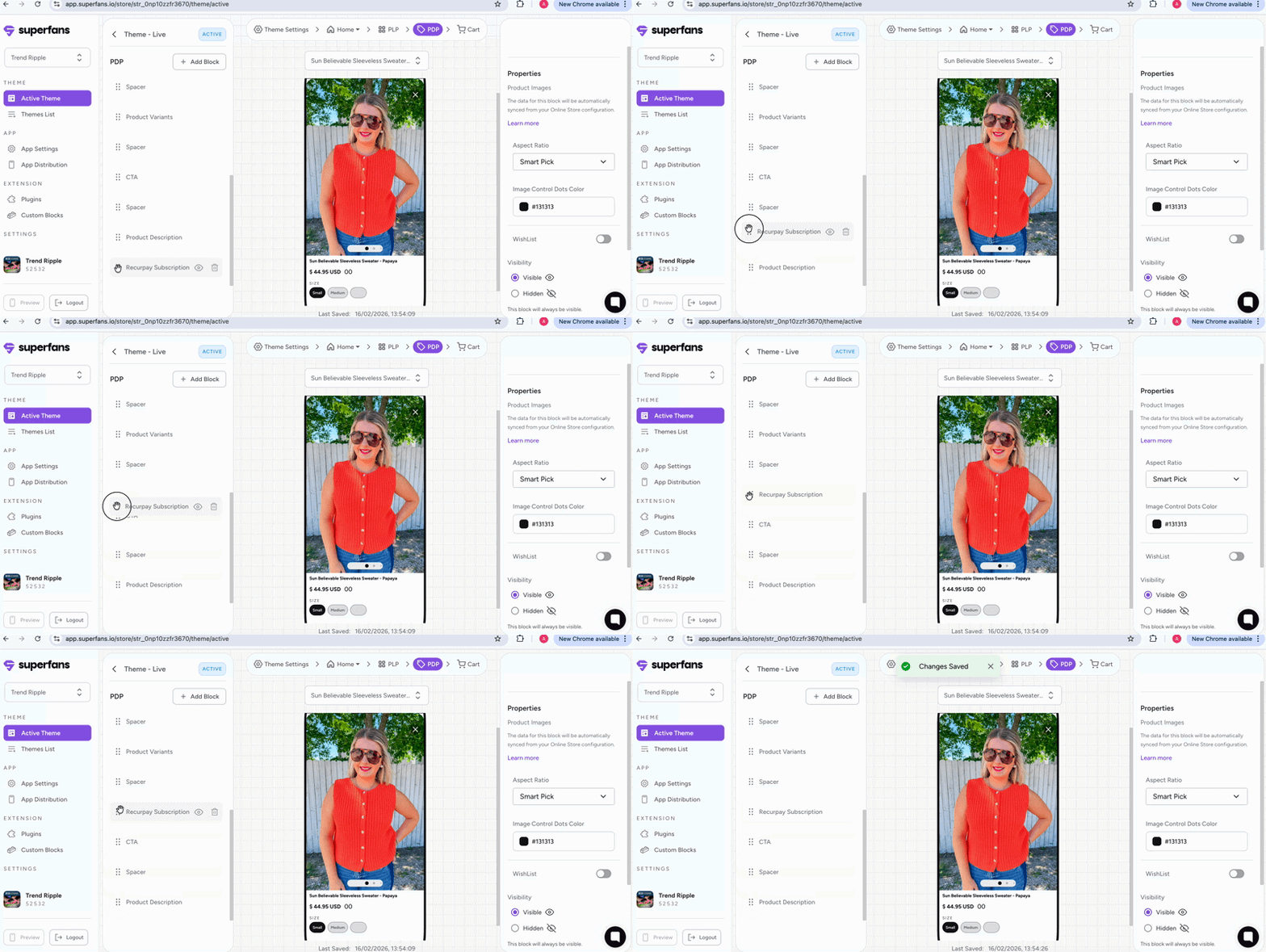
Step 5 : Drag the block to place it at the desired location on the PDP.
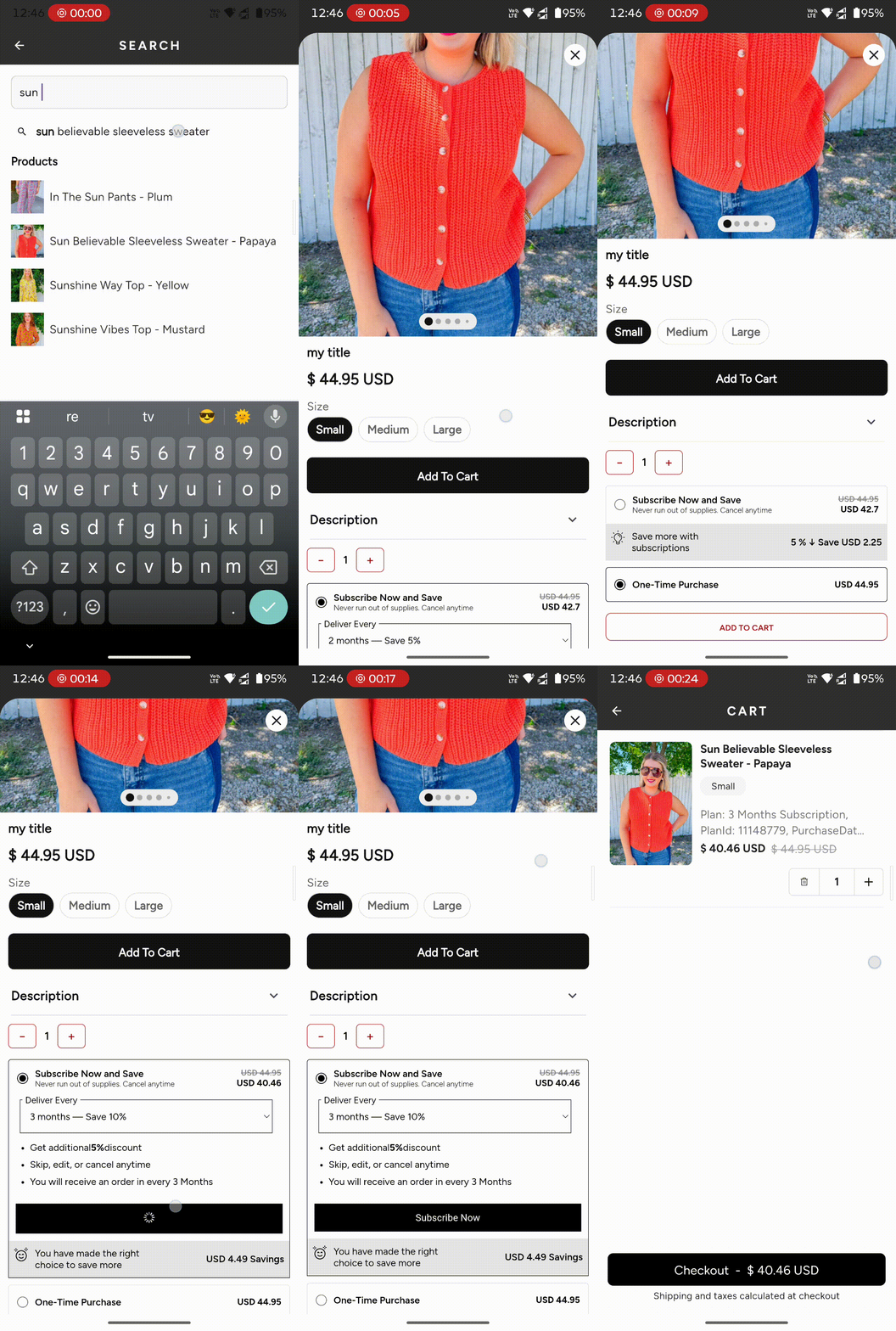
The subscription plans available for the product will be available on the PDP page and on clicking subscribing the product, the regular flow works similar to how it works on the website.
To help manage Subscriptions, you’ll be able to do the required actions on the Order Summary page if it is configured on the website too.
Please follow the steps from this document to set up the customer portal for Self-management.
Go to My Orders Page and you’ll find the subscription block there to manage your subscriptions