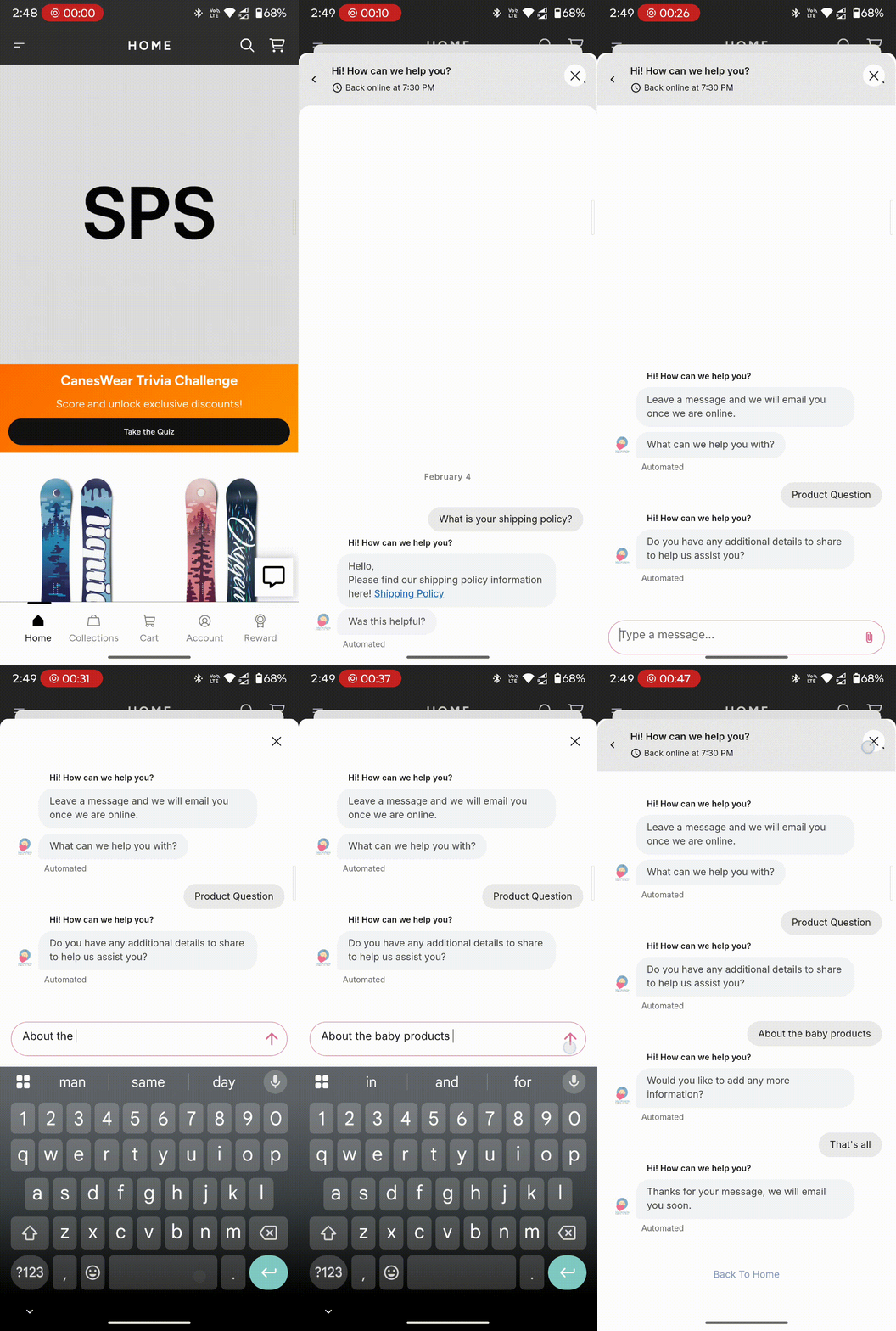
Superfans supports seamless integration with Gorgias Chat, enabling merchants to provide real-time customer support directly inside their mobile app. With this integration, customers can chat with support without leaving the app, ensuring faster issue resolution and a smoother shopping experience.
Gorgias is a customer support and helpdesk platform built for Shopify brands. It centralizes customer conversations across:
Live chat
Social media
SMS
With the Superfans integration, the Gorgias Chat widget is embedded inside the app using a secure in-app webview powered by the Superfans SDK.
1. Unified Support Inbox
All app conversations flow directly into your existing Gorgias dashboard—no separate support tool required.
2. Faster Issue Resolution
Real-time chat reduces friction during purchase decisions (e.g., sizing, delivery timelines, product details).
3. Reduced Drop-offs
Customers can ask questions instantly instead of leaving the app, which helps prevent abandoned carts.
4. Customer Context Sync
Logged-in customer details (such as name and email) are automatically passed to Gorgias, improving personalization and efficiency.
Enabling the plugin on the Superfans Dashboard
Placing the block on the app

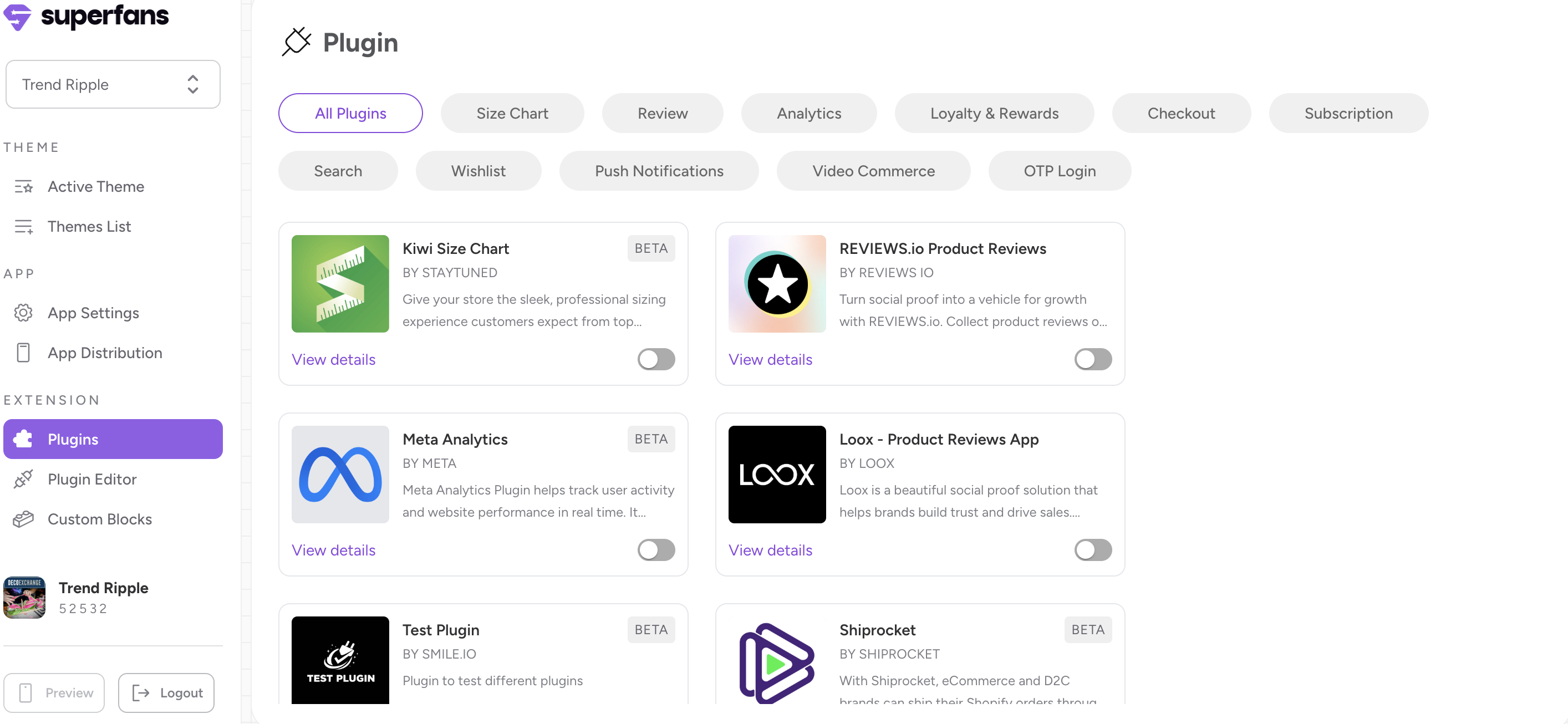
Step 1 : Navigate to the plugins section on the dashboard from side menu.
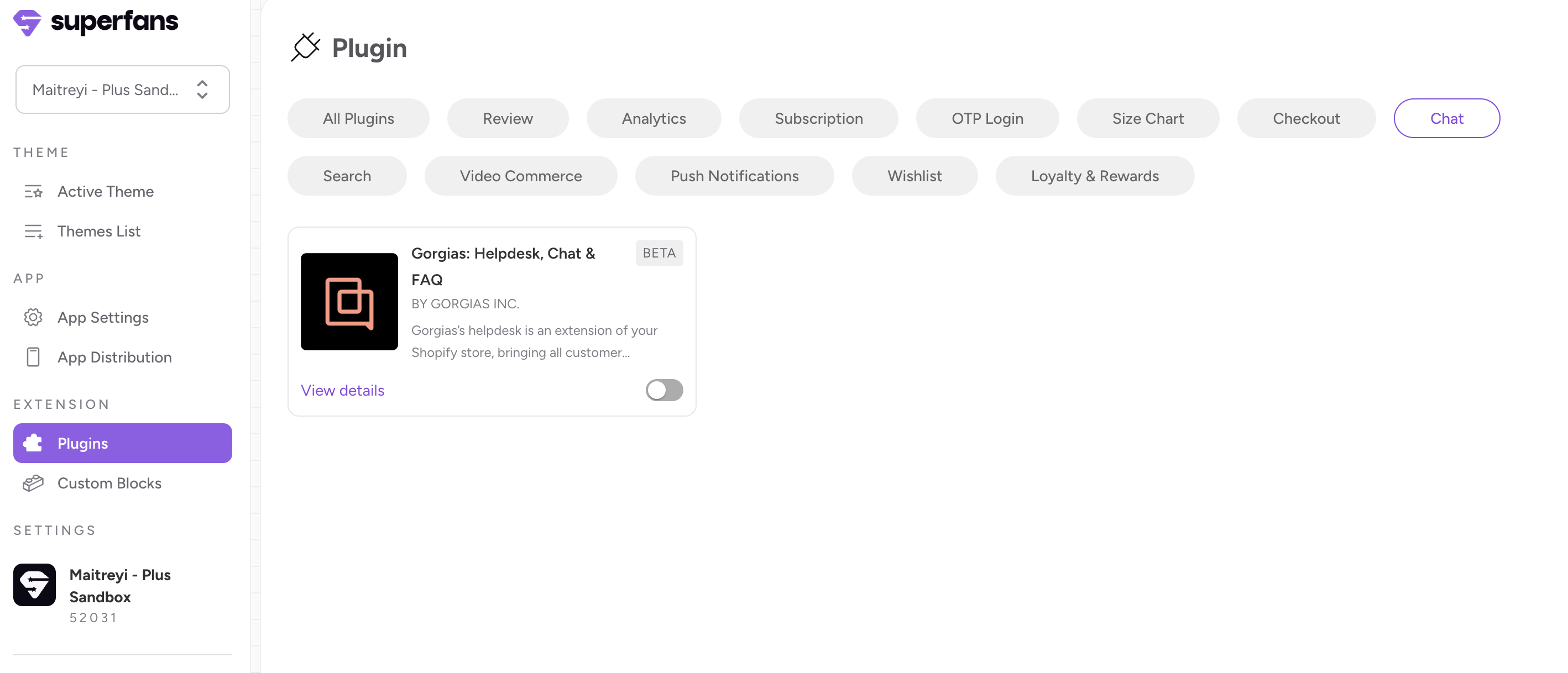
Step 2 : Select the “Loyalty & Rewards” category from top and toggle the Gorgias chat plugin.
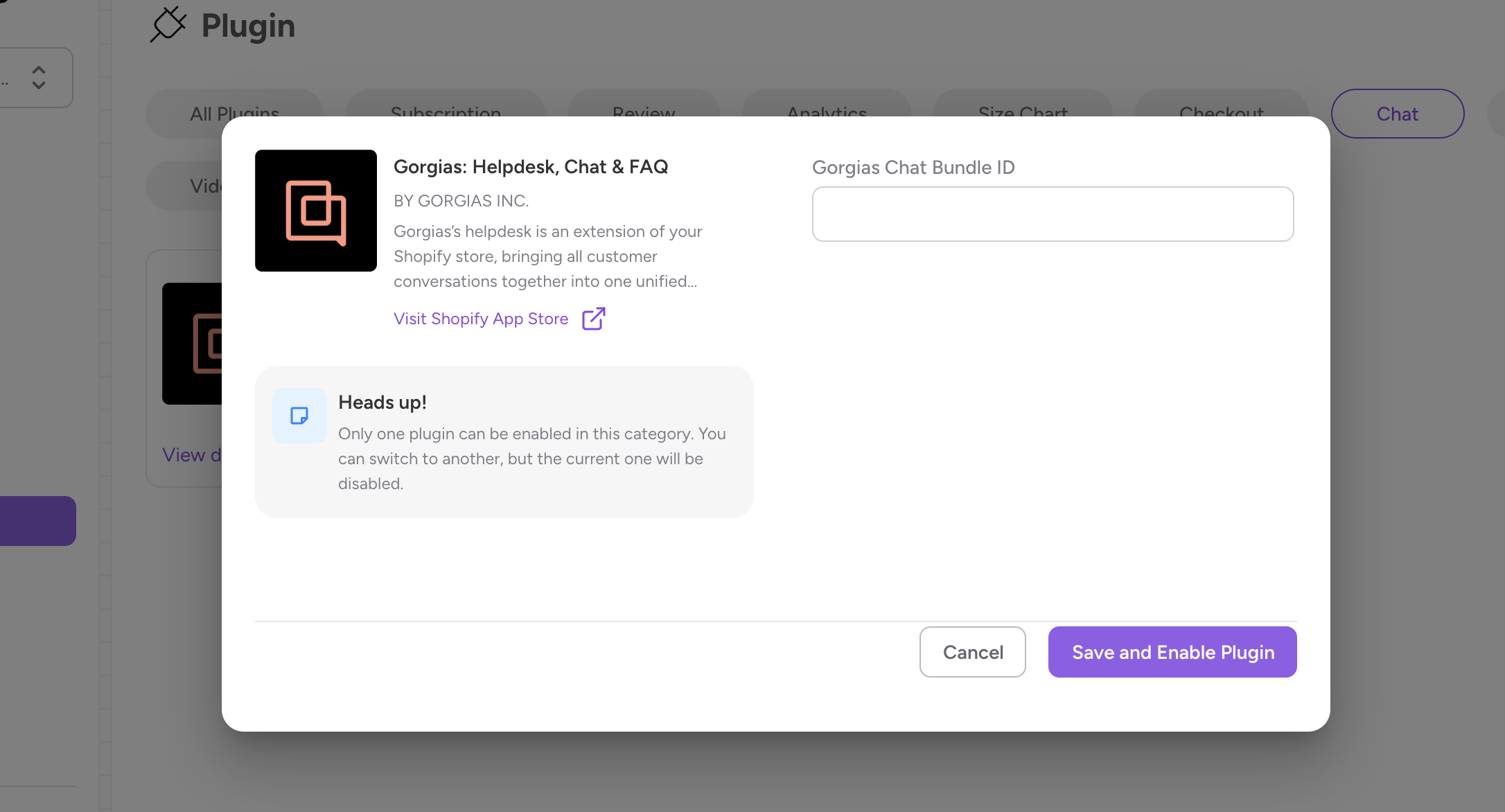
Step 3 : Provide the chat bundle ID and click on Save and Enable Plugin CTA.
Step 1 : Navigate to the Apps section in Shopify and locate Gorgias chat Plugin
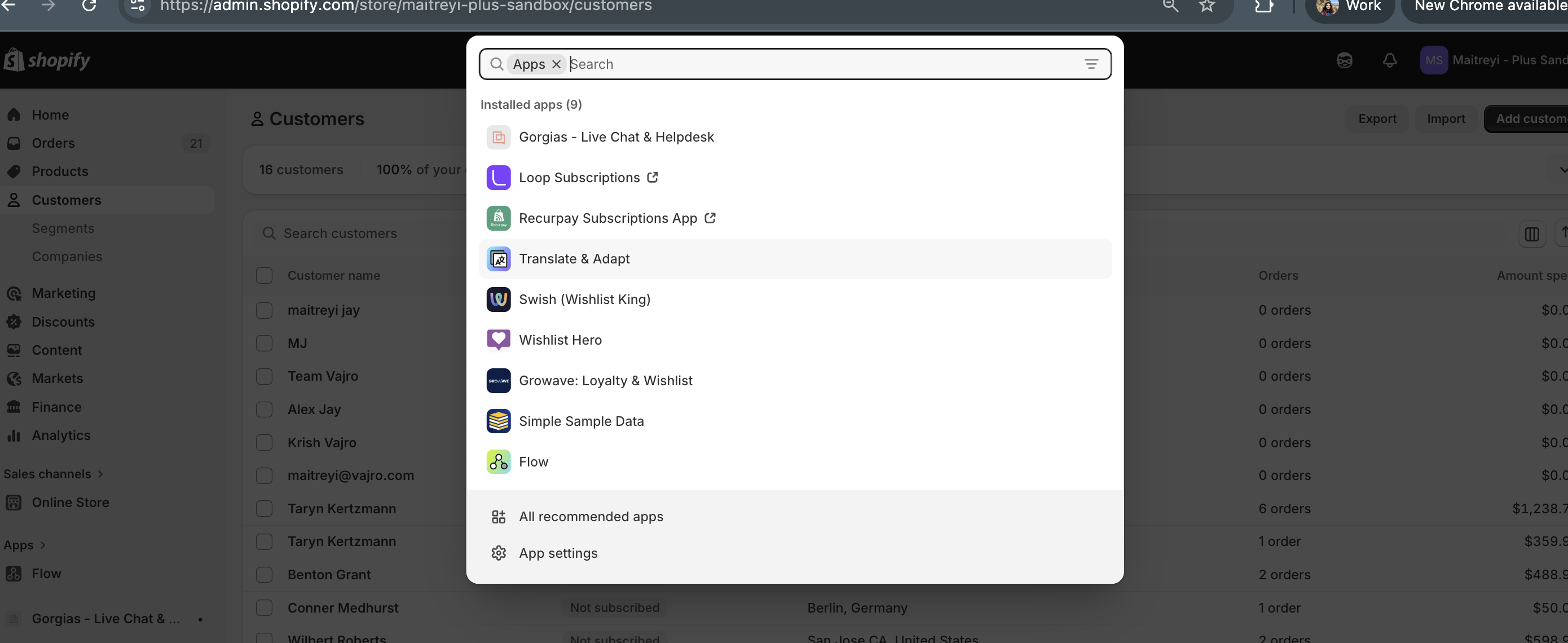
Step 2 : Provide your domain name and navigate to Gorgias helpdesk dashboard.
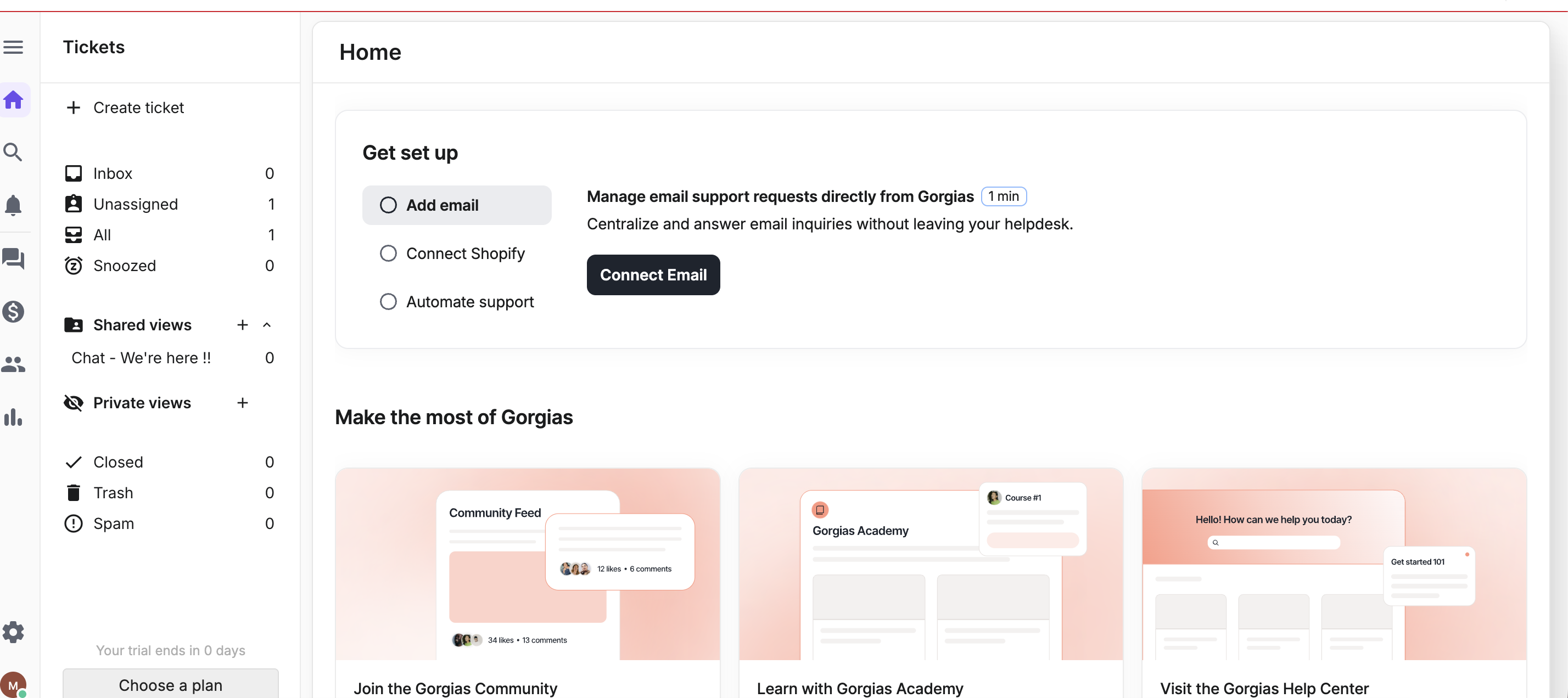
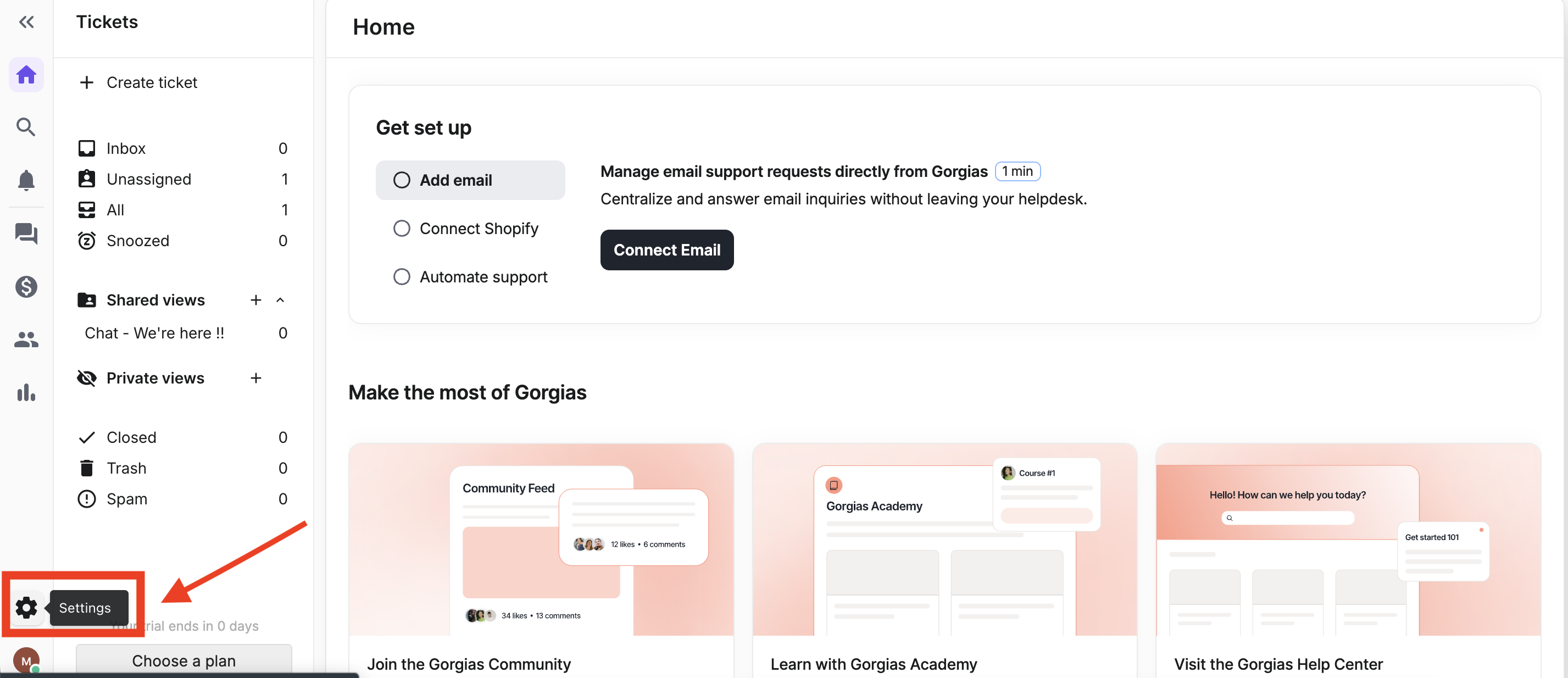
Step 3 : Click on Settings which is at the left bottom of the screen.
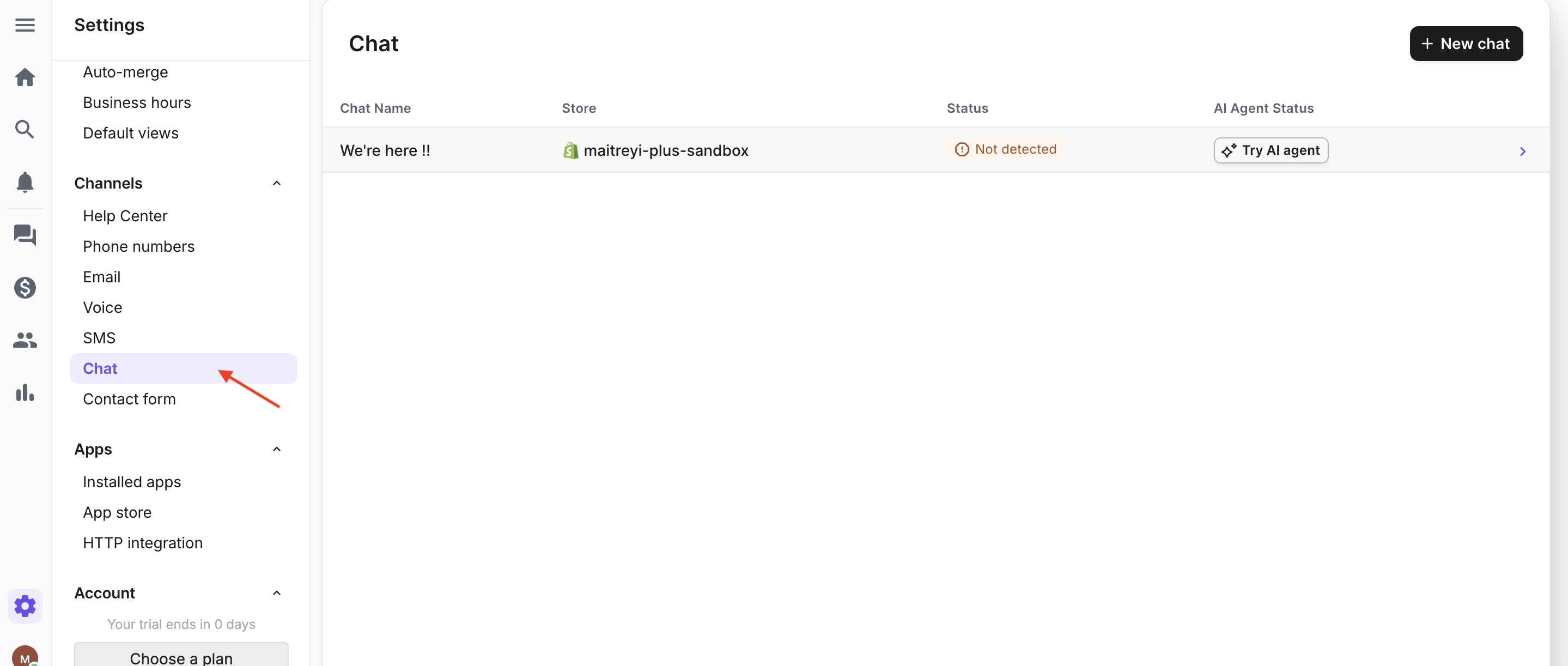
Step 4 : Navigate to the channels and select “chat“ from the list. You’ll find the chat enabled on the website. Click on the chat.
Step 5 : Navigate to the “Installation” tab of the chat.
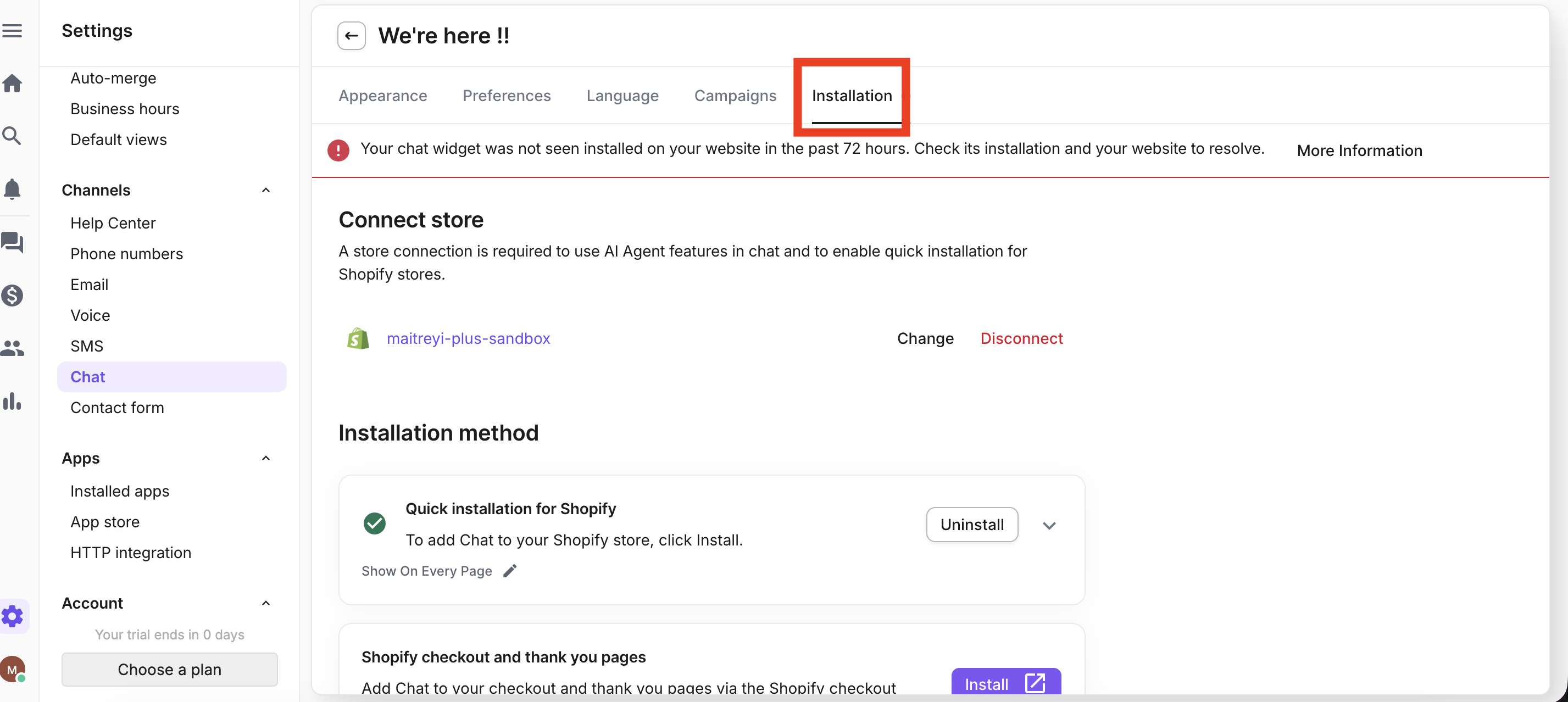
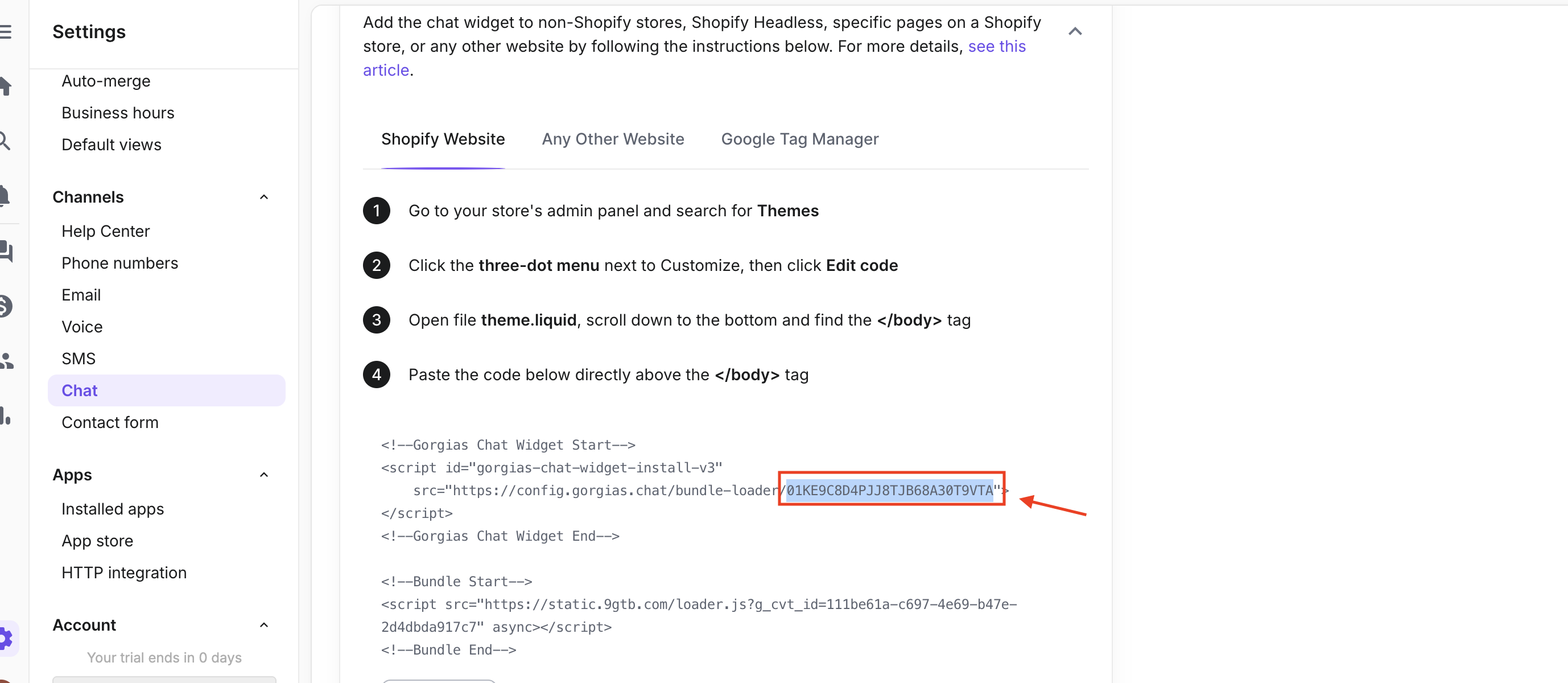
Step 6 : Scroll down and you’ll find the the installtion method as “Shopify Website”. Copy the Bundle ID from the from the code as highlighted below.
To place the block on the Gorgias chat block on "Floating Action Button”, do follow the steps below:
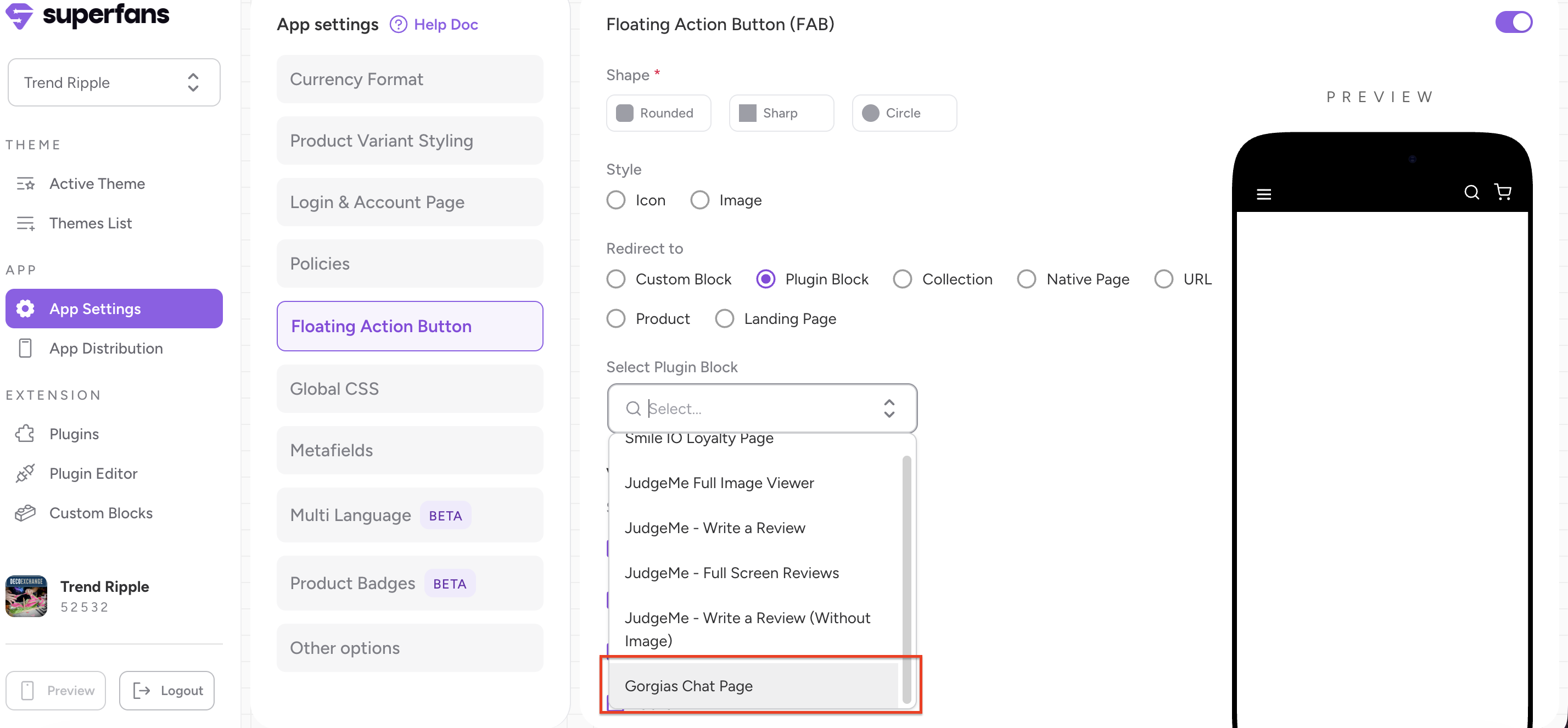
Step 1 : Navigate to the Floating Actions Button from App Settings page on the dashboard.
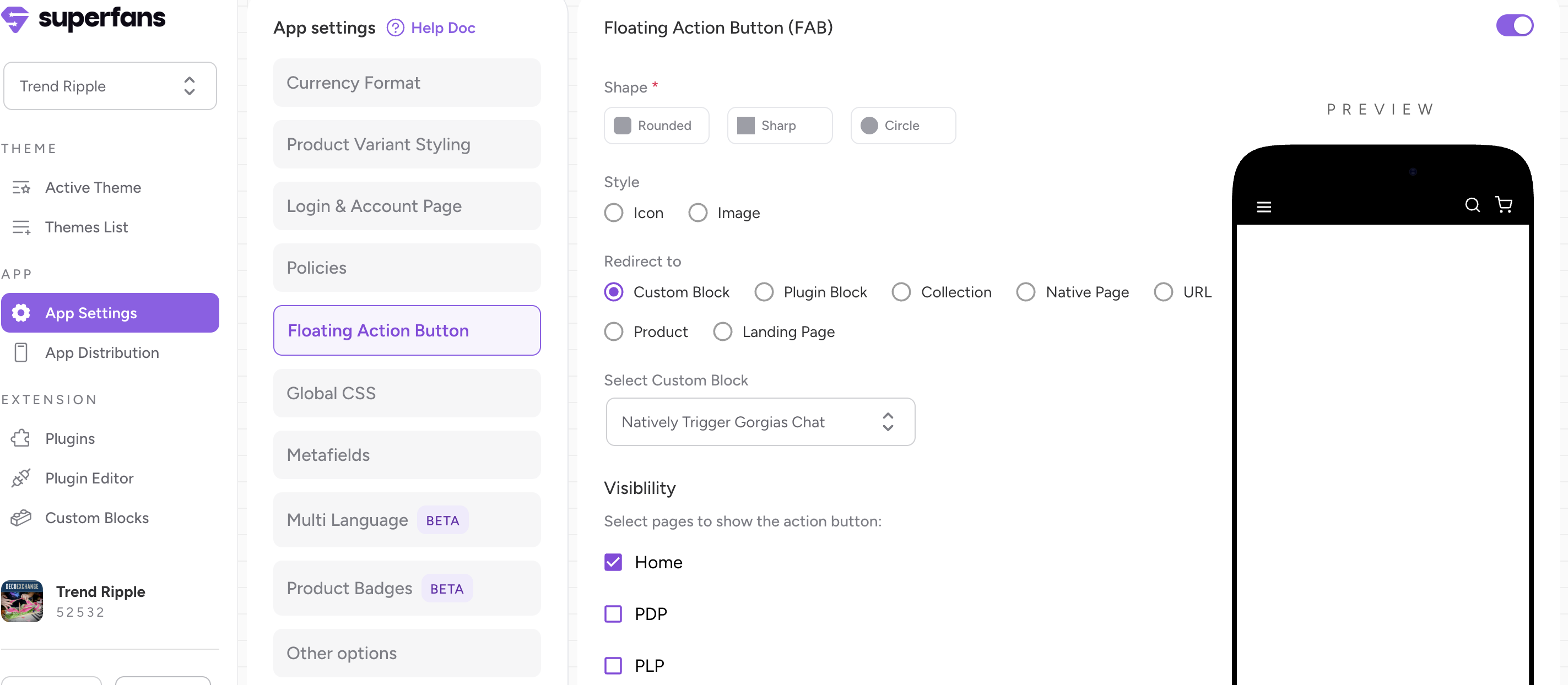
Step 2 : Configure the Shape Style visibility and other properties as required. Select the “Redirect to” property as Plugin block.
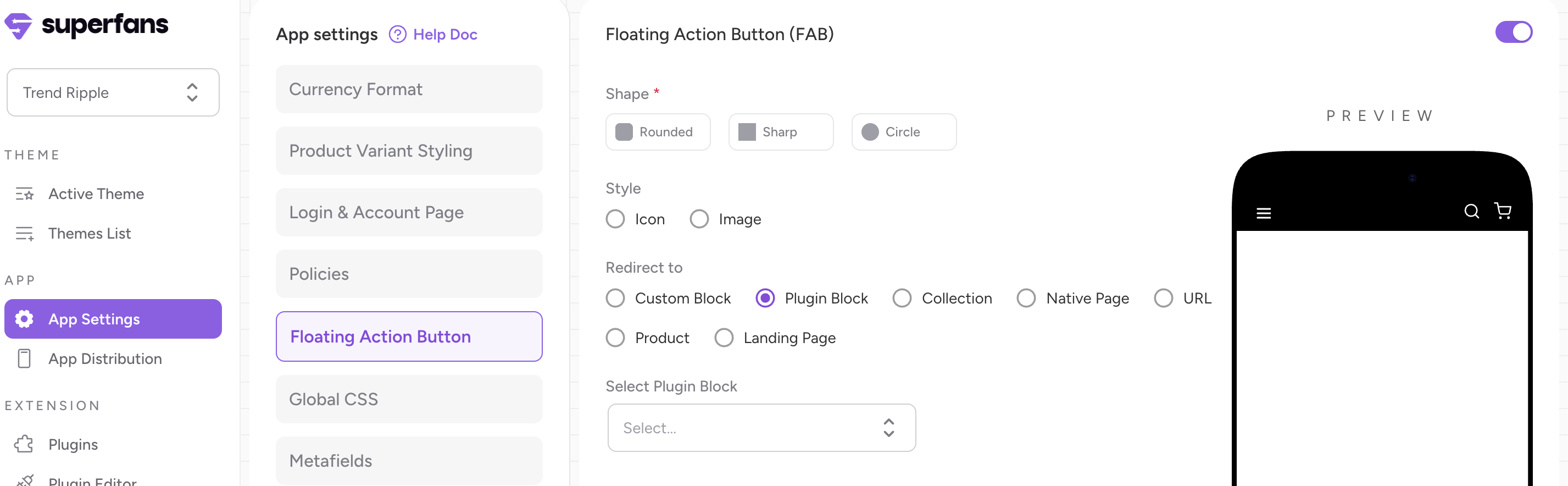
Step 3 : Choose the Gorgias chat from the dropdown and you are good to go.
Once the block is configured to the floating icon of the app, the chat window pops-up in a full screen window when clicked.