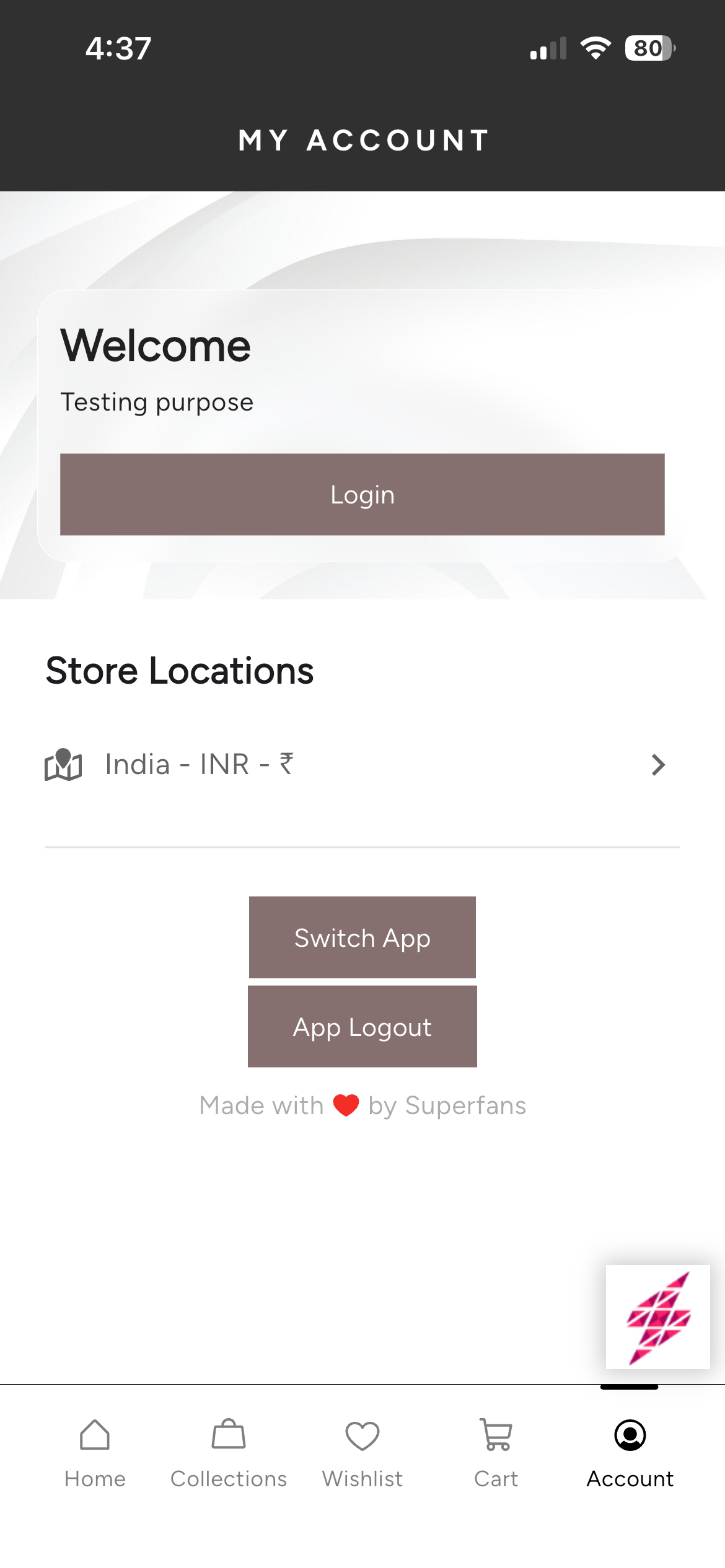
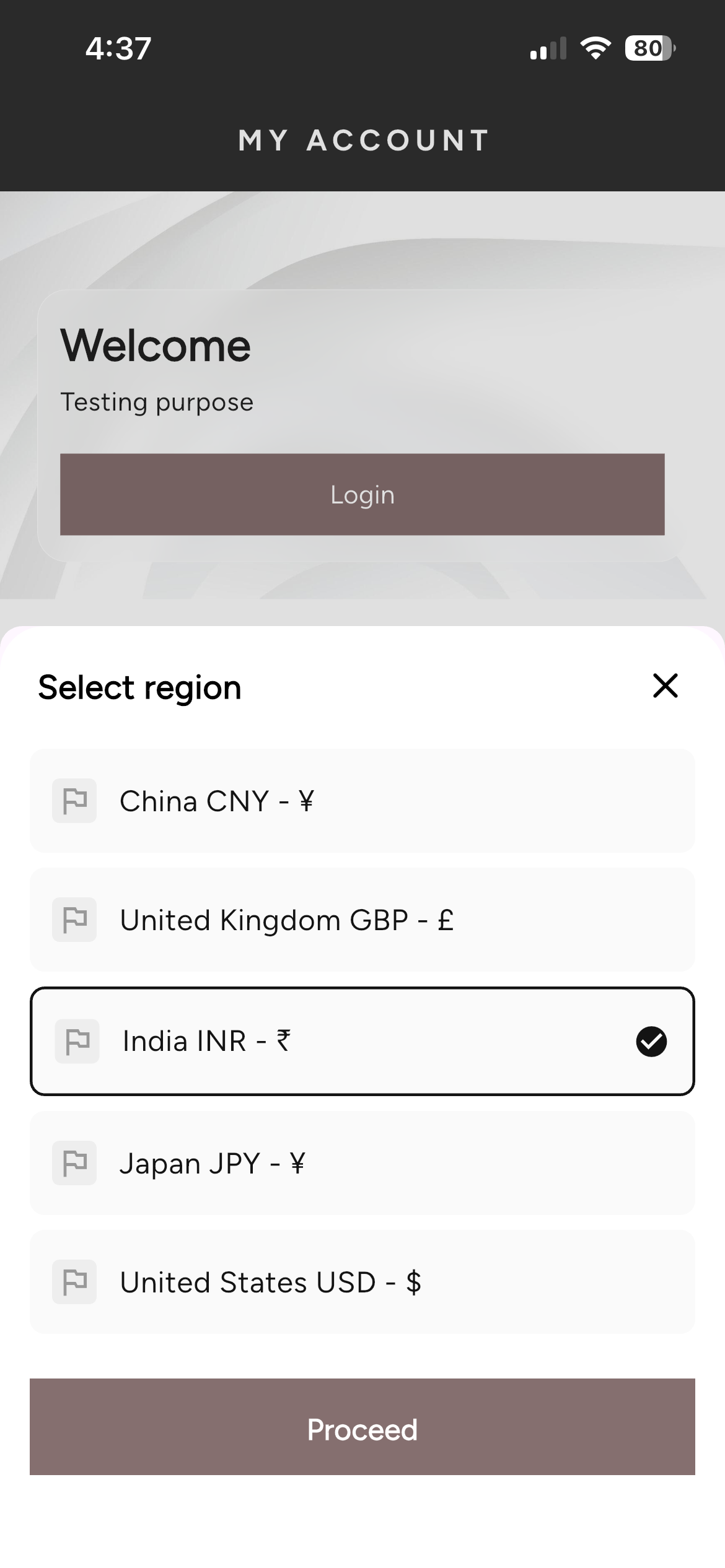
Superfans now supports Multiple Region / Multi currencies on the app. This means your mobile app can automatically display localized pricing, currency and market-specific catalog rules—without requiring any manual setup inside Superfans if Markets is enabled on Shopify store.
Shopify Markets allows merchants to manage international selling from one centralized Shopify admin. With Markets, you can:
Offer multi‑currency support
Localize pricing and rounding
Configure international domains/subfolders
Set product availability per market
Manage duties and import taxes
Superfans mirrors these settings so the mobile experience stays consistent with your online store.
1. Automatic Multi‑Currency Support
Customers see prices in the correct local currency based on their assigned market initisally and can switch to other country manually on app.
2. Consistent Product Availability
Products available/unavailable per market follow the same rules as your Shopify storefront.
3. No Additional Configuration
Superfans automatically reads Market settings—no toggles, no manual setup.
4. Improved Global User Experience
International customers receive localized pricing and catalog visibility inside the app just like on your website.
5. Syncs Instantly
Any change made in Shopify Markets reflects automatically in the app without rebuilds.
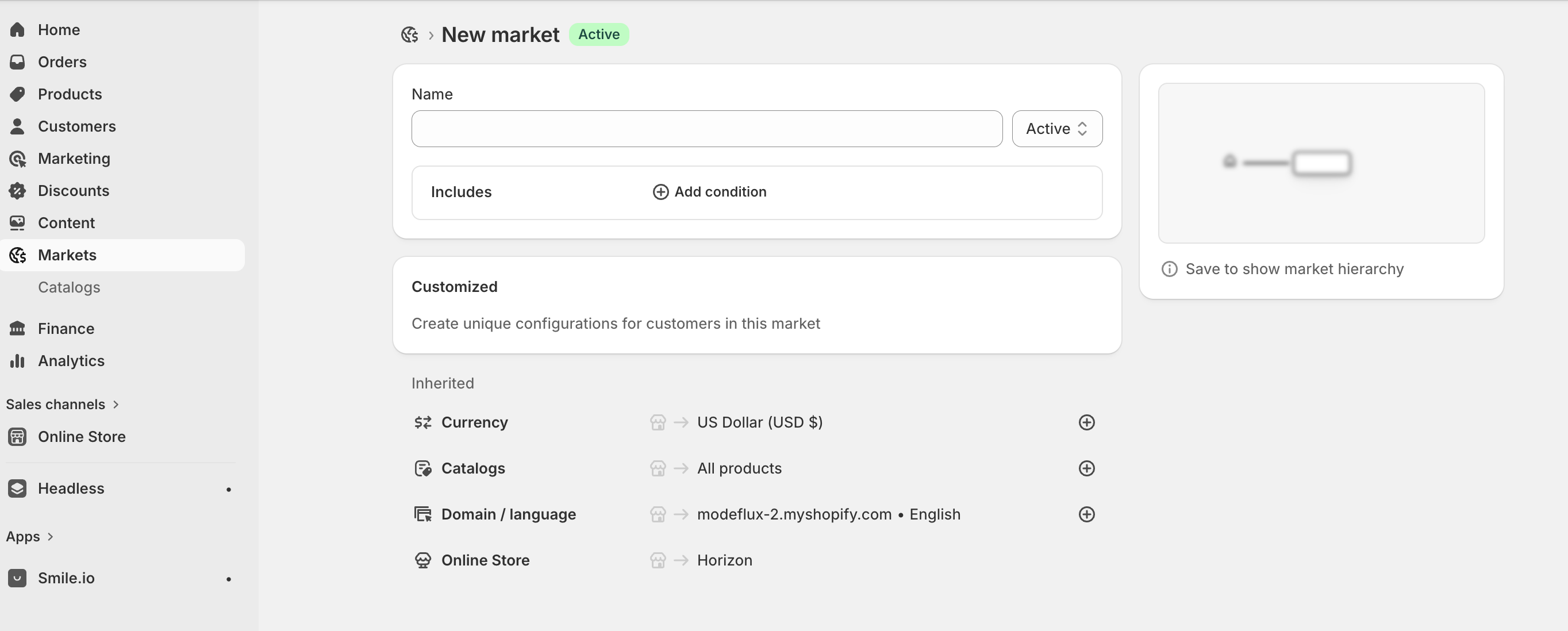
Enabling Shopify Markets in Superfans is simple because the app relies on Shopify’s configuration.
Go to Shopify Admin → Settings → Markets.
Add and configure the markets you want to support.(Countries)
Set:
Local currencies
Price adjustments
Product availability per market
Domains or subfolders
Once Market is enabled and has multiple regions configured, we should be able to configure this to Accounts page.
Configuring Multi-Region on Accounts Page:
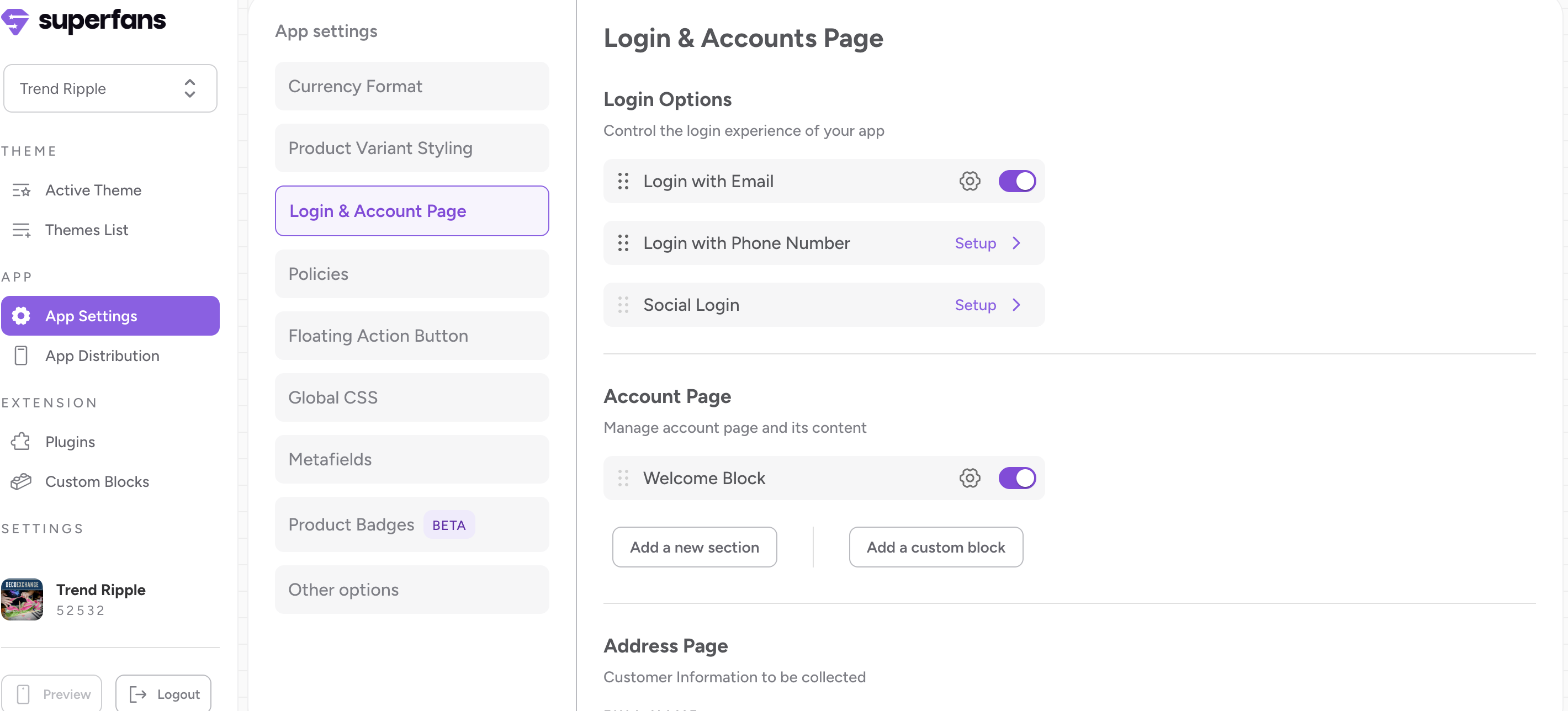
Step 1: Navigate to Login and Account Page on Superfans dashboard by navigating to App Settings menu from the side bar.
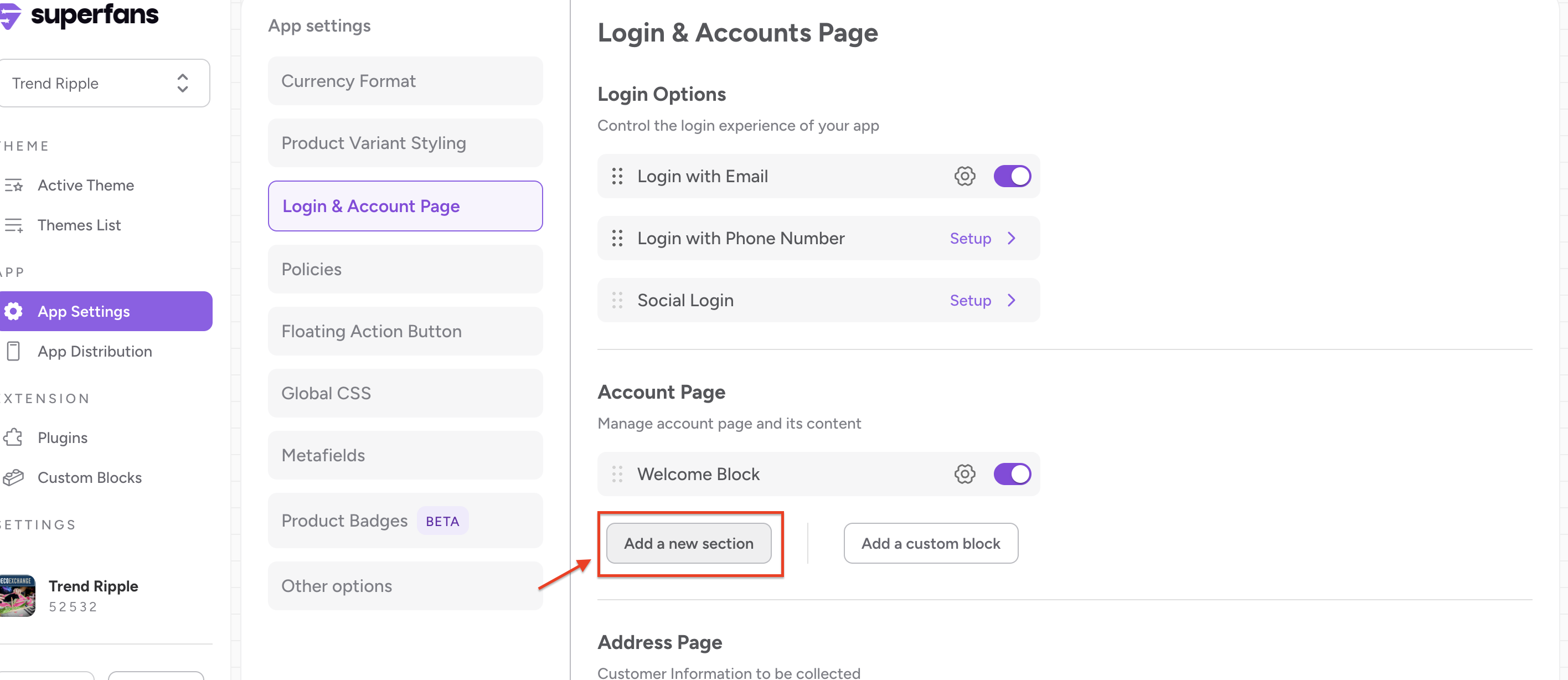
Step 2: Click on “Add New Section” CTA to create a new section for Store Switcher.
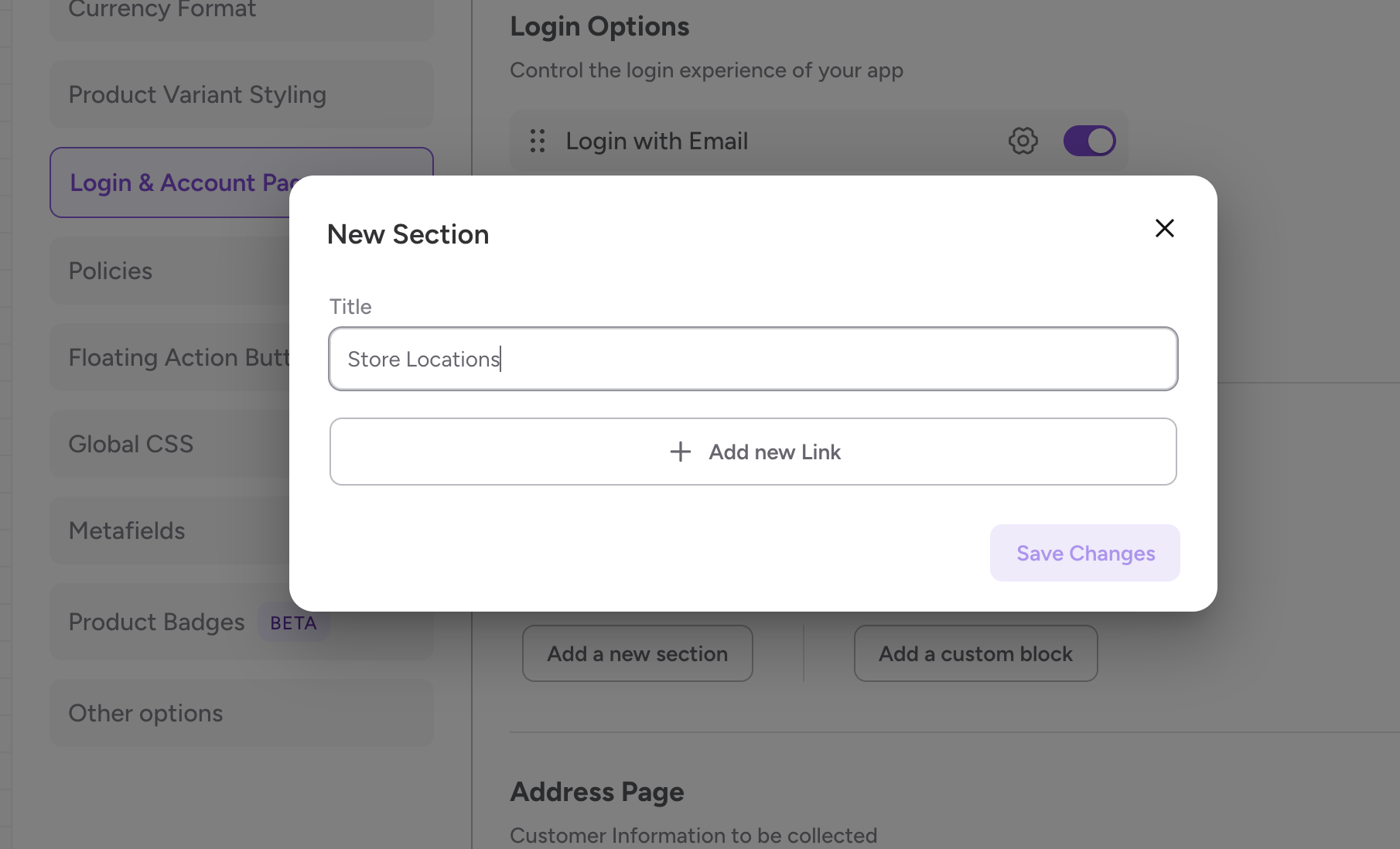
Step 3 : Provide the Title for the menu item and click on Add Link CTA.
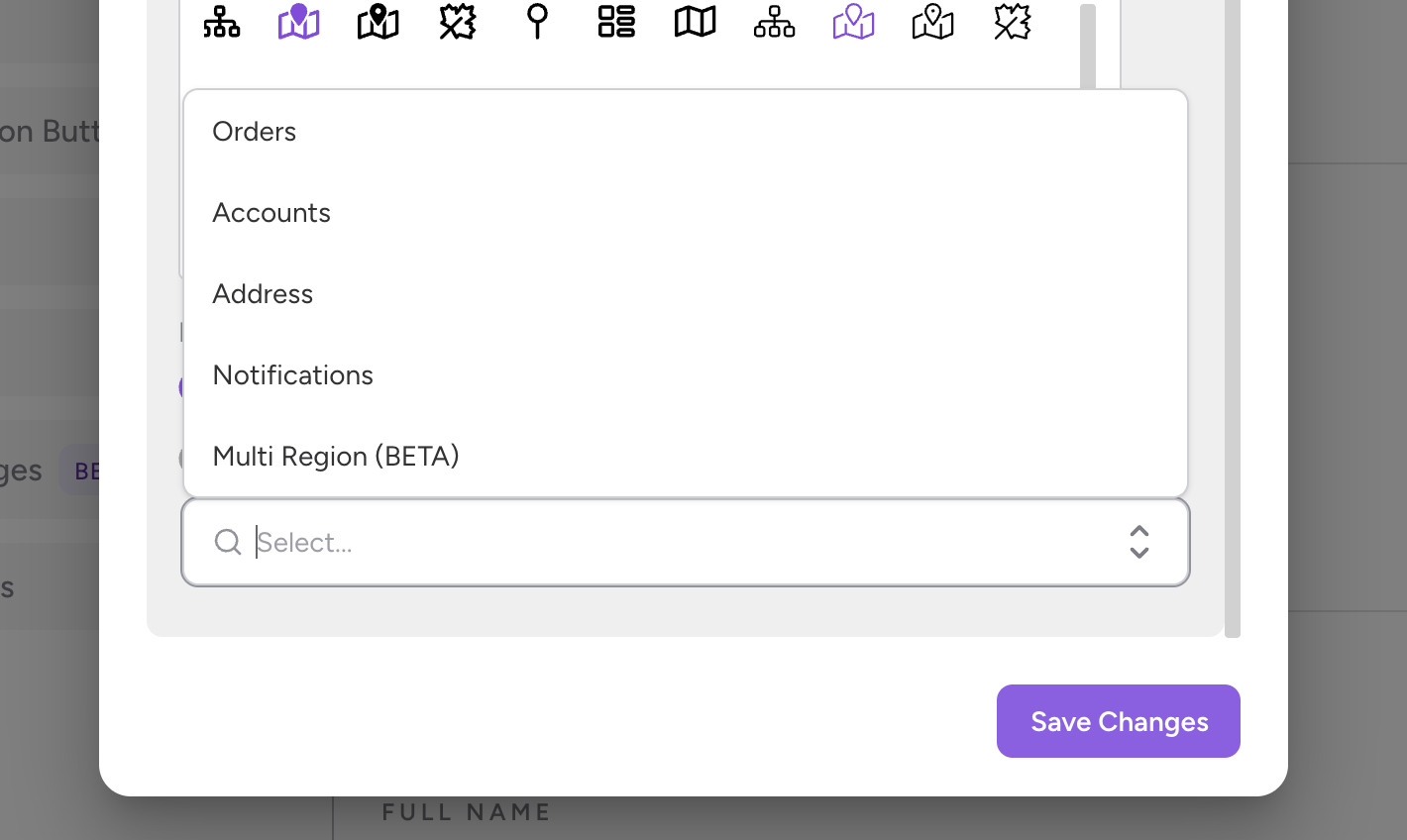
Step 4: Provide the name, select suitable icon, set the “Redirect to” property as System Defined.
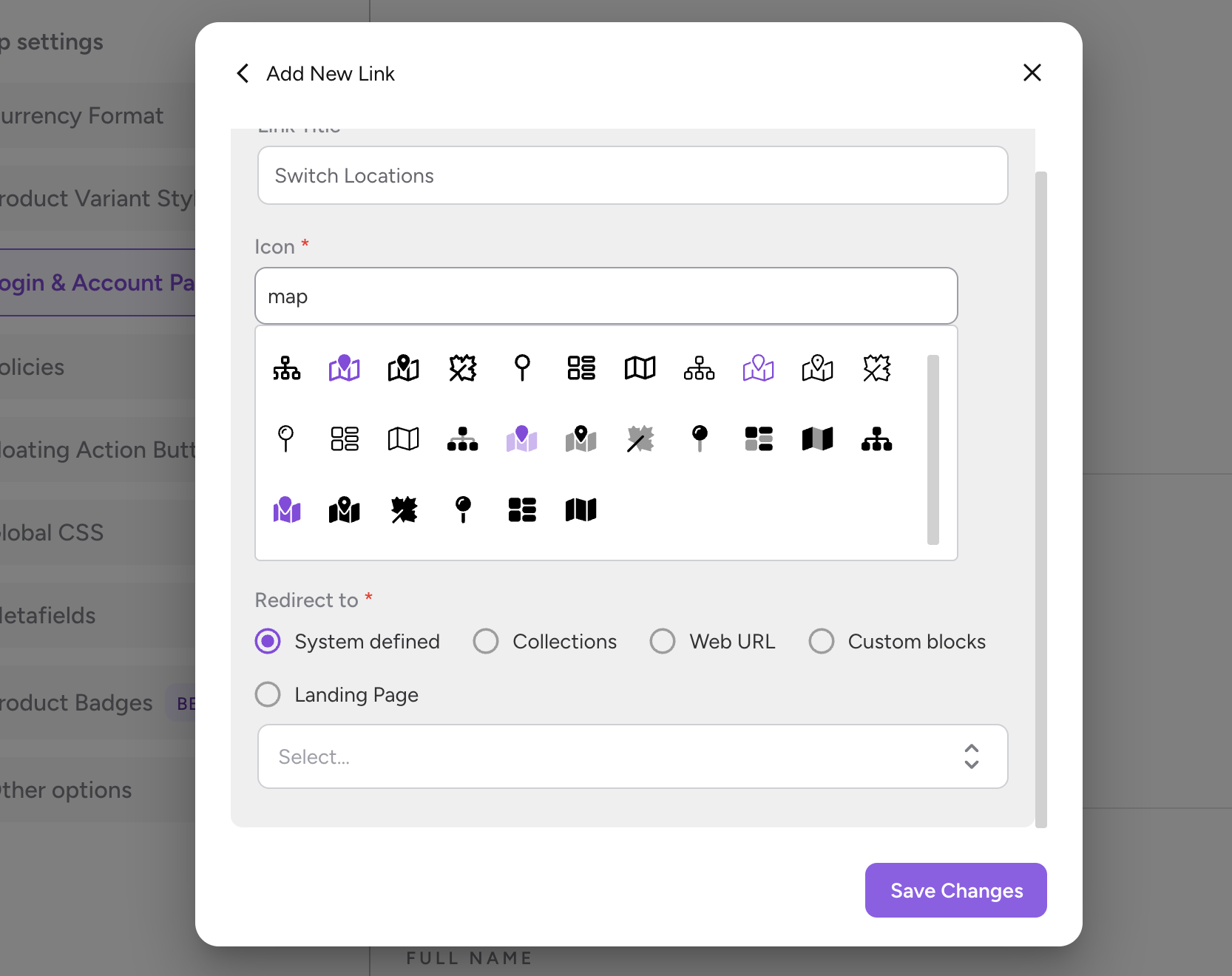
Step 5: Select the Multi-Region menu item from the dropdown.