The Meta Analytics (formerly Facebook Ads SDK) helps Shopify brands track customer behavior inside their mobile apps — such as product views, add-to-cart actions, purchases, and more.
By enabling this plugin in Superfans, your Meta Ads Manager gets accurate, real-time app event data, leading to better retargeting, optimized campaigns, and improved ROAS.
This guide walks you through:
What the Meta Ads SDK does
Why it matters for your app
How Superfans integrates with it
How to enable the plugin in your Superfans dashboard
The Meta Ads SDK is a tool provided by Meta to help businesses:
Track user actions inside mobile apps
Send those actions (events) to Meta Ads Manager
Optimize ad delivery using real customer behavior
Build stronger retargeting audiences
Improve campaign measurement & attribution
It’s commonly used by Shopify brands running:
App install campaigns
Retargeting ads
Advantage+ shopping campaigns
Dynamic ads for broad audiences
✔ Improve acquisition
Better optimization signals → cheaper install and purchase costs.
✔ Run more accurate retargeting
Create audiences based on actual in-app behavior.
✔ Measure app performance
See how your app contributes to paid conversions.
✔ Maintain data consistency
Your website and app events can work together for better attribution.
Superfans provides a plug-and-play integration that:
Automatically embeds the Meta Ads SDK inside your mobile app
Handles event tracking in the background
Does not require any custom code or developer intervention
Can be enabled in minutes from Superfans dashboard
Once active, Superfans securely tracks and sends data on your behalf.
Prerequisites needed for enabling the plugin:
A Meta Business Manager account
A Meta Pixel / Events Manager setup
Your Meta App ID
Your Client Token
To enable plugin on Superfans dashboard, there are 2 major steps.
Create an app on Meta to share the App ID and App Secret
Enable the Meta Analytics on Superfans dashboard
Steps to create an APP and get the APP ID & Client Token from Meta Dashboard
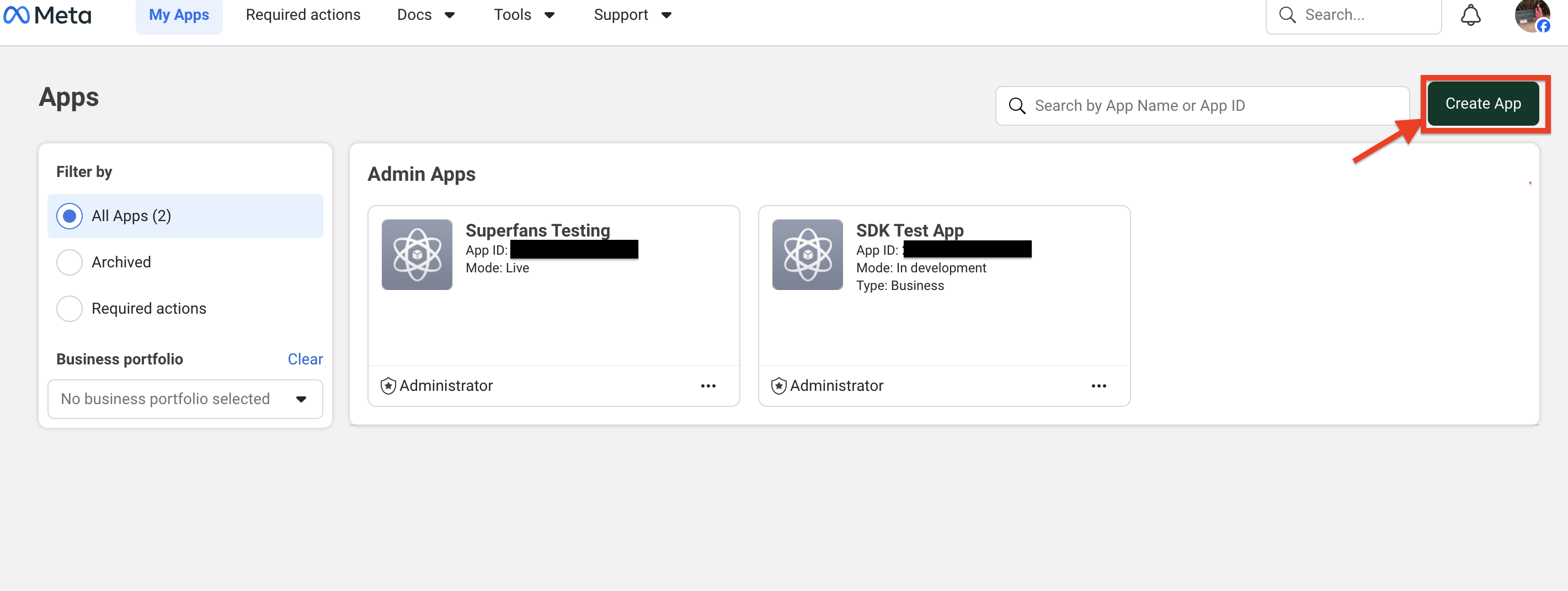
Step 1 : Go to the link and click on Create App CTA. (top right).
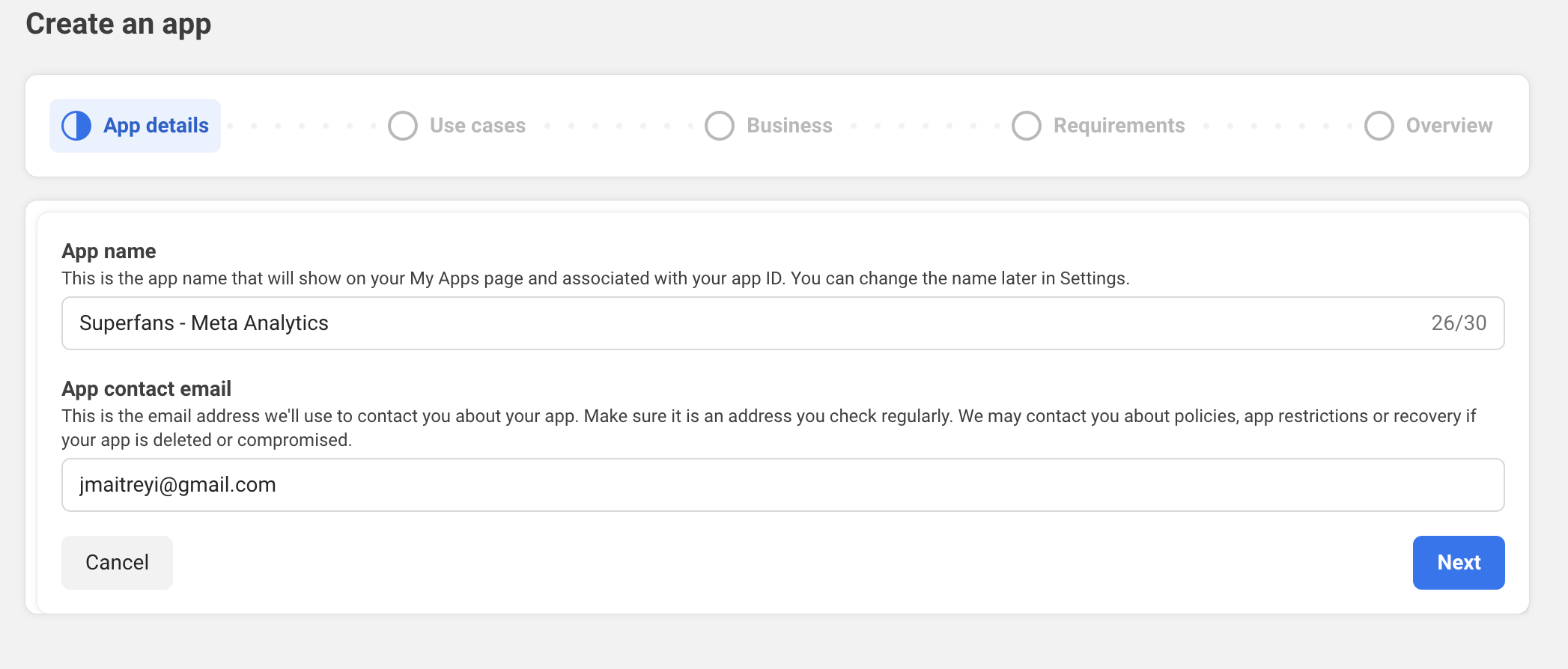
Step 2 : Provide the App name, email ID and click on Next.
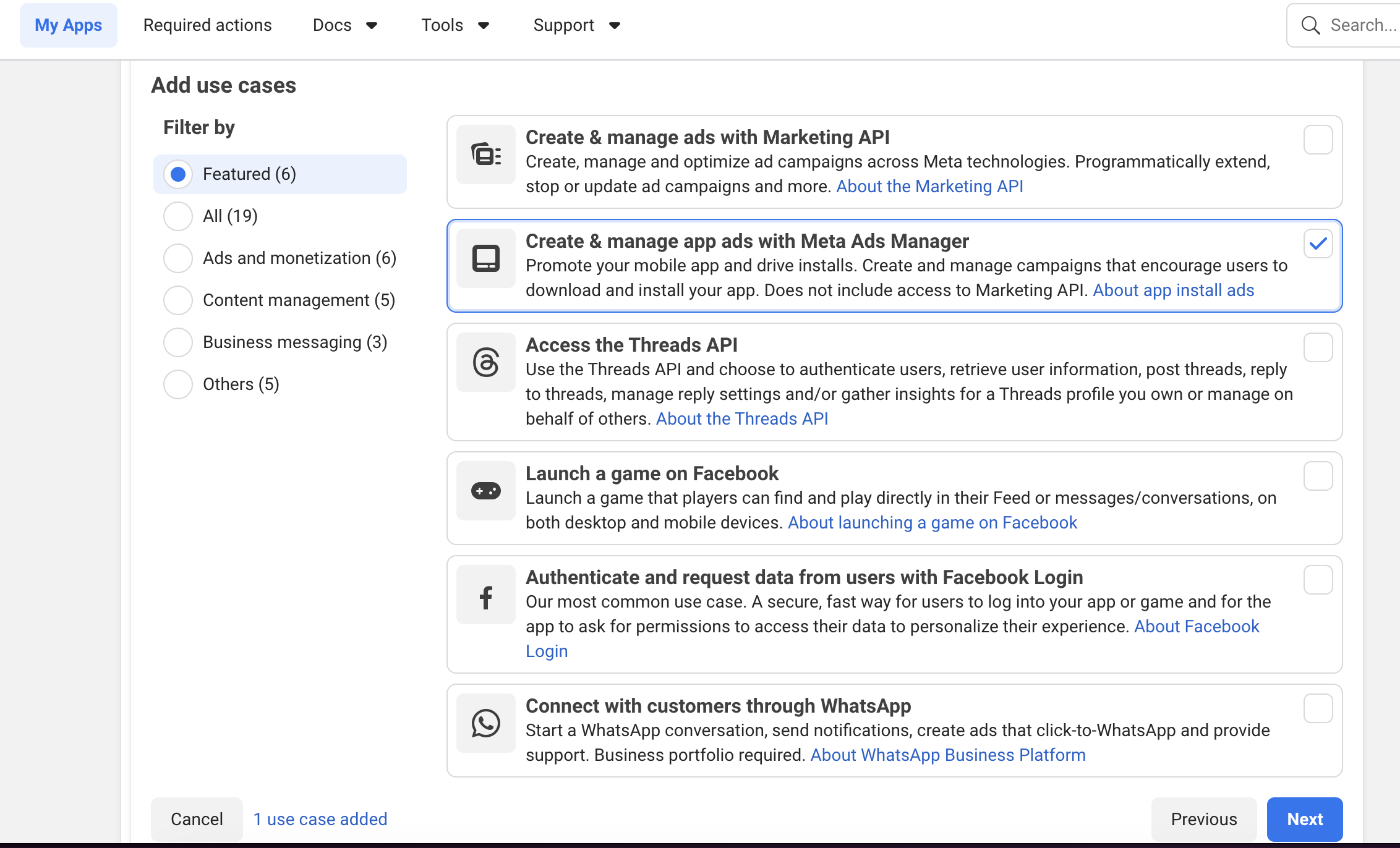
Step 3 : Select the use case “Create & manage app ads with Meta Ads Manager” and click on Next.
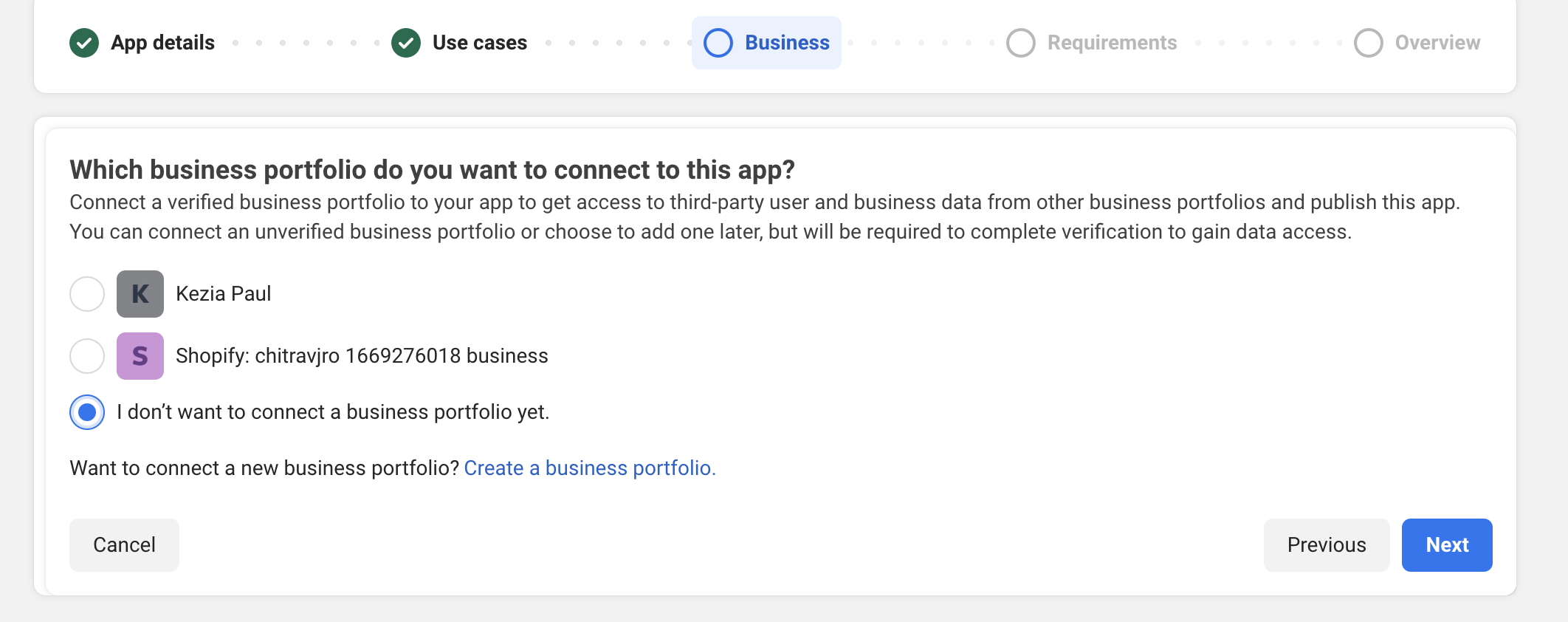
Step 4 : If needed, connect any business portfolio, if not, select “I don't want to connect business portfolio yet” and click on Next.
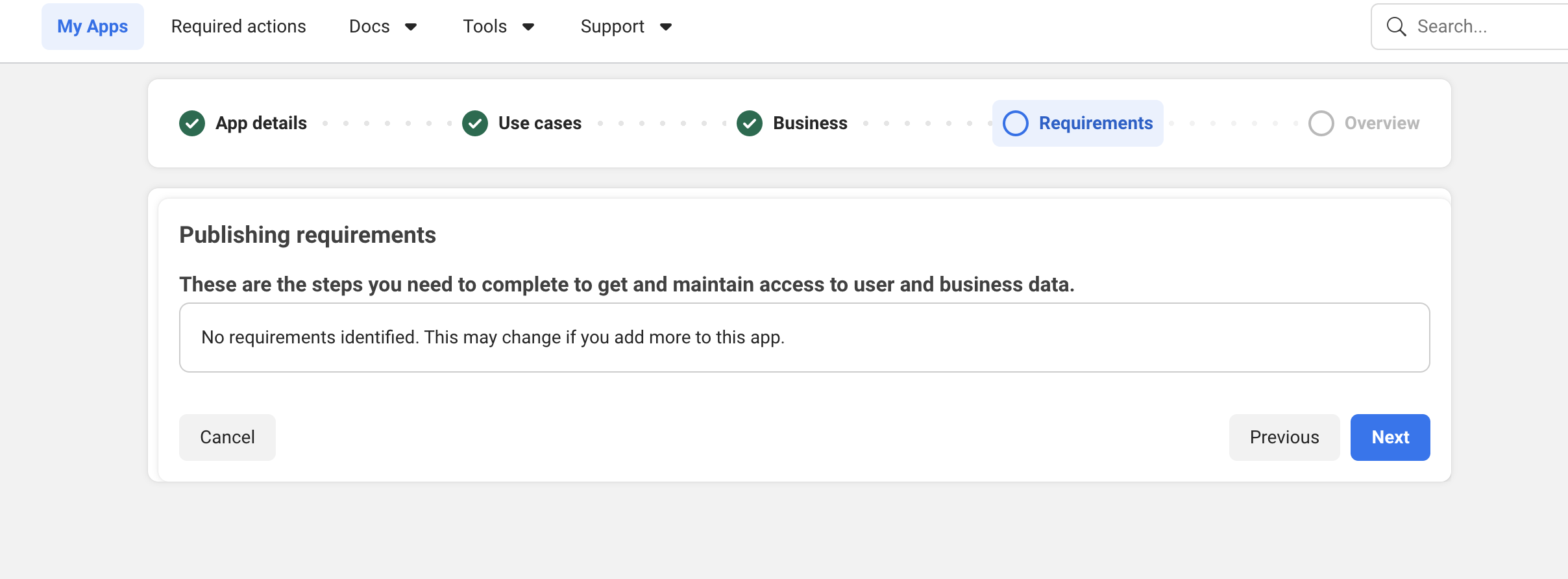
Step 5 : Click on Next since there’ll not be any publishing requirements.
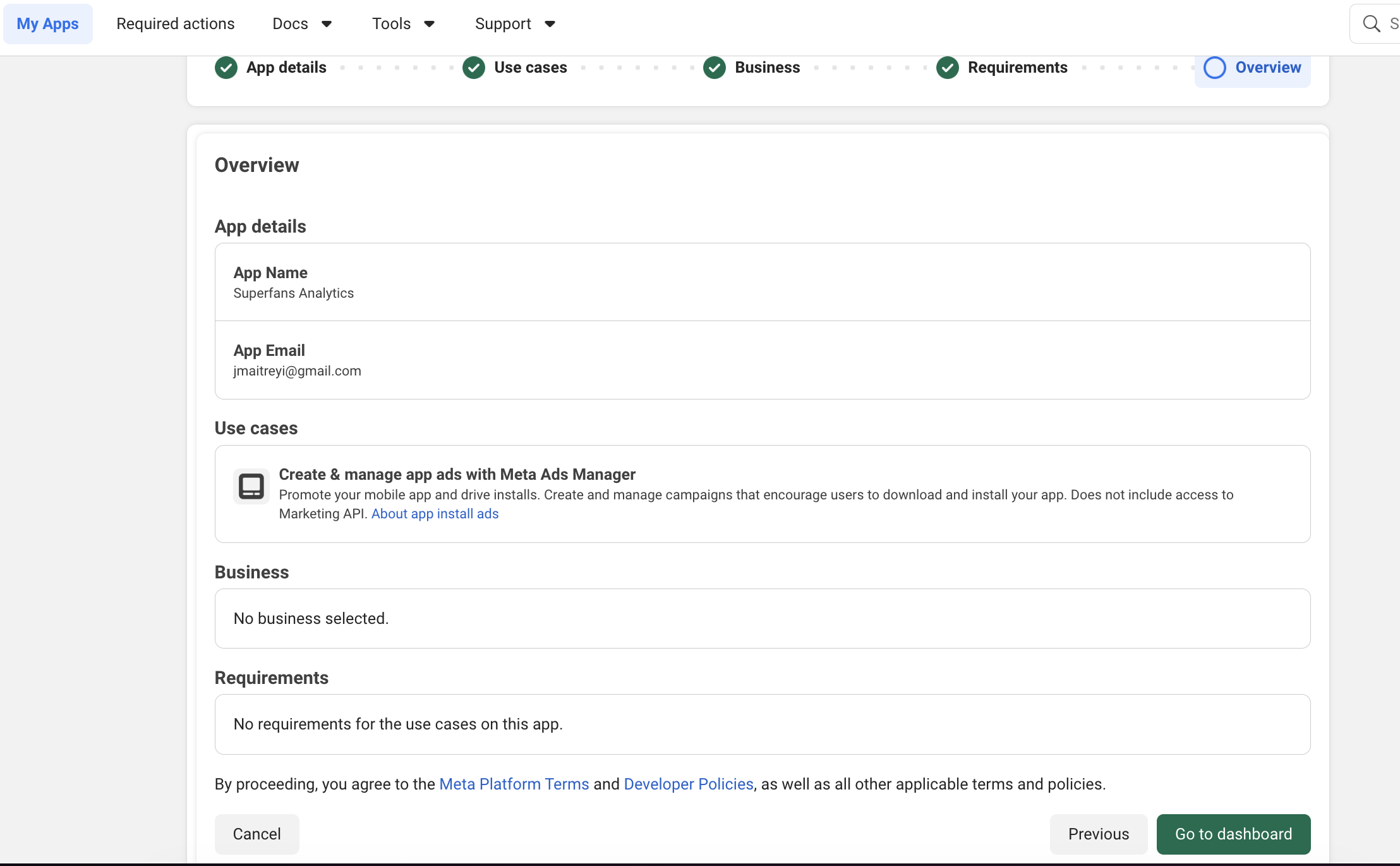
Step 6 : You’ll land on Overview Dashboard. Click on Go to Dashboard at the end.
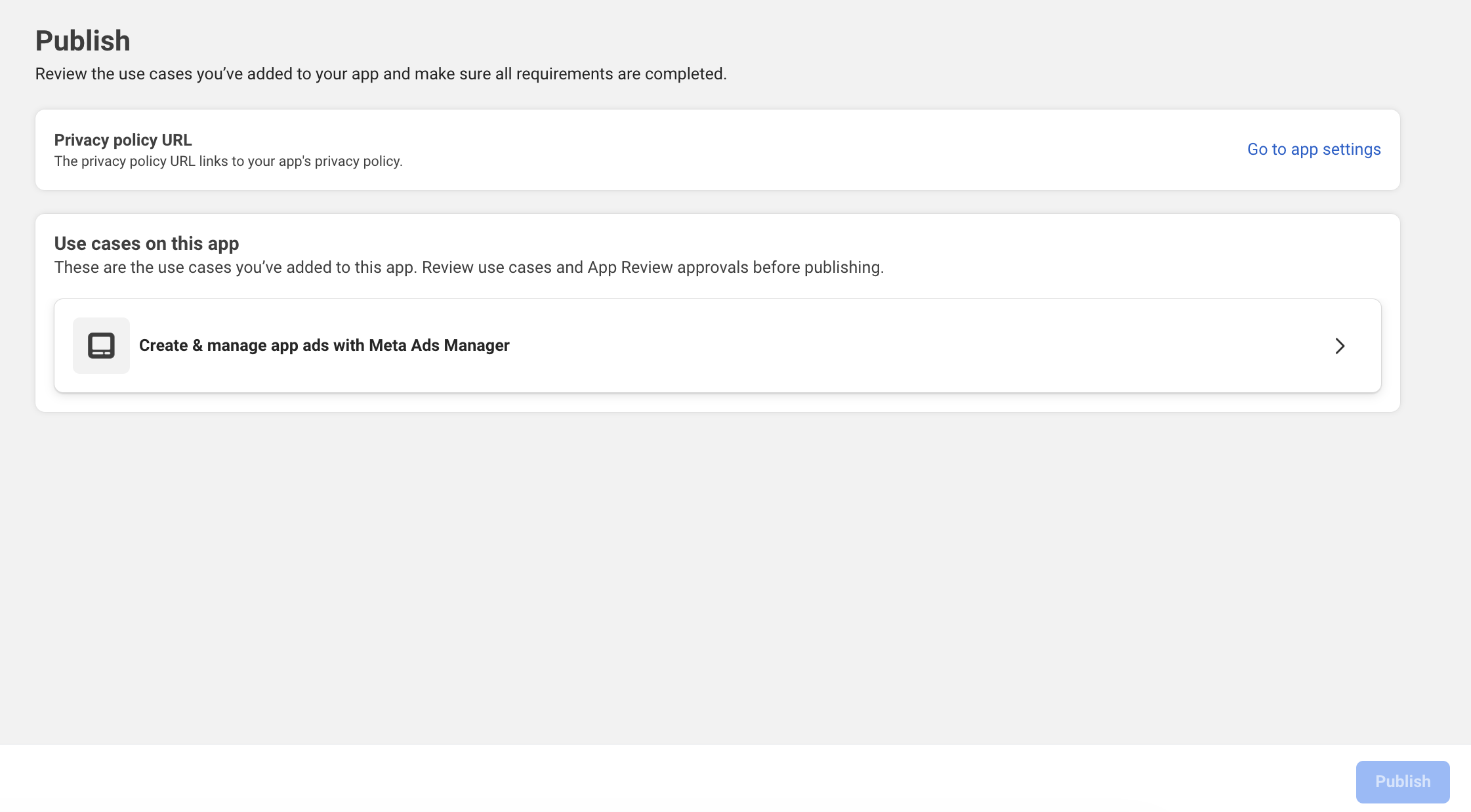
Step 7 : Click on Publish menu and you would need to provide the privacy URL for publishing. Click on “Go to App Settings”.
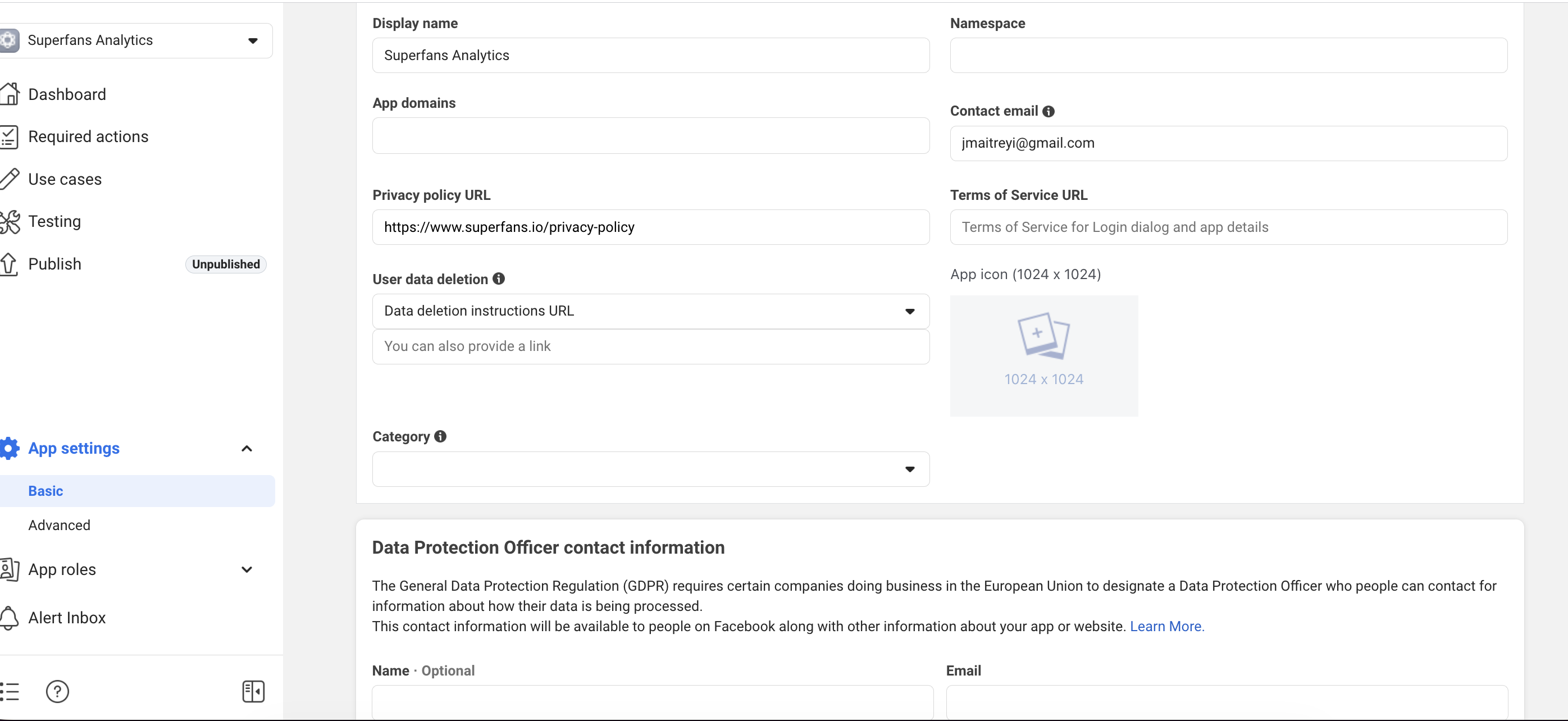
Step 8 : Provide the Privacy URL and click on Save Changes.
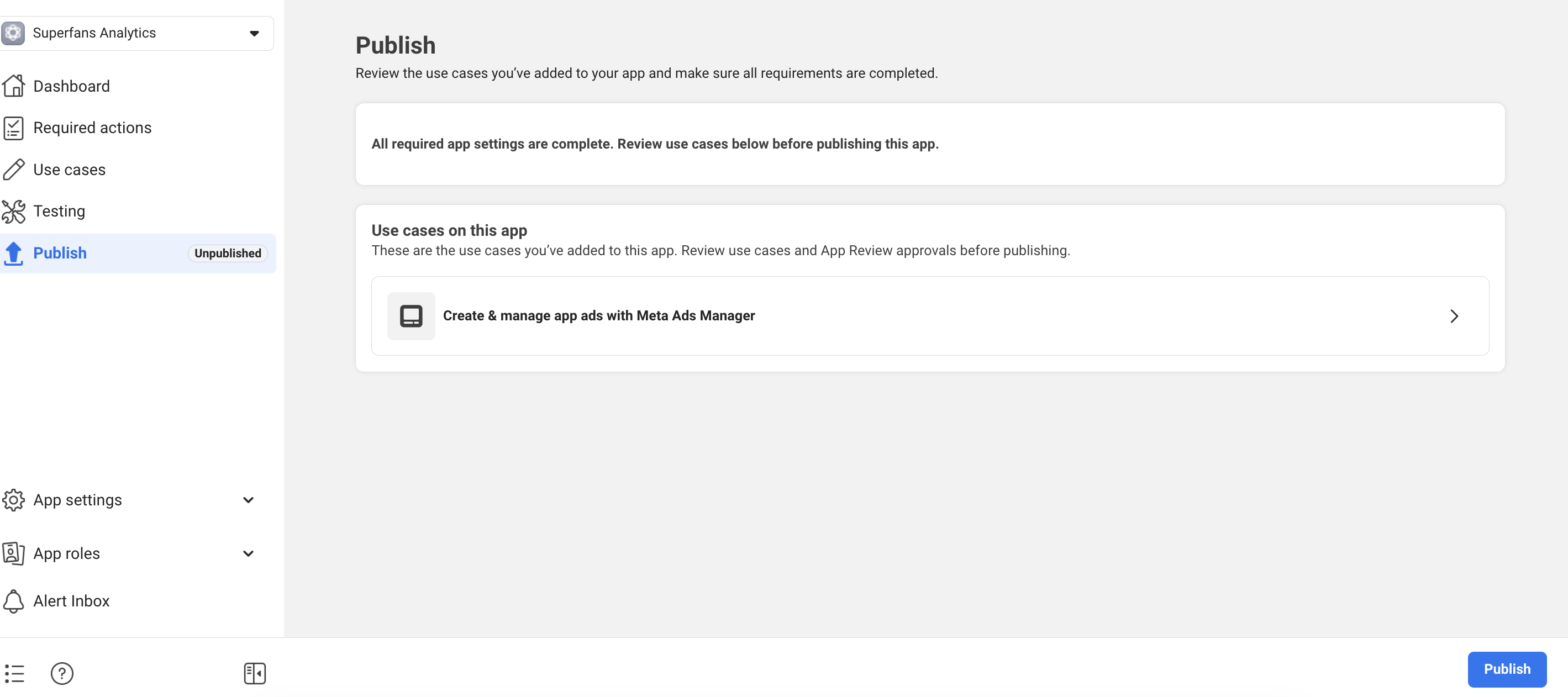
Step 9 : Click on Publish menu and publish the app by clicking the Publish CTA. (Your app will be published).
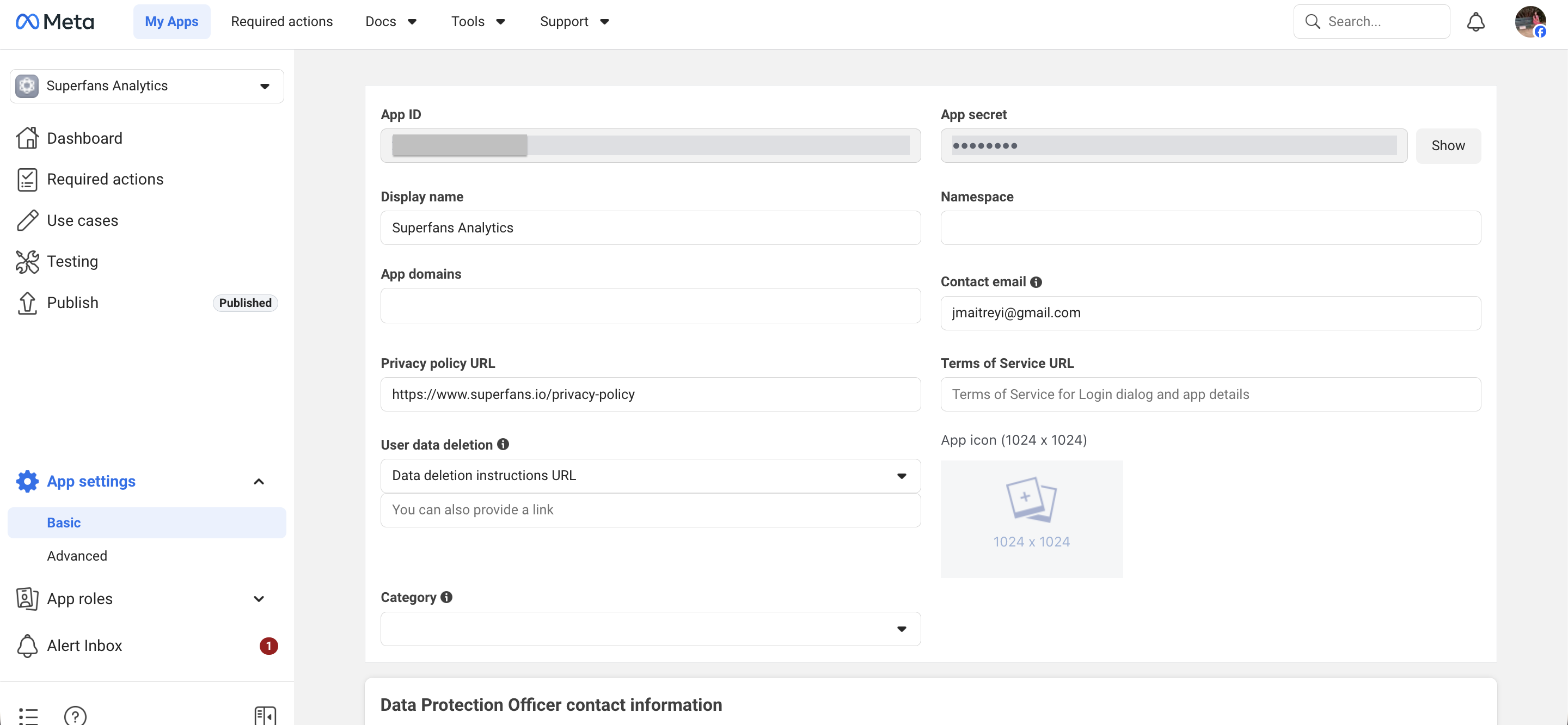
Step 10 : From the side menu, click on “App settings” → “Basic”. You’ll find the App ID. Copy the value to get it enabled in Superfans.
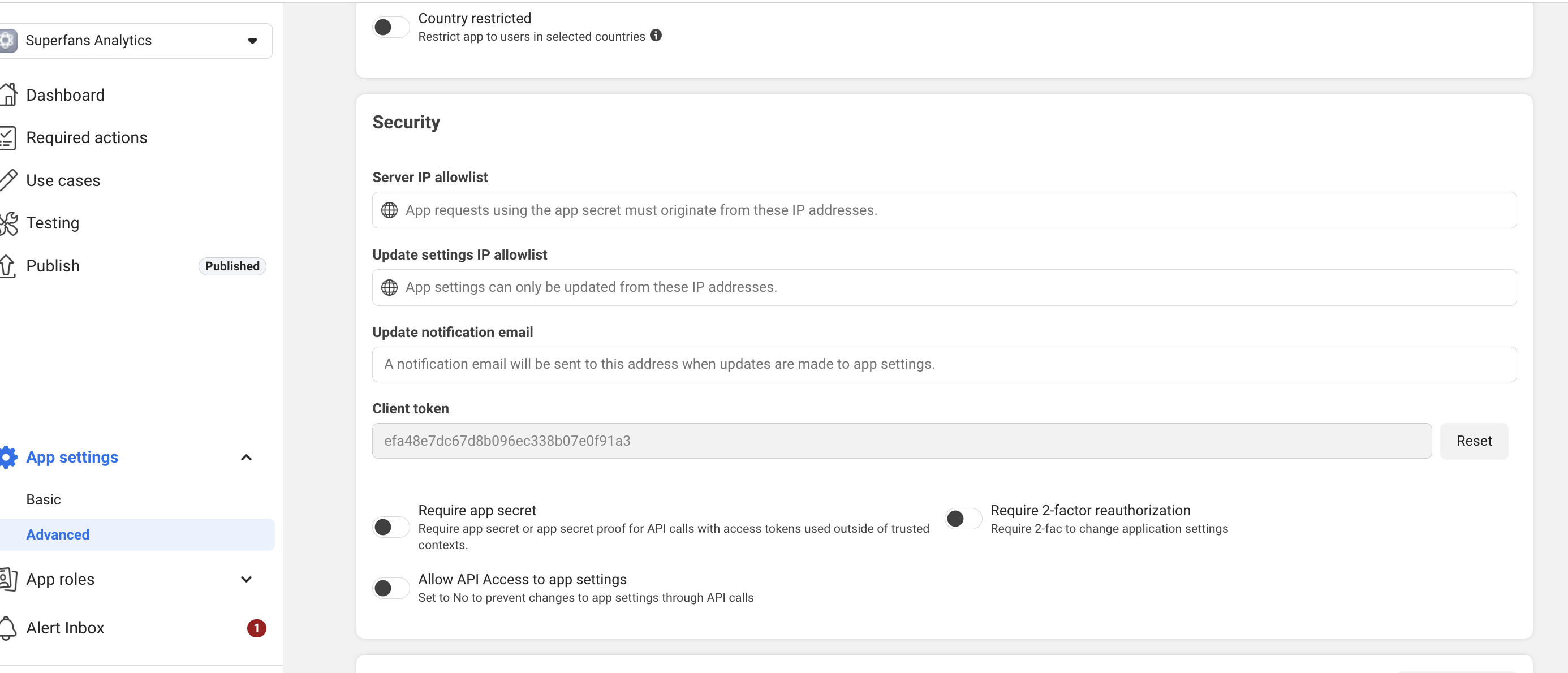
Step 11 : From the side menu, click on “App settings” → “Advanced”. Scroll to Security Section and you’ll find the Client Token. Copy the value to get it enabled in Superfans.
Steps to enable Meta analytics on Superfans
Step 1 : Go to the Plugins section form side menu of the Superfans dashboard
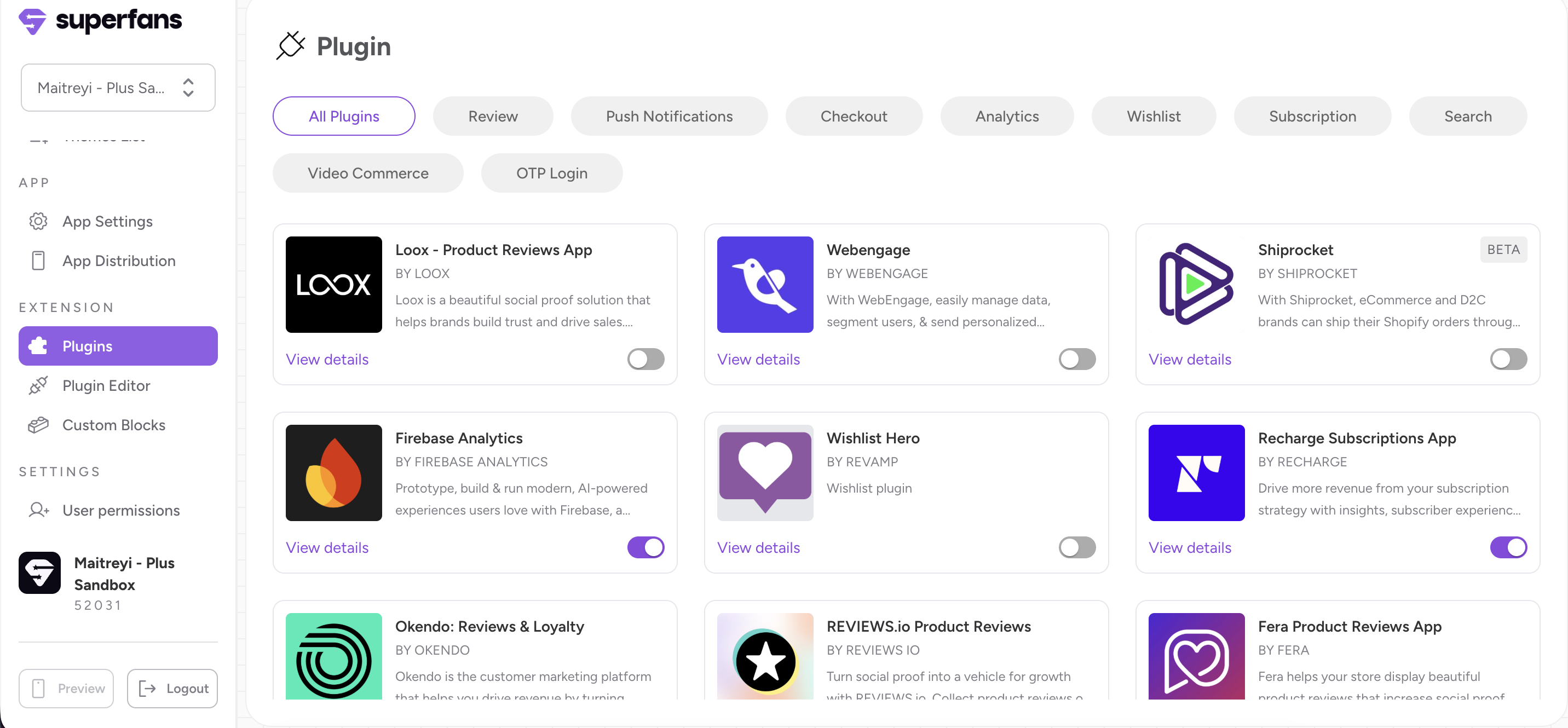
Step 2 : Select Analytics from the top pill shaped categories menu.
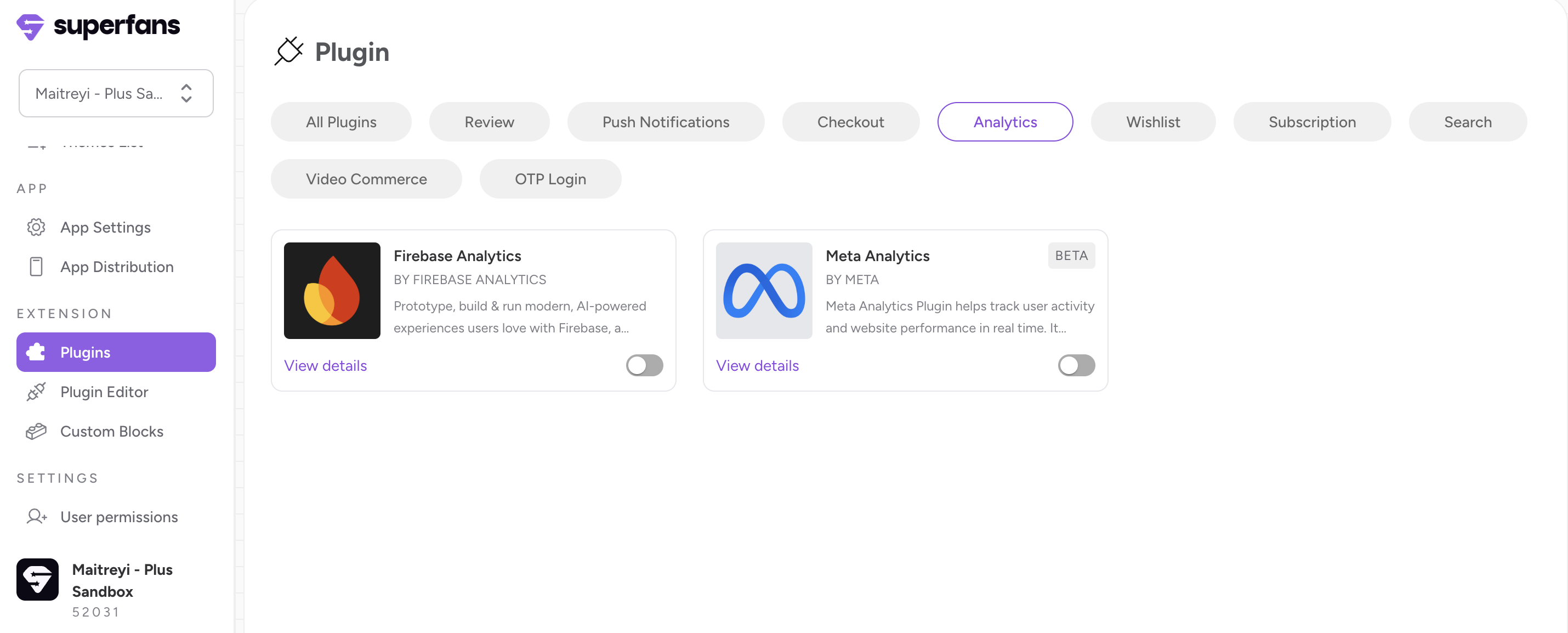
Step 3 : Enable the “Meta Analytics” by toggling the button.
Step 4 : Provide the App ID and Client Token from Step 10 and Step 11 of previous section and enable the plugin on Superfans.
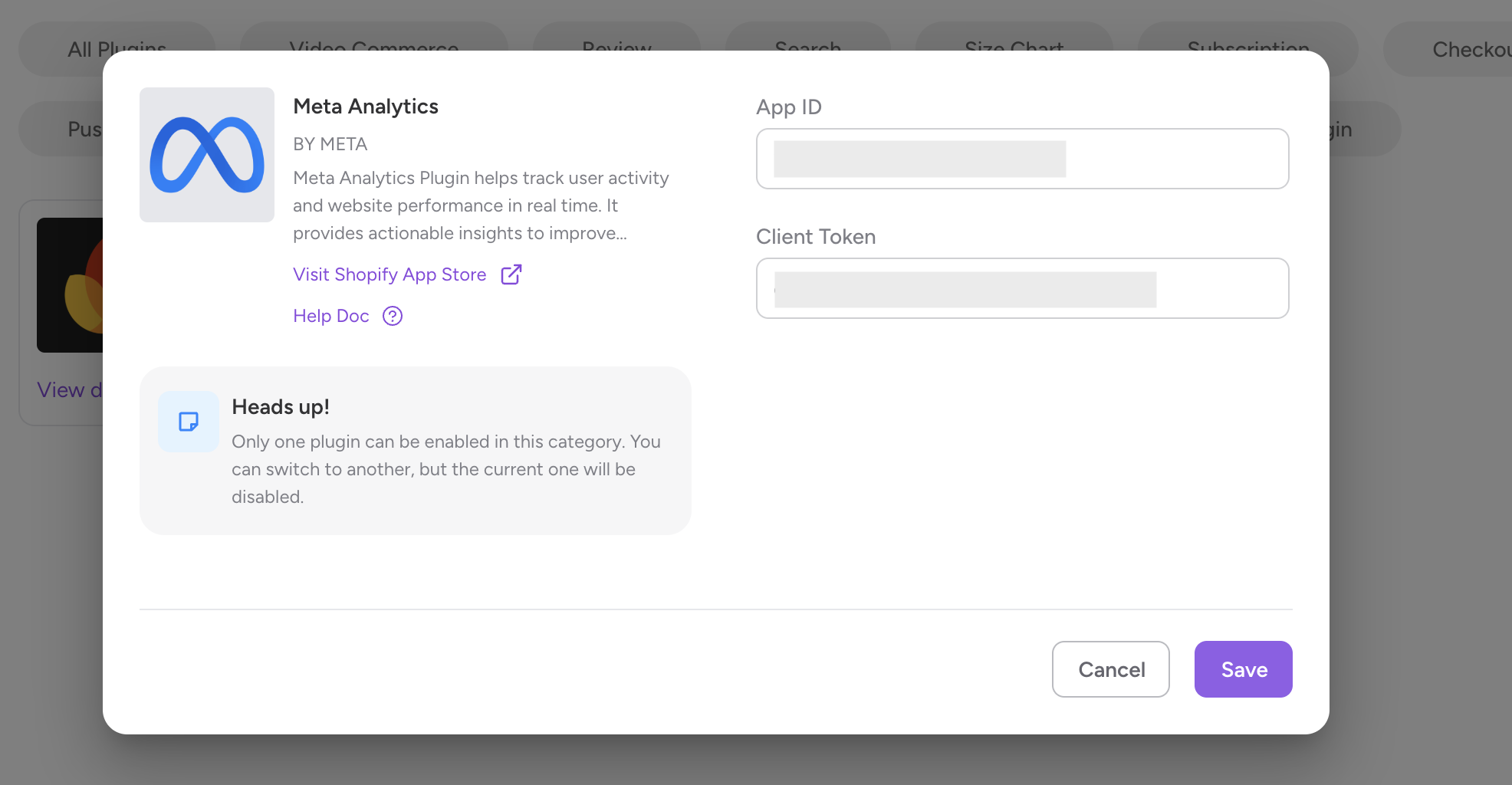
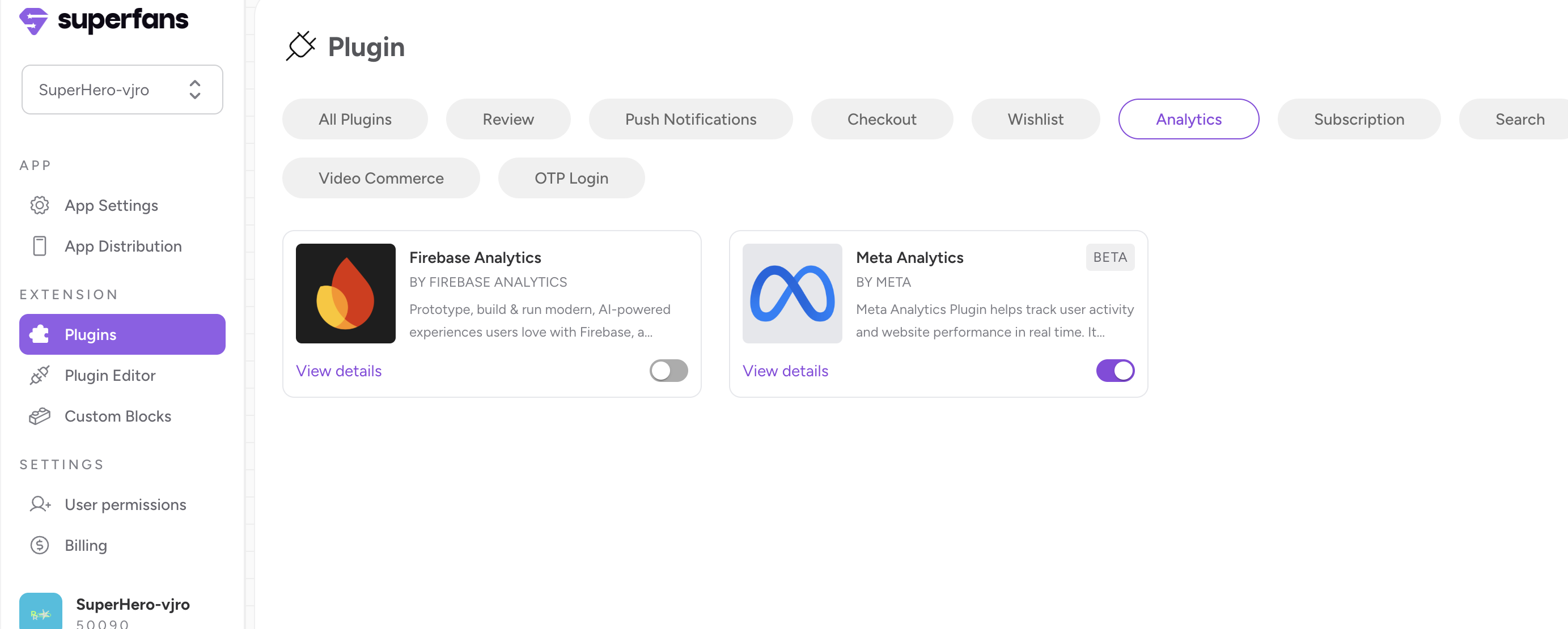
Step 5 : The plugin is enabled on Superfans. We’ll initiate the roll out for the app and once live, the events will be tracked on mobile app.
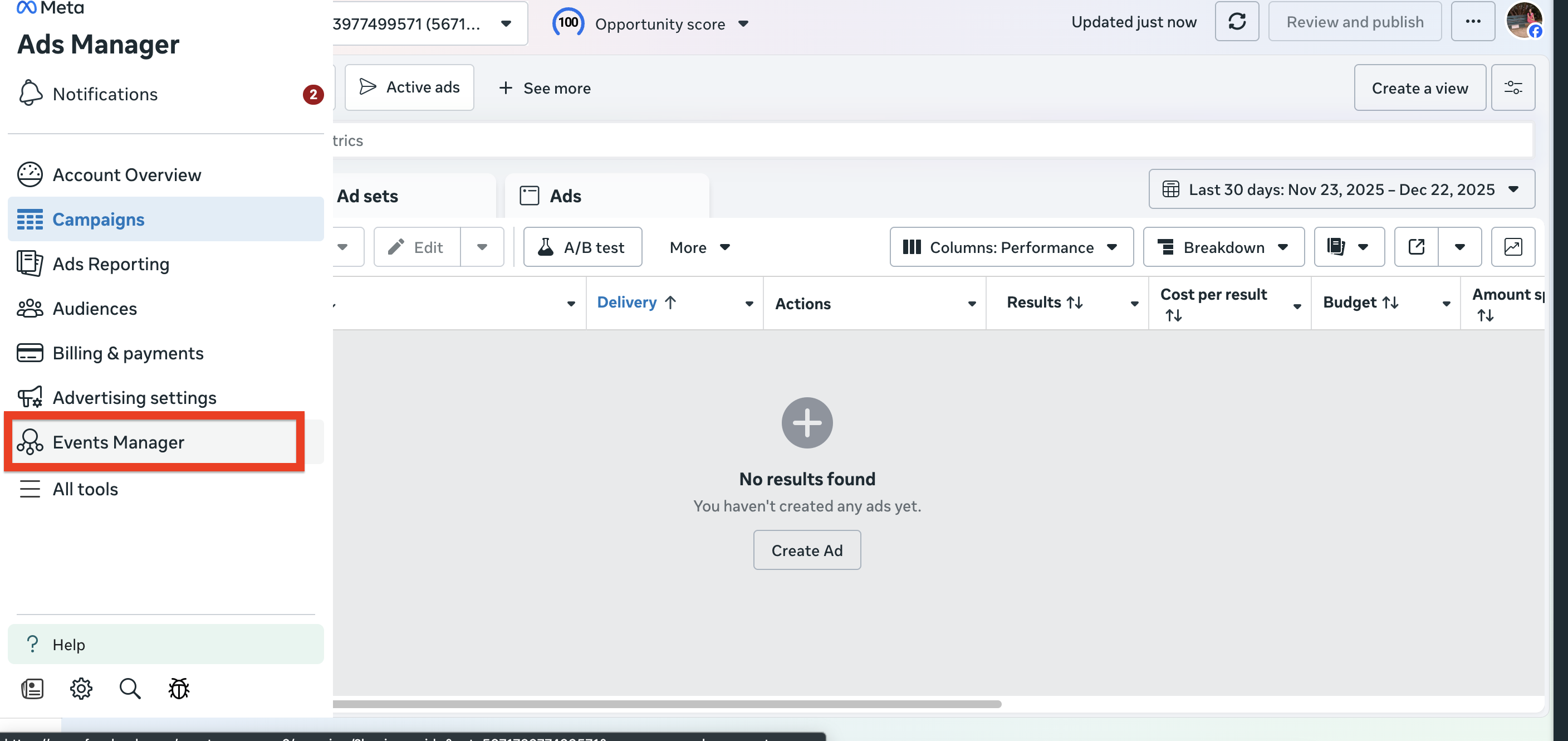
Step 1 : Go to Tools section, click on “Ads Manager”.
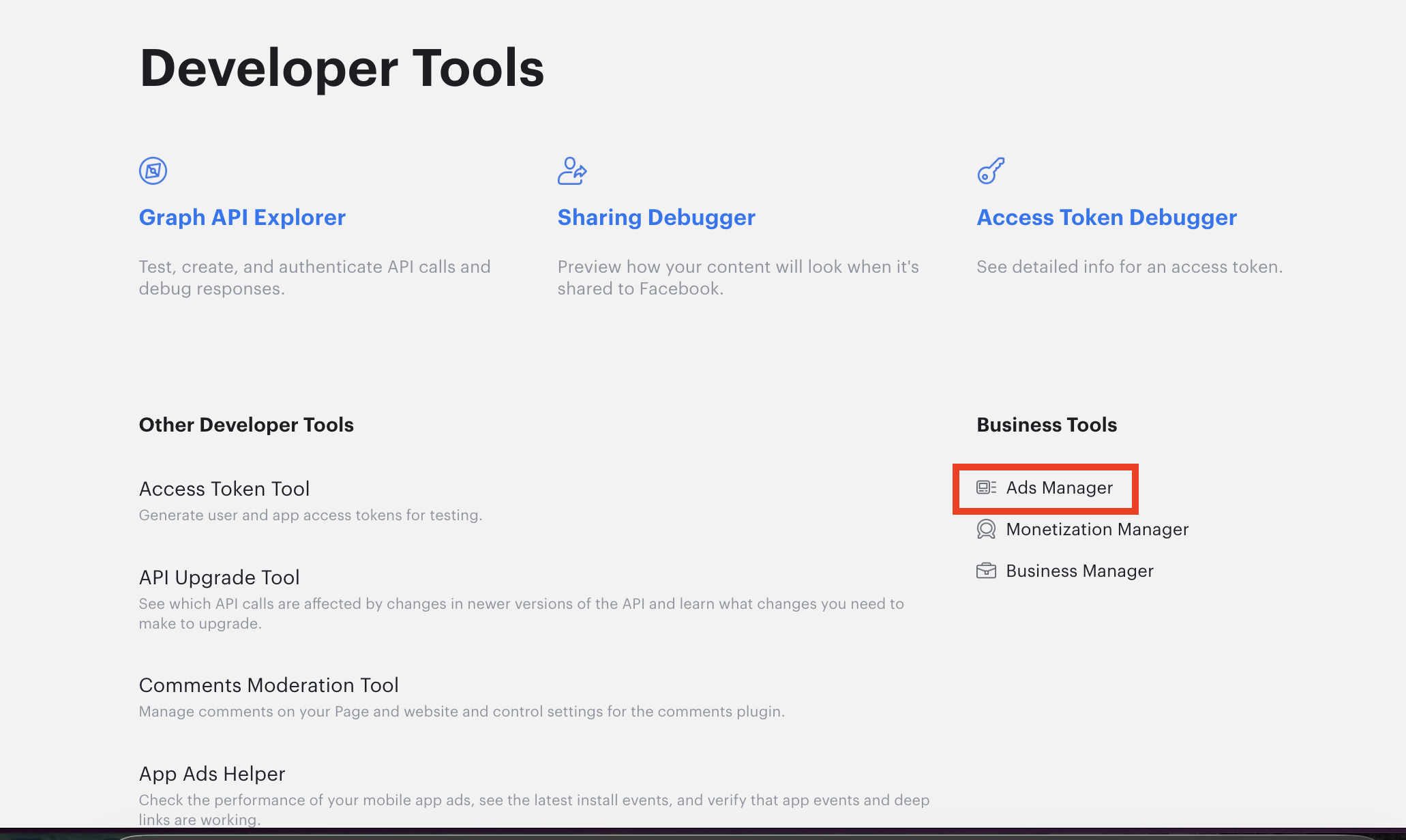
Step 2 : Click on Events Manager from Side Menu.
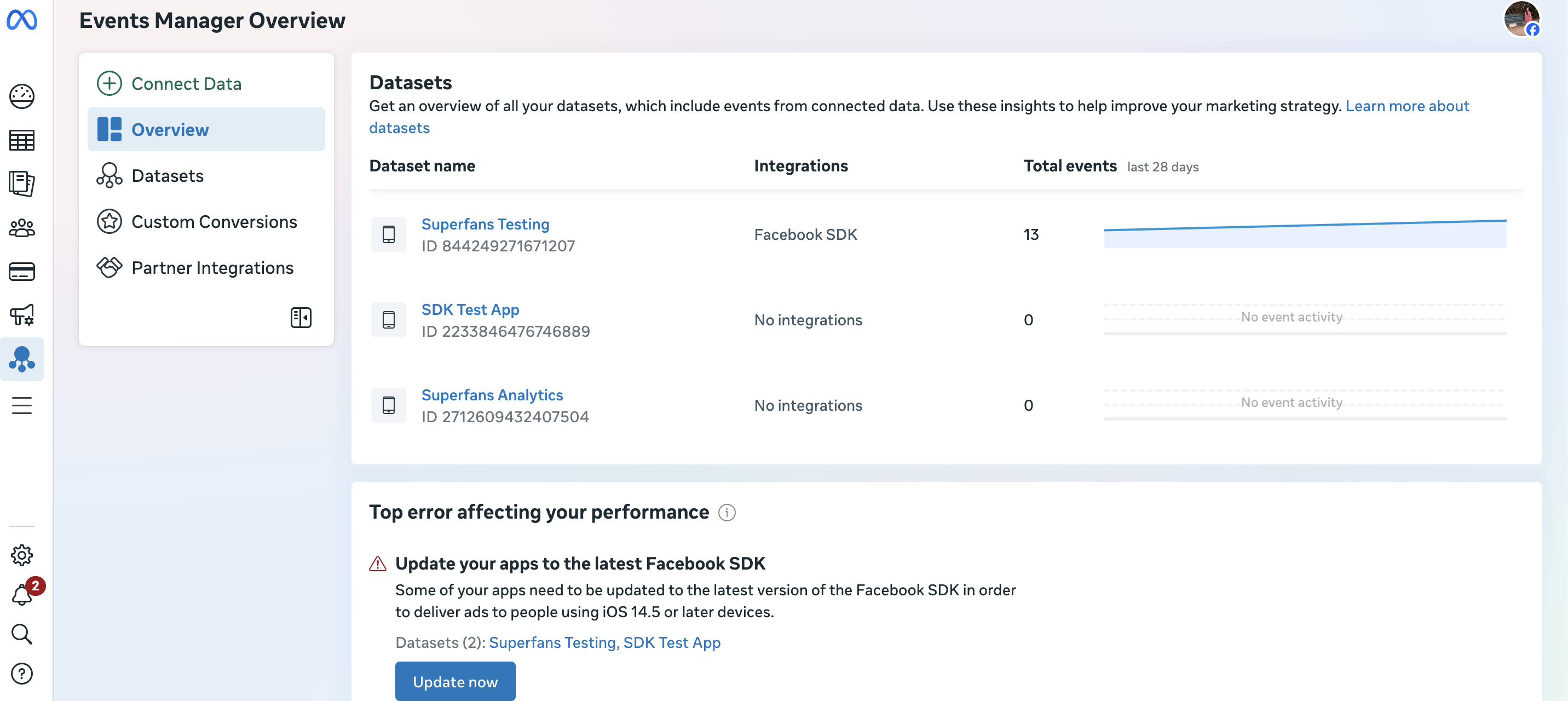
Step 3 : Select the app for which you had set up the Meta Analytics from Superfans dashboard.
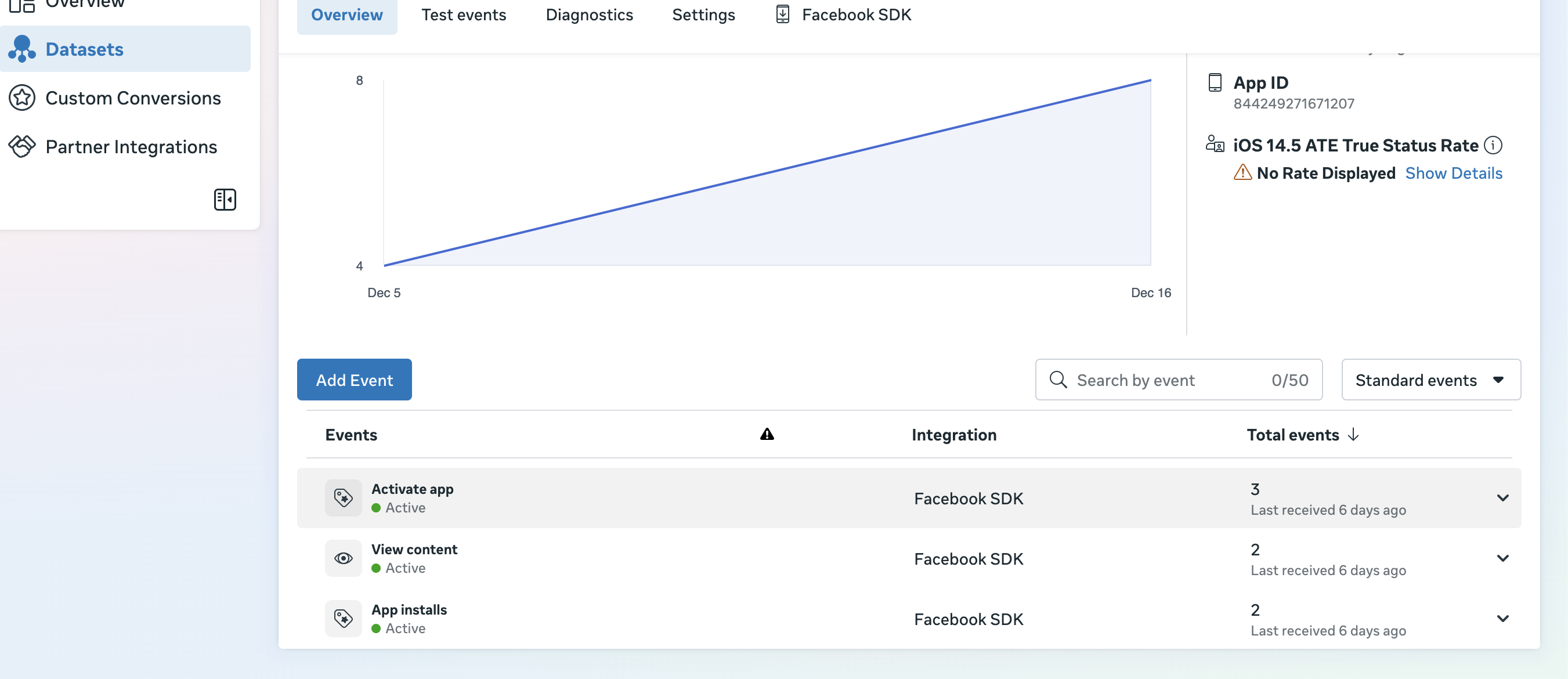
Step 4 : You should be able to see the events in the events manager. (Note: The events will take around ½ hour to appear on the events manager)
In case, the events are not showing up on the event manager, please follow the steps below
Confirm App ID & Client Token are correct
Ensure the plugin is enabled in Superfans and app is rolled out to new version.
Still facing issues?
Raise a ticket or initiate chat with Superfans support.

