Tags in Klaviyo are a great way to organize and categorize your flows, making them easier to find and manage. You can apply tags when creating new flows or to existing ones. However, note that tags cannot be applied to archived flows.
For new campaigns:
In Klaviyo's left-hand navigation, select Campaigns.
In the top right corner, click Create campaign.
Select the Tag dropdown on the first page of the campaign creation modal.
Choose either an existing tag or create a new one by typing it out in the search bar.
In Klaviyo's left navigation, select Campaigns.
Click the checkboxes beside each campaign that you want to add a the tag to.
Select Add Tags. You can add tags to all campaigns regardless of whether or not they have already been sent.

Tags can't be applied to archived flows.
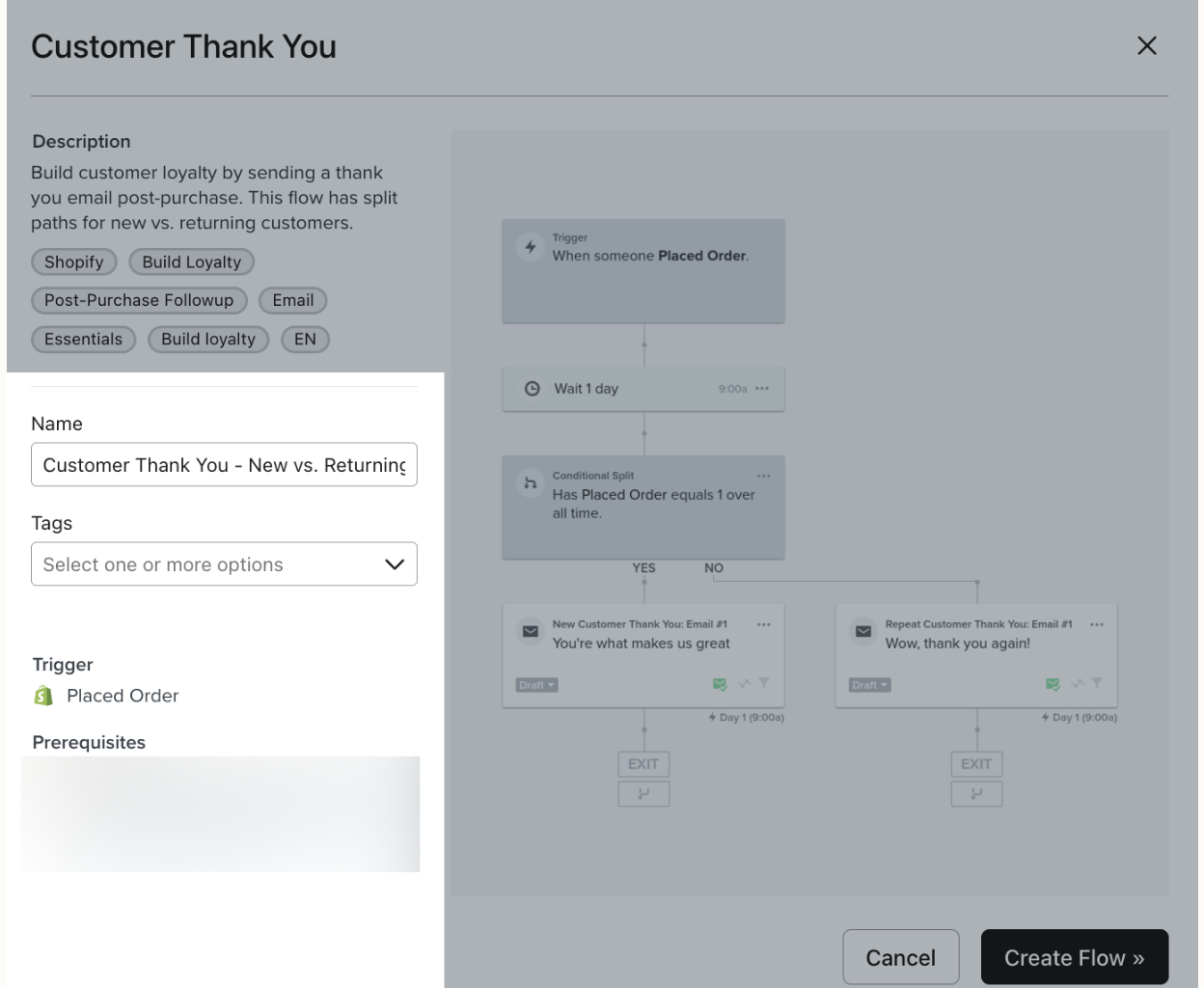
When creating a new flow from the Flow Library.
Select the flow template you want to use.
Under Tags, select the existing tag you want to apply. You can also create a new tag by typing it into the Filter textbox.
Click Create Flow.
Navigate to Flows
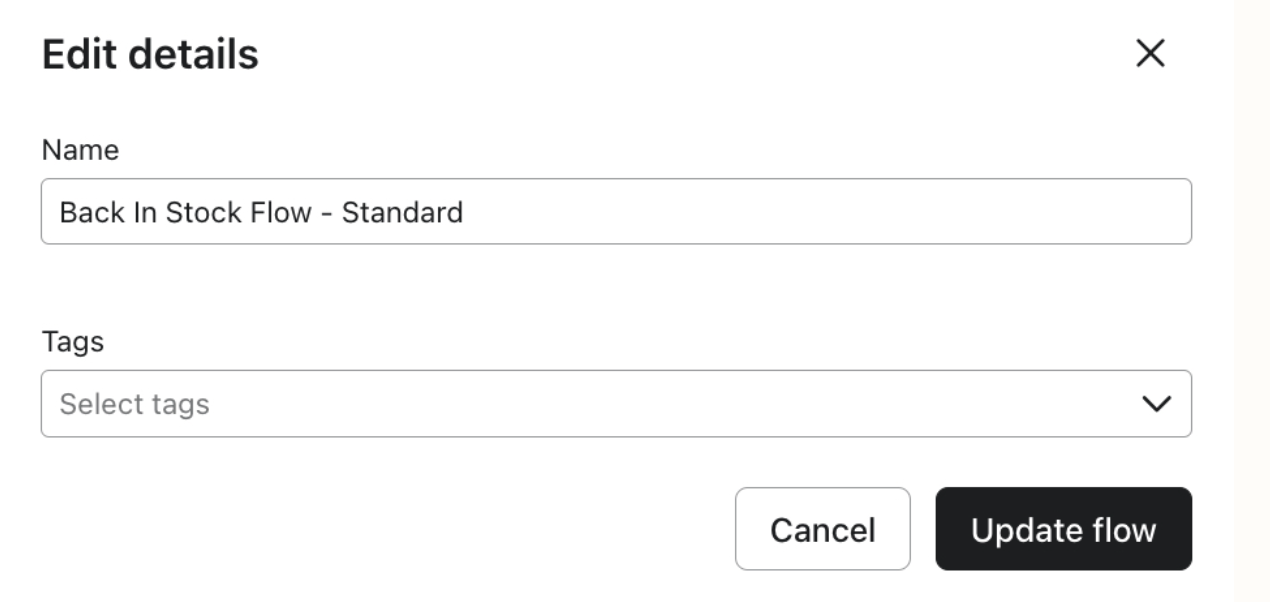
To the right of the flow you want to tag, click the 3 dots then Edit details.
Click the Tags dropdown.
Select an existing tag or type a new one into the textbox to create it.
Use clear and consistent naming for tags to make flows easy to search and filter.
Group flows by campaign type, audience, or goal using tags.
Remember, archived flows cannot be tagged, so unarchive them first if you need to apply tags.
Following these steps ensures that your flows are well-organized, searchable, and easily categorized using tags. Tags make managing multiple flows simple, especially in larger accounts with many active campaigns.

