Shoppable videos are short, on-demand clips linked to a product, letting viewers watch a showcase and purchase instantly. This feature will be made available based on future requests.
Go to Shoppables from the left-hand menu to open the Shoppable Video Manager.
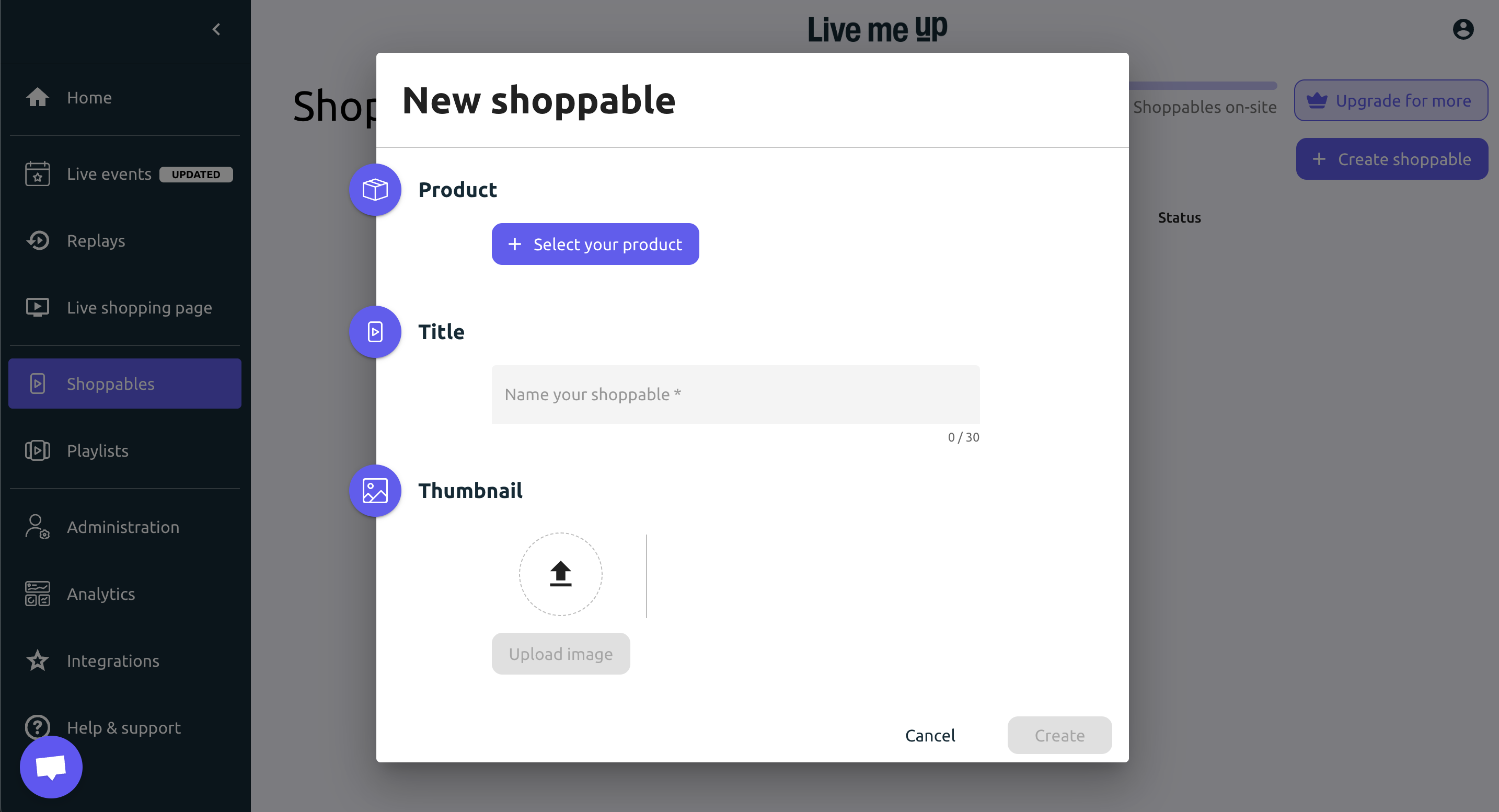
Click + Create shoppable → fill in:
Product: Select from your catalog.
Title: Give a concise name.
Thumbnail: Upload a preview image.
Click Create to save.
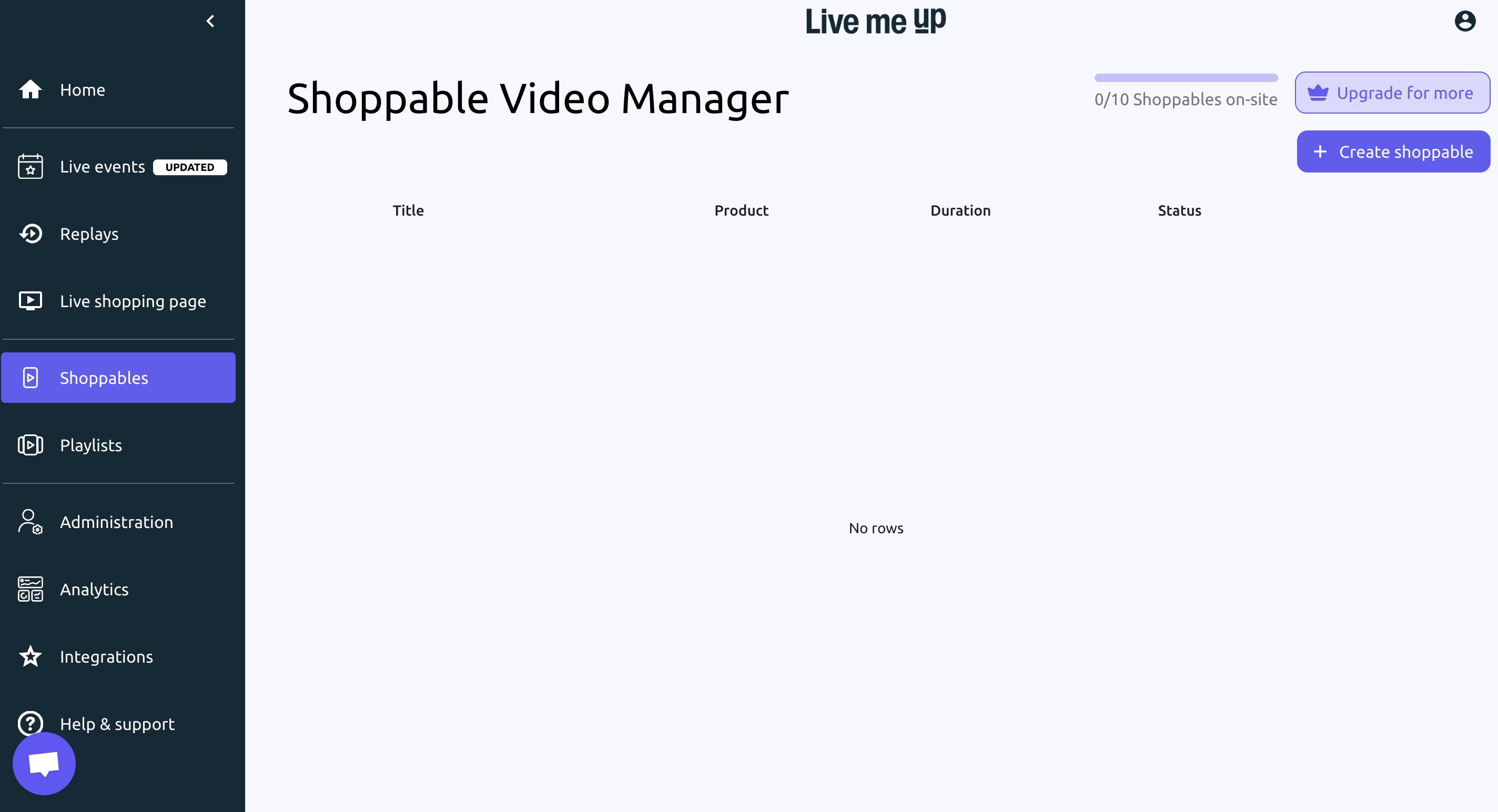
Dashboard shows all your shoppable videos with Title, Product, Duration, and Status.
From here, view, edit, or delete your videos as needed.
Customizing Shoppable Video Theme Settings
Easily align your shoppable video player with your brand’s style using the theme customization options.
Step 1: Access Settings
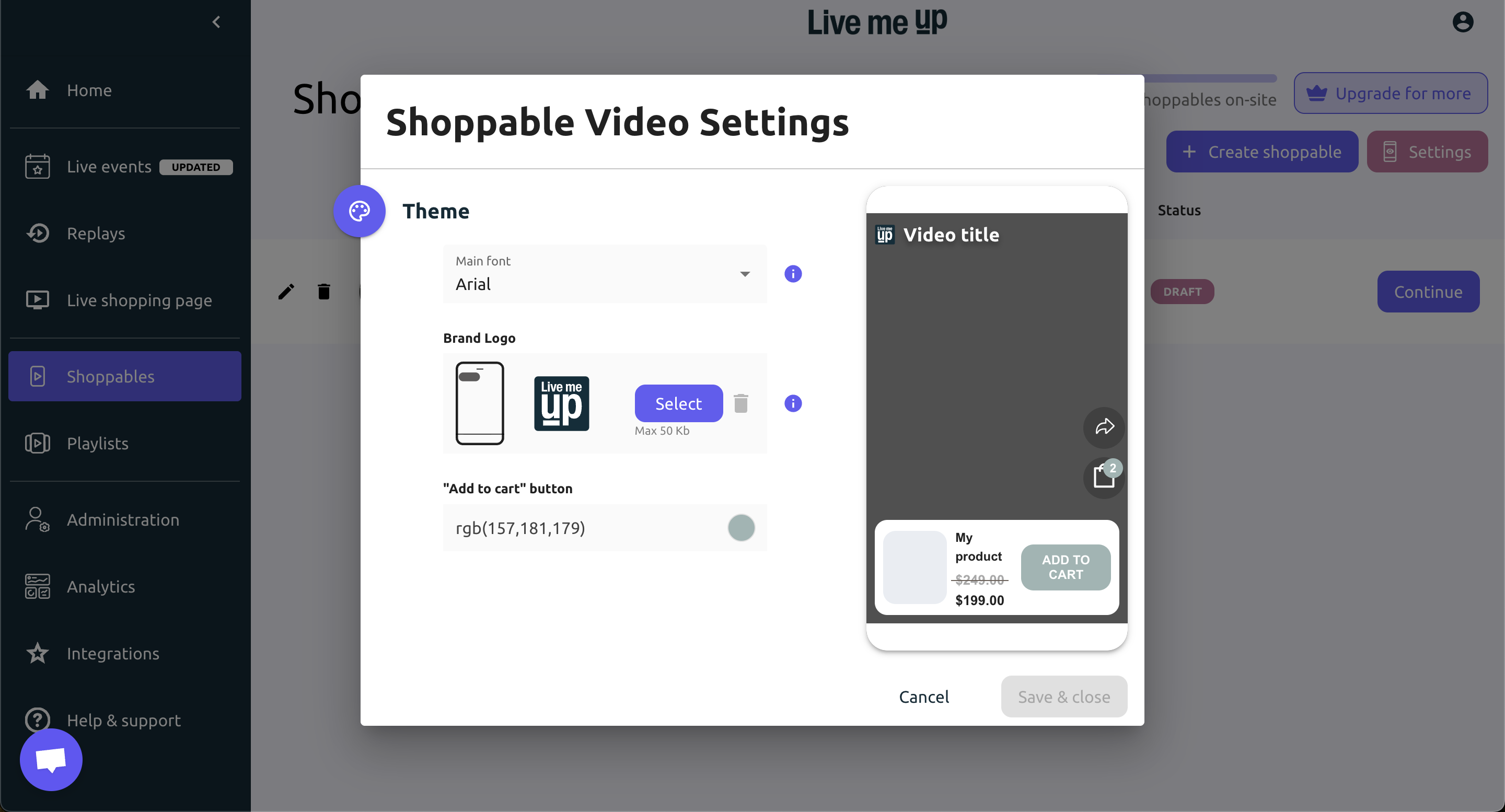
Go to Shoppables from the main menu, select a video, and click the Settings icon to open the customization pop-up.
Step 2: Customize Your Theme
Font: Choose your preferred text font from the Main Font dropdown.
Brand Logo: Upload or replace your logo using the Select button (Max 50 KB). Use the 🗑 icon to remove it.
Add to Cart Button: Adjust the button color via the color picker to match your brand palette.
Step 3: Preview & Save
Review your changes live in the preview panel. Once satisfied, click Save & Close to apply updates or Cancel to discard them.
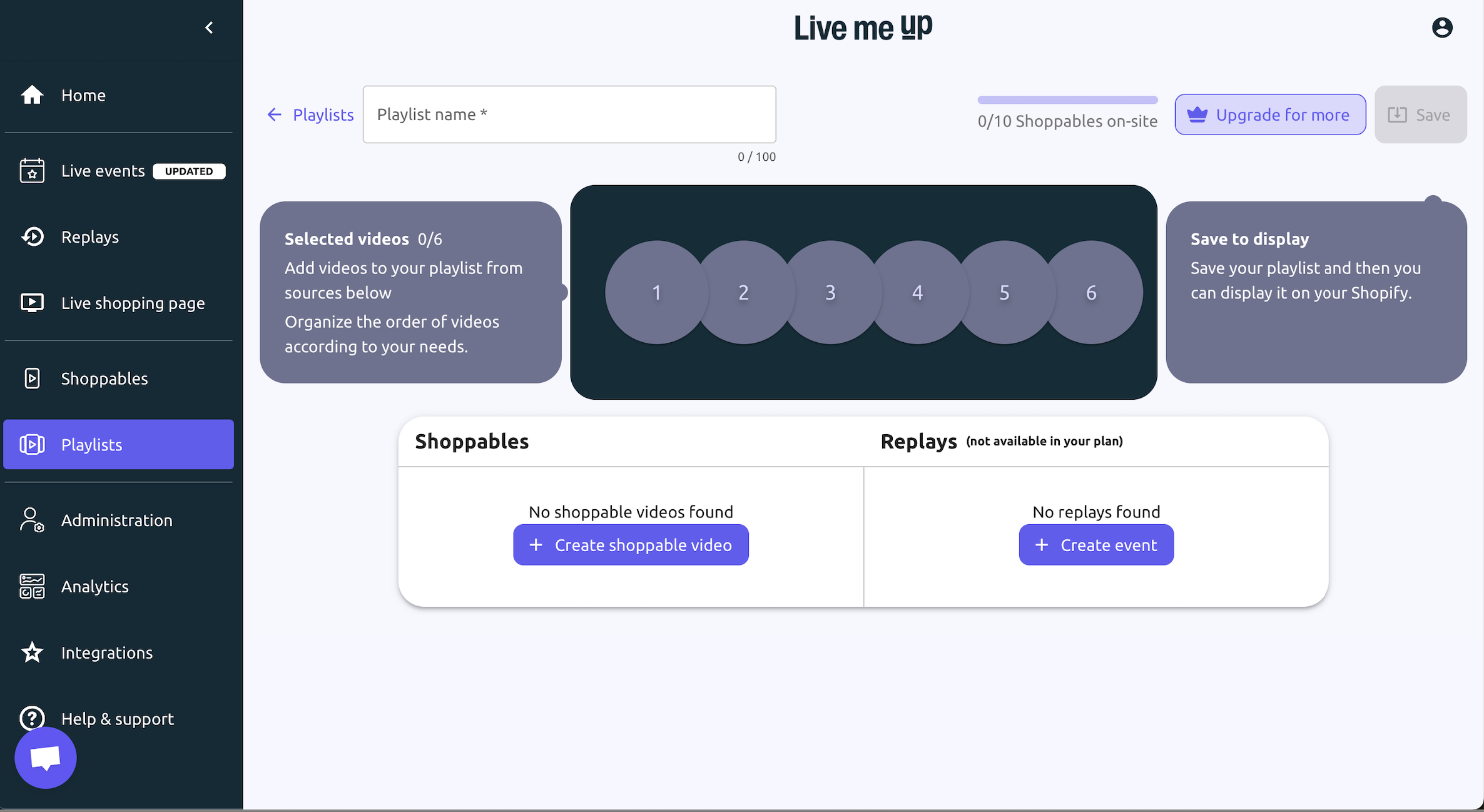
A playlist is a curated collection of shoppable videos and past live replays, organized in a specific order, that can be showcased on your storefront to engage customers and boost sales.
Step 1: Access Playlists Manager
From the left-hand menu, click Playlists to open the creation screen.
Step 2: Create and Organize Your Playlist
Name your playlist and check your shoppable video limit.
Add Shoppables or Replays (if available) and arrange videos by dragging into the desired order.
Step 3: Save and Display
Click Save to store your playlist.
Use the display options to make it visible on your storefront.
Upgrade your plan if you need more video slots or replay access.