You can stream simultaneously to multiple platforms using the Multistream feature in Live me UP.
Live me UP supports three types of platform connections:
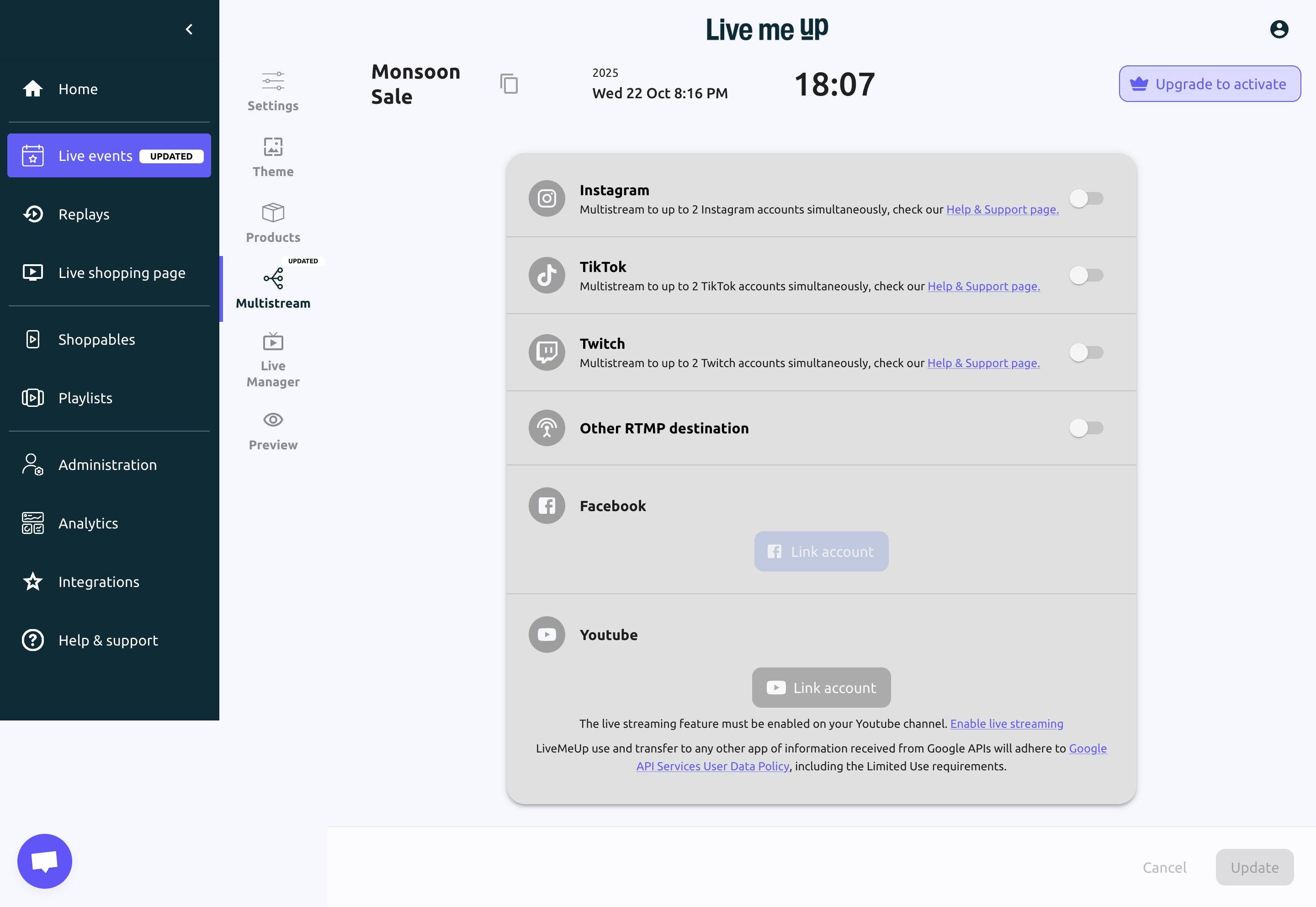
Native Integrations (Easy Toggle)
Instagram, TikTok, Twitch: Just toggle on your account(s) - up to 2 accounts per platform.
Linked Accounts
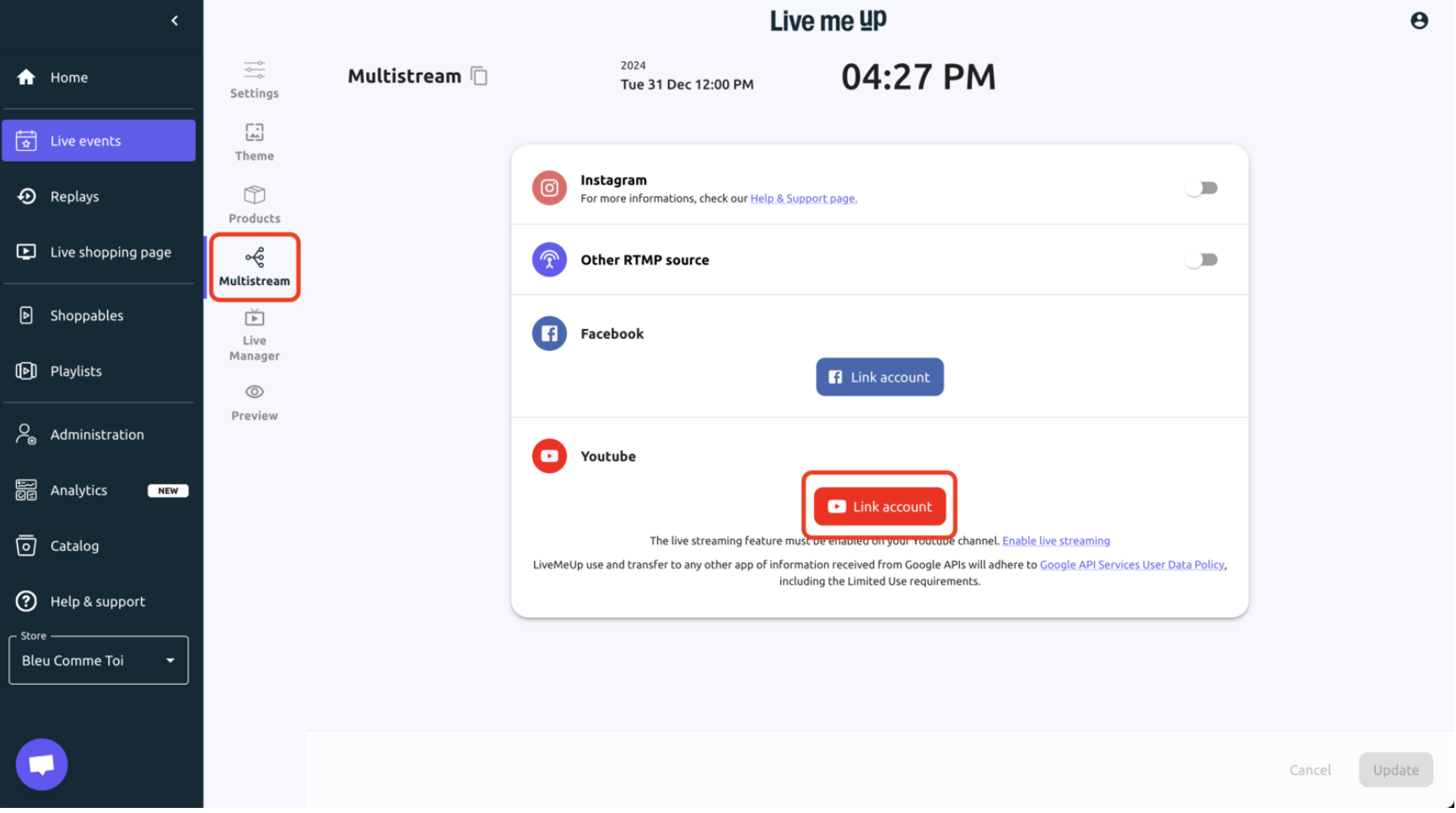
Facebook, YouTube: Link your account to enable streaming.
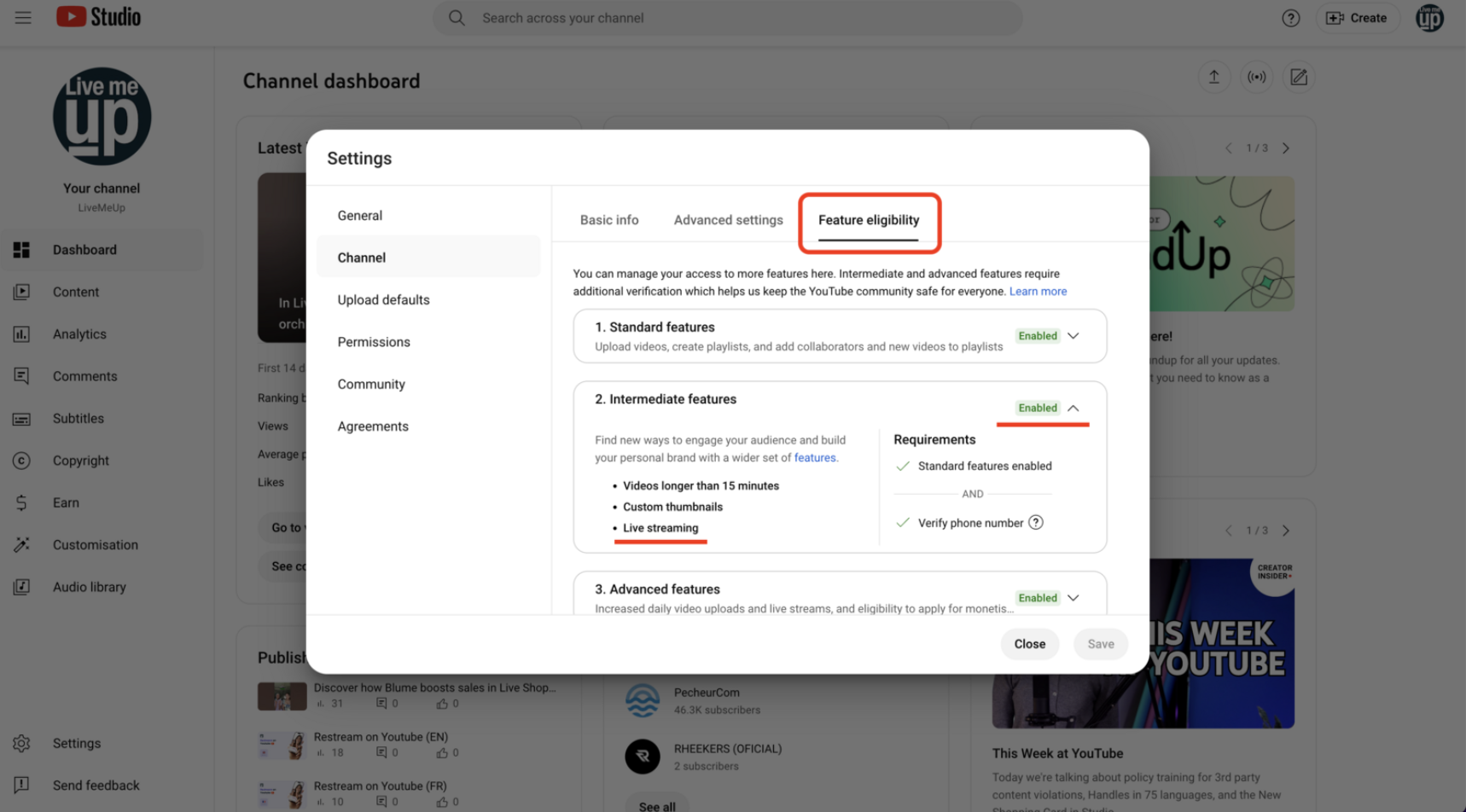
Note: YouTube live streaming must be enabled first.
Other Social Platforms via RTMP
Platforms like LinkedIn, X (Twitter), or private servers.
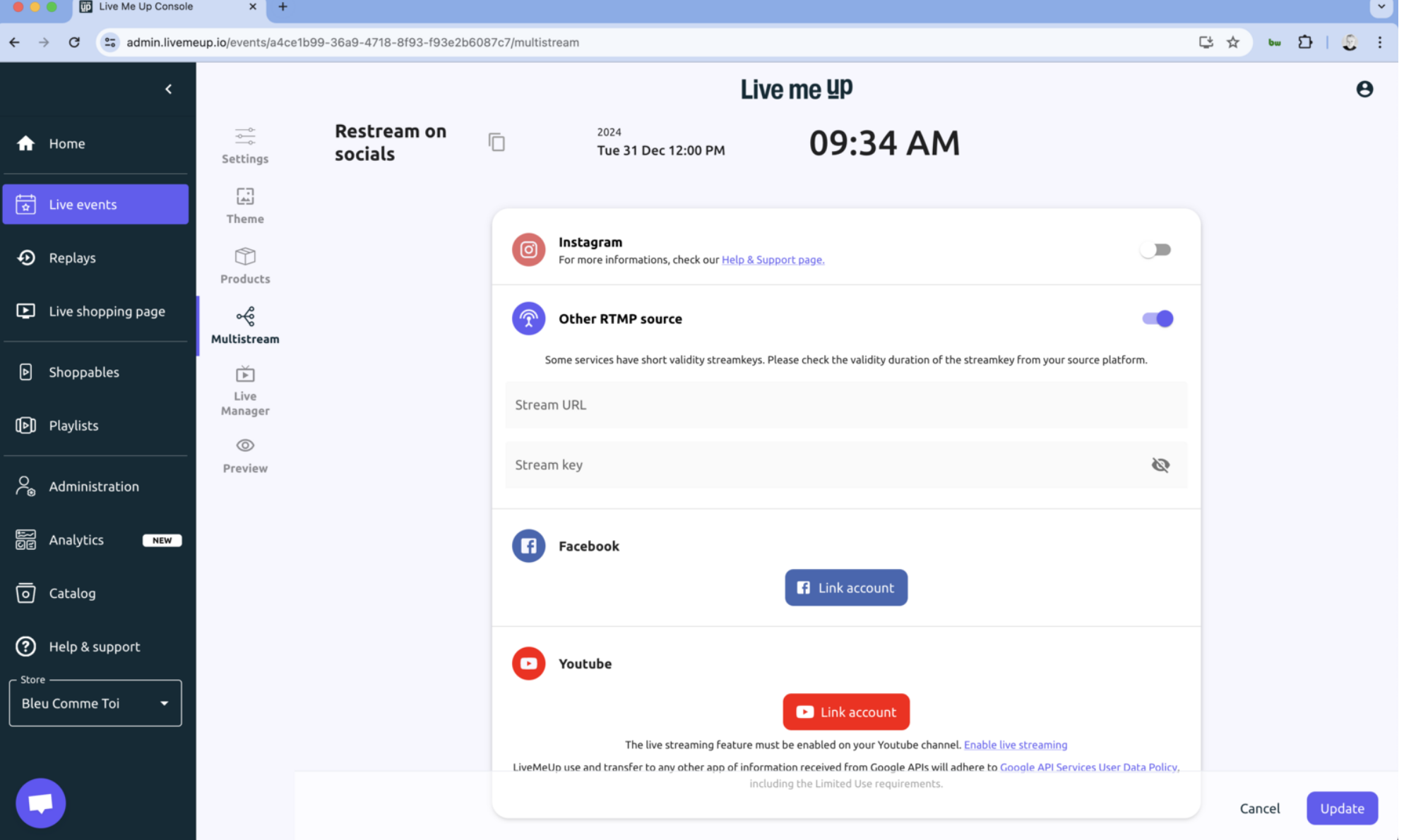
You need to enter your Stream URL and Stream Key.
Some platforms, like TikTok, may require eligibility (e.g., 1,000 followers).
Use RTMP only when:
The platform isn’t natively supported.
Your account isn’t eligible for direct integration.
You are streaming to a custom server or website.
Go to Live Events and select the event you want to stream.
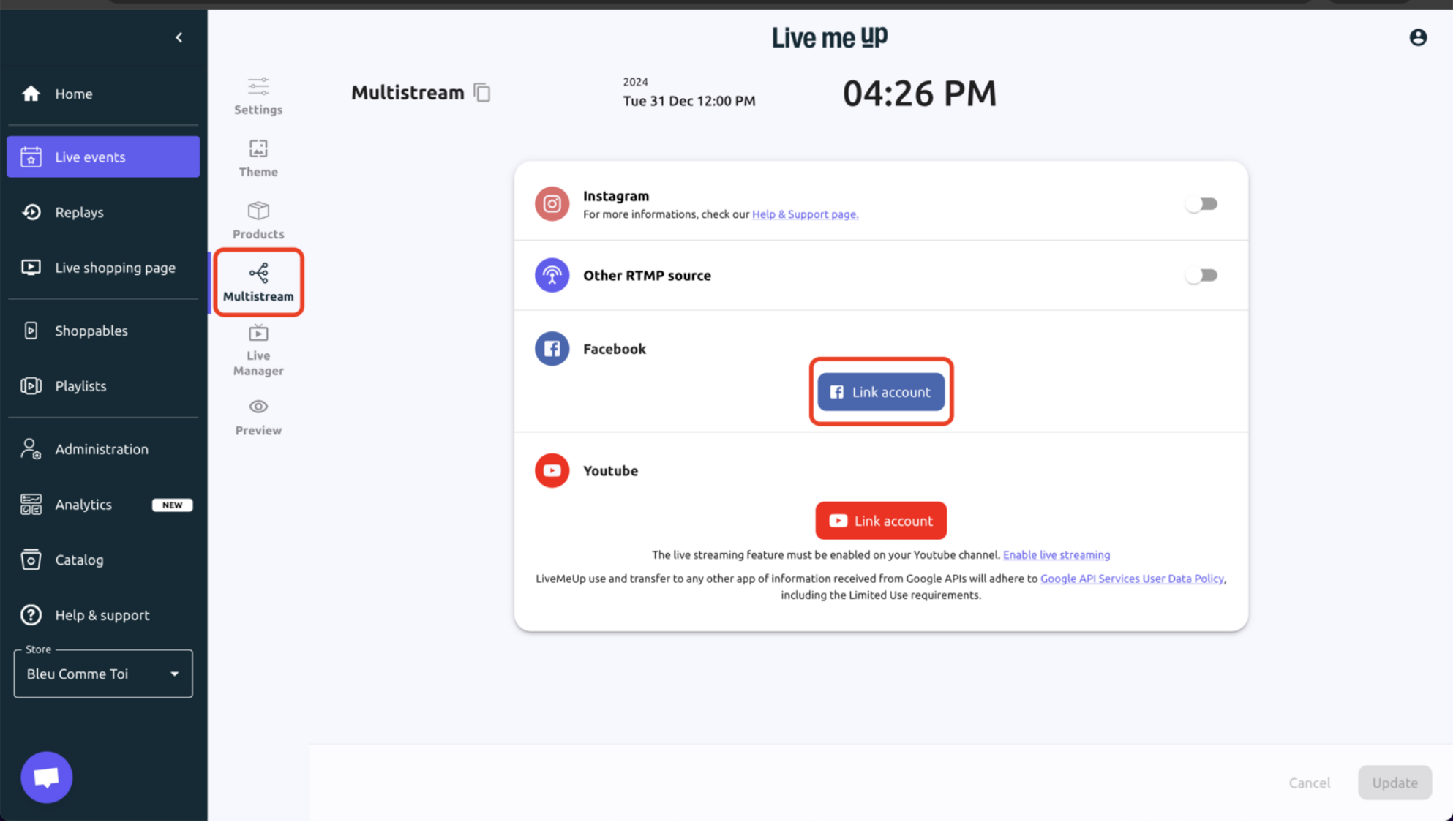
Click “Multistream” under Settings.
Enable Platforms
Toggle on supported platforms or link Facebook/YouTube accounts.
For other socials, enter the Stream URL and Stream Key, then save.
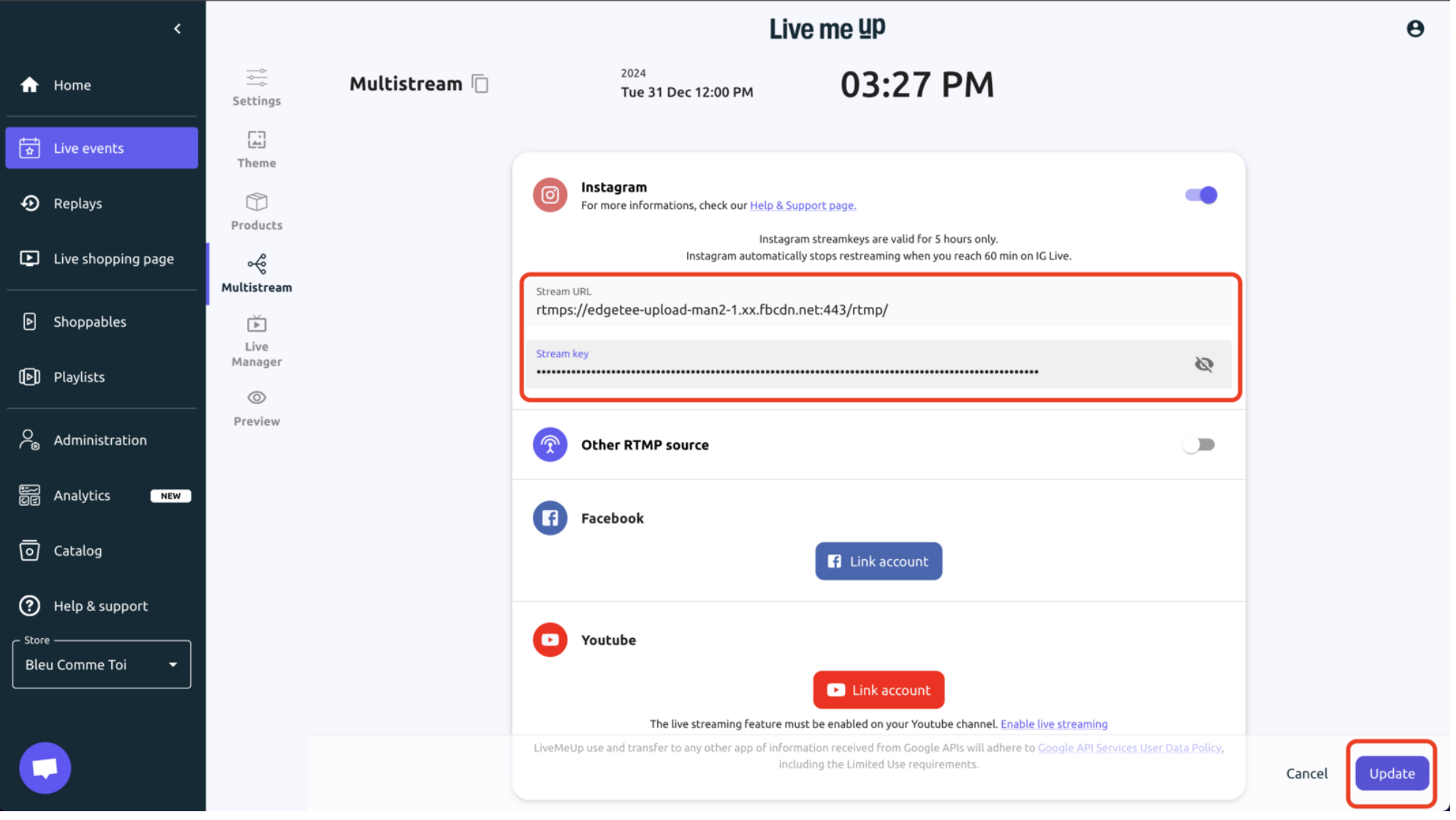
Click Update to save and activate your multistream setup.
Toggle ON on the Other RTMP Source then input your Stream URL and Stream Key and click on Update.
Before You Begin:
Instagram Live: Available only for Professional Accounts and desktop via Instagram.com. Official Help Page
Note: Instagram doesn’t support direct product purchases during live streams.
Toggle on instagram, to activate the instagram block.
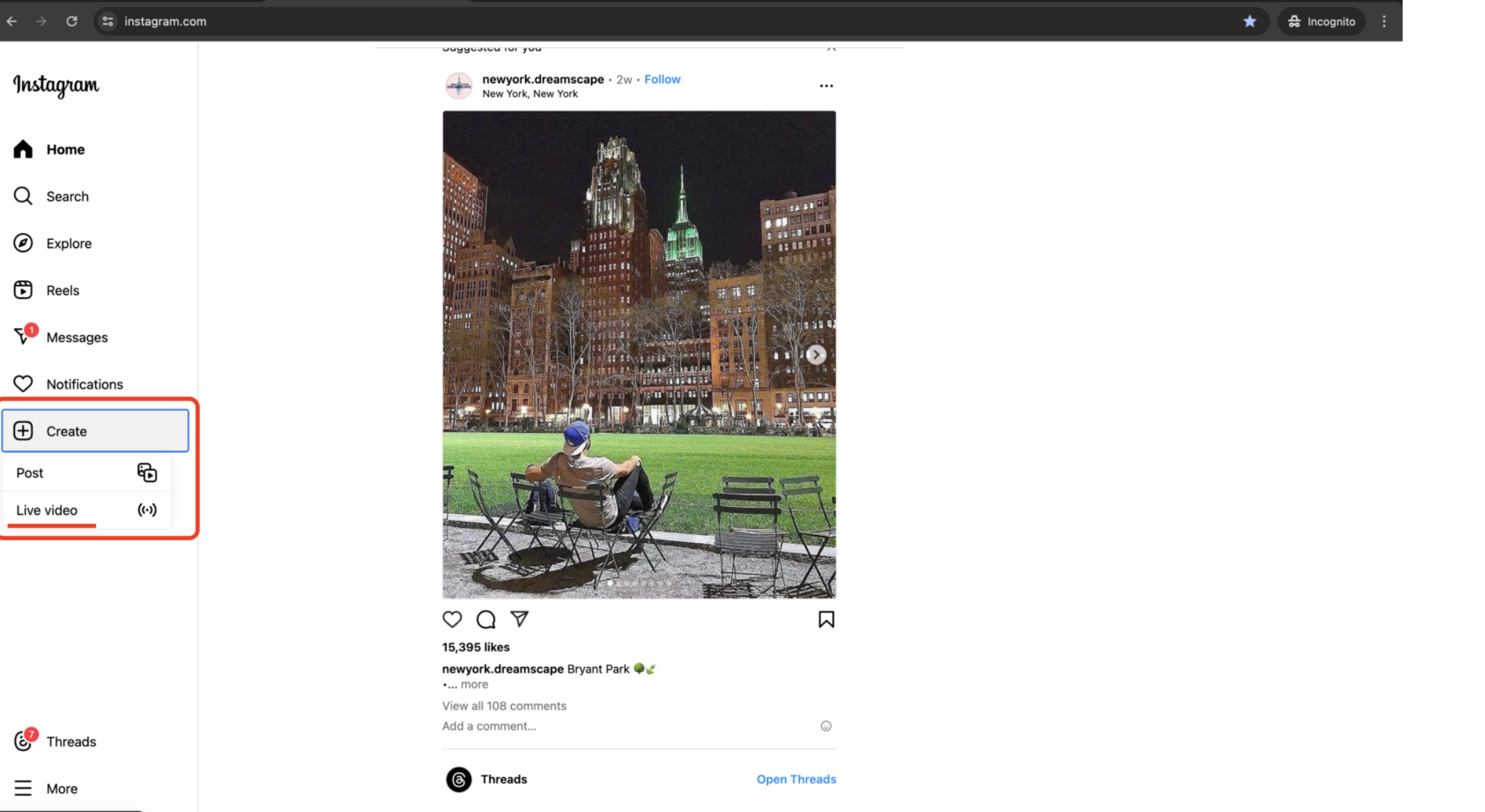
Step 1: Create Live video on instagram.
Step 2: Give a name to your live event.
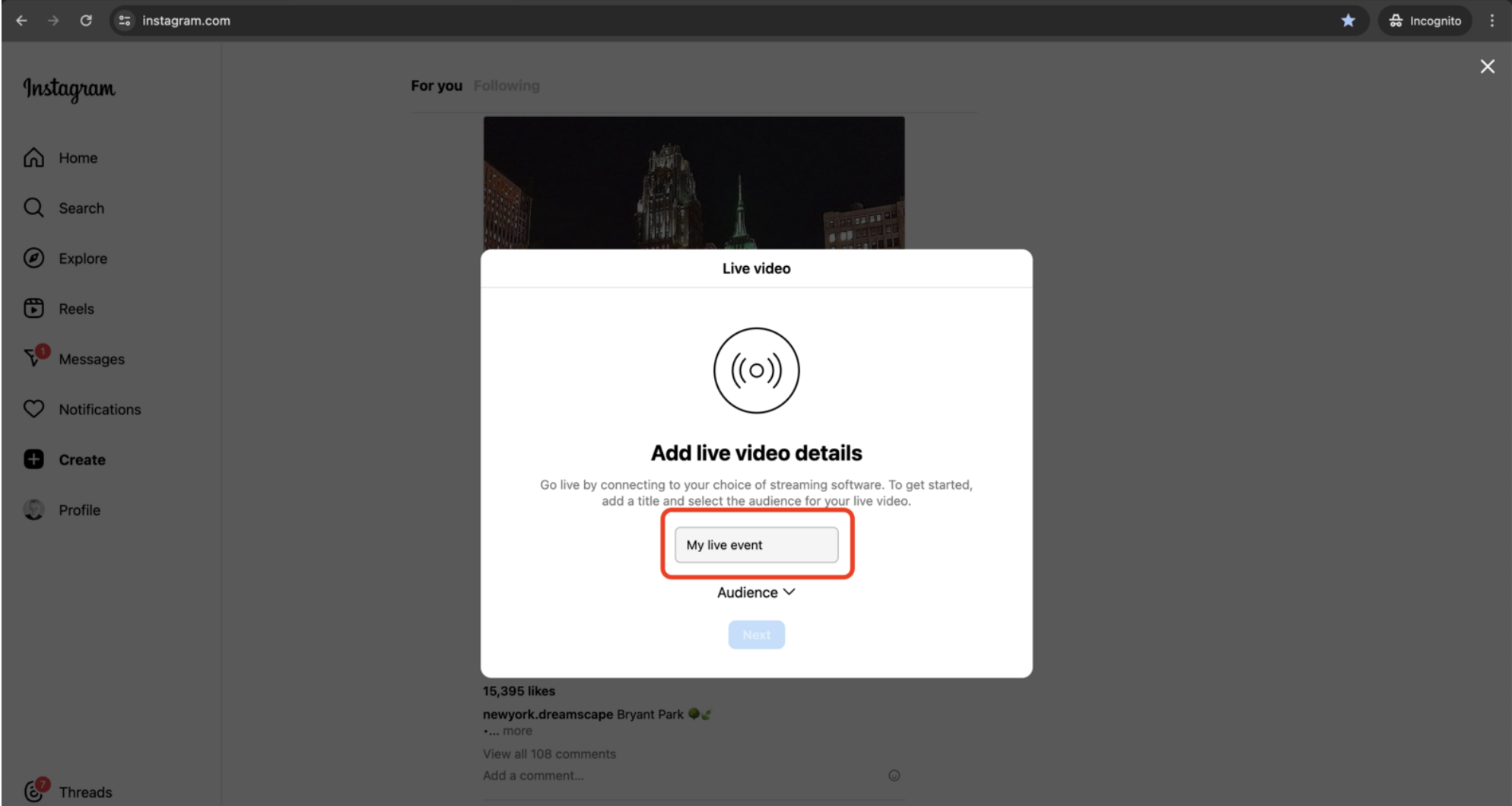
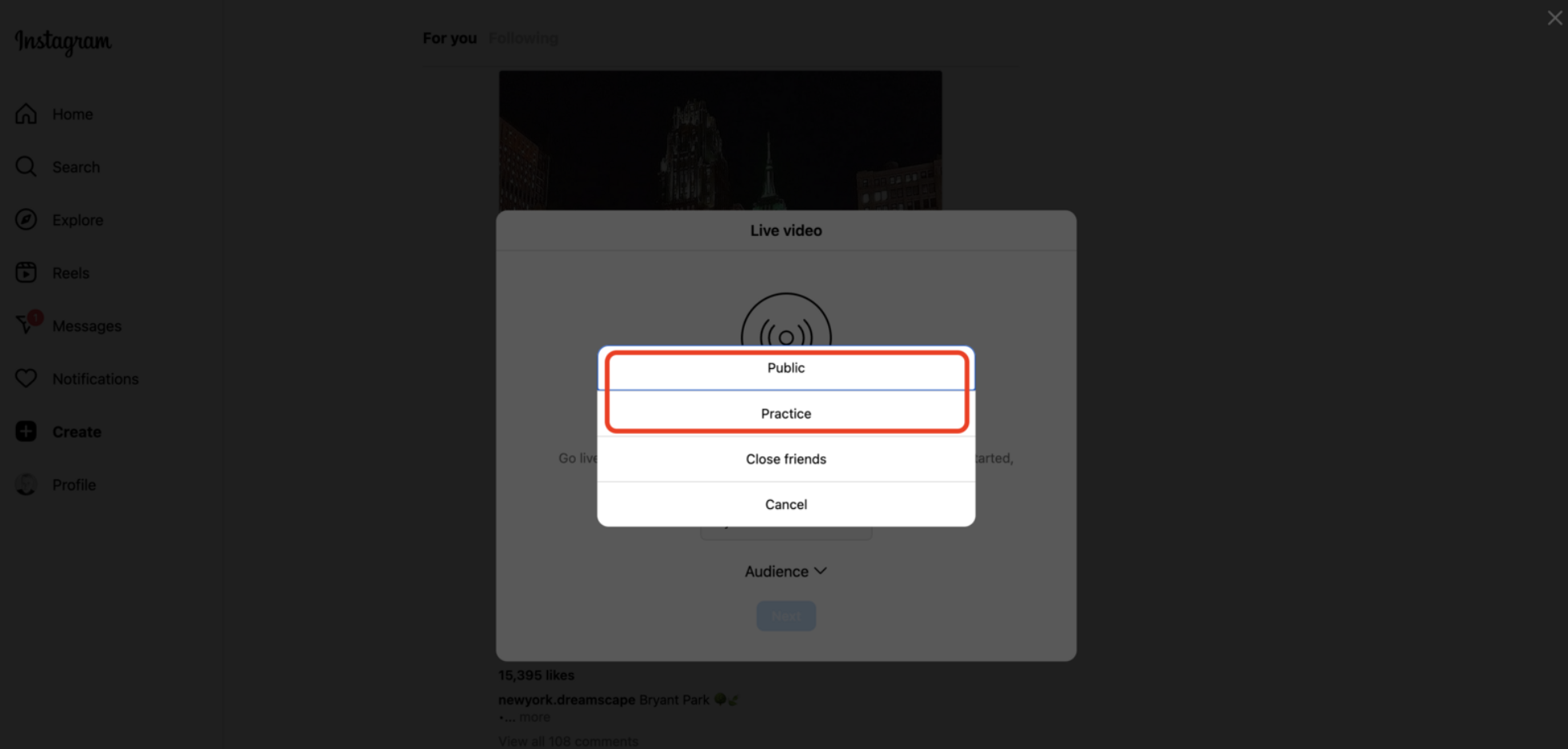
Step 3: Select Public or Practice.
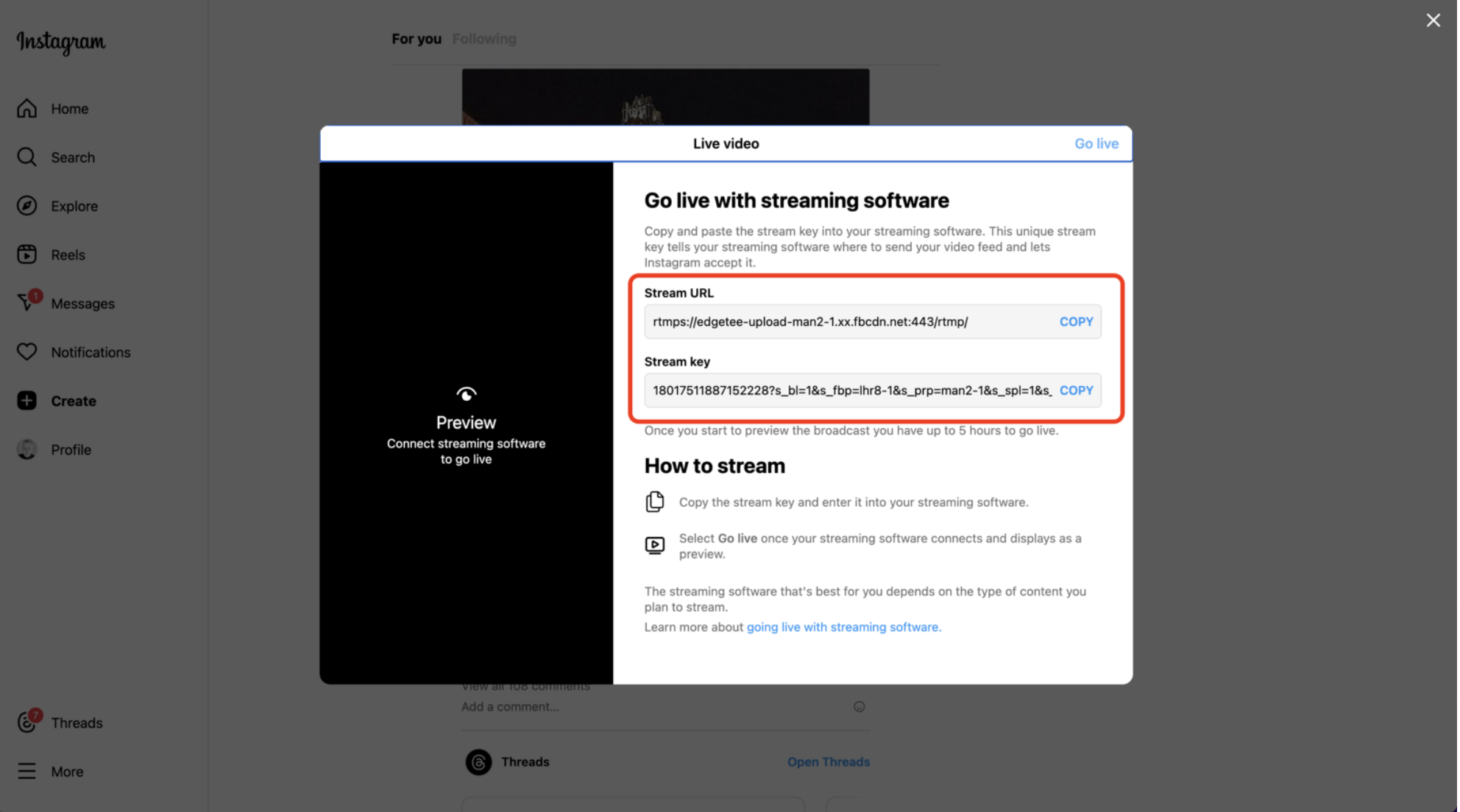
Step 4: Retrieve the Stream URL and the Stream key provided by Instagram - DO NOT CLOSE THIS WINDOW - You'll need to get back here when going Live.
Step 5: Copy the URL and the Key on LiveMeUp and save, you're all set and ready to go Live.
Step 1: Click the Link account button located within the Facebook section.
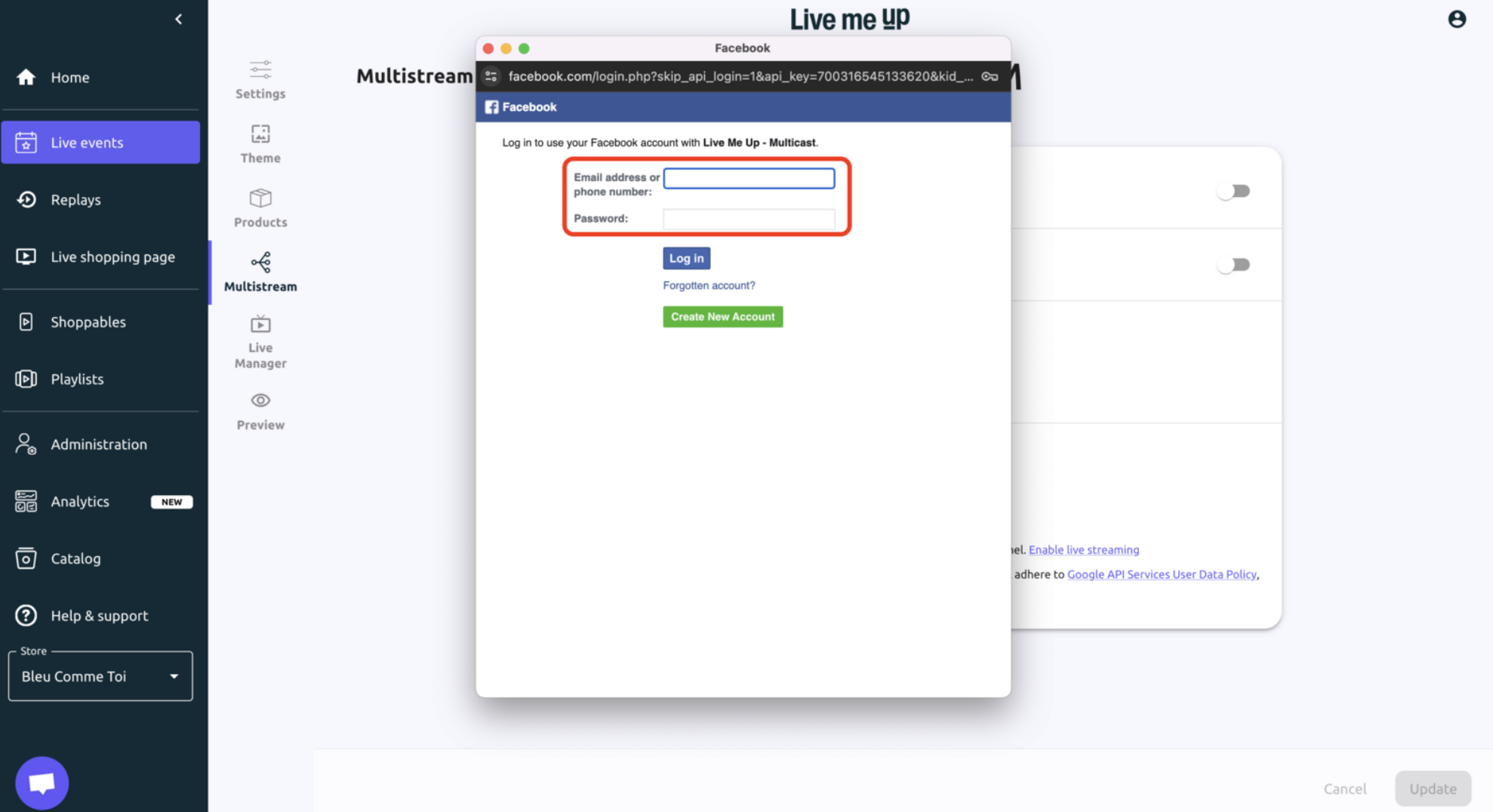
Step 2: Enter your Facebook credentials in the pop up.
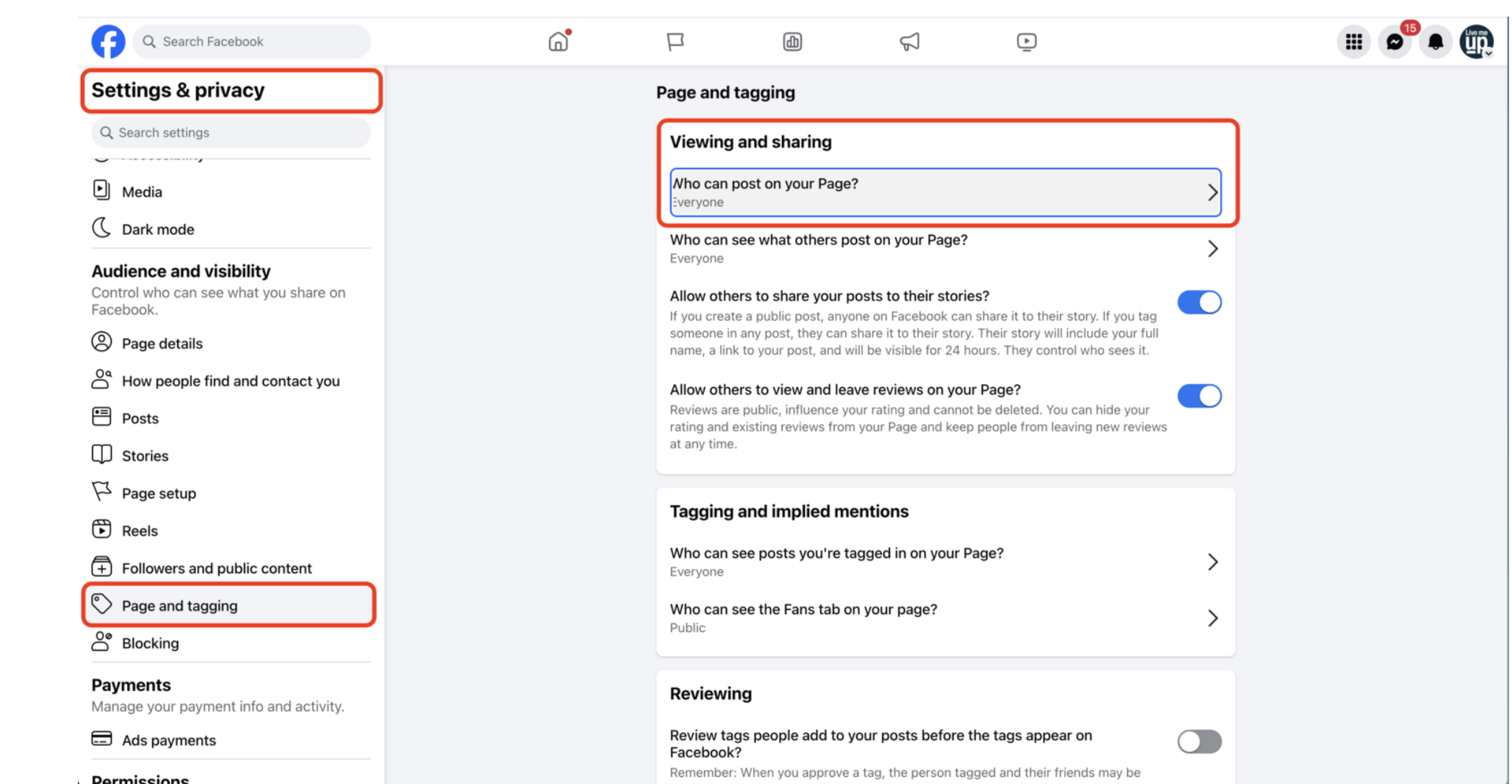
Having trouble streaming on your page?
Make sure the “Viewing and Sharing” option is enabled in your Page Settings.
Before You Begin:
Enable the Live streaming capability on your Youtube account, go to Youtube Settings and check if live streaming is enabled. YouTube may take up to 24 hours to enable live streaming.
Now connect your Youtube account. The connection will remain available for all upcoming Live events. For security reasons Youtube may ask you to reconnect on regular basis.
TikTok Live Access
TikTok hasn’t rolled out desktop live streaming to everyone yet access is limited.
Some creators (typically with 25,000+ followers) gain the option to stream using Custom RTMP or TikTok Live Studio.
How to Check Eligibility:
Open the TikTok app and tap + to create a new post.
Swipe to LIVE.
If you see Device Camera, Mobile Gaming, and Live Studio, you’re eligible to stream from desktop.
The Live Manager is your central control panel for running live events, managing products, and engaging with viewers in real time.
From the left-hand menu, click Live Events.
In the event settings panel, scroll down and select Live Manager.
The top bar provides real-time information and stream controls:
Event Status: Tracks the stream duration.
Controls:
PRIVATE TEST: Start a private test stream.
Stop Test: End the private test.
Open to Public: Start your live broadcast for viewers.
Metrics: Monitor Unique Viewers, Active Viewers, Active Chat Users, Likes, Product Page Opens, Amount in Cart, Purchased Amount.
Viewer Visibility: Toggle Display Active Viewers to show/hide viewer count from your audience.
Manage products featured during your live sale:
Add & Find Products: Click Add Product to bring items from your catalog. Use the Find search bar to locate existing products.
Product List: Displays items with price and availability.
Feature a Product: Click Display to promote a product instantly to your viewers.
Engage with your audience and view event information:
Chat Panel:
View live messages from viewers.
Send replies via the Enter your message here box.
Details Panel:
Members: Click View Members to see all participants.
Options: Click Leave Group to exit the event.
Shared Media: Access Photos, Videos, and Docs shared by members (or see “No records found” if empty).
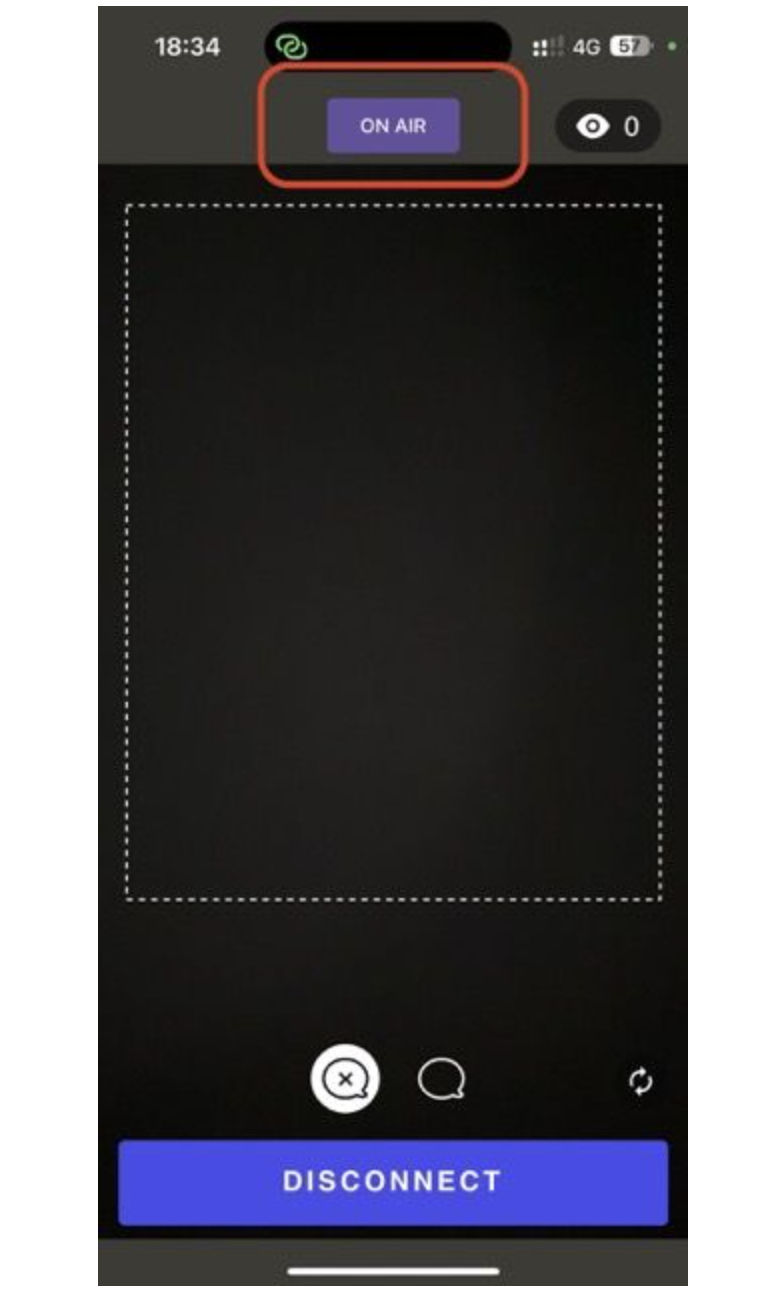
Open the Live me UP mobile app, tap Publish, which will launch the camera, and start recording your live video. On your smartphone, you’re officially ON AIR, everything is working, and you’re truly live.
Test your stream privately before going public.
Feature products strategically to boost engagement and sales.
Monitor metrics and chat to understand audience behavior in real time.
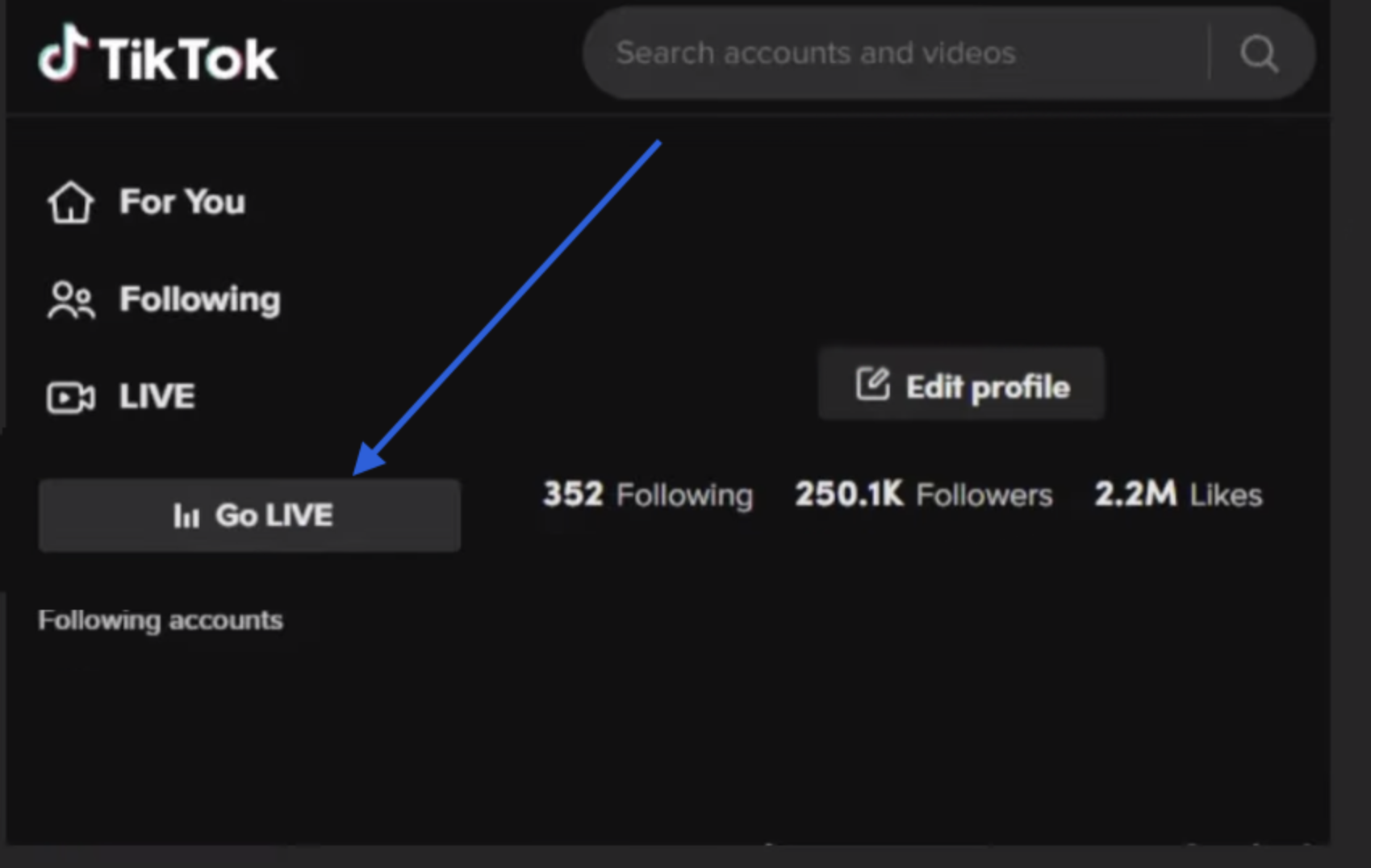
Step 1: Log into TikTok through your desktop browser, go to your profile, and click Go LIVE.
Step 2: This should redirect you to livecenter.tiktok.com/producer
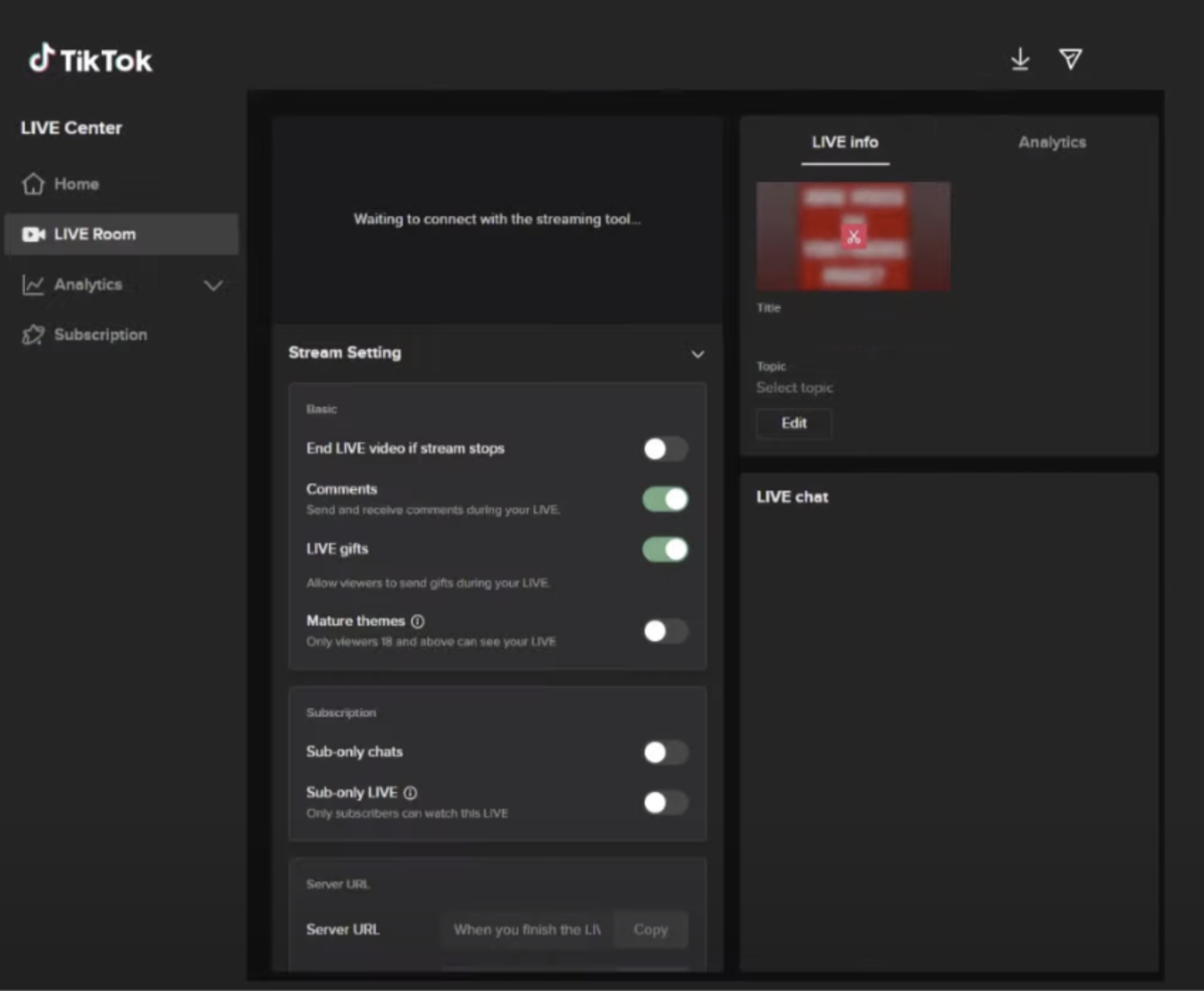
Step 3: Scroll down and click on Go LIVE.
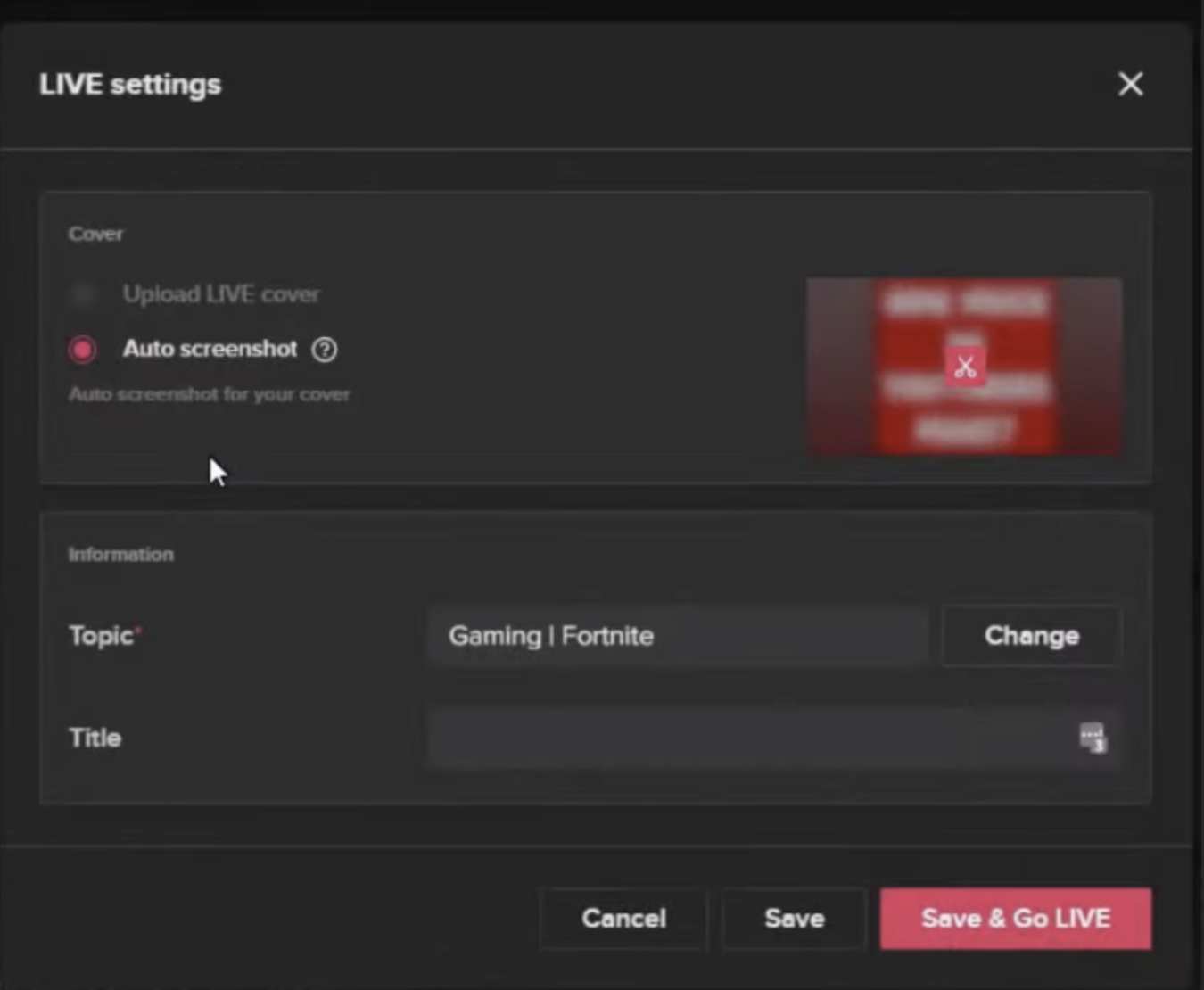
Step 4: Pick your stream category and title, then click Save & Go LIVE. This does not actually start the live stream.
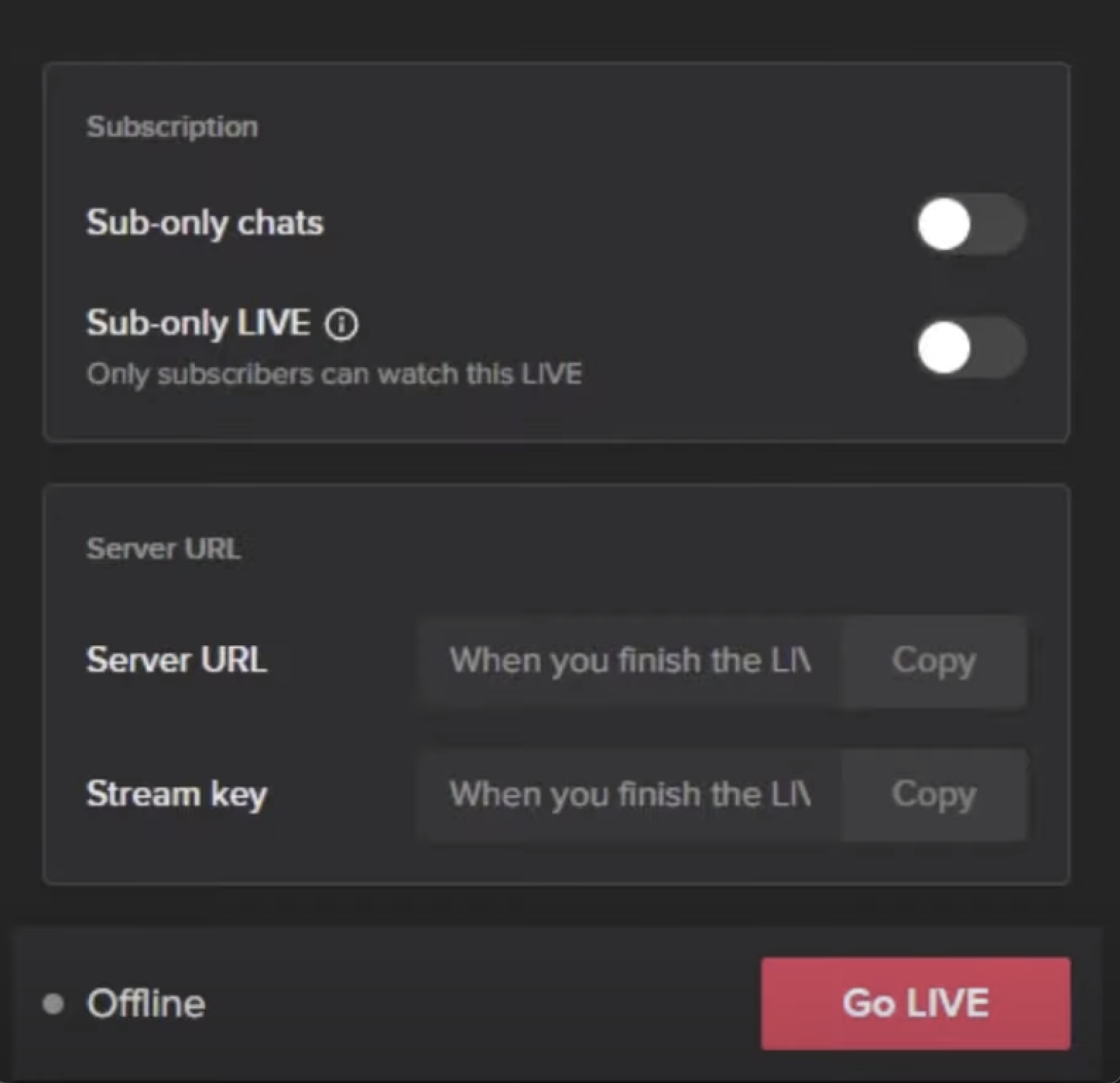
Step 5: Under Stream Setting, locate your Server URL and your Stream Key.

Step 6: Head on back over to LiveMeUp. Go to your Multistream tab, click Other RTMP Destination Add.
Step 7: Copy the URL and Stream Key provided by TikTok, and paste them into the corresponding sections on LiveMeUp. Click Update when done.
Open Instagram in your browser and keep the window open.
On the left panel, locate your stream and click Go Live. (There is ~15 seconds latency from Live me UP- be patient.)
To save your video for 30 days, open the Instagram app and enable Save Live to Archive.
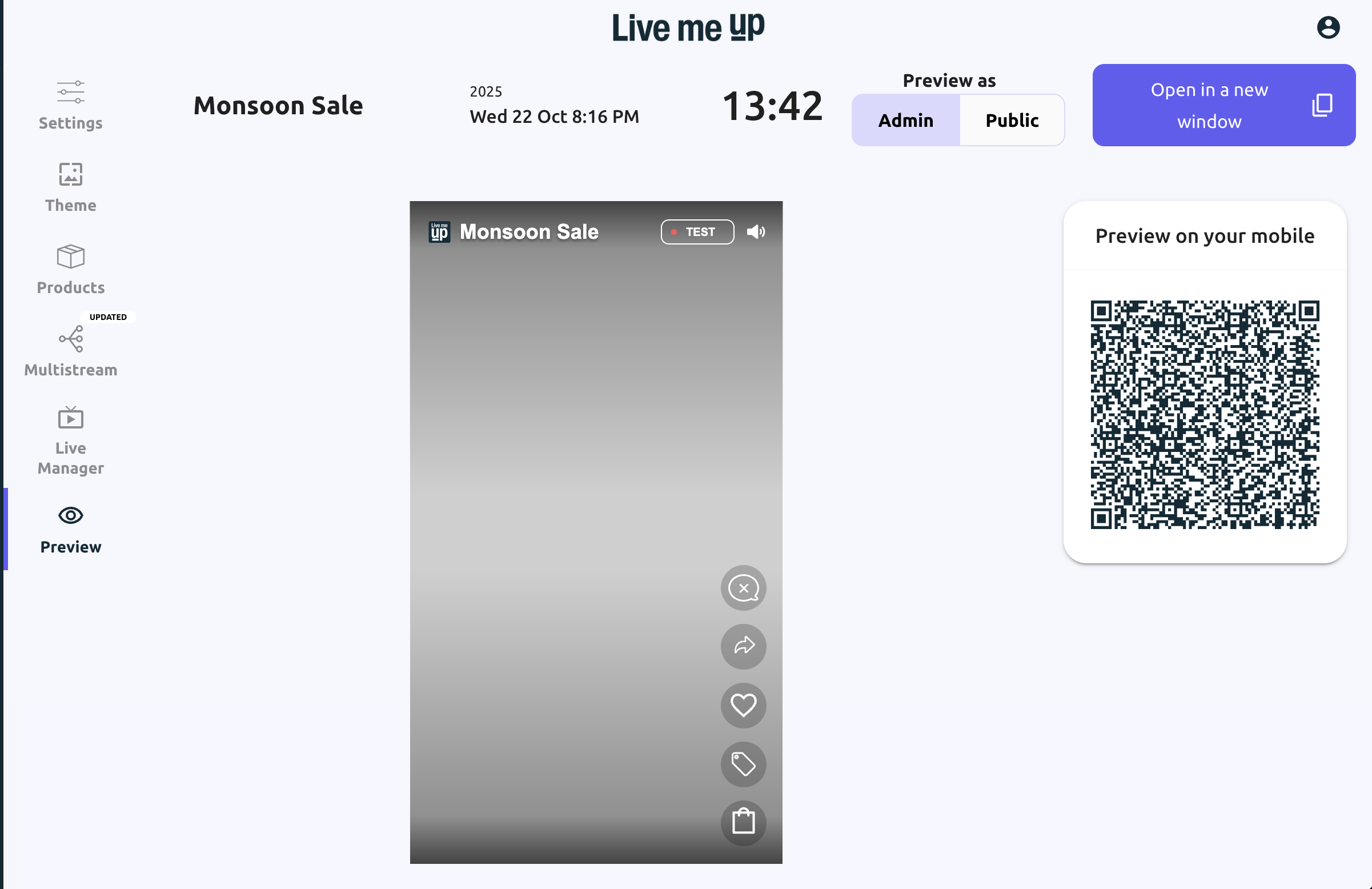
The Preview function lets you check your live stream setup before going public, ensuring visuals, audio, and layouts are correct.
Go to Live events from the left-hand menu.
In the event settings panel (Settings, Theme, Products, etc.), click Preview.
A. Desktop Preview
Main Screen: Shows a real-time simulation of your stream.
Stream Status: “TEST” indicates a private test environment.
Toggle View:
Admin: Displays host-specific overlays.
Public: Shows audience view, including icons like share, product bag, and chat.
Full-Screen: Click Open in a new window (top-right) for a larger browser preview.
B. Mobile Preview
QR Code: Scan under Preview on your mobile to view the test stream on a smartphone.
Check interface, responsiveness, and vertical video display.
Important:
A PRIVATE TEST stream must be started in Live Manager for the Preview to show the live feed.
Preview is for reviewing the stream only, not starting it.