This guide walks you through creating your first Custom Block in the Superfans Low Code Builder.
You’ll learn how to set up a block, structure HTML, style it with CSS, add interactivity with JavaScript, and preview it live in your app.
By the end of this guide, you’ll have a working, fully customizable app section ready to publish.
Before you start, make sure you have:
A Superfans account with access to the Low Code Builder.
Familiarity with HTML, CSS, and JavaScript.
Optional: Understanding of Superfans SDK methods for dynamic data.
Tip: You don’t need to be a full-stack developer, but basic front-end knowledge will help.
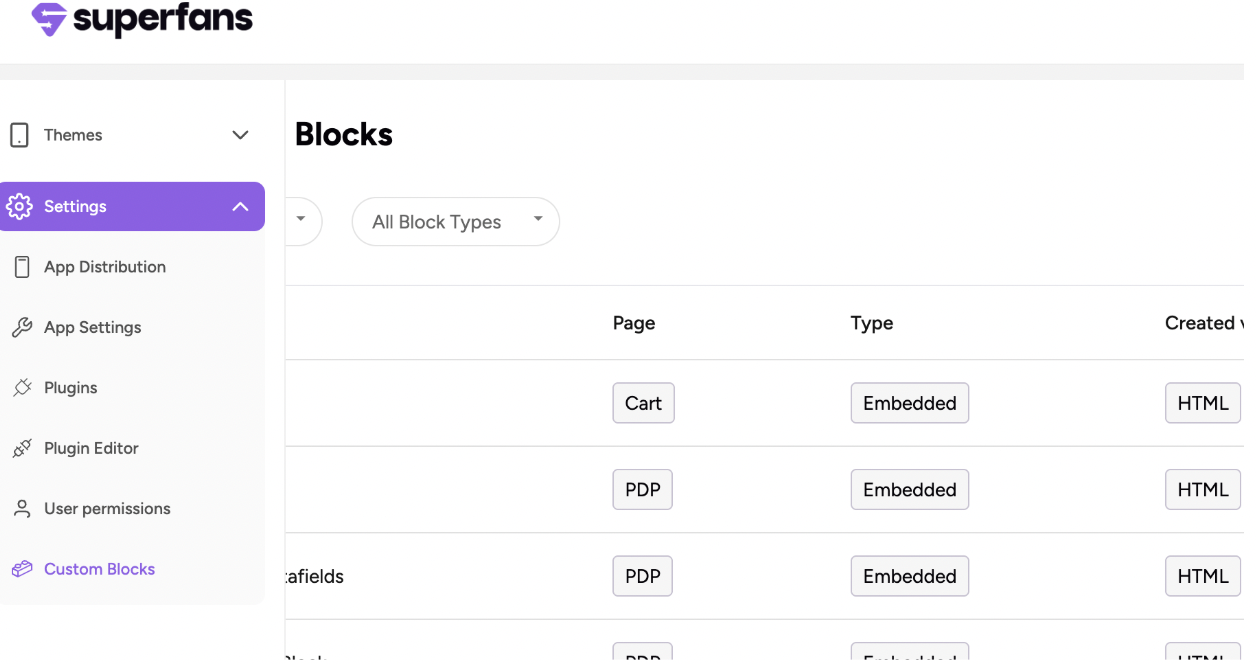
Navigate to Custom Blocks section of the dashboard from the Settings menu on the side bar
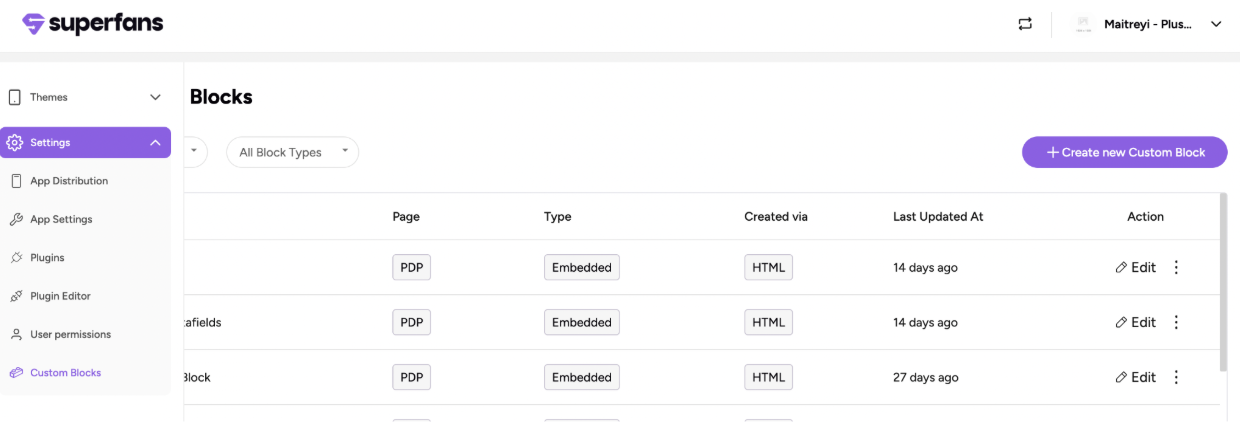
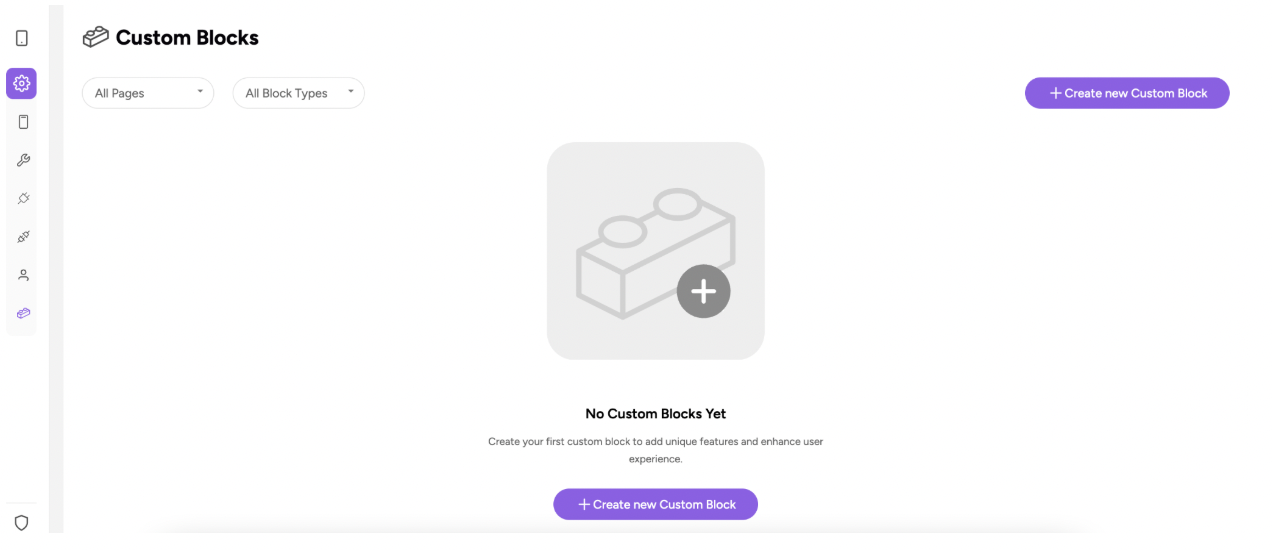
Click on “Create new Custom Block” CTA.
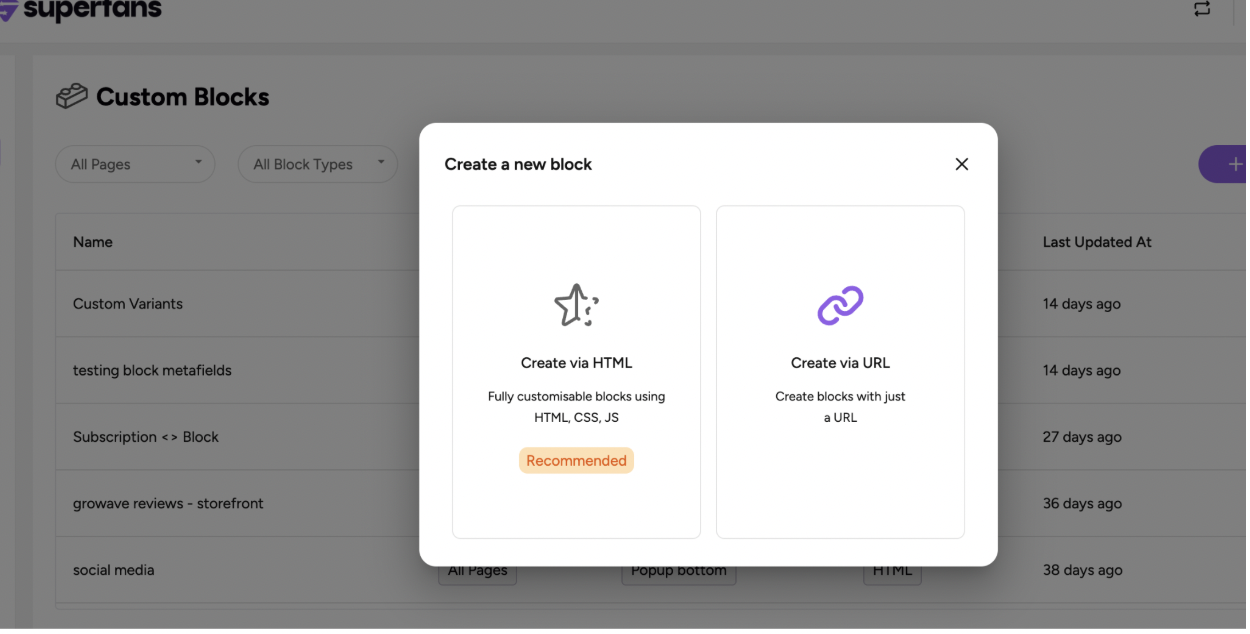
Choose the Custom Block type as “Create via HTML” and
Provide the name for the block, choose the type and placement of the block and click on Create Block CTA.
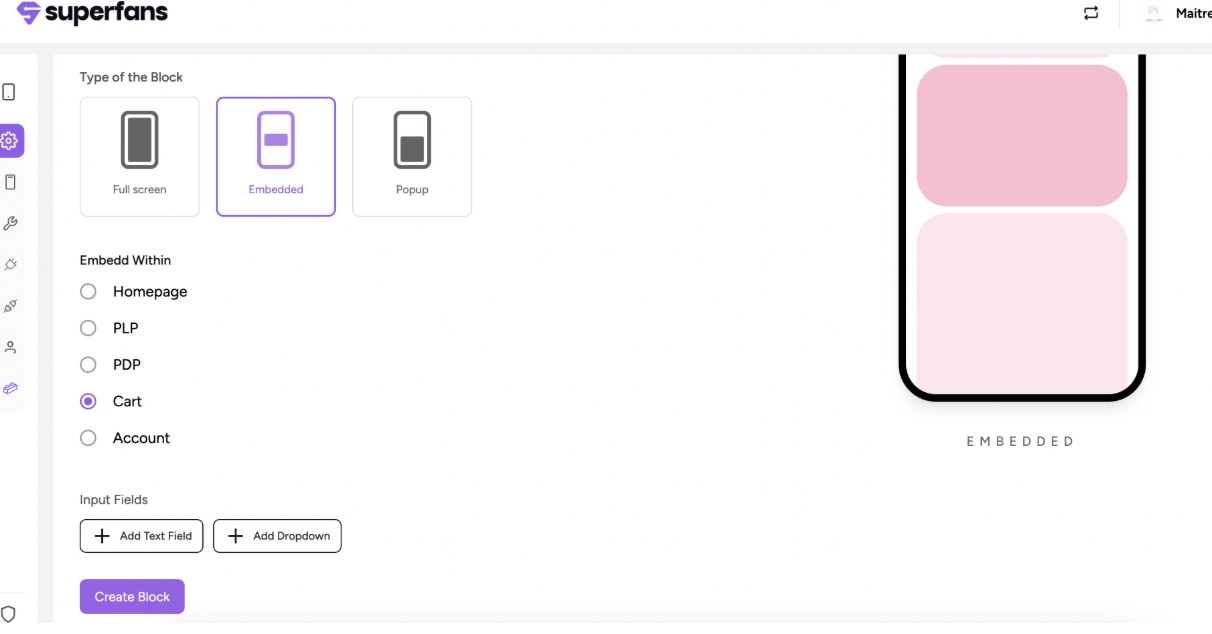
Your block is created. You can customize the way you want and add it to the respective page.
Once you click the plus icon for an Input Text Field, the configuration modal will open:
Field: Enter Text Field Title
Action: Provide a clear name for this field (e.g., "Discount Code Name"). This title will appear as the label for users when they customize the block in the app builder.
Field: Enter Placeholder Text
Action: Enter a hint or example value (e.g., "e.g., SAVE20"). This text will appear inside the input box before a user types anything, helping guide their input.
Multi-line: Check this box if you expect users to enter long-form text, such as a description or a list.
Tooltip: Enable this to provide an informational icon that explains the purpose of the field to the user when they hover over it.
The Unique ID field is autopopulated by the system based on the title you provide. You do not need to type anything into this box.
Click save changes.
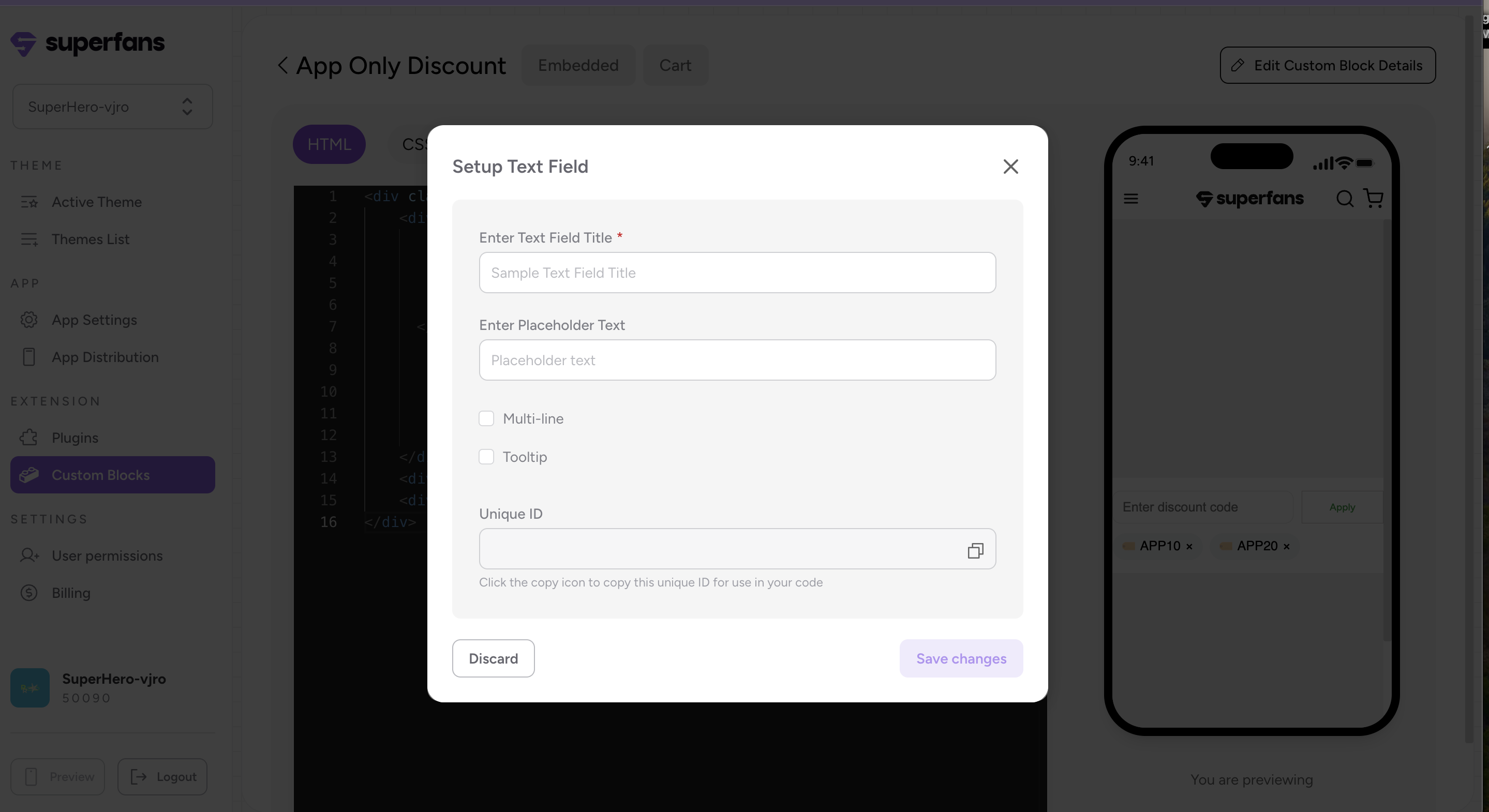
Once you click the plus icon for an Dropdown , the configuration modal will open:
Enter Dropdown Title: Give the menu a name (e.g., "Discount Type").
Drop down items:
Type your option into the "Enter option" box.
Click the + Add item button to add it to the list.
Settings:
Multi-select: Enable this if you want users to be able to select more than one option at a time.
Tooltip: Enable this to provide extra context to the user via a hover icon.
Unique ID: The Unique ID field is autopopulated by the system based on the title you provide. You do not need to type anything into this box.
Click Save changes.
Custom Blocks rely on HTML for structure.
Use semantic elements where possible (<section>, <div>, <ul>, <li>).
Assign class names for CSS styling.
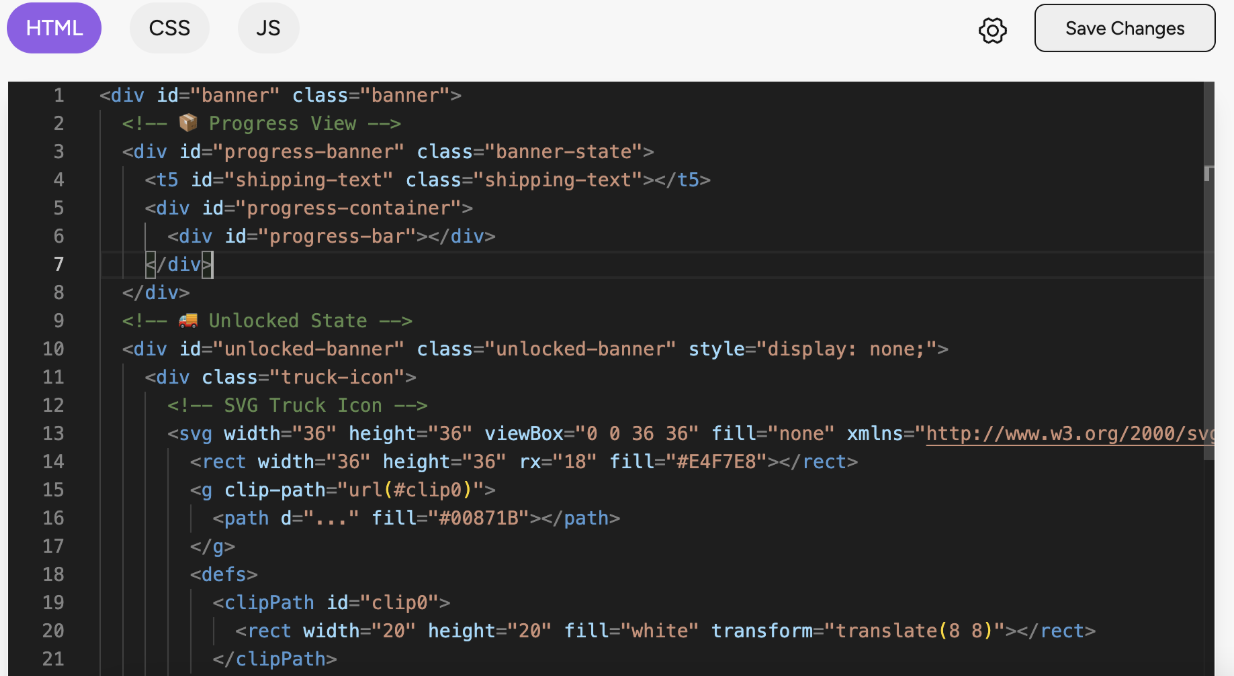
Use CSS to control the appearance of your block. You can write:
Inline styles
Scoped CSS in the editor
External styles if using SDK imports
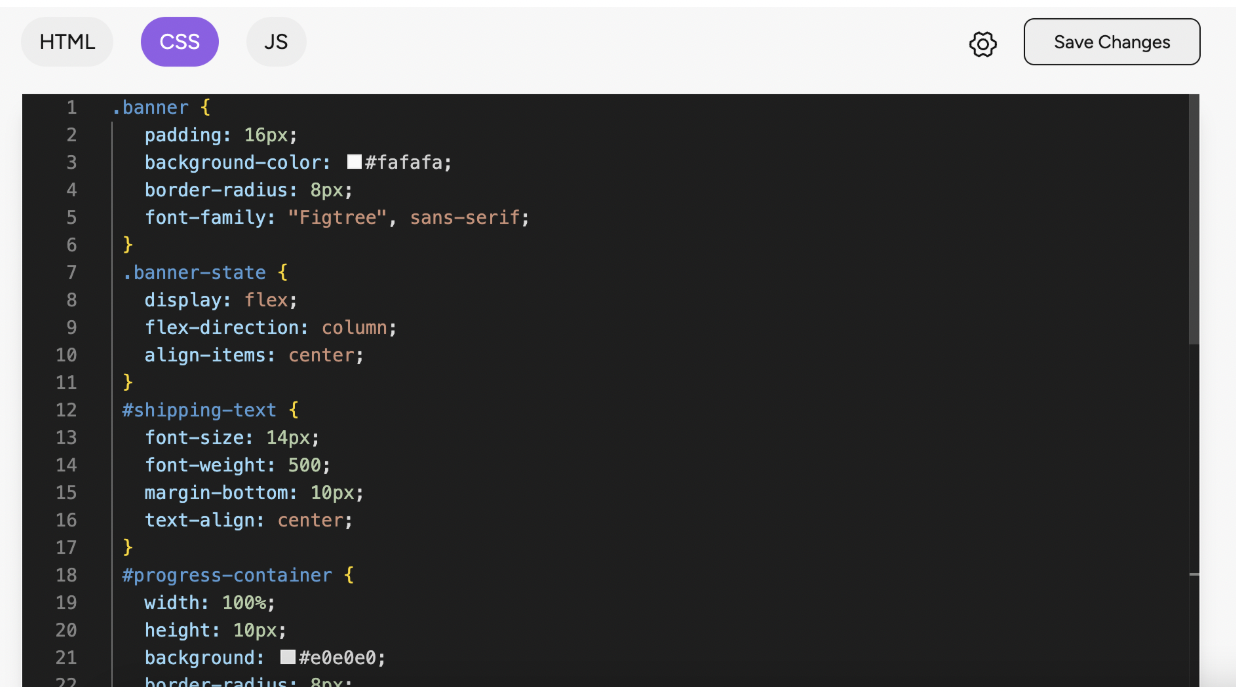
JavaScript makes your block dynamic and interactive. Examples include:
Fetching data from your store or APIs
Handling user interactions (clicks, swipes)
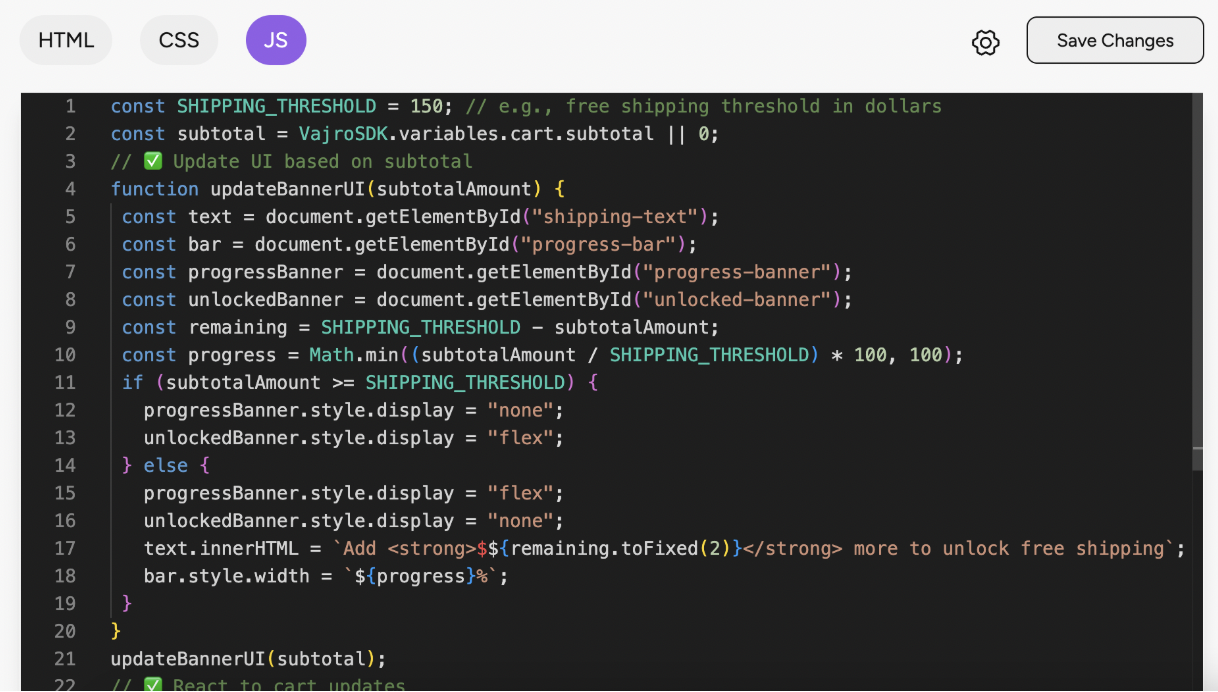
For data-driven blocks:
Use Superfans SDK methods to fetch products, collections, metafields associated with user / product or user info.
Replace static HTML placeholders with dynamic content.
Based on the block you created, add the block to the respective page for it to appear on the app.
Navigate to the page of the app from the theme.
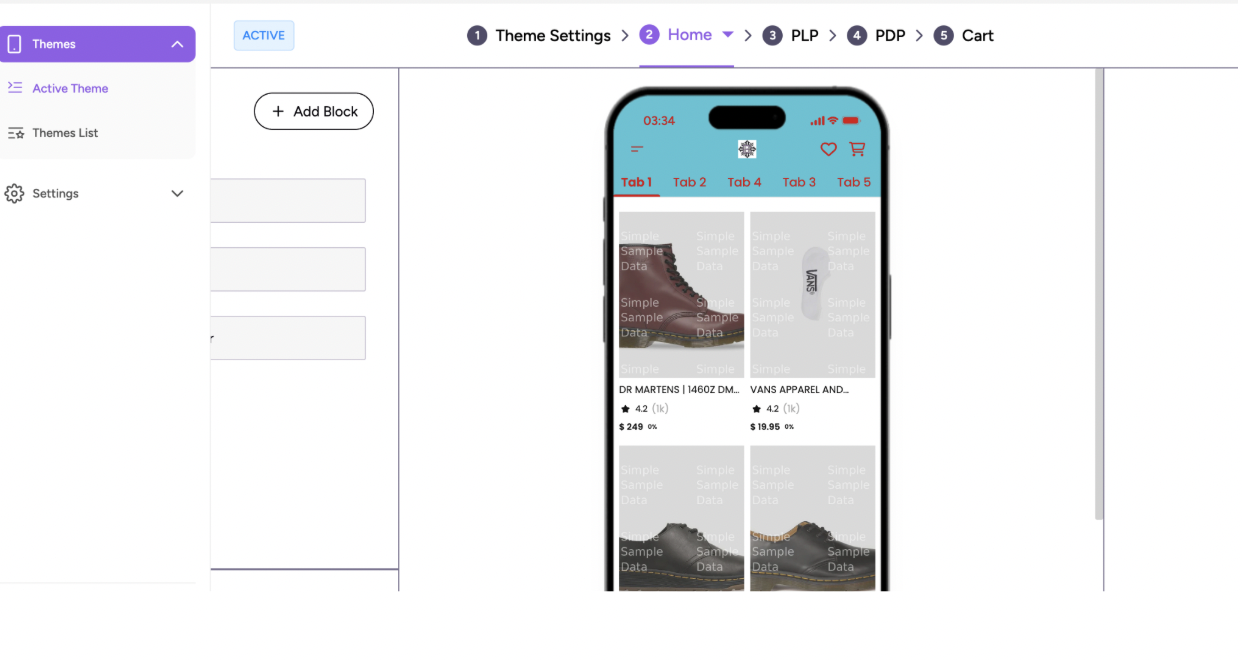
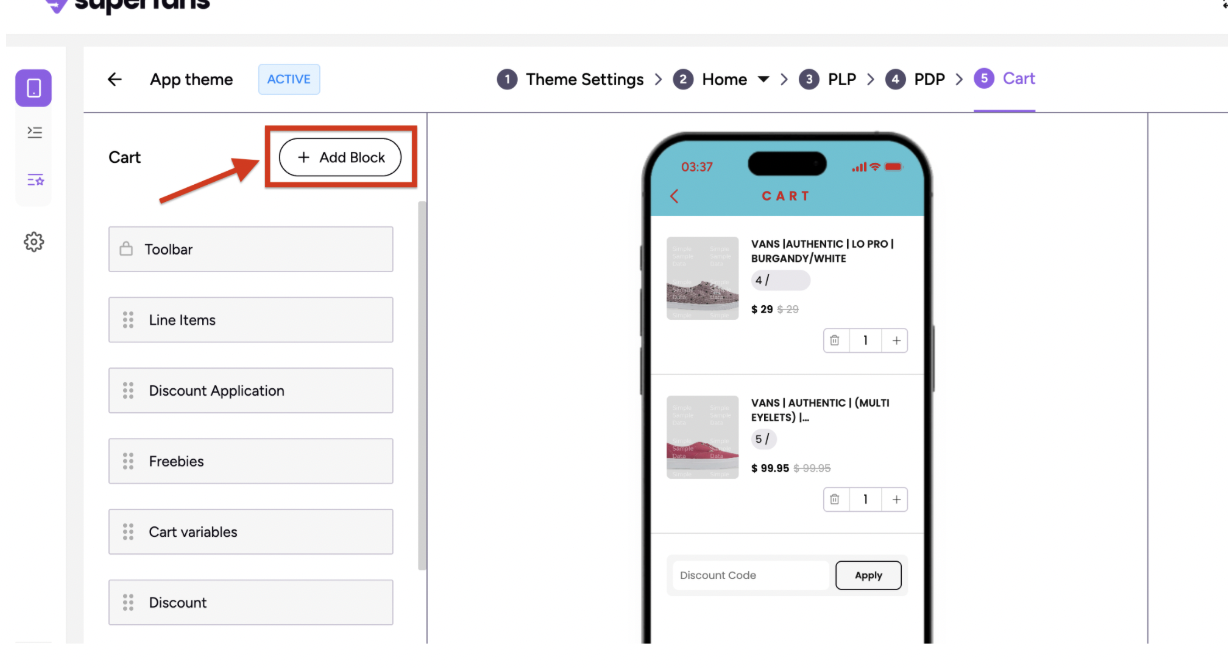
Click on the Add Block button.
Select the type of the block as Custom.
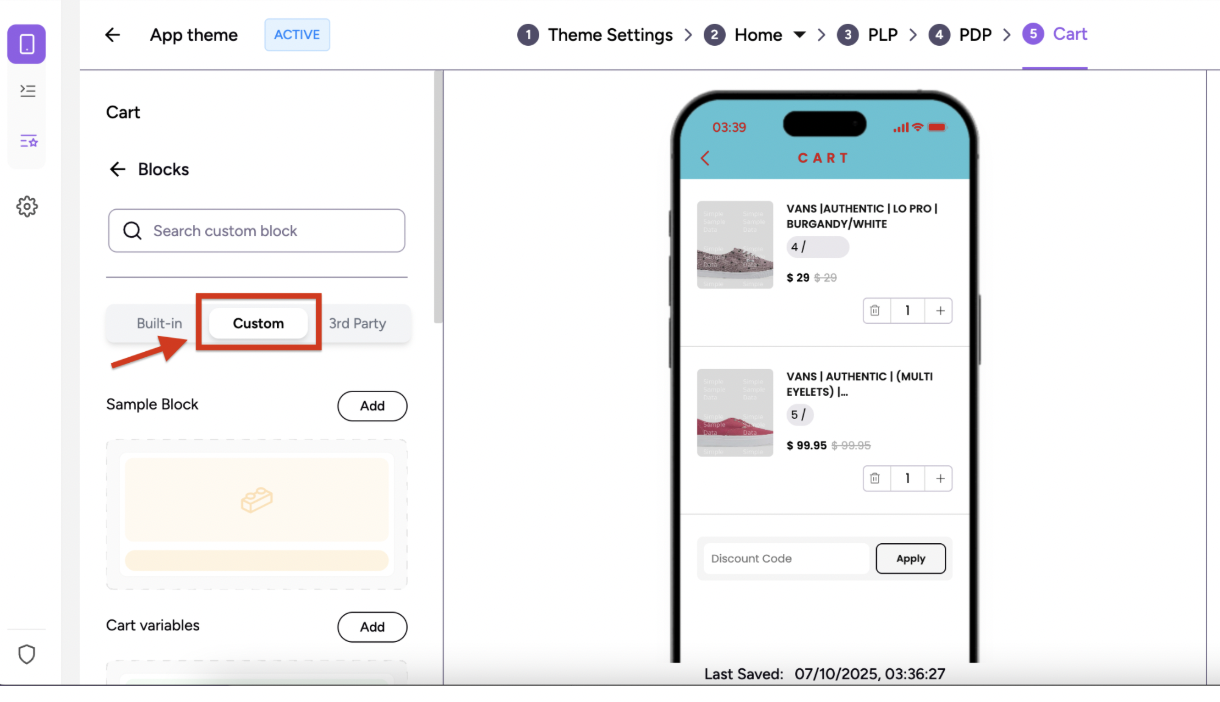
Select the block you want to add by scrolling or searching in the search bar and click on “Add” button.
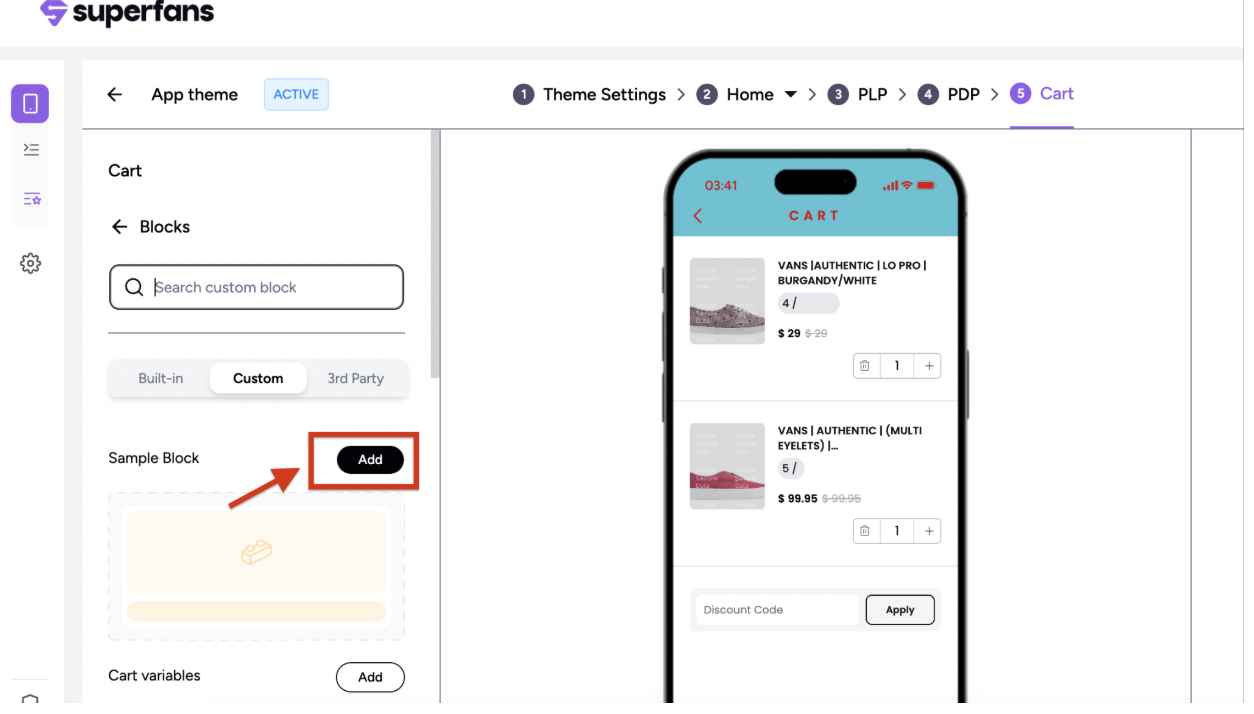
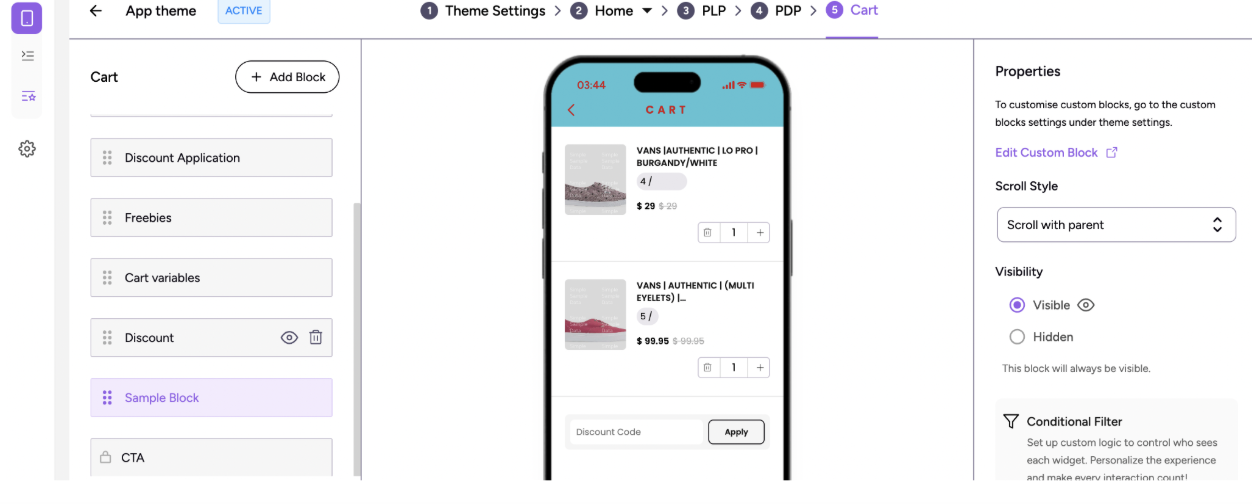
The block gets added to the page.
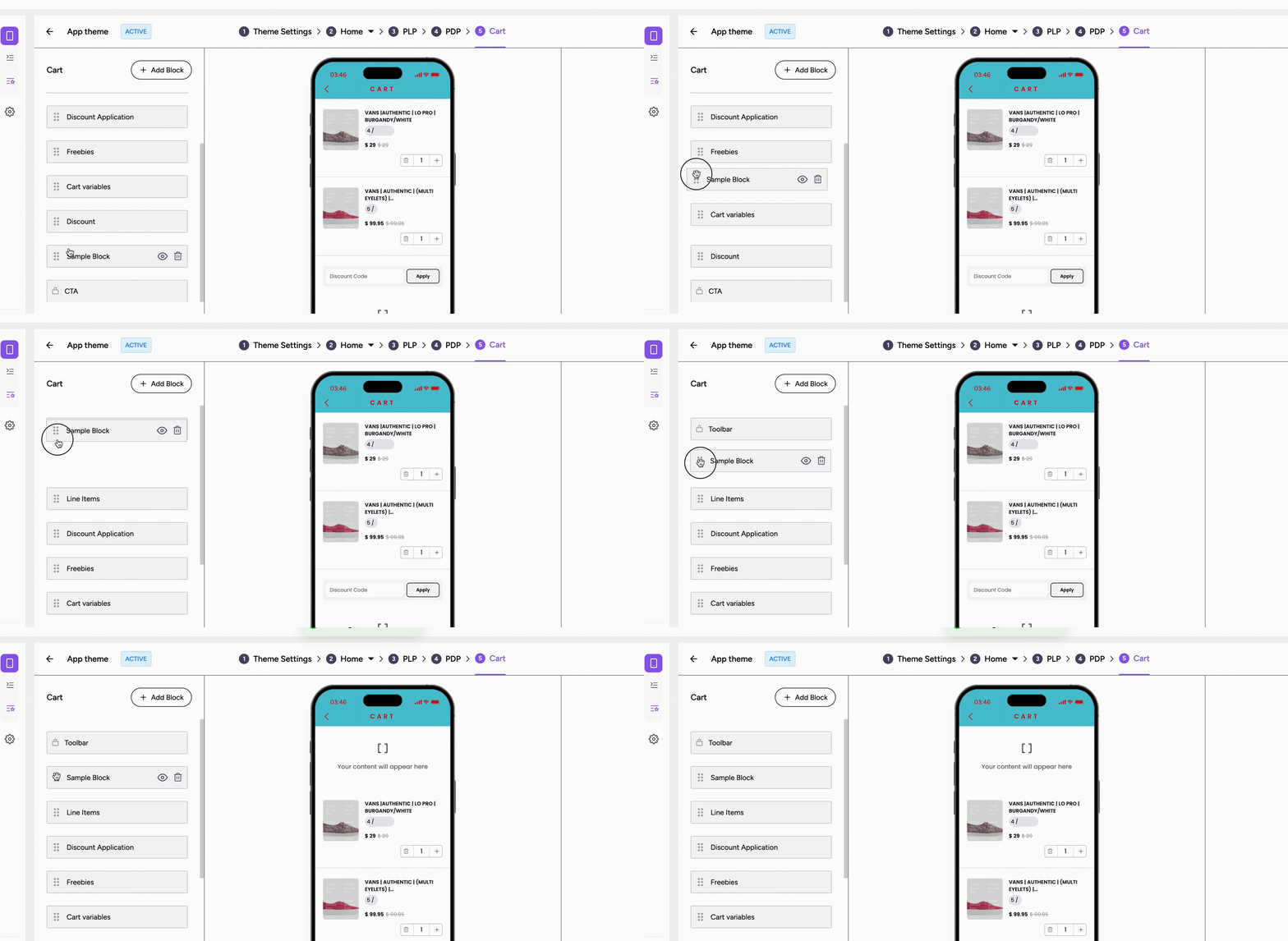
You can change the placement of the block by dragging it to the desired position.
You can open the Admin app or Live app and view the block.
Test interactions and responsiveness across devices.
Make edits in real-time and see changes immediately.
While SVGs are scalable, inline SVGs with many <path> or <g> elements can bloat the DOM and slow rendering on lower-end devices.
Alternate:
Use optimised PNGs/WebP for icons
If you must use SVG, compress with tools
Large images impact loading speed and memory usage.
Always compress images.
Prefer WebP/AVIF over PNG/JPG.
Use images sized to the container (not a 2000px image for a 200px display).
Carousels with auto-slide feel non-native and can drain battery/CPU.
Alternate:
Mobile users prefer manual swipe gestures.
Heavy CSS transitions, box shadows, or opacity animations can cause jank (frame drops).
Alternate:
Keep animations subtle and <300ms.
Animate opacity & transform (GPU-friendly).
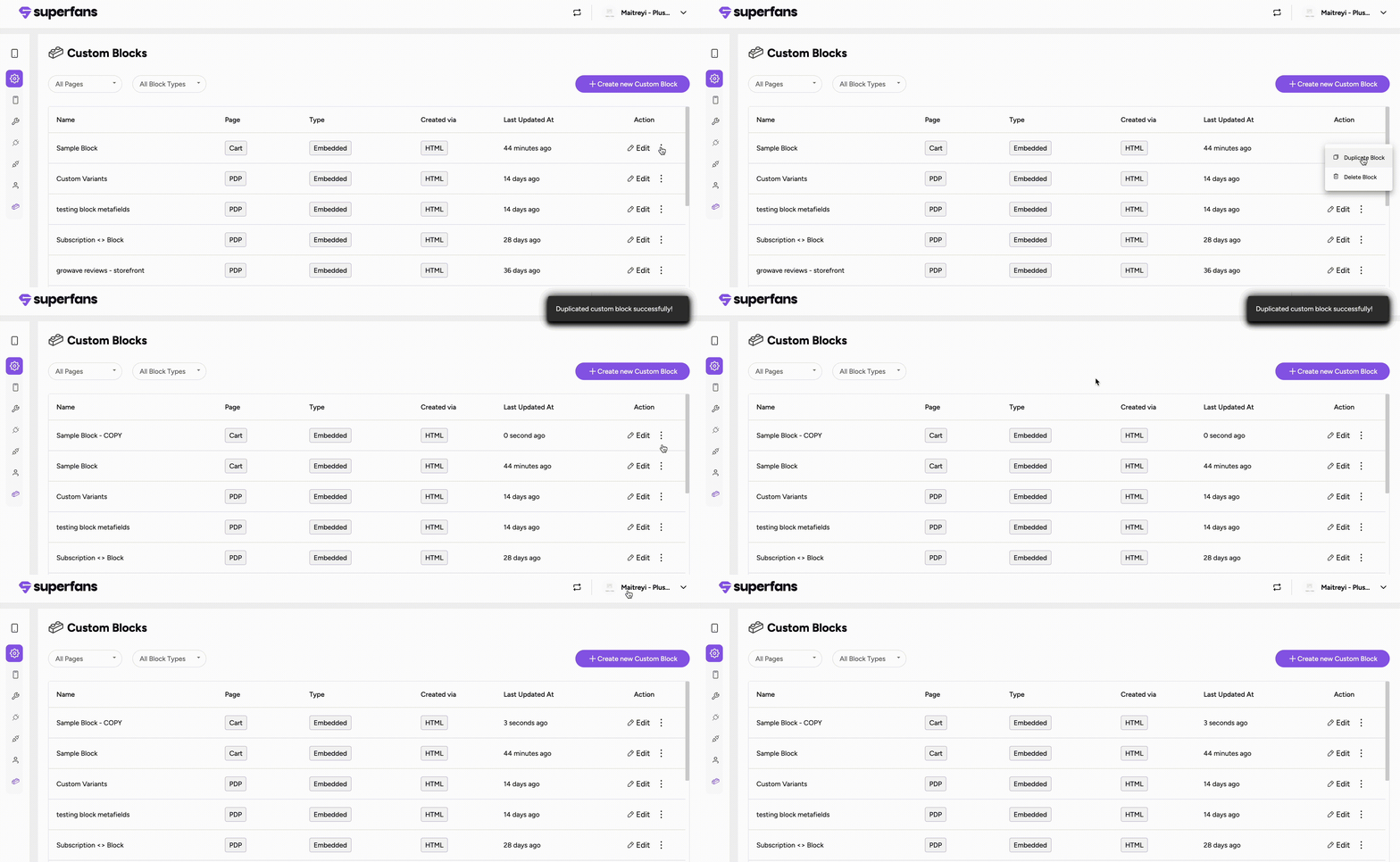
Superfans allows you to edit, duplicate, and delete custom blocks, giving you complete control over your app layout. These operations help you iterate quickly, maintain reusable blocks, and clean up unused content.
Editing a block lets you modify the HTML, CSS, JS, or configuration of an existing block.
Go to the Blocks section from the settings menu.
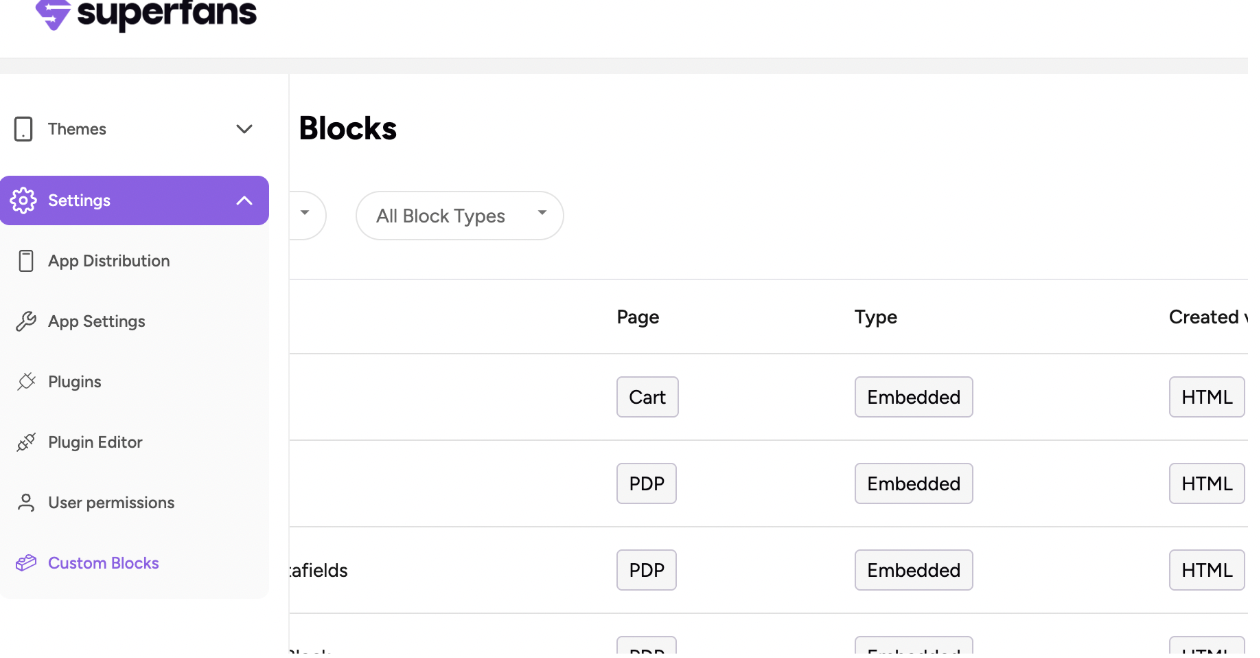
Click the Edit button of the block you want to modify.
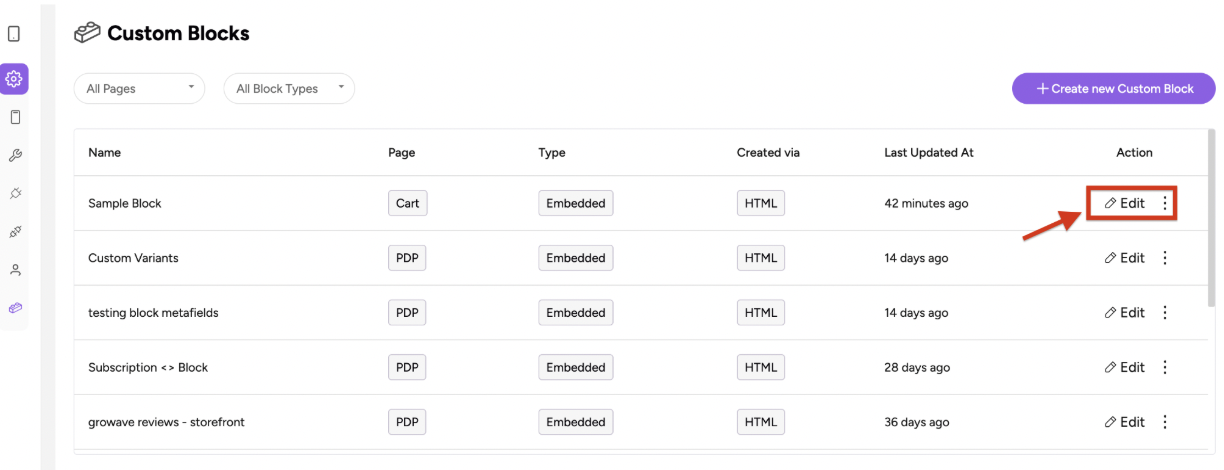
Make the necessary HTML, CSS and JS changes and save them. This will reflect directly on the app.
Deleting a block permanently removes it from your app. Use this when a block is no longer needed or outdated.
Go to the Blocks section from the settings menu.

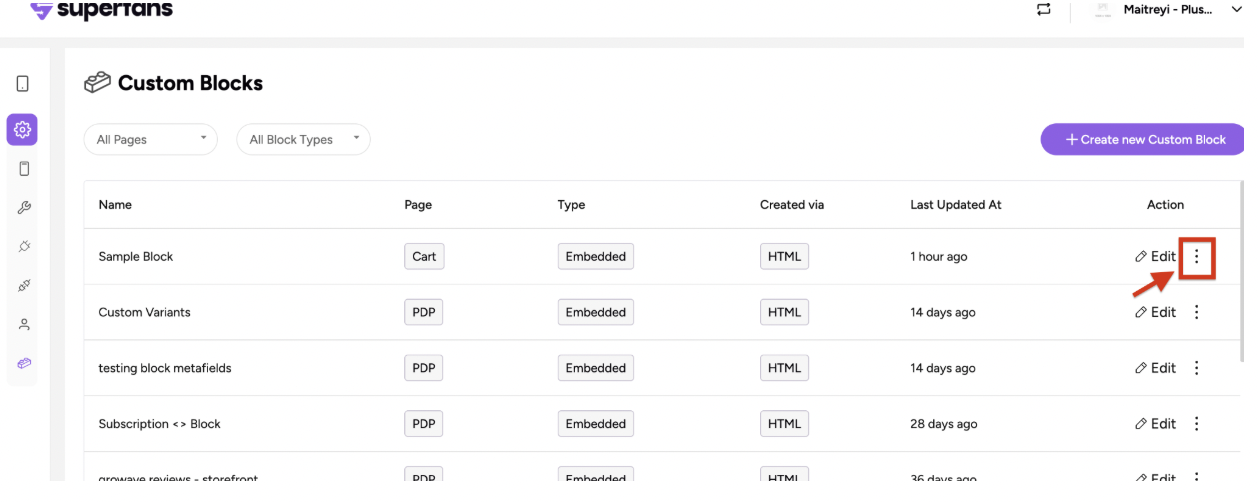
Select the block you want to remove and click on the 3 dots next to Edit CTA.
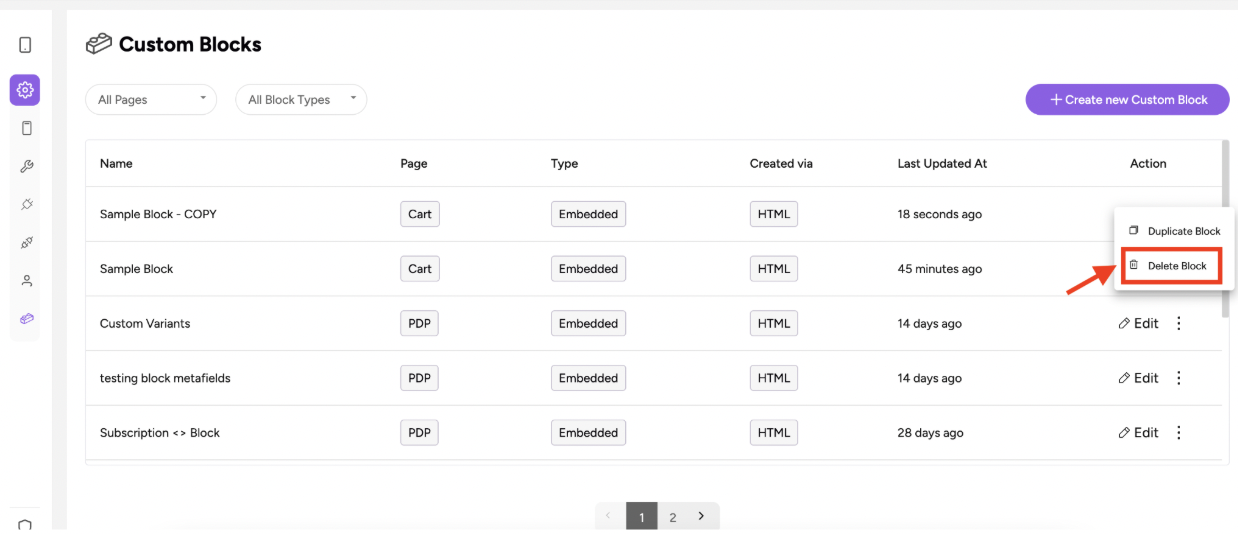
Click the Delete icon or button.
Confirm the deletion in the prompt.
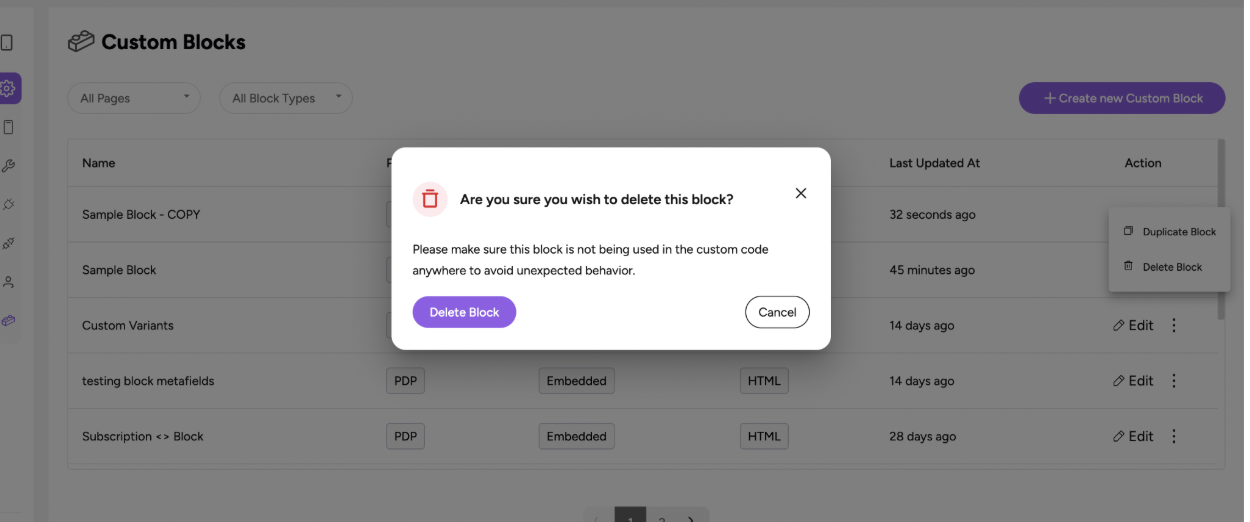
Note: In case the block is active on any page, remove the block from the respective page to delete it.
Duplicating a block allows you to reuse a block layout without recreating it from scratch. Ideal for creating variations or testing multiple versions.
Go to the Blocks section from the settings menu.
Select the block you want to duplicate and click on the 3 dots next to Edit CTA.
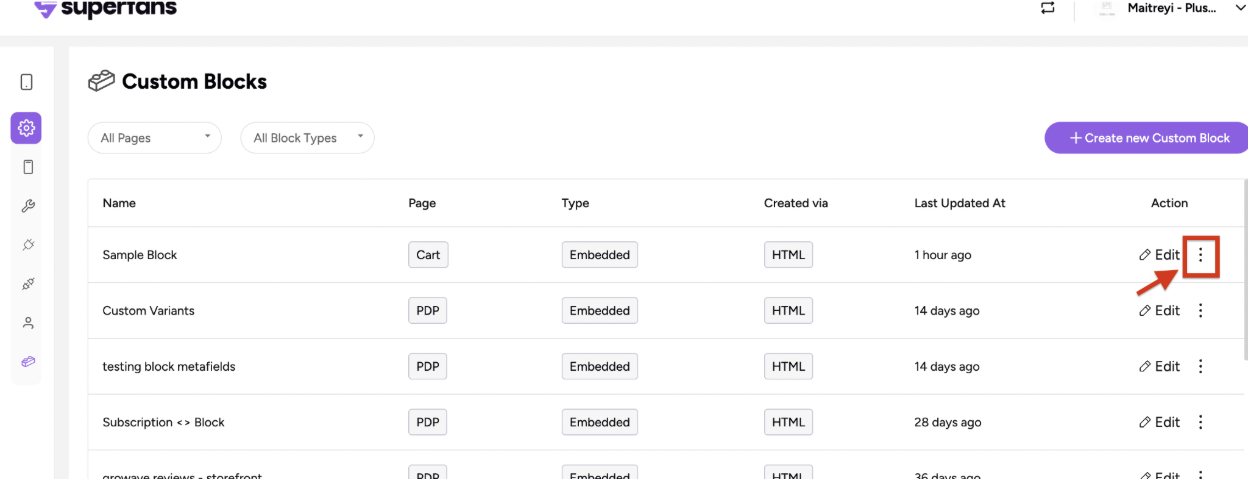
The block gets duplicated and you can click on edit and do the necessary changes.