The App Settings section in the dashboard lets you configure important options that apply across your entire mobile app. Any changes made here will reflect throughout the app, ensuring a consistent experience for your customers.
This document will cover the following settings
Show / Hide Out of stock products
Setting up Currency Format
Configuring all Policies
Styling the CSS for all webpage
Show / Hide Out of stock products
This settings helps you to decide if you want show the products whose inventory quantity is 0 across the app or hide them.
How to do?
Step 1 : Navigate to App Settings→ Other Options.
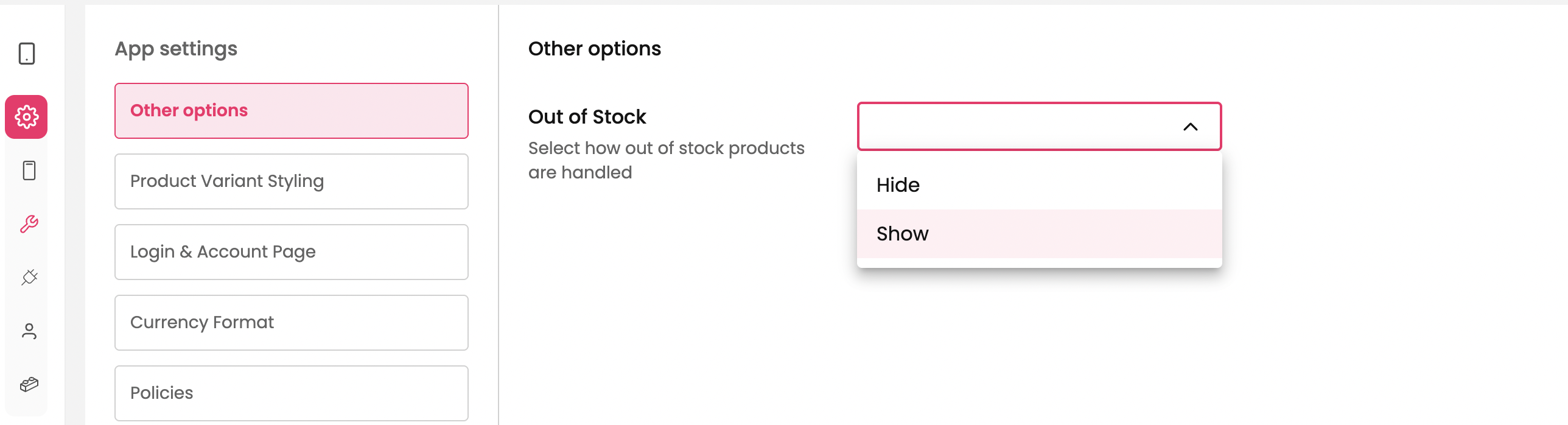
Step 2 : Choose Hide / Show from the below options
Setting up Currency Format
This setting configures the currency format across the app.
How to do?
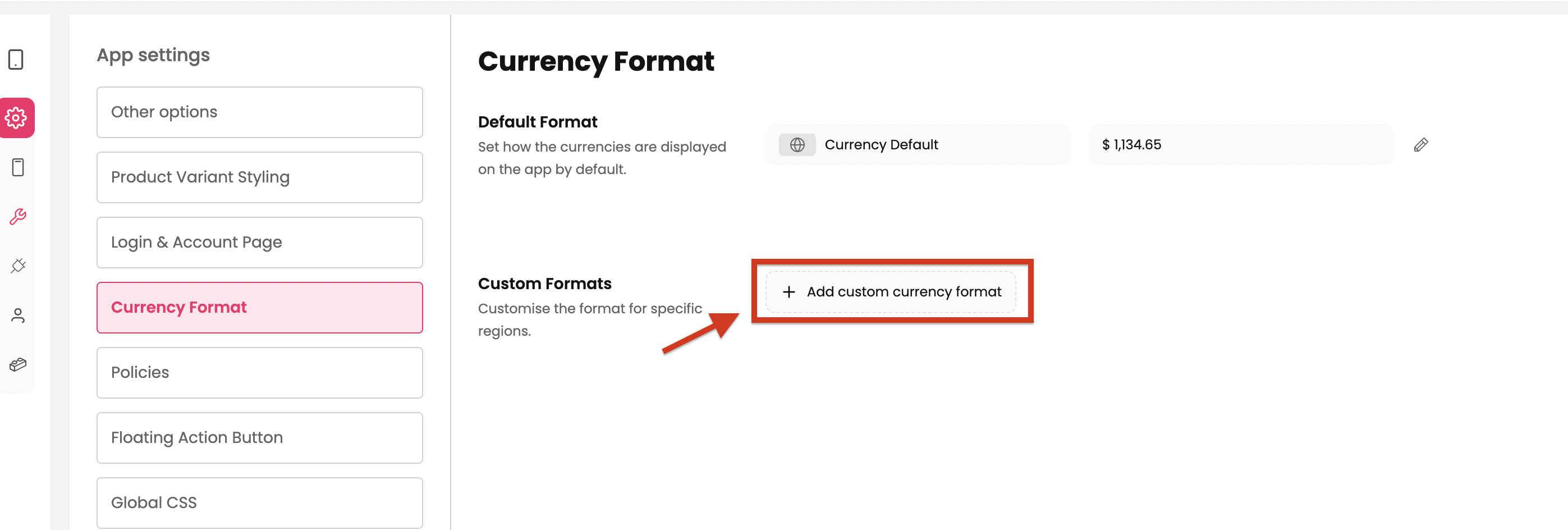
Step 1 : Navigate to App Settings→ Currency Options.
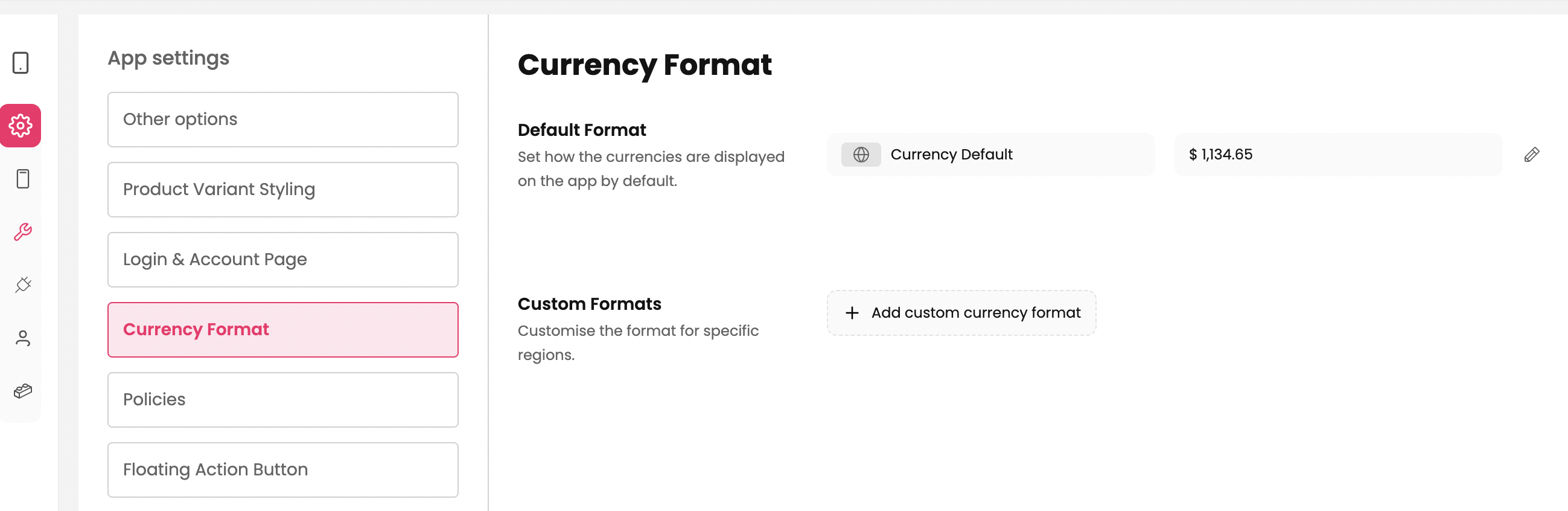
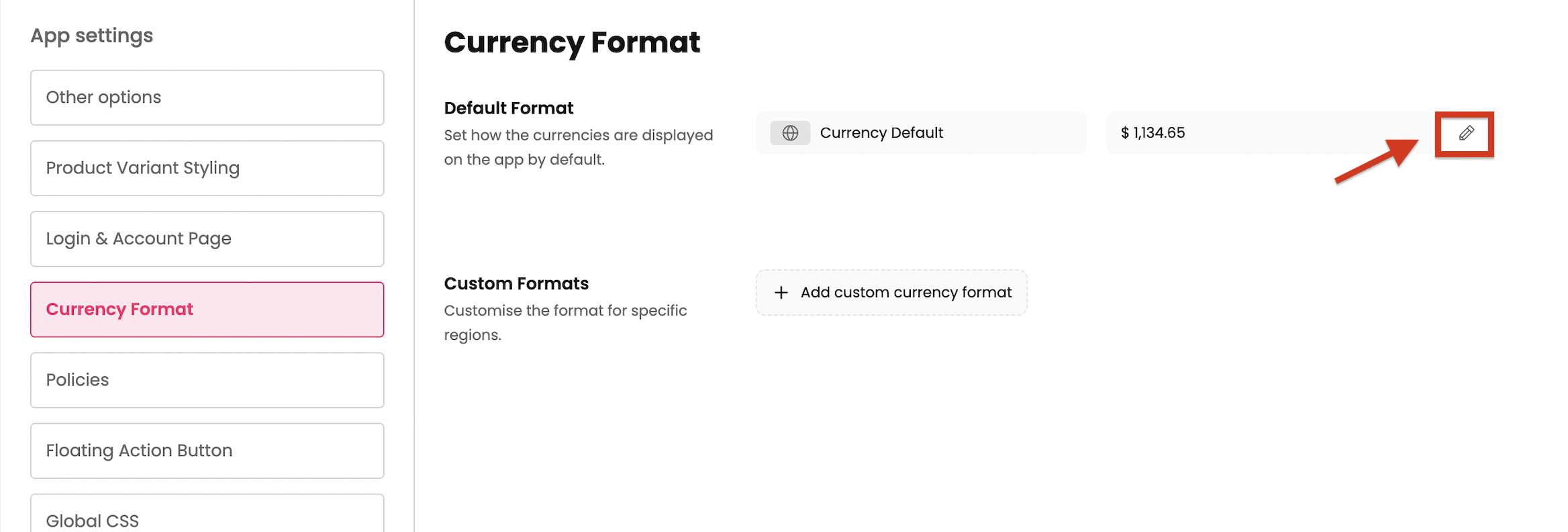
Step 2 : Click on the Pencil icon to change or modify the format of the default currency.
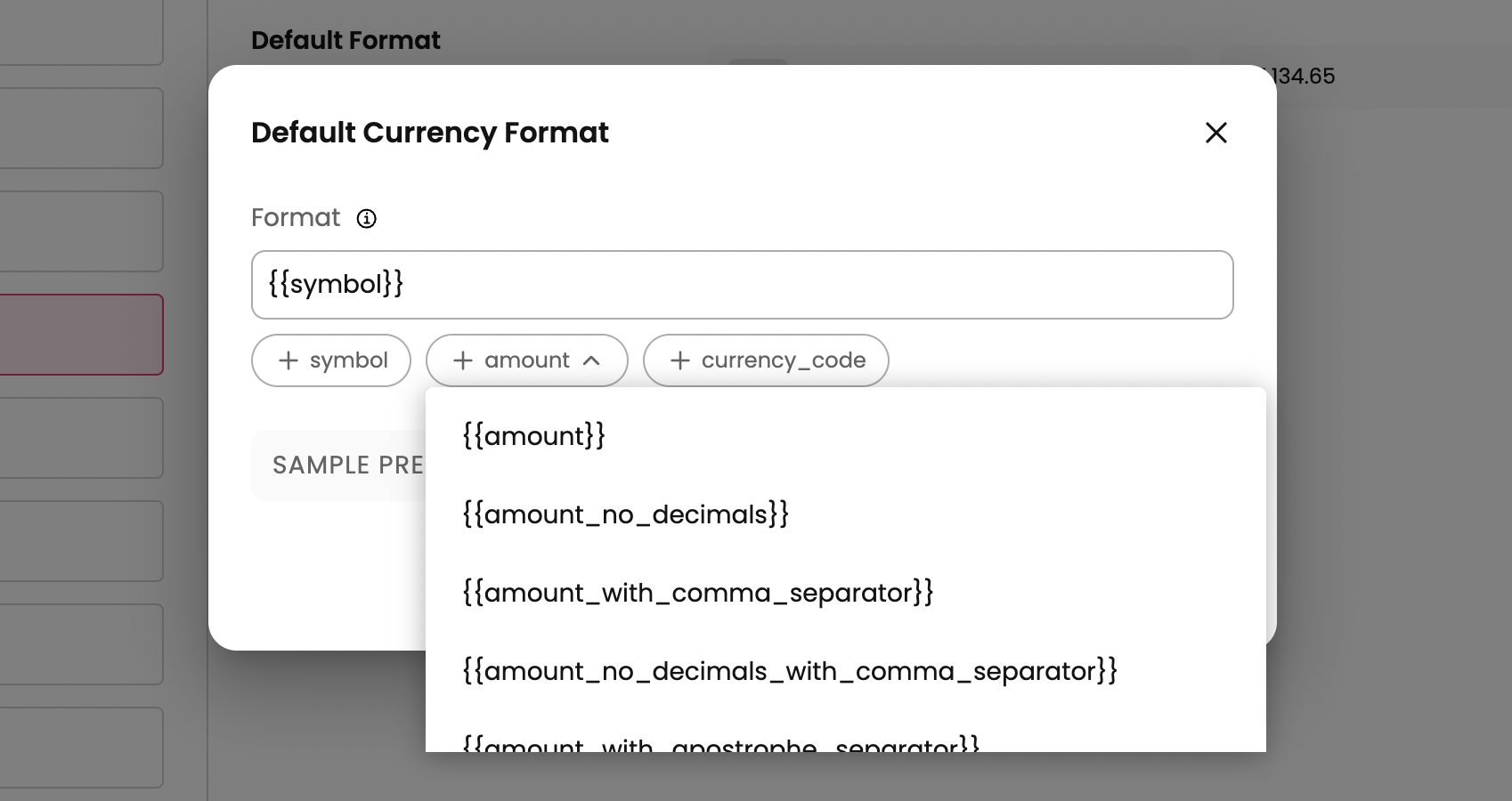
Step 3 : Choose the format you prefer by clicking on ”+” of the below options and click save changes. For eg., If you want the currency as $123.44, below is the options you need to choose.
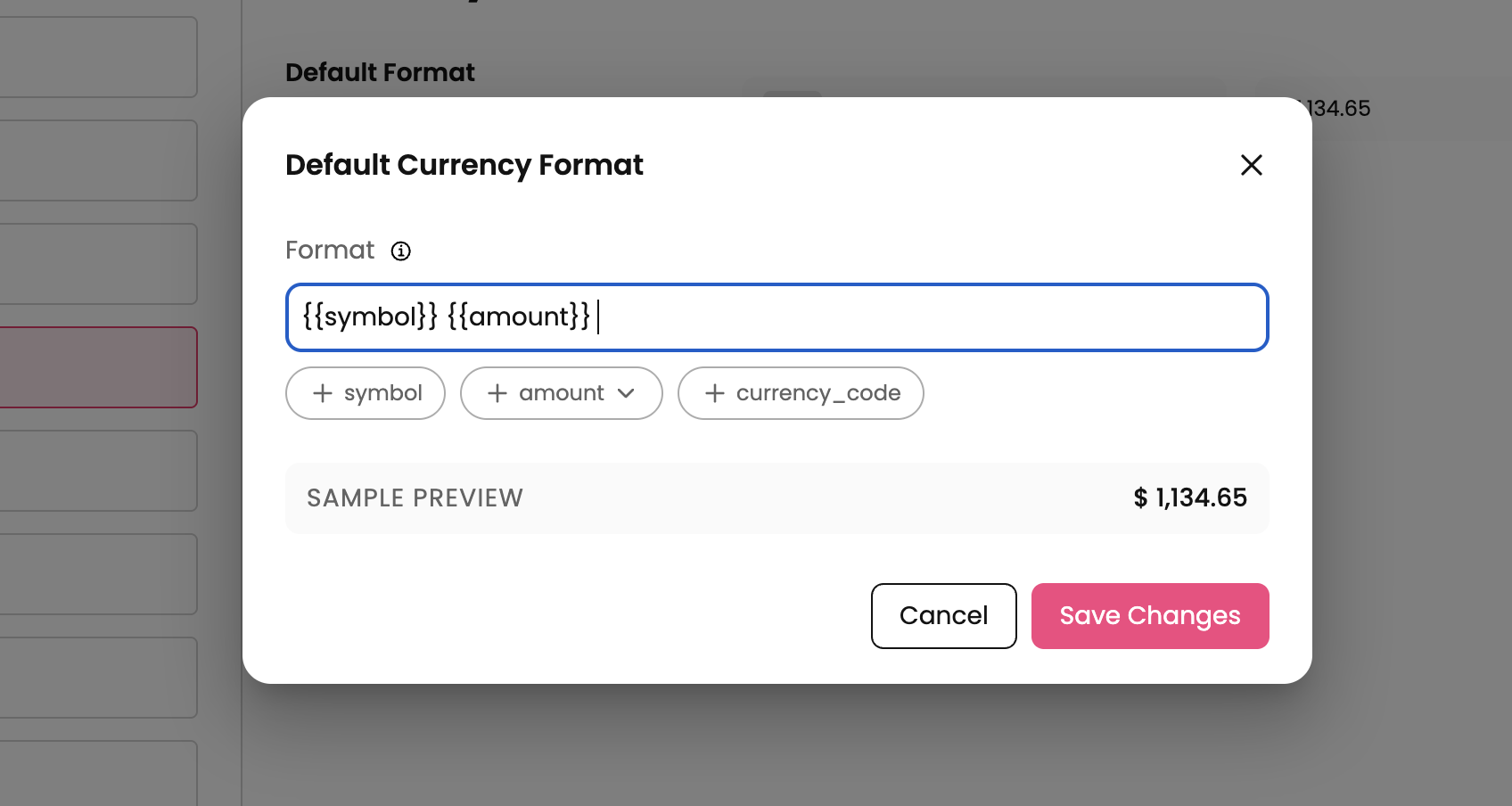
If you want the currency as $123, the currency without any decimal values, choose the option “amount_no_decimals“.
If you have multiple currencies, you can set the currency format for them by clicking on “Add custom currency format”
Setting up Policies on the app
Manage your store's policies to build customer trust and ensure clarity. You can link to your existing policy pages, such as those for refunds, privacy, and terms of service, making them easily accessible within the app.
How to do?
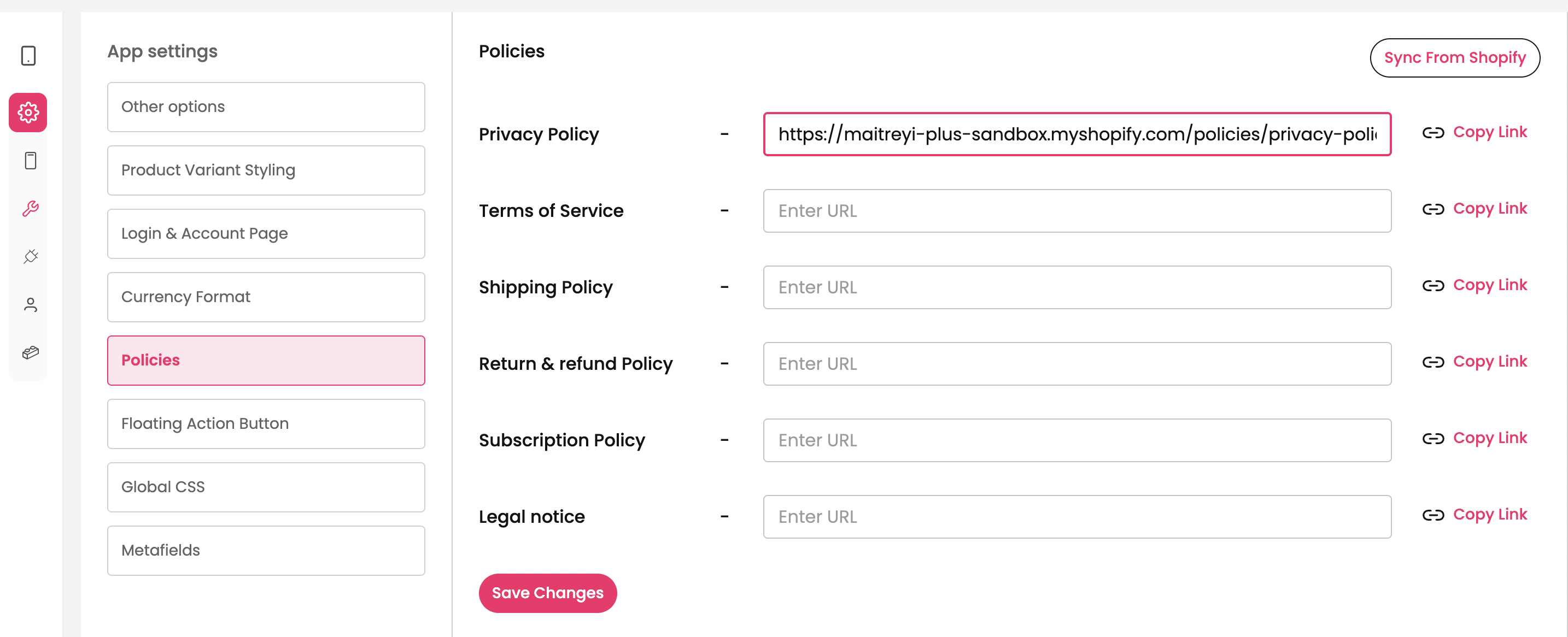
Step 1 : Navigate to App Settings→ Policies
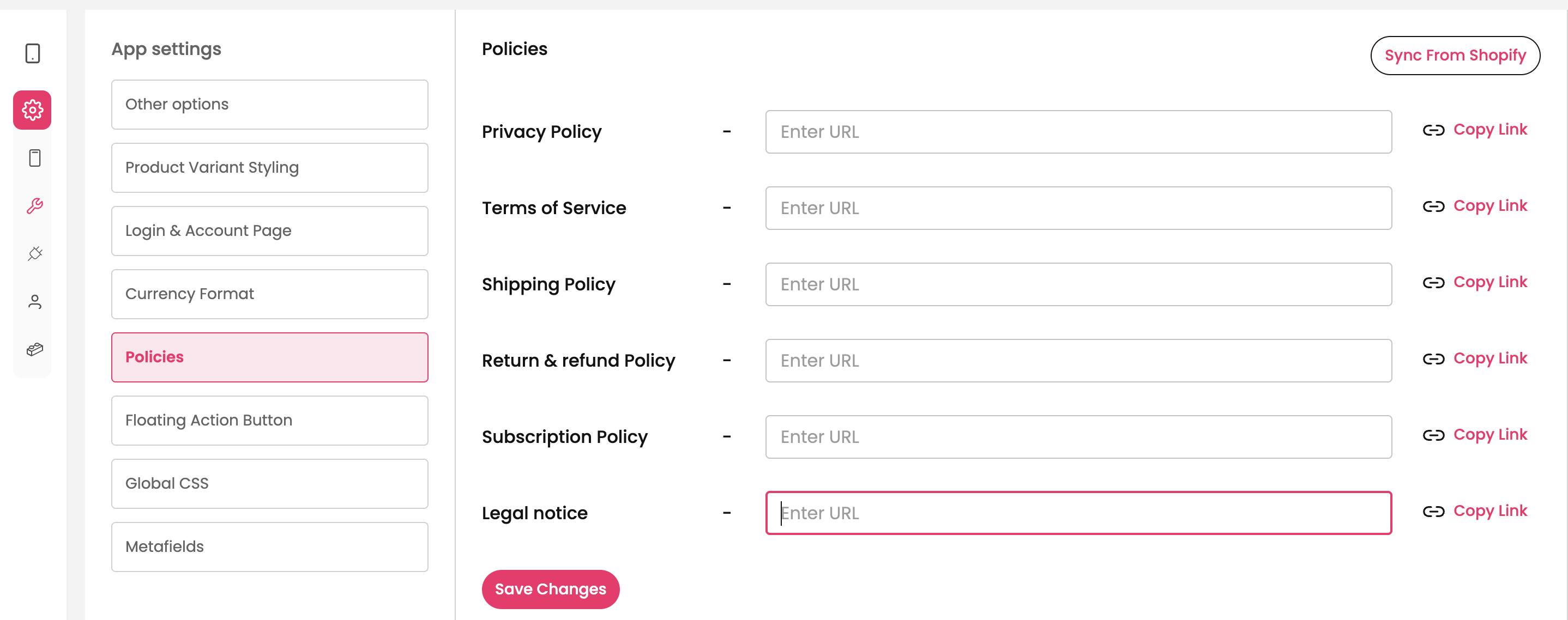
Step 2 : Provide the URLS of each policies available on website and click on Save changes.
(or)
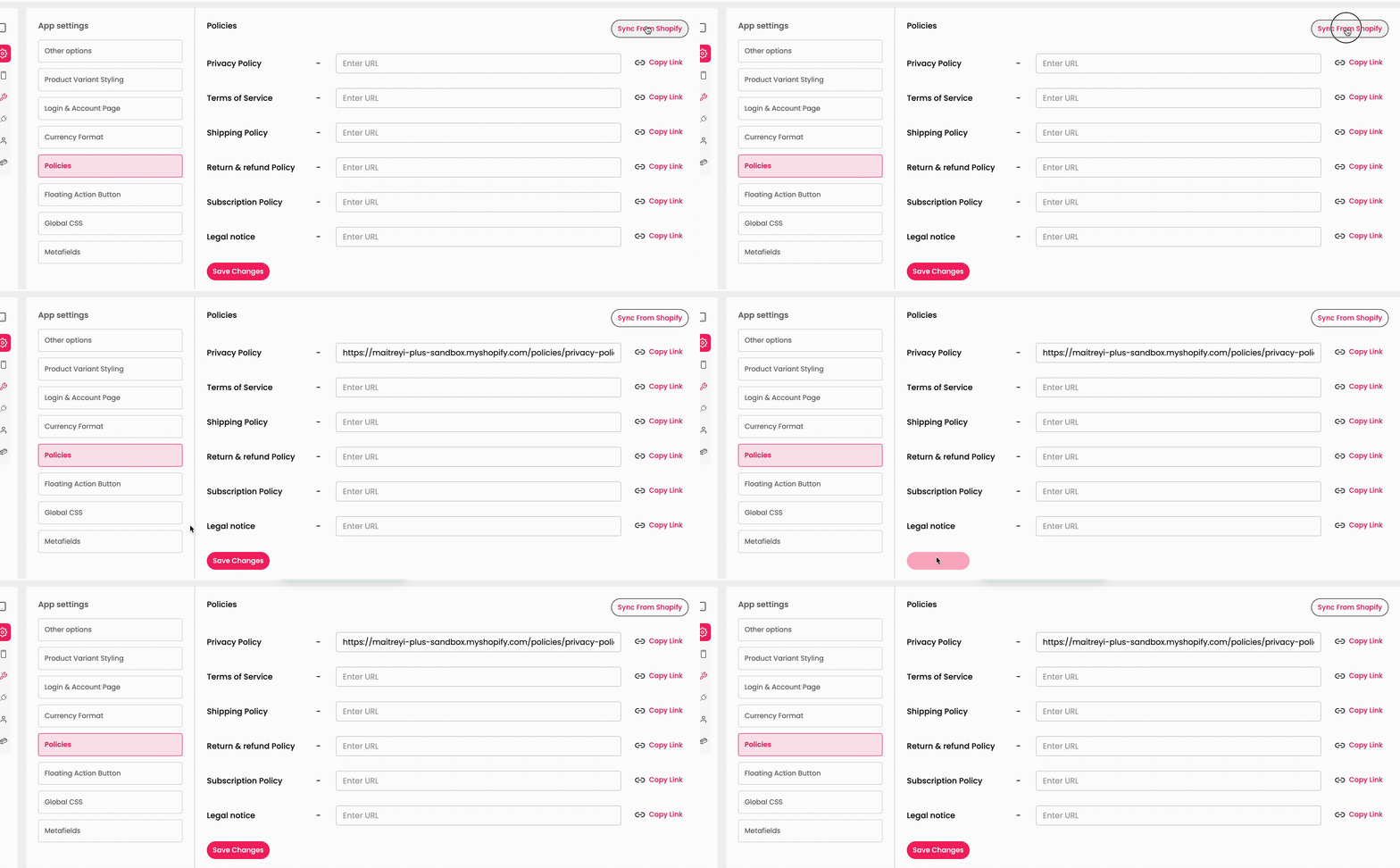
Click on Sync from Shopify CTA. This will auto-fill the policy links that are available in the website and Save changes.
Styling the CSS for all webpage
If you want to link any page from the website, the URL will load in a browser within the app. To give a appearance of the page similar to built-in page, we will need to hide Header, Footer and few other sections of the page.
This setting helps to hide extra elements / components across the app for all the page URLs configured.
How to do?
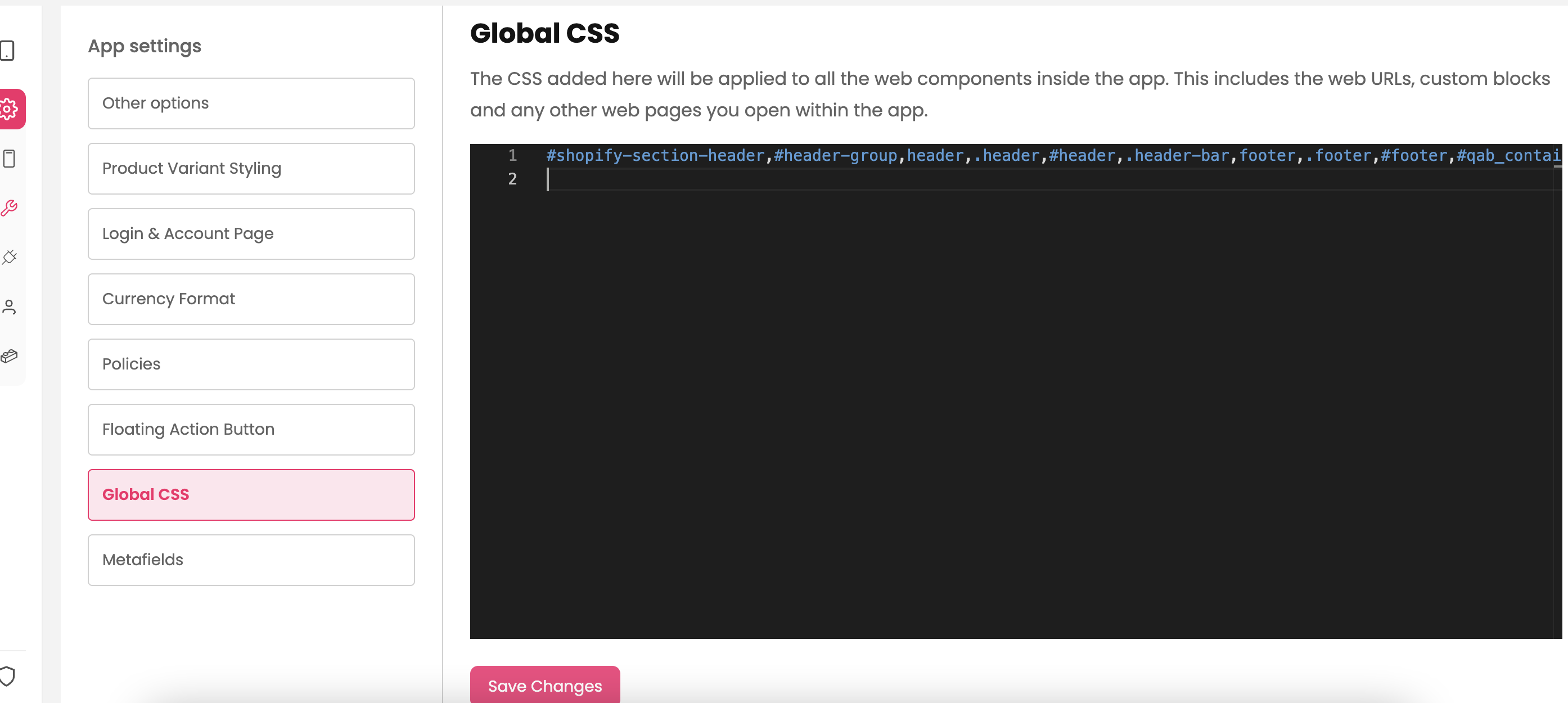
Step 1 : Navigate to App Settings → Global CSS
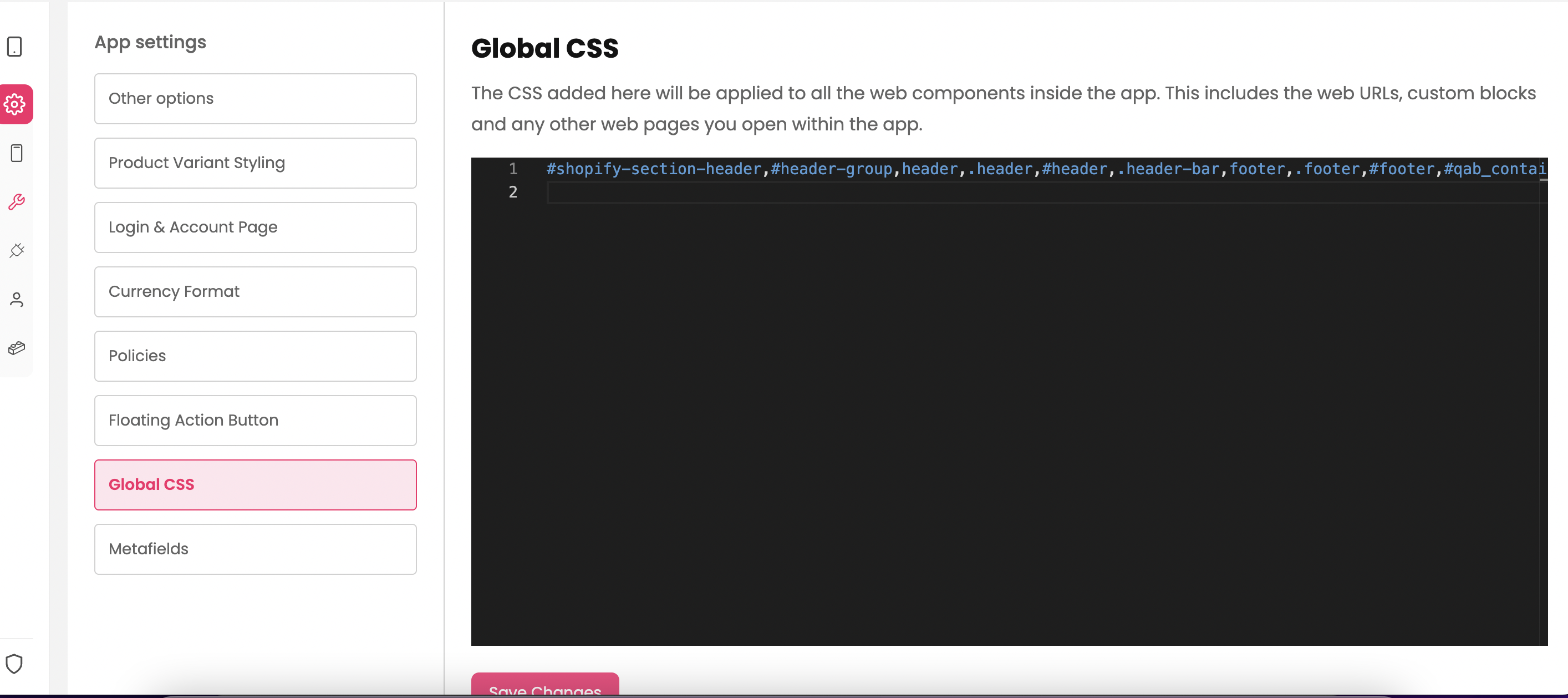
Step 2 : Paste this piece of code (if the block is blank) and click on Save Changes.
Code:
#shopify-section-header,#header-group,header,.header,#header,.header-bar,footer,.footer,#footer,#qab_container,#shopify-section-footer,#fsb_container,#shopify-section-mobile-menu {display: none !important;}