This guide is designed to help you create, manage, and publish your mobile app’s design with ease - no developer dependency, no delays. Whether you’re planning a seasonal campaign, testing a new design, or refreshing your brand, themes make it seamless.
Themes define your app’s visual identity - colors, fonts, layouts, and more.
Creating a new theme:
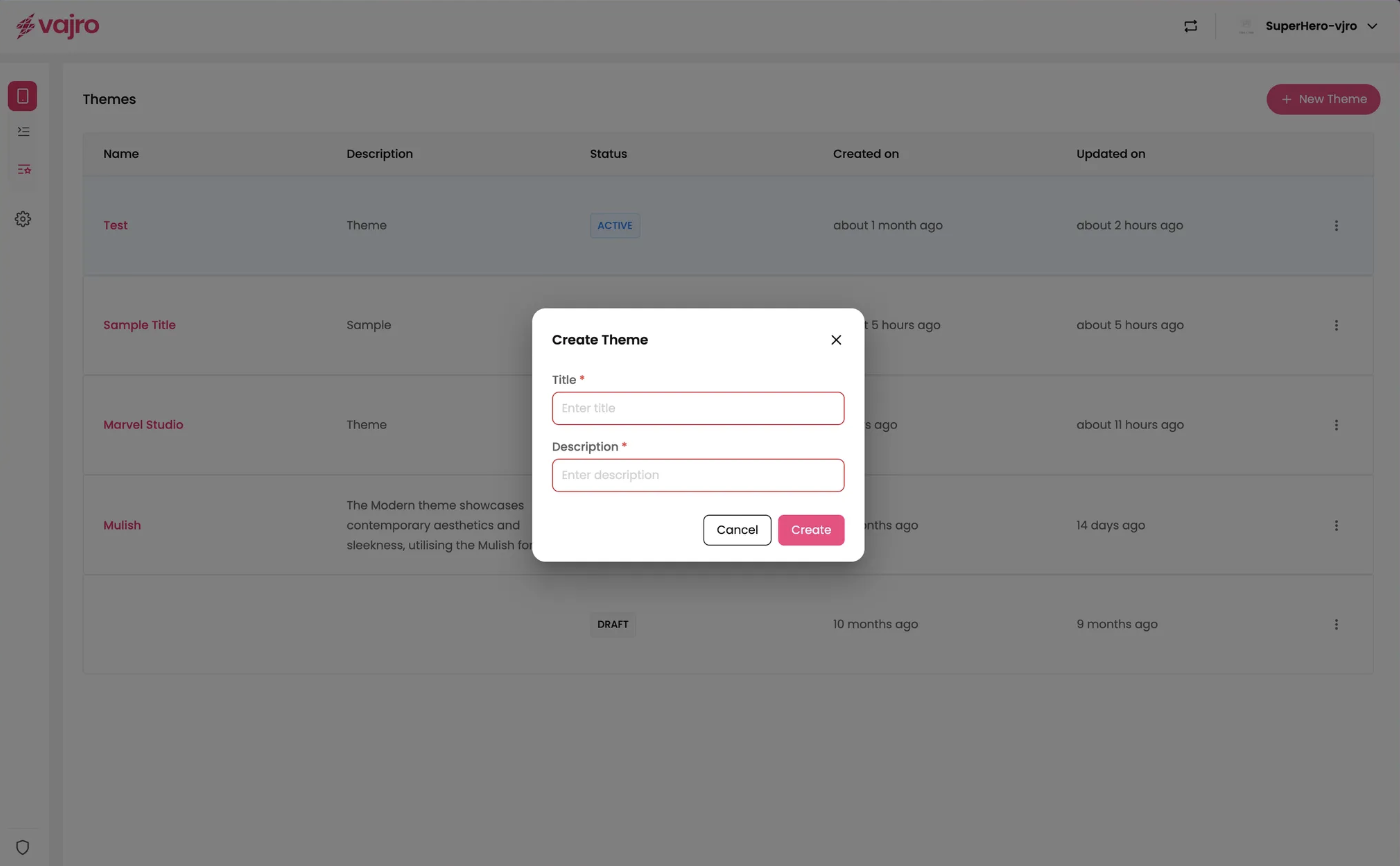
Go to your dashboard.
Click + New Theme (top right).
Enter a Title (e.g.,“Holiday Sale 2025”).
Add a Description (to share context with your team).
Click Create - your new theme will appear as a Draft.
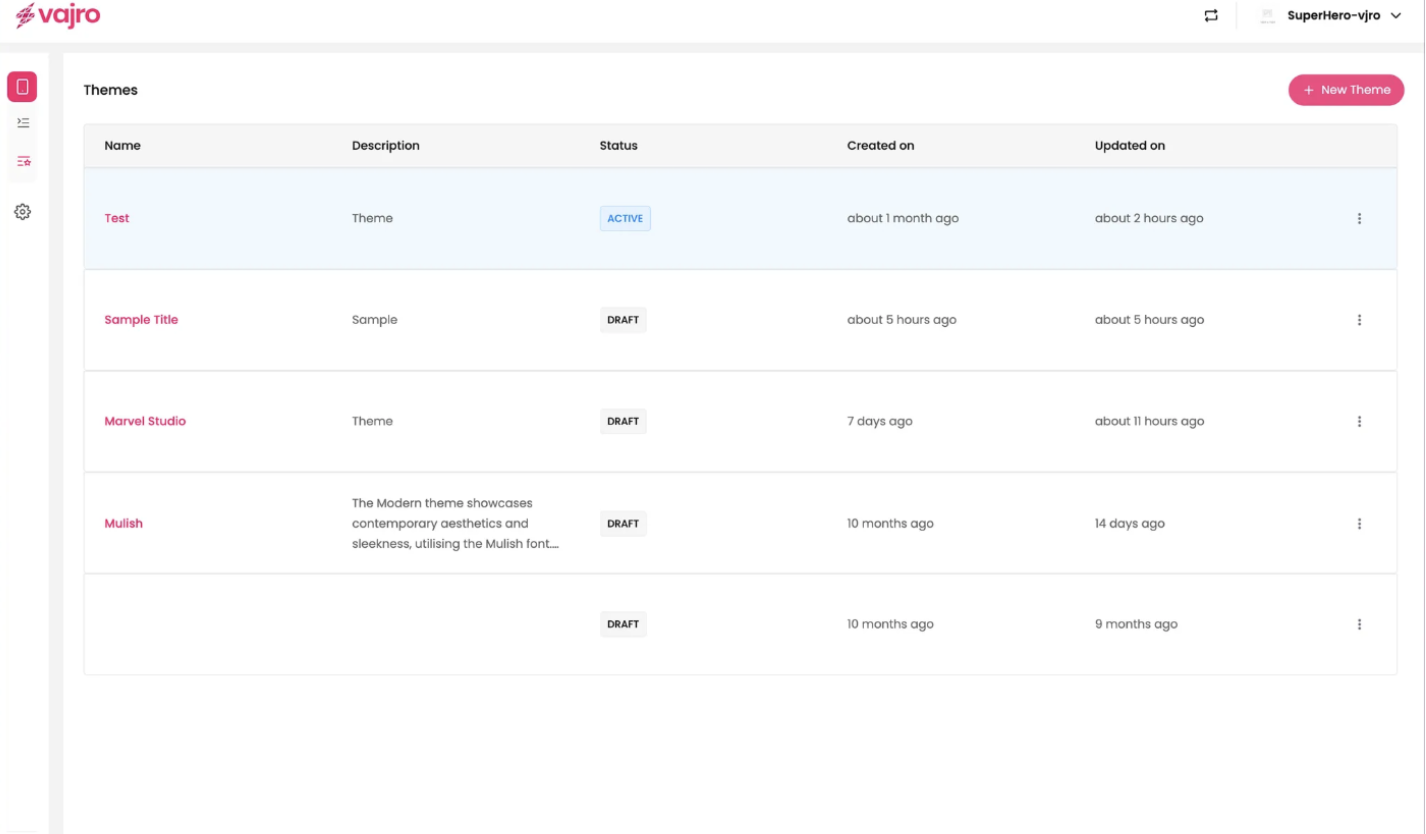
Active Theme
The design your customers currently see.
Only one active theme can be live at any time.
Draft Themes
Safe-to-edit versions that do not impact your live app.
Use drafts to experiment, customize, and preview without risk.

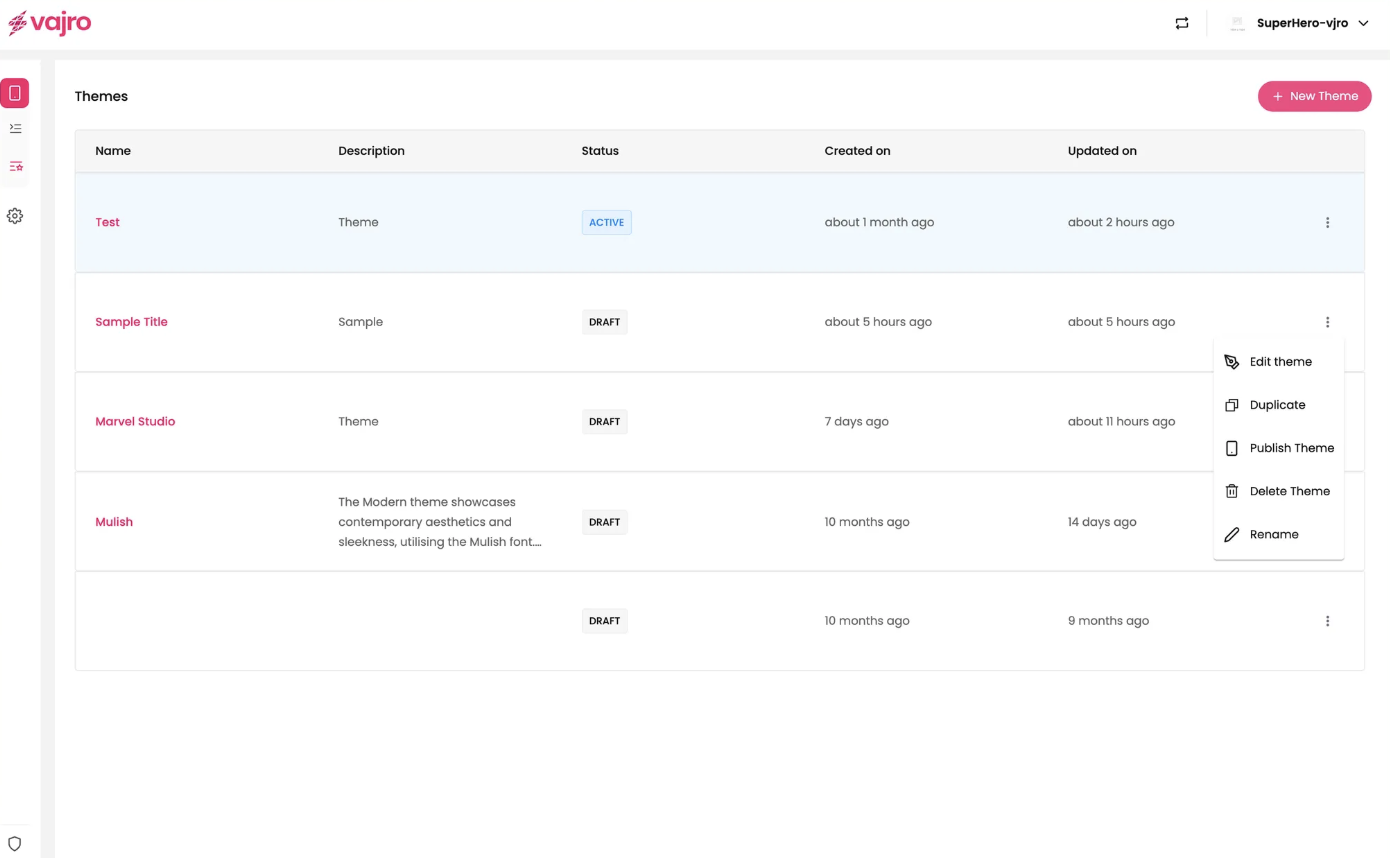
From your Themes dashboard, each theme has a three-dot menu (⋮) with the following options:
Edit Theme -Update colors, fonts, layouts, and images.
Duplicate Theme -Make a copy of any theme for quick experimentation or seasonal campaigns.
Rename Theme - Keep your workspace tidy with meaningful names.
Delete Theme - Remove drafts or unused themes you no longer need.
Best Practice: Always duplicate your active theme before making major edits.
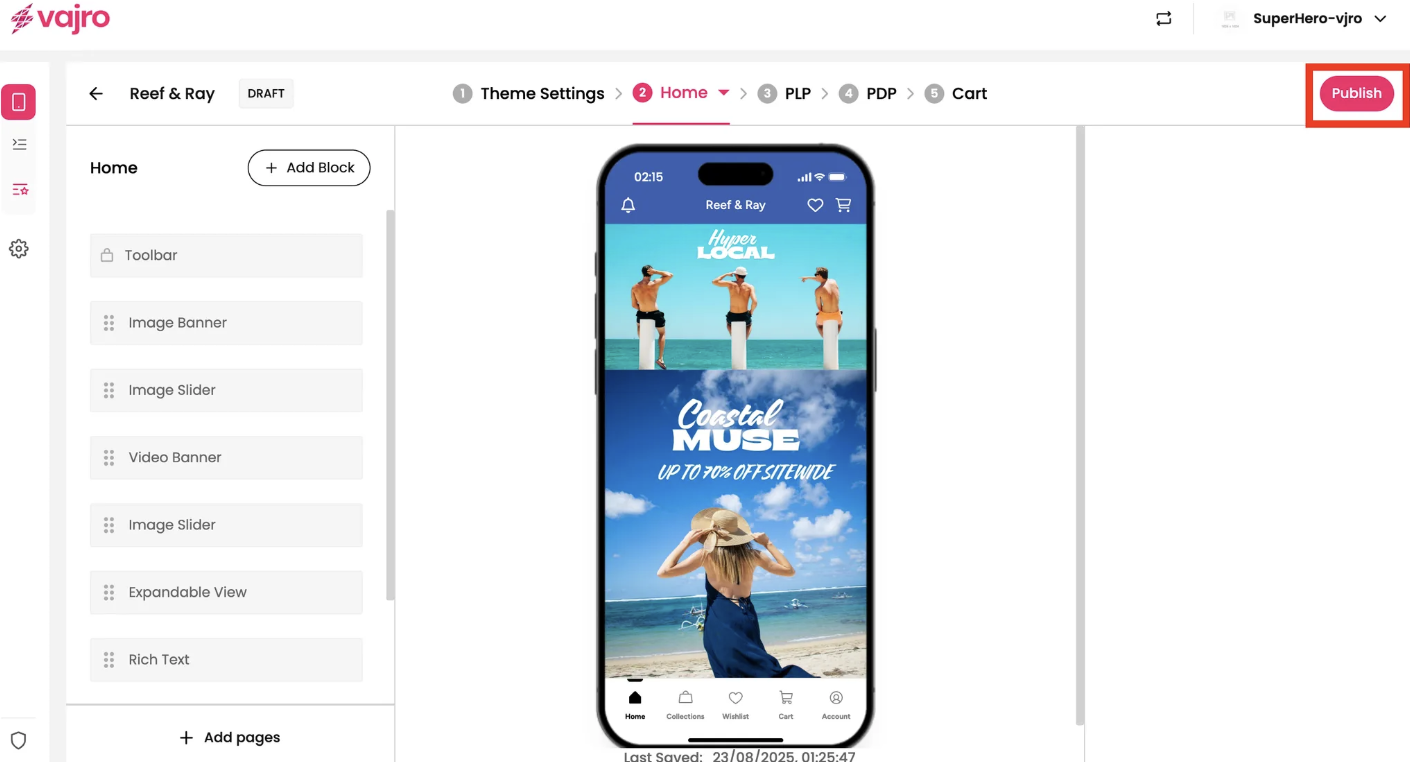
When your draft is ready to go live:
Open the draft theme.
Click Publish Theme.
Your previous active theme will automatically move to Draft, allowing easy rollback.
Maintain one stable active theme during key sales or campaigns.
Use duplicate → edit → publish for seasonal or promotional updates.
Regularly review and clean up drafts to keep your workspace organized.
Can I have multiple active themes?
No . Only one active theme can exist at a time.
Will publishing overwrite my current theme?
No . It moves the old theme to Draft automatically.
Can I preview a draft theme?
Yes . You can preview drafts before publishing.
Can I undo a publish?
Yes . Simply publish the previous theme again.
Can I schedule a theme to go live later?
Yes. This feature is planned for a future rollout.
Will theme changes affect my app data or analytics?
No. Sales data, analytics, and customer information remain unaffected.
Can I restore a deleted theme?
No. Once deleted, a theme cannot be recovered.
Will my customers see changes immediately after publishing?
Yes . Changes are applied instantly once published and they’ll be able to see it once they reopen the app.
Does editing a draft affect my live app?
No. Drafts are completely sandboxed until you publish them.
Can I preview a draft on my live app?
Yes . You can preview without making it public.
Log in to your dashboard.
Click + New Theme to start your first draft.
Customize → Preview → Publish.
Switch between themes anytime - quickly and safely.
Need help? Use the in-app support chat or contact our merchant success team anytime.

